How do I set up a repeating mileage allowance?

 1:56
"How do I set up a repeating mileage reimbursement?"
When a person's themself paying their work related traveling costs, you could set them up with a repeating mileage reimbursement.
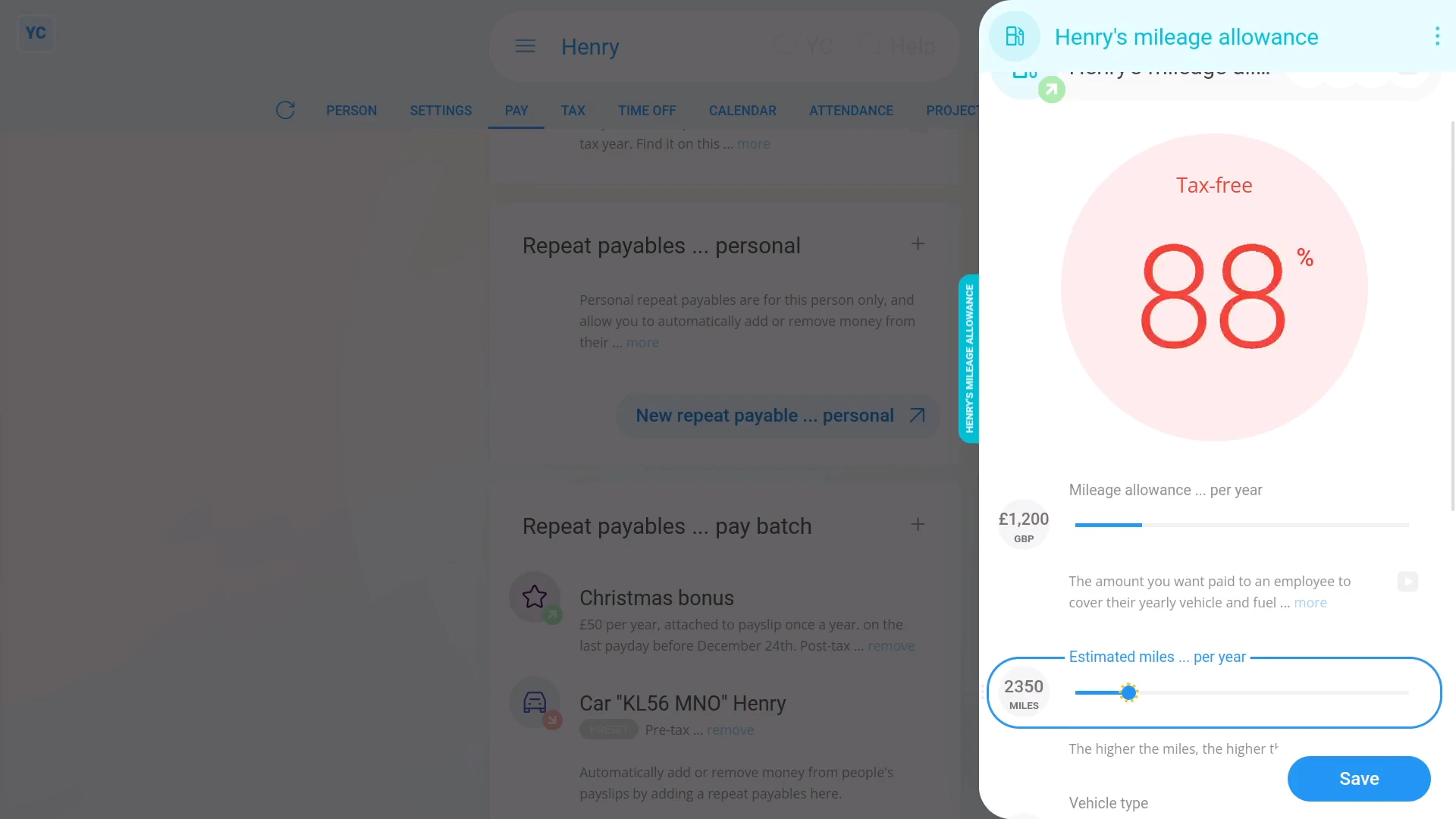
To set up a repeating mileage reimbursement:
- First, select the person who's getting the allowance on: "Menu", then "People"
- Next, go to: "Pay", then "Pay settings"
- And scroll down to the "Repeat payables ... personal" heading.
- Then tap: New repeat payable
- Next, tap: Add to pay
- Then select: Mileage reimbursement
- Start setting "Mileage reimbursement ... per year" by dragging the slider.
- You can also type in a number if you'd like.
- Next, set "Estimated miles ... per year" to an estimate of how many miles the person travels in one year.
- You'll notice as you drag the slider, the big tax-free percent (at the top) changes.
- The higher the miles, the more of the mileage reimbursement is tax-free.
- If you've got a high enough number of miles, the mileage reimbursement becomes 100% tax-free.
- Next, tap: Save
- And the tax-free mileage reimbursement is now added to the person's paystub every payday.
- To see the mileage reimbursement on the person's paystub, tap the "see on paystub" link.
- And you'll now see the mileage reimbursement.
- And finally, if you hover your mouse over the mileage reimbursement amount, you'll see a breakdown of the calculation.

To learn more:
- About deleting or un-deleting a repeat payable, watch the video on: Deleting a repeat payable
 Deleting a repeat payable
And that's it! That's all you need to do, to set up a repeating mileage reimbursement!
www.1st.money/help/Expenses/Cat._E._Mileage_allowance/How_do_I_set_up_a_repeating_mileage_allowance