1. How do I set up a company vehicle benefit for private use?

 4:20
"How do I set up a company vehicle benefit for personal use?"
When a company vehicle is used for personal purposes, add it to the person's pay as a company vehicle benefit.
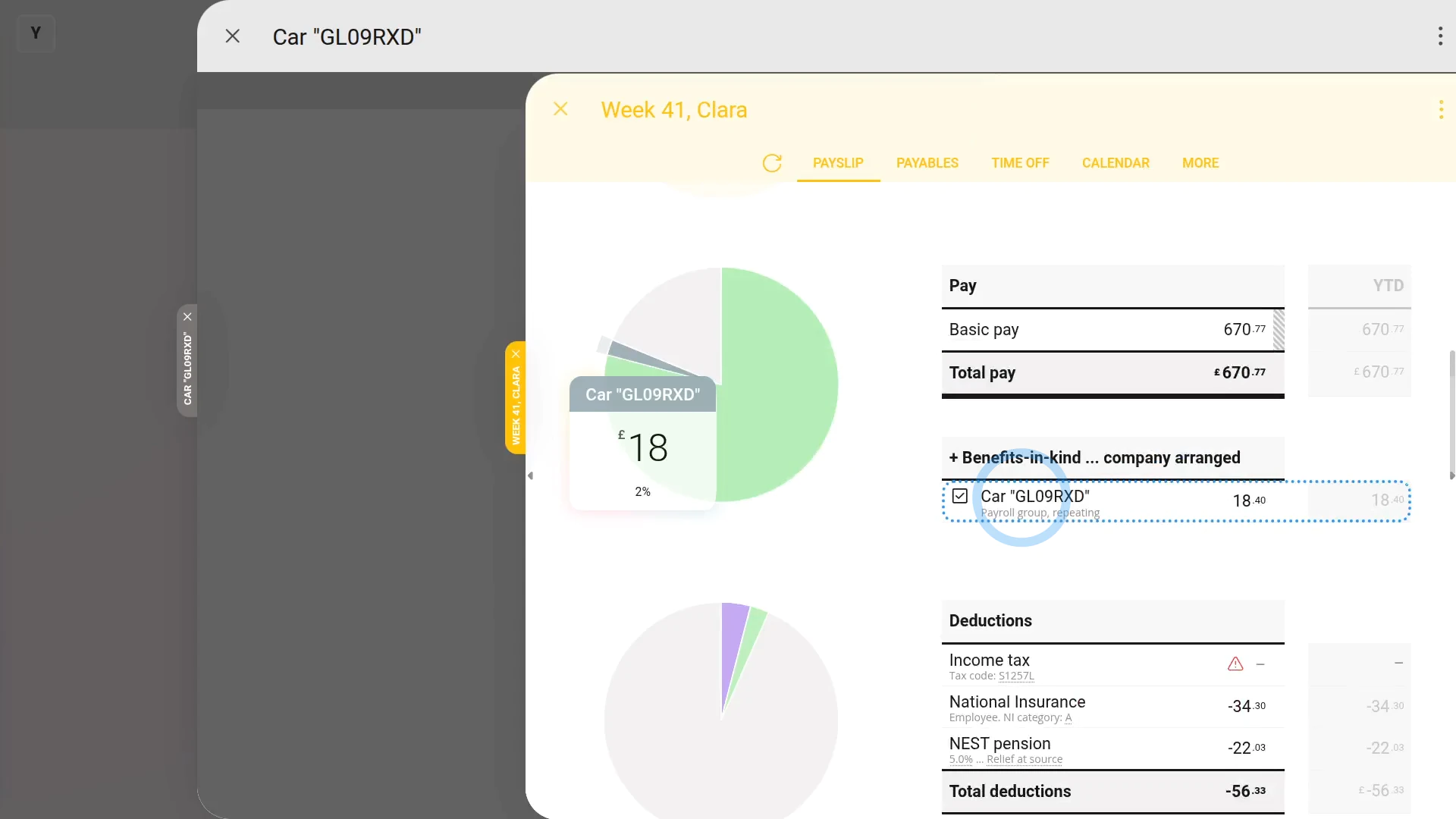
To add a repeating company vehicle benefit to a person's pay:
- First, select the payroll group of the people using the company vehicle, on: "Menu", then "Payroll groups"
- To make a new repeat payable, tap: "Pay", then "Repeat payables"
- Then tap: "New repeat payable"
- Next, tap: Add to pay
- And select: Company vehicle ... personal use
- If the vehicle is a van, then tap Vehicle type, and select: Van
- Next, enter the vehicle's: "Make and model"
- Next, type in your vehicle's: "License plate"
- Then enter the vehicle's: "Purchase + accessories price"
- And: "Date first registered"
- Next, select the: "Fuel type"
- If the vehicle's hybrid or electric, enter the: "Electric max. range"
- If you know your vehicle's "CO2 emissions", enter it.
- Otherwise, to look it up, tap the "Lookup CO2 emissions" link.
- On the GOV.UK site, type in your vehicle's license plate, then tap Continue, then Yes, then Continue again.
- Scroll down, and copy the "CO2 emissions" number.
- Then back in 1st Money, type it in.
- Next, to add the people who'll be using the vehicle, scroll down and tap: "Add people"
- And select the people to add. Multiple people can be added.
- Then tap Save, and the vehicle benefit is shared with the selected people, as a percentage each.
- To see a vehicle benefit on a person's paystub, tap the vehicle benefit again.
- And scroll down to the people section.
- Then hover your mouse over the person, and tap the "See on paystub" link.
- And you'll see the vehicle benefit showing under: "Fringe benefits ... company arranged"
- And finally, if you hover your mouse over the benefit amount, you'll see a breakdown of the calculation.
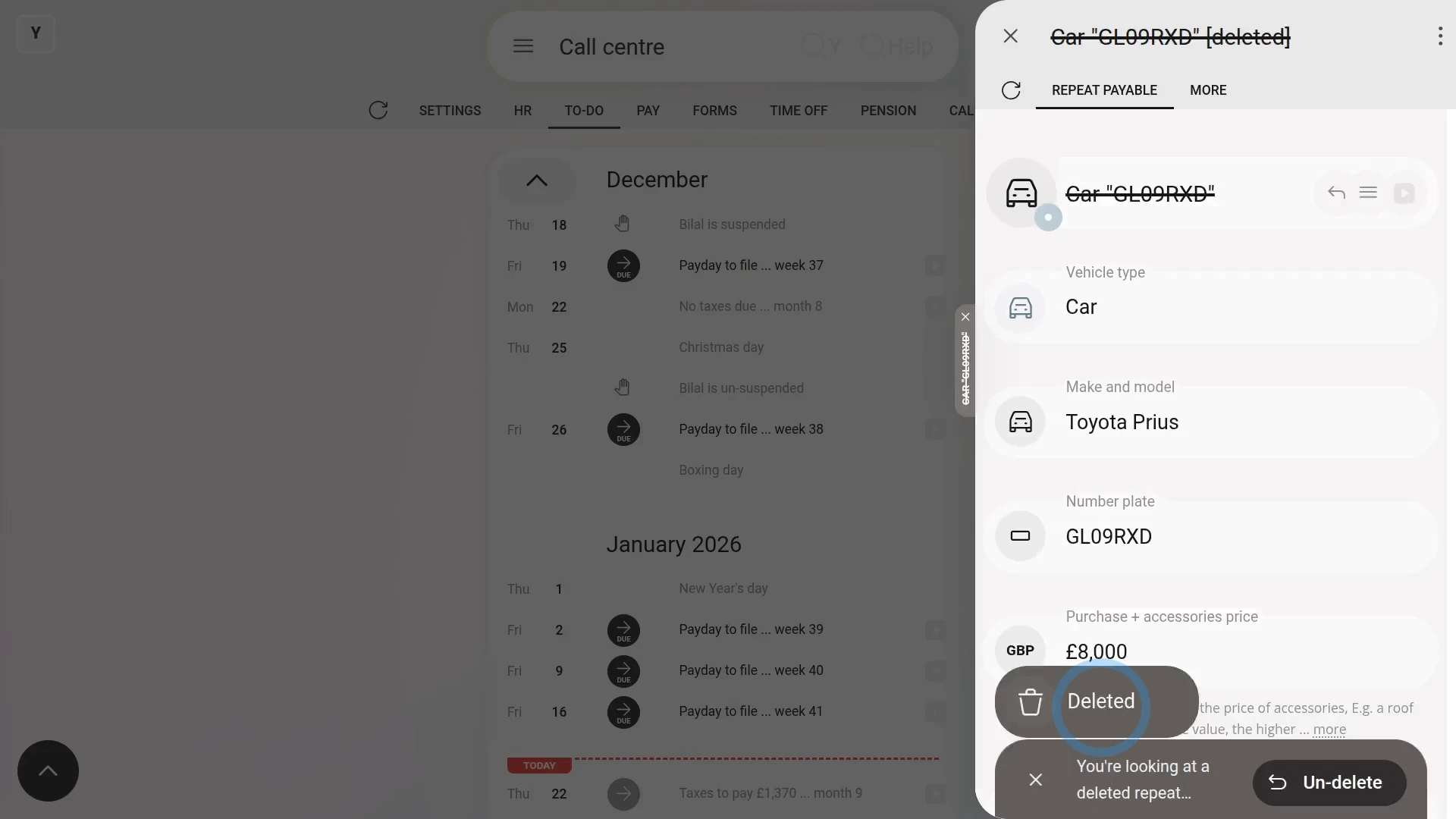
To delete a repeating company vehicle benefit:
- First, to find the vehicle benefit you want to delete, tap: "Menu", then "Payroll groups"
- Then: "Pay", then "Repeat payables"
- And tap the one you'd like to delete.
- Then once the vehicle benefit's open, tap More, then: Delete
- And then tap: Yes ... delete
- Now, the repeating company vehicle benefit is deleted, including removing it from any people's un-filed paystubs.
- So, from now on, for any paystub that's yet to be filed and paid, the vehicle benefit never shows up again.
- And finally, for any paystub that's already filed and paid, all previous vehicle benefit payments remain on the paystub unaffected.

Keep in mind that:
- A "Fringe benefit" increases the person's taxable pay, and doesn't increase the person's in-the-hand pay.
- Also, a new vehicle benefit shows up on each person's next un-filed paystub.
- And it won't affect any of their previously filed paystubs.
- Also, for both when you create or delete a repeating company vehicle benefit, 1st Money automatically notifies HMRC on the person's next FPS submission.
To learn more:
- About when an employer pays for personal-use gas costs, watch the video on: Personal-use gas
- To learn more about sharing a company vehicle between people, watch the video on: Sharing a vehicle
- And to learn more about deleting or un-deleting a repeat payable, watch the video on: Deleting a repeat payable
 Personal-use gas
And that's it! That's everything you need to know about setting up a company vehicle benefit!
www.1st.money/help/Expenses/Cat._F-G._Cars_and_vans,_and_car_and_van_fuel/1._How_do_I_set_up_a_company_vehicle_benefit_for_private_use