6. How do I understand added vs deducted on repeat payables?
 1:56
"How do I understand added vs deducted on repeat payables?"
The repeat payable's "added" vs "deducted" options let you control how much a person gets paid every payday, on top of their salary.
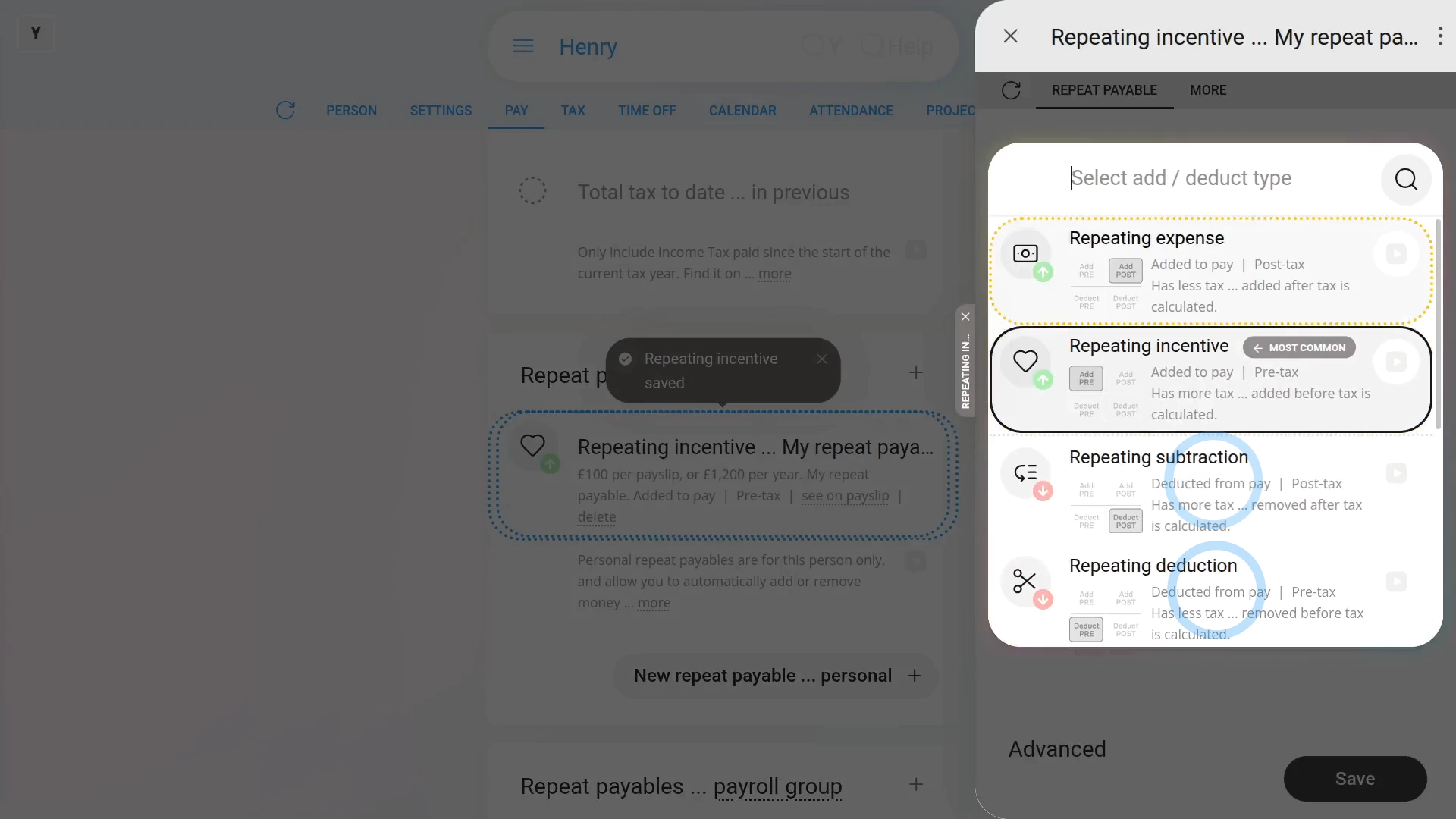
To see a repeat payable's "added" vs "deducted" options:
- First, open: "Menu", then "People"
- And then go to: "Pay", then "Pay settings"
- And scroll down to the "Repeat payables ... personal" heading.
- Then tap: New repeat payable
- Next, tap: Add to pay
- And select the type.
- Then decide from the repeating incentive suggestions, or tap "type directly" (at the top) to type in your own short description of the repeating incentive.
- And type in the value of the repeating incentive.
- Next, select the time frame: "Amount type"
- Then tap the "Added to pay" link.
- Now you can select between "Added to pay" vs: "Deducted from pay"
- If you select "Added to pay" an amount is added to the person's pay.
- Select "Added to pay" if you're setting up a repeating bonus, or a regularly scheduled payment.
- Once selected, you'll notice a green up arrow (at the top) to remind you that you're adding to their pay.
- If you select "Deducted from pay" an amount is deducted from the person's pay.
- Select "Deducted from pay" if you're removing an amount every payday, perhaps for paying back an advance.
- And finally, once selected, you'll notice a down arrow (at the top) to remind you that you're taking money off their pay.
And that's it! That's everything you need to know about a repeat payable's "added" vs "deducted" options!
5. How do I set how often a repeat payable's addedHow's a Christmas bonus or other yearly repeat payable set
www.1st.money/help/Expenses/Repeat_payables/6._How_do_I_understand_added_vs_deducted_on_repeat_payables