How do I change the default docs for leave and disciplinary actions?
 4:04
"How do I change the default docs for leave and disciplinary actions?"
When you finish processing a person's leave, disciplinary action, termination, or resignation, the last step is to send the person a doc. By default, the suggested doc is a template prepared by 1st Money. If the default doc isn't perfect for your needs, you can clone it, add your changes. Then set your newly cloned doc as the new default doc.
To clone a leave or disciplinary action doc, add your changes, and then set your newly cloned doc as a new default for a payroll group:
- First, to clone a leave or disciplinary action doc:
Select the payroll group on: "Menu", then "Payroll groups" - Then tap: "HR", then "Docs ... disciplinary action, terminate, resign"
- Scroll down and select the disciplinary action type from all those listed on the page.
- Then tap the "View" button:
- Once it slides out from the right, check it's the doc you want to clone, then tap: Clone (at the top)
- You've now got an exact duplicate of the original doc. The only difference is that the color and image have been reset to the default.
- To add your changes to your cloned doc:
Start by setting the color and image to what you want. - Then type in your other changes in the editor.
- You can add as many changes as you'd like.
- And when you're done adding your changes, tap Save, and then: Close
- To set your newly cloned doc as the leave or disciplinary action default:
Tap your selected disciplinary action type, and you'll see your newly cloned doc in the list. - You'll know which is your clone because it's got the color and image you set.
- Tap it, to select it, and then tap: Save
- To send your newly cloned doc in a person's leave or disciplinary action:
Select the person who's getting the leave or disciplinary action on: "Menu", then "People" - Then tap: "HR", then "Resign"
- And select the disciplinary action type.
- Then tap: "Yes" to all the above
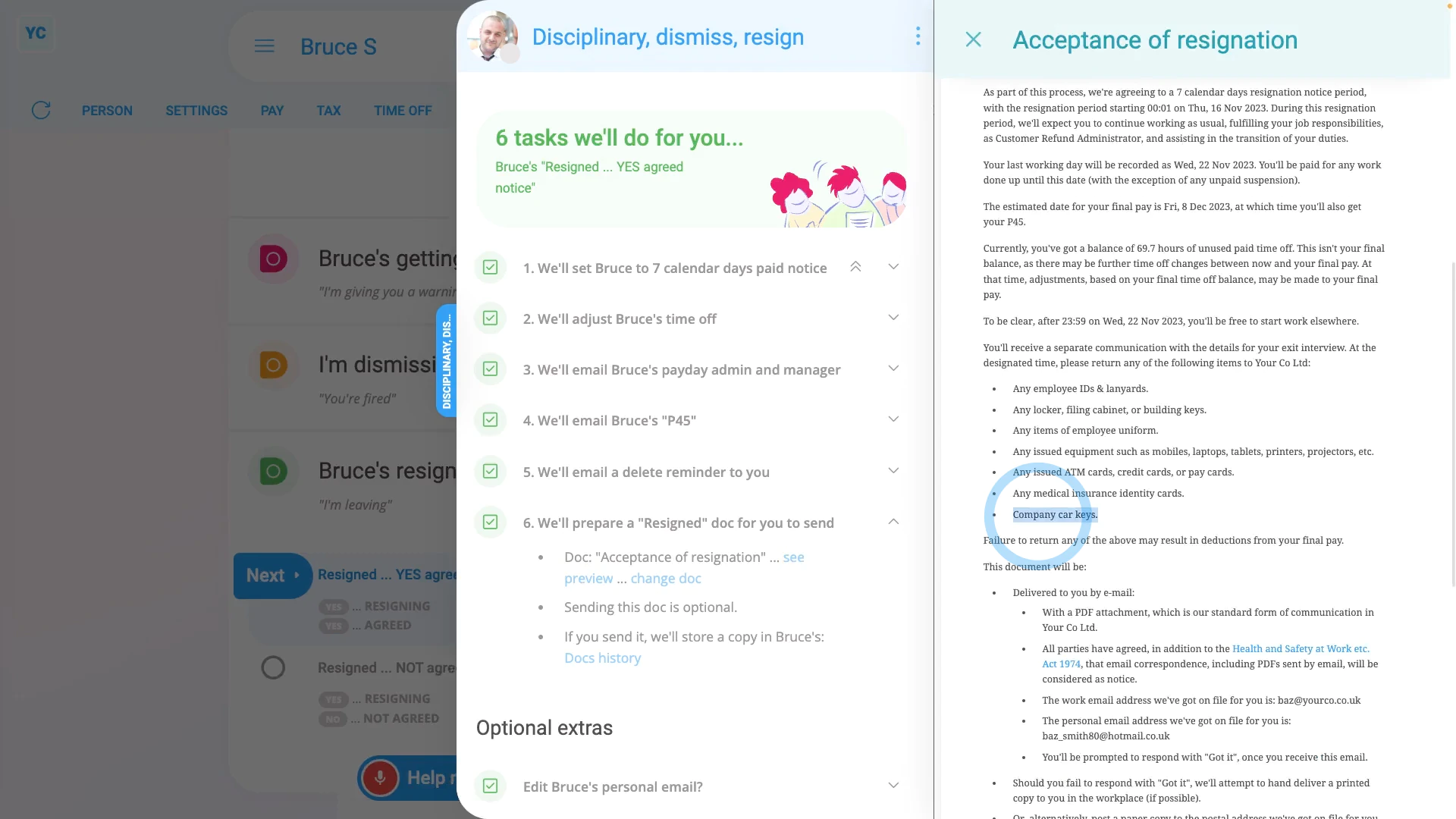
- Next, expand the task that talks about: "doc for you to send"
- And when you tap the "see doc" link, you'll see your newly cloned doc with the changes you typed in.
- And finally, you can tap Continue to finish the disciplinary action, and send your cloned doc.

Keep in mind that:
- Changes to default docs work equally well for termination, resignation, and leave docs as well.
You may notice:
- If you've got more than one payroll group, you'll need to set the default doc on each payroll group.
- If your newly set default doc isn't showing up when you're doing a person's leave or disciplinary action, check which payroll group the person's in.
- Then check that you've set the default doc for that payroll group.
For advanced usage:
- Your company may have its own process for sending written notice. If so, you may prefer to not send any doc at all.
To learn more:
- About permanently turning off leave or disciplinary action docs, watch the video on: Turning off leave & disciplinary action docs
 Turning off leave & disciplinary action docs
If a feature's not showing:
- If the "HR" menu isn't showing, it means your org hasn't turned on the docs feature yet.
- To turn on the docs feature, watch the video on: Turning on HR Docs
And that's it! That's everything you need to know about changing default docs for leave or disciplinary actions!
www.1st.money/help/Offboarding/How_do_I_change_the_default_docs_for_leave_and_disciplinary_actions