What are payroll group onboarding docs, and how do I use them?
 4:36
"What are payroll group onboarding docs, and how do I use them?"
"Payroll group onboarding docs" is one of the ways to add docs to a new hire's onboarding queue.
The queued onboarding docs are then shown, one-by-one, to every new hire, once the new hire's joined your org, and is working towards being 100% onboarded.
To queue and send a payroll group's onboarding docs:
- First, select the payroll group on: "Menu", then "Payroll groups"
- Then tap: "HR", then "Docs ... payroll group onboarding"
- By default, there's already some onboarding docs pre-selected for you.
- To add or remove some of the onboarding docs, tap Add docs and you'll see a list of the docs slide out on the right.
- To see what's written in an onboarding doc, hover your mouse over the doc's circle.
- To see a full preview of a doc, tap the "View" button: (that shows when you hover)
- To remove all the pre-selected onboarding docs, tap: Remove all
- Then to add some back, tap the onboarding docs on the left side.
- And once you're ready, tap: Save
- And you'll see a listing of your added docs.
- Now, to see the updated onboarding status of the payroll group's people, tap: "Settings", then "Payroll group settings"
- Then scroll down to the list of the payroll group's people.
- You'll notice that their admin onboarding percent is no longer 100%.
- It's no longer 100% because you've added new onboarding docs to the payroll group, but the people haven't had an admin send their new docs yet.
- To go to a person's onboarding list, and send their new onboarding docs now, tap the percentage.
- Then scroll to the bottom and tap: Continue onboarding
- Each of the new onboarding docs are listed with a blue switch , meaning it's queued to be sent.
- To start the sending process, tap Next, and then: Send
- However, because there's multiple new docs, you may prefer to tap Turn on ... auto-send, and then: Start auto-send
- And now, once all the new onboarding docs are sent for the person, tap: Close
- And you'll see that the person's now 100% admin onboarded. Or, in other words, as an admin you've done all of that person's onboarding tasks.
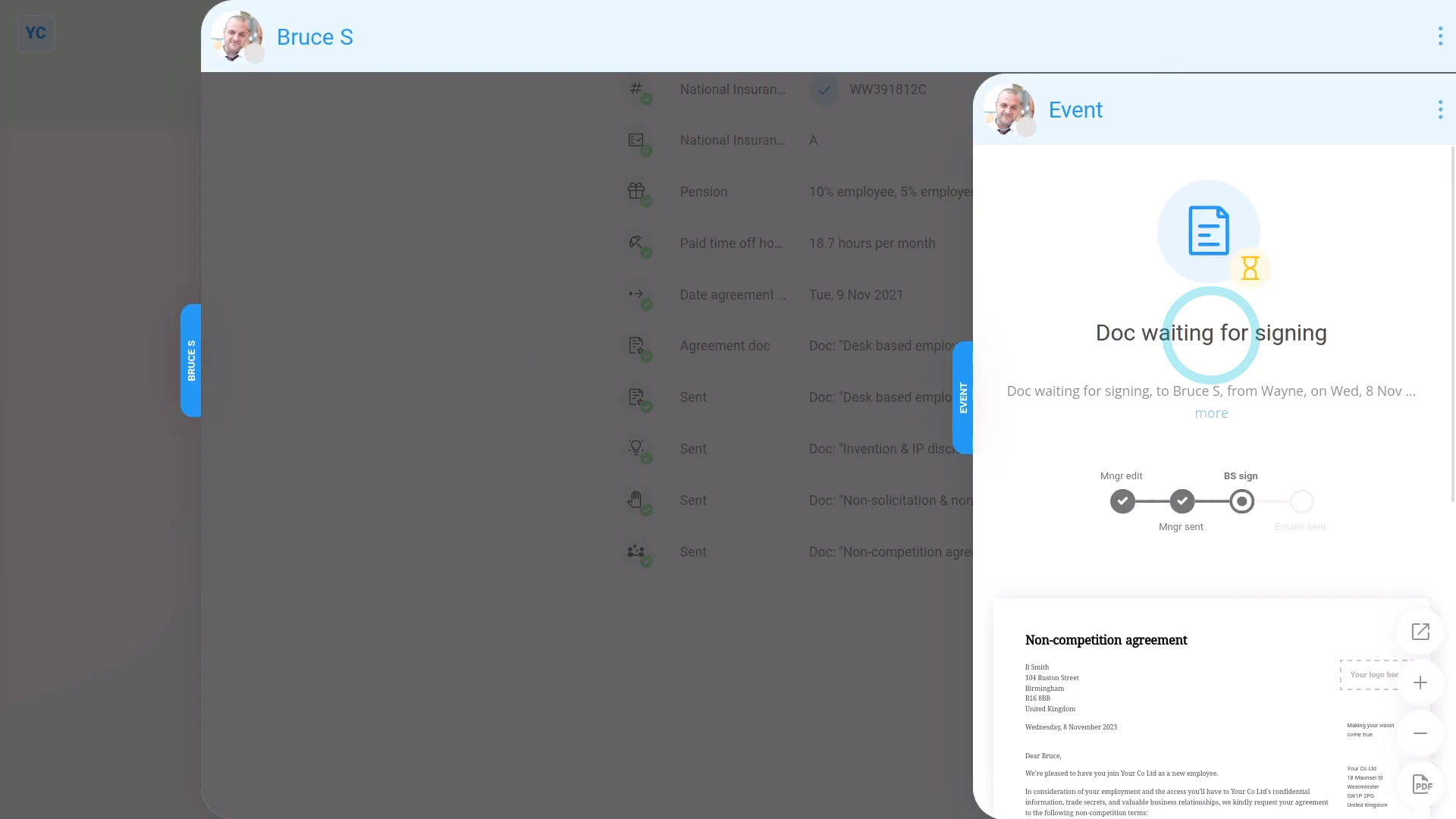
- And when you tap and expand the onboarding percent, and scroll to the bottom, you'll see all the docs have been: "Sent"
- And then when you tap one, you'll see that the doc's status is still "Doc waiting for signing" by the person.
- And finally, the next time the person uses 1st Money, the person's automatically prompted to read and sign their new onboarding docs.

Keep in mind that:
- Some docs require the person to add their signature, while other docs require the person to read it, and then mark it as: "Got it"
- Also, as soon as you've added the payroll group's onboarding docs, the docs are then automatically queued.
- In particular, the docs are queued for each person in the selected payroll group.
- The docs are also later queued for any new person that's added to the payroll group, at any time in the future.
You may notice:
- That the set of docs that's in your payroll group by default is 1st Money's recommended set of onboarding docs.
- The default onboarding docs could suit the onboarding needs of most employers.
For advanced usage:
- The other onboarding docs, that're listed as available, but you'd still need to turn on, depending on your needs, include.
- An: "Invention & IP disclosure agreement"
- A: "Non-competition agreement"
- And a: "Non-solicitation & non-dealing agreement"
To learn more:
- About the other kind of onboarding doc queuing, watch the video on: Job grade onboarding docs
 Job grade onboarding docs
If a feature's not showing:
- If the "HR" menu isn't showing, it means your org hasn't turned on the docs feature yet.
- To turn on the docs feature, watch the video on: Turning on HR Docs
And that's it! That's everything you need to know about setting and sending a payroll group's onboarding docs!
www.1st.money/help/Onboarding/What_are_payroll_group_onboarding_docs,_and_how_do_I_use_them