3. How do I set which dates each pay period starts and ends on?
 5:40
"How do I set which dates each pay period starts and ends on?"
Regardless of how often you pay your people, you'll need to set which days the pay period is to start and end on. Including for pay periods that're: weekly, bi-weekly, semi-monthly, four-weekly, and monthly.
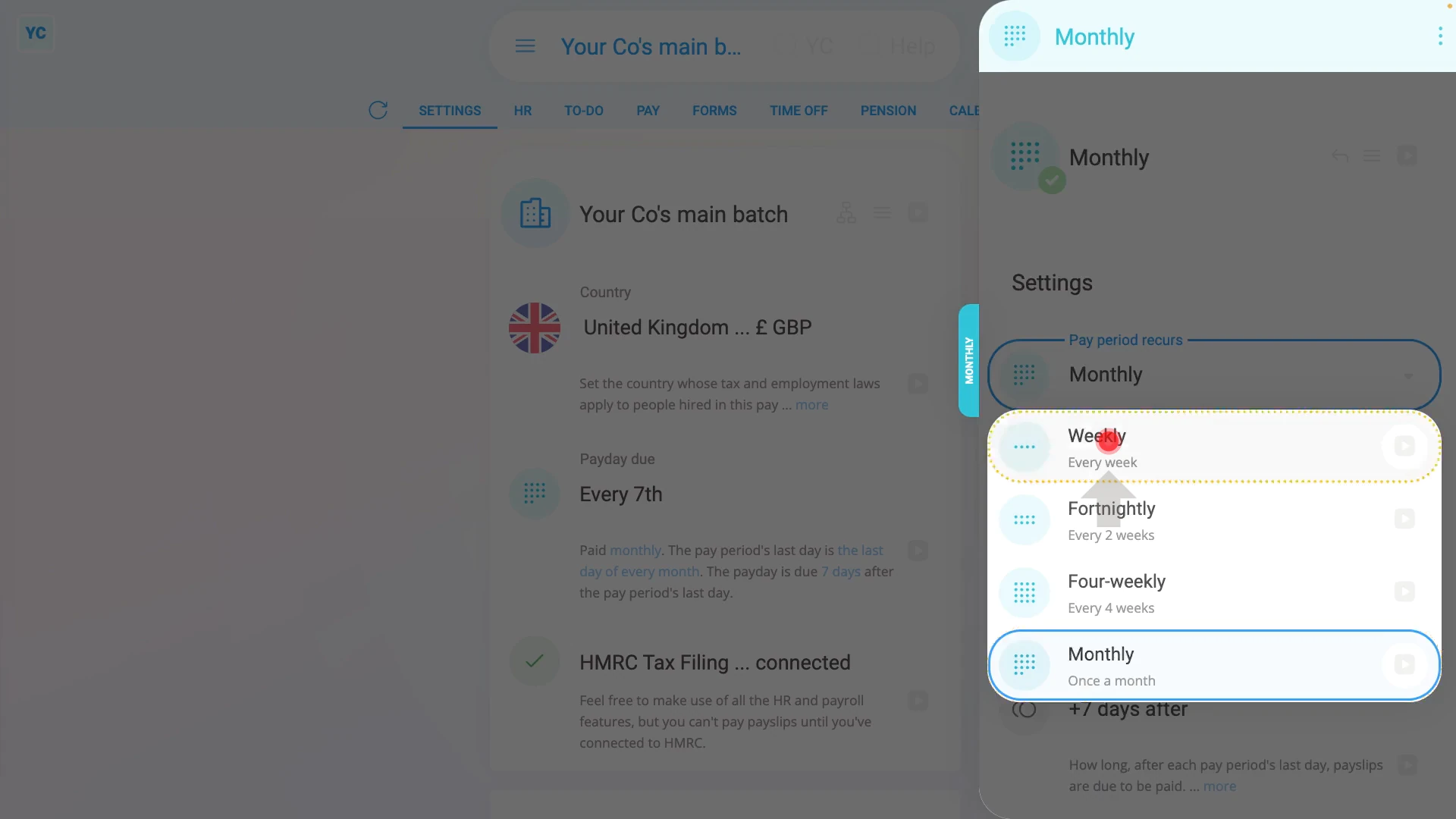
To set which day of a week, a weekly pay period is to end:
- First, select the payroll group on: "Menu", then "Payroll groups"
- Then on the "Settings", then "Payroll group settings" tab, tap: "Payday schedule"
- Once it slides out on the right, tap: "Pay period"
- And select: "Weekly"
- By default, the "Weekly" pay period is set with "Every Friday" as the: "Pay period's last day"
- Tap "Pay period's last day" and set it to the day of the week you'd like your weekly pay periods to end on.
- Then tap: Save
- And finally, you'll see that the pay periods are now weekly, and end on the day you selected.
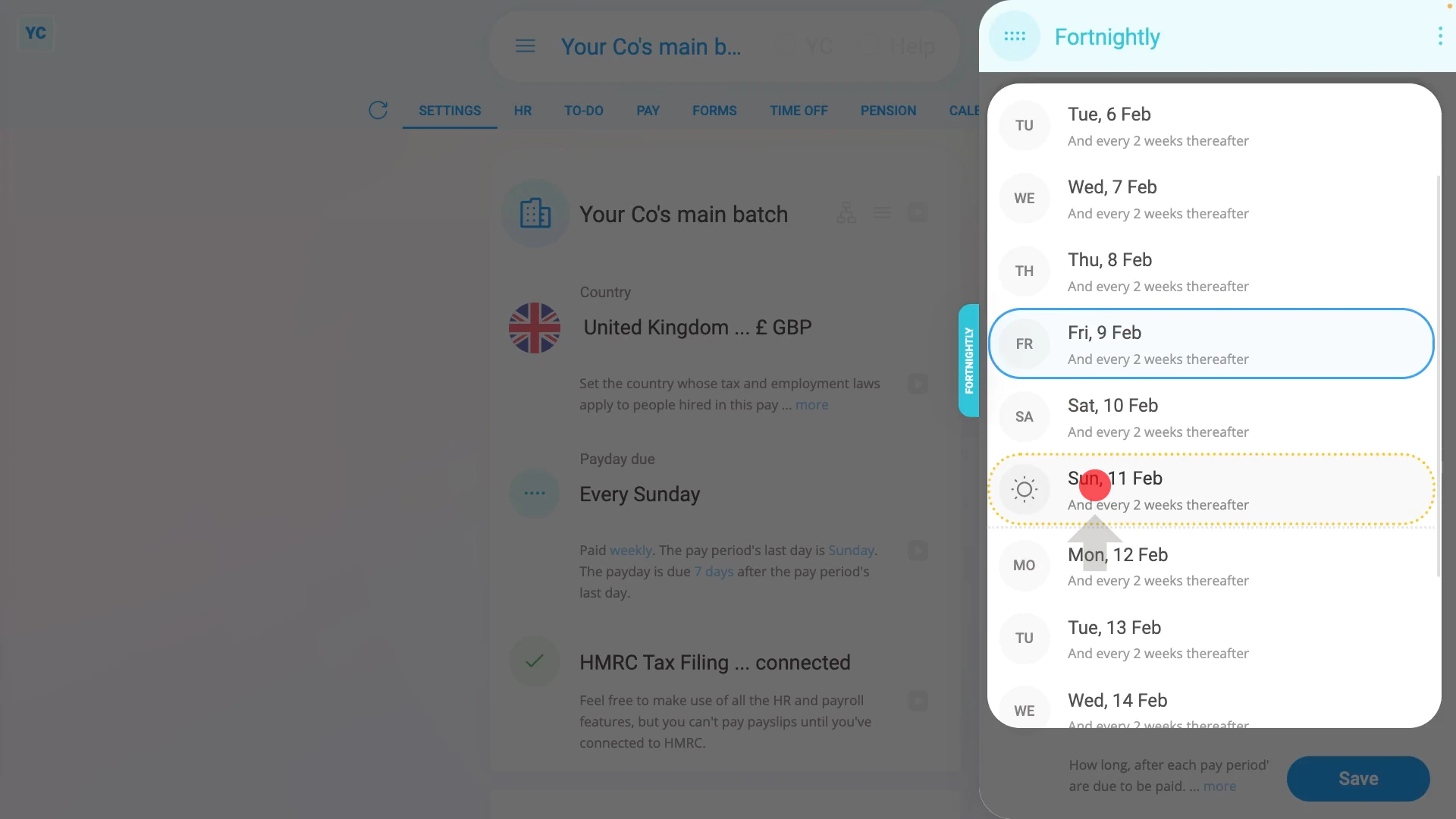
To set which day a bi-weekly pay period is to end:
- First, select the payroll group on: "Menu", then "Payroll groups"
- Then on the "Settings", then "Payroll group settings" tab, tap: "Payday schedule"
- Once it slides out on the right, tap: "Pay period"
- And select: "Bi-weekly"
- By default, the "Bi-weekly" pay period is set with a "Friday" as the: "Pay period's last day"
- Tap "Pay period's last day" and set it to the day you'd like your next bi-weekly pay period to end on, repeating every two weeks thereafter.
- Then tap: Save
- And finally, you'll see that the pay periods are now bi-weekly, and repeat every two weeks from the day you selected.
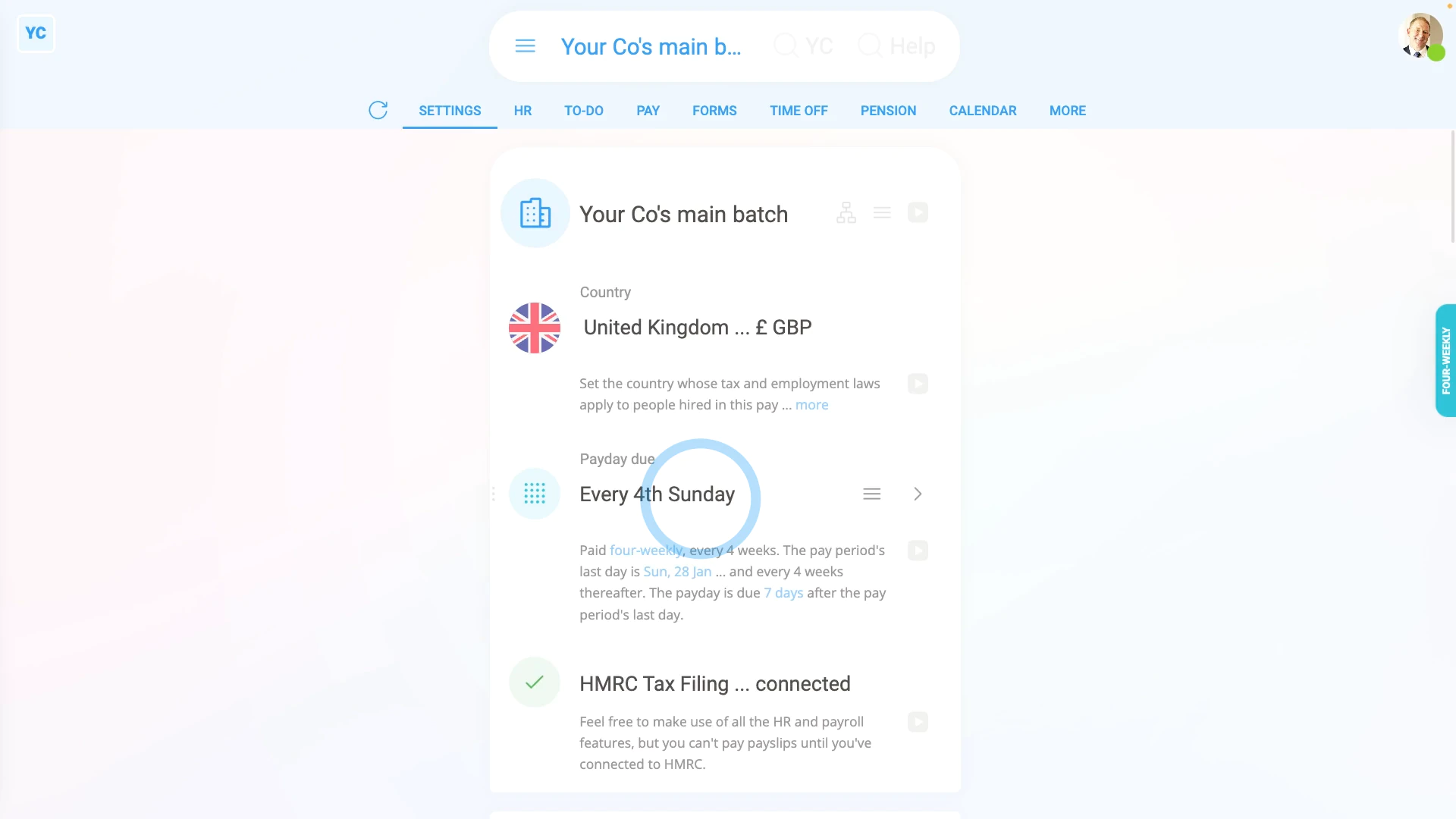
To set which day a four-weekly pay period is to end:
- First, select the payroll group on: "Menu", then "Payroll groups"
- Then on the "Settings", then "Payroll group settings" tab, tap: "Payday schedule"
- Once it slides out on the right, tap: "Pay period"
- And select: "Four-weekly"
- By default, the "Four-weekly" pay period is set with a "Friday" as the: "Pay period's last day"
- Tap "Pay period's last day" and set it to the day of the week you'd like your next four-weekly pay period to end on, repeating every four weeks thereafter.
- Then tap: Save
- And finally, you'll see that the pay periods are now four-weekly, and end on the day you selected.
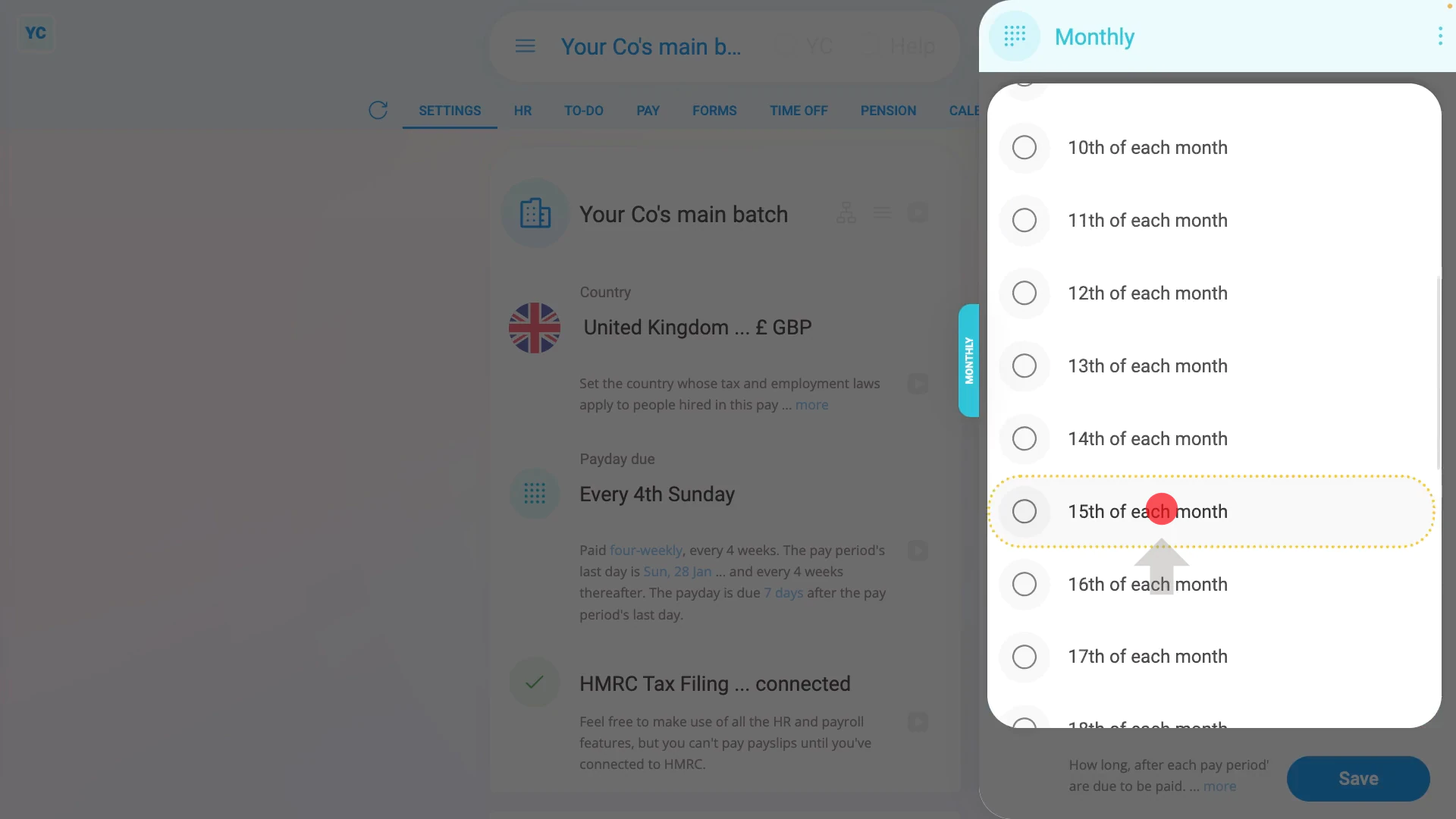
To set which date in a month, a monthly pay period is to end:
- First, select the payroll group on: "Menu", then "Payroll groups"
- Then on the "Settings", then "Payroll group settings" tab, tap: "Payday schedule"
- Once it slides out on the right, tap: "Pay period"
- And select: "Monthly"
- By default, the "Monthly" pay period is set with the "Last day of each month" as the: "Pay period's last day"
- Tap "Pay period's last day" and set it to the date of the month you'd like your next monthly pay period to end on.
- Then tap: Save
- And finally, you'll see that the pay periods are now monthly, and end on the date you selected.
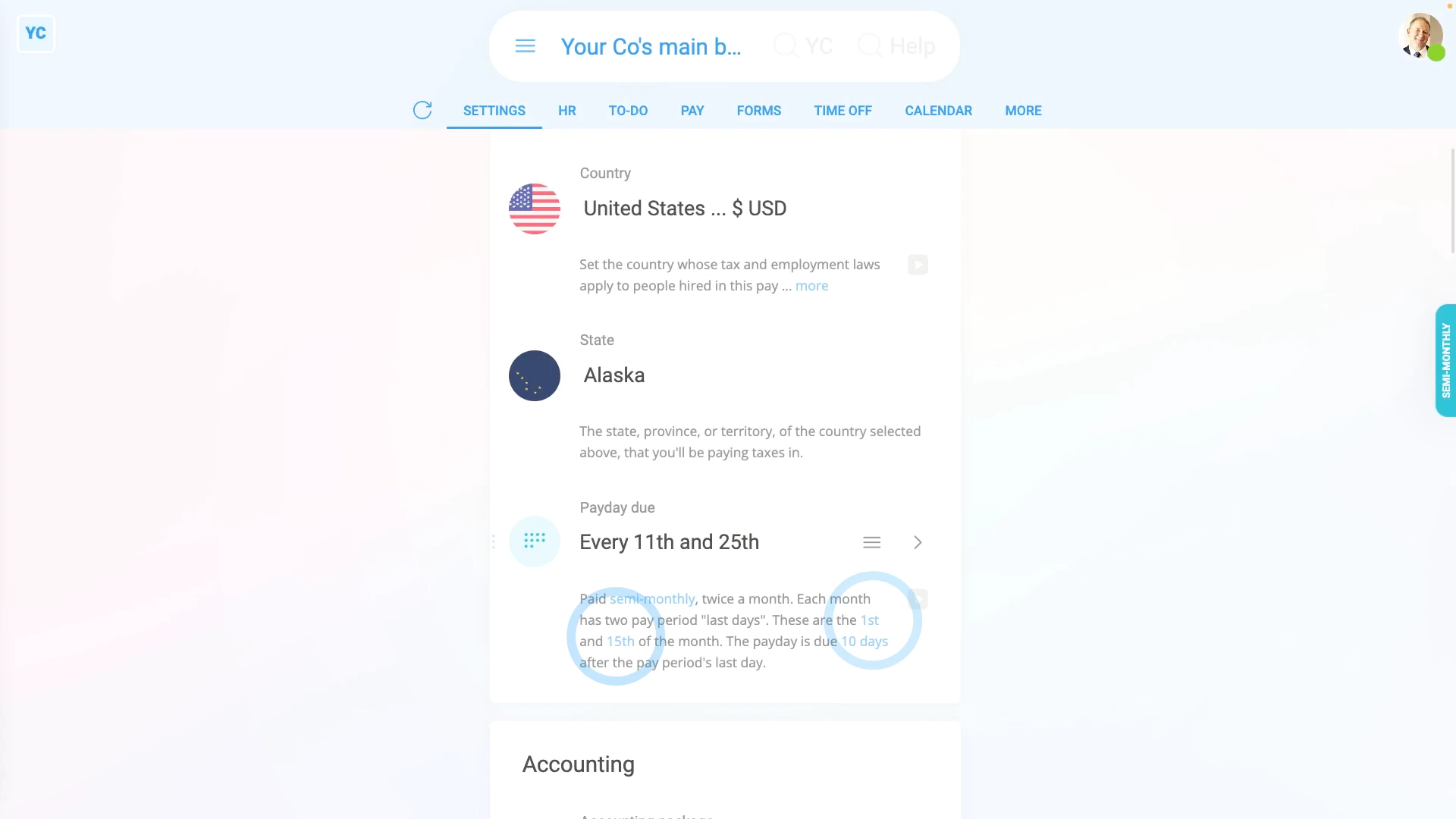
To set which days a semi-monthly pay period is to end:
- First, select the payroll group on: "Menu", then "Payroll groups"
- Then on the "Settings", then "Payroll group settings" tab, change the country to "United States", and tap: "Payday schedule"
- Once it slides out on the right, tap: "Pay period"
- And select: "Semi-monthly"
- By default, the "Semi-monthly" pay period is set with the "15th" and "Last" days of the month as the: "Pay period's last day"
- Tap and set the "Pay period's last day" to the two dates you'd like your semi-monthly pay periods to end on.
- Then tap: Save
- And finally, you'll see that the pay periods are now semi-monthly, and with the two dates you selected set as the pay period end dates.

You may notice:
- That sometimes, some of the payday schedules may not show in the list, for your country.
- For example, the "Four-weekly" pay period option only shows for the UK, and the "Semi-monthly" option shows for all countries except the UK.
- If ever a payday schedule isn't available for your country, it's usually because it's not recommended, based on local tax rules.
Keep in mind that:
- You can keep changing the pay period settings right up until the day you first pay people in the payroll group.
- However, once you start paying people, the payroll group's payday schedule becomes locked and can't be changed.
- But you can still create new payday schedules, and bridge your payroll group over to the new pay period settings.
To learn more:
- About bridging your payroll group's pay period settings, watch the video on: Bridging between payday schedules
 Bridging between payday schedules
And that's it! That's everything you need to know about setting which day a payroll group's pay period is to end on!
2. How do I change how often my people get paid4. How do I set the delay for a pay period's last day to its payday
www.1st.money/help/Payroll/Payday_schedules/3._How_do_I_set_which_dates_each_pay_period_starts_and_ends_on