2. How do I add my company's bank account to pay payroll from?
 1:54
"How do I add my company's bank account to pay payroll from?"
In most cases, when you submit your payroll taxes to HMRC, details about your company's bank account also needs to be submitted.
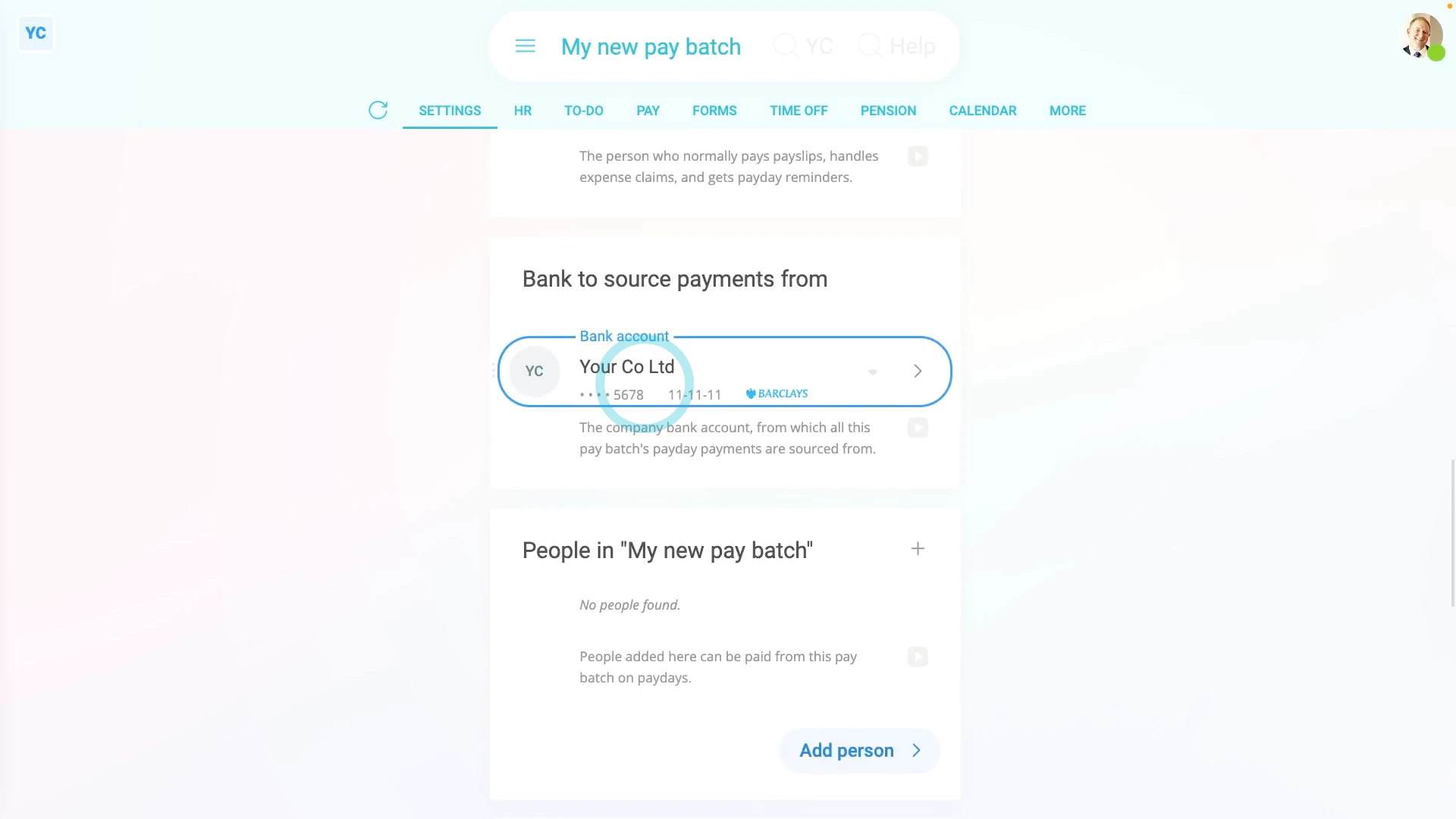
To store a new payroll group and set your company's bank account:
- First, tap: "Menu", "Payroll groups", then "New payroll group"
- And type in the payroll group's name.
- Next, scroll down to "Payday bank account" and tap: "Bookkeeping bank account"
- Then tap New to store a new bank account.
- Once it slides out on the right, you'll see that it's already entered your business name.
- Next, type in your: "Routing number"
- In most cases it correctly sets your bank logo.
- If the bank logo's wrong, instead select the correct bank yourself.
- Then type in your: "Account number"
- And tap: Save
- You'll now see your new bank account is set as your new payroll group's: "Bookkeeping bank account"
- And finally, from now on, all of the payroll group's payroll tax submissions to HMRC, are updated. The payroll group's payroll tax submissions now have the selected bank account set as the payroll group's bank account.

Keep in mind that:
- The "Bookkeeping bank account" doesn't have to be set immediately.
- However, when the time comes, you'll be asked to enter a bank account before making your first Payroll Payments.
And that's it! That's all you need to do to add your company's bank account to pay payroll from!
1. How do I add my bank account for my Payroll PaymentsHow do I delete or un-delete a payday bank account
www.1st.money/help/Payroll/Payees/2._How_do_I_add_my_company's_bank_account_to_pay_payroll_from