2. How do I check payslips before paying payroll on payday?

 3:58
"How do I check paystubs before paying payroll on payday?"
If your team's paystubs frequently include timesheets and expenses, on payday, you may want to check each paystub before you tap: Process payroll
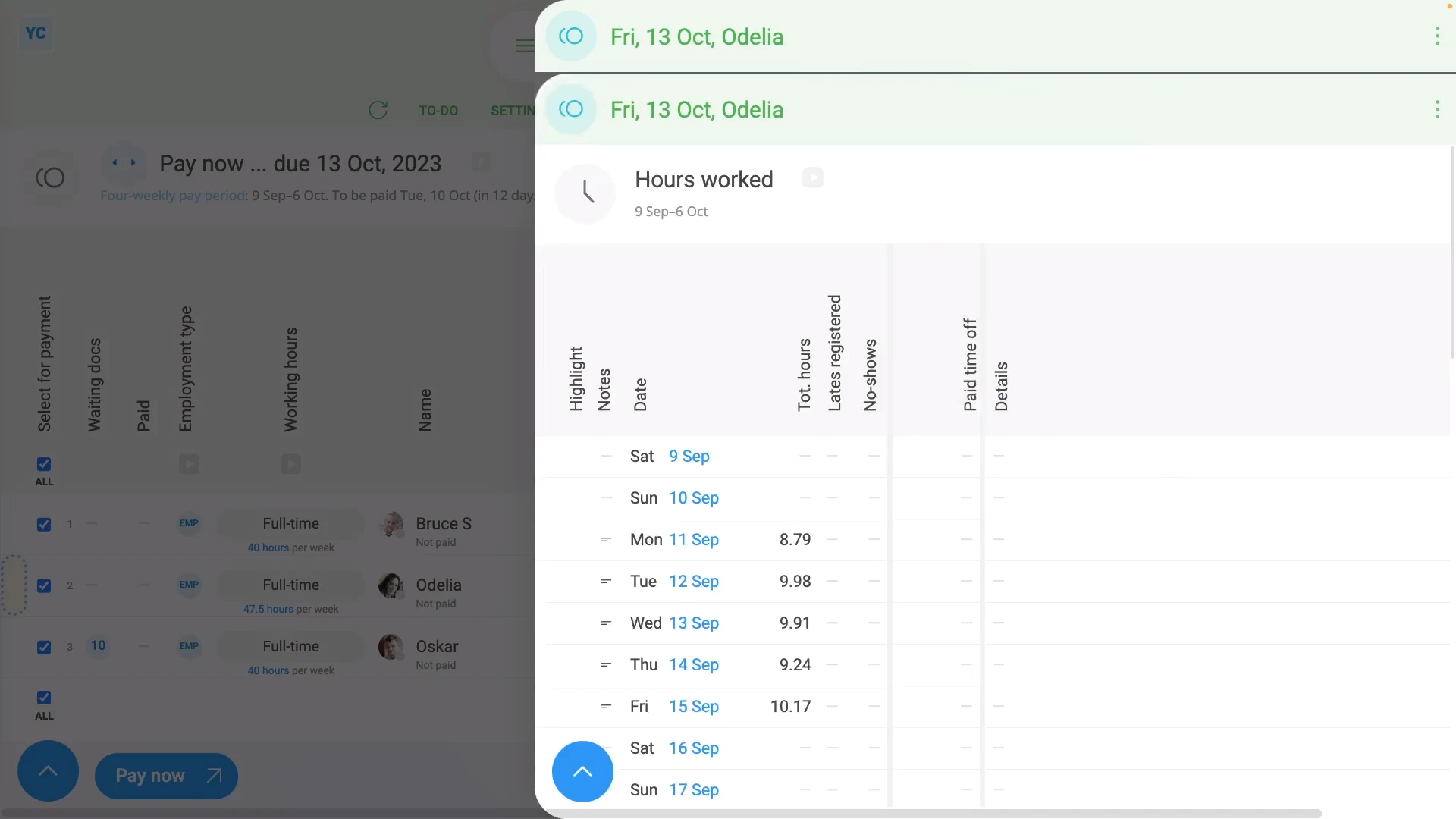
To open a paystub and check its hours worked:
- First, select the payroll group on: "Menu", then "Payroll groups"
- Then tap: "Pay", then "Process payroll"
- Next, hover your mouse over the row of the first paystub you want to check.
- And tap the "See paystub" button: (at the start of any row)
- Once their paystub slides out on the right, you can now begin checking.
- The first thing to check is the big number (at the top).
- Which is their "Net pay", or, in other words, how much is paid to their bank account.
- Make sure that it "feels" like the number you're expecting to pay.
- Then if the person does timesheets, tap Hours worked, and a list of their timesheet times slides out on the right.
- If you need to change one of the day's times done, tap it to make changes.
- Now, tap the shift on that day that you want to change, drag the slider to make your change, and tap: Save
- Once it's reloaded, you'll see that the paystub's "Earnings" number has changed.
- And finally, when you hover your mouse over the "Earnings" number, the hours to be paid has also changed.
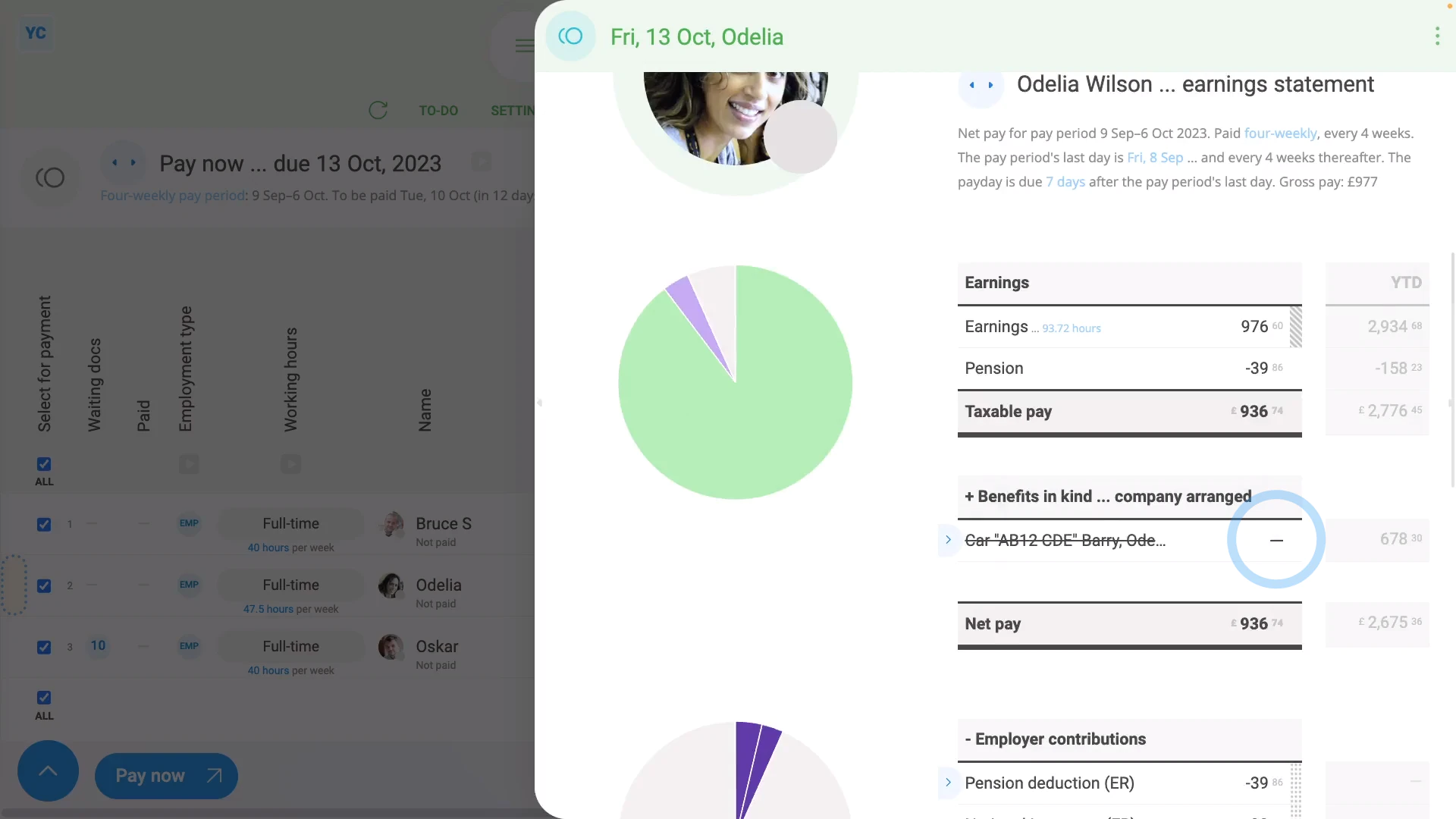
To open a paystub and check for any repeat payables to be removed, like a fringe benefit:
- First, select the payroll group on: "Menu", then "Payroll groups"
- Then tap: "Pay", then "Process payroll"
- Next, hover your mouse over the row of the paystub you want to open.
- And tap the "See paystub" button: (at the start of any row)
- Next, on the paystub, find the repeat payable that you'd like to remove.
- One-time removal:
To remove a repeat payable from only a single paystub, but have it still show up on all future paystubs, uncheck the repeat payable. - Once you've unchecked the repeat payable, it's removed from the current paystub as a one-time removal.
- However, it still shows up in all future paystubs, as expected.
- Permanent removal:
To permanently remove a repeat payable, tap the light blue "Edit" button: (at the front of the repeat payable) - Then scroll down to "People getting it", and tap the person you'd like removed.
- Then in the person's pay settings, tap the "remove" link, and then tap: Yes ... remove
- Now that the repeat payable's reloaded, you can see that it no longer has the removed person listed.
- Then back on the paystub, tap the three dots: (in the top-right corner), and tap: Reload
- Now, on the reloaded paystub, the repeat payable's money value is set to nothing.
- The reason the row's still showing, is because it's been filed on previous paystubs in the tax year.
- Because it's been previously filed, the "year to date" amount still needs to be listed.
- And finally, once you get to the next tax year, the "year to date" amount gets reset, and the repeat payable row permanently disappears.

For advanced usage:
- If you're paying lots of people, you may want to plan your payday paystub checking job out in advance.
- For example, you could share your "checking" job with others on your payroll team.
- Checking paystubs could be done by multiple people, all during the same time.
- All it takes is to set up each of your payroll people with their own login.
- With "Full payroll admin" permissions each.
- And then work out who's checking who, so no one's missed.
And that's it! That's everything you need to know about checking paystubs!
www.1st.money/help/Payroll/Payslips/2._How_do_I_check_payslips_before_paying_payroll_on_payday