P45. How does a person's P45 get sent when the person leaves?

 3:45
"P45. How does a person's P45 get sent when the person leaves?"
The P45 is the form a leaving person uses to hand their tax info to their next employer. A person's P45 is automatically emailed out to each leaving person when their final paystub's filed.
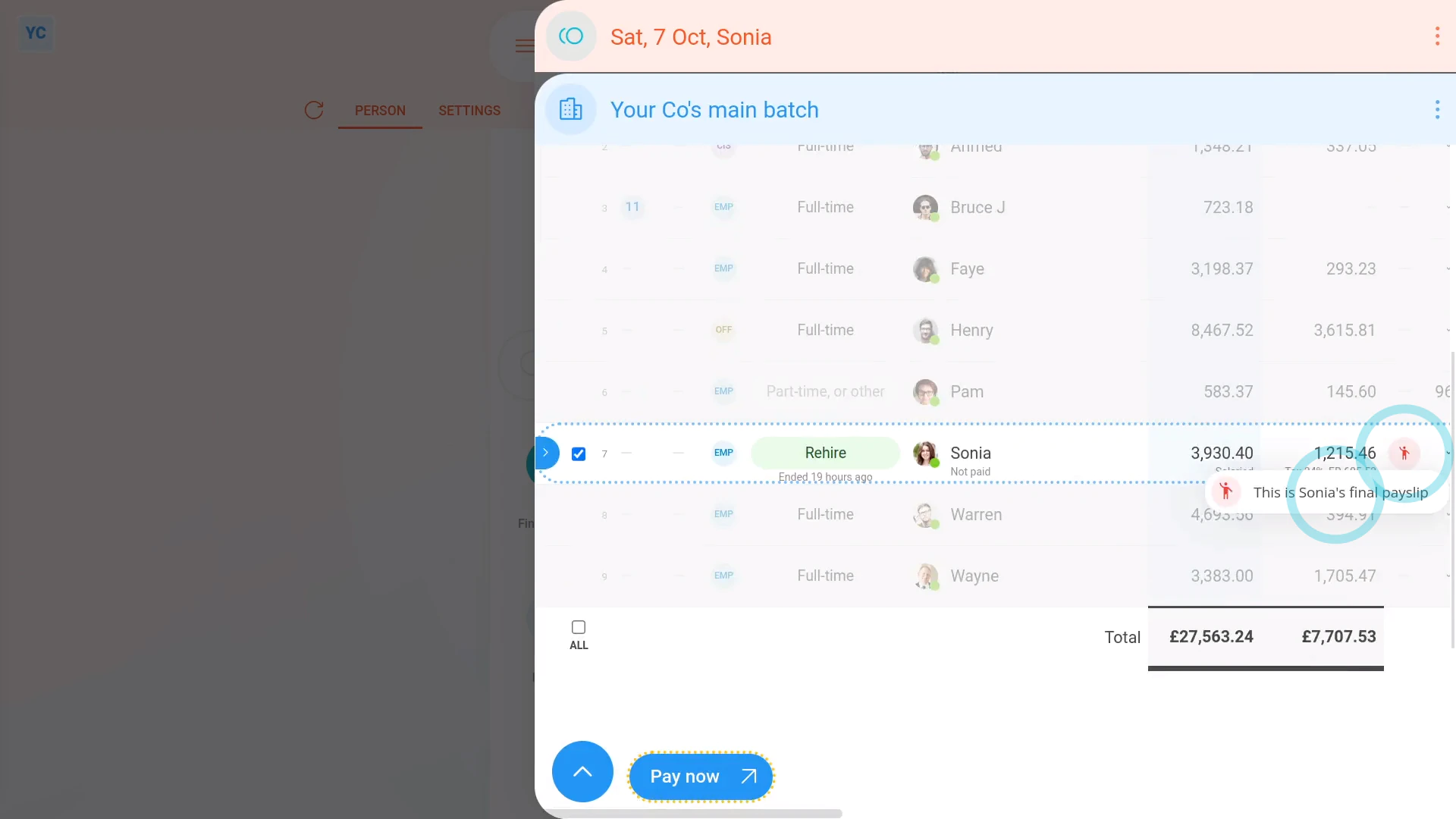
To pay a person's final paystub and send them their P45:
- First, select the person who's leaving on: "Menu", then "People"
- Now, go to: "HR"
- And tap "Terminate" or "Resign", whichever best matches why the person's leaving.
- Then select the "terminate" or "resign" reason which best matches why the person's leaving.
- Carefully go through all the steps until you reach the end, where their end employment doc is sent.
- Next, go to the Person tab (at the top), and to reload the page, tap the "Reload tab" button: (at the top)
- Then tap: Final paystub
- Once it slides out on the right, to pay the person's final pay, scroll down and tap: Go to "Process payroll"
- On the same row as the leaving person's name, you'll see a red circle showing that it's their final paystub.
- Then once everything's checked, tap Process payroll, and then: Yes ... process it
- It usually takes about 10 seconds for HMRC to finish processing the paystubs and send back confirmation that it's been received.
- Also, because it's their final paystub, the person's P45 is also being emailed.
- The emailing happens automatically, in the background. The P45s are emailed to each persons' personal email as a PDF attachment.
- Once it's been filed successfully, and the P45s are emailed, you'll see a green check beside the paystubs that you've filed.
- On most paydays, each person normally only gets one email which contains their paystub PDF.
- On a final payday, however, each person also gets their P45, as a PDF, which is sent in a second email.
- Scroll to the bottom of the email to see the P45 attached as a PDF, and tap it to open it.
- The P45 includes the person's: "Total pay in the employment"
- And includes the person's: "Total tax in the employment"
- And finally, it records the person's: "Tax code at leaving date"

Keep in mind that:
- If a person hasn't entered a personal email, their P45 is sent to their work email instead.
- Also, when a person starts their next job, the person needs their P45 to tell their new employer their tax code and other employment details.
- Once a person's P45 is sent, it can't be changed or updated. HMRC requires that there's only one P45 per employment.
To learn more:
- About how to prove a person's P45 was sent, or how to re-download a copy of it, watch the video on: Finding a sent P45
 Finding a sent P45
And that's it! That's everything you need to know about how a person's P45's are automatically sent!
1. How do I see a historical list of all my old tax formsP45. How do I find a person's P45, or prove one's been sent
www.1st.money/help/Payroll/Tax_forms/P45._How_does_a_person's_P45_get_sent_when_the_person_leaves