How do I decide my payrolling benefits setting, and do my P11D?

 4:46
"How do I decide my payrolling benefits setting, and do my P11D?"
Payrolling benefits is HMRC's new, and recommended approach to simplifying the tax administration of fringe benefits.
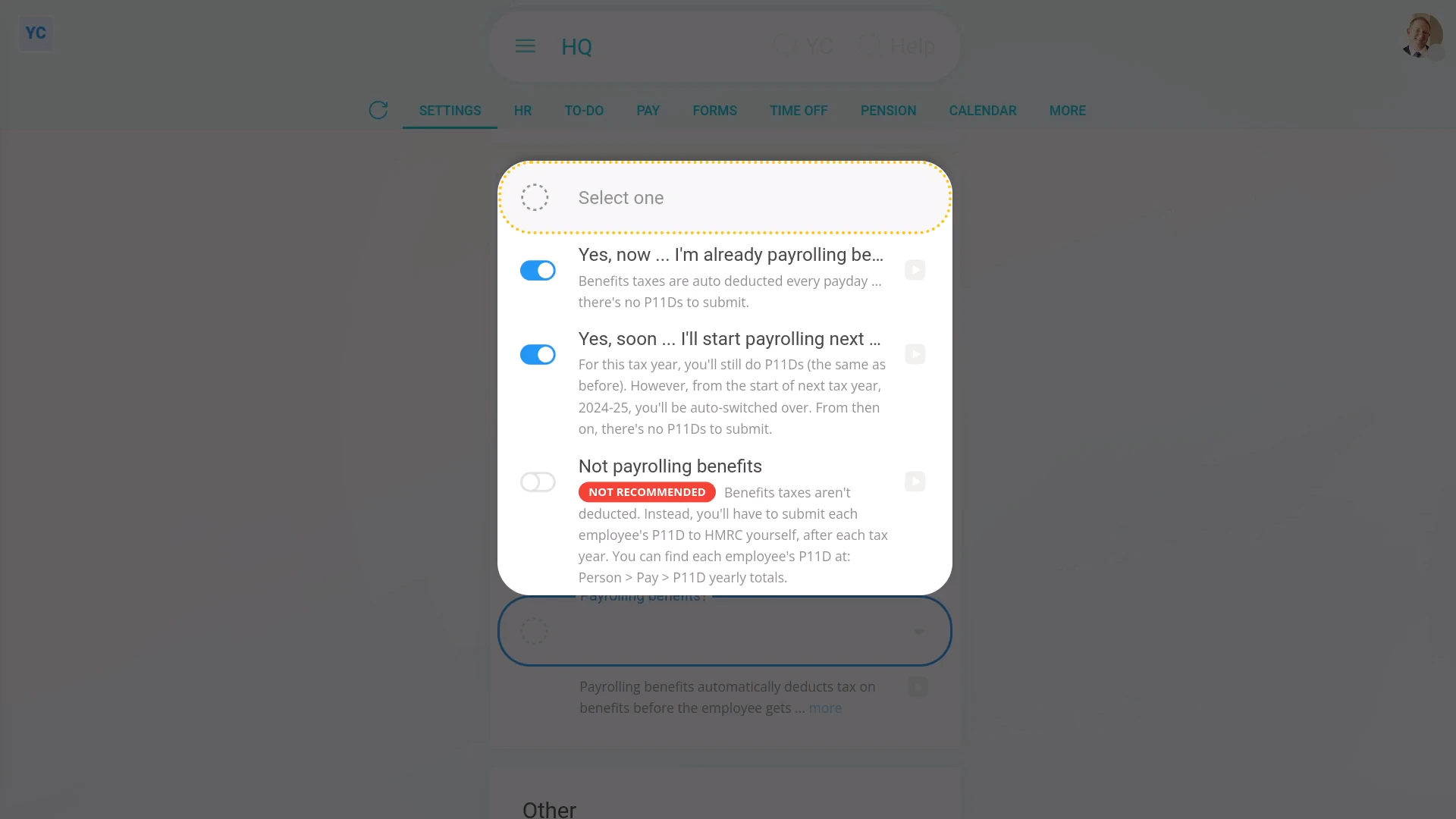
To set a payroll group's "Payrolling benefits" option:
- First, select the payroll group on: "Menu", then "Payroll groups"
- Then tap: "Settings", then "Advanced"
- Then scroll down to the "Payroll" heading.
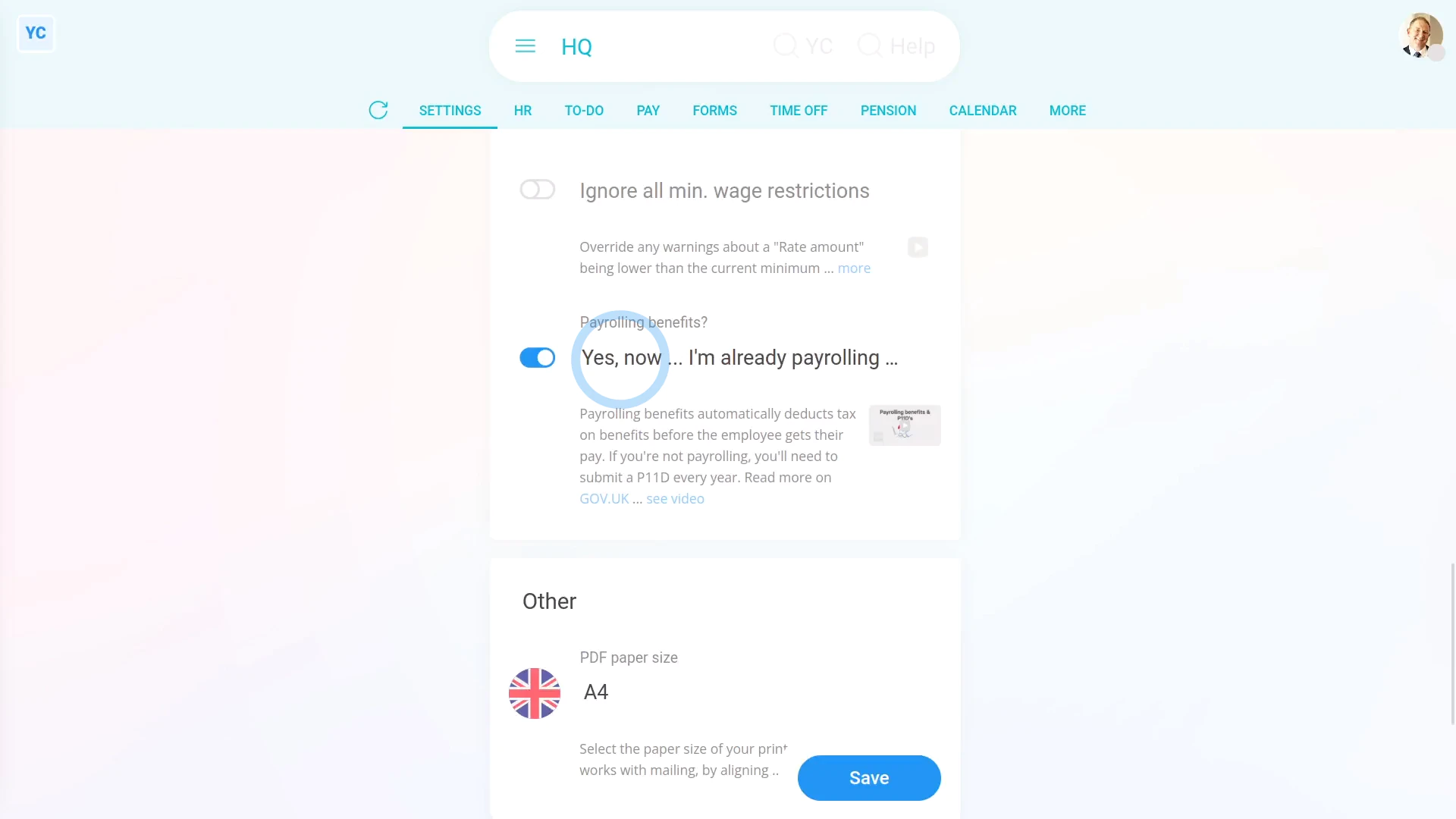
- And tap: "Payrolling benefits?"
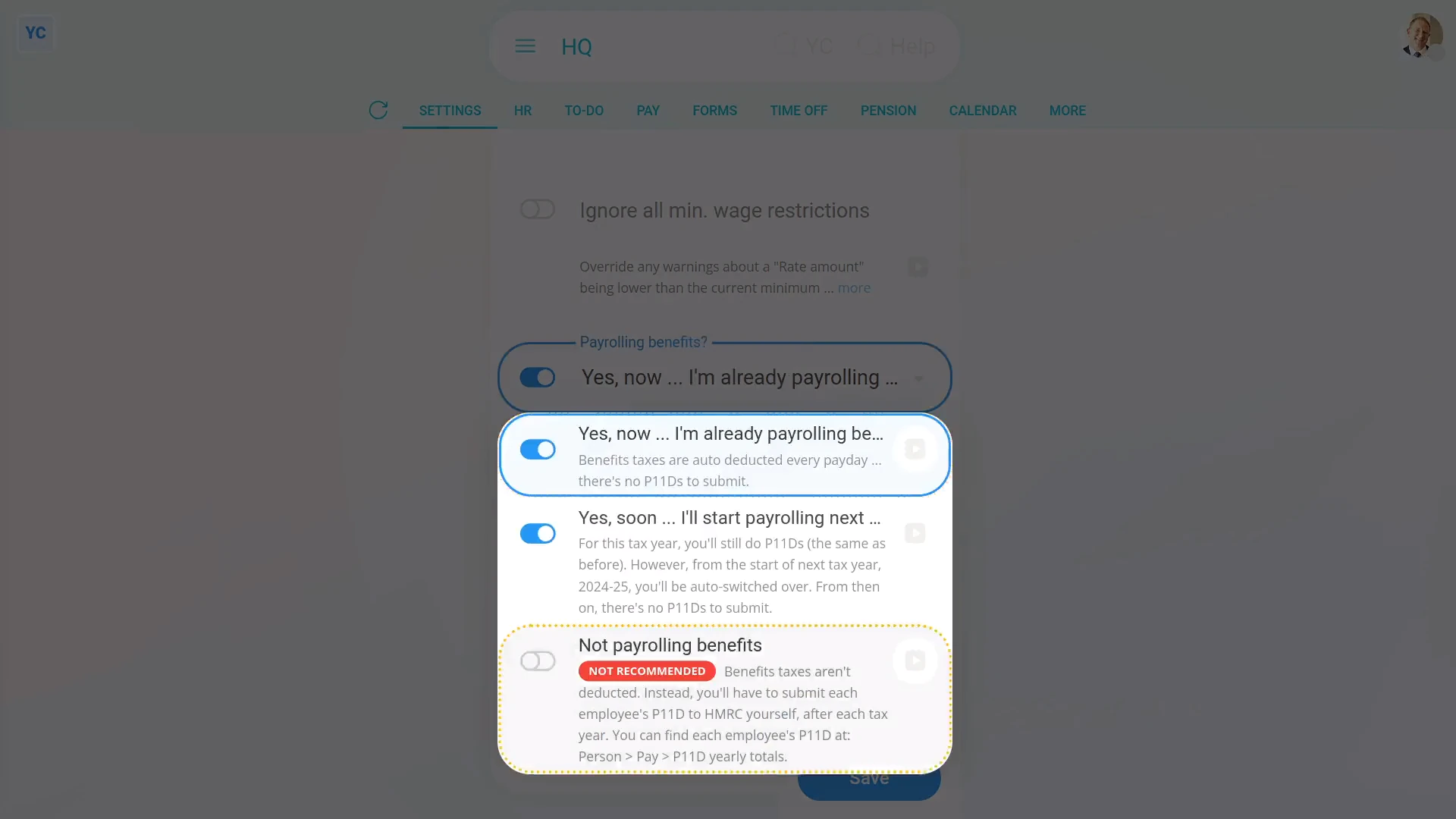
- If you're a new company, or you've already switched to "Payrolling benefits", select the "Yes, now" option.
- Some established companies may've been doing P11D's the old way, but would like to be auto-switched to the new way.
- If you'd like to be auto-switched to the new way, when it reaches the end of the current tax year, select the "Yes, soon" option.
- Otherwise, if you want to keep doing it the old way forever, select the "Not payrolling benefits" option.
- In most cases, however, it's best to select the recommended "Yes, now" option.
- But if you're still not sure, tap the "more" link, and then the blue "GOV.UK" link to read more on HMRC's website.
- And finally, tap: Save
By saying "Yes" to payrolling benefits:
- All the payroll group's paystubs automatically deduct taxes on benefits before the person gets their pay.
- The auto-deductions mean you won't have to submit a P11D for each person, when you reach the end of each tax year.
- You'll still have to do a P11D(b), but more on that later.
By saying "No" to payrolling benefits:
- You'll need to do both the P11D(b).
- And, when you reach the end of each tax year, you'll also need to submit a P11D for each person.
- Alternatively, you could get your accountant to do it for you.
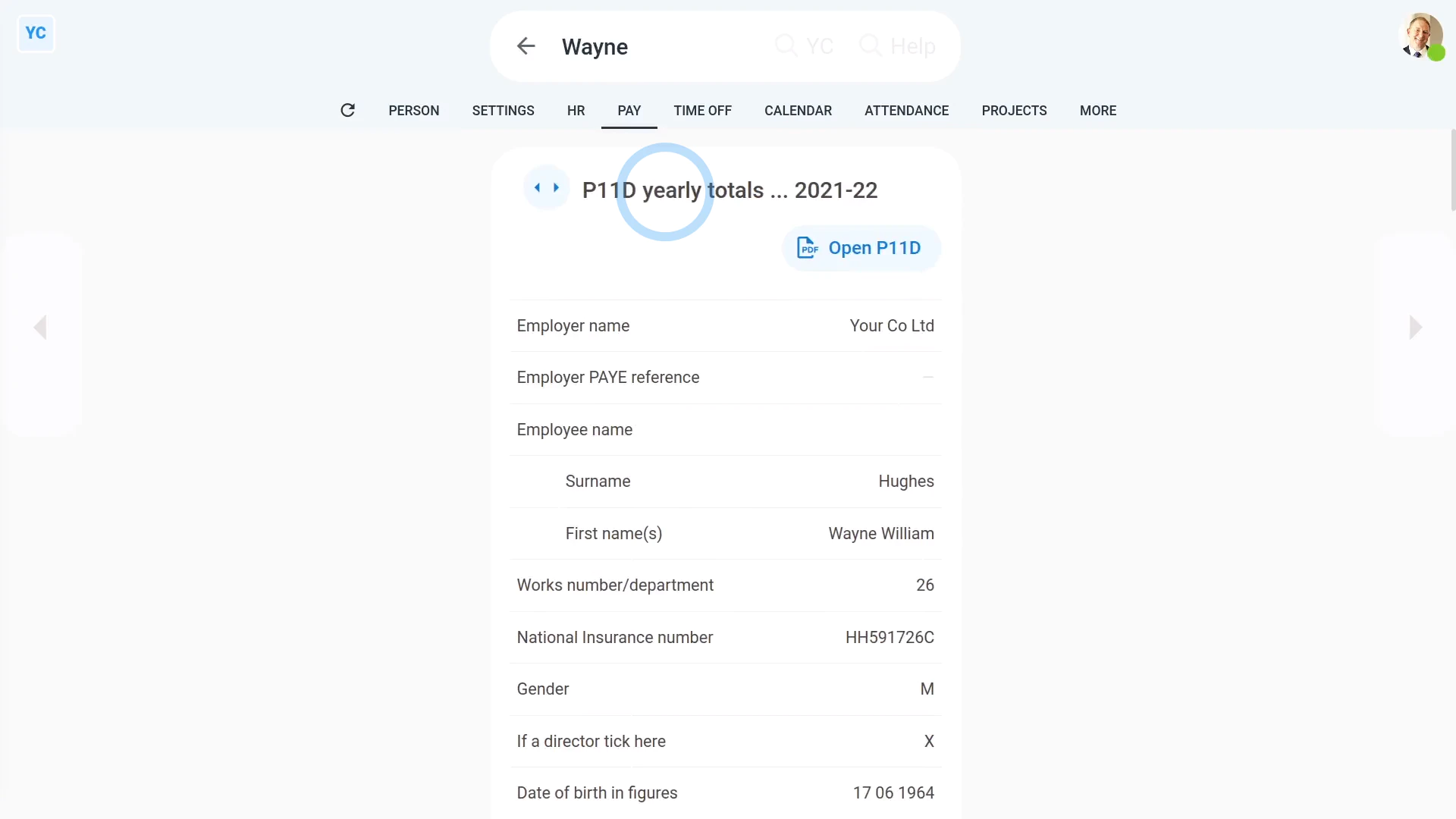
To see a person's end of year P11D numbers:
- First, select the person on: "Menu", then "People"
- Then tap: "Tax", then "P11D yearly totals"
- Keep in mind that the "P11D yearly totals" tab only shows for people who are in a payroll group that's set to: "Not payrolling benefits"
- The "P11D yearly totals" gives you all the numbers you'll need to fill out each person's P11D.
- Before you start copying numbers, be sure you've picked the correct tax year.
- You can tap the buttons to go forward, or back, a year.
- Then to submit your P11D's:
Tap: HMRC PAYE Online - You'll first need to log in with your HMRC Government Gateway account.
- Once you're logged in, you can send your "expenses and benefits returns" using HMRC's PAYE Online.
- And finally, if you need to know more, search on Google, or ask your accountant.
Whether you say "Yes" or "No" to "Payrolling benefits", you'll still have to submit one P11D(b) for each payroll group, when you reach the end of each tax year. To make it easier, you can use the prepared yearly totals.
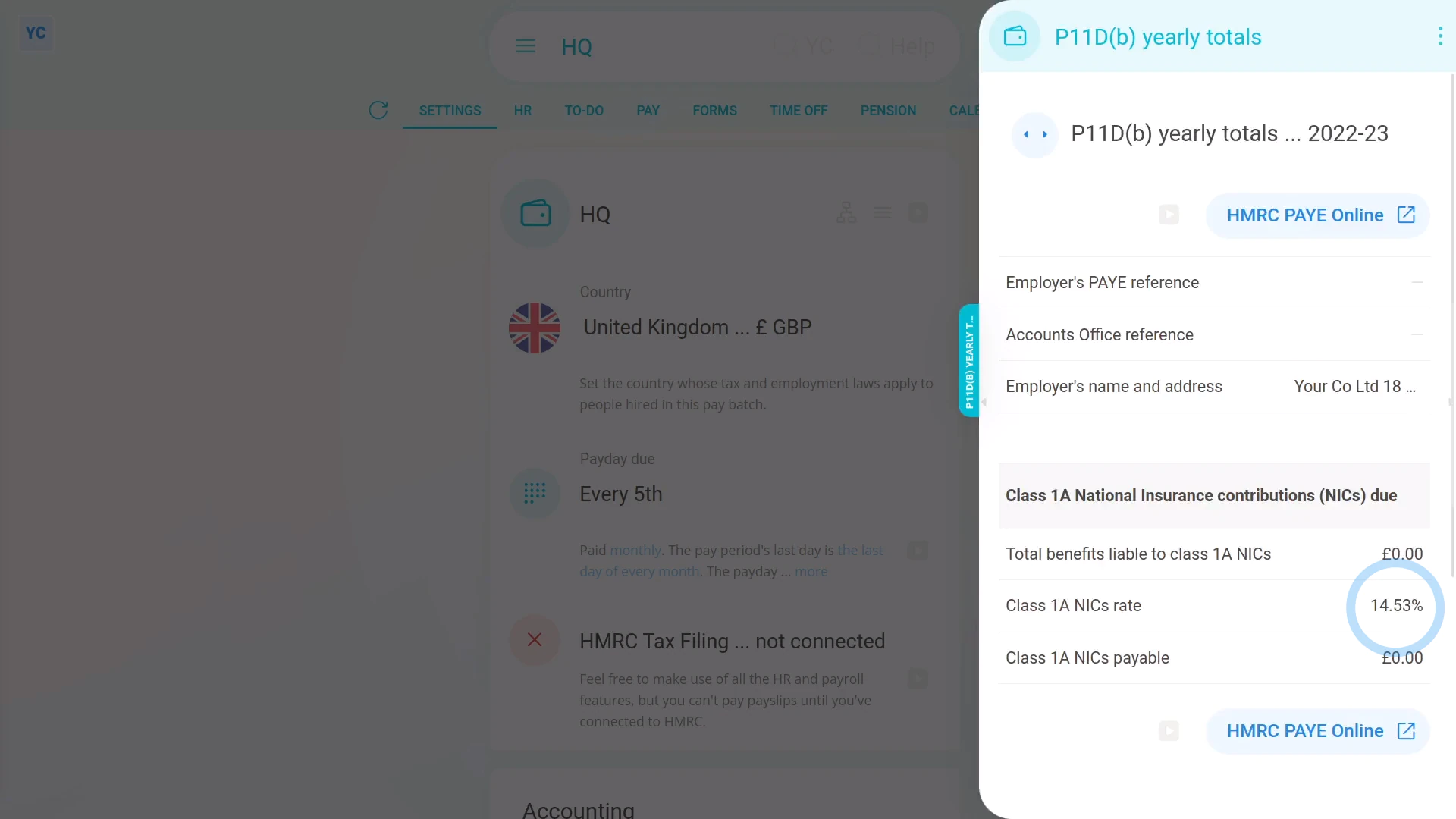
To see a payroll group's P11D(b) prepared yearly totals:
- First, select the payroll group on: "Menu", then "Payroll groups"
- Then tap: "Forms", then "P11D(b) yearly totals"
- The "P11D(b) yearly totals" gives you all the numbers you'll need to fill out each payroll group's P11D(b).
- Before you start copying numbers, be sure you've picked the correct tax year.
- You can tap the buttons to go forward, or back, a year.
- To submit your P11D(b):
Tap: HMRC PAYE Online - You'll first need to log in with your HMRC Government Gateway account.
- Once you're logged in, you can send your "expenses and benefits returns" using HMRC's PAYE Online.
- And finally, if you need to know more, search on Google, or ask your accountant.

Keep in mind that:
- Regardless of whether you say "Yes" or "No" to "Payrolling benefits", every payroll group needs to submit the P11D(b).
- It's an important choice because you can't change the "Payrolling benefits" setting once paystubs are filed for the payroll group in the tax year.
And that's it! That's everything you need to know about choosing your payrolling benefits setting, and doing your P11D's!
www.1st.money/help/Payroll/UK_payroll/How_do_I_decide_my_payrolling_benefits_setting,_and_do_my_P11D