How do I set up 1st Money from start to finish?

 4:00
Let's see just how easy "1st Money setup" really is.
- To start, upload your logo, so all your employees see your own company's logo while using 1st Money.
- And now your logo's set, and you're on your way, with your first green tick.
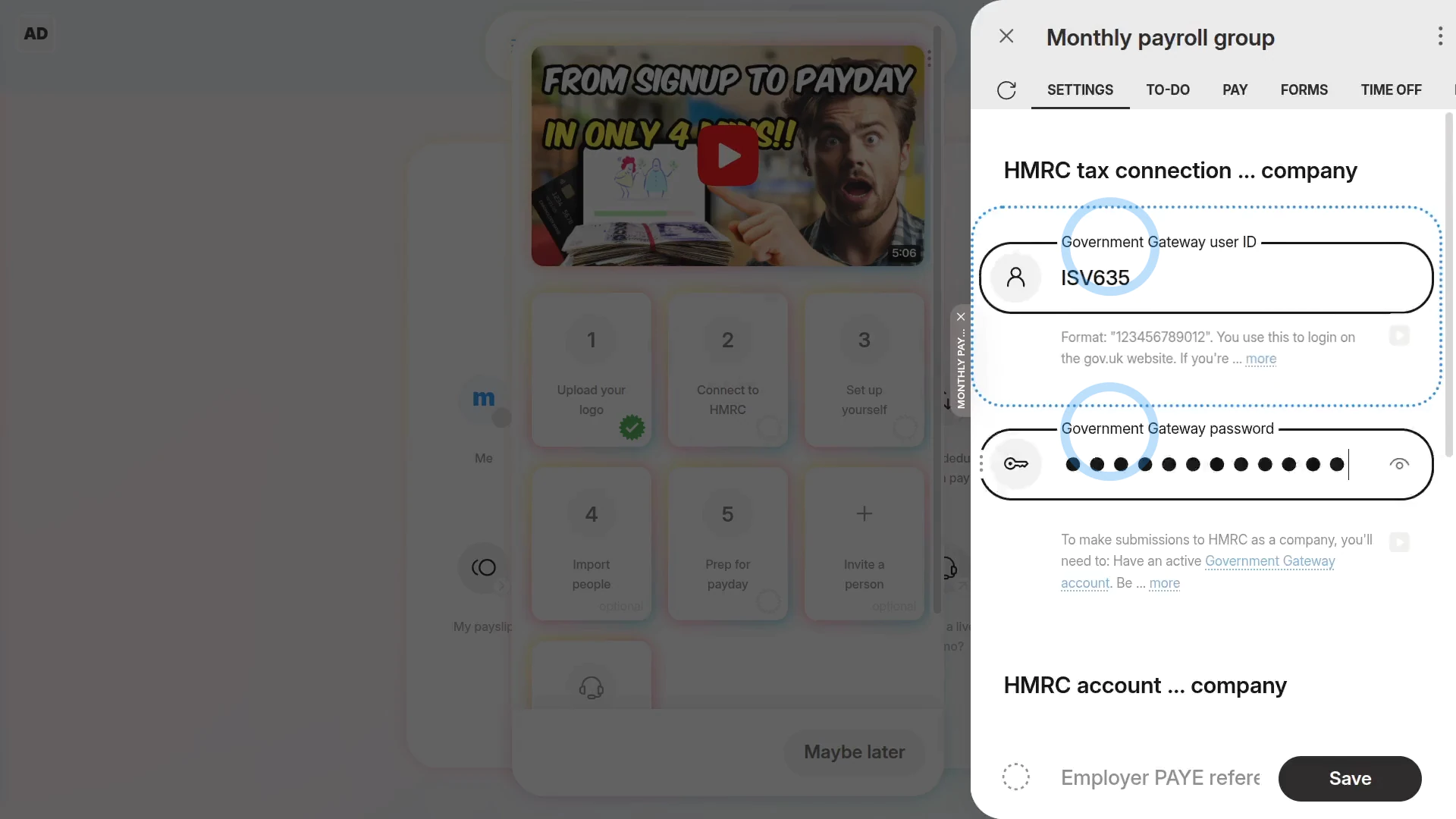
Next, to connect to HMRC:
- Type in your Government Gateway login.
- And also type in your company numbers, and you're instantly all connected up to HMRC, with your second green tick.
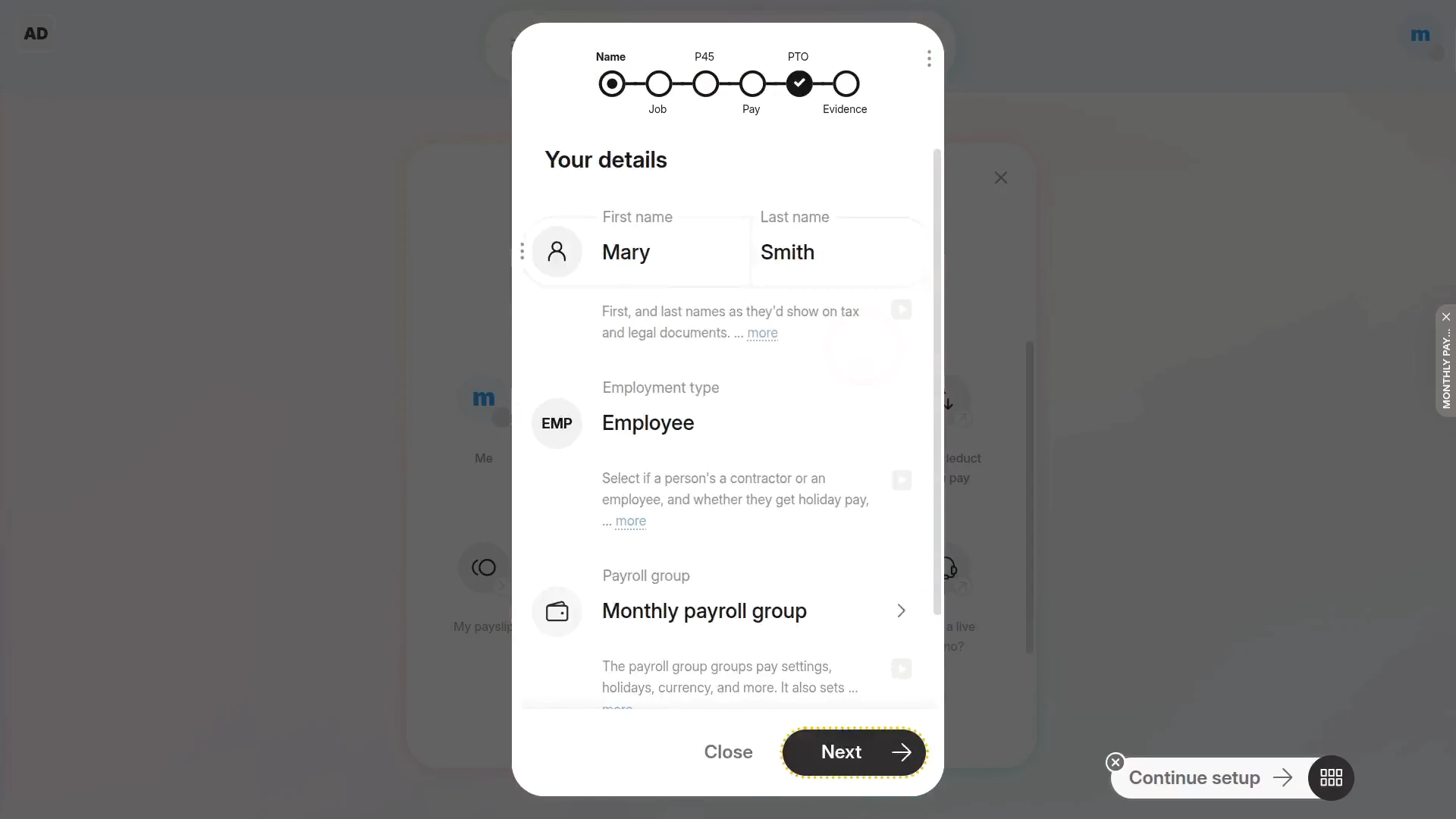
Now, to set up yourself:
- Start by setting your pay rate and job title.
- As well as your join date.
- And also your contact details, like your phone number.
- Now you're onto the tax settings.
- And then the National Insurance settings, like your gender, "Date of birth", and home address.
- And then your NI num..
- Now we'll continue your onboarding through the "Pay" steps.
- And finally, your onboarding's all 100% complete, and you've got your next green tick.
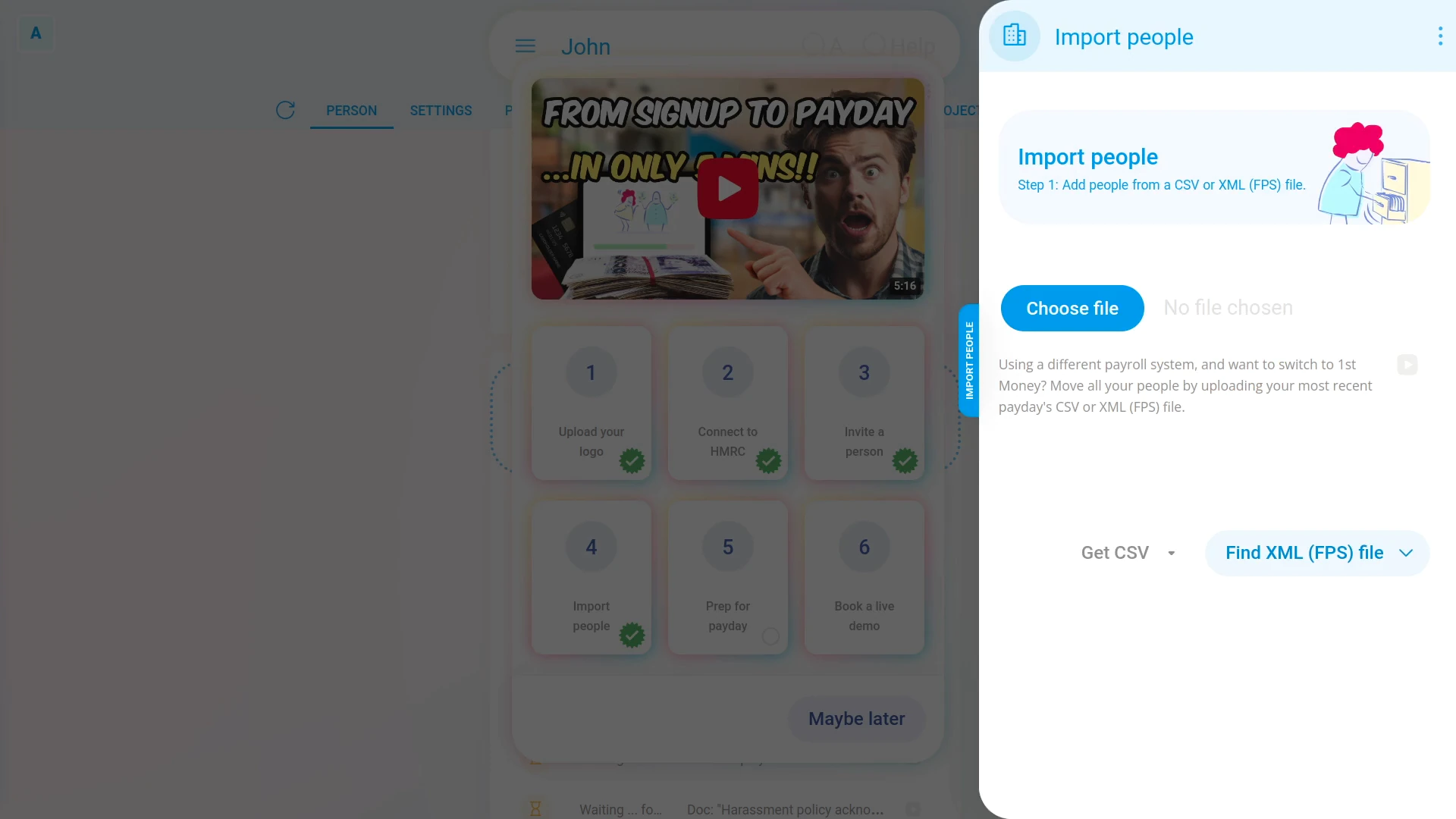
Next up is the "Import people" step.
It's completely optional, but it's useful if you're adding lots of employees.
To add lots of employees, even hundreds, or thousands:
- First, download the "CSV template" file, and enter each employee on their own row.
- Next, upload the file.
- And as quick as that, all your new employees are ready to add, all you've got to do is tap: Import ticked
- Now that your newly added employees are imported, just tap this blue button.
- And they'll each get their very own 1st Money login invite, and you're almost done now.
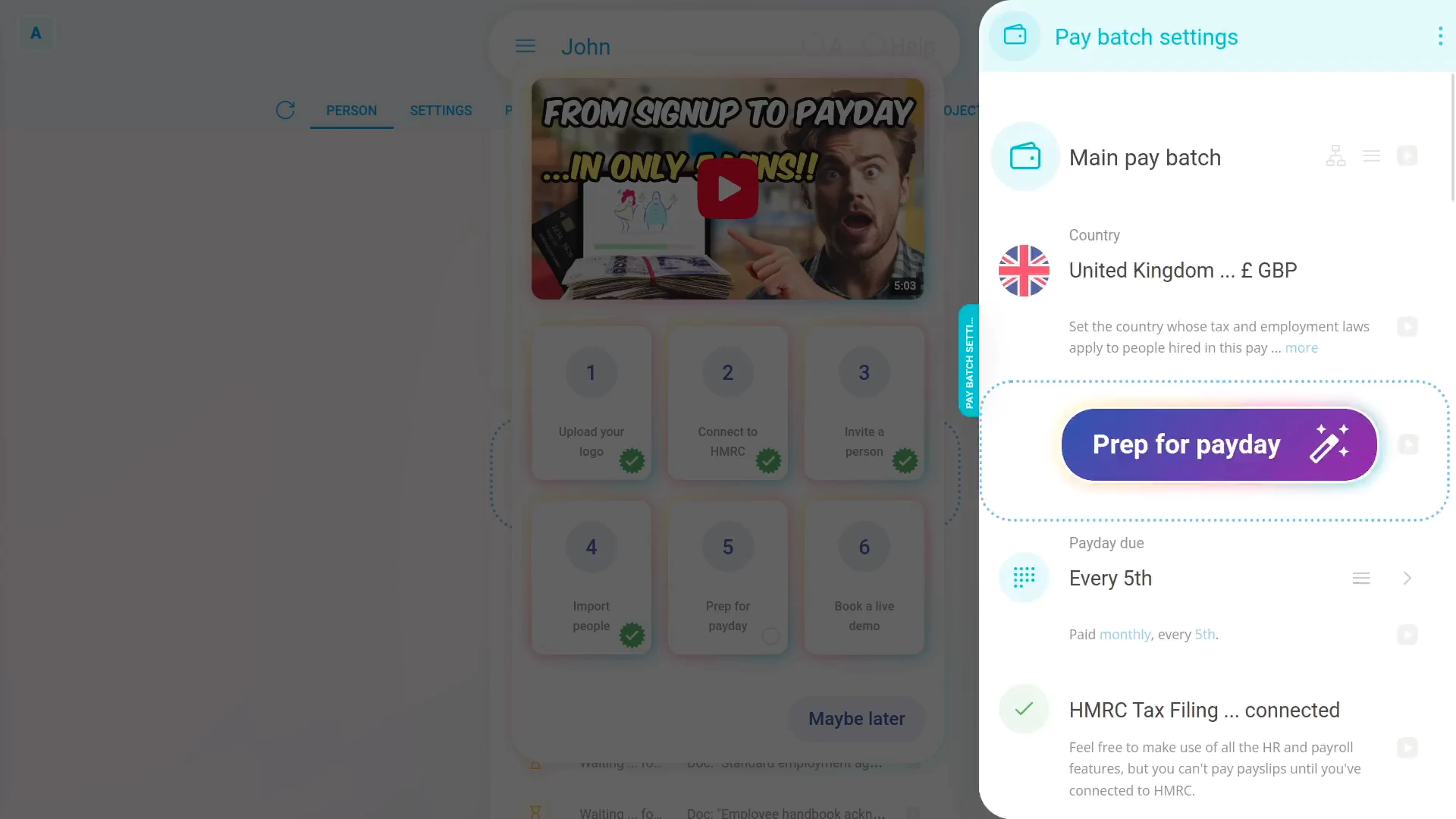
Next is payday prep.
- First, we'll choose your company's "Employment Allowance" eligibility.
- Then we'll set your company's "Pension provider" and provider details.
The payday prep scans your setup and reminds you of any remaining settings that're required.
And as easy as that, your payday prep's 100% completed, and with all four green ticks, your payday setup is now complete!
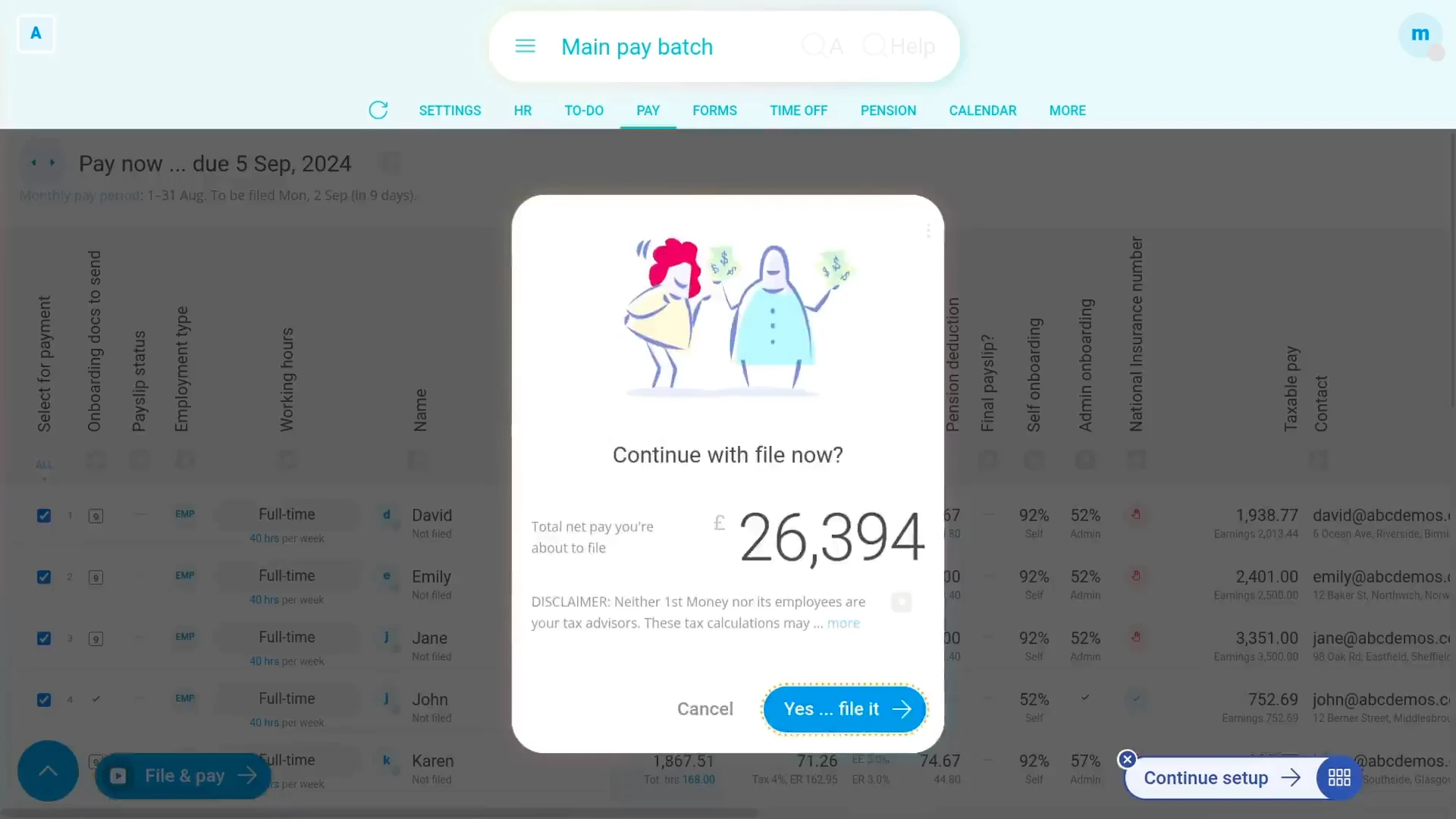
Now that you're 100% set up, let's pay a payday:
- By first going to the payroll group's: "Process payroll"
- Then tap: Process payroll
- And just for a few seconds, HMRC checks that we got all your payday calculations correct.
- Next, download the payment file for whichever bank you're using.
- And then upload the payment file, to your bank, by first choosing the file.
- And then once it's uploaded.
- You'll see a preview of all your Payroll Payments.
- Then to finish paying this payday, tap Continue, or whatever your own bank has for their final payment button.
- And now, once you tap Mark as paid, payslip emails are automatically sent out to all your employees.
- And here's how it looks when your employees get their payslip email, along with the attached PDF.
- By default, payslip emails like this are automatically sent out to every employee, every payday.
- But there's also the option to print payslips instead, if you prefer.
And that's it! We've gone from an empty org, to a fully configured setup, and payslips paid, in just 4 minutes!
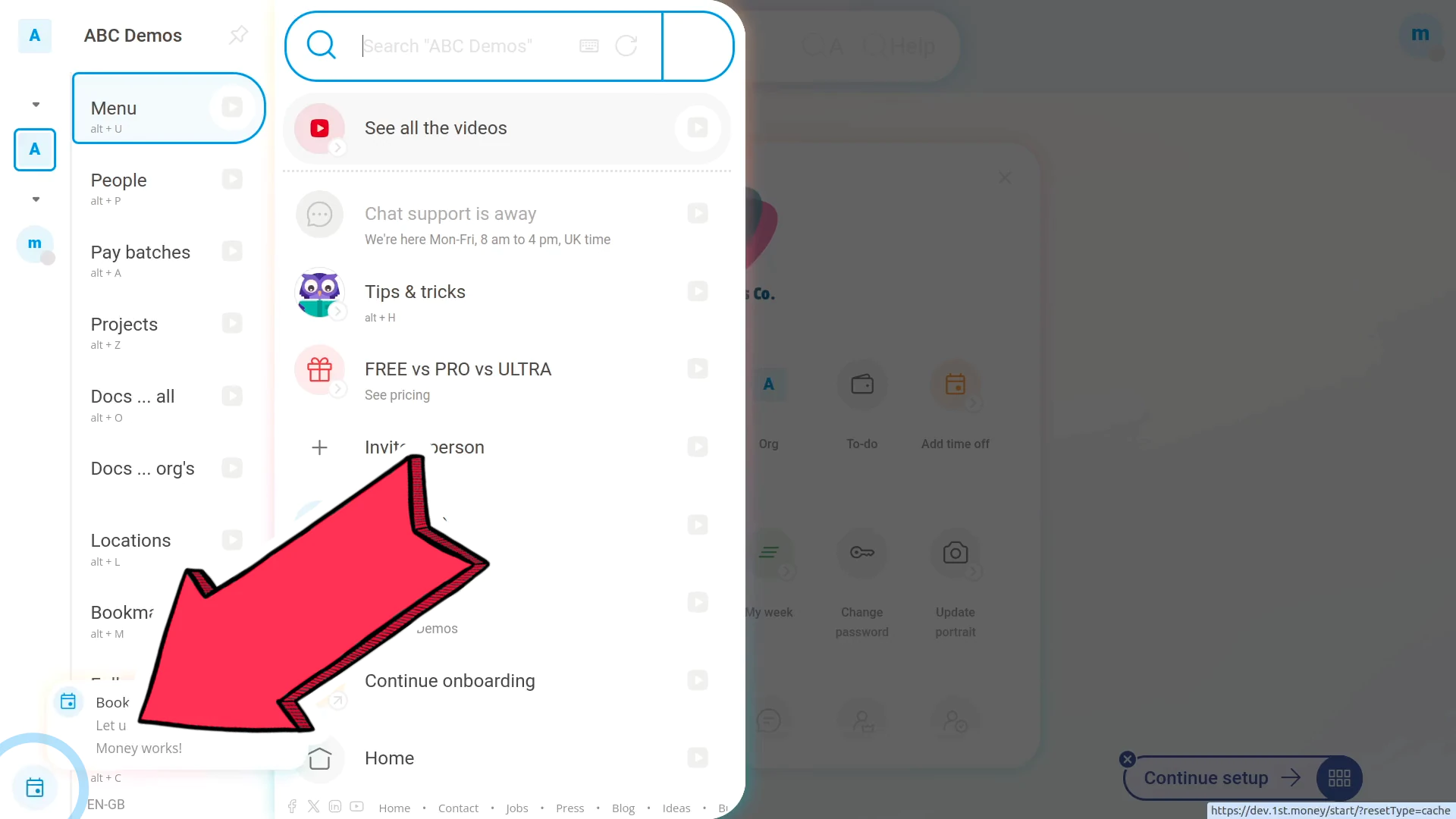
And of course, if you'd ever like help with any of this, go ahead and tap this live demo button at anytime.
Then within a couple of seconds, you'll get this calendar date chooser. And with just a few taps you can book your very own one-on-one video call with us.
And then we can, together, go through all of your questions, and show you first-hand, the true magic of 1st Money!
www.1st.money/uk/help/7._Other/How_do_I_set_up_1st_Money_from_start_to_finish