3. How do I see everything that's been sent to my accounting package?

 2:44
"How do I see everything that's been sent to my accounting package?"
For all the paydays you've paid before, you can see a list of the payday debits and credits that've been sent to your accounting package.
To see a list of all payday debits and credits that've been sent to your accounting package:
- First, select the payroll group on: "Menu", then "Payroll groups"
- Then tap: "Pay", then "Send to accounting"
- And you'll now see the payroll group's history of payday debits and credits sent to accounting slide out from the right.
- Near the beginning of each row, you'll notice that some have a green status circle.
- The green status circle means that the payday debits and credits of that row have been sent to your accounting package.
- Some of the rows may have a yellow status circle.
- The yellow status circle means that the payday debits and credits of that row are still waiting to be sent.
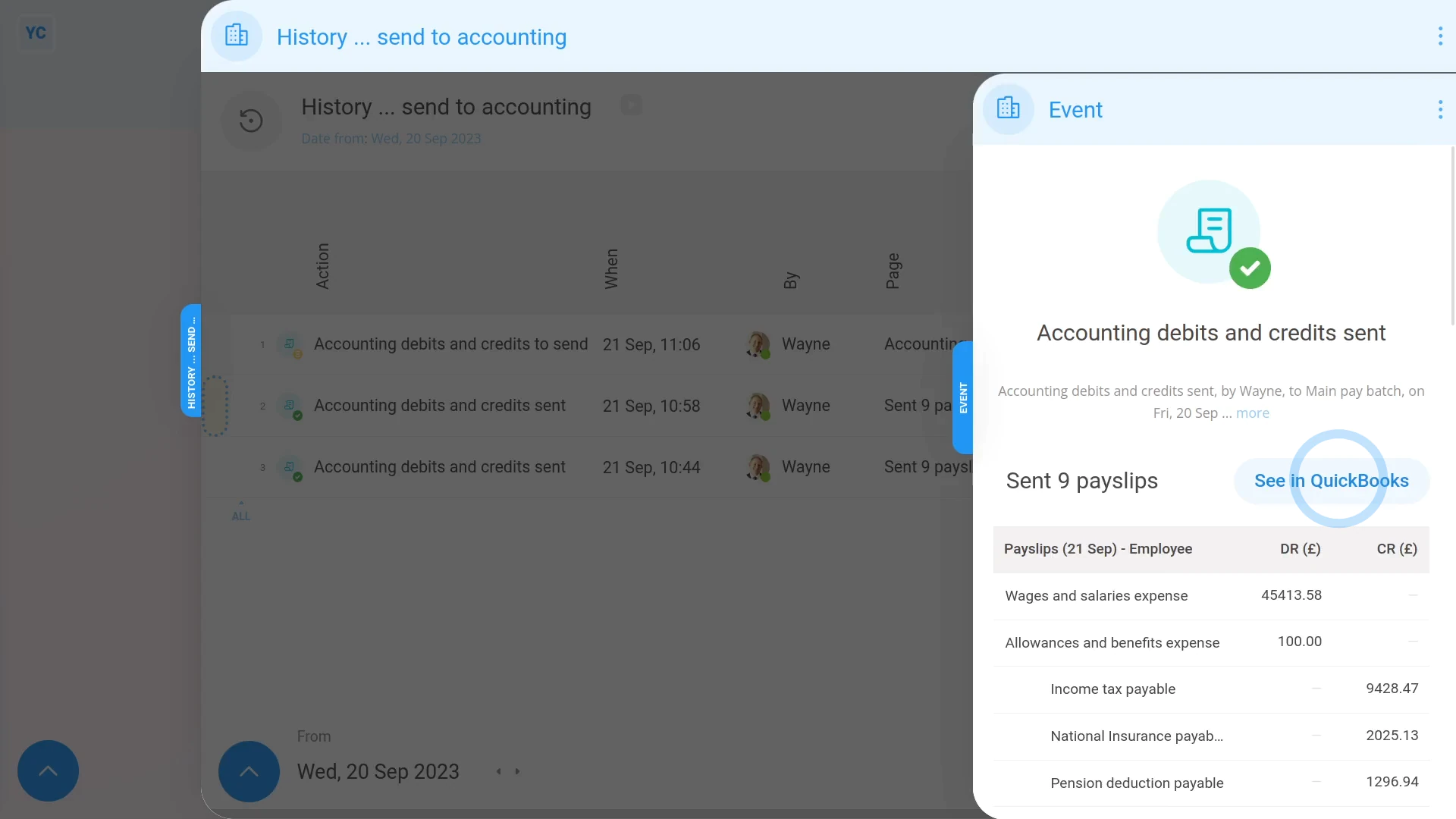
- To see more details about a set of payday debits and credits, tap the "See event" button: (at the start of any row)
- And you'll see all the debits and credits.
- As you scroll to the bottom, you'll see info about each of the filed payslips that're included in the debits and credits.
- And then scrolling back to the top. If you tap the button, you'll see the debits and credits in your accounting package.
- Now back to the list, and tap the row with the yellow status circle.
- Like before, you'll see all the debits and credits, and also a list of the filed payslips (at the bottom).
- However (at the top), because the debits and credits haven't been sent to your accounting package yet, tap Send now, then: Yes ... send now
- And now all the debits and credits for the set of payslips are now sent to your accounting package, and you'll see a grey "Sent" confirmation.
- And finally, if you tap the "more" link, you'll see there's a permanent record of even more details. Including when it was sent, and who sent it.

Keep in mind that:
- All transactions are automatically scheduled to be sent at midnight.
- As long as you're happy to wait 'til midnight, there's no need to send the transactions yourself.
- But if you do decide to send them yourself, you can immediately see them in your accounting package.
- And, of course, 1st Money cancels the scheduled midnight send, so the transactions aren't sent twice.
And that's it! That's everything you need to know about a payroll group's list of Payday Payment transactions that've been sent to your accounting package!
2. How do I immediately send payslips to my accounting package4. How do I change the default chart of accounts
www.1st.money/uk/help/Accounting/3._How_do_I_see_everything_that's_been_sent_to_my_accounting_package