1. When would I use a personal vs a payroll group repeat payable?

 4:07
"When would I use a personal vs a payroll group repeat payable?"
Repeat payables can either be stored under a single person, or stored under a payroll group.
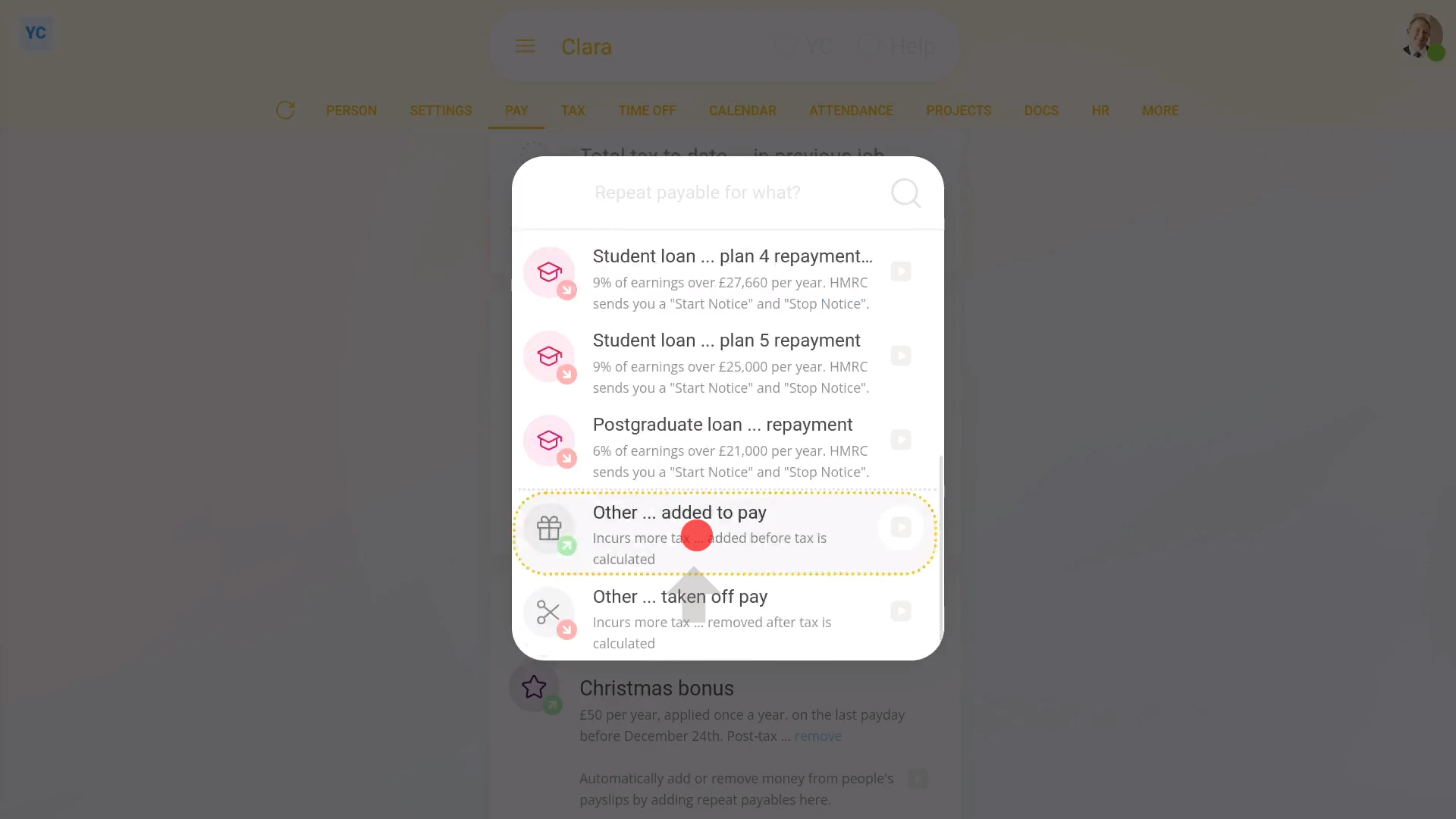
To store a repeat payable under a single person:
- First, select the person on: "Menu", then "People"
- And then go to: "Pay", then "Pay settings"
- And scroll down to the "Repeat payables ... personal" heading.
- Then tap: New repeat payable
- Next, tap: Add to pay
- And select the type.
- Then decide from the repeating incentive suggestions, or tap "type directly" (at the top) to type in your own short description of the repeating incentive.
- And type in the value of the repeating incentive.
- And tap Next
- Next, select the payslip time frame: "Amount type"
- And finally, tap Save, and your new repeat payable is now saved for a single person.

You may notice:
- That a personal repeat payable can only be added to a single person. There's no option to add it to more than one person.
- Besides being limited to a single person, the personal repeat payable has all the other features of a payroll group repeat payable.
- However, some specialist types of repeat payable are only available as personal repeat payables. Including: mileage allowance, benefit-in-kind, and student loan repayments.
To instead store a repeat payable under a payroll group:
- First, select the payroll group on: "Menu", then "Payroll groups"
- And then go to: "Pay", then "Repeat payables"
- Then tap: "New repeat payable"
- Next, tap: Add to pay
- And select the type.
- Then decide from the repeating incentive suggestions, or tap "type directly" (at the top) to type in your own short description of the repeating incentive.
- And type in the value of the repeating incentive.
- And tap Next
- Next, select the payslip time frame: "Amount type"
- Now, so that anyone who joins the payroll group from now on also automatically gets the repeat payable, tap Advanced and turn on: "Auto-add to all new people"
- Next, tap Add people and add the people you want to receive the repeat payable, then tap: Save
- And finally, your new repeat payable is now set up for a payroll group, and has been added to some people in that payroll group.
You may also notice:
- That a payroll group repeat payable can be added to as many people in the payroll group as you want. But it can't be added to people outside the payroll group.
- Also, with the "Auto-add to all new people" switch turned on, new people automatically get the repeat payable as your company adds more people.
- However, some specialist types of repeat payable are only available as payroll group repeat payables, like: Company vehicles.
- Besides those small differences, personal and payroll group repeat payables are very similar.
For advanced usage:
- You may have a situation where you want many people to receive the same repeat payable, but have one person who's paid a different amount.
- For example, where everybody receives a monthly bonus, but one person's paid double the monthly bonus.
- In that case create a payroll group repeat payable of the standard bonus amount, and add everyone to it.
- Next, take the person who's paid double out of the standard payroll group repeat payable.
- And make a personal repeat payable of double the monthly bonus, for them only.
And that's it! That's everything you need to know about choosing between personal repeat payables and payroll group repeat payables!
www.1st.money/uk/help/Expenses/Repeat_payables/1._When_would_I_use_a_personal_vs_a_payroll_group_repeat_payable