2. How do I delete or un-delete a repeat payable?
 5:15
"How do I delete or un-delete a repeat payable?"
If you no longer need a repeat payable, you're welcome to delete it whenever you like.
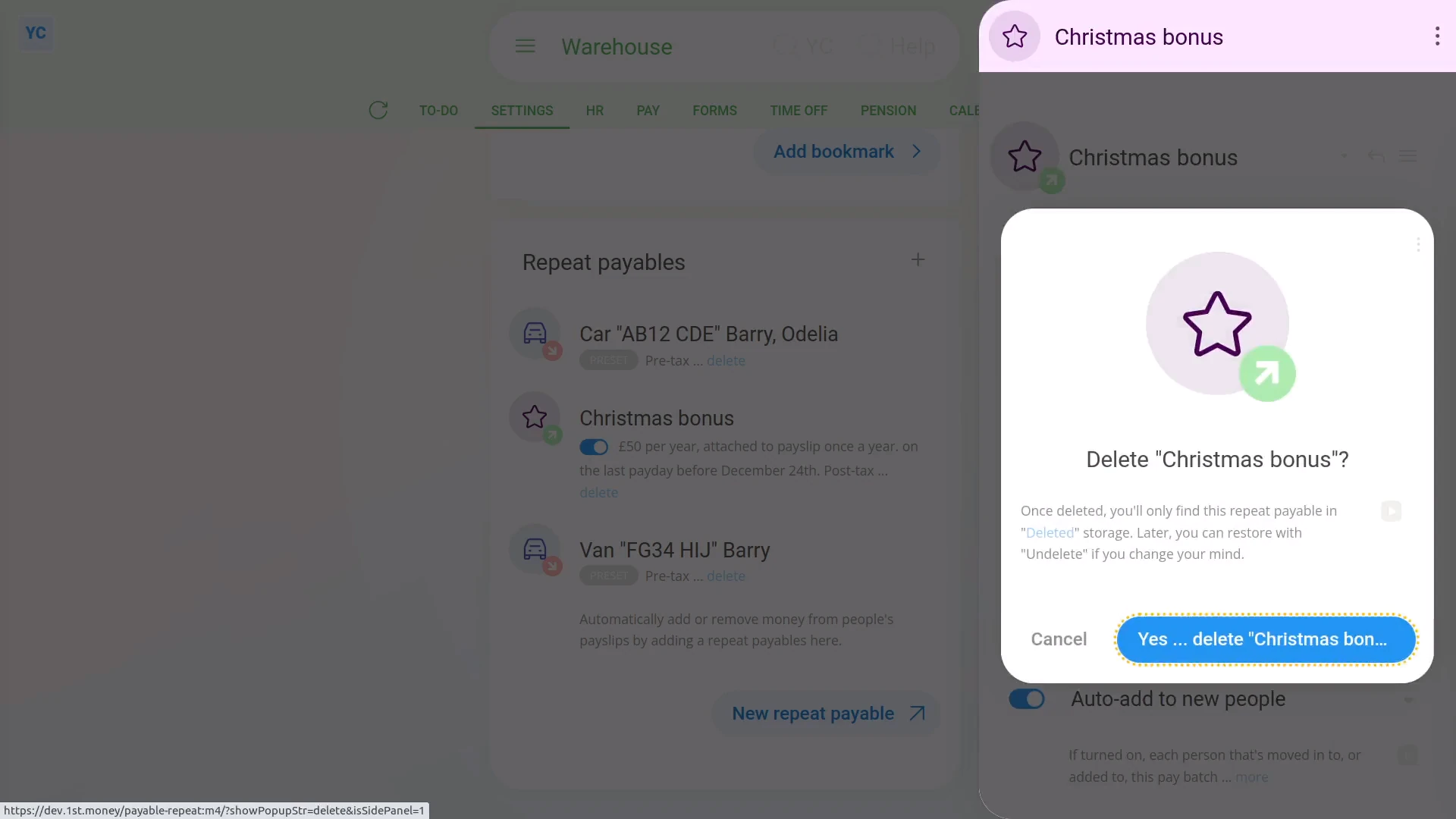
To delete a repeat payable:
- First, select the payroll group on: "Menu", then "Payroll groups"
- Then tap: "Settings", then "Payroll group settings"
- Then scroll right down to "Repeat payables" and find the one you'd like to delete.
- Then tap the "delete" link.
- Once it slides out on the right, tap: Yes ... delete
- Now, the repeat payable's deleted, including removing it from any people's un-filed payslips.
- So, from now on, for any payslip that's yet to be filed and paid, the repeat payable never shows up again.
- And finally, for any payslip that's already filed and paid, all previous repeat payable payments remain on the payslip unaffected.
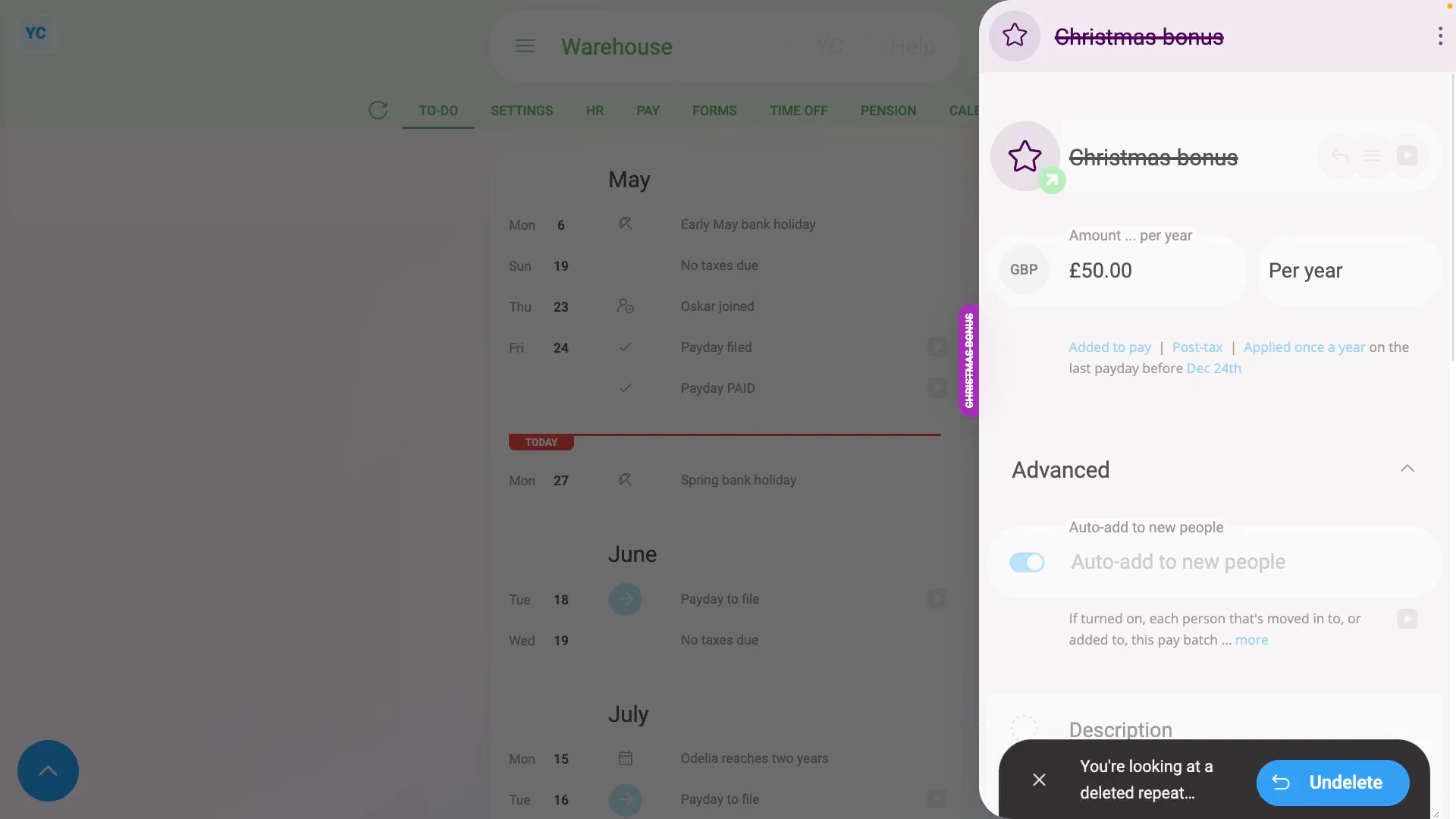
To un-delete a repeat payable:
- First, select the payroll group on: "Menu", then "Payroll groups"
- Then tap More, then: Deleted repeat payables
- And then tap the repeat payable you'd like to un-delete.
- Next, tap: Un-delete (at the bottom)
- And the deleted repeat payable is immediately un-deleted.
- However, you'll still need to manually add it back to each person that you'd like to start getting the repeat payable again.
- And finally, as soon as you've added it to a person, the repeat payable immediately shows on that person's next unpaid payslip.
Sometimes, to avoid deleting a repeat payable, you can remove all the people from the repeat payable instead.
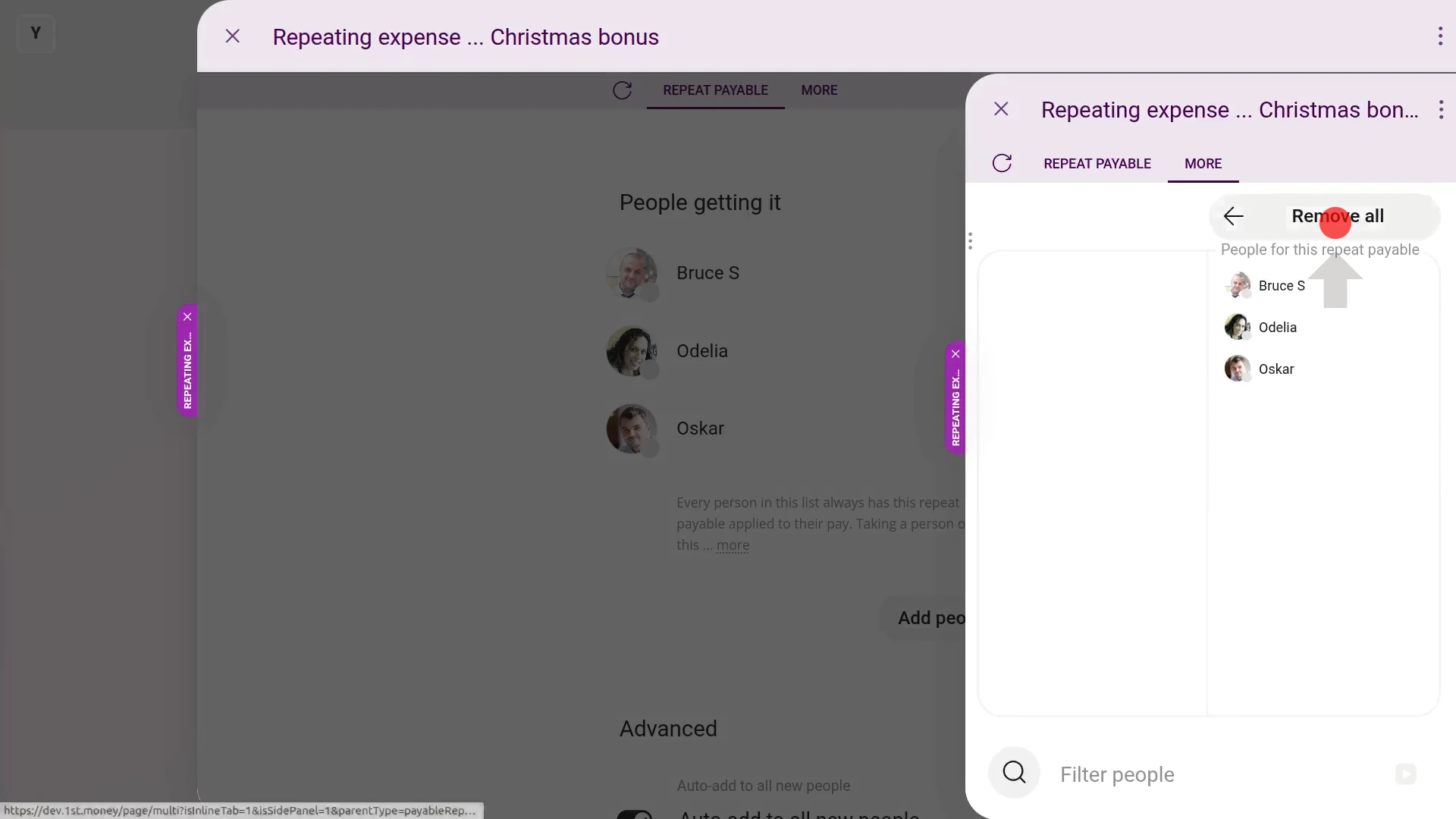
To remove all people from a repeat payable:
- First, select the payroll group on: "Menu", then "Payroll groups"
- Then tap: "Settings", then "Payroll group settings"
- Then scroll right down to "Repeat payables" and find the one you'd like to remove all the people from.
- Once it's open, scroll down and tap: Add people
- Once it slides out on the right, hover your mouse over the right hand side, and tap: Remove all
- Then tap: Save
- And now you'll see that it now says: "No people found"
- Then if auto-add's turned on, it's recommended to also turn off: "Auto-add to all new people"
- If it warns you that you're saving a repeat payable without any people, tap: Save without
- And finally, from now on, the repeat payable won't show up again on any payslip that's yet to be filed.
Alternatively, to avoid deleting or removing all the people, you can set the repeat payable's "Ends on" date instead.
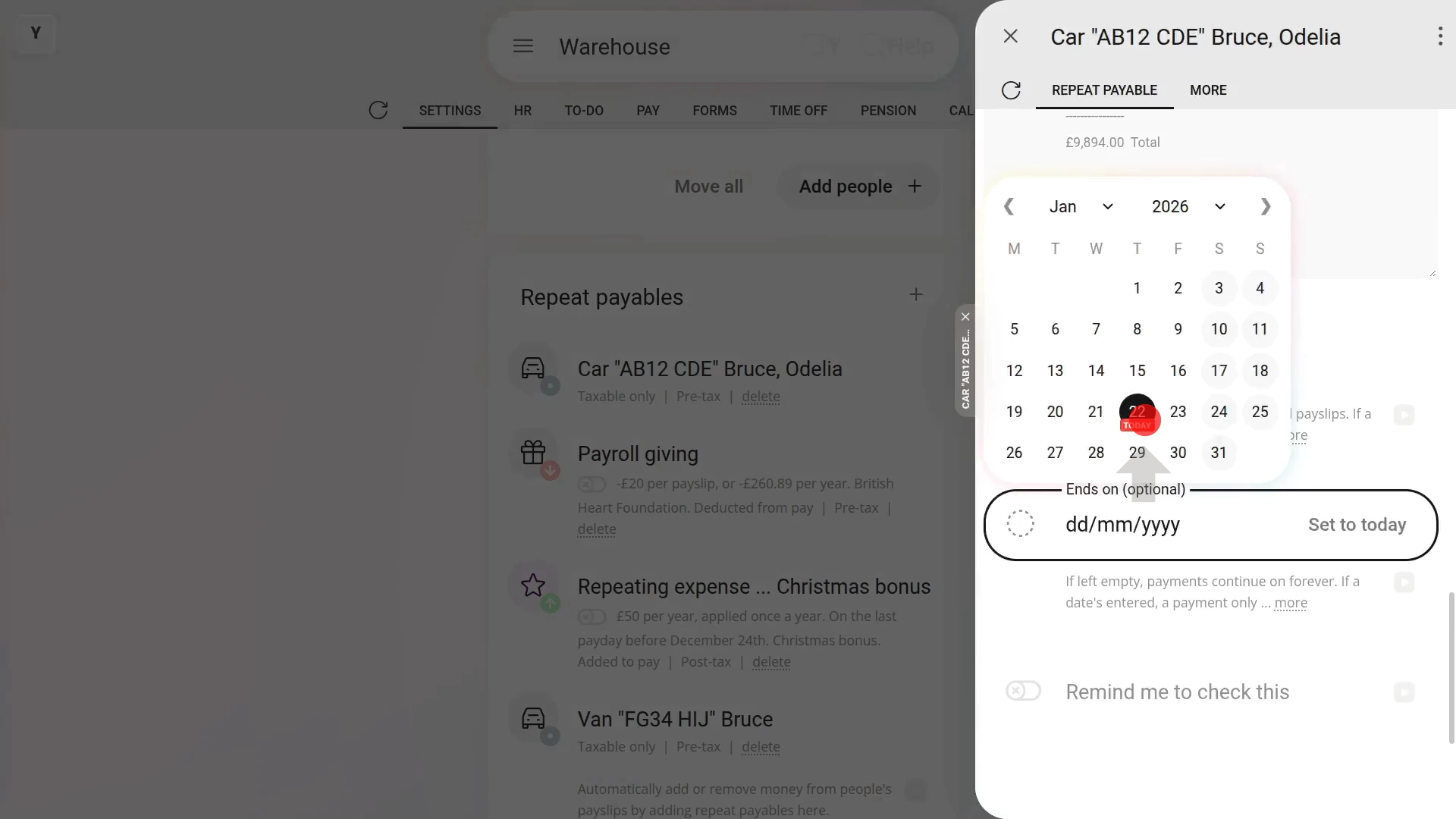
To set an "Ends on" date for a repeat payable:
- First, select the payroll group on: "Menu", then "Payroll groups"
- Then tap: "Settings", then "Payroll group settings"
- Then scroll right down to "Repeat payables" and find the one you'd like to remove all the people from.
- Once it's open, scroll down and tap the "Advanced" heading (to expand it).
- Next, set the "Ends on" date.
- Then tap: Save
- And finally, from now on, the repeat payable won't show up again on any payslip that's after the "Ends on" date you selected.
Sometimes, however, you want to turn off a repeat payable for only one person, and on only one payslip.
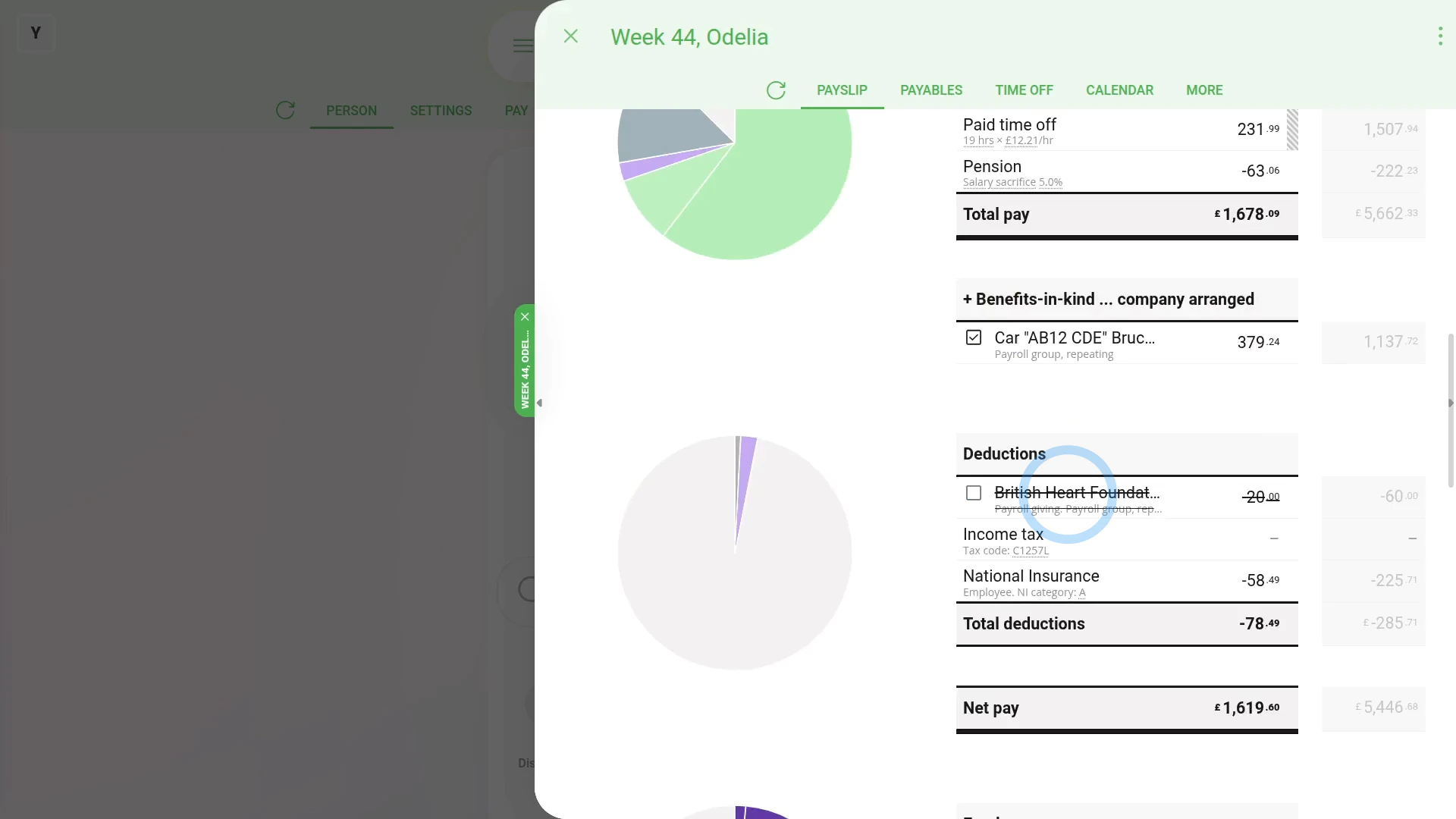
To turn off a repeat payable for only one person, and on only one payslip:
- First, select the person on: "Menu", then "People"
- Then tap: "Pay", then "Payslip"
- Then scroll down and turn off the repeat payable you'd like to remove.
- The payslip then takes a second to recalculate, and now you'll see the repeat payable crossed out.
- But the cross out is only applied to a single payslip.
- If you tap over to next payday's payslip for the person, you'll see the next payday's repeat payable isn't crossed out.
- And finally, when it's payday, all crossed out repeat payables won't be included in the payslip's calculations.

Keep in mind that:
- Only people who've got "Full payroll admin" permissions can delete or un-delete repeat payables.
- And remember that all deletes and un-deletes are always permanently recorded in: "History"
- That means any payroll admin can always look back in time, and see who did any delete, and when the delete was done.
To learn more:
- About the fastest way to add lots of people to a repeat payable, watch the video on: Adding everyone to a repeat payable
 Adding everyone to a repeat payable
And that's it! That's everything you need to know about deleting or un-deleting a repeat payable!
www.1st.money/uk/help/Expenses/Repeat_payables/2._How_do_I_delete_or_un-delete_a_repeat_payable