How do I move all the people between payroll groups and locations?

 3:14
"How do I move all the people between payroll groups and locations?"
The payroll group or location "move all" button makes it possible to move everyone from one payroll group or location to another.
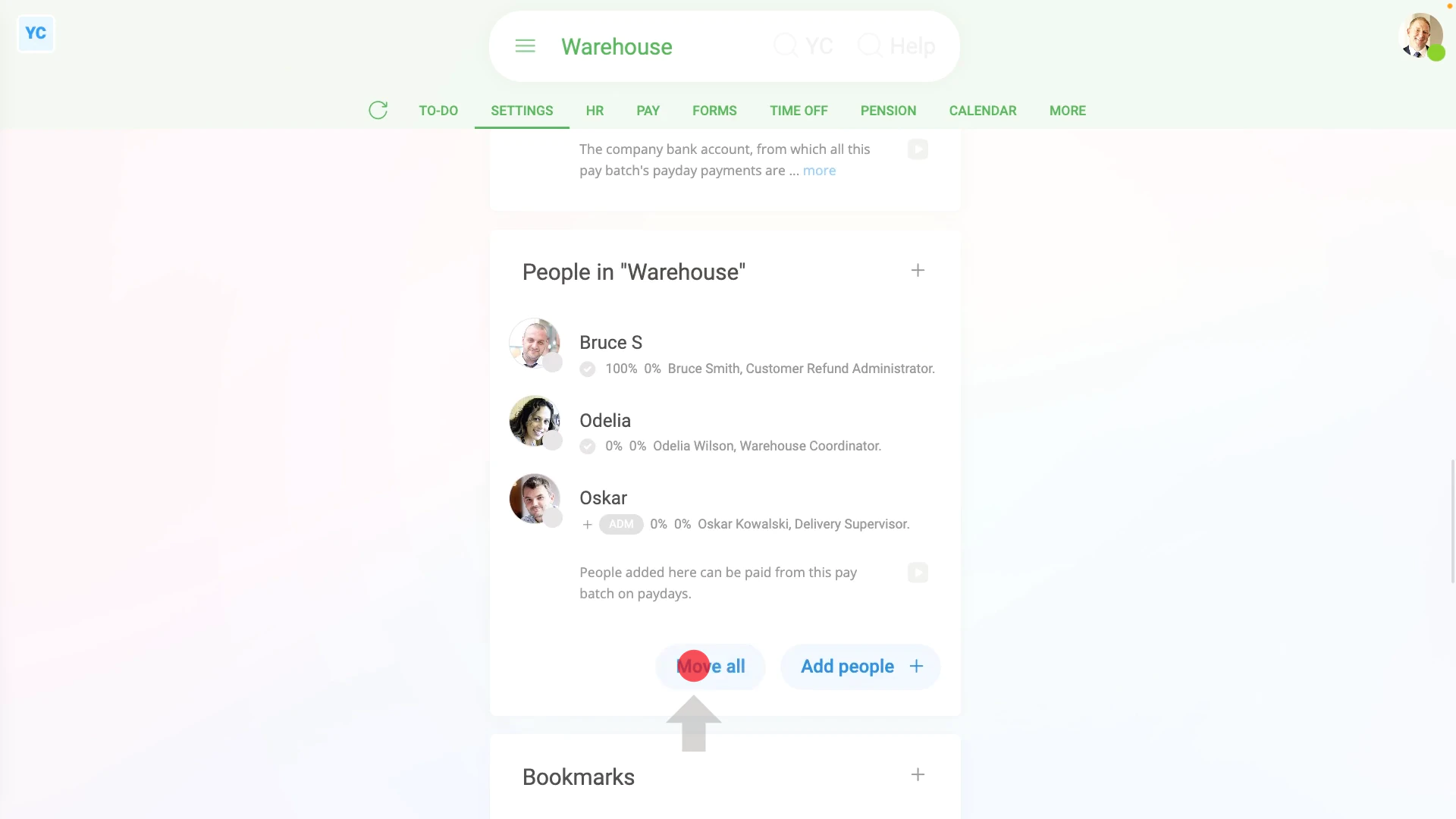
To move everyone from one payroll group to another:
- First, select the payroll group that the people are currently in, on: "Menu", then "Payroll groups"
- Then tap: "Settings", then "Payroll group settings"
- And scroll down to the "People in" heading.
- You'll now see a list of all the people in the current payroll group, that you're about to move to a different payroll group.
- Then (at the bottom of the list of people), tap: Move all
- Next, select the payroll group that you'd like them to all be moved to.
- If you're curious to see the payroll group's existing people, before the move, tap the "View" button: (at the end of the row)
- Then once you're ready, tap: Yes ... move all
- The people have now all been moved. To see the moved people, tap the link in the confirmation message.
- Then tap the three dots: (in the top-right corner), and tap: Reload
- And finally, you'll see all the people have been successfully moved to the other payroll group.
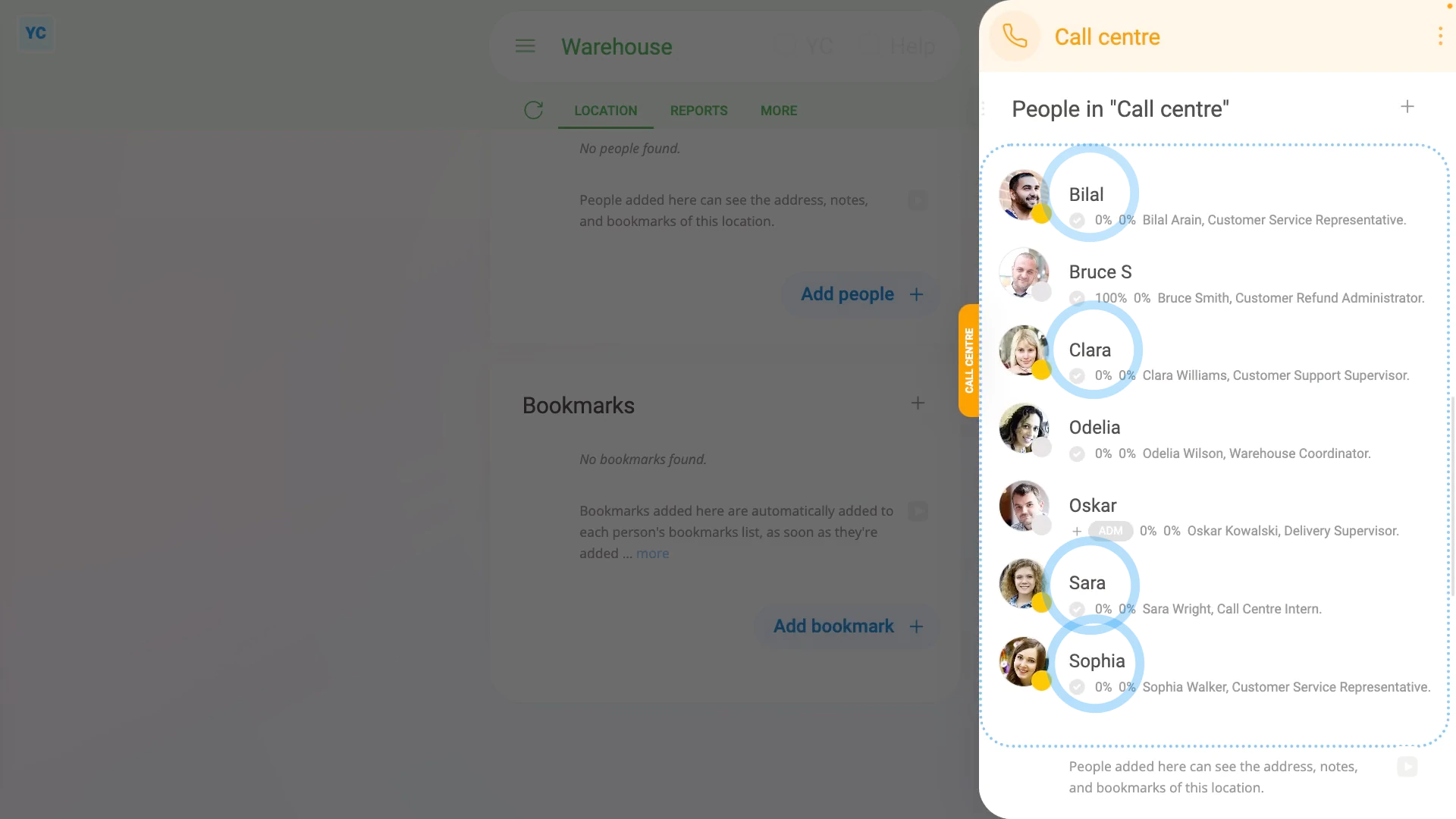
To move everyone from one location to another:
- First, select the location that the people are currently in, on: "Menu", then "Locations"
- And scroll down to the "People in" heading.
- You'll now see a list of all the people in the current location, that you're about to move to a different location.
- Then (at the bottom of the list of people), tap: Move all
- Next, select the location that you'd like them to all be moved to.
- If you're curious to see the location's existing people, before the move, tap the "View" button: (at the end of the row)
- Then once you're ready, tap: Yes ... move all
- The people have now all been moved. To see the moved people, tap the link in the confirmation message.
- Then tap the three dots: (in the top-right corner), and tap: Reload
- And finally, you'll see all the people have been successfully moved to the other location.

Keep in mind that:
- You can always move them back again, if you change your mind.
- However, if you keep them there, the moved people instantly get all the new payroll group's or location's settings.
- Including all of the payroll group's holiday dates, tax settings, and more.
- If the new payroll group has different payday settings, watch out for unintended consequences. Like them getting double paid for time already paid in the previous payroll group.
- If you only want to move a few people, instead of all the people, use Add people instead.
And that's it! That's everything you need to know about how to move everyone from one payroll group or location to another!
How do I install 1st Money on my smartphone or laptopHow do I set an email reminder to check back on something later
www.1st.money/uk/help/General/How_do_I_move_all_the_people_between_payroll_groups_and_locations