3. How do I issue a disciplinary action as verbal or written warning?
 4:41
"How do I issue a disciplinary action as verbal or written warning?"
There's two kinds of disciplinary action. A verbal warning, or a written warning. Each kind has 18 subcategories. The process of selecting, preparing, issuing, and tracking receipt of disciplinary actions is all automated by 1st Money.
To issue a disciplinary action to a person, as a verbal warning or written warning:
- First, select the person on: "Menu", then "People"
- Then tap: "HR", then "Disciplinary action"
- There's two ways to select the subcategory of disciplinary action.
- The first way to select the subcategory:
Is to select from the list of subcategories.
- The second way to select the subcategory:
Which is recommended, and much easier, is to tap: Help me pick one (at the top) - You'll now see the microphone popup open. Start talking into your device's microphone.
- Explain, in your own words, what's happened that's causing you to issue a disciplinary action to the person.
- Sometimes it may take a few sentences to explain what's happened.
- 1st Money then takes what you've said, and automatically recommends the subcategory of disciplinary action that best matches.
- And finally, once you've found the subcategory of disciplinary action that you're looking for, tap: Next
- Preparing the disciplinary action:
Now you'll need to select between "Verbal warning" or: "Written warning" - Verbal warnings are for minor disciplinary actions. Written warnings are a more formal record of misconduct.
- Once it slides out on the right, you'll see the number of tasks that 1st Money automatically does for you.
- To see the details of what each task does, tap expand all: (at the top)
- Some of the tasks send an email, or doc. To see a preview of any emails or docs, tap the links.
- Once you're happy with all the tasks, tap Continue, and then: Yes ... do it
- All the tasks are now done in the background.
- And finally, you'll see the disciplinary action added to the 12-month record of events.
- Issuing the disciplinary action doc:
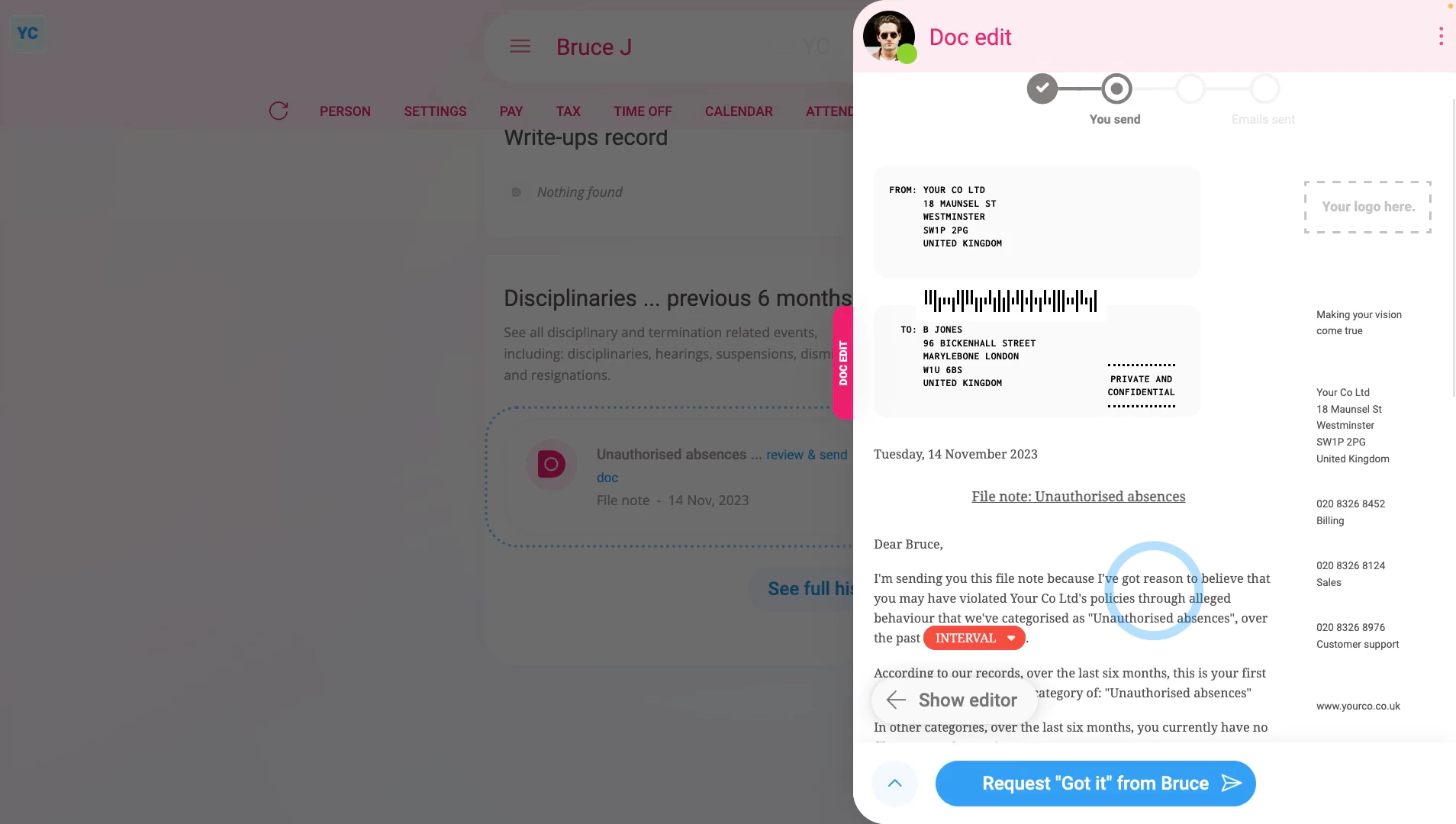
Next, the person can optionally be informed, in writing, about the disciplinary action. - A disciplinary action doc is prepared in the foreground, all ready for you to complete and send.
- Read through the disciplinary action doc, and tap the pick lists, one-by-one, until you're finished.
- If you want to change some text, or type more text in, tap Show editor, and make your changes.
- Then when you're ready to send the disciplinary action doc, tap Request "Got it", then Yes ... request "Got it", and then: Close
- Receiving the disciplinary action doc:
The person now gets an email, asking them to confirm that the disciplinary action doc you've sent has been received. - The person can't access the rest of 1st Money until the person's tapped Got it to the disciplinary action doc.
- Record of events:
Now, on the "Record of events" tab, tap the disciplinary action to expand it. - You'll see that the doc's been sent.
- To see a copy of the sent doc, tap the "View" button: (at the end of the row)
- And finally, you'll see the status change, once the person eventually marks the doc as: "Got it"

To learn more:
- About how to see the 12-month history of disciplinary action docs, watch the video on: Record of events
- To see what it looks like for the person to mark the doc as "Got it", watch the video on: Letters & docs confirmed with "Got it"
- And to see understand the differences between verbal warnings and written warnings, watch the video on: Verbal warnings vs written warnings
 Record of events
And that's it! That's everything you need to know about issuing a disciplinary action as a verbal warning or written warning!
2. What's the difference between verbal and written warningsHow do I change the default docs for leave and disciplinary actions
www.1st.money/uk/help/Offboarding/3._How_do_I_issue_a_disciplinary_action_as_verbal_or_written_warning