How do I manage signing all the agreement docs for a payroll group?

 3:10
"How do I manage signing all the agreement docs for a payroll group?"
Every once in a while you may want to check that everyone in a payroll group's agreement docs are all signed and up-to-date.
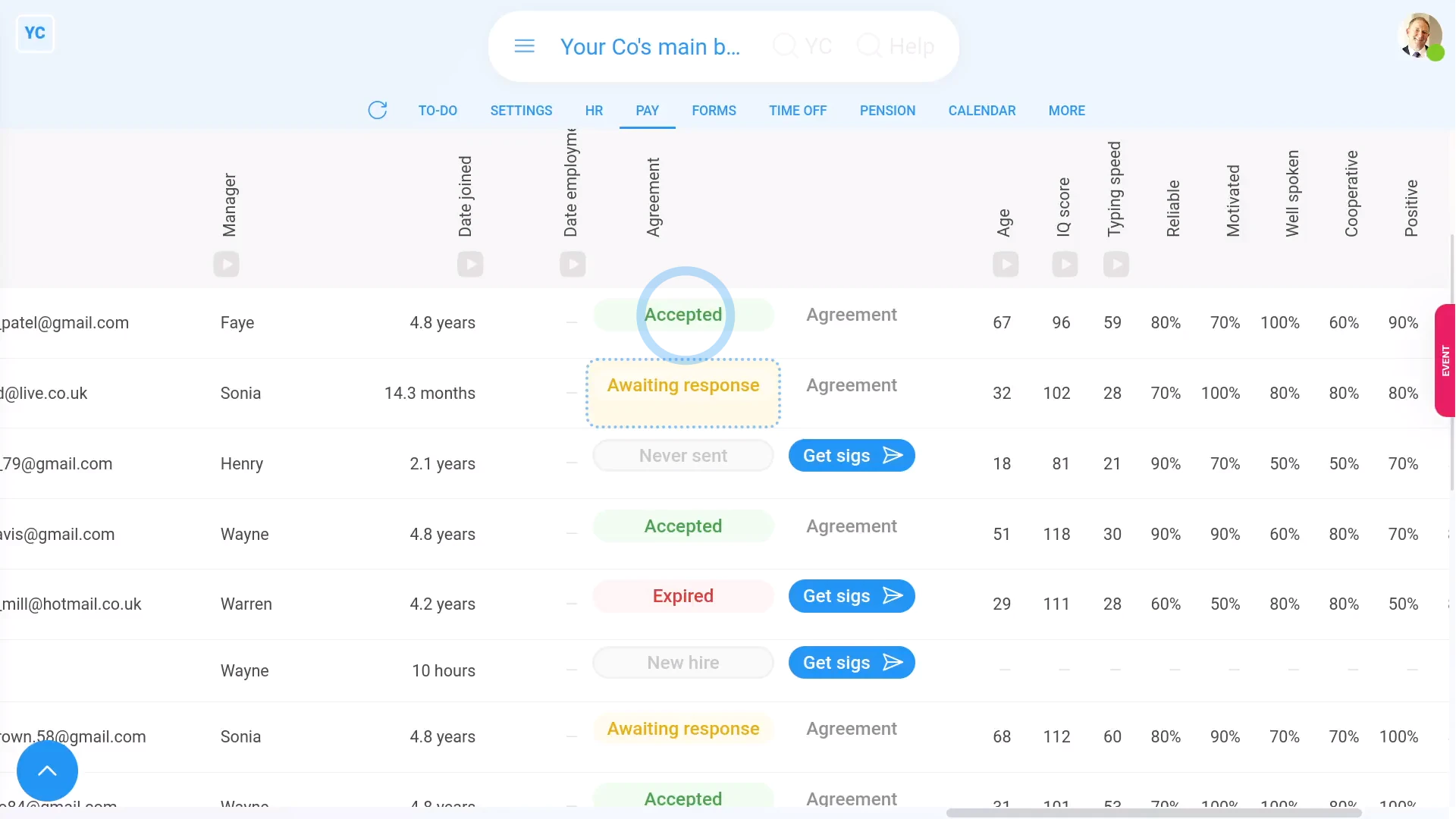
To check that a payroll group's agreement docs are all signed and up-to-date:
- First, select the payroll group on: "Menu", then "Payroll groups"
- Then to go to the "People" report, tap: "Pay", then "People"
- The "People" report shows you a list of all the people in a payroll group.
- As you scroll across, you'll see the "Agreement" column which shows you the current agreement doc status for each of the payroll group's people.
- Understanding each agreement doc status:
The different agreement doc status includes: Declined, Never sent, Awaiting response, Expired, New hire, and Accepted. - When you tap any coloured status, you'll see even more details about that person's agreement doc.
- For example, if you tap the "Declined" status, you'll see the reason the person gave for declining.
- Getting everyone's agreements signed:
Ideally, you'd like to have every agreement doc on to the green "Accepted" status. - To change every agreement doc to the green "Accepted" status, tap your way through all the Get sigs buttons, one-by-one.
- And then on each one, tap Get agreement sigs, then Get signed, and then: I accept & electronically sign
- Then once you close it, you'll see the status of each person's agreement doc automatically update to: "Awaiting response"
- And if you tap that status, and scroll down, you'll see that your signature's been added to the doc.
- And that you're now waiting for the other person to add their signature.
- Continue to tap through all the Get sigs buttons until the agreement docs have all changed to: "Awaiting response"
- And finally, once you come back in a few days, you'll likely see all the rows change to the green "Accepted" status.

Keep in mind that:
- Agreement docs are optional. It's OK to not use the agreement docs feature. Everything else still works fine.
You may notice:
- That you can always change the selected agreement doc, and set the agreement start and end dates before sending any agreement doc.
To learn more:
- About how it looks for the person to receive and sign their agreement doc, watch the video on: Agreement doc setup
 Agreement doc setup
If a feature's not showing:
- If the agreement column isn't showing, it means your org hasn't turned on the docs feature yet.
- To turn on the docs feature, watch the video on: Turning on HR Docs
And that's it! That's everything you need to know about managing and signing all of a payroll group's agreement docs!
3. What's the best way to ask for a new hire's info, before joiningHow do I remind a person to finish their onboarding
www.1st.money/uk/help/Onboarding/How_do_I_manage_signing_all_the_agreement_docs_for_a_payroll_group