How do I use the 'History ... log ins' report?
 2:07
"How do I use the "History ... log ins" report?"
The "History ... log ins" report shows you who's been logging in to your org recently.
To see a "History ... log ins" report:
- First, go to your org on: "Menu", then "Orgs"
- Then tap: "History", then "Log ins"
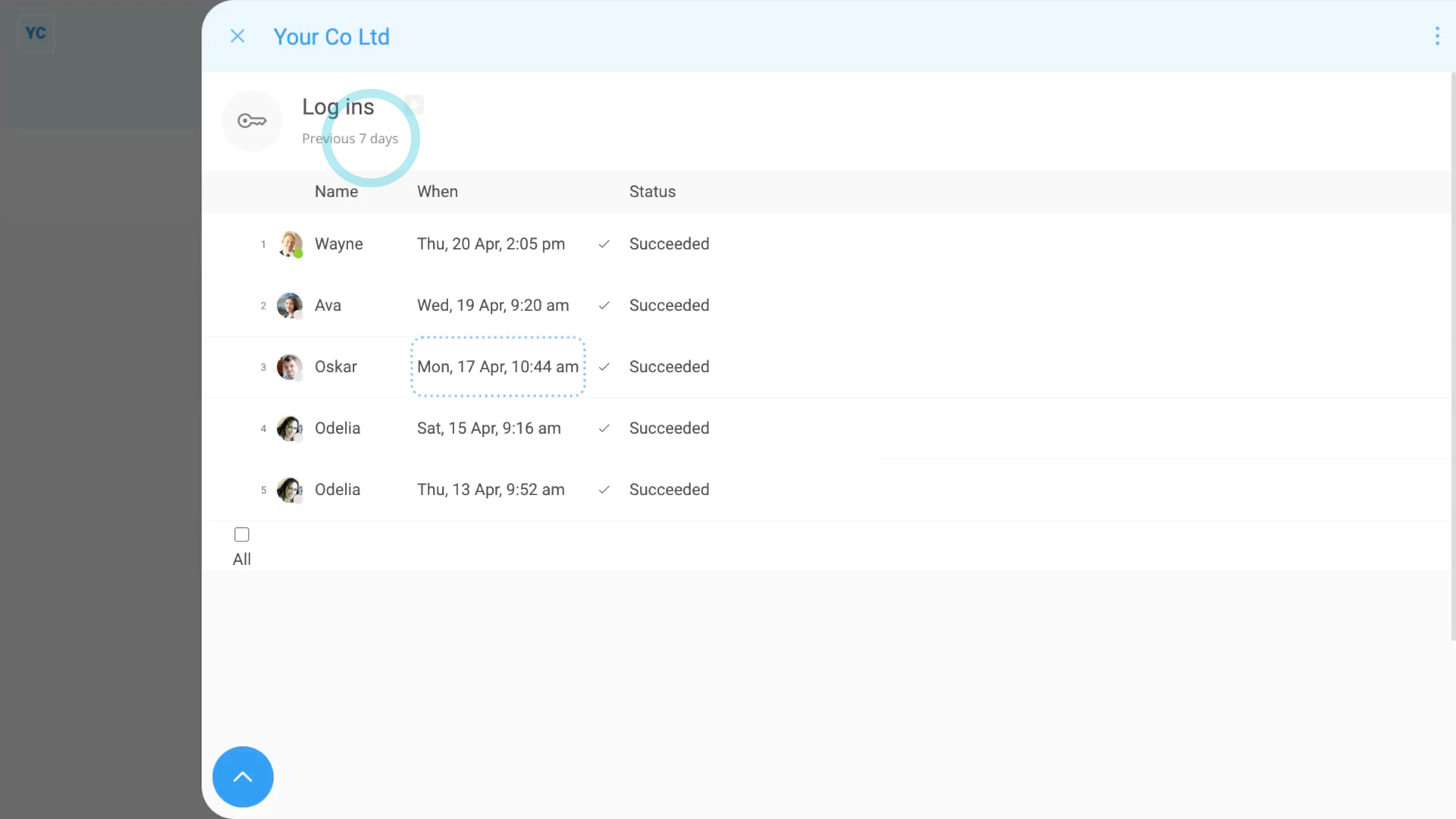
- Once it opens, you'll see a list of all the log ins by everyone in your org.
- By default, the log ins are from the last 30 days, with the most recent listed (at the top).
- And when you hover your mouse over each row, you'll see additional details about the device and browser that each person connected through.
- To only see log ins that happened in the last 7 days, tap:
" Show settings", "Dates", then "Previous 7 days" - To see any log ins from only a set of selected people, tap:
" Show settings", then "Show people" - Then Control + tap the people you want to compare.
- And finally, when you tap any row, it slides out on the right, showing even more details.

Keep in mind that:
- The "History ... log ins" report is only available to people with at least "View org admin" permissions.
For advanced usage:
- You can think of a login as being each time a person is asked to enter their password.
- The person might log in through a browser on their laptop, and also log in through the app on their phone.
- The log ins shows up as two different login rows because the person entered their password each time.
- If, on the login screen, a person turns on Keep me logged in, the person won't be asked for their password for 30 days.
- In which case, you might not see an entry in the "History ... log ins" report, for the person, for another 30 days.
And that's it! That's everything you need to know about using "History ... log ins" reports!
www.1st.money/uk/help/Org/How_do_I_use_the_'History_..._log_ins'_report