If I don't need payroll anymore, how do I close my org?
 6:03
"If I don't need payroll anymore, how do I close my org?"
If you don't need 1st Money's payroll anymore, there's four ways you can decommission and close your entire org.
To close your org when there's been no tax submissions:
- First, go to your org on: "Menu", then "Orgs"
- Then tap: "More", then "Decommission & close org"
- And if there's been no tax submissions, tap: Yes ... close
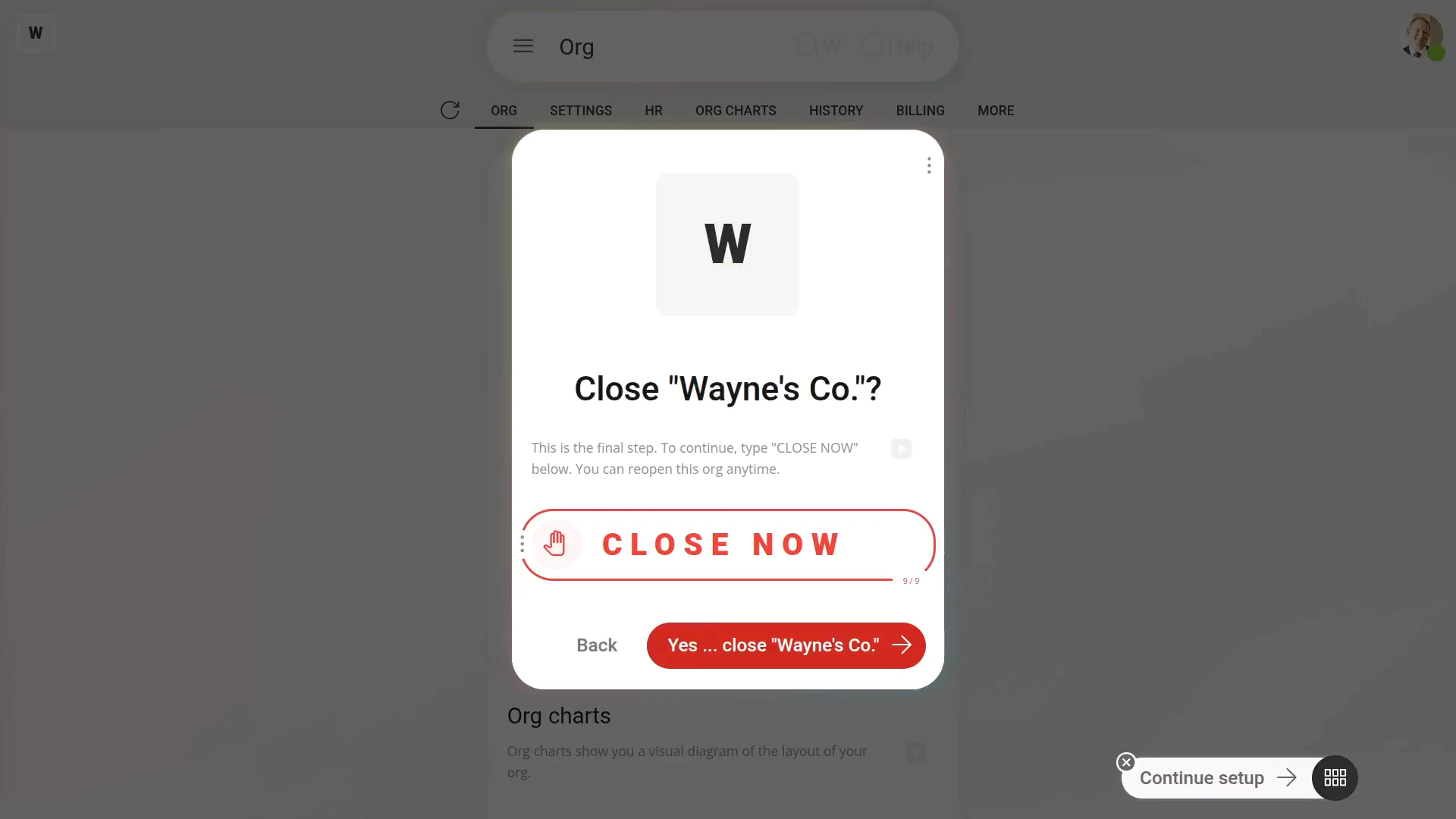
- You're now on the final screen in closing your org. Next, type: "CLOSE NOW"
- Once you've typed it correctly, the close button becomes active, and then tap: Yes ... close
- And now your org is now closed.
- Now, when you tap the items in the side menu, after you reload, you'll see that it's all crossed out.
- However, you can still get back to your closed org.
- And you can still create new orgs.
- To create a new org, tap: "Menu", then "Orgs"
- And finally, tap: Set up another org
To instead go payroll dormant, or if you don't have any payroll to pay for a few months:
- First, go to your org on: "Menu", then "Orgs"
- Then tap: "More", then "Decommission & close org"
- And select: Going payroll dormant
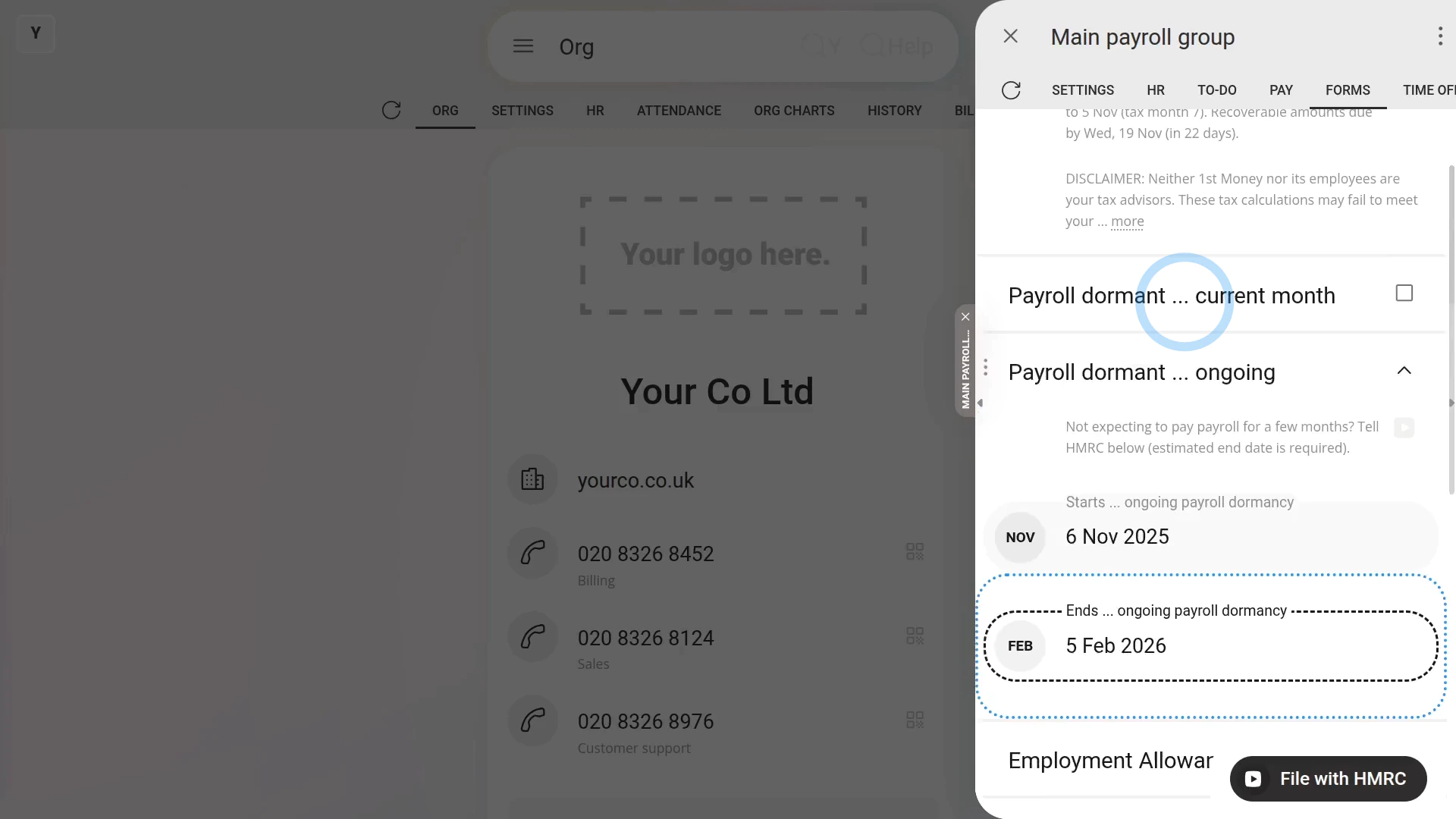
- Once it slides out on the right, you'll see a list of dates.
- Select the date that you'd like to remain "payroll dormant" until.
- If you want to immediately start being "payroll dormant", also tick the box: Payroll dormant ... current month (above)
- Then check that the dates match the period that you don't expect to have any payroll payments.
- And finally, if you're all ready to send it to HMRC, tap: File with HMRC (at the bottom)

Keep in mind that:
- None of the "payroll dormant" steps actually close your org. What the "payroll dormant" steps do is inform HMRC that there's no payroll being paid for a few months.
- Also, if you've got more than one active payroll group, you'll need to repeat the "payroll dormant" steps for each of your payroll groups.
- To learn more about not having any payroll to pay for the next few months, watch the video on: EPS: Going payroll dormant
 EPS: Going payroll dormant
To instead switch to a different payroll provider, and stop using 1st Money:
- First, go to your org on: "Menu", then "Orgs"
- Then tap: "More", then "Decommission & close org"
- And select: Switching payroll provider
- And tap: Yes ... close
- You're now on the final screen in closing your org. Next, type: "CLOSE NOW"
- Once you've typed it correctly, the close button becomes active, and then tap: Yes ... close
- And now your org is now closed.
- Importantly, for your org that you've closed, you can still look up any info, and download any PDFs.
- However, you can't make any changes, or add other people, until your org's re-opened.
- At any time that you want to start using your org again, to re-open it, tap: Re-open (at the bottom)
- And then tap: Yes ... re-open
- And finally, everything's open and you can make changes again.
Also remember that:
- Selecting the "Switching payroll provider" option, closes your org, but doesn't end the employment of any of your people. It also doesn't send any notifications to HMRC.
- Which makes it easier for you to resume your payroll with your new payroll provider.
- You also won't need to do any extra steps to cancel any 1st Money payments or subscriptions. Once you stop using 1st Money, your card automatically won't be charged anymore.
To instead tell HMRC that you're no longer an employer, and close your business:
- First, go to your org on: "Menu", then "Orgs"
- Then tap: "More", then "Decommission & close org"
- And select: Closing my business
- Before continuing, you'll be advised that closing your org first requires the following steps, including.
- Terminating all employees. Running final pay. Stopping employment for all your payroll groups. And sending your final EPS to HMRC.
- It's highly recommend that you do all the "stopping employment" steps now, as shown if you watch the video on: EPS: Stop being an employer
- Once you've gone and done all those "stopping employment" steps, including submitting an EPS to let HMRC know that you're no longer an employer.
- Now, when you tap: "More", then "Decommission & close org"
- You'll see that the message has changed, and your org's ready to be closed.
- Next, tap: Yes ... close
- You're now on the final screen in closing your org. Next, type: "CLOSE NOW"
- Once you've typed it correctly, the close button becomes active, and then tap: Yes ... close
- And finally, your org's now closed.
Bear in mind that:
- Your org can stay dormant and unused for up to three years, but you can still look up any info, and download any PDFs.
- 1st Money is required to store your payroll records for three years.
- To read more about record storage, go to GOV.UK.
And that's it! That's everything you need to know about four ways to close your entire org!
www.1st.money/uk/help/Org/If_I_don't_need_payroll_anymore,_how_do_I_close_my_org