2. What's the 'Per year', 'Per month' or 'Per hour' pay rate setting?

 6:41
"What's the "Per year", "Per month" or "Per hour" pay rate setting?"
The "Per year", "Per month", or "Per hour" pay rate, sets the person's "Rate amount" to a fixed amount for the year, month, or hour.
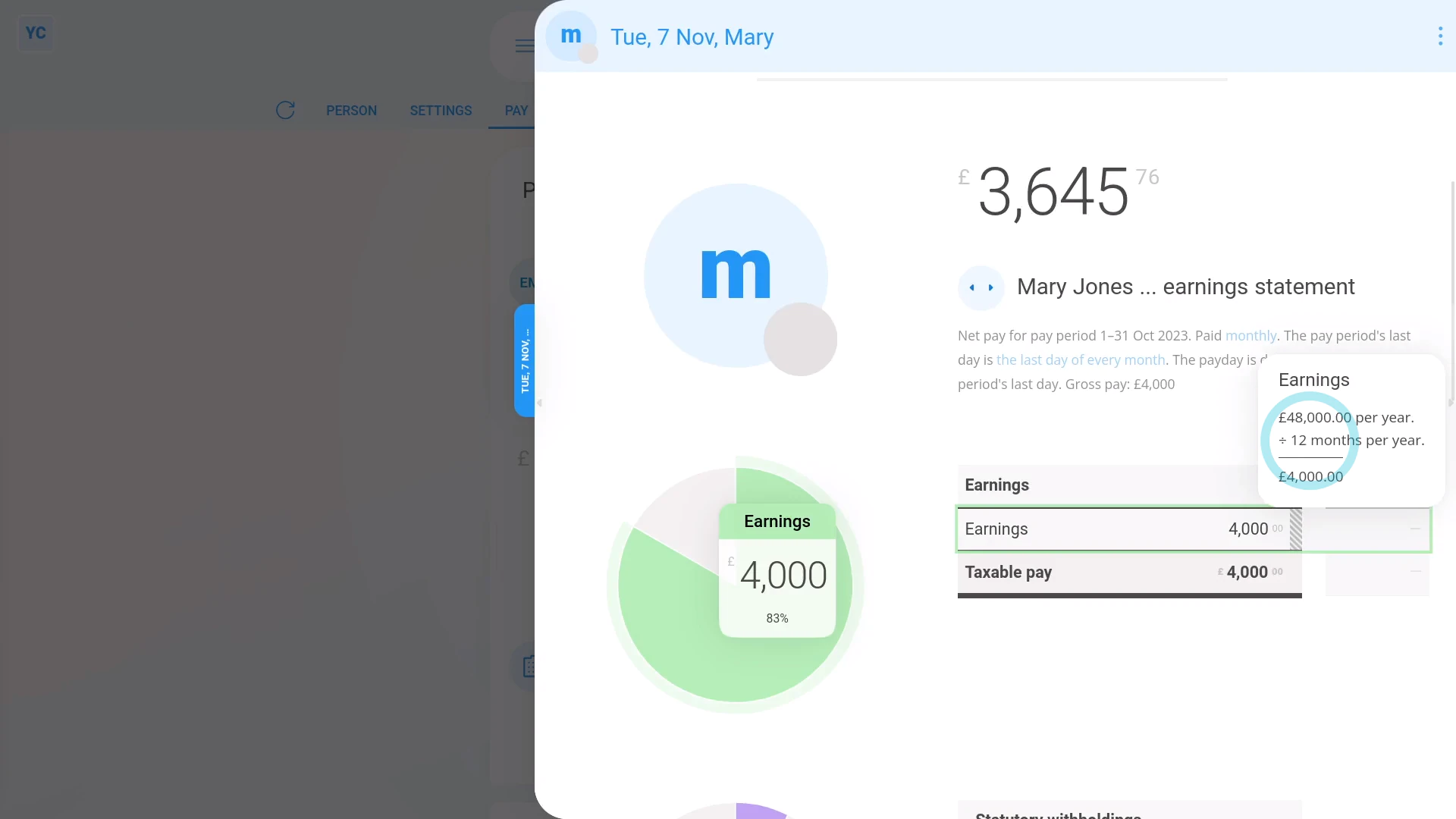
To set a person to a "Per year" or "Per month" fixed salary pay rate:
- First, select the person on: "Menu", then "People"
- Then tap: "Pay", then "Pay settings"
- Next, tap: Set rate
- And set it to "Per year" or: "Per month"
- Then set their "Rate amount" as a per year or per month amount.
- And tap: Save
- Now, to see how it looks on their payslip, tap: "Pay", then "Payslip"
- Then once their payslip slides out on the right, you'll now see that their earnings are based on their yearly or monthly salary, as expected.
- And when you mouse over the "Earnings" number you'll see the calculation.
- Remember, you can make changes at any time, to the person's yearly or monthly salary, right up until before the payslip's filed.
- And finally, to see an overall summary of their pay, tap: "Pay", then "Pay summary"

Keep in mind that:
- In most cases, the person joined some time ago, and has worked the full pay period. So the person gets full pay for the full pay period.
- However, if the person joined recently, for example part way through the current month, their pay's reduced. It's "pro rata" reduced to the part of the month that was worked.
- To see how a "pro rata" reduction looks, tap your way to: "Settings", then "Job settings"
- And set their "Date joined" to part way through the month, and tap: Save
- Now, when you open the payslip again on: "Pay", then "Payslip"
- You'll see their earnings for the current month are correctly reduced to a smaller amount, because the person's joined part way through the month.
You may notice:
- That the "pro rata" reduction also works for when the person leaves.
- For example, if the person leaves part way through the month, their earnings are also correctly reduced to the part of the month that was worked.
"What's the "Per hour ... clocked-in timesheets" pay rate?"
The "Per hour ... clocked-in timesheets" pay rate automatically pays people an hourly rate based on the "Done time" in their timesheets. In other words, the people are paid for their hours actually worked.
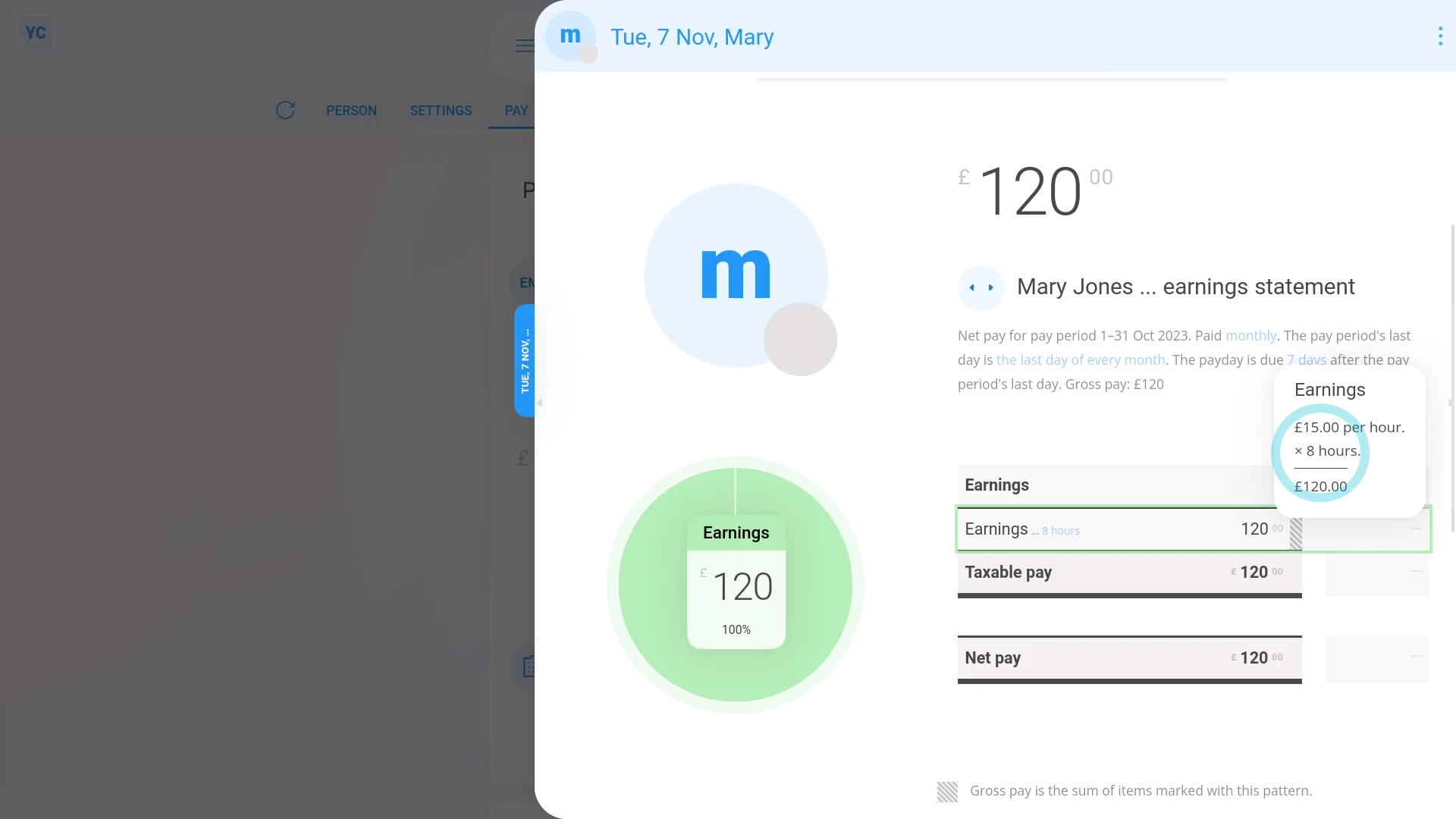
To set a person to a "Per hour ... clocked-in timesheets" pay rate:
- First, select the person on: "Menu", then "People"
- Then tap: "Pay", then "Pay settings"
- Next, tap: Set rate
- And set it to: "Per hour ... clocked-in timesheets"
- Then set their "Rate amount" per hour.
- And tap: Save
- Now, to see how it looks on their payslip, tap: "Pay", then "Payslip"
- Then once their payslip slides out on the right, you'll now see that their earnings are based on their timesheet hours, as expected.
- And when you mouse over the "Earnings" number you'll see the calculation.
- Then to see more detail on a payslip's hours worked, tap the "Hours worked" link (at the top).
- You'll now see the hours worked for each day in the pay period, with a total (at the bottom).
- To add more hours, tap one of the days, then tap, Add time, and select the hours that are to be paid for that day.
- And tap: Save
- Now back to the payslip.
- And you'll see the payslip instantly recalculates with the new timesheet hours.
- Remember, you can make timesheet changes at any time, right up until before the payslip's filed.
- And finally, to see an overall summary of their pay, tap: "Pay", then "Pay summary"
If a feature's not showing:
- If the "Per hour ... clocked-in timesheets" option is "Disabled", it means your org hasn't turned on the timesheets feature yet.
- To turn on the timesheets feature, watch the video on: Turning on timesheets
 Turning on timesheets
"What's the "Per hour ... fixed targets" pay rate?"
The "Per hour ... fixed targets" pay rate automatically pays people an hourly rate based on whatever their target hours have been set to.
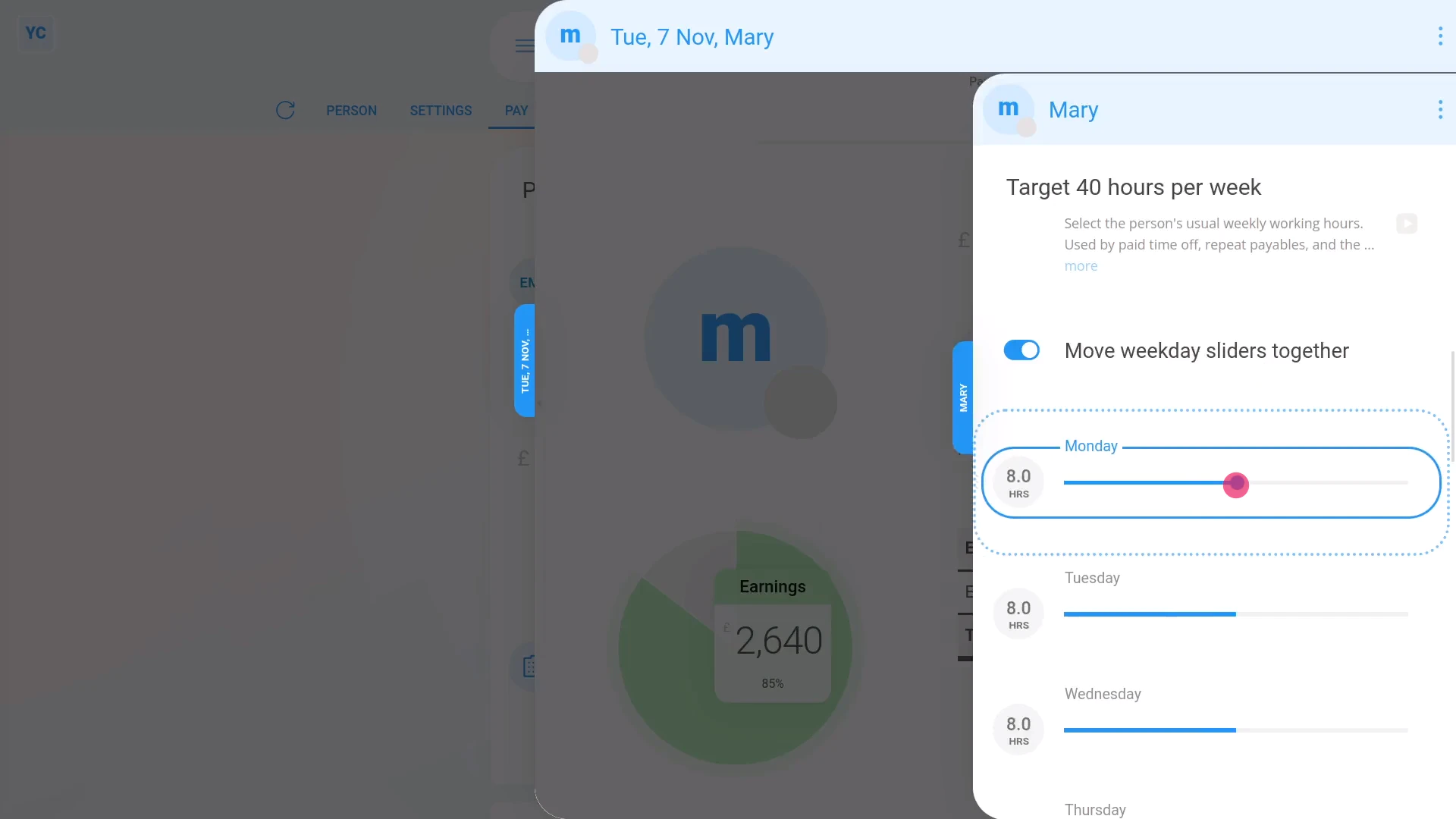
To set a person to a "Per hour ... fixed targets" pay rate:
- First, select the person on: "Menu", then "People"
- Then tap: "Pay", then "Pay settings"
- Next, tap: Set rate
- And set it to: "Per hour ... fixed targets"
- Then set their "Rate amount" per hour.
- And tap: Save
- Now, to see how it looks on their payslip, tap: "Pay", then "Payslip"
- Then once their payslip slides out on the right, you'll now see that their earnings are based on their target hours, as expected.
- And when you mouse over the "Earnings" number you'll see the calculation.
- Then to see more detail on a payslip's hours worked, tap the "Hours worked" link (at the top).
- You'll now see the hours worked for each day in the pay period, with a total (at the bottom).
- Now back to the payslip.
- If you ever need to permanently adjust the person's target hours, tap the "target hrs" link.
- Then drag the sliders to the new target hours, and tap: Save
- And you'll see the payslip instantly recalculates with the new target hours.
- Remember, you can make target hour changes at any time, right up until before the payslip's filed.
- And finally, to see an overall summary of their pay, tap: "Pay", then "Pay summary"
Also remember that:
- A permanent adjustment to a person's target hours applies to future payslips as well.
To learn more:
- About how to make a one-off manual adjustment to a person's hours, watch the video on: Adjusting hours
And that's it! That's everything you need to know about "Per year", "Per month", and "Per hour" pay rates!
www.1st.money/uk/help/Payroll/2._What's_the_'Per_year',_'Per_month'_or_'Per_hour'_pay_rate_setting