Who can see my payslips and how do I open them?

 3:39
"Who can see my payslips and how do I open them?"
Because of the sensitivity of pay info, there's strict control over who can see your payslips.
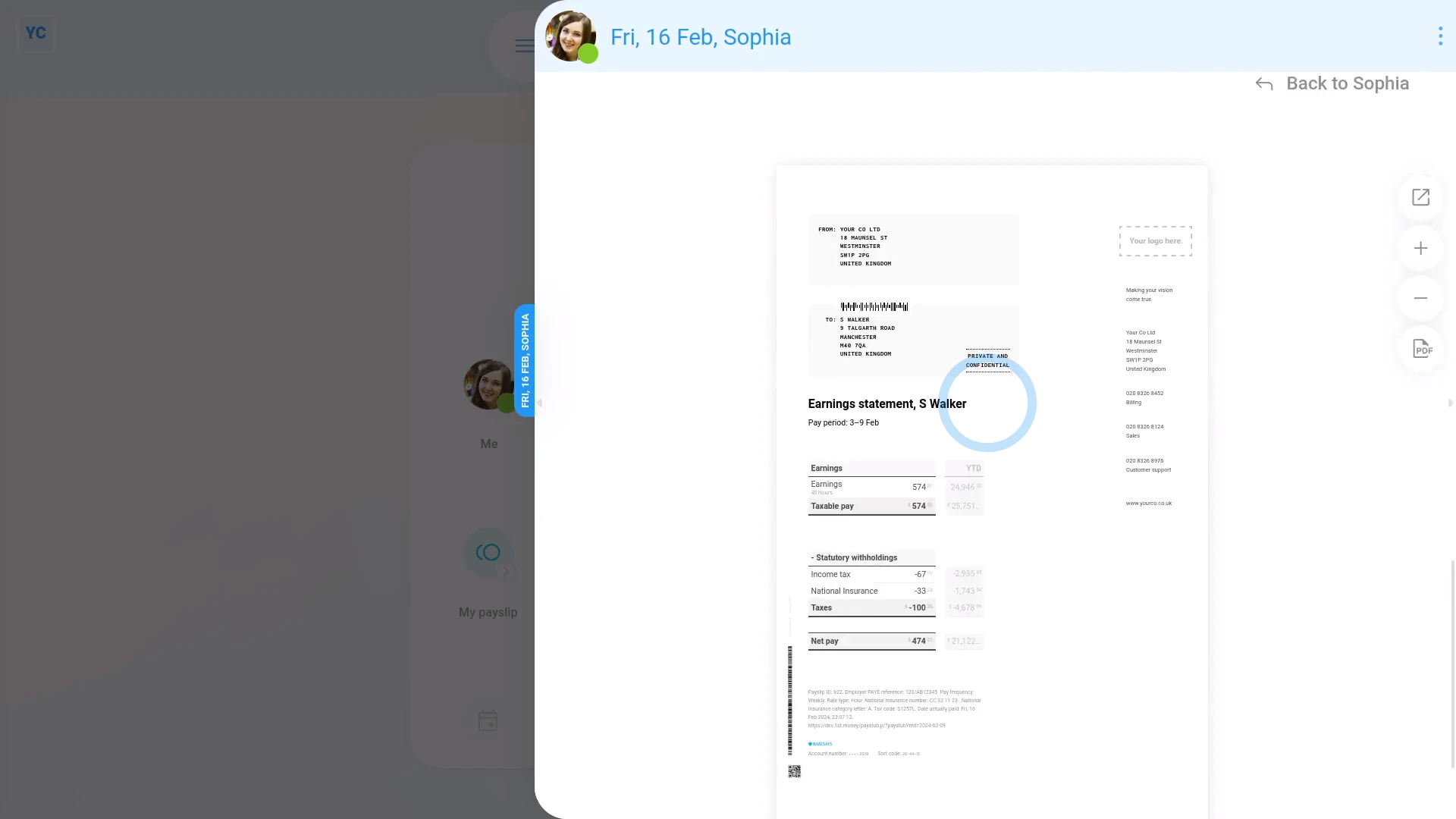
As a regular person, without any special permissions, to see your own payslips:
- First, from your home screen, tap: My payslip
- In many cases, your current payslip may not be due to be filed yet.
- If it's not filed, you'll see the "Not filed & not paid yet" message.
- To skip back a payslip to the one that's been previously filed, tap: Previous payslip
- And when you scroll to the bottom, you'll see a preview of your payslip PDF.
- And back to the top of the page, you'll see Download PDF, which you can tap to download a PDF of your payslip.
- To see a list of all your filed payslips:
Go back on your home screen, and tap: Me - Then tap: "Pay", then "Paid payslips"
- And finally, tap any of your old payslips to see it.
You're now seeing the login of a person with "Full payroll admin" permissions.
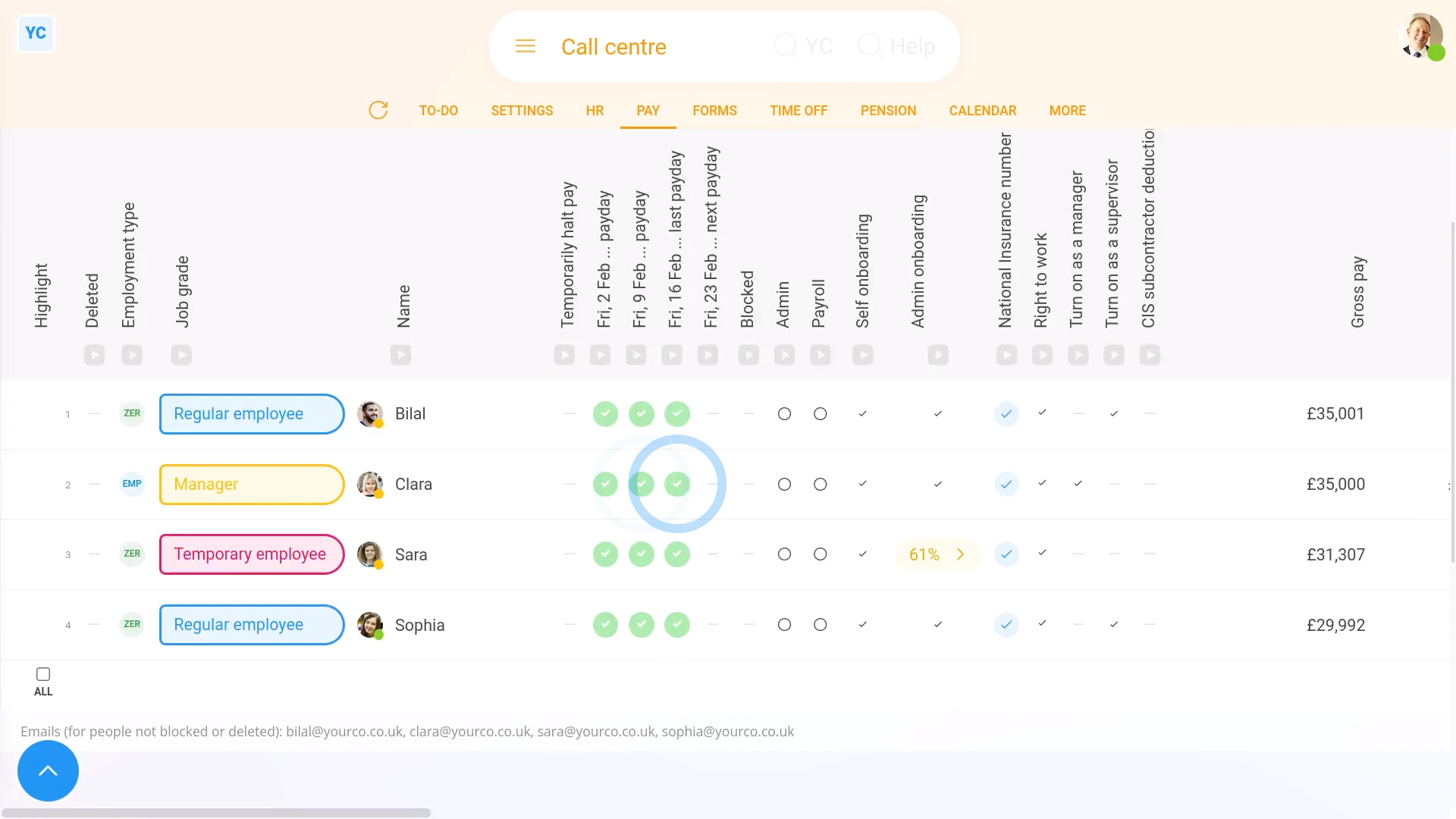
To see other people's payslips, if you've got "Full payroll admin" permissions:
- First, select the payroll group on: "Menu", then "Payroll groups"
- Then tap: "Pay", then "People"
- On the "People" report, each green circle represents a filed payslip.
- Tap on them to see that person's filed payslip for that date.
- Where there's no green circle, then that pay period's payslip hasn't been filed yet.
- If you tap where a green circle's missing, you'll see that person's un-filed payslip for that date.
- If there's a warning that's blocking the payslip from being filed, you'll see any warnings near the top.
- If there's no warnings, then to file it now, scroll down and tap: Go to "Process payroll"
- The person's payslip is automatically selected, so to process it, tap Process payroll, and then: Yes ... process it
- It usually takes about 10 seconds for HMRC to finish processing the payslips and send back confirmation that it's been received.
- Once it's been filed successfully, you'll see a green tick beside the payslips that you've filed.
- Then back on the "People" report, tap the "Reload tab" button: (at the top), to update the newly filed green circles.
- And finally, you'll now see the recently filed payslips are now also marked with a green circle, meaning it's been filed and confirmed by HMRC.

Keep in mind that:
- All regular people, including those without any special permissions, can always see their own filed payslips.
- However, only people with at least "View payroll admin" permissions can see the payslips of other people.
- To see the people in your org who've got "Full payroll admin" permissions, tap: "Menu", then "List payroll admins"
- And you'll now see the people in your org with "Full payroll admin" permissions.
And that's it! That's everything you need to know about who can see your payslips and how to open them!
www.1st.money/uk/help/Payroll/Payslips/Who_can_see_my_payslips_and_how_do_I_open_them