How do I change the paper size of PDFs I download?

 1:46
"How do I change the paper size of PDFs I download?"
The "PDF paper size" setting lets you set the paper size of all your payslip and HR doc PDFs. It also aligns your postal mailing addresses with standard windowed envelopes.
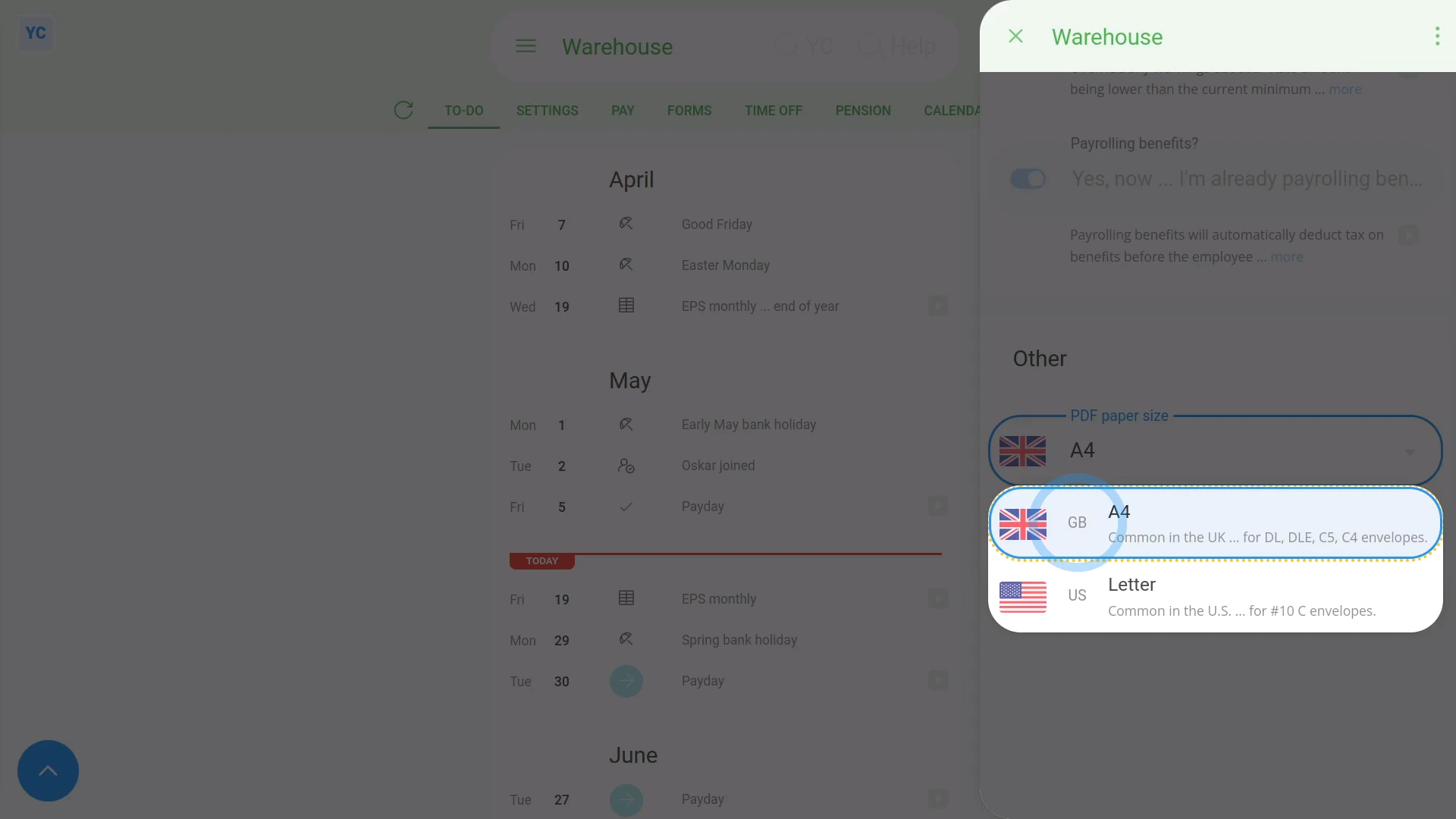
To set a payroll group's PDF paper size:
- First, select the payroll group on: "Menu", then "Payroll groups"
- Then tap: "Settings", then "Advanced"
- Then scroll all the way down to the "Other" heading.
- By default, "PDF paper size" is set to whichever paper size is most common in the payroll group's country.
- Select your preferred paper size by changing: "PDF paper size"
- And finally, tap: Save
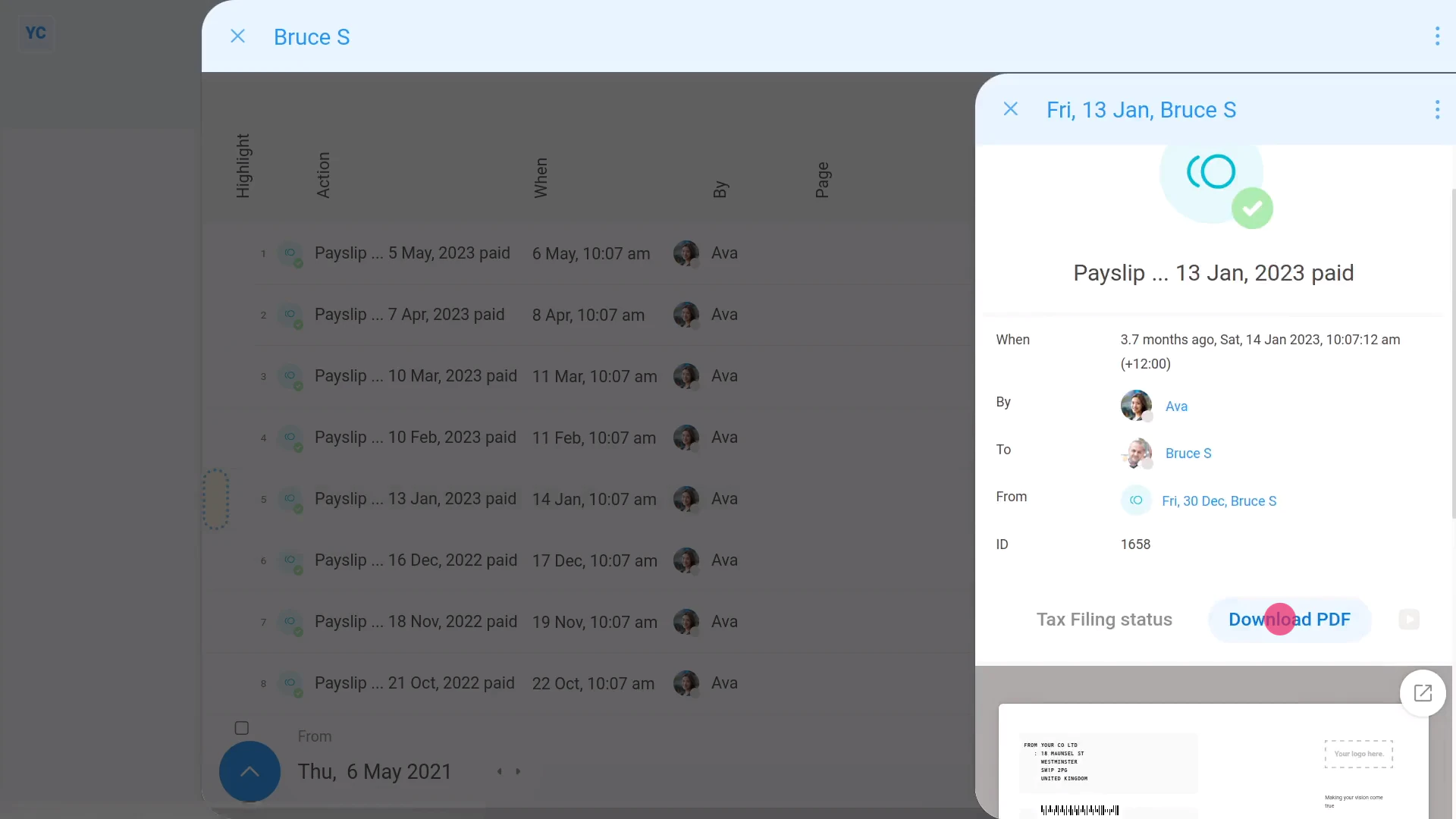
To download somebody's payslip, and see its paper size:
- First, select the person on: "Menu", then "People"
- Then tap: "Pay", then "Paid payslips"
- Once you've selected a payslip, tap the "See event" button: (at the start of the row)
- Then once it slides out on the right, tap: Download PDF
- Once it's downloaded, tap the PDF to open it.
- Next, tap the "Print" button:
- And then tap: "More settings"
- And finally, you'll see the "Paper size" of the PDF is set, as expected.

Keep in mind that:
- If you ever find that the address isn't positioned in the envelope's window, you may need to check your: "PDF paper size"
And that's it! That's everything you need to know about changing a payroll group's PDF paper size!
www.1st.money/uk/help/Payroll_groups/How_do_I_change_the_paper_size_of_PDFs_I_download