How do I pay a payroll tax payment to the government?

 3:43
"How do I pay a payroll tax payment to the government?"
Inside each payroll group, 1st Money automatically reminds you of any upcoming government tax payments that are about to become due for payment.
To pay a payroll tax payment:
- First, select the payroll group on: "Menu", then "Payroll groups"
- Then tap: "To-do"
- And look for a green circle with a "Taxes to pay" link.
- When you hover your mouse over the green circle, you'll see the exact deadline of when the tax payment has to be received by.
- Once you're ready to make the payment, tap the "Taxes to pay" link.
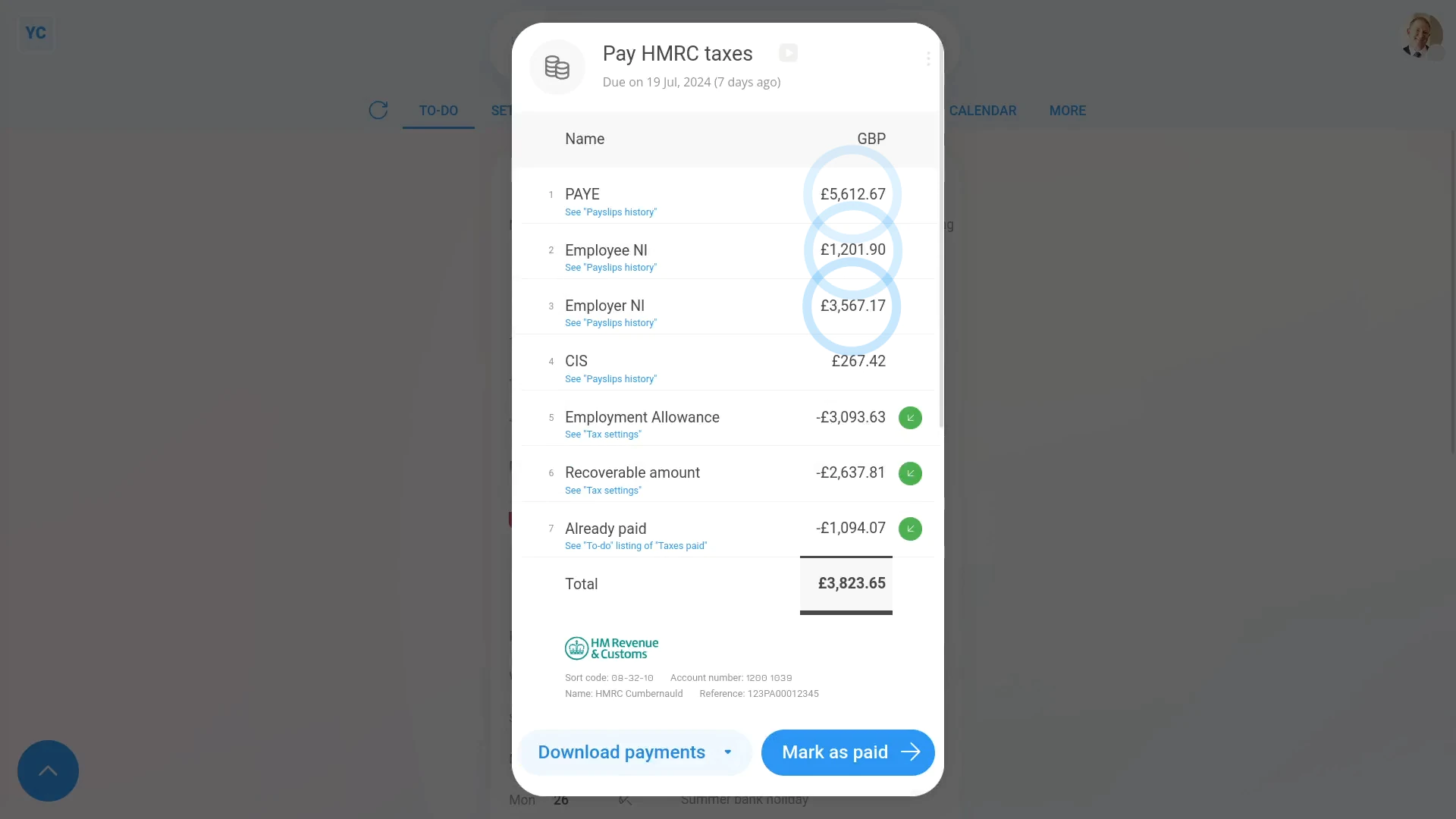
- If you tap past the blue warning, you'll see a list of the exact payment amounts that are due.
- To see more details for any of the tax amounts, tap the link below it.
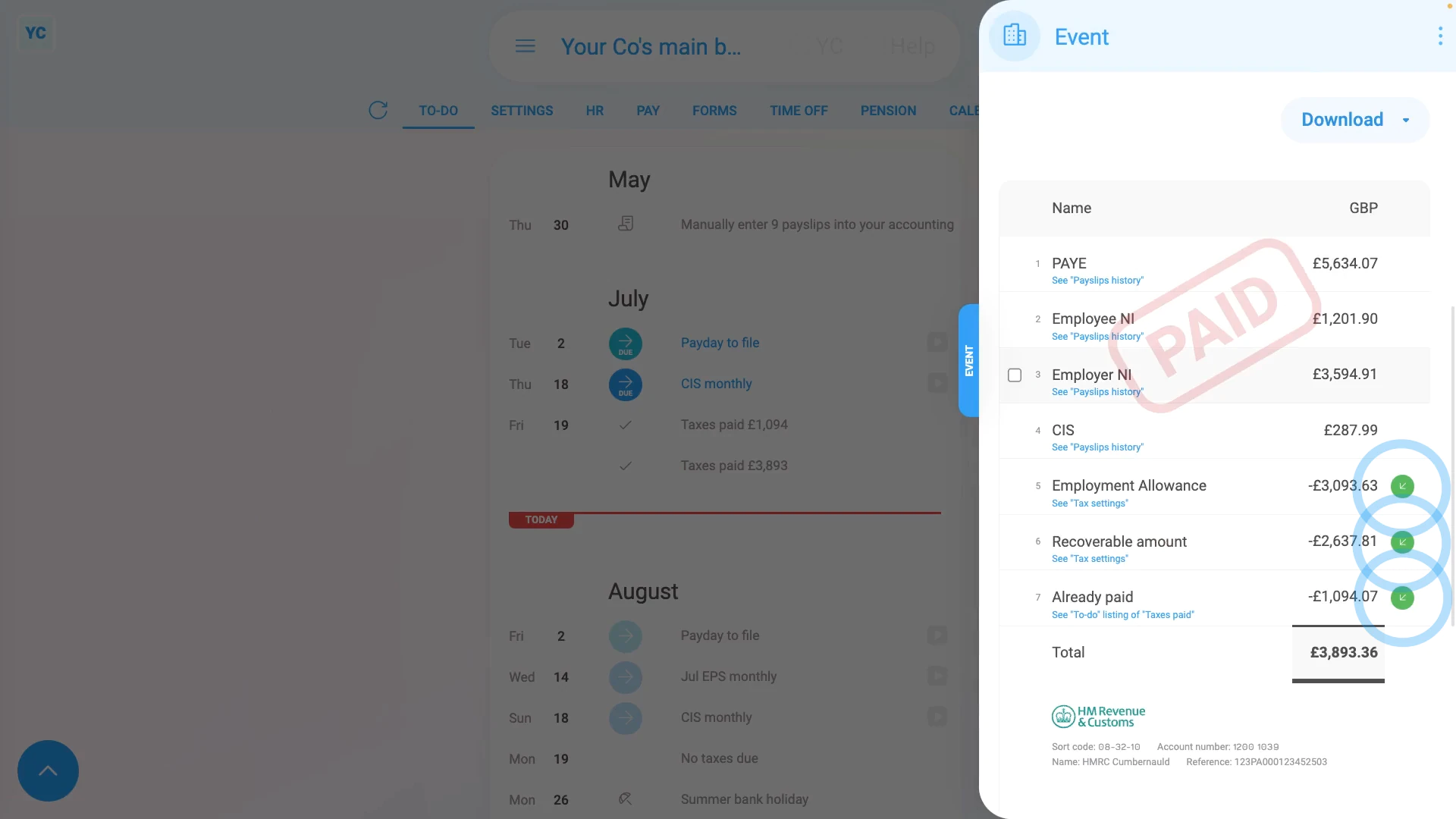
- If you see a dark green circle, it means that the amount reduces the tax you're paying to the government. More on tax reductions later.
- Then near the bottom of the list you'll see the total payment amount, and also notes on the government's bank details.
- Next, tap: Download payments
- Then tap the bank you use, and that bank's payment file's downloaded.
- The payment file has all the banking details for the tax payment, including the government's bank account details.
- Next, upload the payment file to your banking software.
- Once you've paid it through your bank, tap: Mark as paid
- Also, if you ever need to see details about the payment, tap the "Taxes paid" row, and then tap the "more" link.
- And finally, you'll see notes on who made the tax payment, exactly which taxes were paid, and much more.
To see examples of amounts that reduce any tax you're paying:
- First, there's up to three situations where the amount of tax you pay to the government can be reduced.
- The first is Employment Allowance:
To learn more about "Employment Allowance", tap "See "Tax settings"" and watch the video on: EPS: Employment Allowance
 EPS: Employment Allowance
- The second is Recoverable amounts:
To learn more about "Recoverable amounts", tap "See "Tax settings"" and watch the video on: EPS: Recoverable amounts
- And finally, the third is Already paid:
The "Already paid" amount is what you've already paid to HMRC for the tax month. You'll see a breakdown if you tap: "See "To-do" listing of "Taxes paid""

Keep in mind that:
- If you've got more than one payroll group, you'll need to repeat the tax payment steps above for each of your payroll groups.
- Also, if you don't see a "Taxes to pay" link, it could be because no taxes are currently due.
- You may need to pay some payslips, which you can do by looking for the "Payday to file" link.
- By processing a payday, you'll trigger some taxes to be due.
Also remember that:
- 1st Money doesn't make any bank transactions to the government.
- You've got to make the payment by hand or use the Download payments feature and upload the downloaded file to your bank.
- Either way, once you've completed the bank payments, tap Mark as paid in 1st Money to mark the taxes as paid.
And that's it! That's everything you need to know about paying payroll tax payments!
www.1st.money/uk/help/Payroll_groups/How_do_I_pay_a_payroll_tax_payment_to_the_government