How do I set pension percentages on a payroll group or person?

 4:43
"How do I set pension percentages on a payroll group or person?"
The pension percentages set how much is paid into your people's pensions each payday.
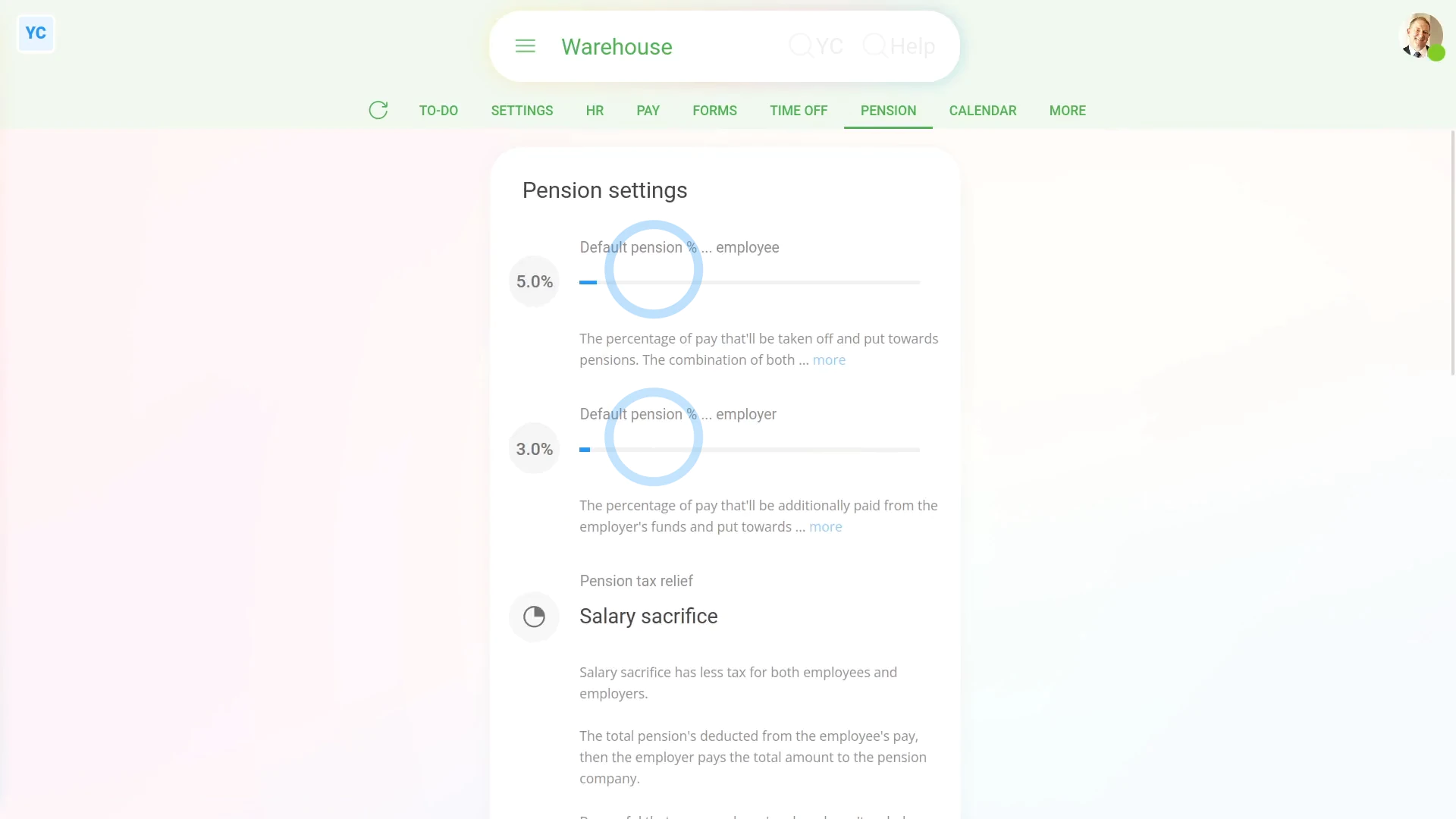
To set a payroll group's default pension contribution percentages:
- First, select the payroll group on: "Menu", then "Payroll groups"
- Then on the "Pension", then "Pension settings" tab, look for the two pension percentage sliders.
- The first pension slider, or employee percentage, sets the default percentage of the employee's pay that's paid into the employee's pension.
- The second pension slider, or employer percentage, sets the default percentage that the employer pays into the employee's pension.
- The employer percentage can't go lower than 3%, but can be set higher.
- The employee percentage can go as low as 0%, but both employer and employee percentages, when added together, must add up to at least 8%.
- When you tap Save, if the two percentages don't add up to at least 8%, you'll get a red warning.
- And you'll need to increase the percentages until the two percentages add up to at least 8%.
- And finally, tap Save, and your payroll group's new percentages are now applied from its next payday onwards.

Keep in mind that:
- The payroll group pension percentages are defaults only.
- Which means the percentages are applied to every employee in the payroll group who doesn't otherwise have their own specific percentages set.
To set a person's pension contribution percentages:
- First, select the person on: "Menu", then "People"
- Then tap: "Pay", then "Pension"
- If the person's got the "Enrolled in pension" tick, then scroll down further to the "Pension settings" heading.
- By default, each person's pension contribution percentages are set to their payroll group's default pension contribution percentages.
- But as the employer, you've got the right to increase the employer percentage of any, or all, of your people. As long as you make sure it's higher than the employer's 3% minimum.
- Or, if you want to reset it back to the payroll group's default percentage, tap the reset button:
- The person can also request for their own employee percentage to be changed.
- However, both employer and employee percentages, when added together, must add up to at least 8%.
- And finally, tap Save, and the person's new percentages are now applied from their next payday onwards.
For advanced usage:
- Each employee has the right to opt out of their pension entirely.
- To learn more about how employees can opt out of their pension, watch the video on.
- Each employee also has the right to have their pension set to the lowest possible percentage.
- However, the frequency at which an employee can increase their pension contribution percentage can vary depending on the employer and pension scheme.
- Some employers may only allow pension increases yearly, while others may allow it on request.
Also remember that:
- Only people who've got "Full payroll admin" permissions can set the pension percentages on a payroll group or person.
- And pension contributions are only available to "Employees" and: "Zero-hour workers"
- To check a person's employment type, go to: "Pay", then "Pay settings"
- Then tap: "Employment type" (at the top)
- You'll see that the employment types are all listed as "No" for "Pensions", except for "Employee" and: "Zero-hour worker"
- To learn more about employment types, watch the video on: Employment type
 Employment type
To see everyone's pension percentages in a payroll group:
- First, select the payroll group on: "Menu", then "Payroll groups"
- Then tap: "Pay", then "People"
- You may prefer to tap the tick boxes (at the start of any row).
- With the highlight turned on, it's easier to keep track of rows as you scroll across.
- Then scroll across to the employer and employee pension percent columns.
- And finally, as a payroll admin, you can tap any percentage, and instantly make changes.
And that's it! That's everything you need to know about setting how much is paid into your people's pensions each payday!
www.1st.money/uk/help/Pensions/How_do_I_set_pension_percentages_on_a_payroll_group_or_person