How do I manage who's following me, and how do I ghost people?
 3:26
"How do I manage who's following me, and how do I ghost people?"
The "Following me" menu shows a list of people in your org who get updates on your starts, stops, and timesheet summaries.
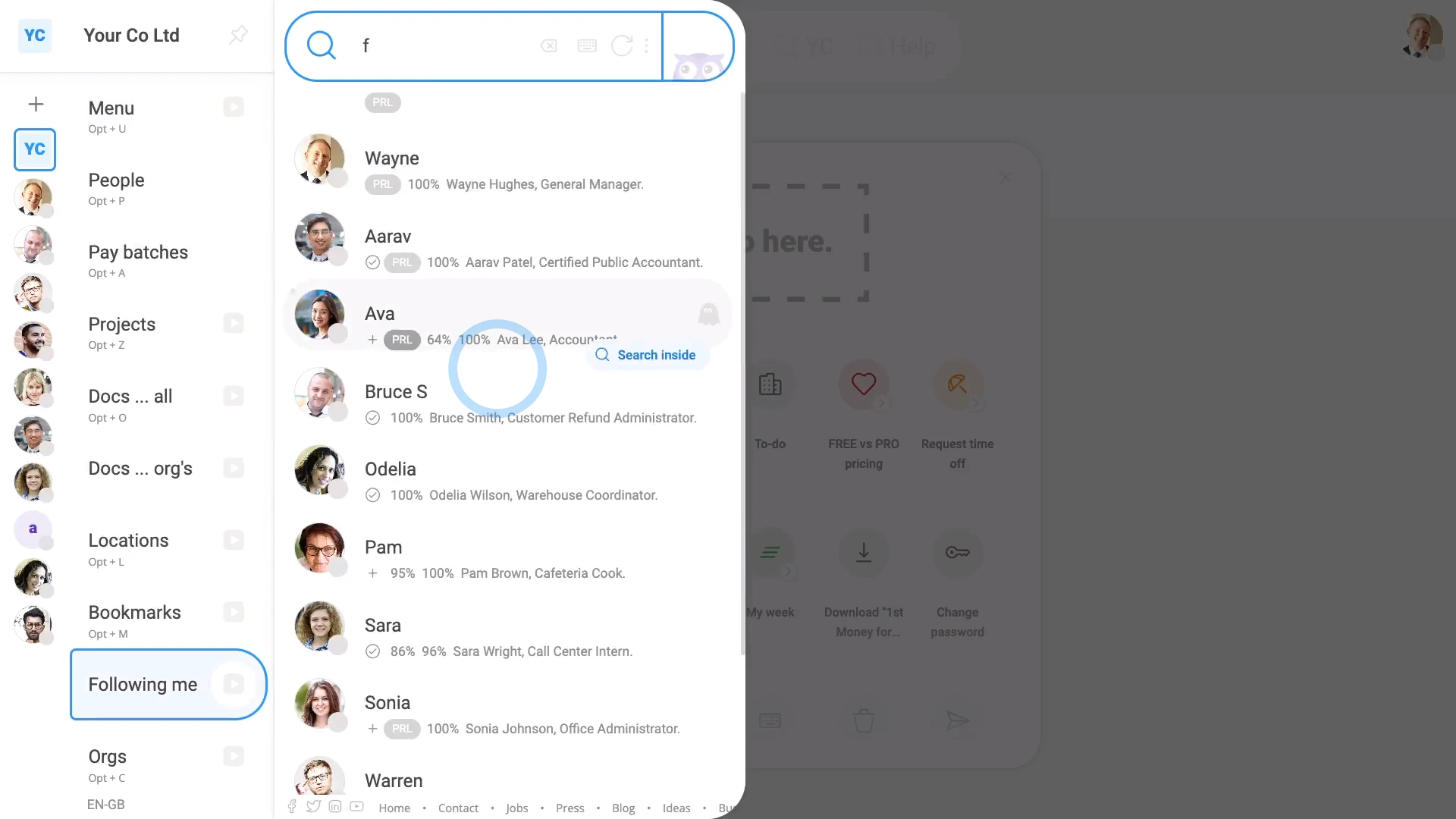
To see who's following you:
- First, tap: "Menu", then "Following me"
- And finally, you'll see a list showing you people who are already following you.
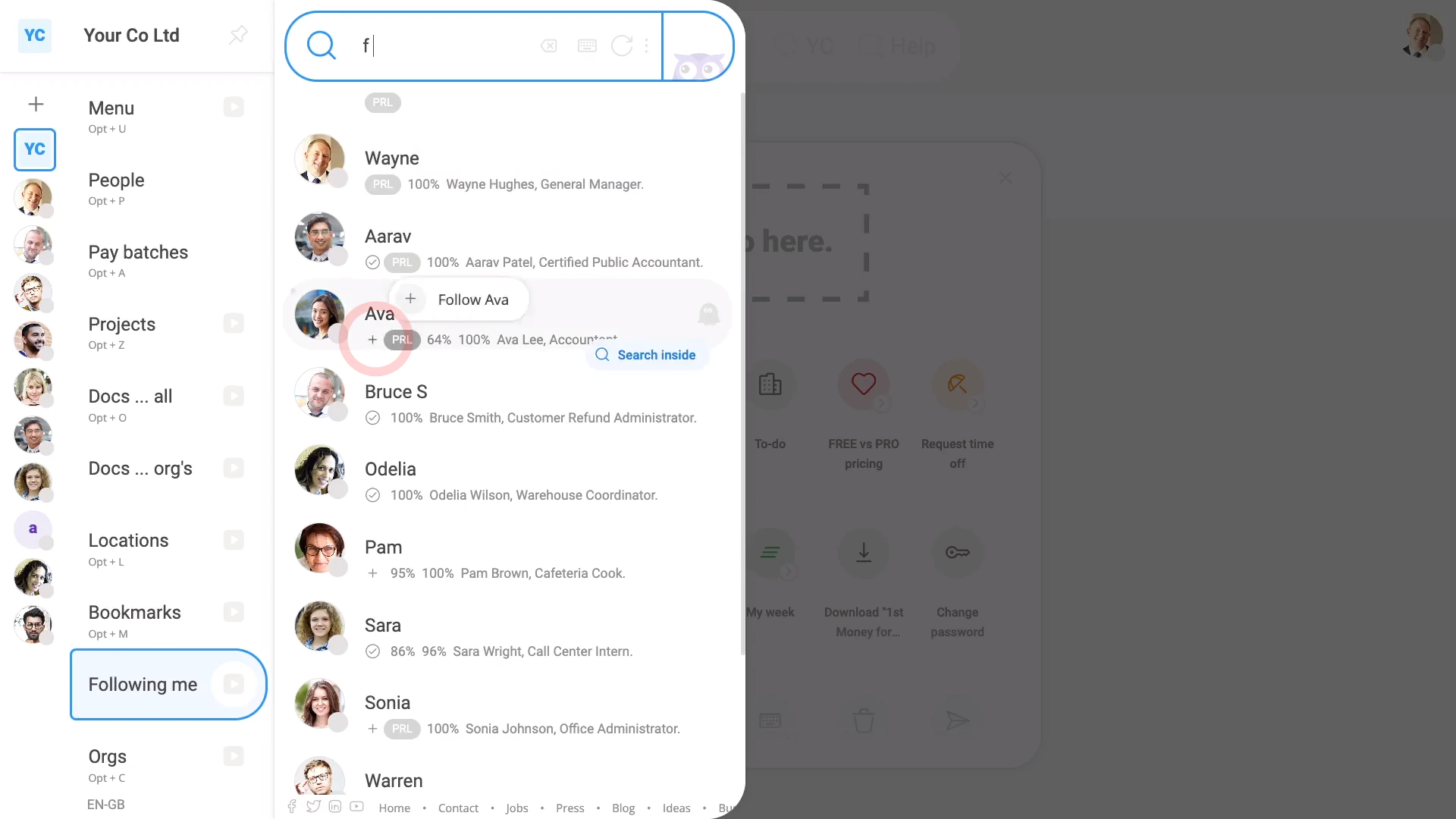
To understand two ways people can get into your "Following me" list:
- First, is if a person actively decides to follow you when the "Follow" button is tapped on the people listing:
- And finally, the second way is if a person's automatically added to your follow list. Auto-follows happen when you become a person's manager (or supervisor), or when that person becomes your manager (or supervisor).
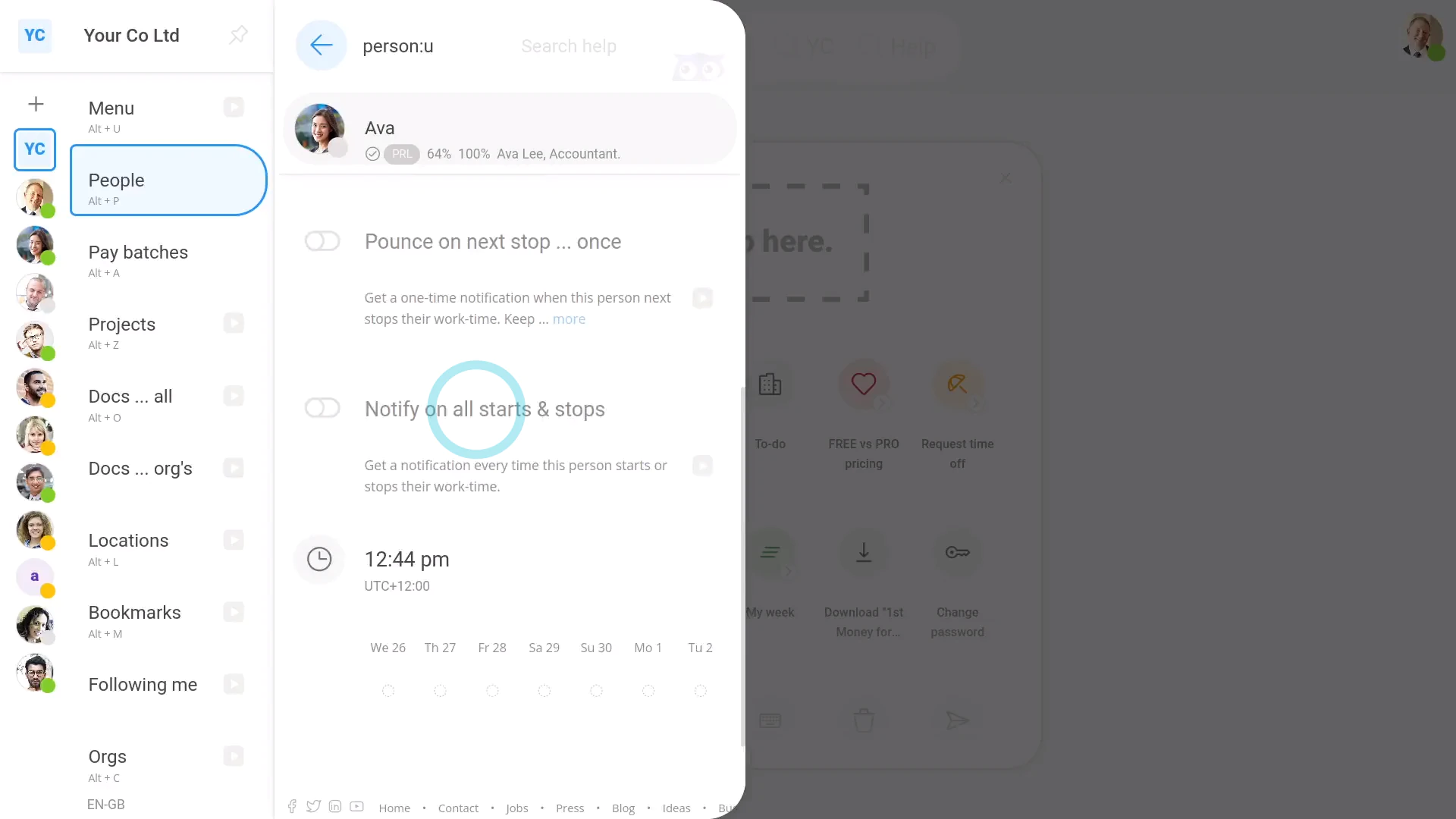
To understand your additional follow settings that you get when you're following a person:
- First, tap the three dots: (next to their image)
- The first setting, "Include in timesheet emails ... daily":
Is on by default. - When the setting's on, you'll get a summary of the person's daily timesheets included in your daily timesheet email.
- The daily timesheet email arrives in your email inbox each day.
- The next two "pounce" settings:
Gives you a one-off notification, the next time the person starts or stops their clocked-in timesheet time. - The pounce notifications show up in the corner of your screen.
- Even though it's one-off only, you can keep turning it back on again, every time you need it again.
- The fourth setting is "Notify on all starts & stops":
Which gives you a notification every time the person starts or stops. - Start and stop notifications are useful if you're working closely with a person, and need to know when the person's around.
- The start and stop notifications also show up in the corner of your screen.
- And finally, you'll be notified every time the person starts or stops, until you turn it off.
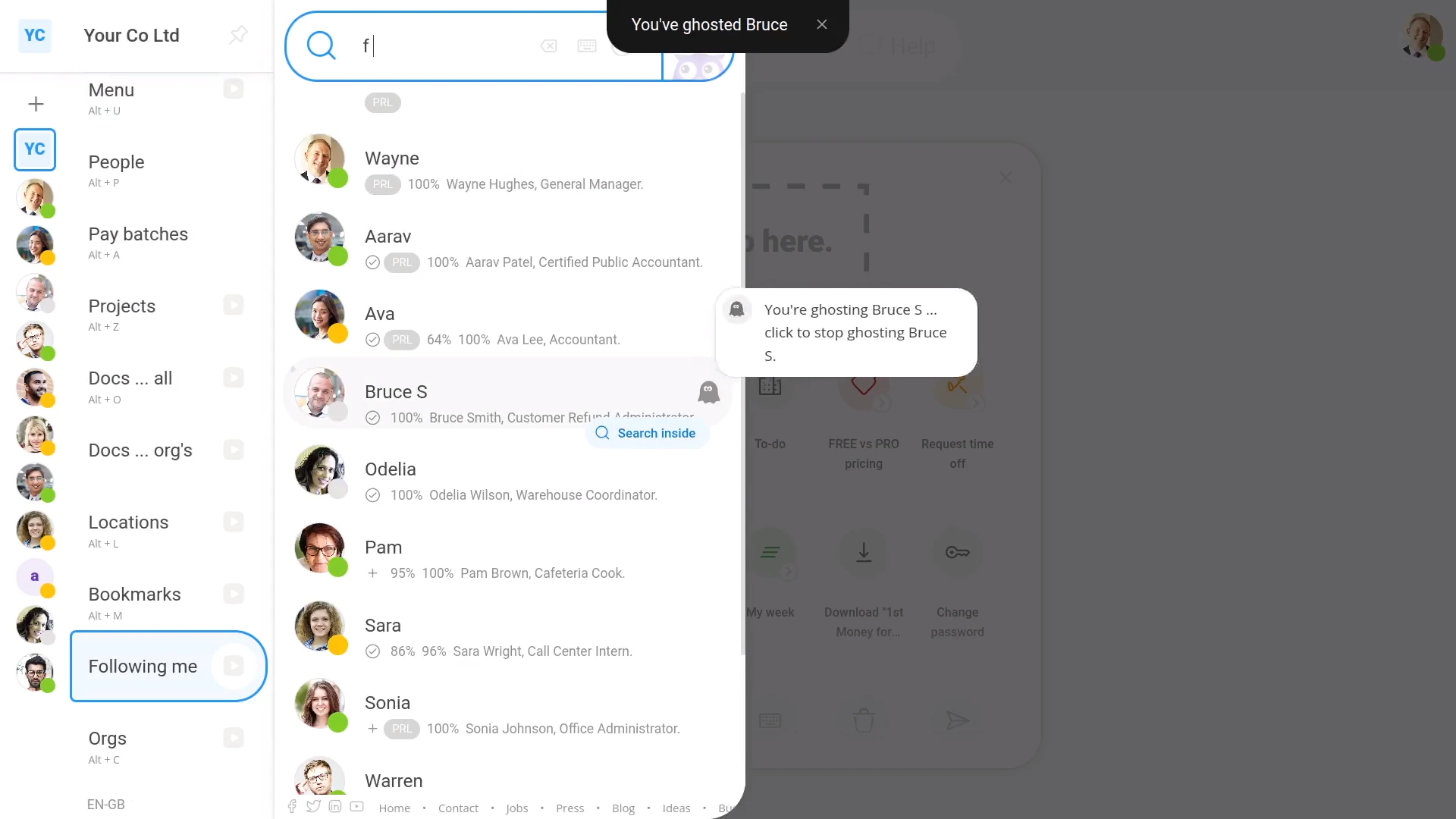
To block (or ghost) a person from following you, and block their access to your starts, stops, and timesheet emails:
- First, tap: "Menu", then "Following me"
- Find the person you want to block.
- And tap the "Ghost" button:
- The person following you won't be told that you've ghosted them.
- But next time the person following you goes to their "People" list, your name's now shown with a "Ghost" status.
- And finally, to unblock them, tap the "Ghost" button again, anytime, and the ghosting's instantly removed.

For advanced usage:
- You can also pin out the menu.
- So now you can instantly see when the co-workers you're following are working or on break.
Keep in mind that:
- You're free to follow or ghost as many people as you want.
- Even when a person's following you, them following you still doesn't get them any special access to your other info.
- And it certainly doesn't give them access to any of your contact info, HR settings, or pay info.
And that's it! That's everything you need to know about managing who's following you, and how you can ghost people!
How do I list all changes made by a personHow do I set my childbirth date, and upload a maternity certificate
www.1st.money/uk/help/People/How_do_I_manage_who's_following_me,_and_how_do_I_ghost_people