Import 3. How do I send onboarding docs to lots of people?

 6:00
"How do I send onboarding docs to lots of people?"
Once you've imported lots of people, and sent their invite emails, the final step is to send each new person their onboarding docs.
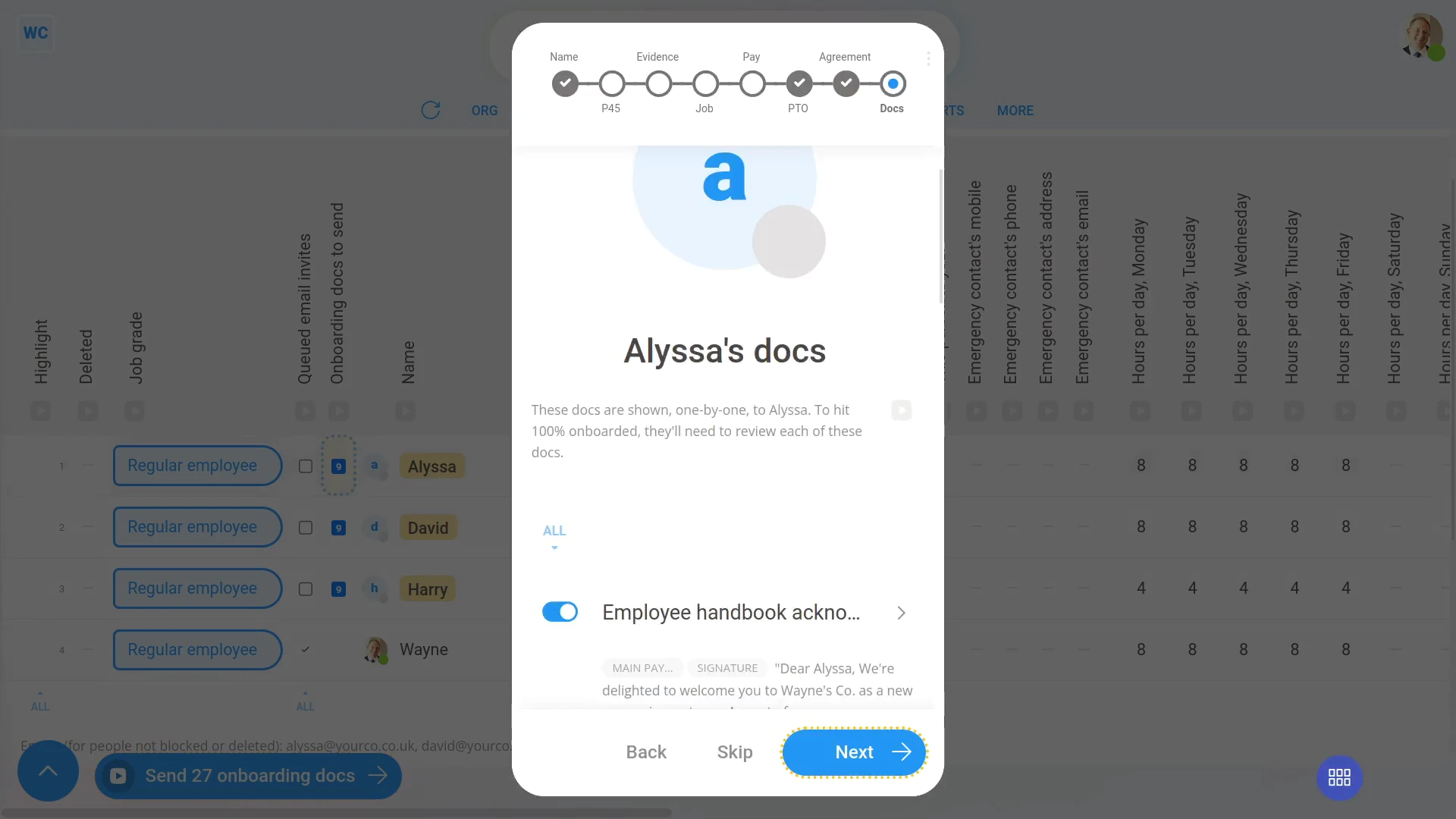
To send onboarding docs to lots of people, after importing, and after sending invite emails:
- First, create a new org, so you can import some people into it, and close the popup that opens.
- And then upload your CSV file of people to import, and complete the import.
- And then send all their invite emails.
- Now that all the people are imported, and their invite emails are all sent, you're all ready to send each new person their onboarding docs.
- Next, look for the "Onboarding docs to send" column.
- By default, all the newly imported people may be marked with a number of docs, that are queued to be sent.
- Each row marked with a number of docs means that as soon as you tap Review onboarding docs for sending (at the bottom), all the marked rows are queued to have their onboarding docs sent.
- If any person's already had their onboarding docs sent, there's a small grey tick instead.
- In addition, if you'd like to only send one person's onboarding docs, you can always tap the number of docs for only that person. And then tap Next to send them.
- Then when you're ready to send each new person their onboarding docs, tap: Review onboarding docs for sending
- You'll now see a preview of the first person's onboarding docs.
- Scroll down to see all that person's onboarding docs that're queued.
- If you tap the switch , you can turn off any of the onboarding docs.
- To see a preview of any doc, tap the "View" button:
- Next, as long as you're happy with the queued onboarding docs to be sent, tap Next, and then: Start auto-send
- Now, it's auto-sending, one doc at a time.
- Once all the onboarding docs are sent for the first person, you'll see it automatically advance to the next person.
- And in the background, you'll see that the first person now has a small grey tick showing that all their onboarding docs have been sent.
- Continue to tap Next, and then Start auto-send for each person.
- At any time, if you want to stop, tap the button.
- And finally, once everyone's onboarding docs are all sent, you'll see a grey tick on every row.

Bear in mind that:
- You can send onboarding docs to lots of people, from the "People" report, at any time.
- It doesn't have to only be when you're doing the "Import CSV" steps.
- At any time, you can come to the "People" report, and may see people marked with a number of docs. If so, it's a good idea to send the queued docs, or remove them.
You may notice:
- That the "Import CSV" steps are deliberately kept quite separate from the "Send onboarding docs" steps.
- By keeping the "Send onboarding docs" steps separate, the person doing payroll migration can re-run the "Import CSV" steps. Over and over. Checking and refining their CSV file, each time, until the payroll migration's perfect.
- And then only once it's perfect, would the person doing payroll migration finally send out all the onboarding docs.
- That way, all the people in the company only get their onboarding docs sent once. And it's only sent when the payroll migration's actually complete.
Keep in mind that:
- When you're doing your import with a CSV file, an email is required for each person, or row.
- However, if you've imported with only an XML file, there won't ever be any email addresses included for each person, or row. Which means that the "Send onboarding docs" step won't show up.
- Because the XML file doesn't include email addresses, it's highly recommended that if you're starting with an XML file, that you first convert it to CSV.
To learn more:
- About how to start with an XML file, and then convert it to CSV, watch the video on: Importing people
- And to learn how to add or remove onboarding docs for every person, watch the videos on: Payroll group onboarding docs, and also on: Job grade onboarding docs
 Importing people
If a feature's not showing:
- If the "Onboarding docs to send" column isn't showing, it means your org hasn't turned on the docs feature yet.
- To turn on the docs feature, watch the video on: Turning on HR Docs
And that's it! That's everything you need to know about sending onboarding docs to lots of people, after importing!
Import 2. How do I send invite emails to people, after importingWhat do I need to know about setting a person's join date
www.1st.money/uk/help/People/Import_3._How_do_I_send_onboarding_docs_to_lots_of_people