How do I add people from different locations to a single TimeSpot?

 3:22
"How do I add people from different locations to a single TimeSpot?"
Larger companies may have people who move from one location to another. To help larger companies, a single TimeSpot device can clock-in and clock-out people from many different orgs or locations.
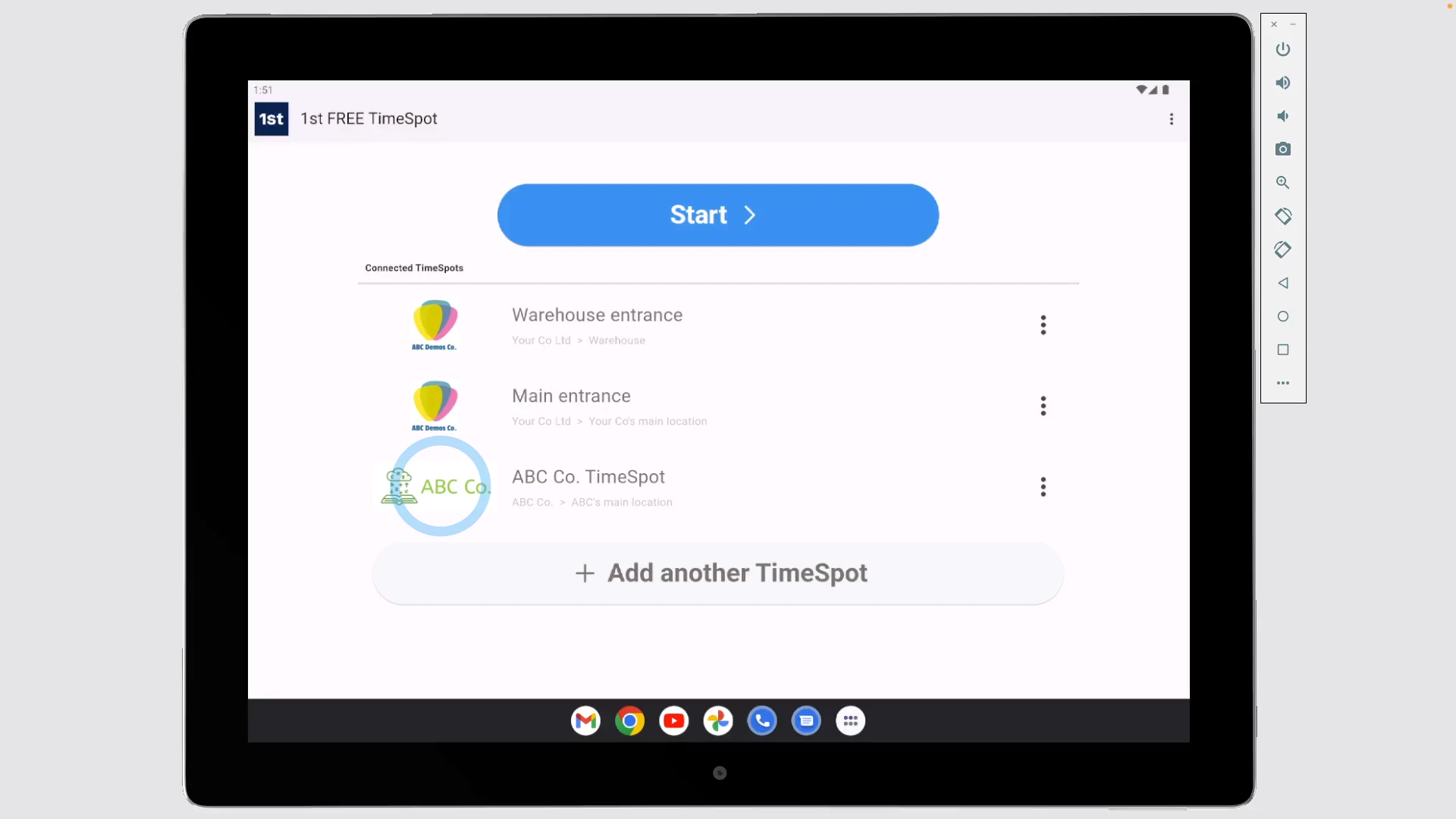
To connect multiple orgs or locations to a single TimeSpot device:
- First, open the TimeSpot app on your iOS or Android smartphone or tablet.
- Then tap: Setup
- Type in the "TimeSpot ID" and "Password" of your first location, and tap: Save
- You'll now see your newly connected TimeSpot included in the list.
- And when you tap Start, you'll see all the people from your first location that can now immediately use the TimeSpot device for clock-ins and clock-outs.
- Next, to return back to the connected TimeSpots, to add the second location, tap the three dots: (in the top-right corner)
- Then: Connected TimeSpots
- And tap: Add another TimeSpot
- Now type in the "TimeSpot ID" and "Password" of your second location, and tap: Save
- You'll now see a second TimeSpot included in the list.
- And when you tap Start, you'll now see a combined list of people from both your first location and second locations.
- Now, back on connected TimeSpots, and adding a third location's "TimeSpot ID" and "Password". However, in the example, the third location is from a different org.
- And you'll now see a third TimeSpot included in the list. You'll also notice that the third TimeSpot has a different logo and org name.
- And now when you tap Start, you'll now see a combined list of all people from all three locations.
- And finally, all the listed people can immediately use the TimeSpot device for their clock-ins and clock-outs to each of their orgs.

Keep in mind that:
- You can connect as many TimeSpot orgs or locations as you like to a single TimeSpot device.
- Each with their own ID and password, and each with their own associated list of people.
If a feature's not showing:
- If the location or TimeSpot features aren't showing, it means your org hasn't turned on the timesheets feature yet.
- To turn on the timesheets feature, watch the video on: Turning on timesheets
 Turning on timesheets
To learn more:
- About adding or removing people to a new TimeSpot, watch the video on: Adding people to a TimeSpot
- To learn about setting up a TimeSpot device from scratch, or finding its ID and password, watch the video on: TimeSpot setup
And that's it! That's everything you need to know about adding people from different orgs or locations to a single TimeSpot device!
www.1st.money/uk/help/TimeSpot/How_do_I_add_people_from_different_locations_to_a_single_TimeSpot