How do I restrict some people to only clock-in through a TimeSpot?

 4:04
"How do I restrict some people to only clock-in through a TimeSpot?"
Once you've set up a wall-mounted TimeSpot, you may prefer that some of your people only do their clock-ins through the TimeSpot. Which means restricting them from otherwise clocking-in through 1st Money.
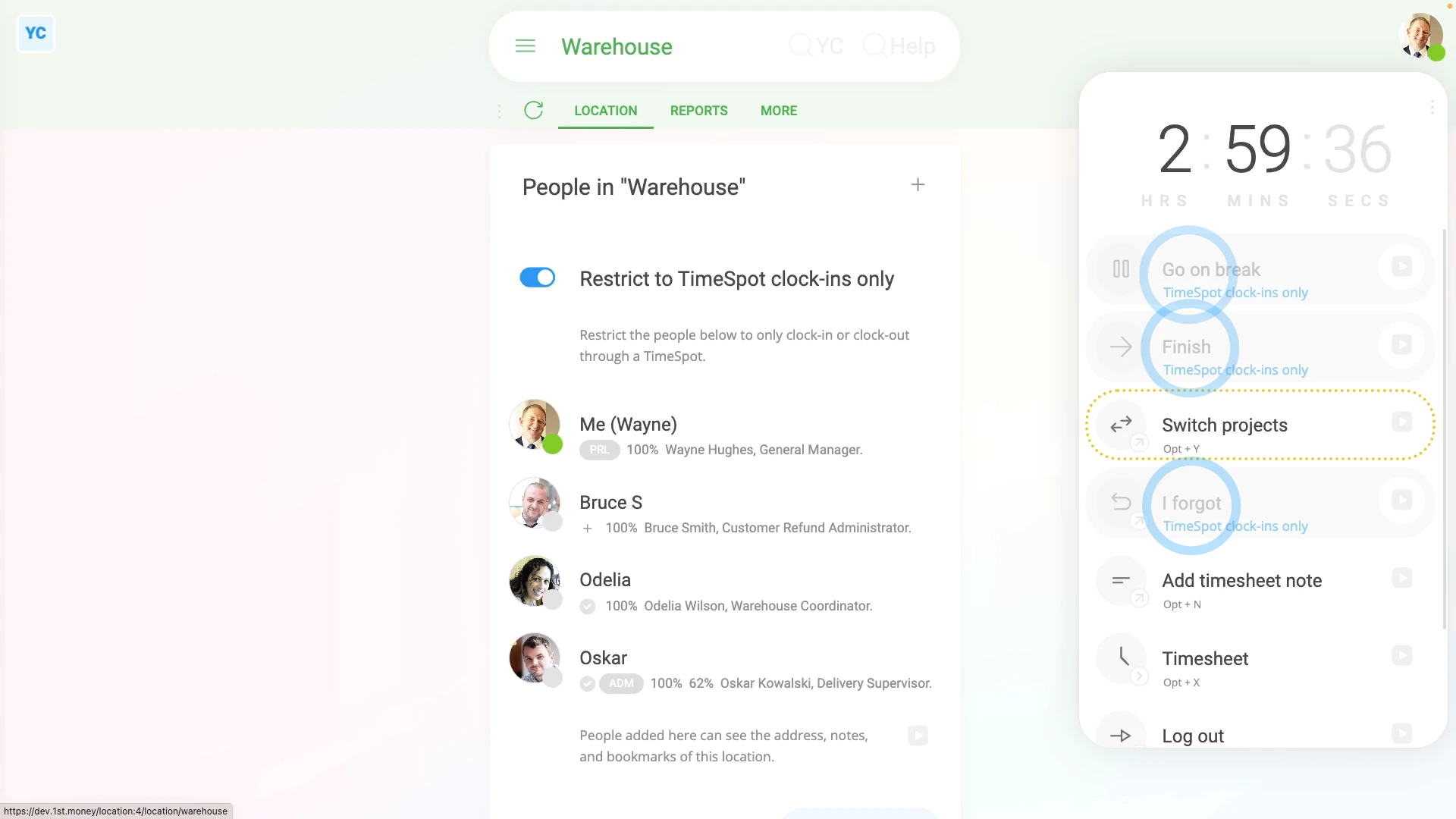
To restrict some people to only clocking-in through a TimeSpot:
- First, select the location that'll have the TimeSpot, on: "Menu", then "Locations"
- When you scroll down to the "People" heading, you'll see that "Restrict to TimeSpot clock-ins only" is currently disabled.
- That's because there's no TimeSpots currently connected.
- To learn more about adding a TimeSpot, watch the video on: TimeSpot setup
- Next, add a TimeSpot.
- Then give it a name.
- Then make a note of the: "TimeSpot ID"
- And set the password to what you prefer.
- Then tap: Save
- And open it again, and install the free iOS or Android app onto any tablet or phone by scanning one of the barcodes.
- Once you've installed and connected TimeSpot on any tablet or phone, right-click anywhere on the page then tap: Reload
- You'll now see a green dot showing that your newly created TimeSpot is connected.
- And now that it's connected, "Restrict to TimeSpot clock-ins only" is also automatically turned on.
- With "Restrict to TimeSpot clock-ins only" turned on, all the people in the location now see a change to their clock-ins.
- When the people in the location now tap their "Work-time menu" (top-right) in 1st Money, their "Start", and other similar buttons are now all disabled.
- And finally, from now on, the people in the location can only clock-in and clock-out through a TimeSpot.
 TimeSpot setup

Keep in mind that:
- At any time, you can always turn off: "Restrict to TimeSpot clock-ins only"
- As soon as you turn it off, all the people in the location can instantly clock-in again through their "Work-time menu" (top-right) in 1st Money.
- Alternatively, you may want to allow selected people to still clock-in through 1st Money, and not be restricted to only clocking-in through a TimeSpot.
- If that's what you want, move only those selected people out to another location.
You may notice:
- That the advantage of restricting your people to only clocking-in through a TimeSpot, is that it proves their physical presence, during the time of their clock-in.
- For some companies, it's important to both accurately record clock-ins, and also prove physical presence in the workplace.
- If both advantages are important to your company, it's recommended to turn on: "Restrict to TimeSpot clock-ins only"
For advanced usage:
- Because multiple locations can be connected to a single TimeSpot device, you can group some people in one location, with the restriction turned on. And you can group others in a second location with the restriction turned off.
If a feature's not showing:
- If the location or TimeSpot features aren't showing, it means your org hasn't turned on the timesheets feature yet.
- To turn on the timesheets feature, watch the video on: Turning on timesheets
To learn more:
- About setting which people can clock-in through a TimeSpot, watch the video on: Adding people to a TimeSpot
- To learn about connecting multiple locations to a single TimeSpot device, watch the video on: Multiple TimeSpots
And that's it! That's everything you need to know about restricting some people to only clock-in through a TimeSpot!
www.1st.money/uk/help/TimeSpot/How_do_I_restrict_some_people_to_only_clock-in_through_a_TimeSpot