4. Where can I see all the time off for a person, all in one place?

 4:01
"Where can I see all the time off for a person, all in one place?"
The "Time off" list shows you a one-page summary of all of a person's time off for a whole year.
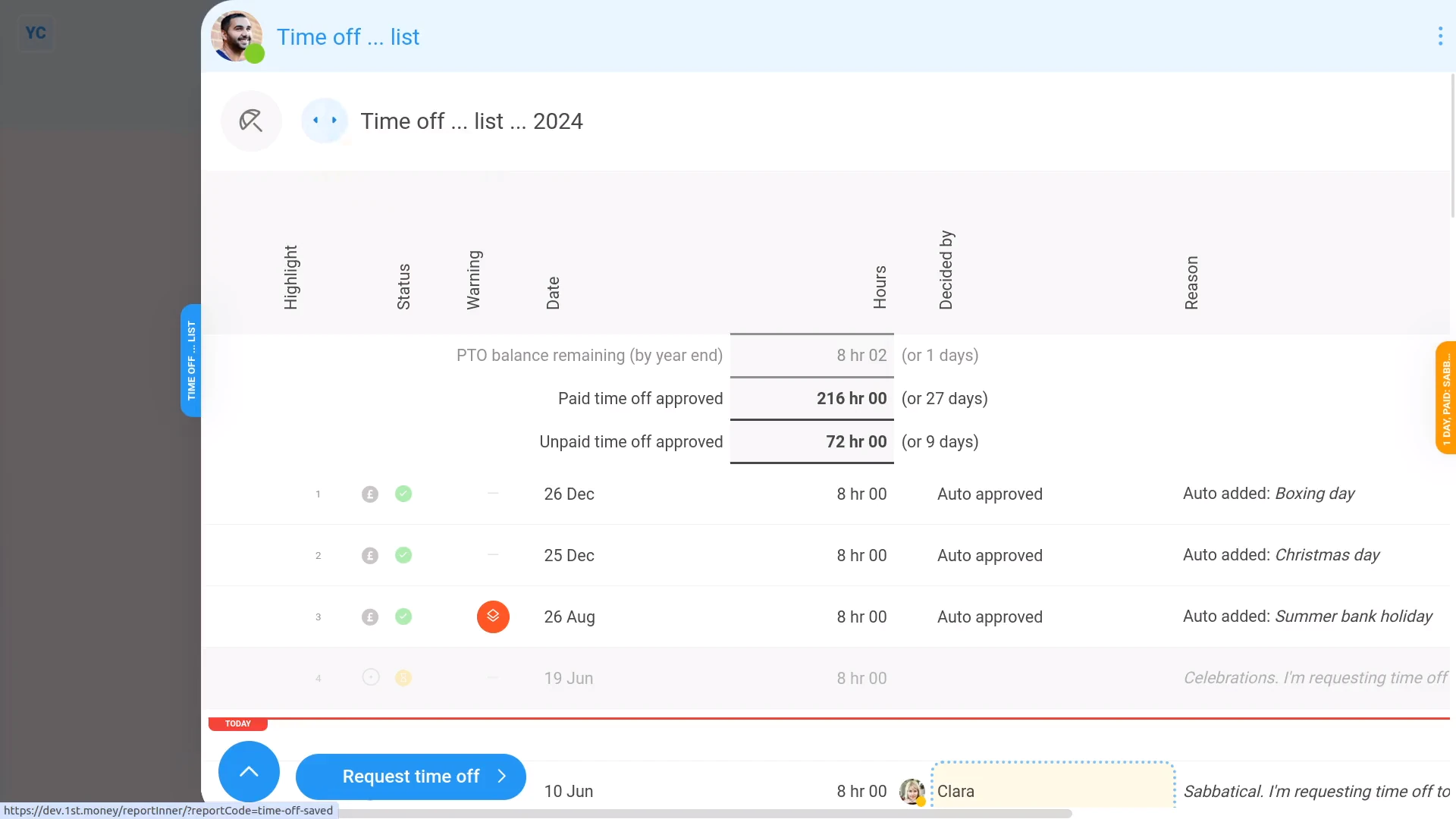
To see a person's "Time off" list:
- First, select the person on: "Menu", then "People"
- Then tap: "Time off", then "Time off ... list"
- Once it's open, you'll see a list of all of the person's time off for a year.
- Separating the time offs is a red "Today" line.
- The time offs above the red "Today" line are in the future.
- And the time offs below the red "Today" line are in the past.
- Rows that start with a solid grey circle are: "Paid time off"
- And rows that start with an open grey circle are: "Unpaid time off"
- Rows that are grey, with a yellow waiting symbol, are time off requests that're waiting to be approved by the person's manager.
- And rows that have a green tick are time off requests that've already been approved.
- The name of the manager who approved the time off is shown a few columns over.
- And when you tap the manager's name, you'll see more details about when the time off was approved.
- Rows that are crossed out are time off requests that've been declined or deleted by the person's manager.
- Declined, deleted, and unapproved time offs don't count towards the totals.
- Near the top of "Time off" list are three totals, including:
- The total "PTO balance available" by year-end.
- And the total paid and unpaid time off that's been approved.
- By default, the "Time off" list shows the current year.
- To go back or forward a year, tap: Previous year and Next year (at the top)
- Sometimes you may see an orange circle warning you about a "planned times" overlap.
- Tap the orange circle, then once it slides out on the right, tap the link on the "planned times" warning.
- And you'll need to ask your manager or org admin to delete the "planned times" that are overlapping with a time off request.
- And finally, in other words, the same date, for the same person, shouldn't have both "planned times" and a time off request. One of them needs to be deleted.

You may notice:
- That some "Paid time off" rows are labelled "Auto approved" and: "Auto added"
- "Auto added" PTO comes from the payroll group's list of observed holidays.
- It's an optional feature that's there to reduce the manager's workload of approving every PTO request on common holidays.
To learn more:
- About "Auto added" payroll group holidays, watch the video on: Auto adding holiday PTO
- And to learn more about deleting time off, watch the video on: Declining & deleting time offs
 Auto adding holiday PTO
To see a person's "Time off" chart:
- First, select the person on: "Menu", then "People"
- Then tap: "Time off", then "Time off ... chart"
- Once it's open, you'll see chart lines of all of the person's time off for a year.
- The chart starts in January, goes through to December, and the red "Today" line shows you how far through the year it's been.
- Sometimes the solid orange "Paid time off approved" line hasn't reached as high as the dotted orange "PTO allowance" line. If so, then the person's still got: "PTO balance available"
- The solid grey "Unpaid time off approved" line gives you an idea of how much unpaid time off's been approved.
- And finally, to switch between the list and chart views, tap the circle (at the bottom), and then tap Show grid or: Show chart
And that's it! That's everything you need to know about seeing all of a person's time off in one place!
www.1st.money/uk/help/Time_Off/4._Where_can_I_see_all_the_time_off_for_a_person,_all_in_one_place