How's time off set when switching from a previous payroll platform?

 5:45
"How's time off set when switching from a previous payroll platform?"
When you're switching from a previous payroll platform, over to 1st Money, you'll need to set each person's time off settings correctly.
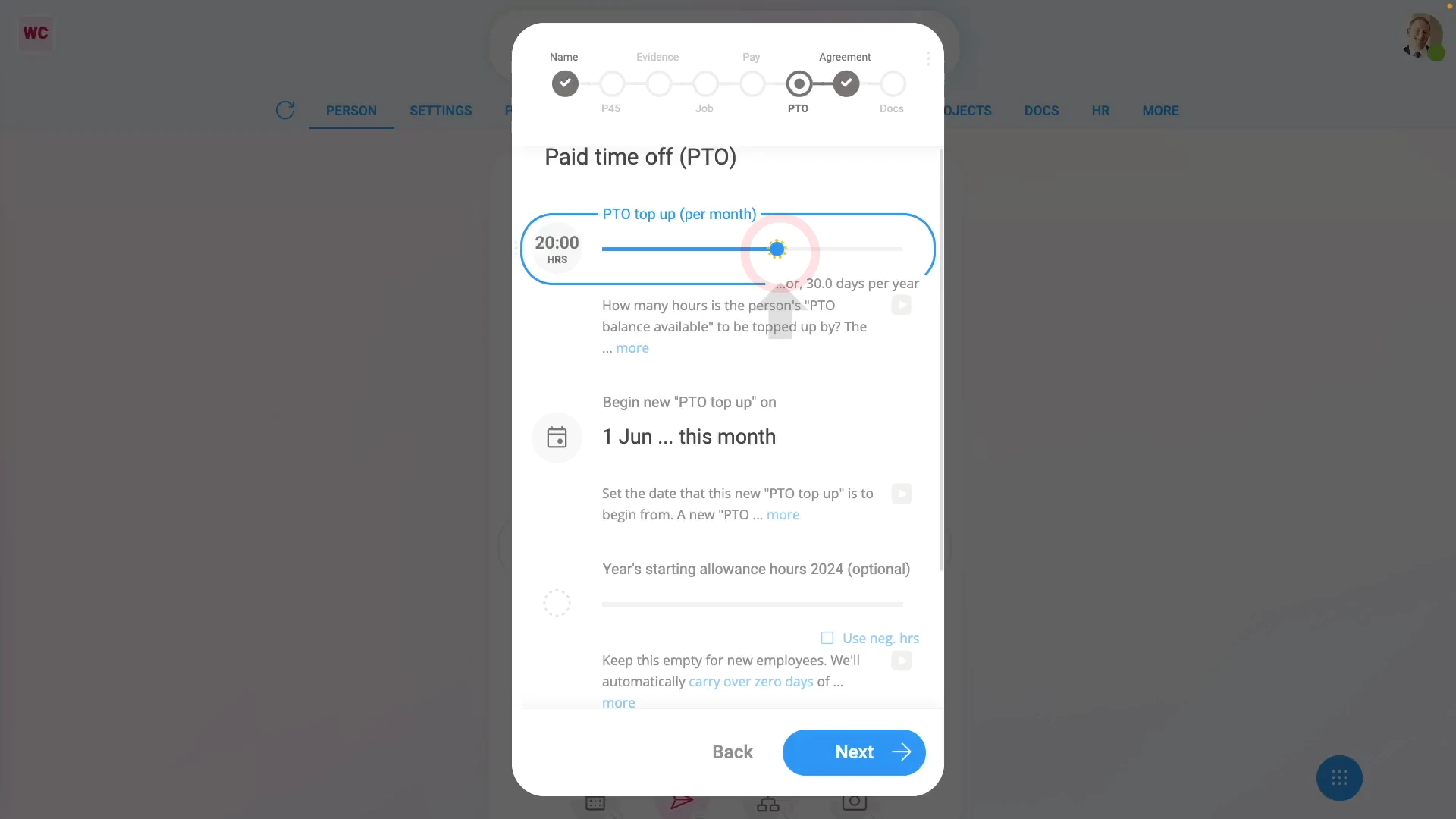
To set a person's time off, when switching over to 1st Money:
- First, to add the person, tap: "Menu", "People", then "Invite a person"
- Then tap: Add a new person
- Enter the person's email, then tap: Invite
- Next, fill in the person's name.
- When setting their employment type, keep in mind that only "Employee" and "Zero-hour worker" get paid time off.
- Then tap: Next
- Normally, you'll fill in all the steps, but for now, you can skip most steps and only do the steps needed by time off.
- Date joined:
Near the top, tap: "Job", and set "Date joined" to the date the person joined your company. - Then tap: Next
- Target hours:
(at the bottom) tap Next until you reach the "Pay" heading. - Then tap: "Target hours per week"
- It's important that you set both their target hours, and also which days of the week the person usually works.
- In most cases, if it's Monday to Friday, 8 hours a day, select the "Most common" option.
- However, if the person works different hours, or different days, tap "Part-time, or other", then tap: Next
- Drag the sliders until you're happy, then tap: Next
- Because the person's "Date joined" was some time ago, you're now shown the full PTO options.
- PTO top up hours:
The person's "PTO top up" hours, per month, are whatever the person had in the previous payroll platform. - If you're matching a "days per year" number, drag the slider until the "days per year" settles on the number you're looking for.
- Begin new "PTO top up" on:
Next, set the date that their new "PTO top up" is to begin from. - In 1st Money, PTO is always topped up on the 1st of the month.
- So you'll have the choice to begin their top ups on the 1st of the current month.
- Or the 1st of next month.
- Whichever date you select, the "begin" date sets when the person gets their first "PTO top up" in 1st Money, and then every month thereafter.
- PTO year's starting allowance hours:
Next, set the starting allowance that the person's to have. - When switching payroll platforms, the starting allowance is their "Unused PTO" hours from your previous payroll platform.
- It may help to make a spreadsheet, and calculate, as of the "begin" date, above.
- How much PTO was carried over (at the start of the year)?
- How much has been granted, up to the "begin" date?
- How much has been taken, up to the "begin" date?
- And, how much "Unused PTO" remains?
- Once you've calculated their "Unused PTO", drag the slider to set it, then tap: Next
- Using negative hours:
In some cases, the person may have gone over their allowance in the previous payroll platform. - Or in other words, their "Unused PTO" is a negative number of hours.
- If so, tap "Use neg. hrs" and type in the negative number of hours.
- Time off totals:
At any time, to see if the person's settings roughly match other people, tap: See on "Time off totals" - Once it slides out on the right, you'll see the current person, highlighted in yellow. And you can compare their PTO to your other people.
- You'll see a column with the PTO months that remain in the year, after the "begin" date.
- You'll see a column with the "PTO top up" that's being granted each month.
- You'll see a column with the PTO that's already been approved.
- Which, if you've recently added them, is usually from their "Auto added" payroll group holidays. But you can tap it, and see the details, if you're not sure.
- You'll see a column with their individual starting allowances.
- And finally, you'll notice how their starting allowances affect their: "PTO balance available"

Keep in mind that:
- If you've used "Import people" to add your people, the import data in the XML file, as instructed by HMRC, doesn't include time off.
- Which means you'll still need to set up each person's time off, one-by-one, using the steps above.
And that's it! That's everything you need to know about setting a person's time off when switching over to 1st Money!
5. What's the paid time off top upHow can payroll group holidays be auto-added as PTO for my employees
www.1st.money/uk/help/Time_Off/How's_time_off_set_when_switching_from_a_previous_payroll_platform