How can payroll group holidays be auto-added as PTO for my employees?

 3:59
"How can payroll group holidays be auto-added as PTO for my employees?"
Most people send a PTO request to their manager for the specific days that're needed as time off. However, it'd be tedious if you also had to send a PTO request for each and every payroll group holiday as well. The payroll group's "PTO on payroll group holidays" setting allows your payroll group's employees to have all payroll group holidays auto-added and approved as PTO. All, without needing requests or approvals.
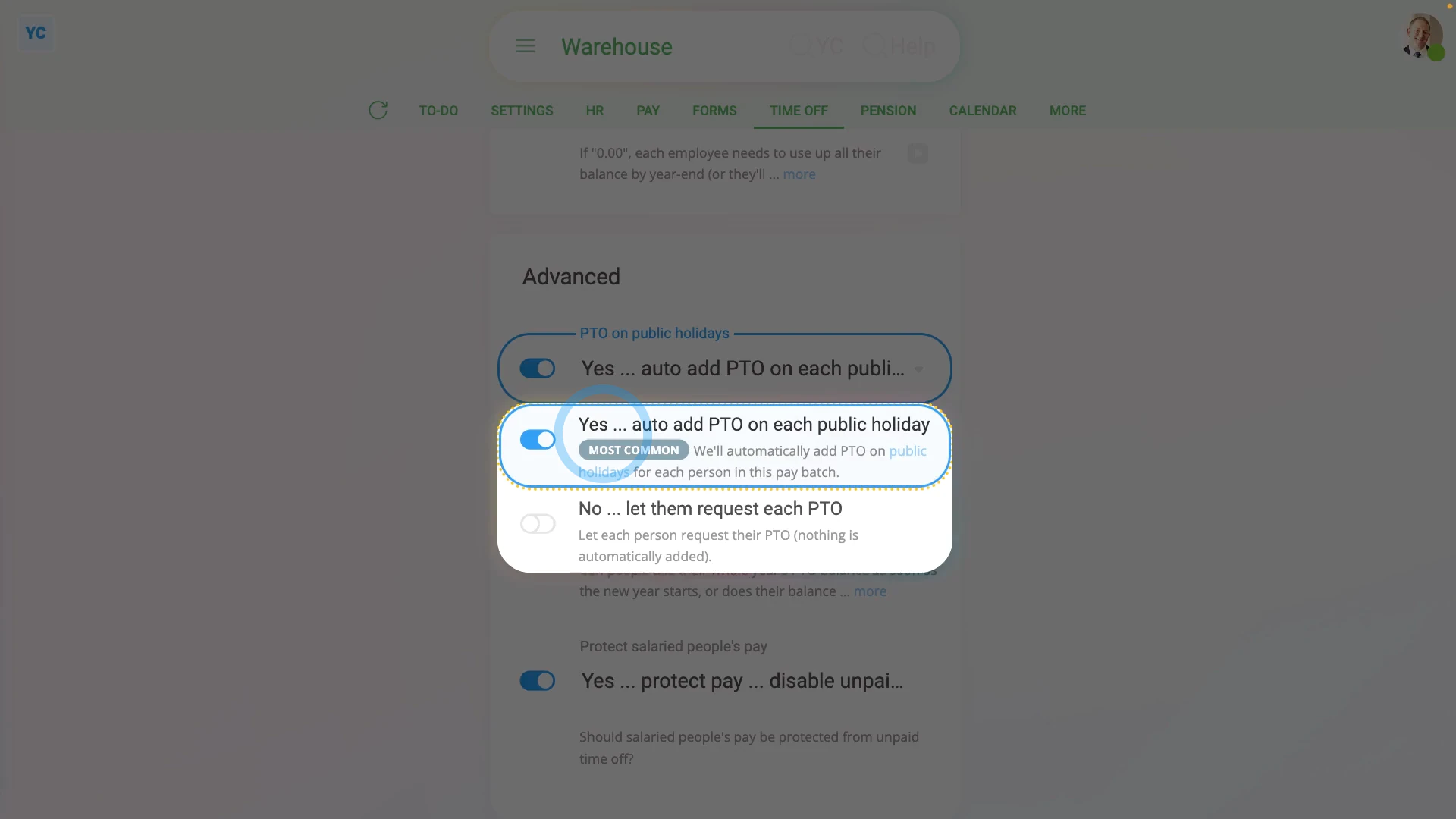
To set a payroll group's "PTO on payroll group holidays":
- First, select the payroll group on: "Menu", then "Payroll groups"
- Then tap: "Time off", then "Time off settings"
- Next, scroll down to the "Advanced" heading, and tap: "PTO on payroll group holidays"
- If you select "Yes", it adds all your payroll group holidays to all the payroll group's employees, and automatically approves them as approved paid time off.
- To see a full list of your country's current paid time off dates, tap the "Payroll group holidays" link.
- And once it slides out on the right, if it's not the right set of holidays, tap the flag (at the top).
- Then select the one you want, and save it.
- Now that the payroll group's holidays have been changed, every employee in the payroll group instantly gets updated with their new holidays.
- To see the change of holidays, select an employee who's in that payroll group, on: "Menu", then "People"
- Then tap: "Time off", then "Time off ... list"
- And you'll see that the payroll group's employees now also have the holidays that're unique to your newly selected holiday set.
- You'll also see that some have PTO that's already been paid through a paid payslip, and are marked as: "Locked"
- And for those that haven't been paid yet, you can clearly see them marked as: "Auto added"
- If you instead opt to not have them auto-added, tap the "Auto added" link, and select: "No"
- All the "Auto added" payroll group holiday PTO is now instantly removed from the list.
- However, the previously auto-added PTO, that's already been paid and locked, stays unchanged.
- Also keep in mind that the "PTO on payroll group holidays" setting applies to everyone in the payroll group, and not only the current person.
- And finally, it's recommended to keep auto add set to: "Yes"

Keep in mind that:
- Not everyone is entitled to paid holidays.
- If you tap: "Pay", then "Pay settings"
- And open "Employment type" (at the top) you'll see that some types of employment are marked with "No" if "Paid time off" isn't included.
Also remember that:
- In some cases you may actually need to work on an already approved payroll group holiday. If so, ask your manager to delete the auto approved time off.
- Once the time off's deleted, that day returns back to a normal working day.
- But be sure to have it deleted before payday, because once it's paid, the time off is locked, and the time off can't be deleted anymore.
You may notice:
- Each year, the default holidays are carefully updated and checked by 1st Money.
- However, you can still make your own changes.
To learn more:
- About making your own changes to the default holidays, watch the video on: Adding & removing holidays
 Adding & removing holidays
And that's it! That's everything you need to know about having all your payroll group holidays auto-added as PTO!
How's time off set when switching from a previous payroll platformHow do I add to, or remove from, the payroll group's holidays
www.1st.money/uk/help/Time_Off/How_can_payroll_group_holidays_be_auto-added_as_PTO_for_my_employees