How do I add to, or remove from, the payroll group's holidays?

 3:40
"How do I add to, or remove from, the payroll group's holidays?"
Each year, the default holidays are carefully updated and checked by 1st Money. However, sometimes you may still want to add or remove your own holiday dates.
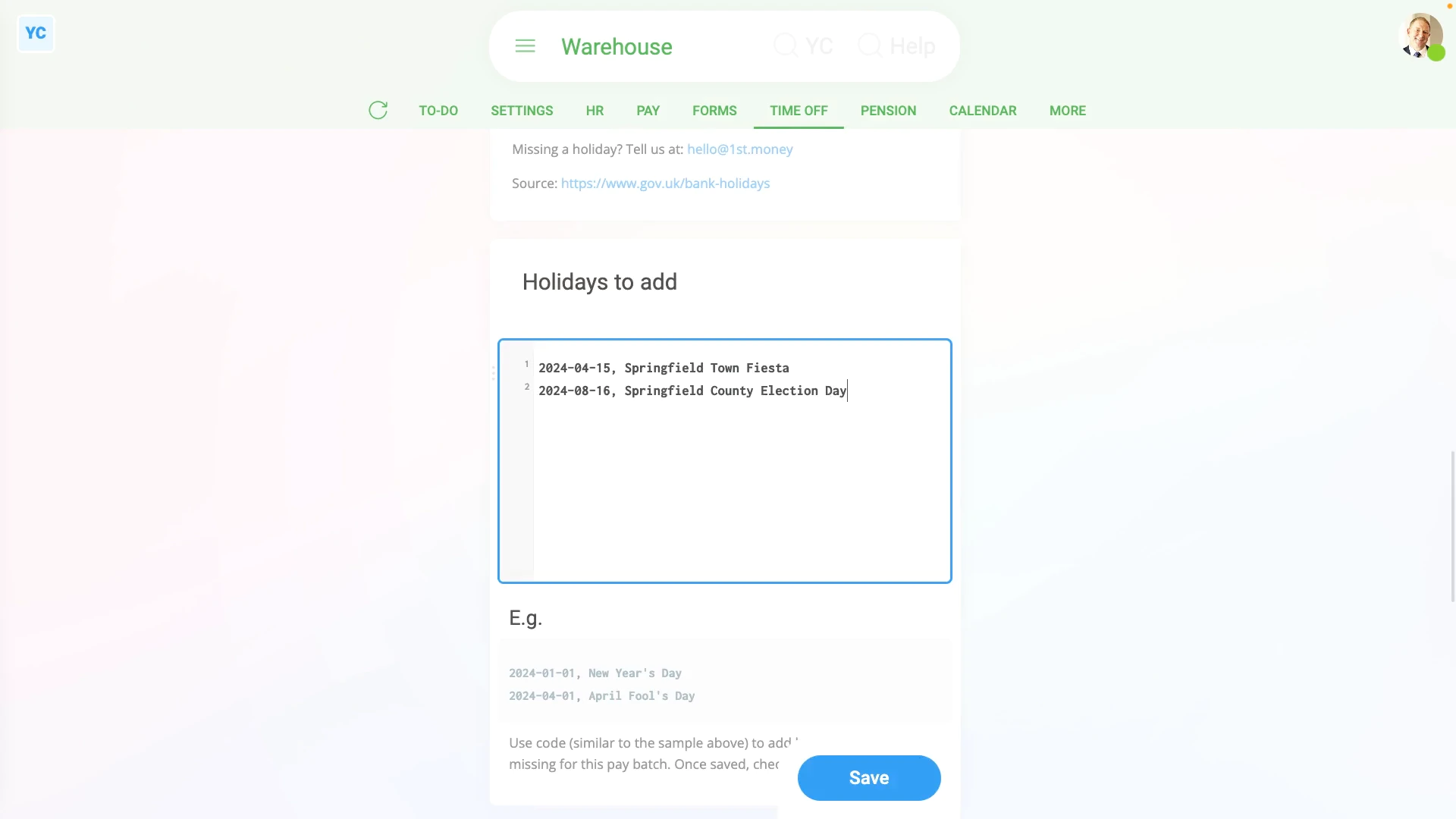
To add your own holiday dates to a payroll group's holidays:
- First, select the payroll group on: "Menu", then "Payroll groups"
- Then tap: "Time off", then "Payroll group holidays"
- Next, scroll down to the "Holidays to add" heading.
- And copy one line of the example text below the box, and paste it into the box.
- Next, change the example text, so it's set to the holiday you'd like to add. The date is always in year, month, day format.
- Then tap: Save
- Now when you scroll back up, you'll see the holiday you added is showing in the list.
- To add another holiday, scroll back down and type in the next holiday.
- Again, after you tap Save and scroll back up, you'll now see both holidays listed.
- To see how the added holidays look to your people, select an employee on: "Menu", then "People"
- Then tap: "Time off", then "Holidays"
- And finally, you'll again see both holidays are now shown to the employee as well.
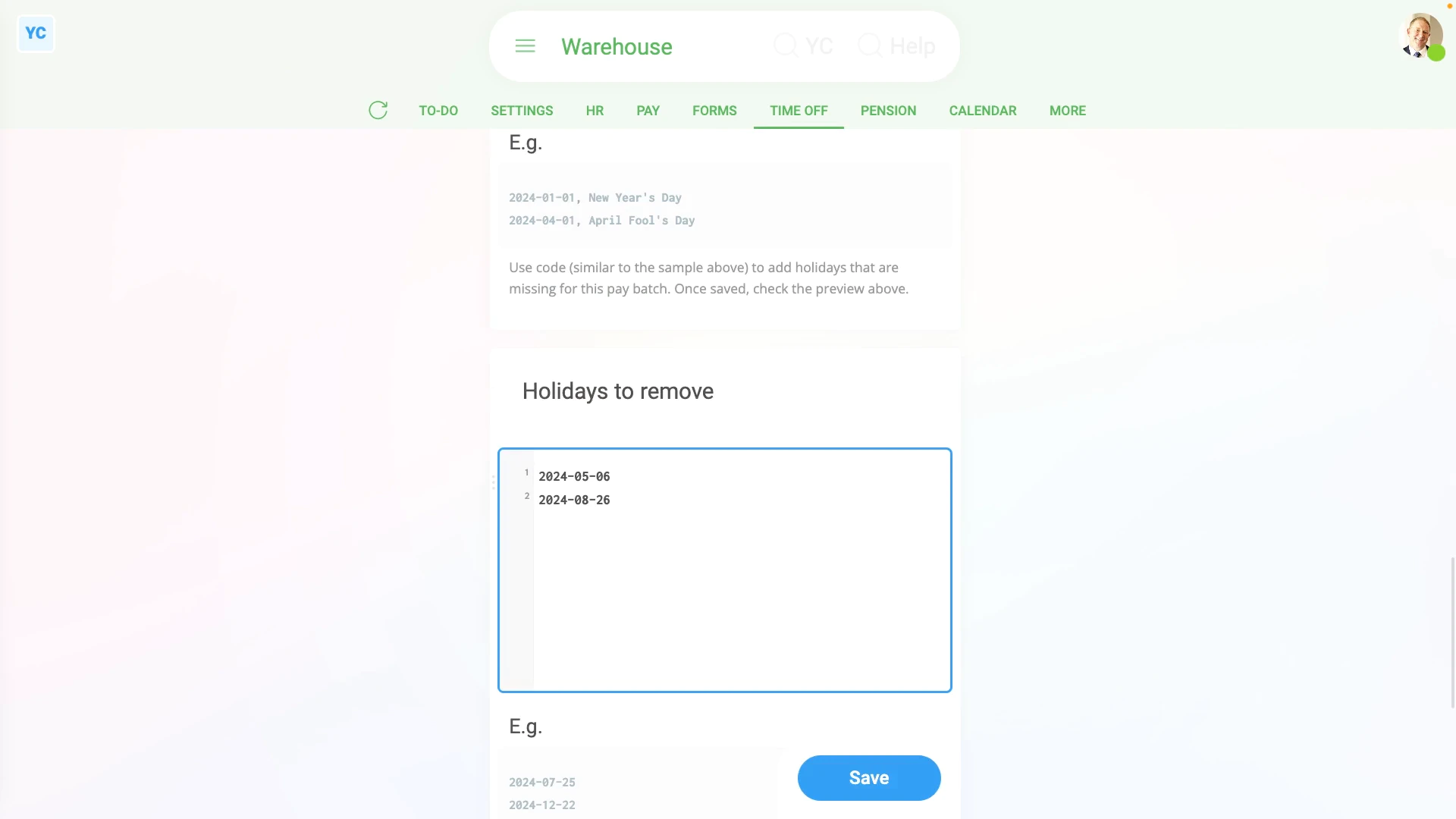
To remove holiday dates from a payroll group's holidays:
- First, select the payroll group on: "Menu", then "Payroll groups"
- Then tap: "Time off", then "Payroll group holidays"
- And select the "year, month, day" date of the holiday you'd like to remove.
- Then scroll down to the "Holidays to remove" heading, and paste it into the box.
- Then tap: Save
- Now when you scroll back up, you'll see that the removed holiday is no longer showing in the list.
- To remove another holiday, select another "year, month, day" date.
- Again, scroll down to the "Holidays to remove" heading, and paste it into the box, but on a new line.
- Again, after you tap Save and scroll back up, you'll now see both removed holidays have been removed.
- To see how the removed holidays look to your people, select an employee on: "Menu", then "People"
- Then tap: "Time off", then "Holidays"
- And finally, you'll again see both removed holidays are now not shown to the employee either.

You may notice:
- That as long as each added or removed holiday is on a different line, you can add, or remove, as many as you want.
Keep in mind that:
- Sometimes there may be a pre-prepared listing of holidays that already has exactly the holidays you want.
- In which case, all you need to do is change over to the other holiday listing.
To learn more:
- About changing to a different holiday listing, watch the video on: Changing payroll group holidays
 Changing payroll group holidays
And that's it! That's everything you need to know about adding or removing your own holiday dates!
How can payroll group holidays be auto-added as PTO for my employeesHow do I change the holiday dates for everyone in a payroll group
www.1st.money/uk/help/Time_Off/How_do_I_add_to,_or_remove_from,_the_payroll_group's_holidays