How do I change the holiday dates for everyone in a payroll group?

 2:59
"How do I change the holiday dates for everyone in a payroll group?"
All employees in a payroll group observe the same holiday dates. However, you can always change which pre-prepared list of dates the payroll group uses as its list of payroll group holidays.
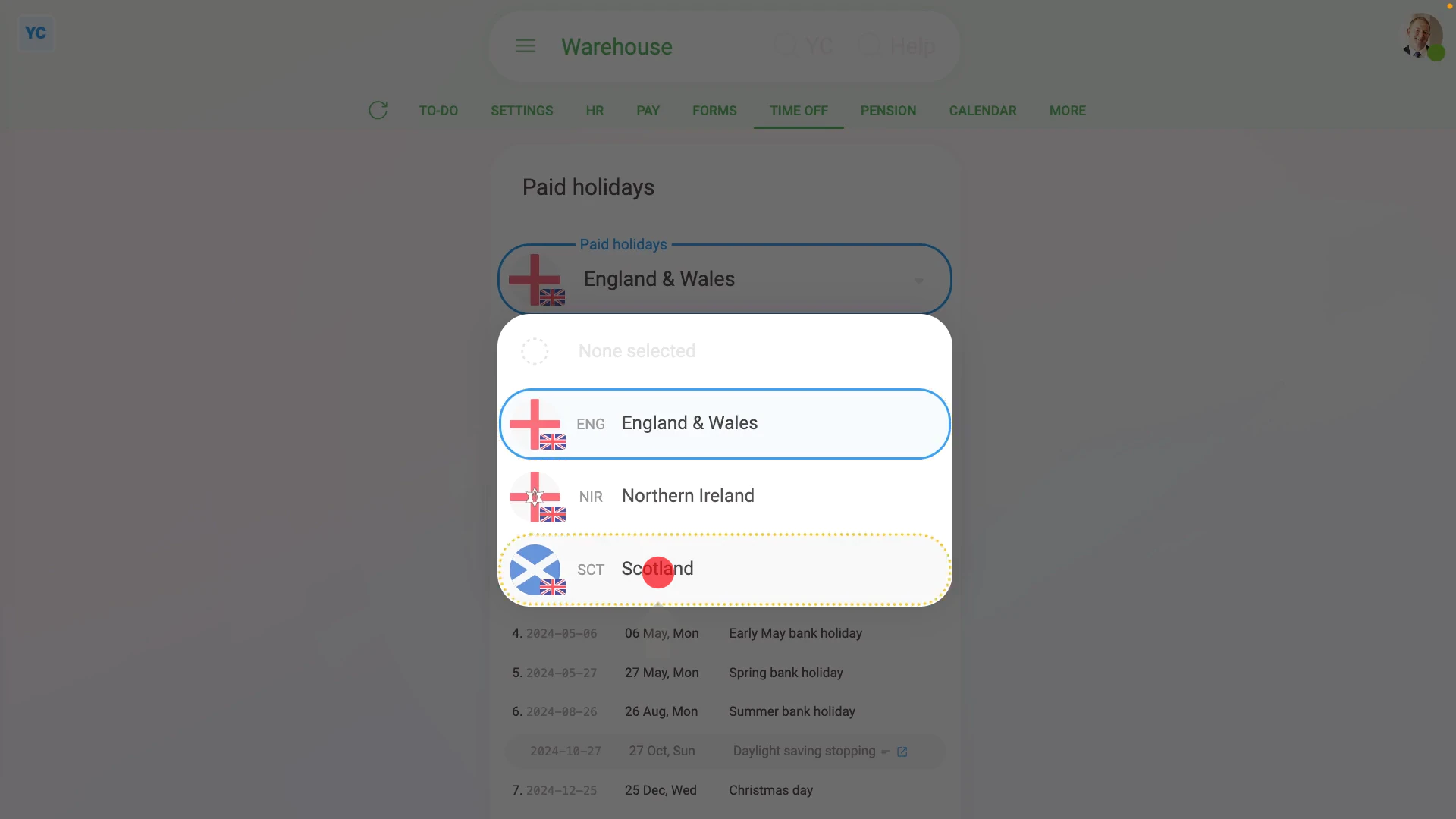
To change a payroll group's holidays:
- First, select the payroll group on: "Menu", then "Payroll groups"
- Then tap: "Time off", then "Payroll group holidays"
- By default, the selected holidays default to the most commonly used pre-prepared list of holidays for that payroll group's country or state.
- However, there may be an alternative list of holidays that're more suitable.
- To see the alternative holidays, tap "Payroll group holidays", and select the one you want.
- Once it automatically reloads, you'll see the new holidays listed. Perhaps with some holidays that're unique to the new holiday list.
- Once you're happy with your selection, tap: Save
- Now that the payroll group holidays have been changed, every employee in the payroll group instantly gets updated to have the new holidays.
- To see the change in holidays, select an employee on: "Menu", then "People"
- Then tap: "Time off", then "Holidays"
- And you'll see that each of the payroll group's employees now have the new holidays.
- However, keep in mind that not everyone is entitled to: "Paid time off"
- If you tap: "Pay", then "Pay settings"
- And open "Employment type" (at the top) you'll see that some types of employment are marked with "No" for: "Paid time off"
- When you select one of the "No" paid time off employment types.
- And then tap back to: "Time off", then "Holidays"
- You'll see that the person no longer has any payroll group holidays listed.
- And finally, you'll also see a button suggesting to convert the person back to an employee. In which case, the person would get payroll group holidays again.

Keep in mind that:
- Changing the "Payroll group holidays" setting only affects which days are considered as "Paid time off" or PTO.
- The "Payroll group holidays" setting doesn't affect an employee's tax calculations or paydays in any other way.
For advanced usage:
- Sometimes you may have some employees who need different holidays to your other employees.
- The only way to have different holidays is to put your other employees into a different payroll group.
 Employment type
And that's it! That's everything you need to know about changing a payroll group's holidays!
How do I add to, or remove from, the payroll group's holidaysHow do I decline, delete, or un-delete a time off
www.1st.money/uk/help/Time_Off/How_do_I_change_the_holiday_dates_for_everyone_in_a_payroll_group