What's the 'PTO year's starting allowance hours' for in time off?

 4:20
"What's the "PTO year's starting allowance hours" for in time off?"
Setting the time off "PTO year's starting allowance hours" lets you grant additional hours of paid time off to a person for the current year.
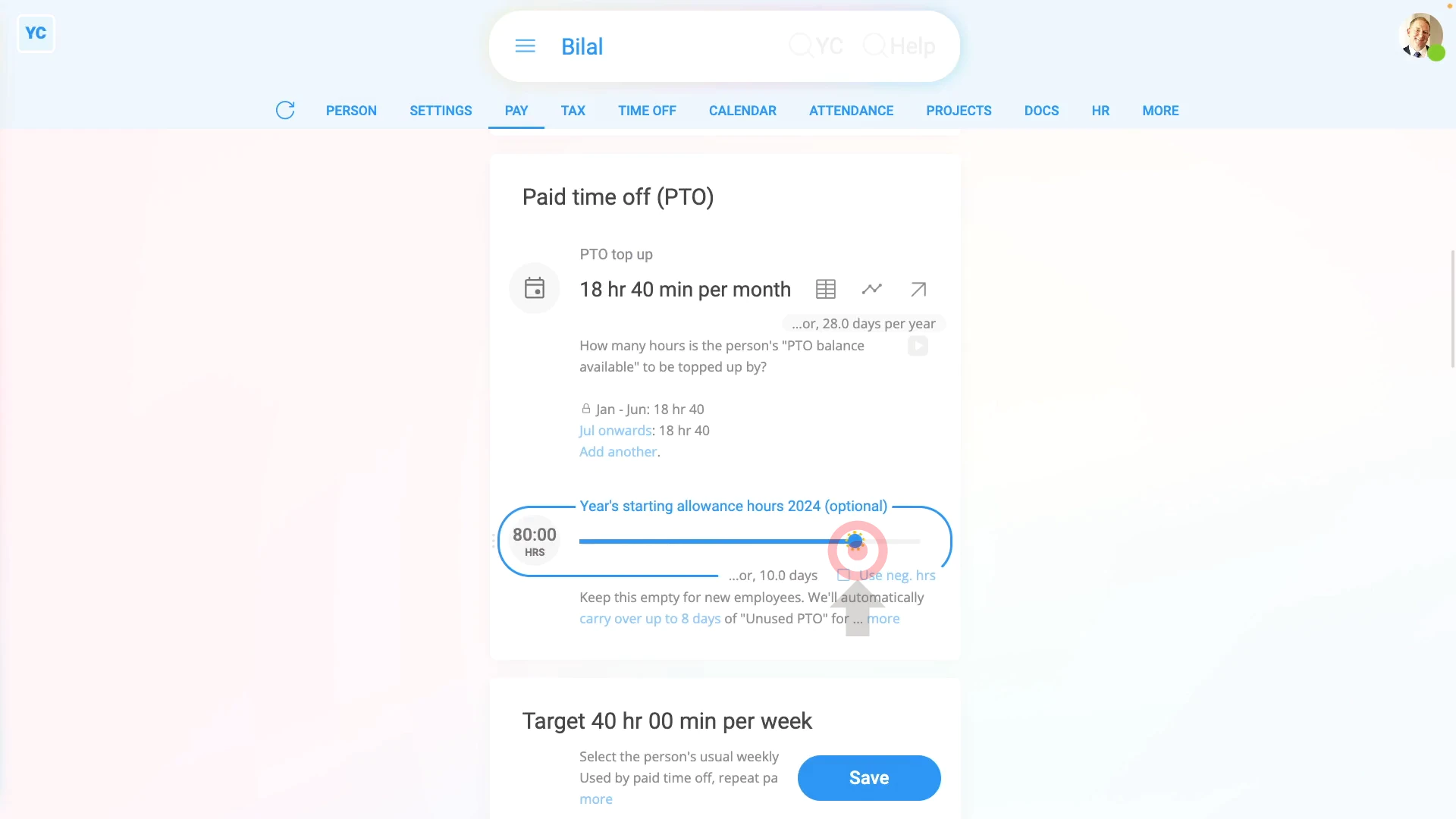
To set a person's "PTO year's starting allowance hours":
- First, select the person on: "Menu", then "People"
- Next, go to their: "Time off", then "Time off settings"
- And you'll see the person's current "PTO year's starting allowance hours" as a slider.
- To change the person's "PTO year's starting allowance hours", drag the slider.
- You'll see that as you drag the slider, both the hours, and days numbers are updated.
- To see the person's current "PTO balance available" before saving, tap: "Time off", then "Time off ... list"
- And you'll see the currently available hours and days before saving.
- Next, tap Save, then tap the Time off ... list tab on the side to open it again.
- Then once it slides out on the right, tap the three dots: (in the top-right corner), and tap: Reload
- And finally, you'll see both the hours and days available have instantly updated to include the new: "PTO year's starting allowance hours"
There's two situations where you may want to have a time off starting allowance.
The first, and most common, is when you've allowed your people to carry over their "Unused PTO" from the previous year:
- Normally the slider's kept empty for new employees.
- However, for existing employees, it's the place that shows how many "Unused PTO" hours, from last year, were automatically carried over (on the 1st of January).
- To see the payroll group's current setting for the maximum number of "Unused PTO" carry over days, see the "carry over" note below the slider.
- If it says "zero", your people need to take all their "Unused PTO" before the end of the year, or their "Unused PTO" is lost, as nothing's carried over.
- If you've got at least "View payroll admin" permissions, you can tap the link to see the payroll group's "carry over" setting.
- To learn more about "PTO max. days that're carried over at year-end", watch the video on: Paid time off settings
 Paid time off settings
The second situation where you may want to set "PTO year's starting allowance hours" is when you're switching payroll platforms mid-year:
- Or, in other words, when you're switching your existing people from a previous payroll platform, over to 1st Money, part way through the year.
- In which case, you'll need to look-up how many "Unused PTO" hours each person's got on the previous payroll platform, as of the day you switch.
- And then use each person's "PTO year's starting allowance hours" slider to enter their "Unused PTO" hours, one person at a time.
- To learn more about how to set people's time off when you're switching payroll platforms mid-year, including when to set a negative "PTO year's starting allowance hours", watch the video on: Time off: switching platforms

Keep in mind that:
- The "PTO year's starting allowance hours" setting only shows for people whose "Employment type" is "Employee" or: "Zero-hour worker"
- To check the "Employment type" of the person, scroll up to the "Pay settings" heading.
- And tap: "Employment type" (at the top)
- You'll see that the employment types are all listed as "No" for "Paid time off", except for "Employee" and: "Zero-hour worker"
For advanced usage:
- The "PTO year's starting allowance hours" is optional, and in most cases can be kept empty.
- However, if you need a precise number of hours, or need a number bigger than the slider can be dragged to, type into the number directly.
- The maximum it can handle is 999 hours, which is about 125 days.
And that's it! That's everything you need to know about "PTO year's starting allowance hours" for time off!
www.1st.money/uk/help/Time_Off/What's_the_'PTO_year's_starting_allowance_hours'_for_in_time_off