3. How do I stop my clocked-in timesheet time on the end of my day?
 1:57
"How do I stop my clocked-in timesheet time on the end of my day?"
While you're working, your work-time status is normally green, throughout your working day.
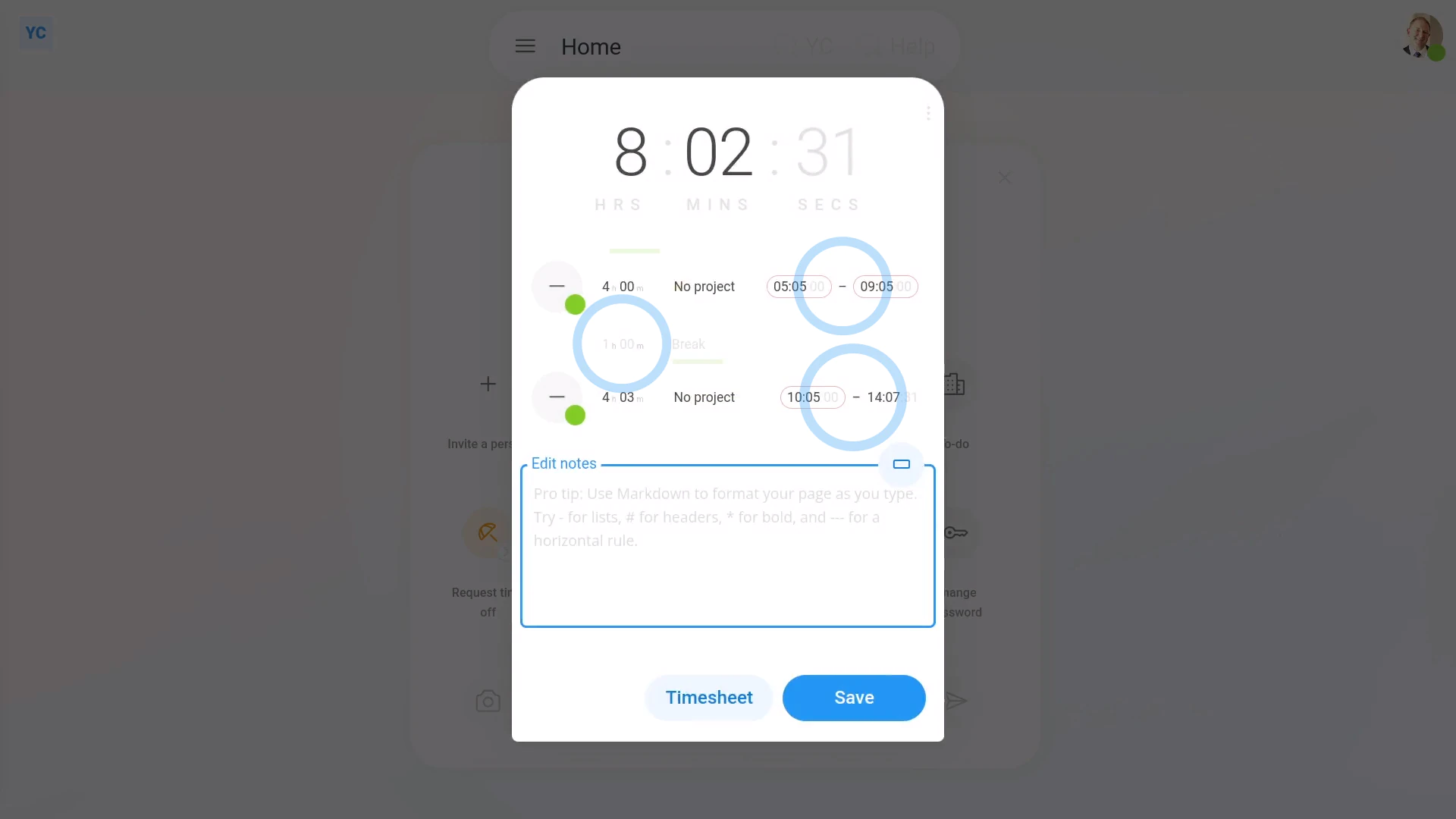
To end your clocked-in timesheet time, once you're ready to finish your working day:
- First, tap: "Work-time menu", then "Finish"
- You'll now see the "Finish" options, which shows.
- Your total done time for your working day.
- And then a list of individual done times.
- And then you'll see a box to type in your notes for your timesheet.
- Next, tap: Save
- Next, select how you're feeling as you end your working day.
- And finally, tap Close, and you're all finished for the day.

You may notice:
- It's only when you tap Save that your work-time status goes grey, and your clocked-in timesheet time is finally stopped.
- During all the steps before you tap Save, your work-time status is still set to started.
Keep in mind that:
- When reassigning a project, that your done time was set to, you can only change the project.
- The times done remain unchanged.
- Also remember that any notes you enter also show on the "Timelines ... weekly" report.
If a feature's not showing:
- If the "Finish" option isn't showing in the menu, it means your org hasn't turned on the timesheets feature yet.
- To turn on the timesheets feature, watch the video on: Turning on timesheets
 Turning on timesheets
To learn more:
- About the "Timelines ... weekly" report, watch the video on: The "Timelines ... weekly" report
And that's it! That's everything you need to know about finishing up, when you end your working day!
2. How do I start my clocked-in timesheet time, or pause for a break4. How do I add timesheet notes, and what are the timesheet colours
www.1st.money/uk/help/Timesheets/3._How_do_I_stop_my_clocked-in_timesheet_time_on_the_end_of_my_day