How do I copy planned times to other days, or other people?

 4:25
"How do I copy planned times to other days, or other people?"
Copying planned times is the fastest way to set up shift schedules for everyone in your team.
Once you've created a perfect set of planned times on one person, you can then copy them over to others.
- You can copy planned times over to other dates for that same person.
- And you can copy planned times from one person's timesheets, over to the timesheets of other people.
To copy planned times:
- First, to open the timesheet that's got the original master copy of planned times that you'd like to copy over.
- Start by selecting the person on: "Menu", then "People"
- Then tap: Calendar
- Next, tap the date on the calendar you'd like to copy the planned times over from.
- Once it slides out on the right, to open it in a new tab, tap the three dots: (in the top-right corner)
- Then tap: Open in new tab
- Now that the timesheet's open in its own window, make sure that all the planned times in the timesheet are exactly right.
- If you need to add or change planned times, do that now.
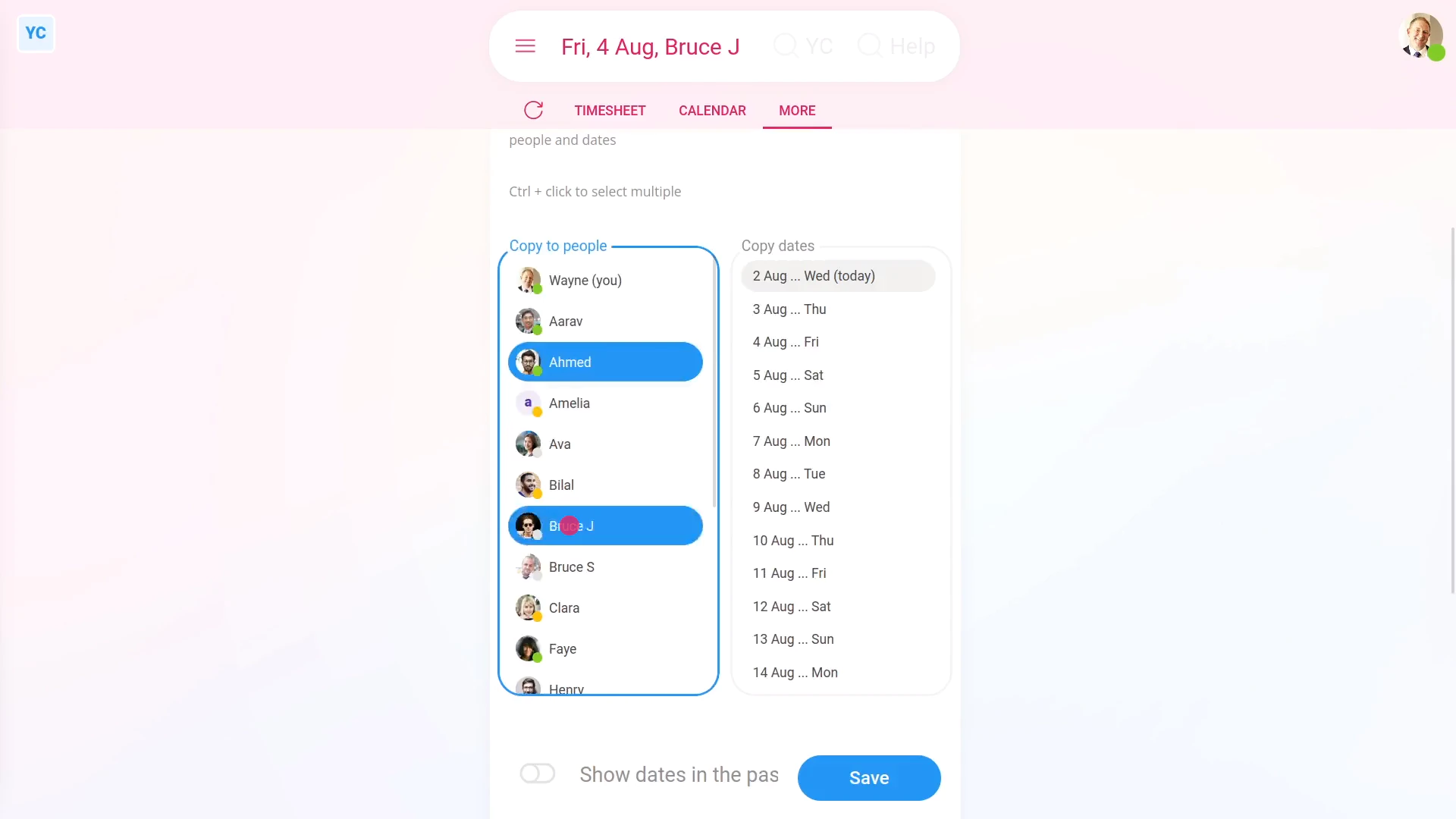
- Now that the planned times on the timesheet are perfect, tap: "More", then "Copy planned"
- You can see a preview of the planned times you're about to copy (at the top).
- Now Control + tap multiple people to copy the times over to. You can Control + tap as many people as you want.
- Next, Control + tap the days to copy the times over to.
- Then tap: Save
- You'll now see a confirmation message with the names and links to all the timesheets that you've copied over to.
- And finally, if you want to see the newly copied times, tap one of the links.
Now, switching person. You're now logged in as a person you've set planned times for.
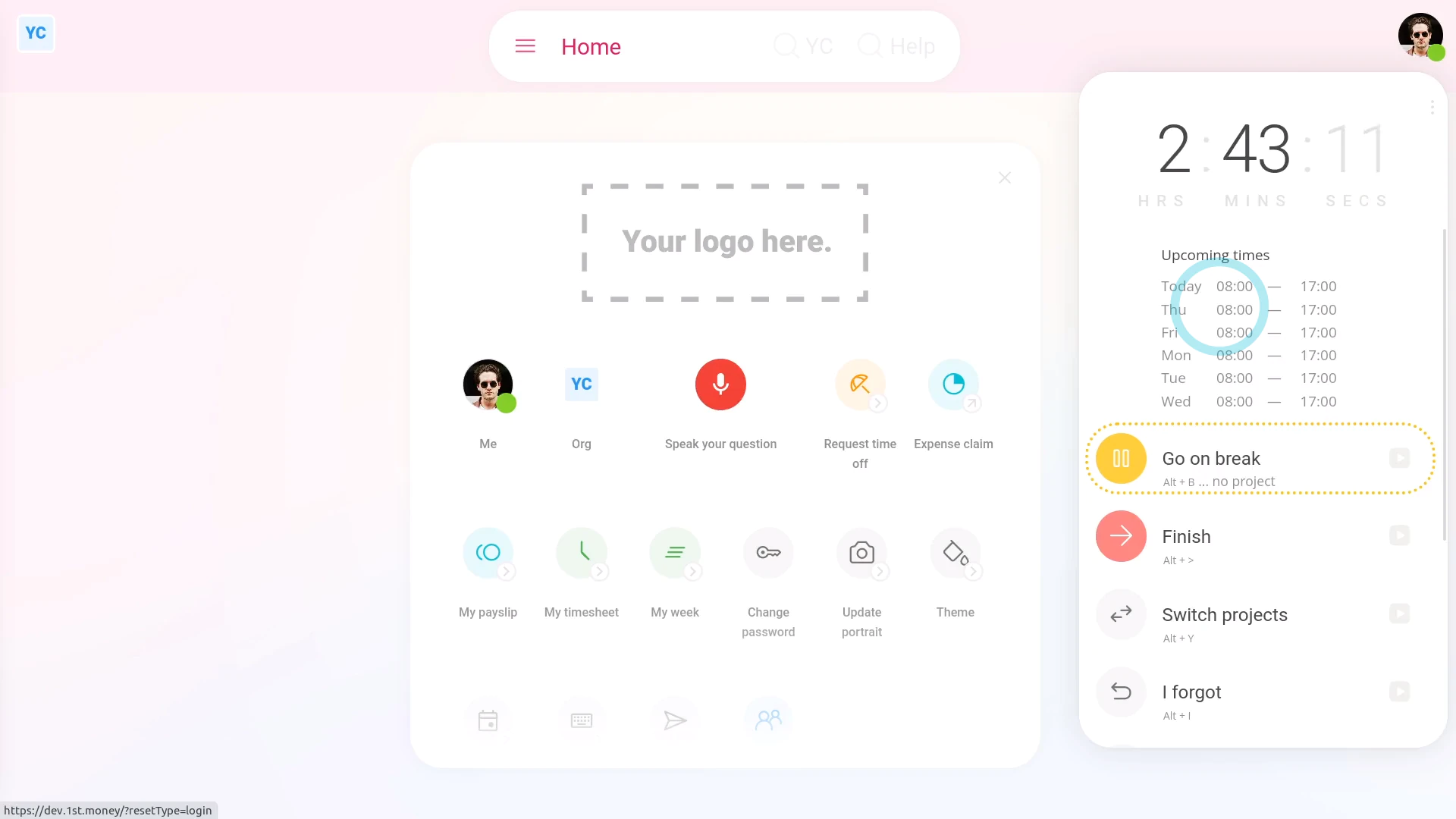
To see your "Upcoming times":
- First, tap: "Work-time menu" (top-right)
- On the work-time menu, every person can now see a summary of their "Upcoming times" for the next week.
- If you want more detail, tap: "Menu", then "My week"
- And finally, you'll see each day's exact planned times in yellow.

Keep in mind that:
- Only admins or managers can ever change any planned time on any timesheet.
- Also, if "Copy planned" isn't showing under the "More" menu, it means your org hasn't turned on "Show planned times" yet.
To learn more:
- About how to turn on "Show planned times", watch the video on: Turning on planned times
 Turning on planned times
You may notice:
- Copying planned times always copies over whatever each row's project has been set to, in the original master copy timesheet.
- But it never copies over the timesheet's done times or notes.
- Even if the timesheets contain done times or notes, "Copy planned" still only ever copies over the planned starts, stops, and project.
- Which makes it useful if your shifts are similar from week-to-week.
For advanced usage:
- When copying planned times, you can Control + tap all the dates you want.
- However, when copying large spans of shifts, you may find it faster to Shift + tap from the first date, to the last date.
- And then to subtract the dates you don't want copied (like weekends), using: Control + tap
- But keep in mind that the Control + tap and Shift + tap shortcuts aren't available on tablets and phones.
If a feature's not showing:
- If the timesheets feature isn't showing, it means your org hasn't turned on the timesheets feature yet.
- To turn on the timesheets feature, watch the video on: Turning on timesheets
And that's it! That's everything you need to know about copying planned times over to other dates and other people!
www.1st.money/uk/help/Timesheets/How_do_I_copy_planned_times_to_other_days,_or_other_people