How do I set the number of minutes it takes to trigger an absence?
 2:29
"How do I set the number of minutes it takes to trigger an absence?"
"Absence trigger minutes" is where you give your people a few minutes leeway before marking them as absent.
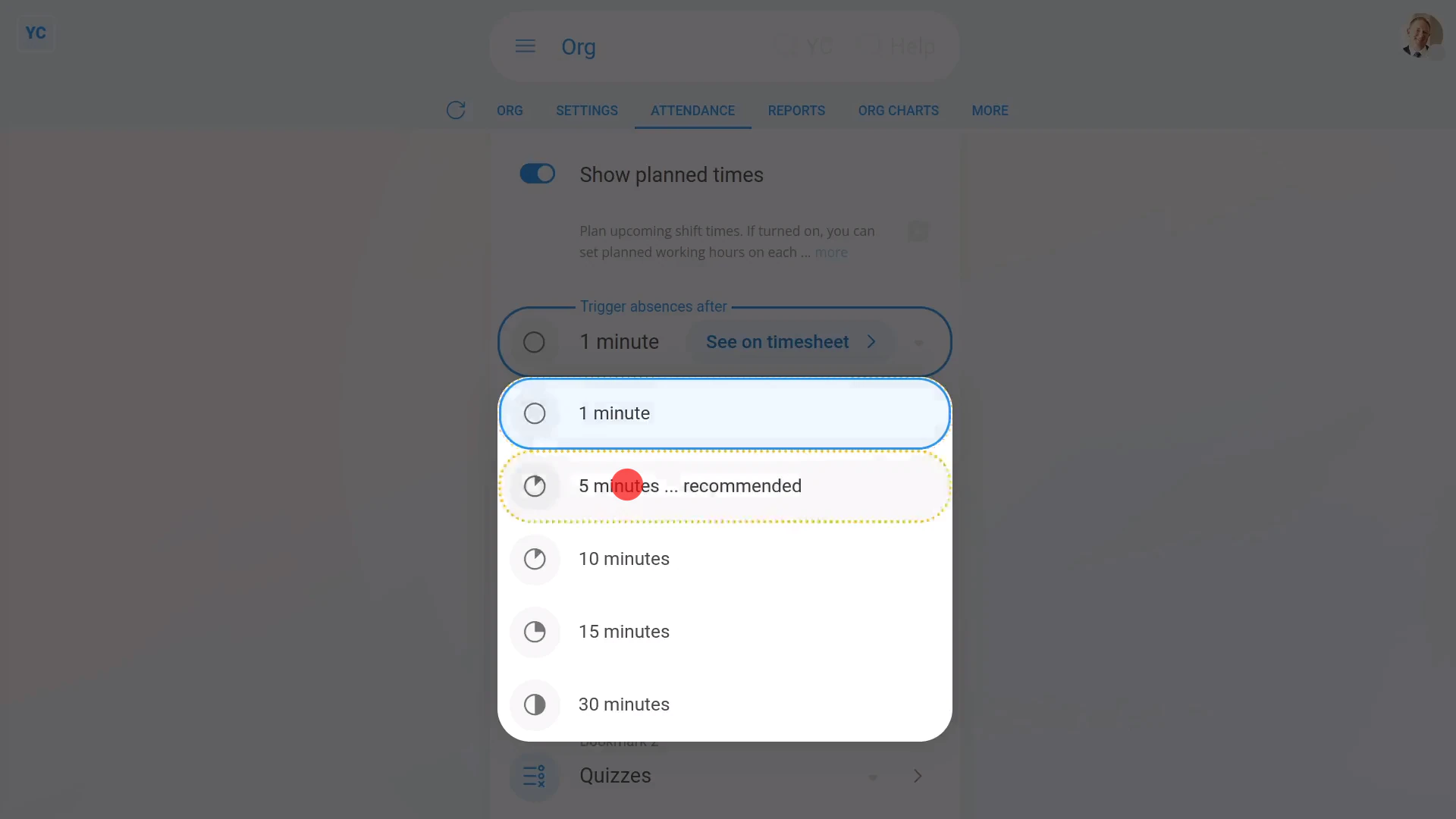
To set your org's absence trigger minutes:
- First, go to your org on: "Menu", then "Orgs"
- Then tap: "Attendance", then "Attendance settings"
- Then scroll down and select the number of minutes to: "Trigger absences after"
- Then tap: Save
- Now, with the trigger set, open a timesheet to see the effect it's got.
- It's best to open yesterday's timesheet because absence warnings don't show up until the current day's totally finished.
- Currently, because both planned and done times exactly match, no absence has been triggered yet.
- To try triggering an absence, set the person to start late by exactly the trigger minutes.
- As expected, when you tap the "Reload tab" button: (at the top), still no absence has been triggered yet, as the person still hasn't gone over the trigger minutes.
- Next, set the person to start late by slightly more than the trigger minutes.
- Now when you tap the "Reload tab" button: (at the top), an absence has now been triggered.
- And finally, you can now see the absence warning for the number of minutes late, because it's greater than the trigger minutes.

Keep in mind that:
- The "Trigger absences after" setting applies equally to all people with planned times in your org.
- A very strict org may set the absence trigger to only 1 minute. A lax org could set it to 30 minutes. Either way, it's your choice, but if you don't change it, the default is 5 minutes.
- Also, for tracking absences to work, planned times need to be turned on.
If a feature's not showing:
- If the "Attendance" tabs aren't showing, it means your org hasn't turned on the timesheets feature yet.
- To turn on the timesheets feature, watch the video on: Turning on timesheets
 Turning on timesheets
To learn more:
- About how to turn on "Show planned times", watch the video on: Turning on planned times
And that's it! That's everything you need to know about setting your org's "absence trigger minutes"!
www.1st.money/uk/help/Timesheets/How_do_I_set_the_number_of_minutes_it_takes_to_trigger_an_absence