UK onboarding


How do I confirm a person's 'Right to work'?

 5:59
5:59
"How do I confirm a person's "Right to work"?"
During a person's onboarding process, you may be asked to confirm that person's "Right to work" in the UK. Which can be done through either uploading their passport, their birth certificate, or by entering a "Right to work" share code.
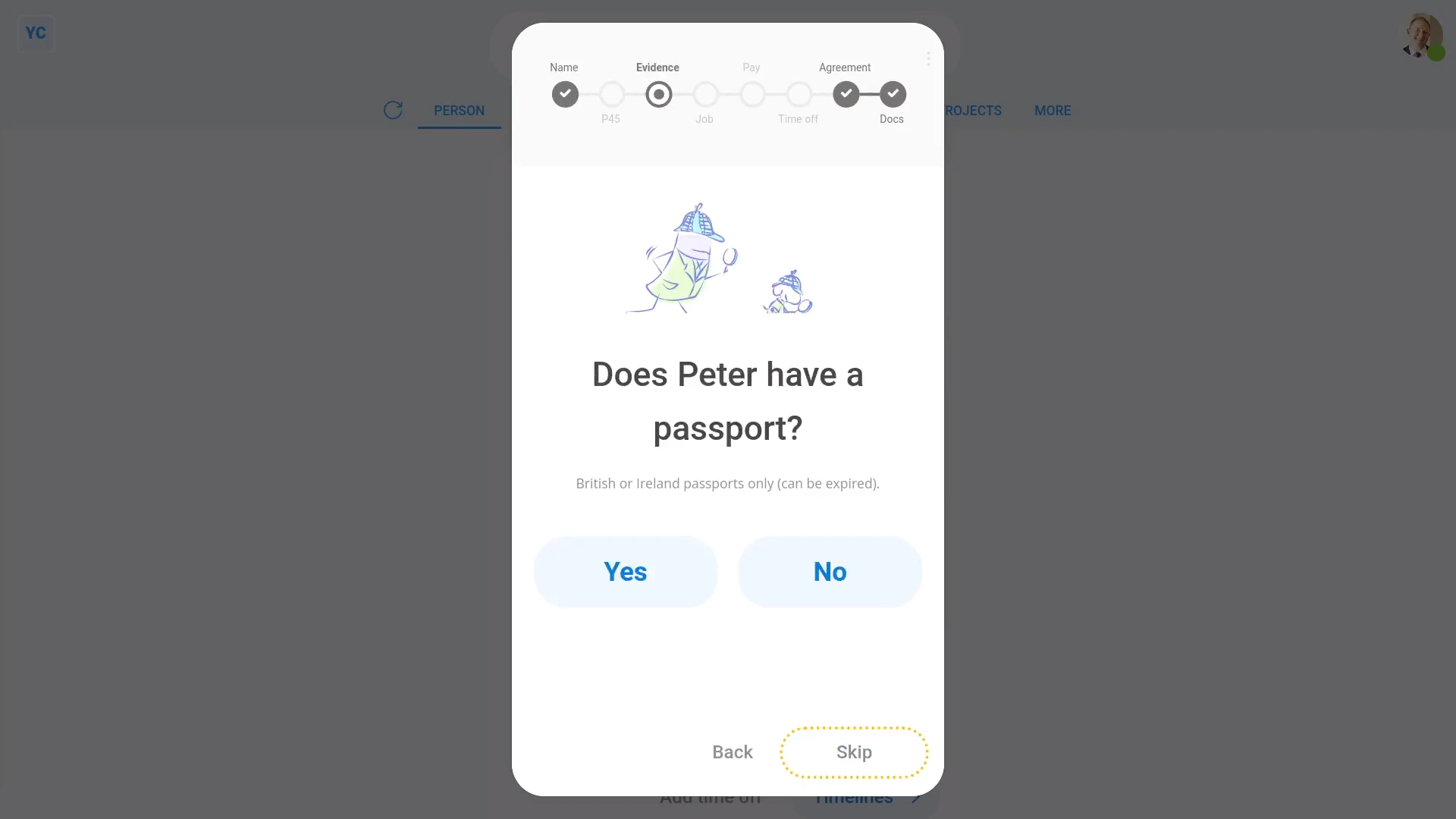
To confirm a person's "Right to work" through their passport:
- First, tap: "Menu", "People", then "Invite a person"
- Once it's open, tap Add a new person, and enter the person's email and tap: Invite
- Next, fill in the person's name, and tap: Next
- Because you're confirming "Right to work" through their passport, tap: Yes
- Type in their passport number.
- And take a photo, or upload an image of their passport's details page.
- Tap Next, then tap: Sign
- Then tap Next, and you're now all finished with confirming the person's: "Right to work"
- And finally, to see the person's "Right to work" confirmation using a passport, go to: "Settings", then "Right to work"

Keep in mind that:
- Only British or Ireland passports can be used for UK: "Right to work"
- However, there's no problem if you upload an expired passport.
To verify a person's "Right to work" through their birth certificate:
- First, tap: "Menu", "People", then "Invite a person"
- Once it's open, tap Add a new person, and enter the person's email and tap: Invite
- Next, fill in the person's name, and tap: Next
- Because you're confirming "Right to work" through their birth certificate, tap No, then: Yes
- Then take a photo, or upload an image of their birth certificate.
- Next, take a photo, or upload an image of their official letter.
- Tap Next, then tap: Sign
- Then tap Next, and you're now all finished with confirming the person's: "Right to work"
- And finally, to see the person's "Right to work" confirmation using a birth certificate, go to: "Settings", then "Right to work"
Bear in mind that:
- Only UK, Channel Islands, or the Isle of Man birth certificates can be used for UK: "Right to work"
- However, there's no problem if you upload an adoption certificate.
- The official letter can be any document from a government agency, or from the person's previous employer, that shows their name and National Insurance number.
To confirm a person's "Right to work" through a share code:
- First, tap: "Menu", "People", then "Invite a person"
- Once it's open, tap Add a new person, and enter the person's email and tap: Invite
- Next, fill in the person's name, and tap: Next
- Because you're confirming "Right to work" through a share code, tap No, then: No
- Type in the share code the person's sent to you by email.
- And enter their date of birth, then tap: Next
- Next, to go to the GOV.UK website and confirm their share code, tap: See "Right to work"
- The GOV.UK website asks you for the person's details. To copy and paste them, tap the copy buttons.
- Once you've logged in, find the person's share code "Reference number", and enter it.
- Next, look for the words "there's no limit", or the words "can work in the UK until", and enter those.
- Tap Next, then tap: Sign
- Then tap Next, and you're now all finished with confirming the person's: "Right to work"
- And finally, to see the person's "Right to work" confirmation using a share code, go to: "Settings", then "Right to work"
For advanced usage:
- To see everyone's confirmations in one place, look for the "Right to work" column in the payroll group's "People" report.
- From the "Right to work" column you can see, and update, anyone who's "Right to work" is missing or expired.
Also remember that:
- It's the employer's responsibility to physically see the original paper copy of a suitable passport, birth certificate, or share code.
- And it's the employee's responsibility to have their "Right to work" share code sent to their employer, by email, when asked.
- If the person's lost their passport or birth certificate, the person needs to apply for a replacement. Applying for a share code, as a UK citizen, won't work.
- If the employee doesn't have a suitable passport or birth certificate, the employee must, themself, apply online for their share code.
- The employee can find the apply page by searching Google for: "prove your right to work"
You may notice:
- People who've got "Full org admin" permissions can confirm a person's "Right to work". Payroll permissions aren't required.
- However, although share codes expire after 90 days, the employer's required to keep "a secure copy" of the online "Right to work" check for two years.
- Look for the "Download PDF" link (at the bottom of the GOV.UK page) to download: "a secure copy"
And that's it! That's everything you need to know about confirming a person's "Right to work"!
What's the starting declaration for, and which one do I select?
 3:20
3:20
"What's the starting declaration for, and which one do I select?"
When you newly hire a new person who's not got a P45, HMRC requires that you make a "Starting declaration" about that person's situation.
To set a person's "Starting declaration" during onboarding, when a person doesn't have a P45:
- First, tap: "Menu", "People", then "Invite a person"
- Once it's open, tap Add a new person, and enter the person's email and tap: Invite
- Next, fill in the person's name, and then tap: Next
- Then when asked about their P45, tap: No
- Normally, you'd fill in all the onboarding details, but for the example, skip your way through to the "Pay" settings page.
- Then set the person's pay rate, and tap: Next
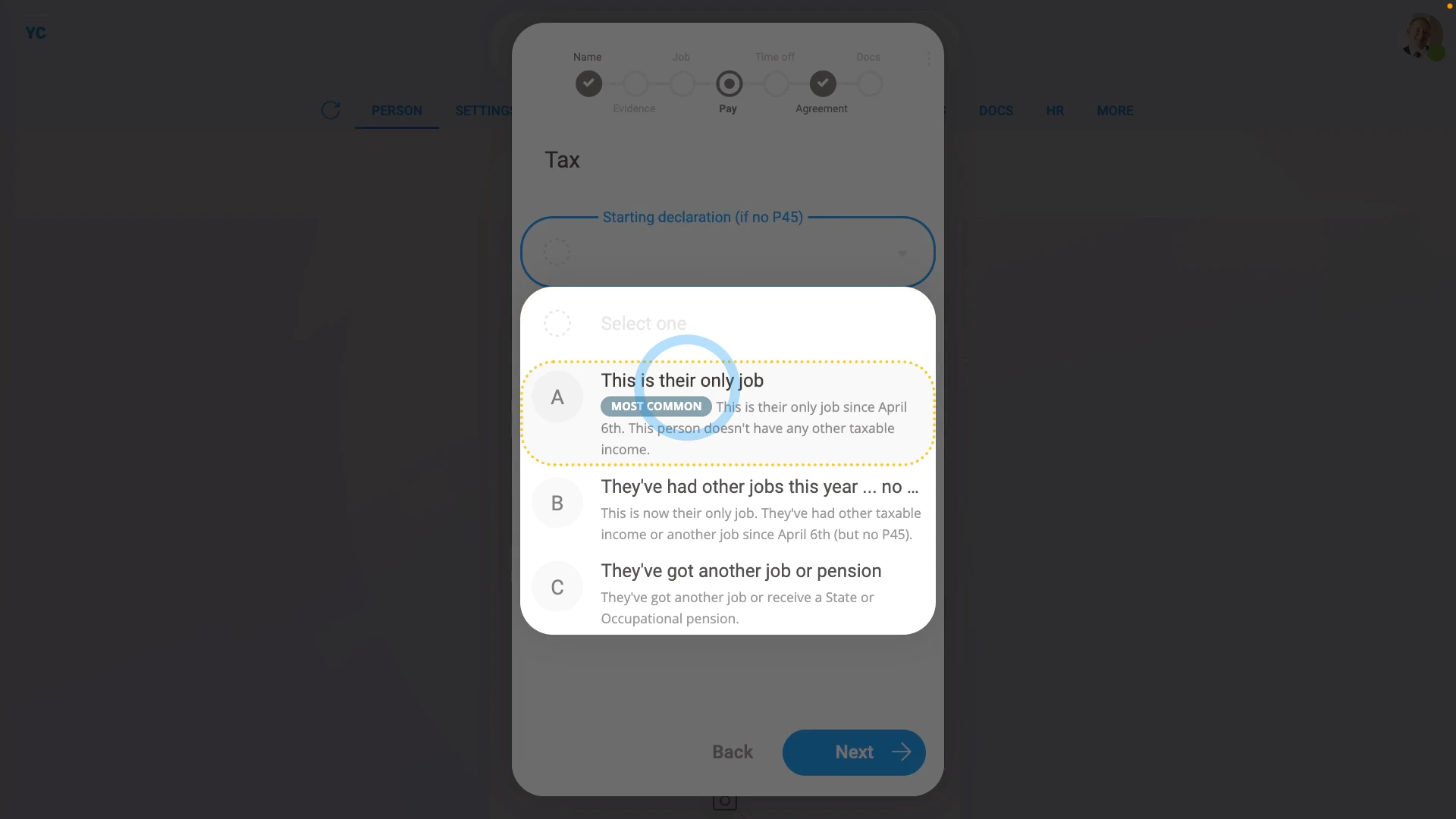
- Next, because you said "No" to the P45, you'll be asked to select the person's: "Starting declaration"
- In most cases, you'll select the first option.
- The first option is for when it's their first and only job so far in the tax year.
- The second option is for when the person's had another job in the tax year, but don't have their P45. For example, if the person's lost their P45.
- The third option is for when the person's working another job, or have a pension, and don't have their P45.
- Read through the notes and decide which is best.
- Then once you've selected one, you'll see the person's "Tax code" is automatically filled in. It's filled in with a "best guess" tax code, according to rules set by HMRC.
- And finally, once you're ready, tap Next and continue with onboarding, as usual.
Keep in mind that:
- In all cases where a person does have their tax code from their previous job, leave the "Starting declaration" empty. And type in the tax code directly.
- If the person was issued a P45 from their previous employer, and has since lost their P45, then it's fine to still set their "Starting declaration", and go from there.
- In some cases, including where the person never had a P45, or the person lost their P45, the "best guess" tax code may need changing. If so, HMRC automatically does the update.
- If HMRC's systems detect a more suitable tax code, an "HMRC notice" is automatically issued and the person's tax code is automatically updated.
- Both you, and the person, get an email if the tax code is ever updated through an: "HMRC notice"
 HMRC notices
And that's it! That's everything you need to know about setting a person's starting declaration during onboarding, when a person doesn't have a P45!
www.1st.money/uk/help/Onboarding/UK_onboarding/