UK payroll groups

 2:36
2:36How do I enter my Companies House number and gross revenue?
Instructions for entering Companies House number and estimated gross revenue in payroll settings.
 1:47
1:47How do I set a payroll group's Unique Taxpayer Reference?
Instructions for setting a payroll group's Unique Taxpayer Reference (UTR) in tax settings.


How do I enter my Companies House number and gross revenue?

 2:36
2:36
"How do I enter my Companies House number and gross revenue?"
If you're doing payroll as a company you'll also be asked for your Companies House number and gross revenue.
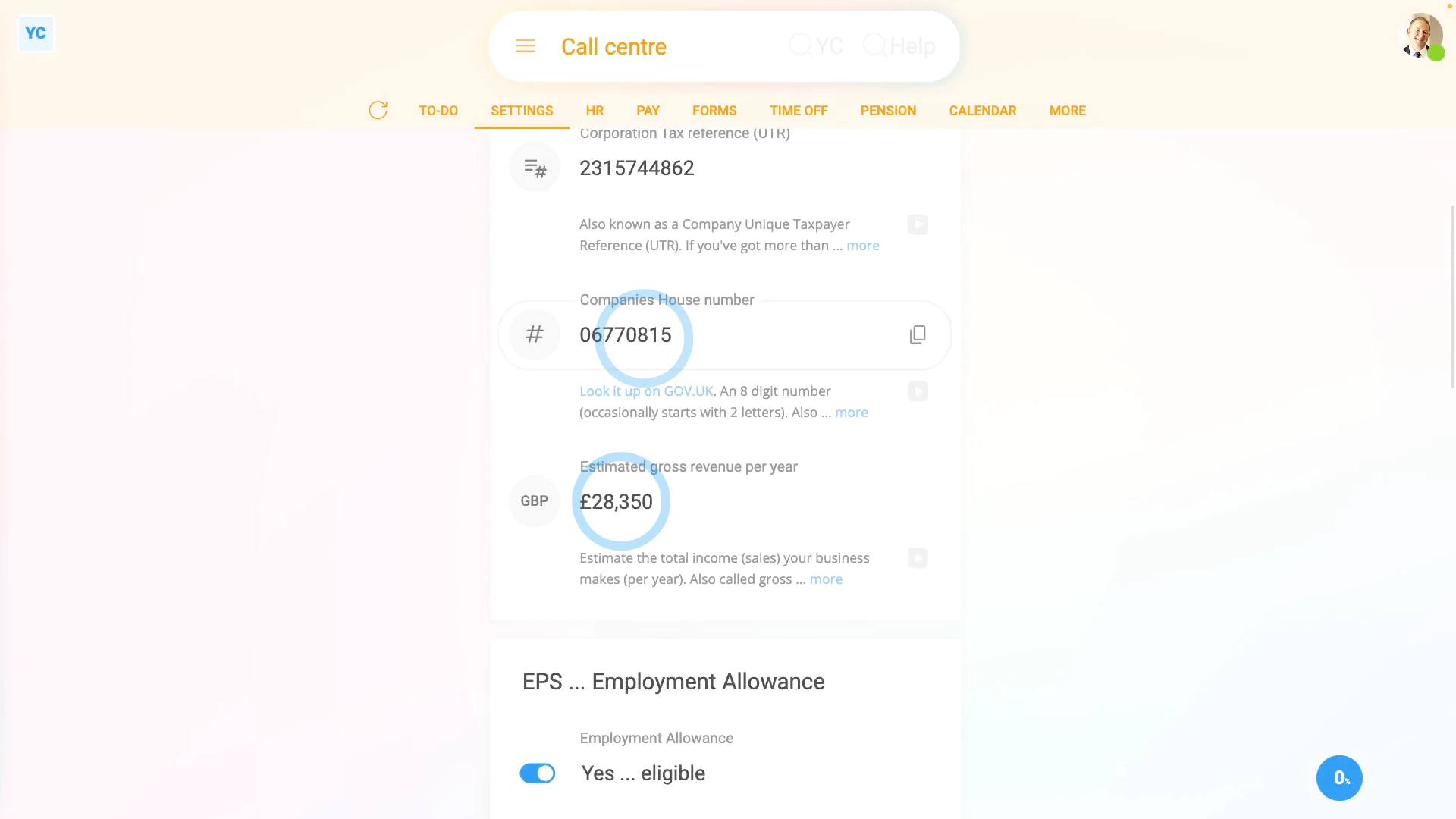
To enter your company's Companies House number and gross revenue:
- First, select any payroll group on: "Menu", then "Payroll groups"
- Then tap: "Settings", then "Tax settings"
- Check that "Self Assessment UTR" is set to: "Limited company, or corporation"
- Then to find your "Payroll group", tap the "Look it up" link.
- And when the GOV.UK page opens, type your company name into the search box.
- Next, tap on your company from the search results, and copy the: "Company number"
- Then back in 1st Money, paste your company number in.
- Next, to enter your "Estimated gross revenue per year", tap into the box and select the amount that seems right.
- Then if you want, you can also change the number with your keyboard.
- And finally, tap: Save

You may notice:
- That both the Companies House number and gross revenue are mirrored across all your payroll groups.
- In other words, if you jump to a different payroll group, you'll see that it's also set to the same info as the original payroll group.
- And if you update your Companies House number and gross revenue in any payroll group, it's also updated in all your other payroll groups.
- If you need a payroll group with a different Companies House number, or different gross revenue, it's recommended that you create another org.
- And then you can add the different info to a payroll group in your new org.
Also remember that:
- Both Companies House number and gross revenue only show if you've set the "UTR type" to: "Limited company, or corporation"
- If you've set it to sole trader, you won't be asked about it.
Keep in mind that:
- Your "Estimated gross revenue per year" is the same as your total sales for the year, and only has to be an estimate.
- If you're a new company, you can take a conservative guess at what your sales may be for the year.
- It's OK if it's not completely precise.
And that's it! That's everything you need to know about entering your Companies House number and gross revenue!
How do I set a payroll group's Unique Taxpayer Reference?
 1:47
1:47
"How do I set a payroll group's Unique Taxpayer Reference?"
The Unique Taxpayer Reference, or UTR, is a 10-digit code that uniquely identifies you or your business. Your UTR is used by HMRC whenever HMRC is dealing with your tax.
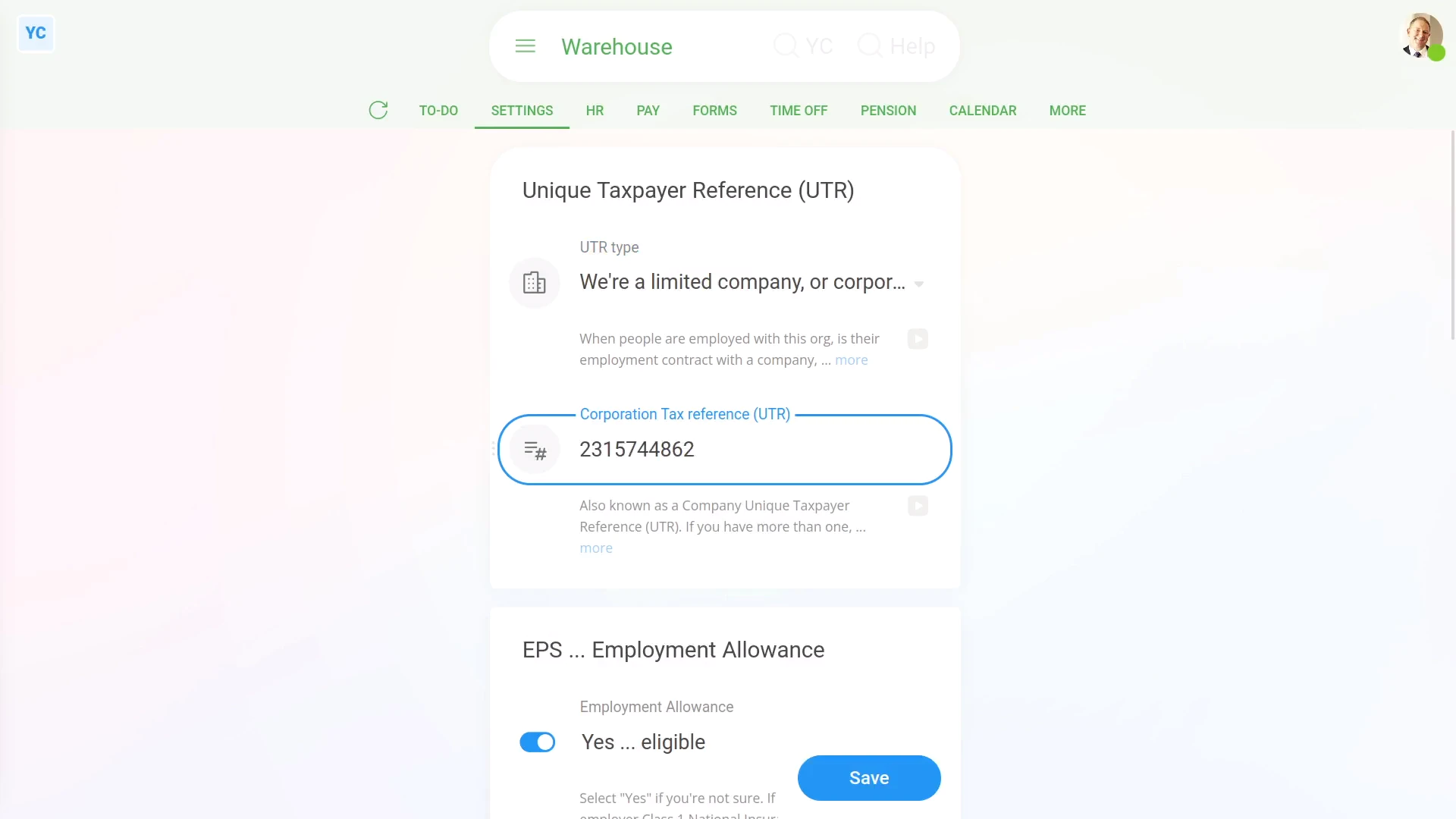
To set a payroll group's UTR:
- First, select the payroll group on: "Menu", then "Payroll groups"
- Then tap: "Settings", then "Tax settings"
- Next, you'll need to decide if you're doing your Tax Filing as a company or a sole trader.
- And then you can type in your 10-digit UTR code.
- If you need help finding your UTR, tap the link to HMRC's website, and read HMRC's advice.
- And finally, tap: Save
Keep in mind that:
- Each payroll group can have a different UTR, or all your payroll group's can all share the same UTR. It's up to you.
- Each time you tap Process payroll, your UTR is automatically included, when your Tax Filing's sent to HMRC.
- Once the UTR is set, there normally isn't any reason to change it.
- If you're still waiting for your UTR to be sent to you, from HMRC, you can still run Process payroll as long as you've set up your HMRC connection.
To learn more:
- About setting up your HMRC company connection, watch the video on: HMRC Tax Filing company connection
 HMRC Tax Filing company connection
And that's it! That's everything you need to know about setting a payroll group's Unique Taxpayer Reference!
What are a payroll group's 'Opening amounts', and how do I set them?
 3:22
3:22
"What are a payroll group's "Opening amounts", and how do I set them?"
A payroll group's "Opening amounts" are a set of numbers that were sent to HMRC by your previous payroll system through the EPS monthly.
You only need to set a payroll group's "Opening amounts" if you're switching from your previous payroll system, to 1st Money, partway through the tax year.
To set a payroll group's "Opening amounts":
- First, select the payroll group on: "Menu", then "Payroll groups"
- Then tap: "Settings", then "Opening amounts"
- Employment Allowance used previously:
Now, on the "Opening amounts" tab, you'll see the first slider as: "Employment Allowance used previously" - The "Employment Allowance used previously" slider is for Employment Allowance consumed so far in the tax year that you've carried over from your previous payroll system.
- Once it's set, your Employment Allowance in 1st Money is reduced by the amount you've already used in your previous payroll system.
- Apprenticeship Levy paid previously:
Next, the "Apprenticeship Levy paid previously" box only shows if "Apprenticeship Levy" is set to: "No ... not exempt" - The "Apprenticeship Levy paid previously" amount is sent to HMRC in the EPS along with any Apprenticeship Levy you've paid in 1st Money.
- Recoverable amounts:
Next, there are five additional "Recoverable amounts" that you can set individually depending what you've paid for the tax year so far. - Everything in the five additional "Recoverable amounts" are sent to HMRC in the EPS along with any recoverable amounts you've got in 1st Money.
- And finally, once everything's all set, tap: Save
Keep in mind that:
- You can copy your payroll group's "Opening amounts" from your previous payroll system's most recent EPS file.
- It's important that you only copy from your most recent EPS file.
- If you're unsure, ask your previous payroll system's customer support where to find it.
- If you're switching from a previous payroll system the new tax year starts, leave all the "Opening amounts" as zero.
- If you're switching from a previous payroll system partway through the tax year, you MUST enter your most recent EPS's numbers into each box.
- For companies that fail to copy over their EPS numbers, HMRC sends out "Unallocated payments" notices.
You may notice:
- All the "Opening amounts" are wiped back to zero when the new tax year starts (every April 6th).
- If you've always been with 1st Money and never switched from a previous payroll system, all the "Opening amounts" are zero.
- If you've switched from a previous payroll system, but it's now a new tax year, all the "Opening amounts" are zero from now on.
To learn more:
- About setting "Opening amounts" for a person, watch the video on: Person opening amounts
- About Apprenticeship Levy, watch the video on: EPS: Apprenticeship Levy
- About Recoverable Amounts, watch the video on: EPS: Recoverable amounts
And that's it! That's everything you need to know about setting a payroll group's "Opening amounts"!
What are HMRC notices for?
 2:47
2:47
"What are HMRC notices for?"
Whenever there's a change that HMRC wants you to know about, you'll get a forwarded message called an: "HMRC notice"
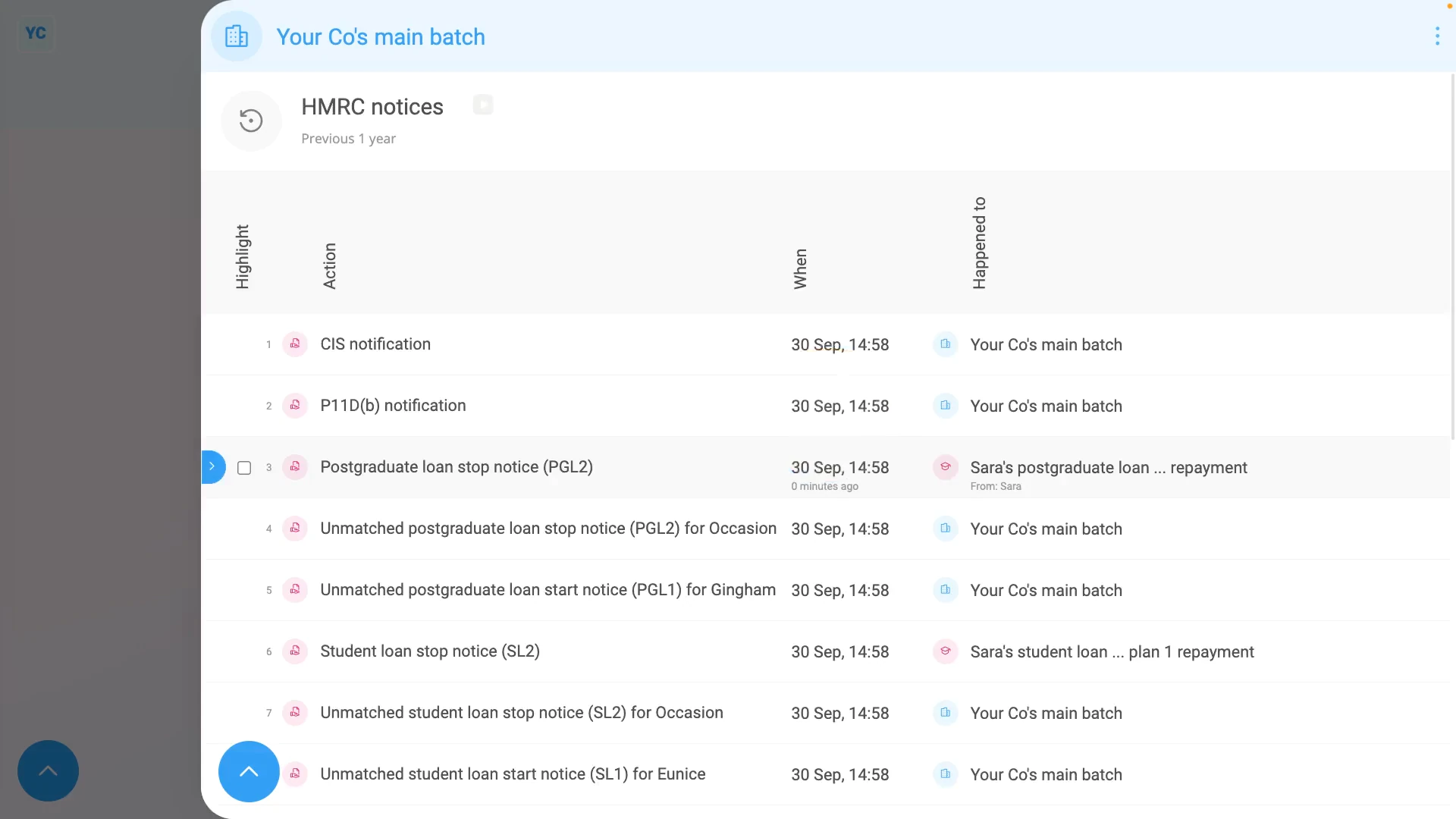
To see a payroll group's "HMRC notices":
- First, select the payroll group on: "Menu", then "Payroll groups"
- Then tap: "Forms", then "HMRC notices"
- You'll now see all your payroll group's HMRC notices from over the last year.
- To see an HMRC notice's full message, tap the "See event" button: (at the start of any row)
- And you'll see the body of the notice. If you tap the "more" link, you'll also see when it was received, and which person was involved.
- Where possible, if the notice is a settings change, it's auto-scheduled, and done for you.
- An example of an auto-scheduled change is when HMRC changes somebody's tax code.
- Another example, is when HMRC starts, or stops, one of your people's student loan repayment plans.
- Where possible you'll see a button, that takes you to see the change.
- And if a change is scheduled for an upcoming date, you'll also see a note about the scheduled change.
- If you disagree with the change, to remove a scheduled change, tap the "remove" link.
- Then tap: Yes ... remove and the scheduled change has been removed.
- To see HMRC notices from further back in time, tap:
" Show settings", "Dates", then "Previous 2 years" - And you'll see the older HMRC notices in the listing.
- To only see HMRC notices involving a set of selected people, tap:
" Show settings", then "Side settings ... show" - Then on the To list, Ctrl + tap the people you'd like to see HMRC notices for.
- And finally, you'll now only see HMRC notices for your selected people.
Keep in mind that:
- If you've ever got multiple payroll groups all sharing the same "Employer PAYE reference", those payroll groups each show the same set of: "HMRC notices"
- Also, for every auto-scheduled change that involves a person, two copies of an HMRC notice are emailed out.
- One is emailed to the person involved, and the other to the payroll group's payday admin.
- However, some "HMRC notices" are only ever emailed to the payday admin. Including company tax setting changes, info updates like P11D(b) messages, CIS messages, and annual reminders.
And that's it! That's everything you need to know about HMRC notices!
www.1st.money/uk/help/Payroll_groups/UK_payroll_groups/