Payroll groups

 2:50
2:50How do I create a payroll group and set its tax country or state?
Create payroll groups by setting country/state to apply correct tax and payment rules.
 1:56
1:56What do I need to consider when setting a person's payroll group?
Setting a person's payroll group assigns them specific tax, pay, and time off settings automatically.
 3:04
3:04How do I see a list of the upcoming tasks for my payroll group?
View and manage upcoming payroll tasks in the payroll group's To-do tab by date and status.
 4:40
4:40How do I process payroll?
How to process payroll, file payslips, confirm HMRC submission, and make payments.
 3:24
3:24How do I see payslips that've already been filed?
How to view, filter, and download filed payslips in your payroll group's history.
 1:46
1:46How do I change the paper size of PDFs I download?
Instructions on how to change and verify PDF paper size for payroll documents.
 2:24
2:24How do I delete or un-delete a payroll group?
Steps to delete or un-delete a payroll group and related permission notes.
 2:55
2:55How do I make sure that everything's all set for payday?
Guide to setting up payroll groups and reminders to ensure smooth payday processing.
 3:43
3:43How do I pay a payroll tax payment to the government?
Instructions on how to pay payroll tax payments using 1st Money software.
 3:38
3:38How do I send out payslips on payday?
Instructions on enabling and sending automated individual and batch payslip emails on payday.


1. How do I create a payroll group and set its tax country or state?

 2:50
2:50
"How do I create a payroll group and set its tax country or state?"
If you employ different groups of people, each group may need different tax settings from different countries or states. Such groupings can be done with a different payroll group each.
To create a new payroll group and set its tax country or state:
- First, to create a payroll group, tap: "Menu", "Payroll groups", then "New payroll group"
- And type in the payroll group's name.
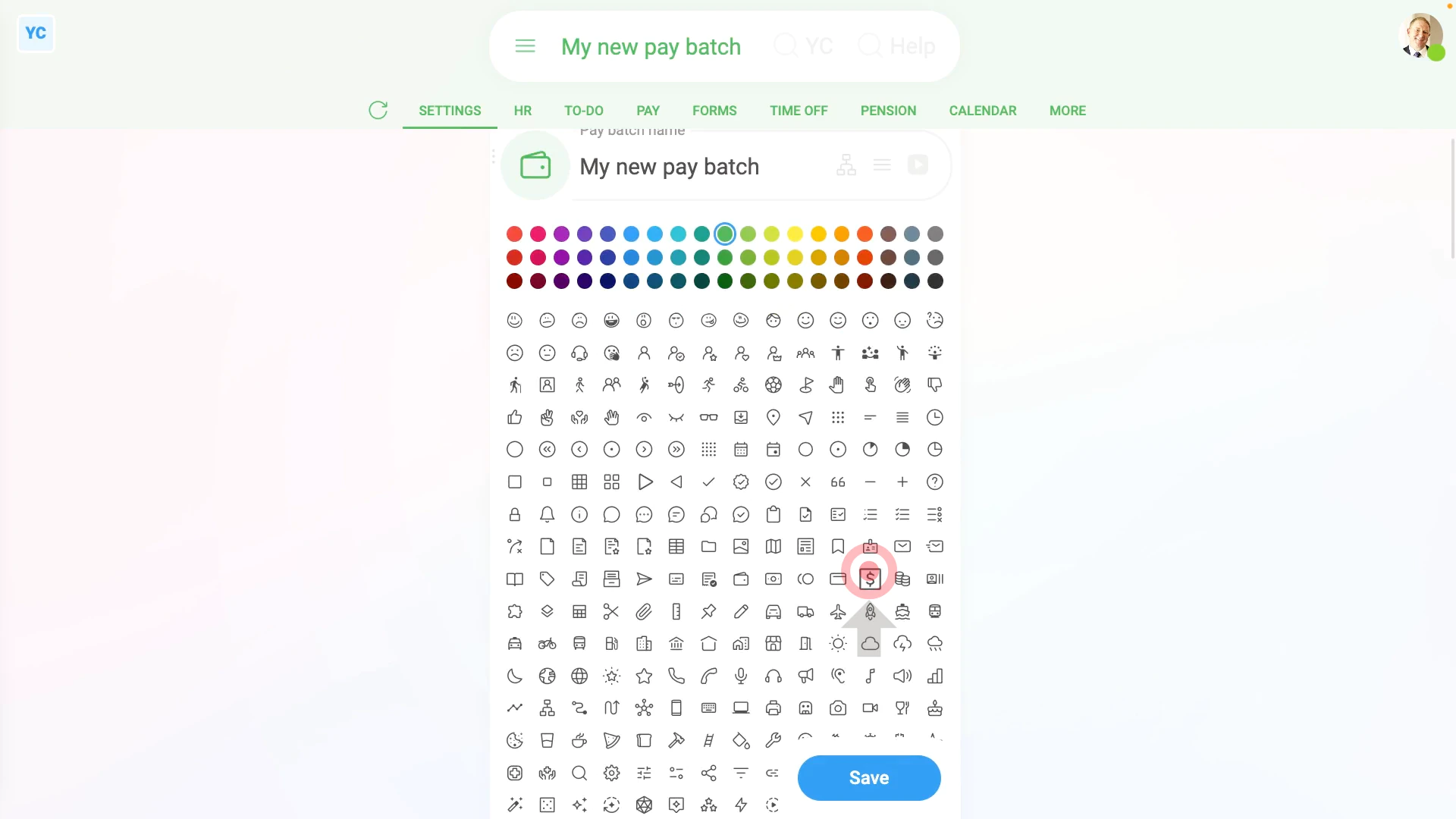
- Optionally, you can also tap the circle and set the list colour and image.
- By default, it sets the country to its best guess, based on where you're located.
- To change the country, tap it, and select the country you'll be employing people in.
- Depending on the country you select, you may then also be asked to select the state, province, or territory you'll be employing people in.
- Now your new payroll group is all set. To add people, scroll down and tap: Add people
- Tap the people you want to add, then tap: Save
- And finally, if you tap on one of the newly added people, and tap Set rate, you'll see that their pay is in the currency of the country you selected.

You may notice:
- That each time you change from one country or state to another, the page reloads.
- And each time it reloads, some of the defaults, like the default payday settings, may change.
- The automatic changes are intentional, and give you the most common default settings for each country or state.
- If the automatic changes aren't what you want, go ahead and tap them to change them to what you prefer.
Keep in mind that:
- Setting the payroll group's country is the only way to set the payment currency for any group of people.
- Also, in addition to setting the currency, you're also setting all the tax rules for that group of people.
- Also remember that once you pay any people in the payroll group, the country and state options become locked. In which case, you can't change it any more.
- However, even though it may be locked, you can always create new payroll groups. And then set the new payroll groups to any country or state of your choice.
And that's it! That's everything you need to know about creating a new payroll group and setting its tax country and state!
2. What do I need to consider when setting a person's payroll group?
 1:56
1:56
"What do I need to consider when setting a person's payroll group?"
Most small employers only ever need a single payroll group. However, larger, or more complicated employers may want to set up multiple payroll groups.
To set a person's payroll group:
- First, usually a person's payroll group is set during onboarding.
- However, there's two other places you can set a person's payroll group.
- To set a person's payroll group for only one person:
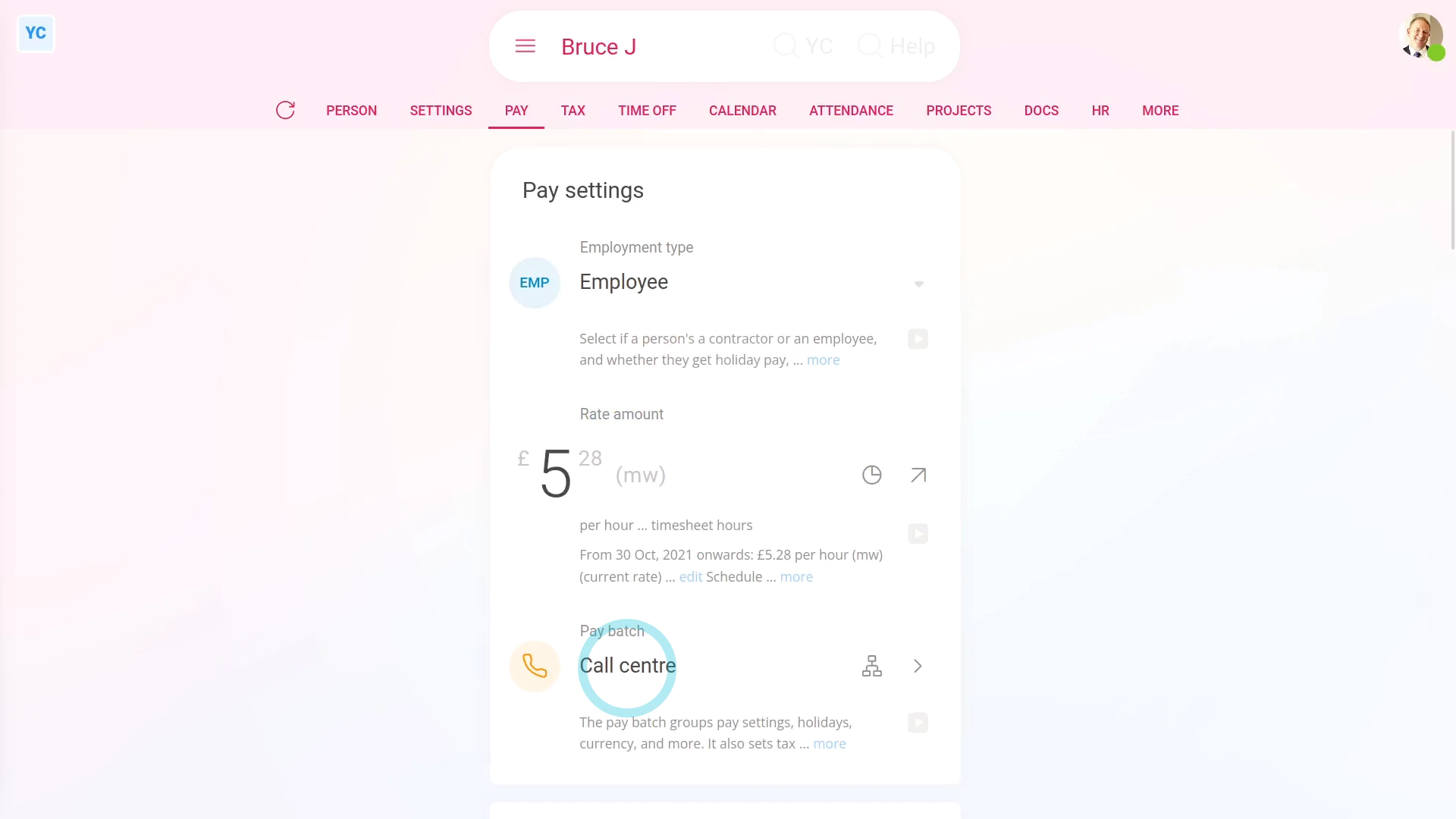
Select the person on: "Menu", then "People" - Then tap: "Pay", then "Pay settings"
- And change the setting for: "Payroll group"
- Once you change their payroll group, it auto-saves.
- To set a lot of people's payroll group all in one go:
Select the payroll group you want to move the people into, on: "Menu", then "Payroll groups" - Then tap: "Settings", then "Payroll group settings"
- And scroll down and tap: Add people
- Once it slides out on the right, tap all the people you want to add.
- And tap: Save
- And finally, you'll see all the people you tapped now show up in the list of payroll group people.
Keep in mind that:
- Once a person's been added to a payroll group, that person automatically receives the payroll group's settings, including.
- The payroll group's tax rules, calculations, currency, payday schedule, and repeat payables.
- The person also automatically receive the payroll group's time off settings, public holidays, pension settings, and advanced settings.
And that's it! That's everything you need to know about setting a person's payroll group!
3. How do I see a list of the upcoming tasks for my payroll group?
 3:04
3:04
"How do I see a list of the upcoming tasks for my payroll group?"
As each week or month passes, a range of payroll tasks become due. Including paydays, tax payments, tax form submissions, and much more.
To see a list of a payroll group's upcoming tasks:
- First, select the payroll group on: "Menu", then "Payroll groups"
- If you've already filed payslips from a payroll group, then its "To-do" tab is automatically the first tab you're shown.
- Otherwise, to open it, tap: "To-do" (at the top)
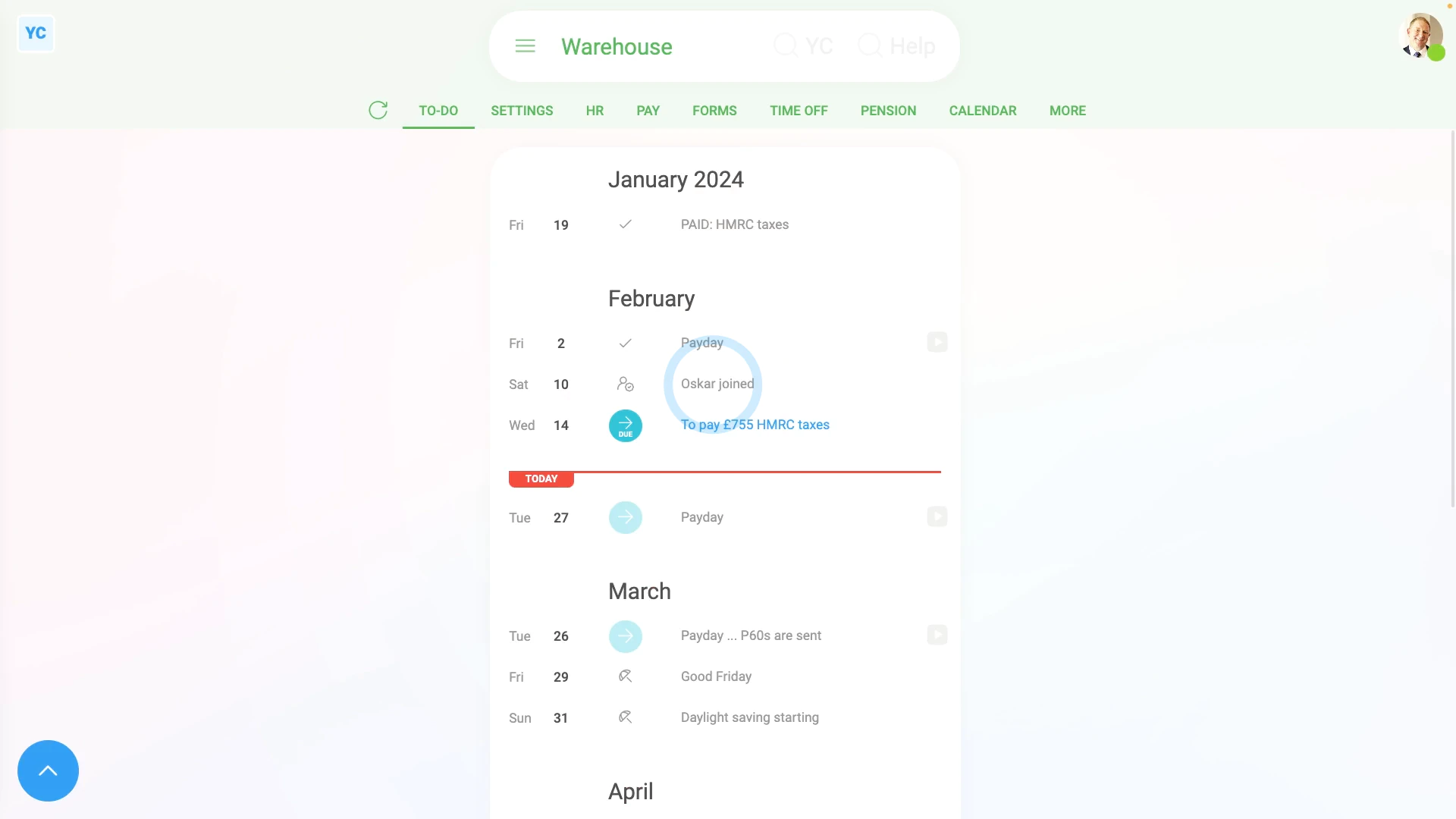
- By default, you'll see a list of the last one month of tasks (at the top).
- Then below that you'll see the red "Today" line.
- And then below that you'll see the next three upcoming months of tasks.
- To quickly show more upcoming months of tasks:
Scroll to the bottom of the page, and tap the down arrow button to add one month: (at the bottom)
- To change the number of "From" and "To" months that're shown:
Tap open the bottom menu: - Then tap "From" and "To" and set them to the number of months you'd like to see.
- And you'll see the range of the listing of tasks update.
- To complete all your "Due" tasks:
Look for any bold blue circles saying: "Due" - When you hover your mouse over any "Due" circle, you'll see important info. Including when it's actually due, how long before the deadline it's recommended to do it, and other notes.
- To do the task, tap the link, and then work your way through the blue buttons until you reach the end.
- Then once you tap back to the "To-do" tab, you'll notice that the task you completed is now marked with a tick.
- And when you hover your mouse over the tick, you'll see info about who did it, and when it was done.
- Keep working your way through all the bold blue "Due" circles until each has changed to a tick.
- You can leave the light blue circles until a future date.
- The light blue circles are there as a reminder of tasks that could become "Due" in the coming weeks and months.
- To learn more about each one, hover your mouse over it and read the notes.
- And finally, if you're not sure about how to do any task, tap the watch button for each one to learn how it's done.
Keep in mind that:
- If you've got multiple payroll groups, each covering different countries, the tasks and dates could each be quite different.
- However, if you've got multiple payroll groups, all set to the same country, their tasks and dates may likely be quite similar.
- Regardless, always remember to check back regularly on all your payroll groups, so you don't miss any upcoming tasks that become due.
And that's it! That's everything you need to know about keeping on top of any upcoming tasks in your payroll groups!
4. How do I process payroll?
 4:40
4:40
"How do I process payroll?"
Your payroll group's "To-do" list is there to remind you of when it's time to process payroll.
To process payroll, and file & confirm payslips:
- First, select the payroll group on: "Menu", then "Payroll groups"
- Then on the "To-do" tab, tap the upcoming: "Payday"
- Once the "Payday" is open, you'll see details about each payslip, like net pay, taxes, and more.
- To see even more details about any payslip, tap the "See payslip" button: (at the start of any row)
- Sometimes you may have a reason to skip a person for now, and pay them later. To skip paying a payslip for now, turn off the row.
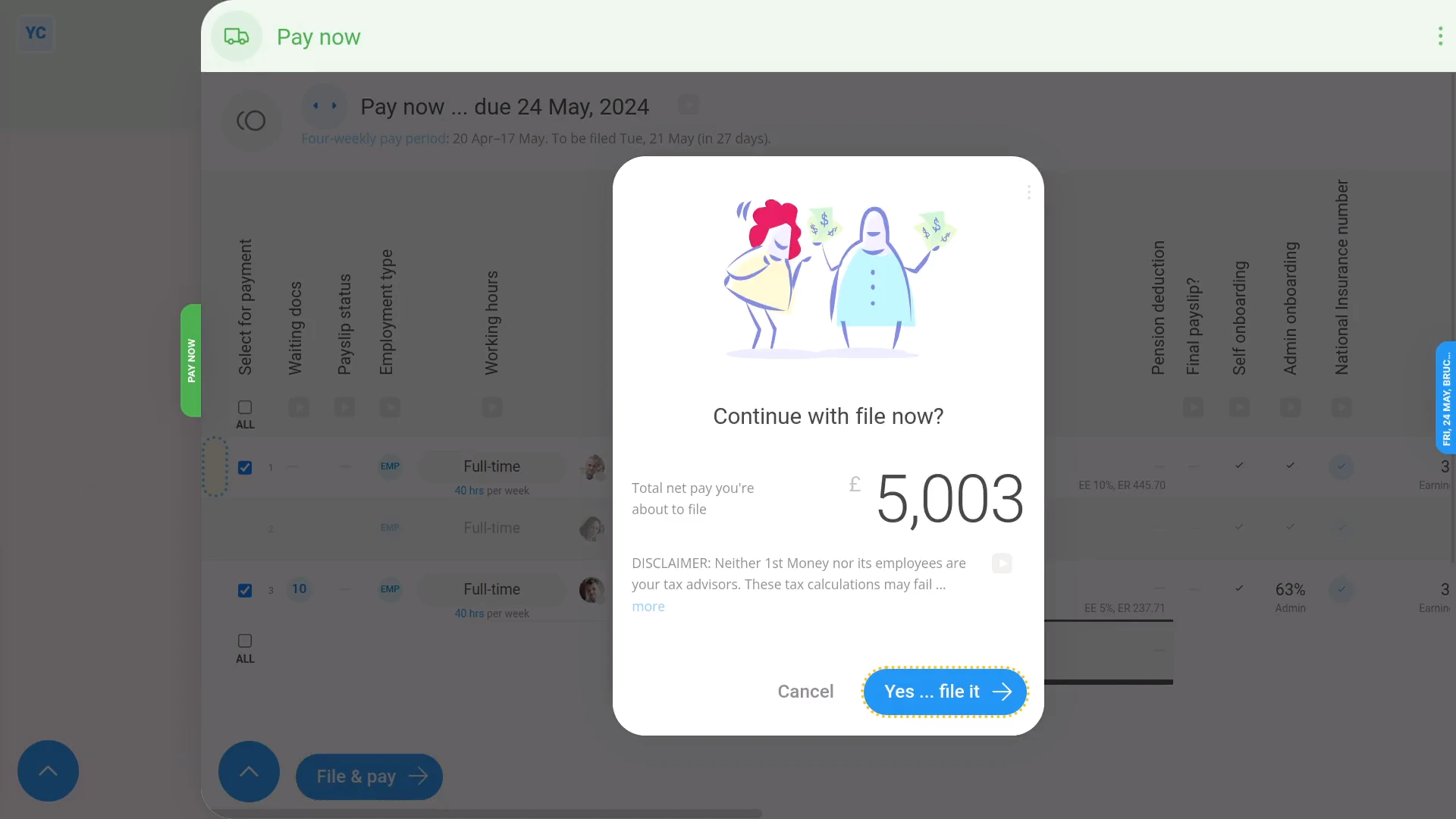
- Then when you're ready, tap: Process payroll
- You'll now see the total amount of net pay you're about to pay your people.
- And finally, tap: Yes ... process it
Immediately after filing payslips, 1st Money sends details of the filed payslips to confirm with HMRC.
Once HMRC's confirmed the payslips you filed, you can make your Payroll Payments.
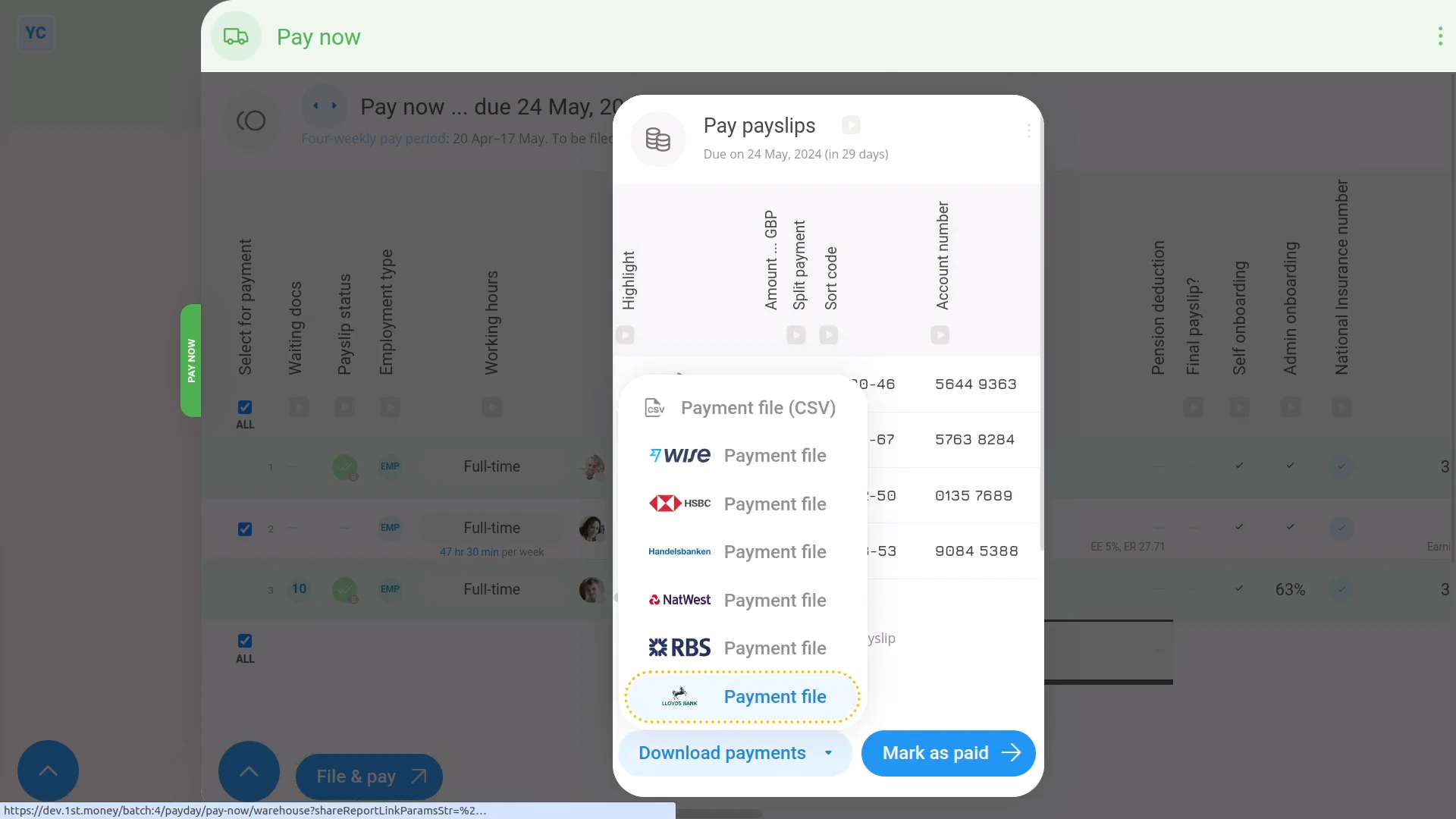
To make your Payroll Payments in bulk:
- First, tap: Download payments
- Then tap the bank you use, and a payment file's downloaded.
- The payment file has all the payments to be paid for the payday.
- Next, upload the payment file CSV to your banking software.
- And finally, you'd tap Continue to finish paying the payday.
To make Payroll Payments one at a time:
- First, you won't need to tap: Download payments, since you're not making payments in bulk.
- Instead, open your banking software, and make the payment to each person, one-by-one.
- To see the amount you need to pay for each person, tap: Close
- And copying the amount from the "GBP" column.
- There's also columns for the "Name", "Sort code" and "Account number" of each person you're paying.
- And finally, once you've finished making all the payments, tap: Mark as paid
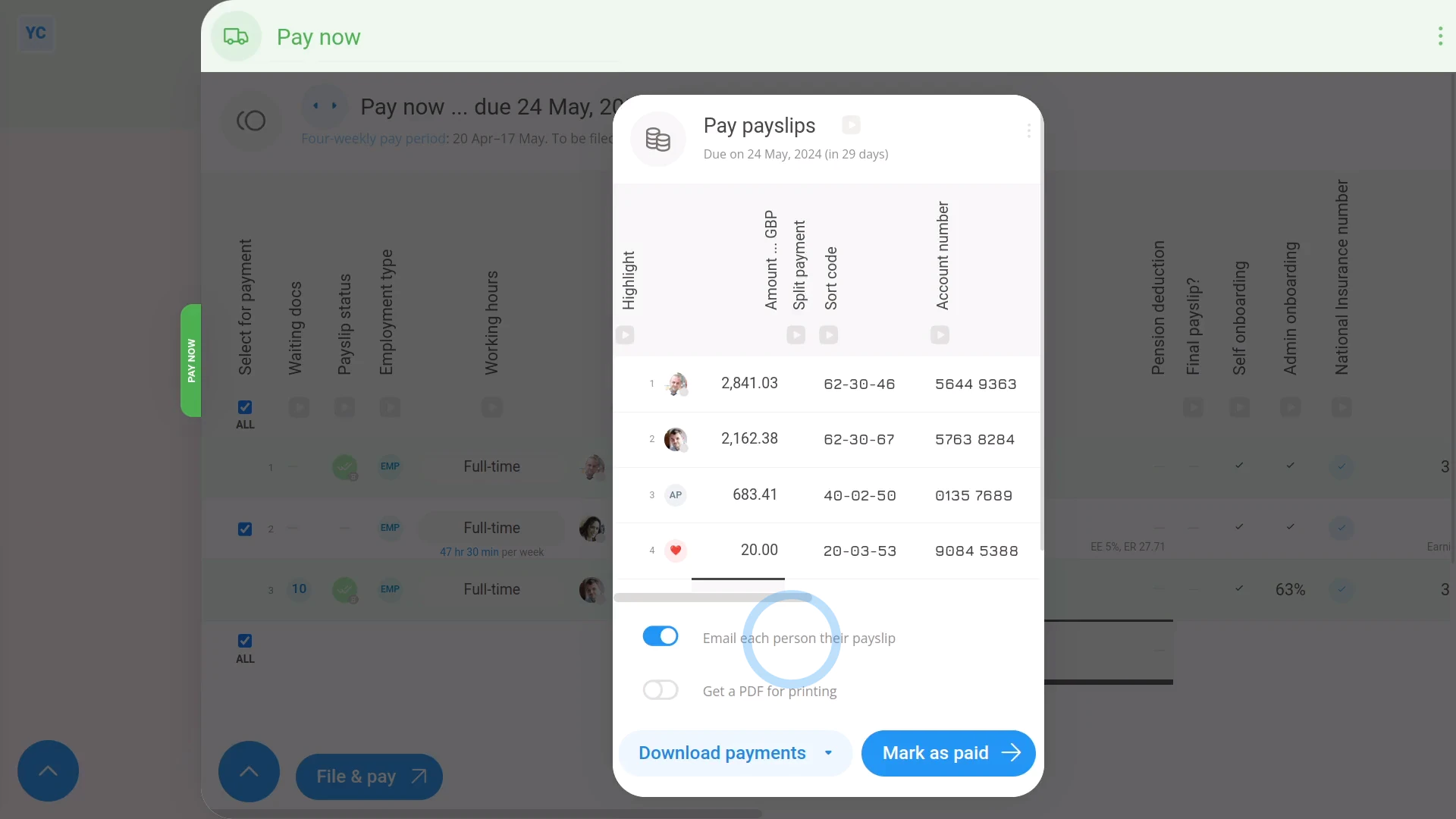
To finish and send emails:
- First, by default, each person gets emailed a PDF of their payslip.
- You can also get an email with a PDF of everybody's payslips, in case you'd like to print them. However, it's off by default.
- But you can always turn any of the payday emails on or off if you'd like.
- And finally, tap: Mark as paid
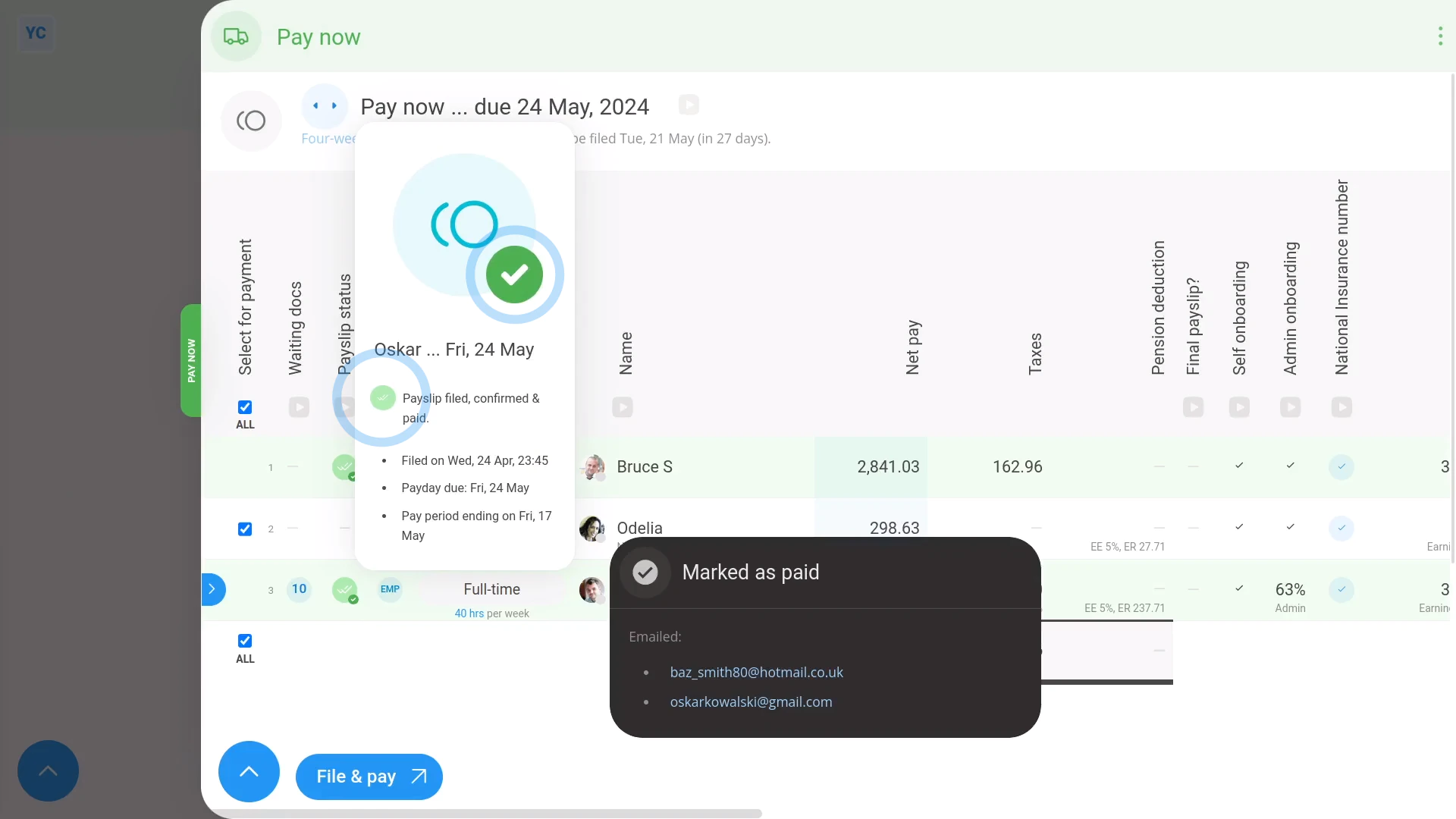
To confirm that a payslip has been filed with HMRC:
- First, find the "Payslip status" column with the two green ticks.
- Then hover your mouse over each green tick:
- If you see an hourglass status , it means HMRC is still receiving your payslip submission.
- Once HMRC accepts the payslips, the hourglass status changes to a green tick:
- To see even more "Tax Filing" details, tap the tick status:
- And finally, you'll see who made the submission, how many payslips were submitted, and much more.
For advanced usage:
- To see the actual submission that was sent to HMRC, scroll down further, and tap Show details, or: Show XML
- HMRC calls the "Tax Filing" of filed payslips a "Full Payment Submission", or FPS.
Keep in mind that:
- If you ever want to refresh the status, tap the three dots: (in the top-right corner)
- Then tap: Reload
Also remember that:
- 1st Money doesn't make any bank transactions to your people.
- You've got to make the payments by hand or in bulk using the Download payments feature and uploading the downloaded file to your bank.
- Either way, once you've completed the bank payments, tap Mark as paid in 1st Money to mark the payday as paid.
 Paying a payroll tax payment
And that's it! That's everything you need to know about what happens when you process payroll!
5. How do I see payslips that've already been filed?
 3:24
3:24
"How do I see payslips that've already been filed?"
The "Paid payslips" history shows you all filed payslips for the payroll group, over any time frame.
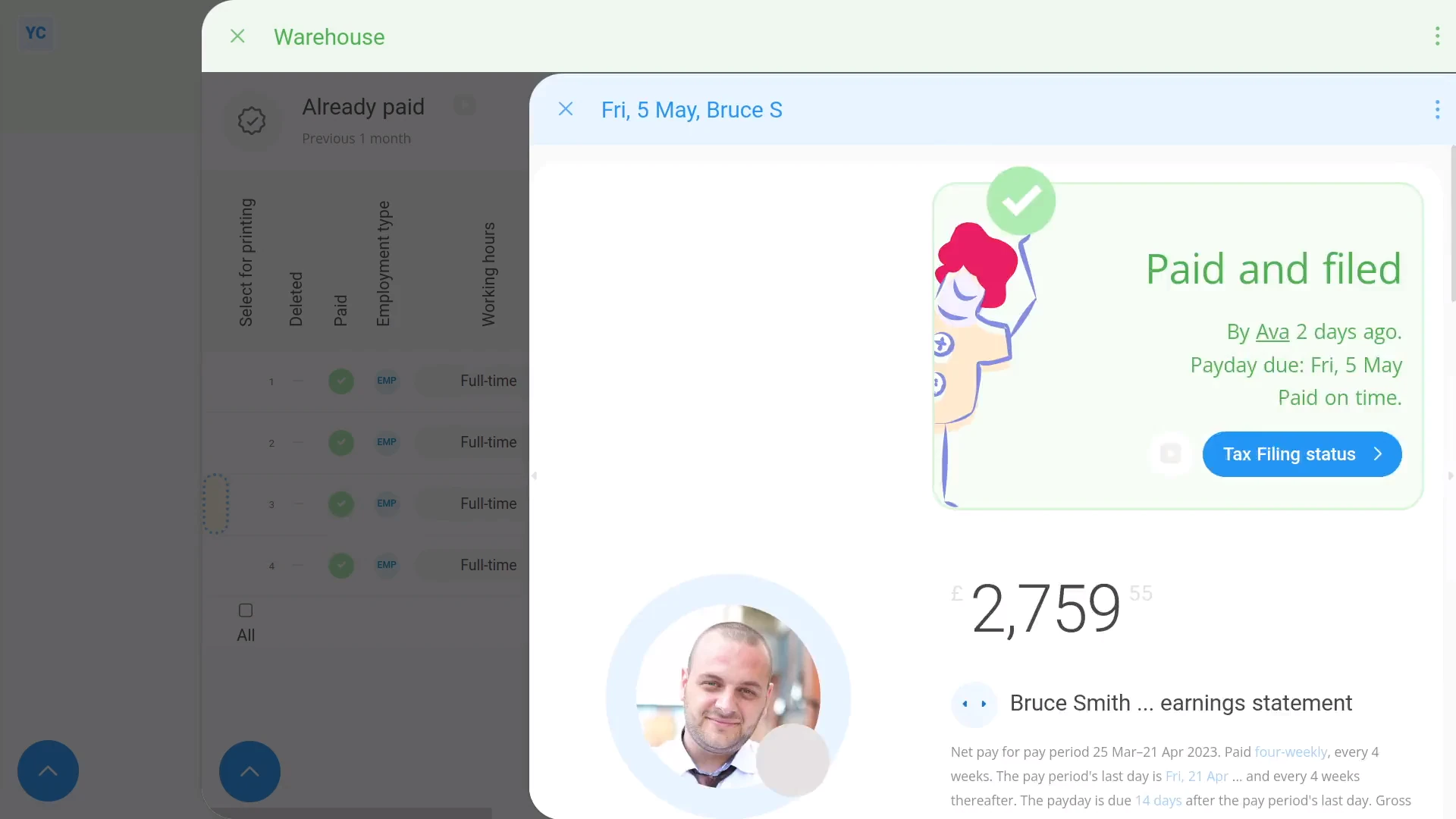
To see payslips that've already been filed:
- First, select the payroll group on: "Menu", then "Payroll groups"
- Then tap: "Pay", then "Paid payslips"
- Now, you'll see a list of payslips that were filed in the last month.
- To see more details about a payslip, tap the "See payslip" button: (at the start of any row)
- And you'll see the payslip open out (on the side).
- As you scroll across the "Paid payslips" history, you'll see info about each filed payslip, like net pay, taxable pay, etc.
- If you tap an amount, it opens the payslip, and highlights the amount you tapped.
- And finally, on some amounts in the payslip, you can mouse over the amount, and you'll see an explanation of how it's calculated.
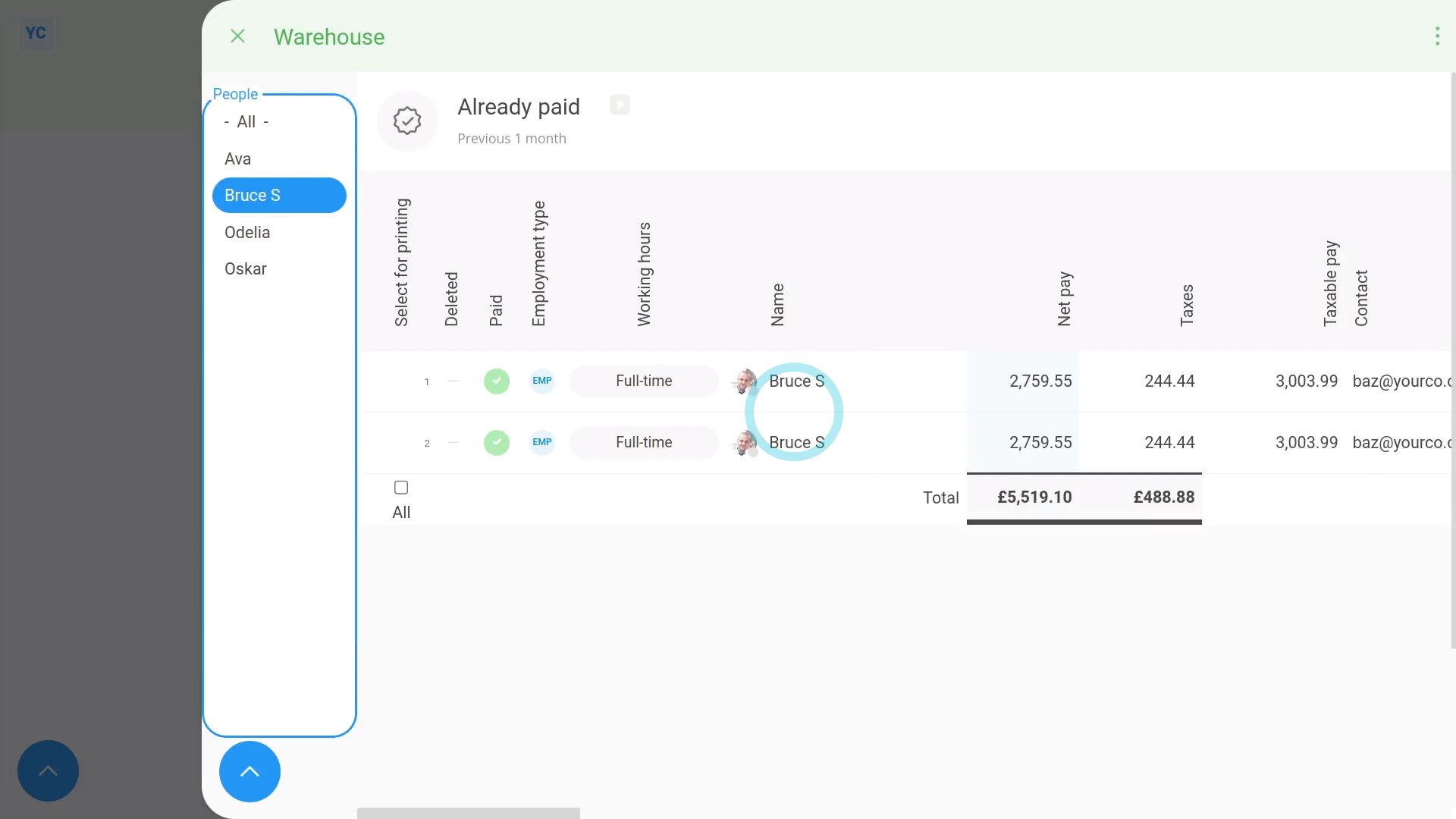
To see filed payslips for only a set of selected people:
- First, tap:
" Show settings", then "Show people" - Then Ctrl + tap the people you want to see filed payslips for.
- Now it's only listing filed payslips for the people you chose.
- And finally, it's also showing the totals for only the selected people.
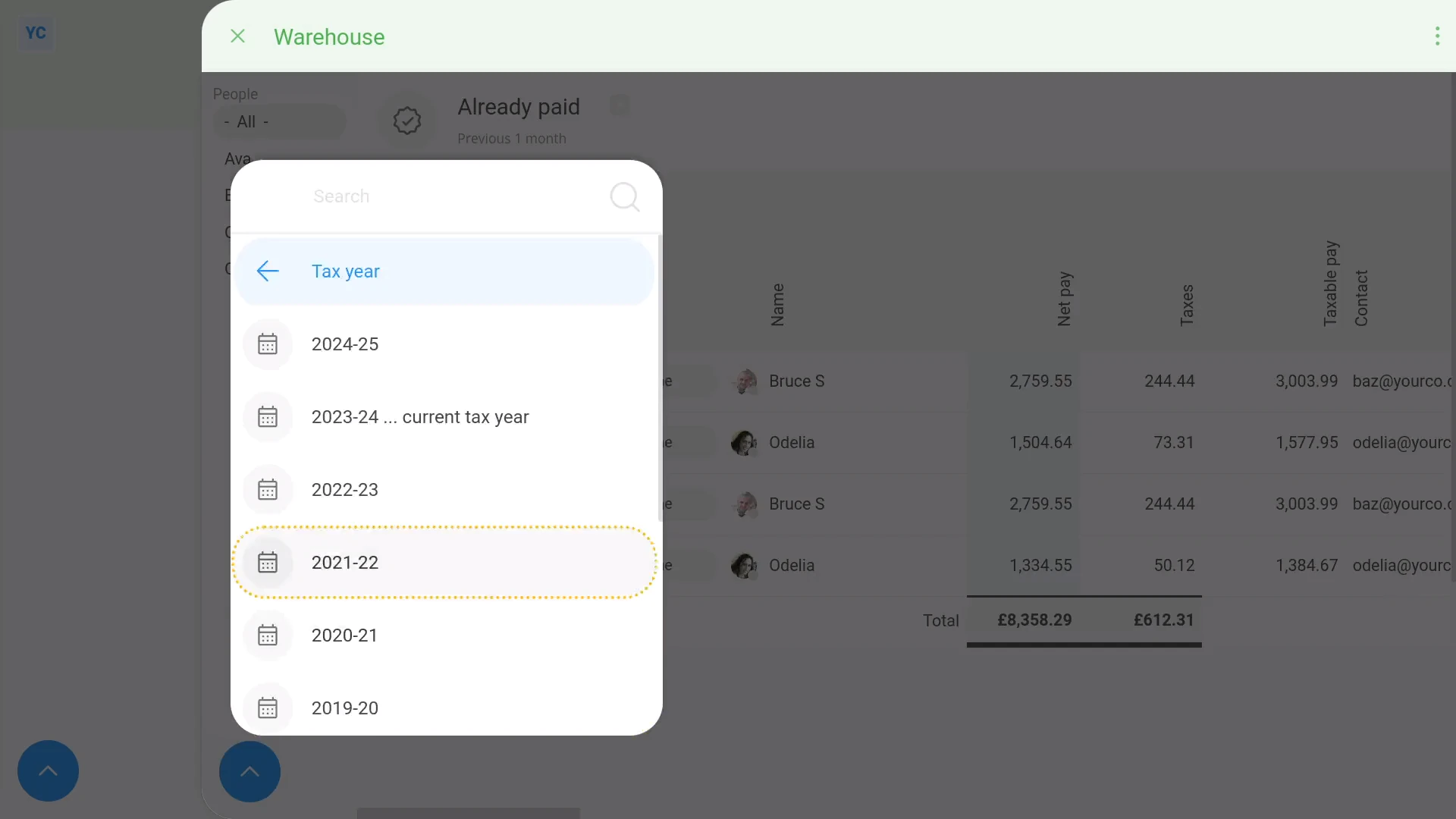
To show all of a payroll group's filed payslips for a single tax year:
- First, tap:
" Show settings", "Dates", then "Tax year" - Then select your tax year.
- And finally, you're now looking at all the payslips for the entire tax year.
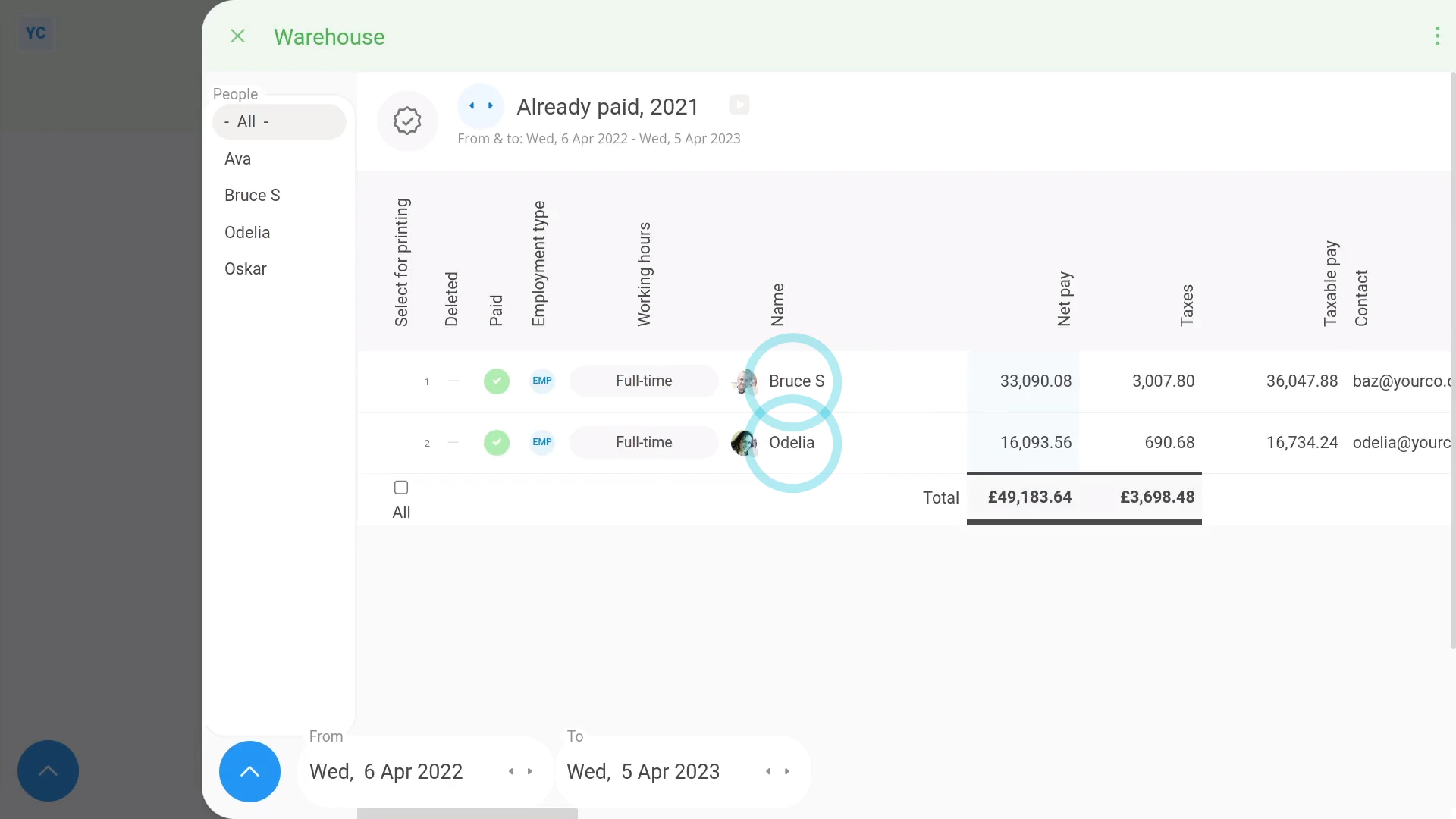
To show only one row of filed payslip summed amounts for each person:
- First, tap:
" Show settings", then "Combine payslips by person" - Now there's only one row for each person.
- And finally, you'll see the sum of each person's payslip amounts over the entire tax year.
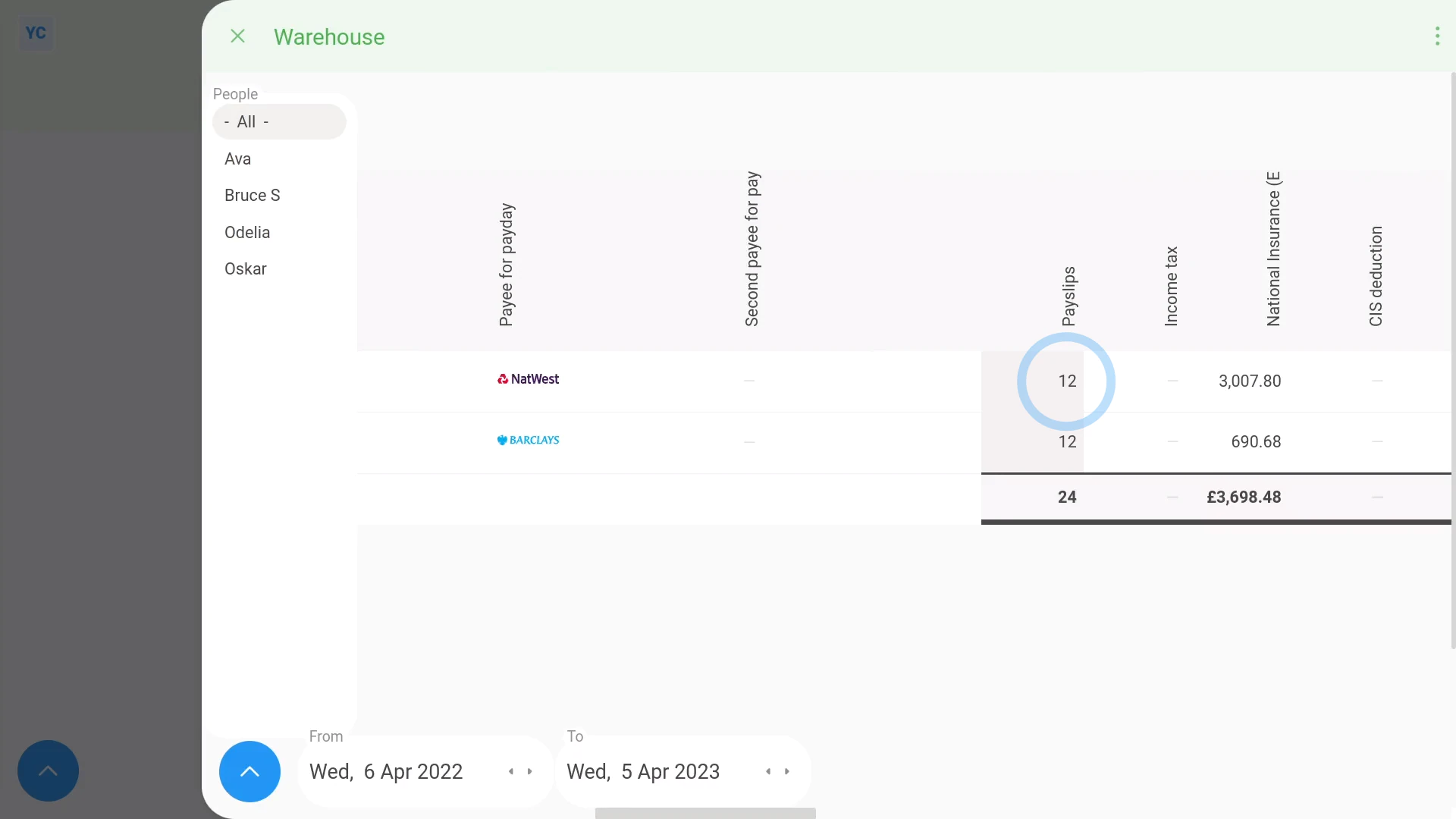
To check that filed payslip amounts cover all of a year's payslips:
- First, scroll over to the "payslips" column.
- If the people were paid monthly, make sure it says: "12"
- If a person joined part-way through the year, the amount may be less than twelve.
- And finally, if a person was paid weekly, the amount would be more like 52, or 53.
To download filed payslip amounts to an XLS file:
- First, get all your date filters set.
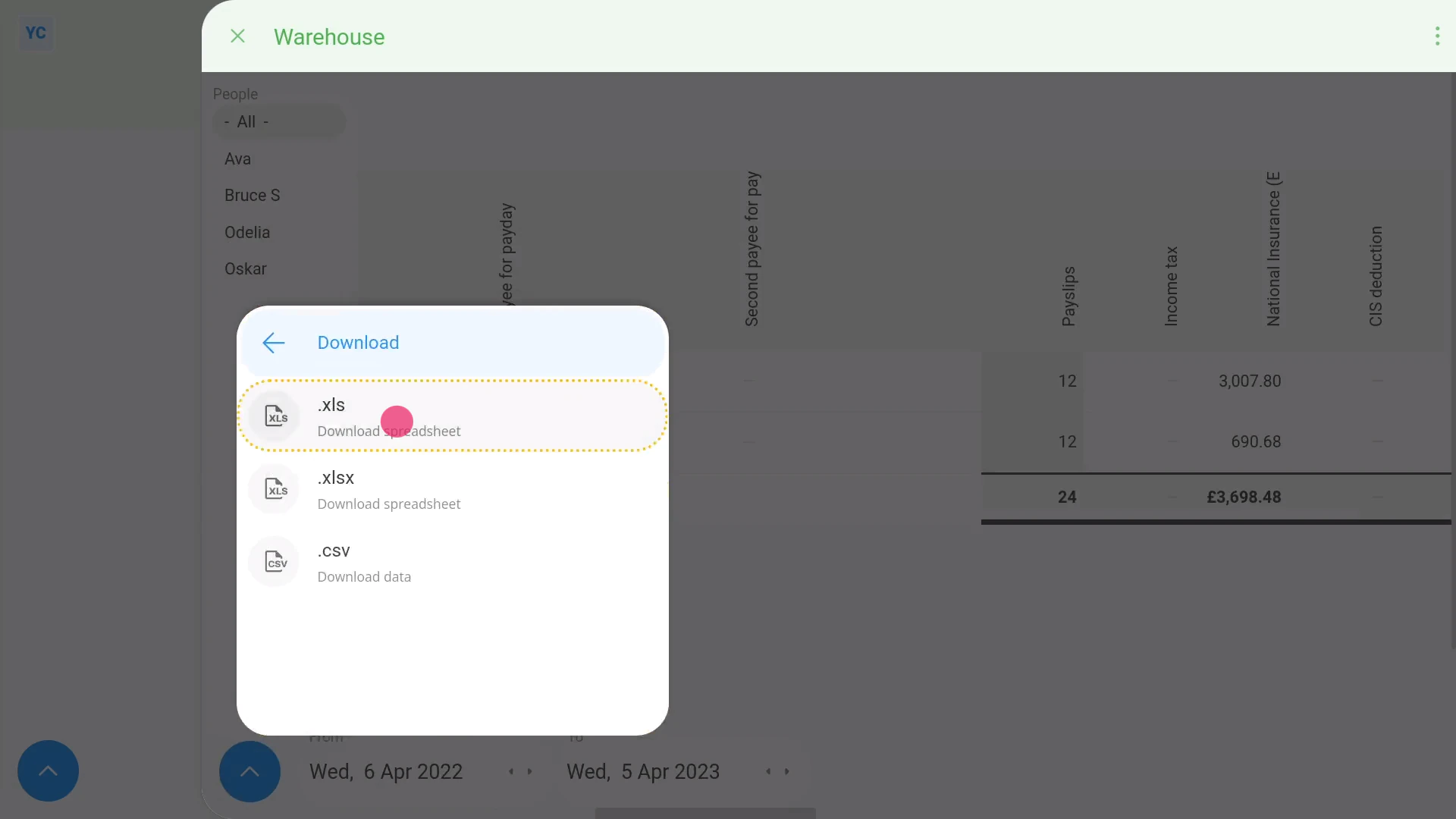
- Then to download the amounts to an XLS file, tap:
" Show settings", "More", "Download", then ".xls" - And finally, you've now got an XLS file for your own filed payslips calculations.
Keep in mind that:
- The "Paid payslips" history is only available to people with at least "View payroll admin" permissions.
To learn more:
- About how to download a printable PDF of a set of filed payslips, watch the video on: Multi-payslip PDF
And that's it! That's everything you need to know about using your payroll group's "Paid payslips" history!
How do I change the paper size of PDFs I download?
 1:46
1:46
"How do I change the paper size of PDFs I download?"
The "PDF paper size" setting lets you set the paper size of all your payslip and HR doc PDFs. It also aligns your postal mailing addresses with standard windowed envelopes.
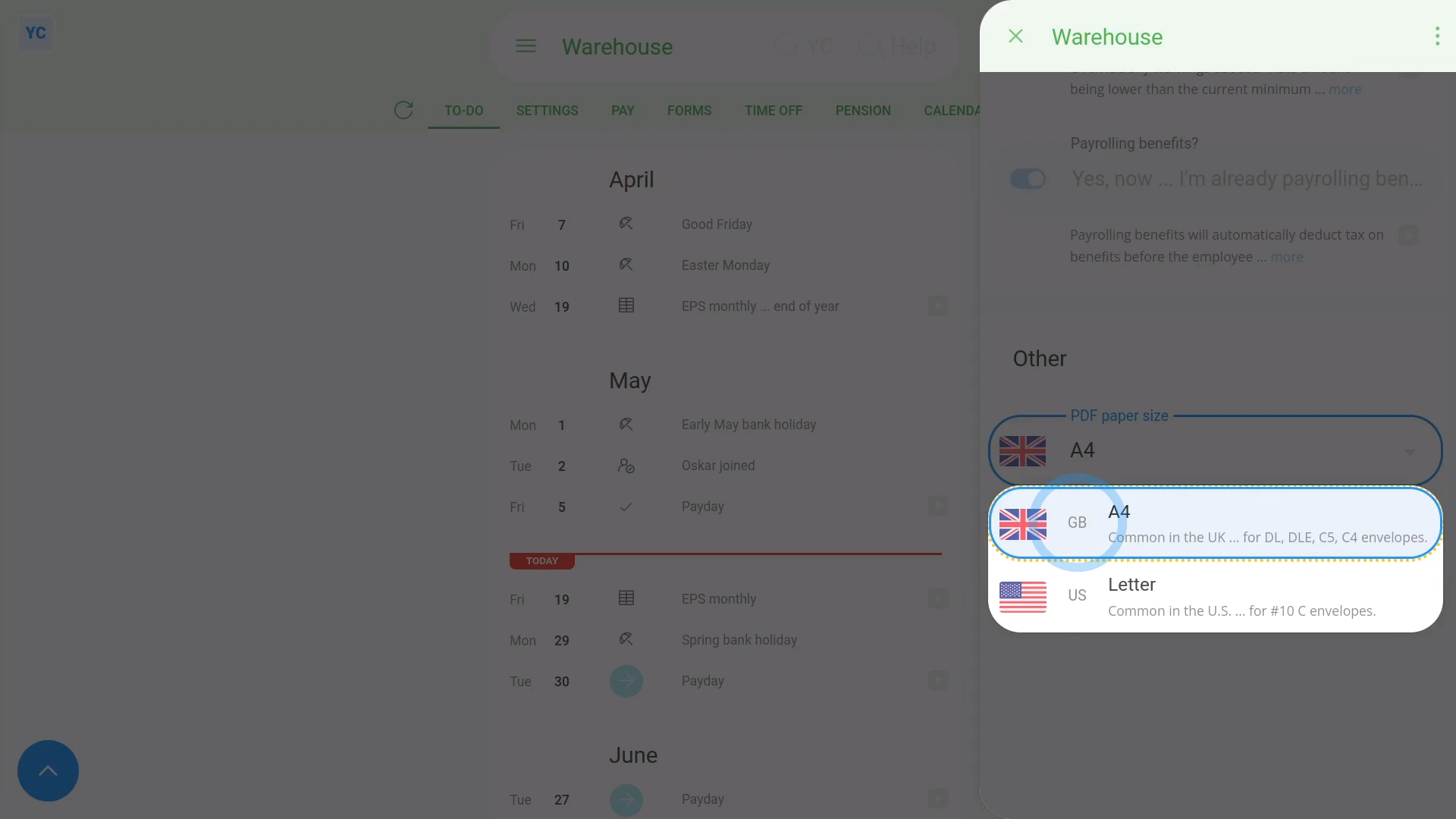
To set a payroll group's PDF paper size:
- First, select the payroll group on: "Menu", then "Payroll groups"
- Then tap: "Settings", then "Advanced"
- Then scroll all the way down to the "Other" heading.
- By default, "PDF paper size" is set to whichever paper size is most common in the payroll group's country.
- Select your preferred paper size by changing: "PDF paper size"
- And finally, tap: Save
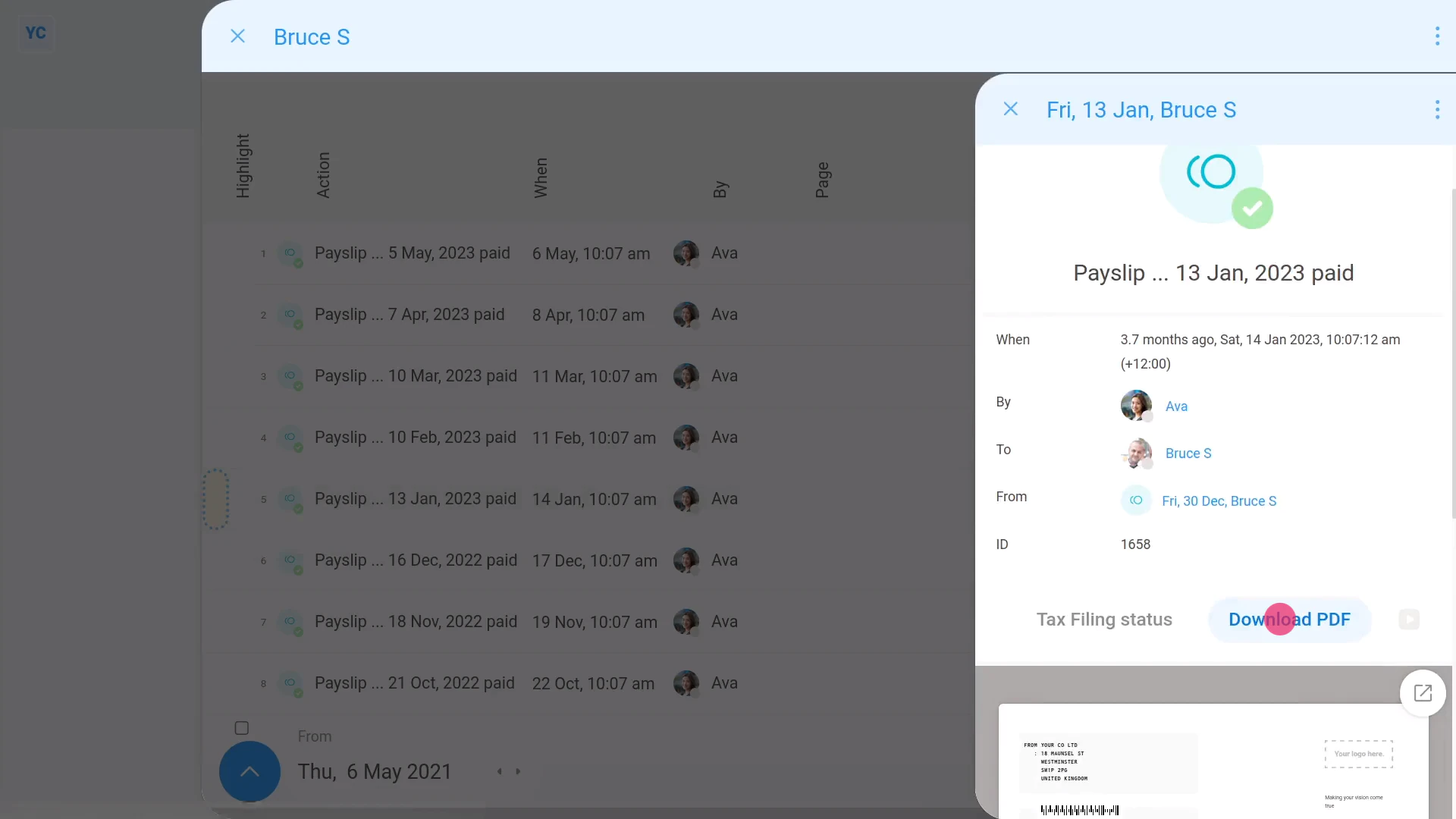
To download somebody's payslip, and see its paper size:
- First, select the person on: "Menu", then "People"
- Then tap: "Pay", then "Paid payslips"
- Once you've selected a payslip, tap the "See event" button: (at the start of the row)
- Then once it slides out on the right, tap: Download PDF
- Once it's downloaded, tap the PDF to open it.
- Next, tap the "Print" button:
- And then tap: "More settings"
- And finally, you'll see the "Paper size" of the PDF is set, as expected.
Keep in mind that:
- If you ever find that the address isn't positioned in the envelope's window, you may need to check your: "PDF paper size"
And that's it! That's everything you need to know about changing a payroll group's PDF paper size!
How do I delete or un-delete a payroll group?
 2:24
2:24
"How do I delete or un-delete a payroll group?"
If you no longer need a payroll group, you're welcome to delete it whenever you like.
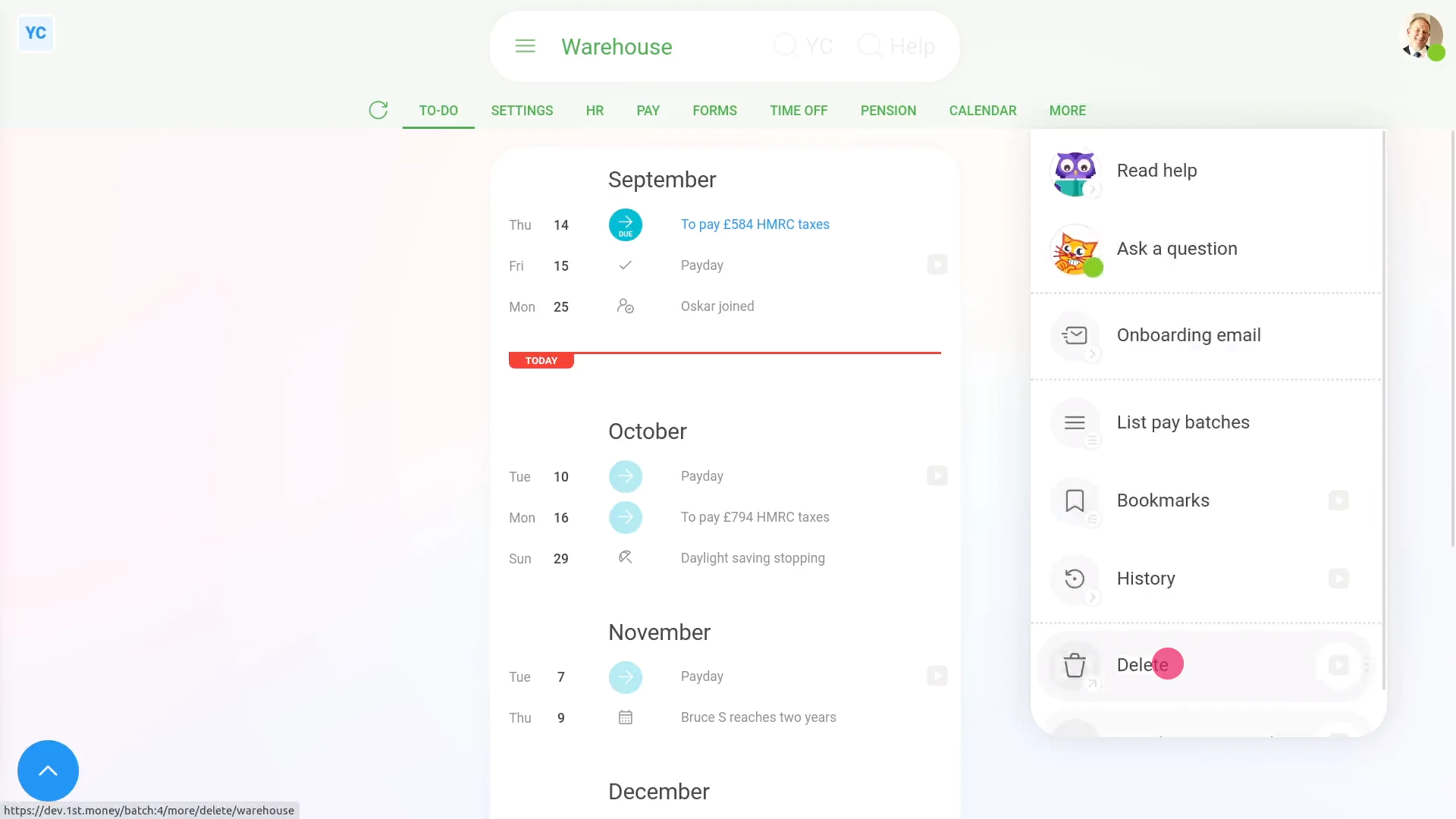
To delete a payroll group:
- First, select the payroll group on: "Menu", then "Payroll groups"
- Then once the payroll group's open, tap More, then: Delete
- And then tap: Yes ... delete
- Sometimes you may get a warning asking you to move the people in the payroll group to a different payroll group.
- If so, tap See "Move all", and select the payroll group to move everyone to.
- And then tap: Yes ... move all
- Now, the payroll group's deleted.
- The payroll group is also locked, so it can't be changed anymore.
- And finally, if you change your mind and want the payroll group back again, tap Un-delete, and it's immediately un-deleted.
If it's been a while since you deleted a payroll group, and you want to un-delete it, you'll first need to find it in the: "deleted bin"
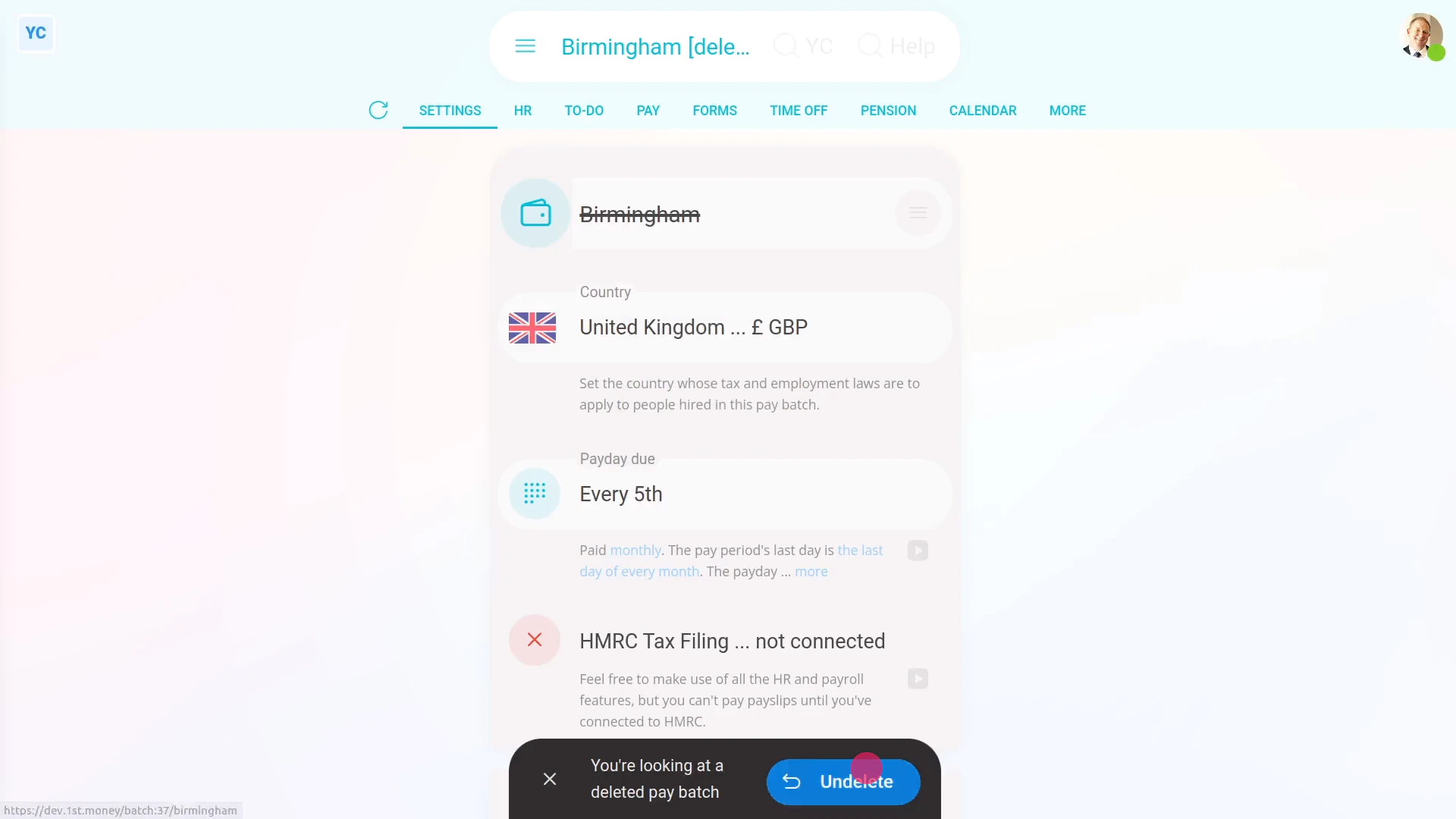
To un-delete a payroll group from your "deleted bin":
- First, tap: "Menu", then "Deleted bin"
- Next, you'll see a category for most of the kinds of items that can be deleted. Tap: Payroll groups
- And then tap the payroll group you'd like to un-delete.
- Next, tap: Un-delete (at the bottom)
- And finally, the previously deleted payroll group is immediately un-deleted.
Keep in mind that:
- Only people who've got "Full payroll admin" permissions can delete or un-delete payroll groups.
- And remember that all deletes and un-deletes are always permanently recorded in: "History"
- That means any admin can always look back in time, and see who did any delete, and when the delete was done.
- Also, if you've already started paying people in a payroll group, before deleting the payroll group, first do the steps to: "Stop being an employer"
To learn more:
- About how to "Stop being an employer", watch the video on: EPS: Stop being an employer
And that's it! That's everything you need to know about deleting or un-deleting a payroll group!
How do I make sure that everything's all set for payday?
 2:55
2:55
"How do I make sure that everything's all set for payday?"
In advance of paying your first payday, it's a good idea to make sure that everything's all set up and connected.
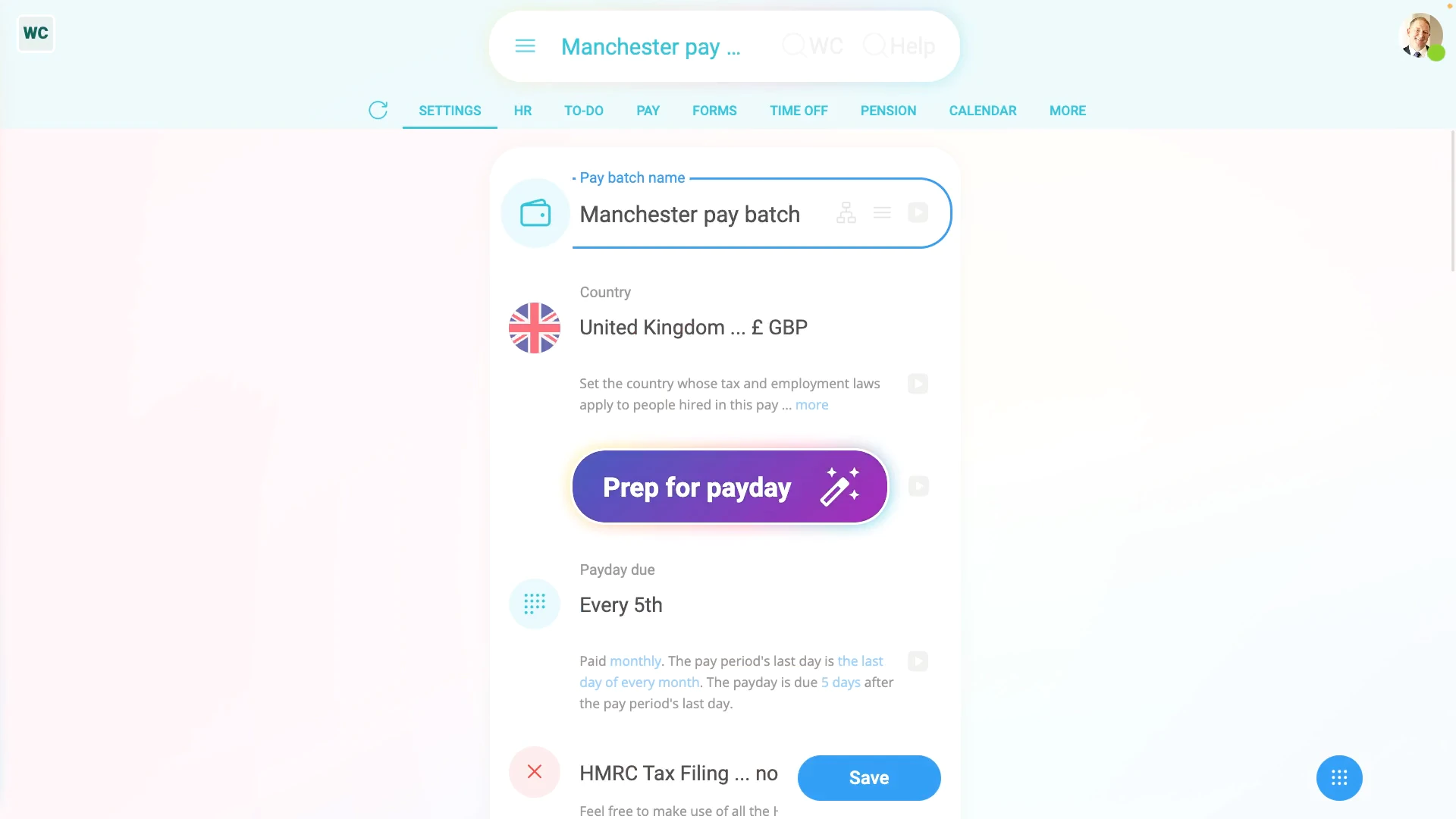
To make sure that everything's all set for payday:
- First, go to one of your payday payroll groups, or create a new payroll group at: "Menu", "Payroll groups", then "New payroll group"
- Then to see the reminders of what needs to be set, tap: Prep for payday
- The first reminder's to set the payroll group's name.
- Once it's entered, tap Prep for payday again, to find out what's next.
- You'll now be guided through reminders for everything that still needs to be set.
- Including setting your payroll group's bank account.
- Your: "Employer PAYE reference"
- And: "Accounts Office reference"
- Your: "Government Gateway user ID"
- And: "Government Gateway password"
- If you're unsure about any, watch their videos to learn more.
- Next, you'll be reminded to set your: "Employment Allowance"
- "State aid rules"
- "Small Employers' Relief"
- "Apprenticeship Levy"
- And: "State aid business sectors"
- Again, if you're ever unsure, watch their videos to learn more.
- Next, select your "Payrolling benefits?" setting.
- And finally, once all your reminders are done, you'll see that your "Prep for payday" is now 100% completed.
Keep in mind that:
- Depending on your setup and the types of people you pay, there may be additional reminders of things to set.
- For example, if any of your people have a pension, you'll be asked to enter additional pension provider info.
You may notice:
- That you can run "Prep for payday" as many times as you like, and whenever you like.
- It's there to give you the peace of mind that everything's all connected for your next upcoming payday.
And that's it! That's everything you need to know about making sure that everything's all set for payday!
How do I pay a payroll tax payment to the government?
 3:43
3:43
"How do I pay a payroll tax payment to the government?"
Inside each payroll group, 1st Money automatically reminds you of any upcoming government tax payments that are about to become due for payment.
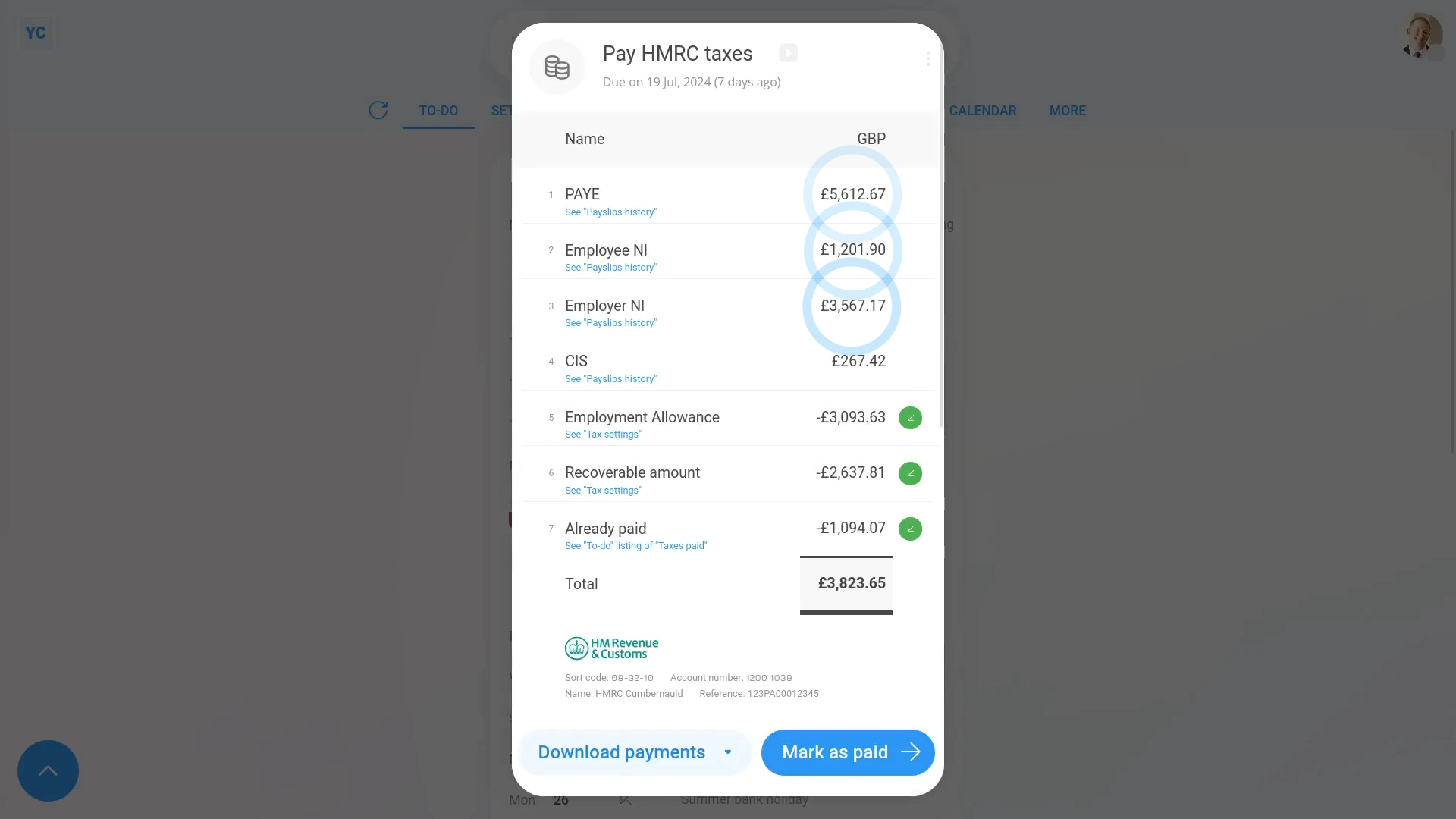
To pay a payroll tax payment:
- First, select the payroll group on: "Menu", then "Payroll groups"
- Then tap: "To-do"
- And look for a green circle with a "Taxes to pay" link.
- When you hover your mouse over the green circle, you'll see the exact deadline of when the tax payment has to be received by.
- Once you're ready to make the payment, tap the "Taxes to pay" link.
- If you tap past the blue warning, you'll see a list of the exact payment amounts that are due.
- To see more details for any of the tax amounts, tap the link below it.
- If you see a dark green circle, it means that the amount reduces the tax you're paying to the government. More on tax reductions later.
- Then near the bottom of the list you'll see the total payment amount, and also notes on the government's bank details.
- Next, tap: Download payments
- Then tap the bank you use, and that bank's payment file's downloaded.
- The payment file has all the banking details for the tax payment, including the government's bank account details.
- Next, upload the payment file to your banking software.
- Once you've paid it through your bank, tap: Mark as paid
- Also, if you ever need to see details about the payment, tap the "Taxes paid" row, and then tap the "more" link.
- And finally, you'll see notes on who made the tax payment, exactly which taxes were paid, and much more.
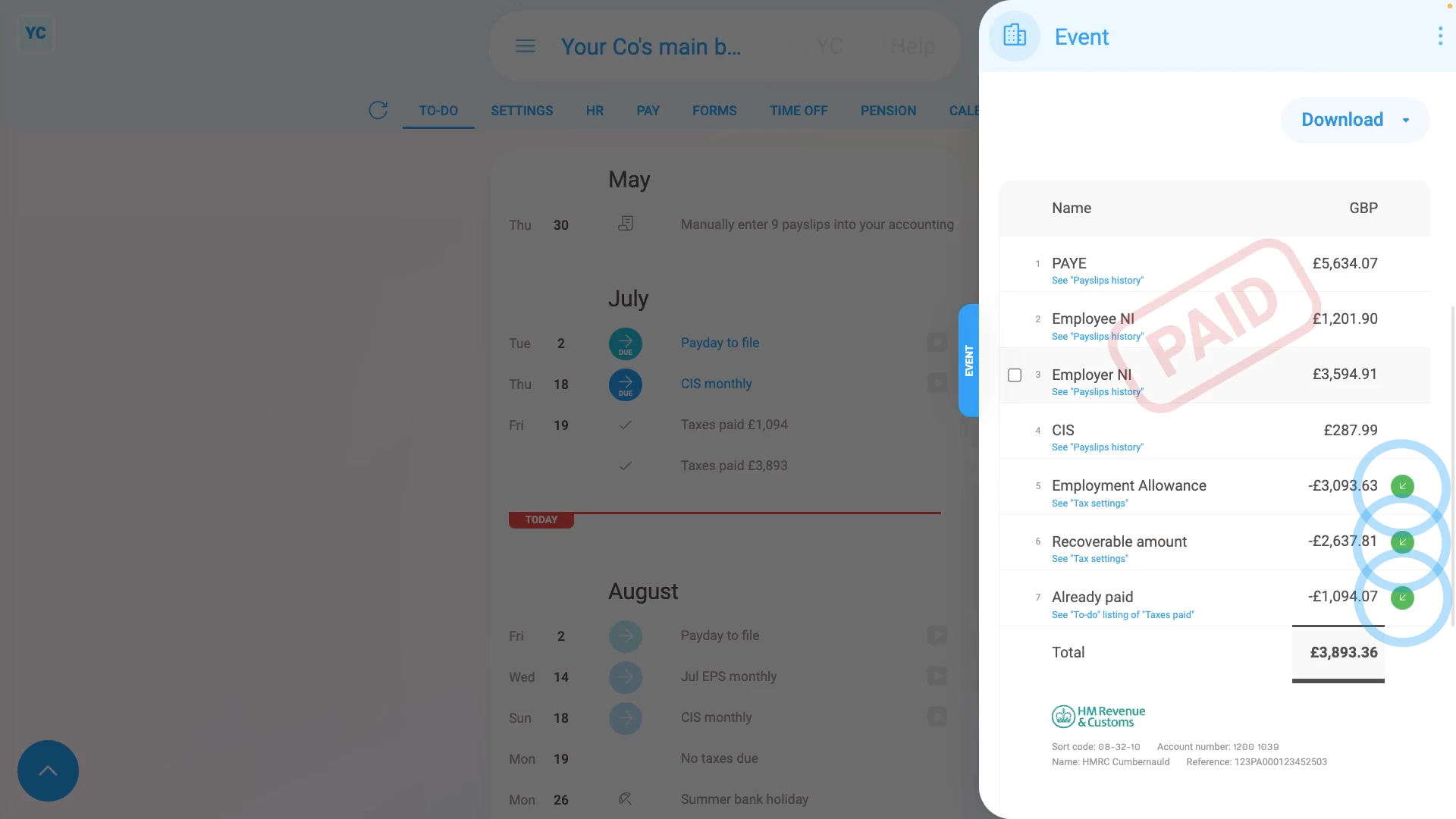
To see examples of amounts that reduce any tax you're paying:
- First, there's up to three situations where the amount of tax you pay to the government can be reduced.
- The first is Employment Allowance:
To learn more about "Employment Allowance", tap "See "Tax settings"" and watch the video on: EPS: Employment Allowance
- The second is Recoverable amounts:
To learn more about "Recoverable amounts", tap "See "Tax settings"" and watch the video on: EPS: Recoverable amounts
- And finally, the third is Already paid:
The "Already paid" amount is what you've already paid to HMRC for the tax month. You'll see a breakdown if you tap: "See "To-do" listing of "Taxes paid""
Keep in mind that:
- If you've got more than one payroll group, you'll need to repeat the tax payment steps above for each of your payroll groups.
- Also, if you don't see a "Taxes to pay" link, it could be because no taxes are currently due.
- You may need to pay some payslips, which you can do by looking for the "Payday to file" link.
- By processing a payday, you'll trigger some taxes to be due.
Also remember that:
- 1st Money doesn't make any bank transactions to the government.
- You've got to make the payment by hand or use the Download payments feature and upload the downloaded file to your bank.
- Either way, once you've completed the bank payments, tap Mark as paid in 1st Money to mark the taxes as paid.
And that's it! That's everything you need to know about paying payroll tax payments!
How do I send out payslips on payday?
 3:38
3:38
"How do I send out payslips on payday?"
There's two emails that can be automatically sent each time you process payroll.
- For the email of "an individual person's payslip":
An email is sent to each person, with their individual payslip. The email includes a PDF of their own pay, and their own taxes. - For an email of "everyone's printable payslips":
A printable PDF of everyone's payslips is emailed to a payroll admin.
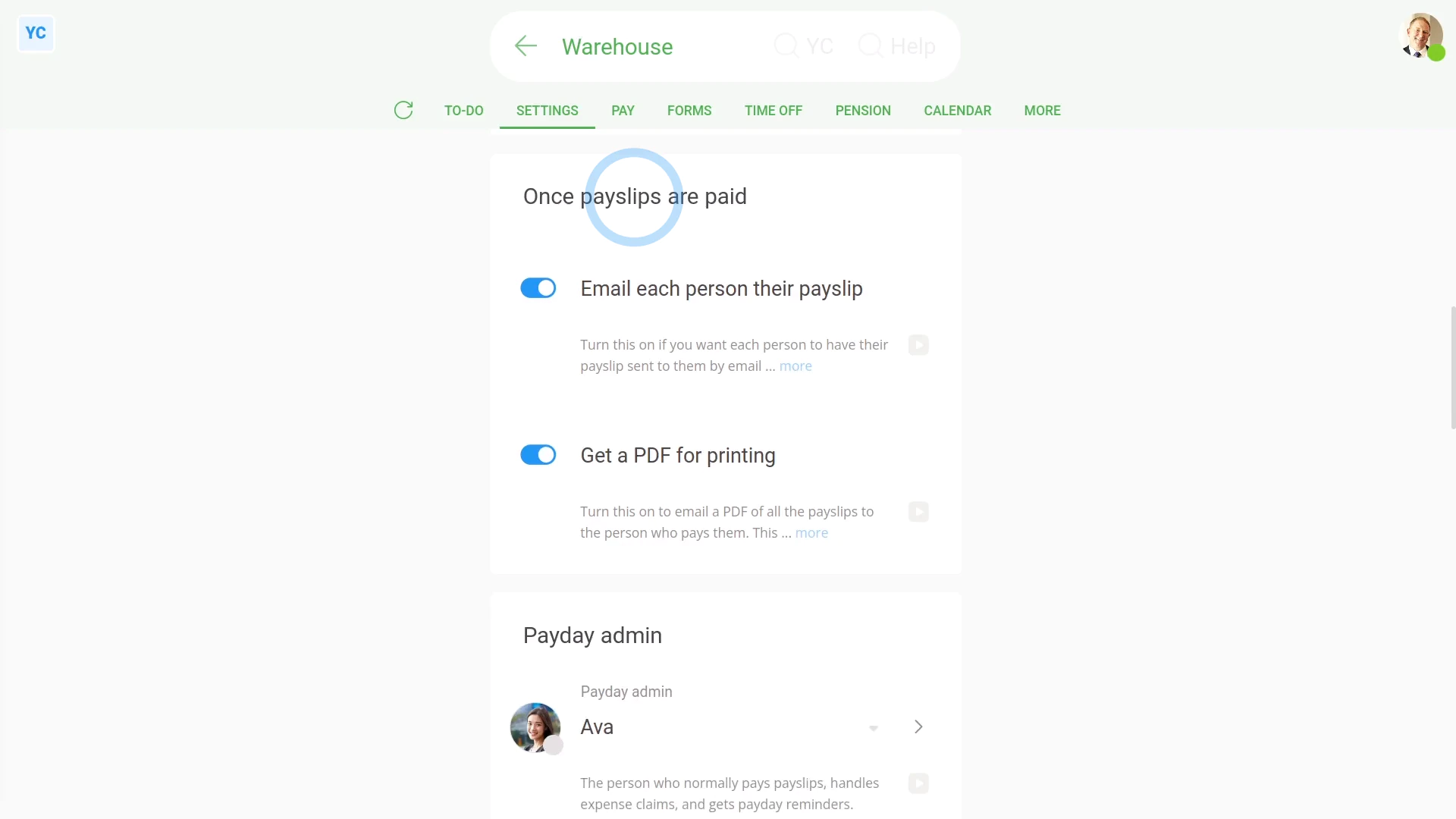
To turn payday emails on, or off:
- First, select the payroll group on: "Menu", then "Payroll groups"
- Then tap: "Settings", then "Payroll group settings"
- Then scroll down to the "Once payslips are paid" heading.
- Next, decide which payday emails you want sent on payday.
- And finally, tap: Save
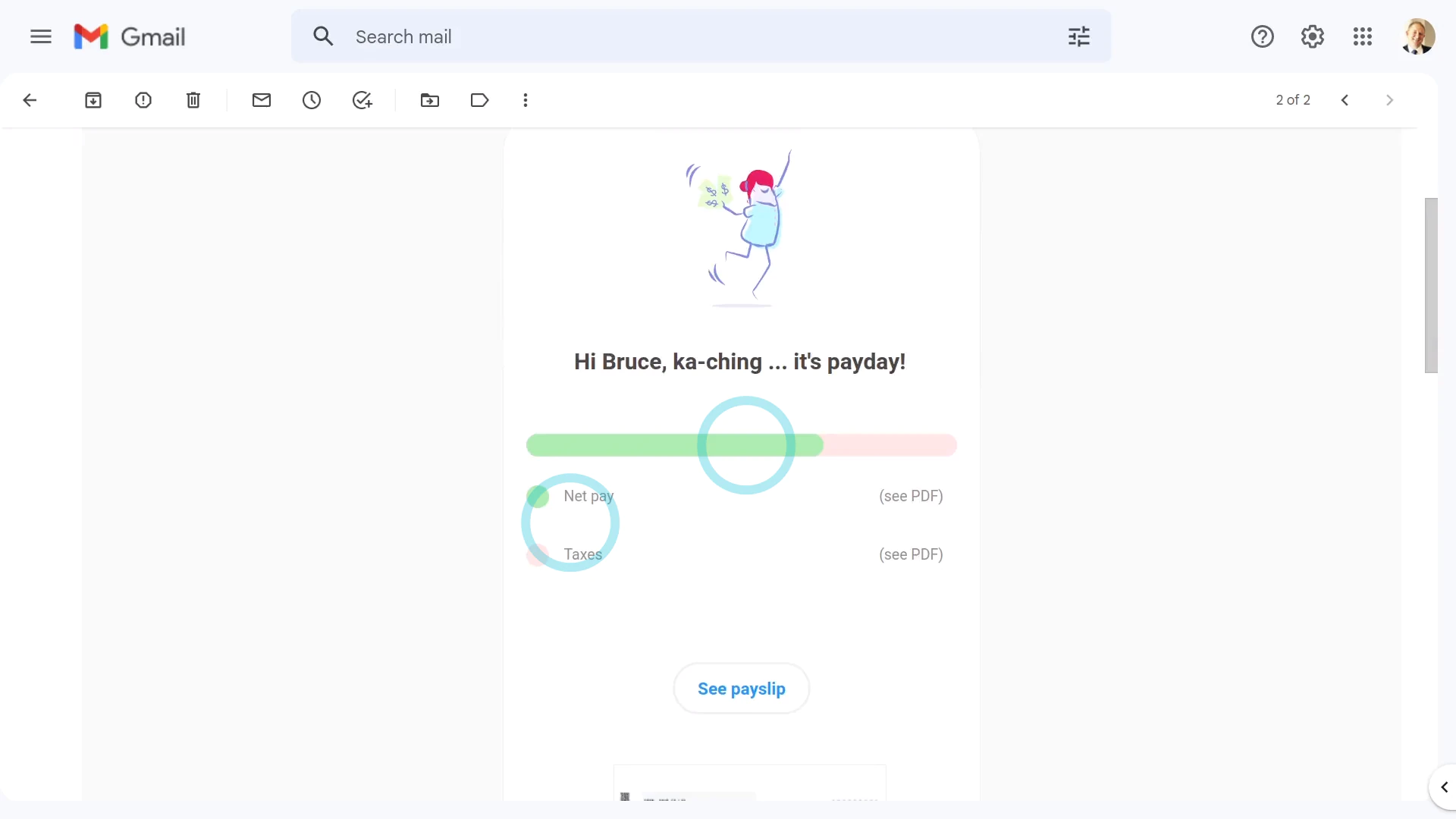
To see how payday emails look:
- First, select the payroll group on: "Menu", then "Payroll groups"
- Then on the "To-do" tab, tap the upcoming: "Payday"
- Then tap: Process payroll
- And tap: Yes ... process it
- It usually takes about 10 seconds to double check all the tax calculations and confirm with HMRC.
- Once HMRC's confirmed the payslips you filed, you can pay your Payroll Payments and send the payday emails.
- You'll see that any email sending settings you've previously set are remembered.
- You're still welcome, on the current step, to turn the payday emails on or off, then tap: Mark as paid
- It takes a few seconds while payday emails are prepared for sending and PDFs are generated.
- And then the payday emails arrive in each person's email inbox in less than 60 seconds.
- Now, look in your email inbox, to see if both payday emails have arrived.
- For the email of "an individual person's payslip":
Each person gets a nice preview of their pay and taxes. - And when you scroll to the bottom, you'll see a PDF of their payslip attached.
- Then for the email of "everyone's printable payslips":
When you scroll to the bottom, you'll see a larger PDF attached. - The PDF contains all the payslips you've recently paid, each on its own page, ready for printing.
- When you're ready, tap the "Print" button:
- And finally, if you want to save the PDF, tap the "Download" button:
Keep in mind that:
- The email with everyone's printable payslips is sent to the person who tapped Process payroll, which is always a payroll admin.
- And remember that both payday emails are optional. Even if you turn them both off, your "Tax Filing" is still sent to HMRC, as you'd expect.
- Also, any person who wants to, can turn on PDF encryption, to protect all their emailed PDFs with a PIN.
To learn more:
- About how to not get the PDF by email, and instead download it directly, watch the video on: Multi-payslip PDF
- And to learn about PDF encryption, watch the video on: Setting your PDF doc PIN
And that's it! That's everything you need to know about sending payday emails!
What does a payday admin do?
 2:16
2:16
"What does a payday admin do?"
The payday admin is the person who's in charge of responding to any of the payroll group's payday reminders. Including reminders about payslips, expense claims, and Tax Filing.
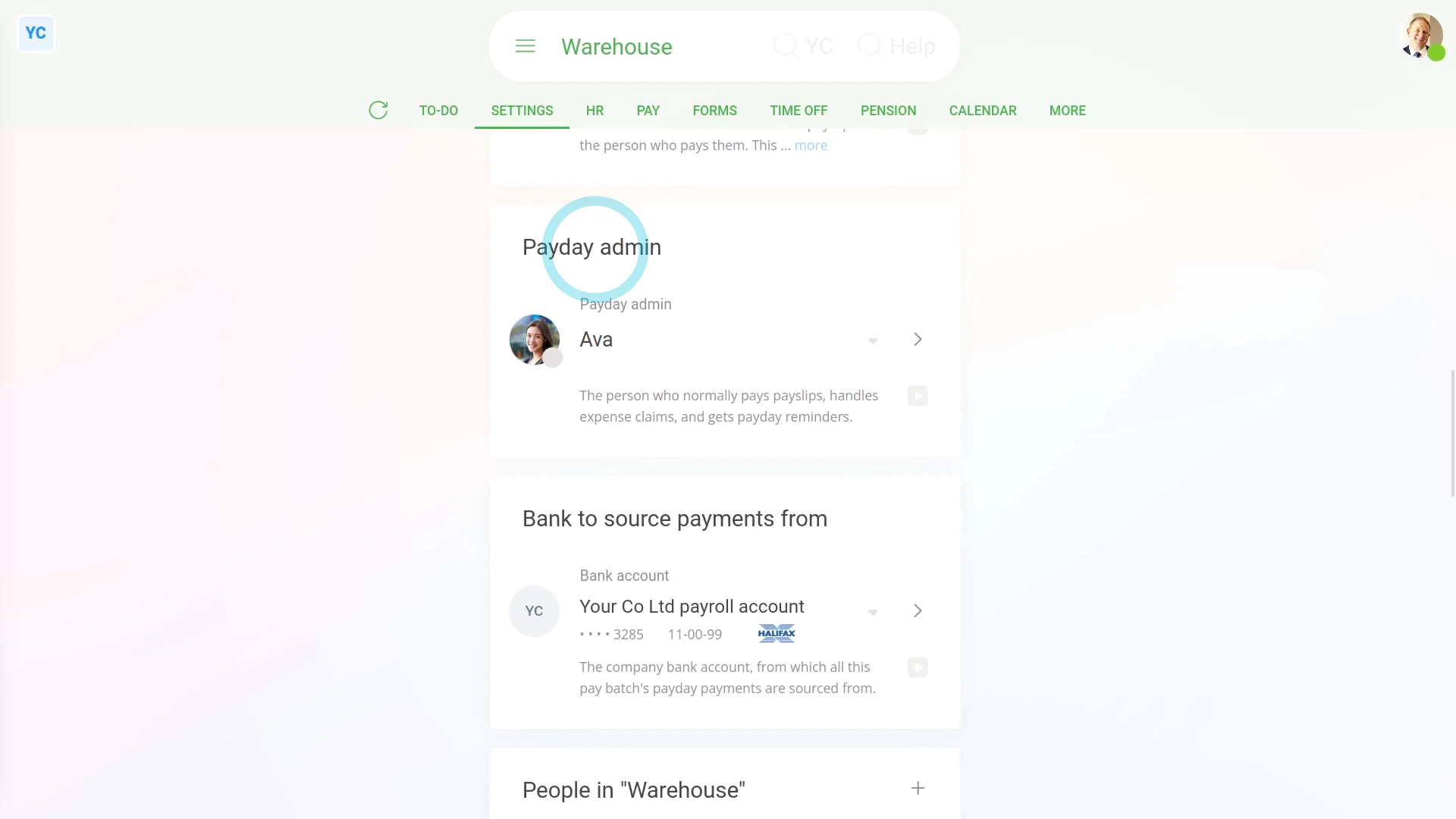
To set a payroll group's payday admin:
- First, select the payroll group on: "Menu", then "Payroll groups"
- Then tap: "Settings", then "Payroll group settings"
- Next, scroll down to the "Payday admin" heading.
- By default, the payday admin is set to the person who created the payroll group.
- Tap it, to select the person you'd like to set as the payroll group's new payday admin.
- It's possible that the person you'd like as the new payday admin isn't showing in the list.
- If the person's not showing in the list, it's probably because the person doesn't have "Full payroll admin" permissions yet.
- To add a person to your org's list of payday admins, tap: Add (at the bottom)
- Then tap the person you want.
- Then change that person to: "Full ... payroll admin"
- And you'll now see the person listed, so you can now select them.
- Then tap: Save
- And finally, from now on, payday reminders, like expense claims and Tax Filing now all go to the new payday admin.
Keep in mind that:
- The only people who'll ever show in the list of payday admins, are people with "Full payroll admin" permissions.
- However, other people, besides the payday admin can also process payroll, or approve expenses, as long as the person's got "Full payroll admin" permissions.
- The difference with the payday admin is that it's only the payday admin who receives the payroll group's reminders, or requests for approval, like expense claims.
- If your usual payday admin is away for a few days, it's recommended to switch the payroll group payday admin to another person.
- Even if you only switch it for a few days. You can always switch it back later.
And that's it! That's everything you need to know about what payday admins do!
What happens when I'm late, and file payslips after their due date?
 2:52
2:52
"What happens when I'm late, and file payslips after their due date?"
Any time that a payslip's filed late to HMRC, you're required to state your late filing reason. The reason's then forwarded to HMRC.
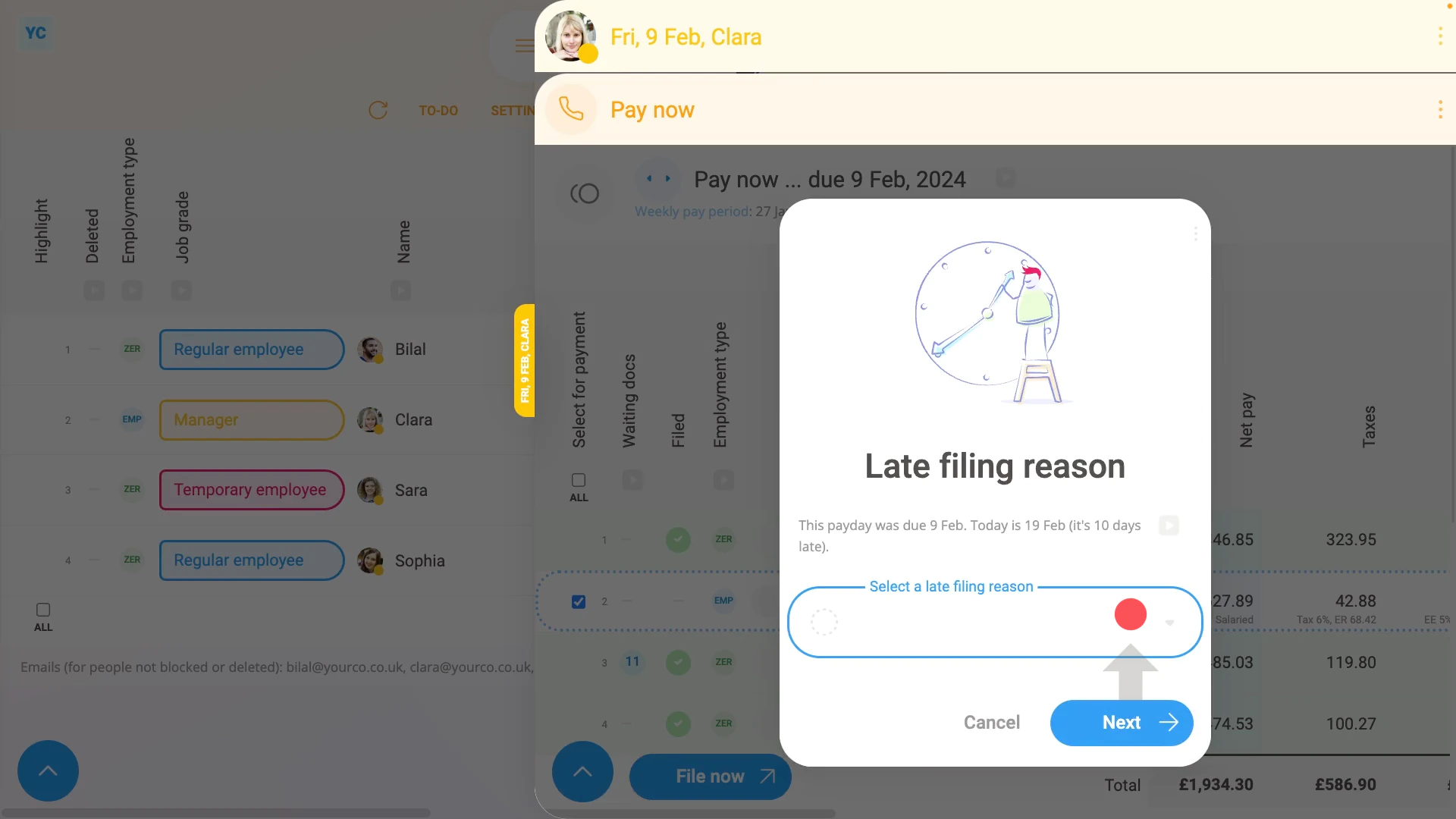
To see how it looks when you file payslips late:
- First, select the payroll group on: "Menu", then "Payroll groups"
- Then tap: "Pay", then "People"
- On the "People" report, each green circle represents a filed payslip.
- Where there's no green circle, then that pay period's payslip hasn't been filed yet.
- If you tap where a green circle's missing, you'll see that person's un-filed payslip for that date.
- And (at the top) you'll see a warning that it's late, and how late the payslip is.
- To file it now, scroll down and tap: Go to "Process payroll"
- The person's payslip is automatically selected, so to process it, tap Process payroll, and then: Yes ... process it
- Because the payslip's filing's late, you'll be asked to select the "Late filing reason", then tap: Next
- It usually takes about 10 seconds for HMRC to finish processing the payslips and send back confirmation that it's been received.
- In addition to your usual tax filing info, your selected late filing reason is also sent to HMRC.
- Once it's been filed successfully, you'll see a green tick beside the payslips that you've filed.
- However, because it's been filed late, it's also marked with a small red dot.
- Then back on the "People" report, tap the "Reload tab" button: (at the top), to update the newly filed green circles.
- And finally, you'll now see the recently filed payslips are now also marked with a green circle, meaning it's been filed and confirmed by HMRC.
Keep in mind that:
- A payslip's filing is only considered late if it's filed at any time after the day that it's due.
- Which means that if it's filed up to 11:59 at night, then it's not considered late.
- However, if it's filed at 12:00 at midnight, or after, then it's marked as a late payslip filing.
And that's it! That's everything you need to know about what happens when you file late payslips!
UK payroll groups
How do I enter my Companies House number and gross revenue?
 2:36
2:36
"How do I enter my Companies House number and gross revenue?"
If you're doing payroll as a company you'll also be asked for your Companies House number and gross revenue.
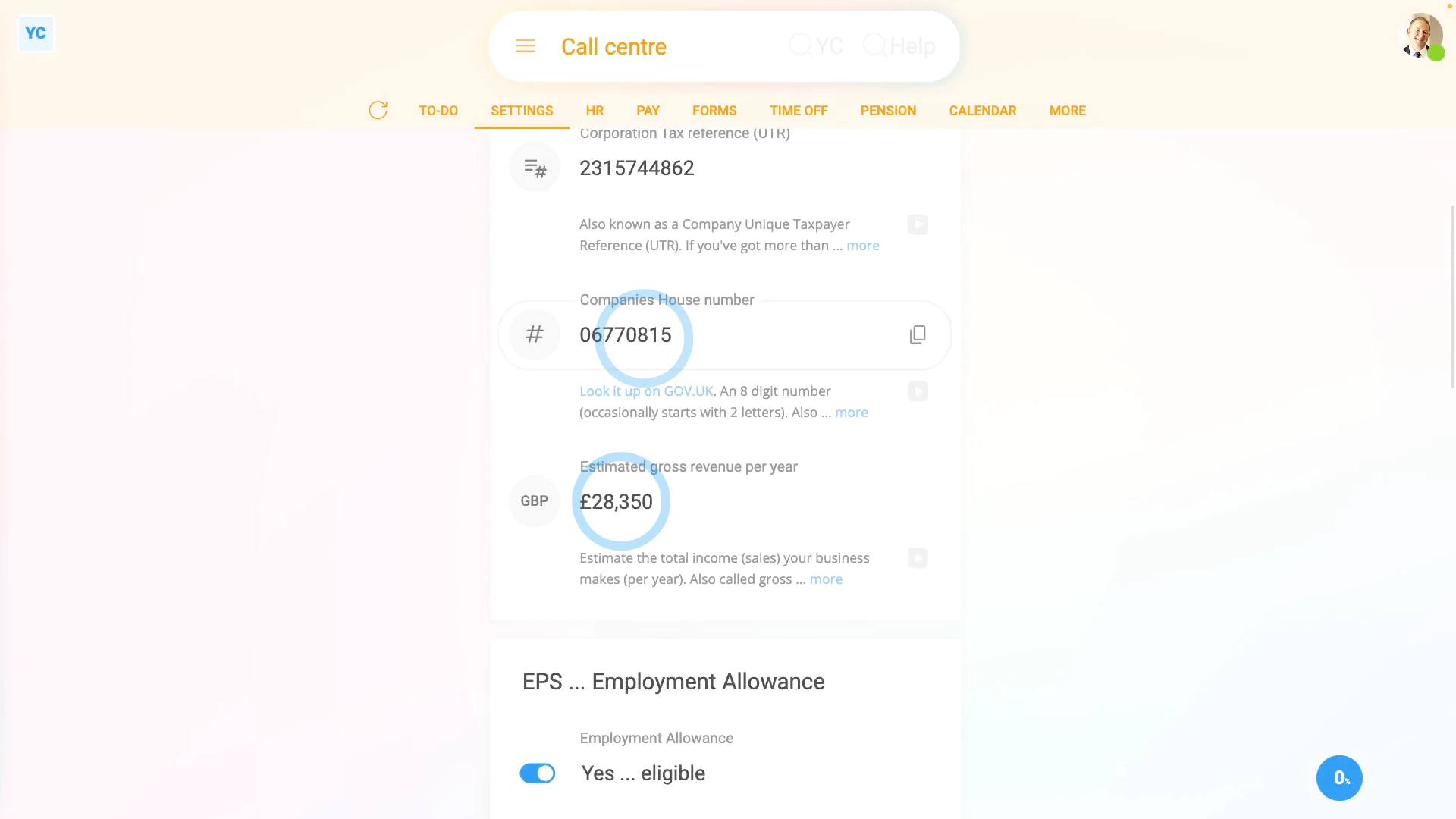
To enter your company's Companies House number and gross revenue:
- First, select any payroll group on: "Menu", then "Payroll groups"
- Then tap: "Settings", then "Tax settings"
- Check that "Self Assessment UTR" is set to: "Limited company, or corporation"
- Then to find your "Payroll group", tap the "Look it up" link.
- And when the GOV.UK page opens, type your company name into the search box.
- Next, tap on your company from the search results, and copy the: "Company number"
- Then back in 1st Money, paste your company number in.
- Next, to enter your "Estimated gross revenue per year", tap into the box and select the amount that seems right.
- Then if you want, you can also change the number with your keyboard.
- And finally, tap: Save
You may notice:
- That both the Companies House number and gross revenue are mirrored across all your payroll groups.
- In other words, if you jump to a different payroll group, you'll see that it's also set to the same info as the original payroll group.
- And if you update your Companies House number and gross revenue in any payroll group, it's also updated in all your other payroll groups.
- If you need a payroll group with a different Companies House number, or different gross revenue, it's recommended that you create another org.
- And then you can add the different info to a payroll group in your new org.
Also remember that:
- Both Companies House number and gross revenue only show if you've set the "UTR type" to: "Limited company, or corporation"
- If you've set it to sole trader, you won't be asked about it.
Keep in mind that:
- Your "Estimated gross revenue per year" is the same as your total sales for the year, and only has to be an estimate.
- If you're a new company, you can take a conservative guess at what your sales may be for the year.
- It's OK if it's not completely precise.
And that's it! That's everything you need to know about entering your Companies House number and gross revenue!
How do I set a payroll group's Unique Taxpayer Reference?
 1:47
1:47
"How do I set a payroll group's Unique Taxpayer Reference?"
The Unique Taxpayer Reference, or UTR, is a 10-digit code that uniquely identifies you or your business. Your UTR is used by HMRC whenever HMRC is dealing with your tax.
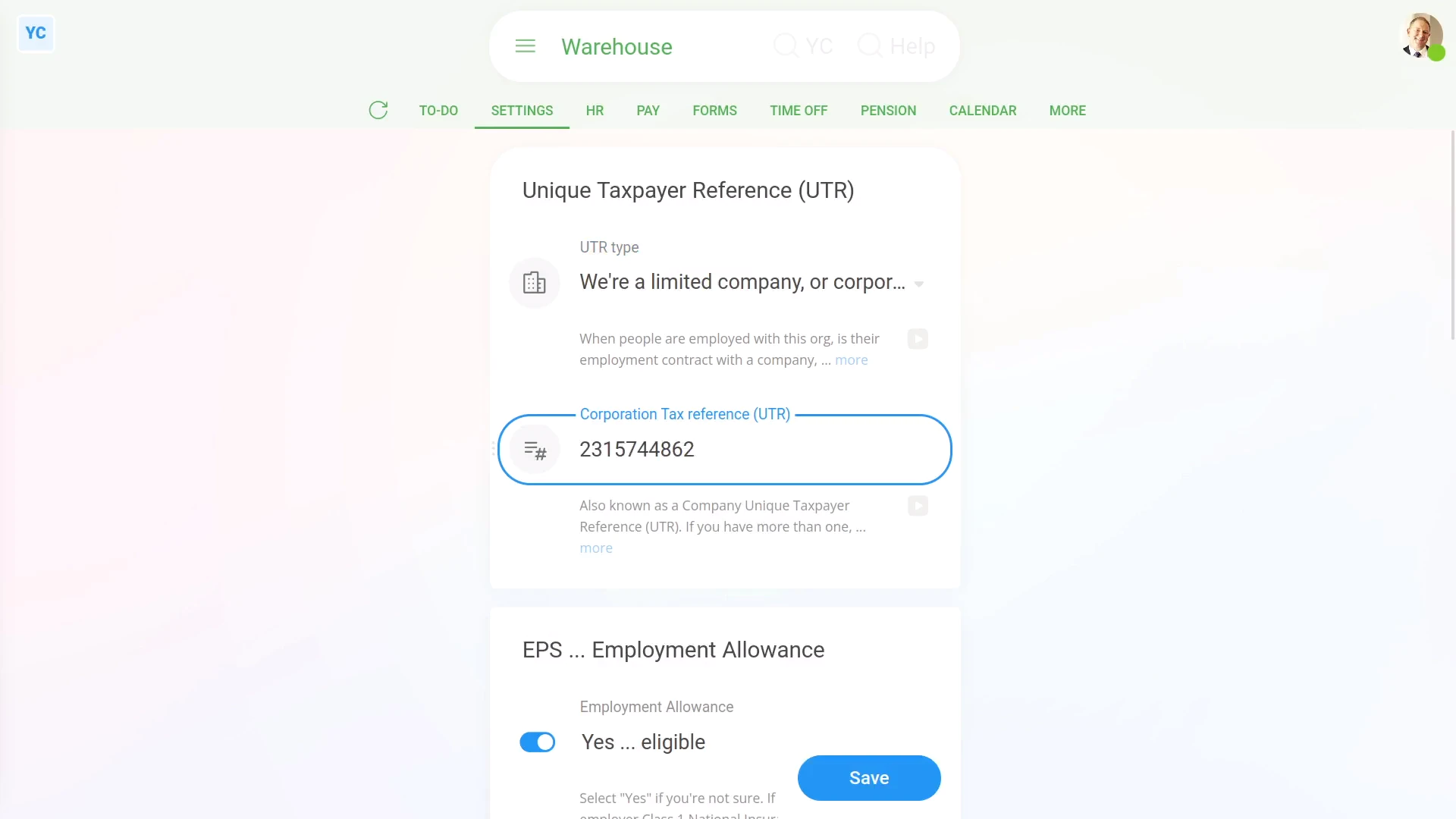
To set a payroll group's UTR:
- First, select the payroll group on: "Menu", then "Payroll groups"
- Then tap: "Settings", then "Tax settings"
- Next, you'll need to decide if you're doing your Tax Filing as a company or a sole trader.
- And then you can type in your 10-digit UTR code.
- If you need help finding your UTR, tap the link to HMRC's website, and read HMRC's advice.
- And finally, tap: Save
Keep in mind that:
- Each payroll group can have a different UTR, or all your payroll group's can all share the same UTR. It's up to you.
- Each time you tap Process payroll, your UTR is automatically included, when your Tax Filing's sent to HMRC.
- Once the UTR is set, there normally isn't any reason to change it.
- If you're still waiting for your UTR to be sent to you, from HMRC, you can still run Process payroll as long as you've set up your HMRC connection.
To learn more:
- About setting up your HMRC company connection, watch the video on: HMRC Tax Filing company connection
And that's it! That's everything you need to know about setting a payroll group's Unique Taxpayer Reference!
What are a payroll group's 'Opening amounts', and how do I set them?
 3:22
3:22
"What are a payroll group's "Opening amounts", and how do I set them?"
A payroll group's "Opening amounts" are a set of numbers that were sent to HMRC by your previous payroll system through the EPS monthly.
You only need to set a payroll group's "Opening amounts" if you're switching from your previous payroll system, to 1st Money, partway through the tax year.
To set a payroll group's "Opening amounts":
- First, select the payroll group on: "Menu", then "Payroll groups"
- Then tap: "Settings", then "Opening amounts"
- Employment Allowance used previously:
Now, on the "Opening amounts" tab, you'll see the first slider as: "Employment Allowance used previously" - The "Employment Allowance used previously" slider is for Employment Allowance consumed so far in the tax year that you've carried over from your previous payroll system.
- Once it's set, your Employment Allowance in 1st Money is reduced by the amount you've already used in your previous payroll system.
- Apprenticeship Levy paid previously:
Next, the "Apprenticeship Levy paid previously" box only shows if "Apprenticeship Levy" is set to: "No ... not exempt" - The "Apprenticeship Levy paid previously" amount is sent to HMRC in the EPS along with any Apprenticeship Levy you've paid in 1st Money.
- Recoverable amounts:
Next, there are five additional "Recoverable amounts" that you can set individually depending what you've paid for the tax year so far. - Everything in the five additional "Recoverable amounts" are sent to HMRC in the EPS along with any recoverable amounts you've got in 1st Money.
- And finally, once everything's all set, tap: Save
Keep in mind that:
- You can copy your payroll group's "Opening amounts" from your previous payroll system's most recent EPS file.
- It's important that you only copy from your most recent EPS file.
- If you're unsure, ask your previous payroll system's customer support where to find it.
- If you're switching from a previous payroll system the new tax year starts, leave all the "Opening amounts" as zero.
- If you're switching from a previous payroll system partway through the tax year, you MUST enter your most recent EPS's numbers into each box.
- For companies that fail to copy over their EPS numbers, HMRC sends out "Unallocated payments" notices.
You may notice:
- All the "Opening amounts" are wiped back to zero when the new tax year starts (every April 6th).
- If you've always been with 1st Money and never switched from a previous payroll system, all the "Opening amounts" are zero.
- If you've switched from a previous payroll system, but it's now a new tax year, all the "Opening amounts" are zero from now on.
To learn more:
- About setting "Opening amounts" for a person, watch the video on: Person opening amounts
- About Apprenticeship Levy, watch the video on: EPS: Apprenticeship Levy
- About Recoverable Amounts, watch the video on: EPS: Recoverable amounts
And that's it! That's everything you need to know about setting a payroll group's "Opening amounts"!
What are HMRC notices for?
 2:47
2:47
"What are HMRC notices for?"
Whenever there's a change that HMRC wants you to know about, you'll get a forwarded message called an: "HMRC notice"
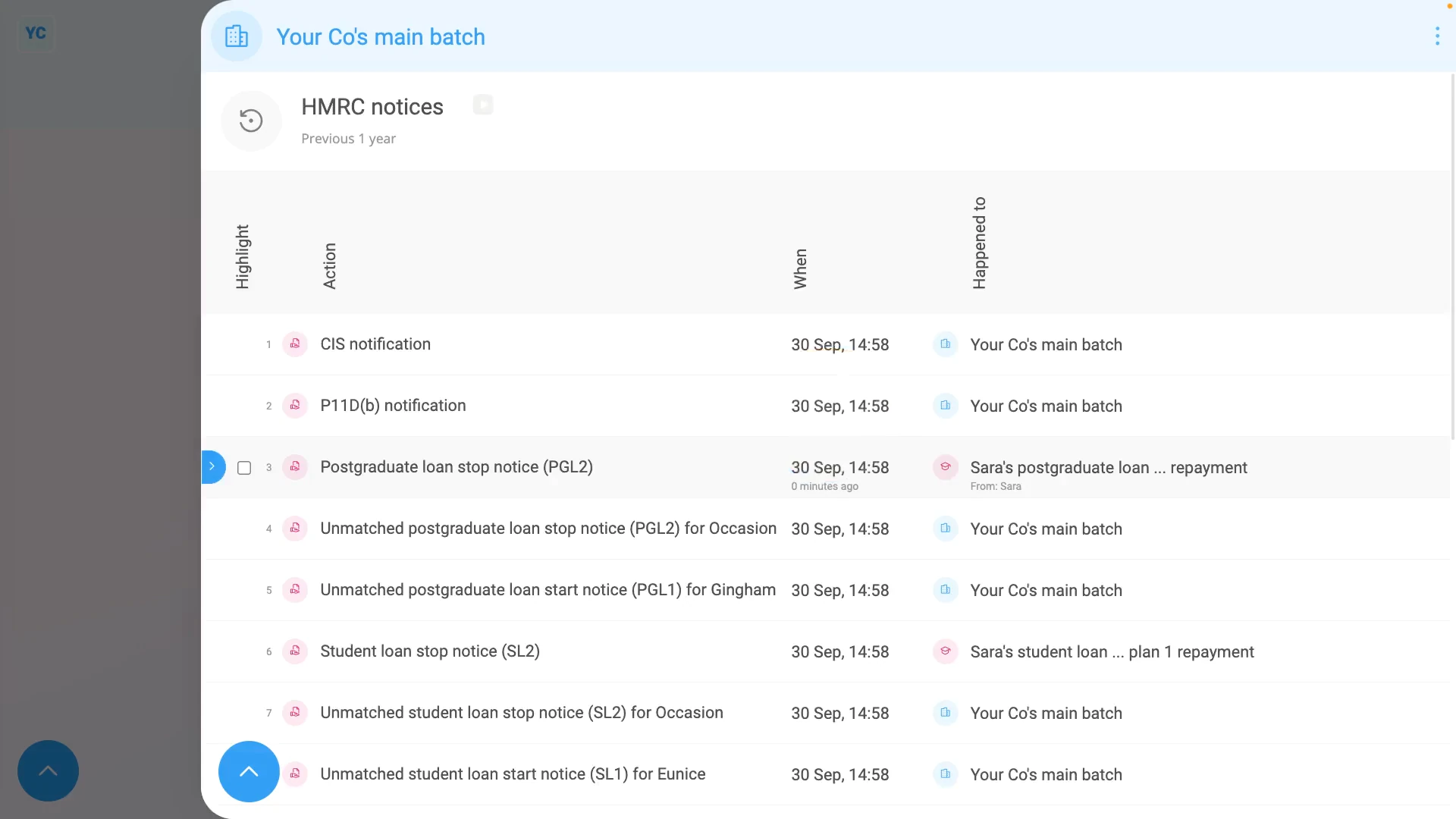
To see a payroll group's "HMRC notices":
- First, select the payroll group on: "Menu", then "Payroll groups"
- Then tap: "Forms", then "HMRC notices"
- You'll now see all your payroll group's HMRC notices from over the last year.
- To see an HMRC notice's full message, tap the "See event" button: (at the start of any row)
- And you'll see the body of the notice. If you tap the "more" link, you'll also see when it was received, and which person was involved.
- Where possible, if the notice is a settings change, it's auto-scheduled, and done for you.
- An example of an auto-scheduled change is when HMRC changes somebody's tax code.
- Another example, is when HMRC starts, or stops, one of your people's student loan repayment plans.
- Where possible you'll see a button, that takes you to see the change.
- And if a change is scheduled for an upcoming date, you'll also see a note about the scheduled change.
- If you disagree with the change, to remove a scheduled change, tap the "remove" link.
- Then tap: Yes ... remove and the scheduled change has been removed.
- To see HMRC notices from further back in time, tap:
" Show settings", "Dates", then "Previous 2 years" - And you'll see the older HMRC notices in the listing.
- To only see HMRC notices involving a set of selected people, tap:
" Show settings", then "Side settings ... show" - Then on the To list, Ctrl + tap the people you'd like to see HMRC notices for.
- And finally, you'll now only see HMRC notices for your selected people.
Keep in mind that:
- If you've ever got multiple payroll groups all sharing the same "Employer PAYE reference", those payroll groups each show the same set of: "HMRC notices"
- Also, for every auto-scheduled change that involves a person, two copies of an HMRC notice are emailed out.
- One is emailed to the person involved, and the other to the payroll group's payday admin.
- However, some "HMRC notices" are only ever emailed to the payday admin. Including company tax setting changes, info updates like P11D(b) messages, CIS messages, and annual reminders.
And that's it! That's everything you need to know about HMRC notices!
www.1st.money/uk/help/Payroll_groups/