Accounting

 2:42
2:42How do I connect to QuickBooks?
Steps to connect payroll groups to QuickBooks for automatic payday transaction syncing.
 2:59
2:59How do I connect to Xero?
Steps to connect payroll groups to Xero for automatic payday transaction syncing.
 2:30
2:30How do I immediately send payslips to my accounting package?
How to instantly send today's payroll transactions to your accounting package before the midnight auto-send.
 2:44
2:44How do I see everything that's been sent to my accounting package?
View and manage payday debits and credits sent to your accounting package via payroll group settings.
 2:07
2:07How do I change the default chart of accounts?
Steps to change the default chart of accounts for a payroll group in 1st Money.
 2:08
2:08How do I copy/paste a payday into my accounting package?
Steps to copy/paste payroll payday debits and credits into your accounting package.


1. How do I connect to QuickBooks?

 2:42
2:42
"How do I connect to QuickBooks?"
To send payday debits and credits to QuickBooks, first you'll need to connect it.
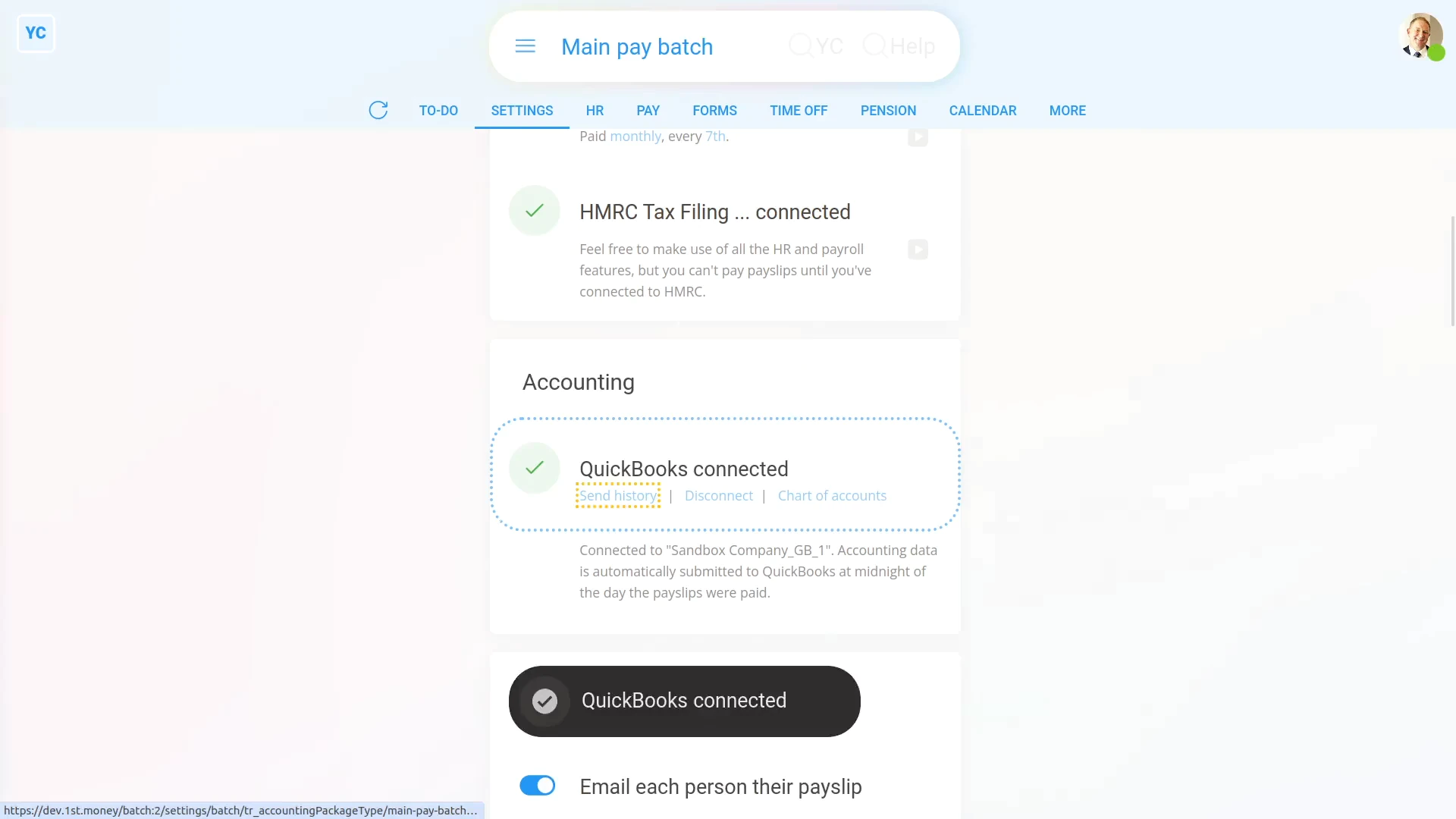
To connect QuickBooks to receive a payroll group's payday debits and credits:
- First, select the payroll group on: "Menu", then "Payroll groups"
- Then tap: "Settings", then "Payroll group settings"
- Then on the "Settings" tab, scroll down to the "Accounting" heading.
- And tap: "Accounting package" to select: "QuickBooks"
- Next, type in your: "Email or user ID"
- And tap: Sign in
- Next, type in your: "Password"
- And tap: Continue
- Sometimes, if it's the first time you've logged in to QuickBooks on your device, you may have to be verified by phone or SMS.
- Otherwise, you'll be asked to select the QuickBooks company that you'd like the transactions to be sent to.
- Then tap: Next
- And now, once it's connected, you'll see a green tick saying: "QuickBooks connected"
- And finally, from now on, the payroll group's transactions are automatically sent at midnight of the day your payslips were paid.

You may notice:
- That once it's connected, there's now a blue "Disconnect" link below it.
- If you ever need to move to a different accounting package, or switch to a different QuickBooks company, tap the "Disconnect" link.
- And you can now move to a different accounting package.
- Or switch to a different QuickBooks company.
- And from then on, all your payday debits and credits are now sent to your newly selected accounting package.
Keep in mind that:
- Setting the accounting connection is something you only have to do once.
- Once it's connected, payday can then be done by any of your org's payroll admins, and from any device.
- The connection is then remembered well into the future, no matter what device it's done on.
For advanced usage:
- If you've got more than one payroll group, you'll need to repeat the connection steps for each payroll group.
To learn more:
- About immediately sending payslips to QuickBooks, watch the video on: Sending to your accounting package
 Sending to your accounting package
And that's it! That's everything you need to know about connecting to QuickBooks!
1. How do I connect to Xero?
 2:59
2:59
"How do I connect to Xero?"
To send payday debits and credits to Xero, first you'll need to connect it.
To connect Xero to receive a payroll group's payday debits and credits:
- First, select the payroll group on: "Menu", then "Payroll groups"
- Then tap: "Settings", then "Payroll group settings"
- Then on the "Settings" tab, scroll down to the "Accounting" heading.
- And tap: "Accounting package" to select: "Xero"
- Next, type in your: "Email address"
- And your: "Password"
- Then tap: Log in
- And enter your multi-factor authentication, or tap: Not now
- Then you'll be asked to select the Xero company that you'd like the transactions to be sent to.
- Then tap: Allow access
- And now, once it's connected, you'll see a green tick saying: "Xero connected"
- And finally, from now on, the payroll group's transactions are automatically sent at midnight of the day your payslips were paid.
You may notice:
- That once it's connected, there's now a blue "Disconnect" link below it.
- If you ever need to move to a different accounting package, or switch to a different Xero company, tap the "Disconnect" link.
- And you can now move to a different accounting package.
- Or switch to a different Xero company.
- And from then on, all your payday debits and credits are now sent to your newly selected accounting package.
Keep in mind that:
- Right now only up to 25 orgs can be connected to Xero, because the 1st Money Xero integration isn't certified.
- You can read more about certification and get updates on the ideas page for Xero.
- And remember to add your vote to encourage Xero to certify the integration to: "Become a Xero App Partner"
Also remember that:
- Setting the accounting connection is something you only have to do once.
- Once it's connected, payday can then be done by any of your org's payroll admins, and from any device.
- The connection is then remembered well into the future, no matter what device it's done on.
For advanced usage:
- If you've got more than one payroll group, you'll need to repeat the connection steps for each payroll group.
To learn more:
- About immediately sending payslips to Xero, watch the video on: Sending to your accounting package
And that's it! That's everything you need to know about connecting to Xero!
2. How do I immediately send payslips to my accounting package?
 2:30
2:30
"How do I immediately send payslips to my accounting package?"
Normally a payroll group's payday debits and credits are automatically sent to your accounting package every midnight.
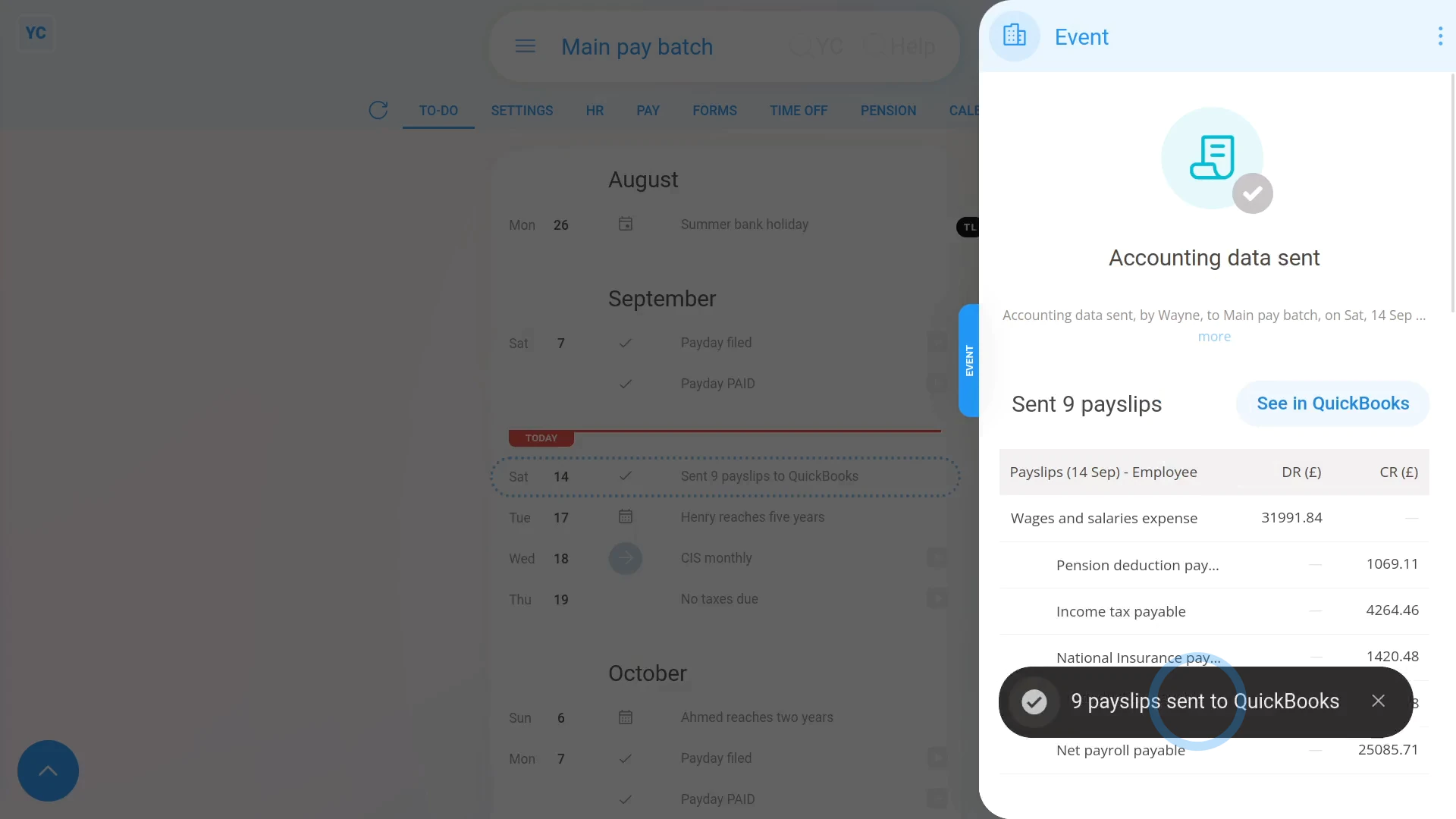
To send a payroll group's payday debits and credits to your accounting package right now (instead of waiting 'til midnight):
- First, select the payroll group on: "Menu", then "Payroll groups"
- Then tap: "To-do"
- As long as you've filed some payslips sometime today, the link shows, and you can tap the grey "Auto-sending payslips to accounting at midnight" reminder link.
- Then once the transactions have loaded on the side, you can scroll down to see all the details of what you'll be sending.
- Then once you're ready, scroll to the top and tap Send now, then: Yes ... send now
- And all your payslips are now sent to your accounting package, and you'll see a grey "Sent" confirmation.
- Then if you ever need to see the transactions again, you can always tap the grey "Sent" confirmation.
- And finally, if you want to see the transactions in your accounting package, tap: See in...
Keep in mind that:
- All transactions are automatically scheduled to be sent at midnight.
- As long as you're happy to wait 'til midnight, there's no need to send the transactions yourself.
- But if you do decide to send them yourself, you can immediately see them in your accounting package.
- And, of course, 1st Money cancels the scheduled midnight send, so the transactions aren't sent twice.
You may notice:
- That the grey "Auto-sending payslips to accounting at midnight" reminder link only shows if you've connected an: "Accounting package"
- And the link only shows if you've paid a payday sometime today.
- Or, in other words, it only shows if there's at least some transactions that haven't yet been automatically sent at midnight.
To learn more:
- About connecting an accounting package such as QuickBooks, watch the video on: Connect to QuickBooks
- And to learn about paying a payday, watch the video on: Processing payroll
And that's it! That's everything you need to know about immediately sending payslips to your accounting package!
3. How do I see everything that's been sent to my accounting package?
 2:44
2:44
"How do I see everything that's been sent to my accounting package?"
For all the paydays you've paid before, you can see a list of the payday debits and credits that've been sent to your accounting package.
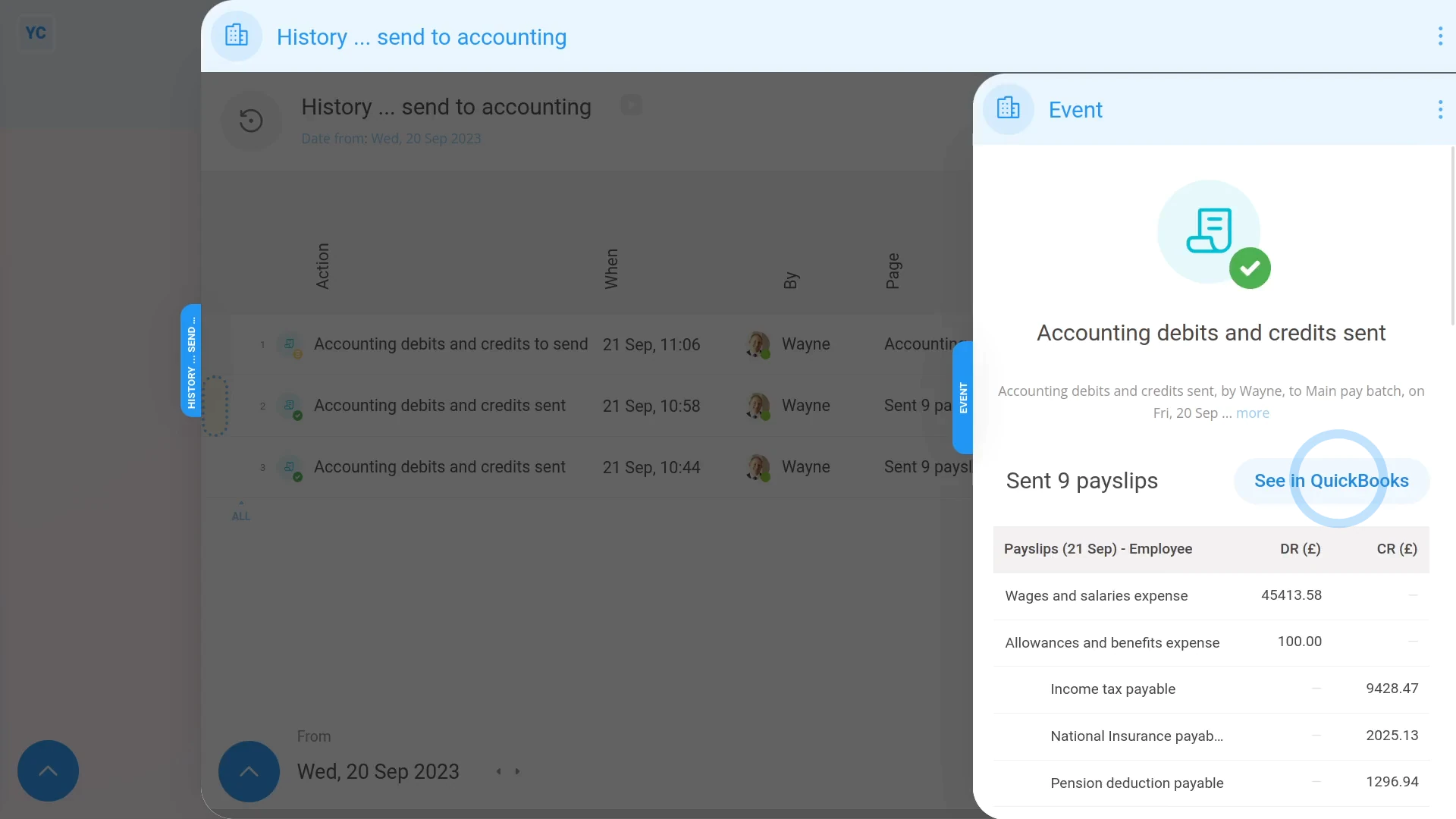
To see a list of all payday debits and credits that've been sent to your accounting package:
- First, select the payroll group on: "Menu", then "Payroll groups"
- Then tap: "Pay", then "Send to accounting"
- And you'll now see the payroll group's history of payday debits and credits sent to accounting slide out from the right.
- Near the beginning of each row, you'll notice that some have a green status circle.
- The green status circle means that the payday debits and credits of that row have been sent to your accounting package.
- Some of the rows may have a yellow status circle.
- The yellow status circle means that the payday debits and credits of that row are still waiting to be sent.
- To see more details about a set of payday debits and credits, tap the "See event" button: (at the start of any row)
- And you'll see all the debits and credits.
- As you scroll to the bottom, you'll see info about each of the filed payslips that're included in the debits and credits.
- And then scrolling back to the top. If you tap the button, you'll see the debits and credits in your accounting package.
- Now back to the list, and tap the row with the yellow status circle.
- Like before, you'll see all the debits and credits, and also a list of the filed payslips (at the bottom).
- However (at the top), because the debits and credits haven't been sent to your accounting package yet, tap Send now, then: Yes ... send now
- And now all the debits and credits for the set of payslips are now sent to your accounting package, and you'll see a grey "Sent" confirmation.
- And finally, if you tap the "more" link, you'll see there's a permanent record of even more details. Including when it was sent, and who sent it.
Keep in mind that:
- All transactions are automatically scheduled to be sent at midnight.
- As long as you're happy to wait 'til midnight, there's no need to send the transactions yourself.
- But if you do decide to send them yourself, you can immediately see them in your accounting package.
- And, of course, 1st Money cancels the scheduled midnight send, so the transactions aren't sent twice.
And that's it! That's everything you need to know about a payroll group's list of Payday Payment transactions that've been sent to your accounting package!
4. How do I change the default chart of accounts?
 2:07
2:07
"How do I change the default chart of accounts?"
By default, 1st Money sets defaults for each of the accounts that a payroll group's payday debits and credits are sent to.
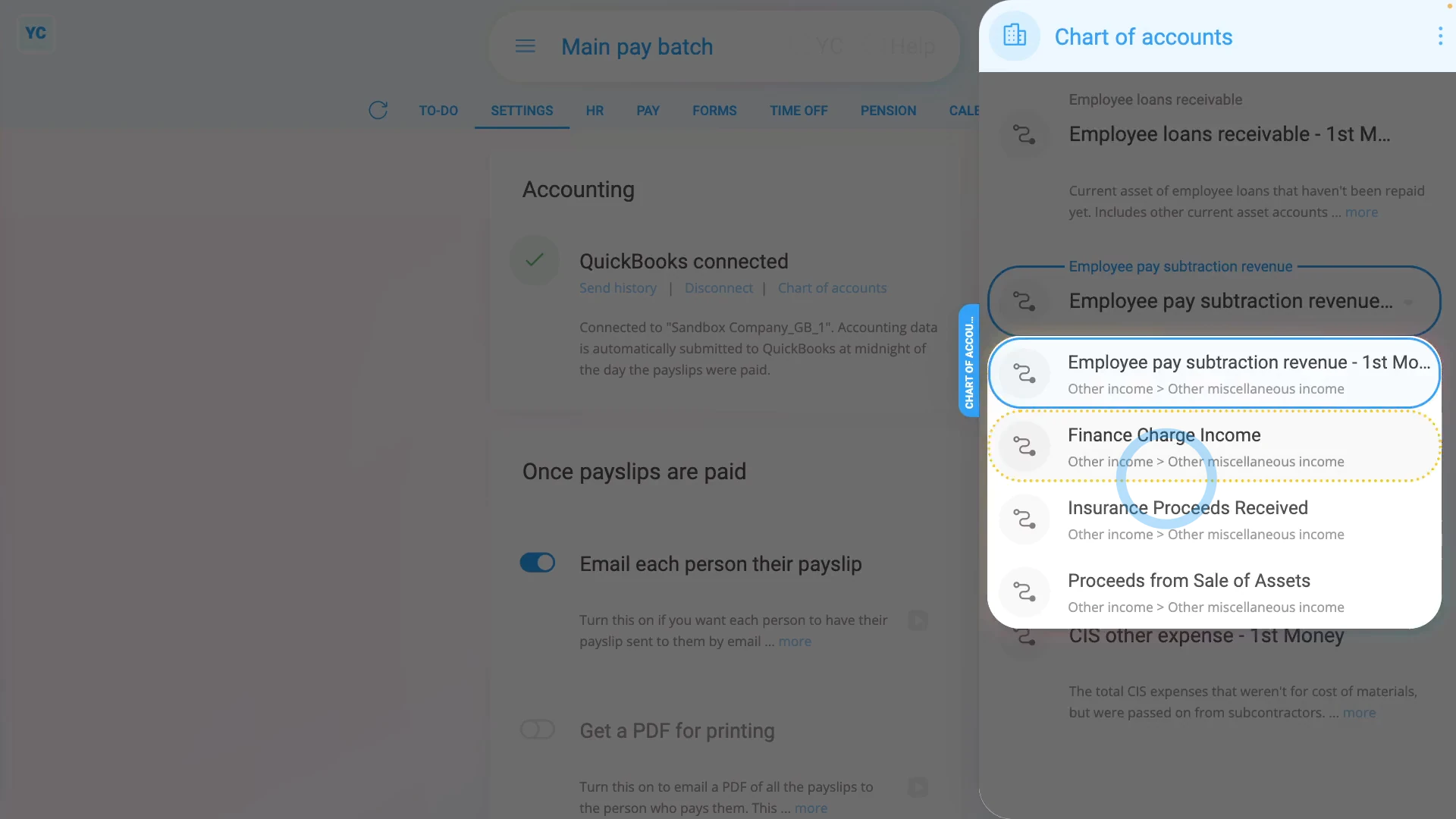
To change a default chart of accounts that a payroll group's payday debits and credits are sent to:
- First, select the payroll group on: "Menu", then "Payroll groups"
- Then tap: "Settings", then "Payroll group settings"
- Then on the "Settings" tab, scroll down to the "Accounting" heading.
- As long as you've already connected "Accounting package", the links show, and you can tap the "Chart of accounts" link.
- Then once the "Chart of accounts" has loaded on the side, you can scroll down and tap the one you'd like to change.
- When you open each one, you'll see each has different accounts listed.
- The accounts come directly from your accounting package, and it only shows account types that might be compatible with the transaction type.
- Some may have only one account listed, which means you'll need to add another account in your accounting package, before coming back to change it.
- Others may have multiple accounts listed.
- Some accounts have the label "1st Money" on the end, which means it's the recommended account, added by 1st Money when you first connected.
- However, if you know what you're doing, tap the one you'd like to change, and select its new option.
- Then once you've finished changing any other chart of accounts, and tap: Save
- And finally, the next time you do a payday, the payday debits and credits are sent using the updated chart of accounts from now on.
Keep in mind that:
- Changing the default chart of accounts isn't recommended, and is for experienced professionals only.
- However, it may occasionally be necessary, for example if you're merging transactions between two payroll systems.
And that's it! That's everything you need to know about changing a payroll group's default chart of accounts!
5. How do I copy paste a payday into my accounting package?
 2:08
2:08
"How do I copy/paste a payday into my accounting package?"
Your payday debits and credits are ready for entering into your accounting package as soon as your payslips are all paid for the day.
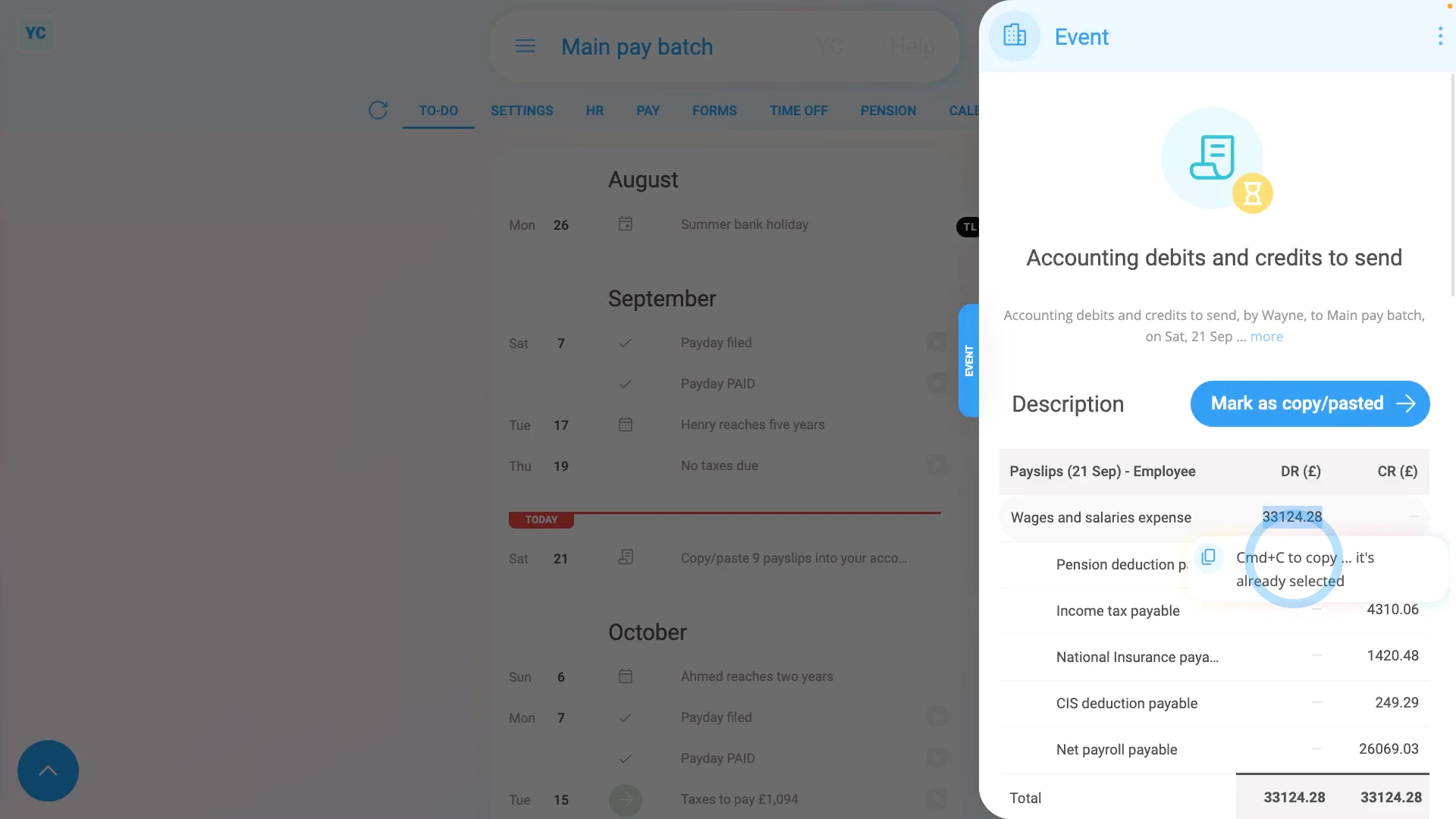
To copy/paste a payroll group's payday debits and credits into your accounting package:
- First, select the payroll group on: "Menu", then "Payroll groups"
- Then tap: "To-do"
- As long as you've filed some payslips sometime today, the links show, and you can tap the grey "Copy/paste payslips" reminder link.
- Next, hover your mouse over the first debit or credit in the set.
- Then press control-C to copy, then paste it into your accounting package as a debit or credit.
- Continue copy/pasting each number in the set until all the debits or credits are copy/pasted.
- Once the entire set is done, tap: Mark as copy/pasted
- And finally, when you tap back off to the "To-do" tab, you'll see that it's now marked as completed with a tick.
Keep in mind that:
- If, later in the same day, you pay some additional payslips, the grey "Copy/paste payslips" reminder link automatically reappears.
- And you'll see a new set of debits and credits.
- The new set of debits and credits includes the money amounts of the additional payslips you paid, and not the payslips earlier in the day.
You may notice:
- Copy/pasting transactions into accounting each payday can be tedious and prone to errors.
- If your accounting package is one that's supported by 1st Money, then get it connected and you'll never have to copy/paste again.
To learn more:
- About connecting an accounting package such as QuickBooks, watch the video on: Connect to QuickBooks
And that's it! That's everything you need to know about copy/pasting your payday debits and credits!
How do I resend my accounting to a different accounting package?
 2:37
2:37
"How do I resend my accounting to a different accounting package?"
Sometimes you may decide to switch your accounting package part way into the year.
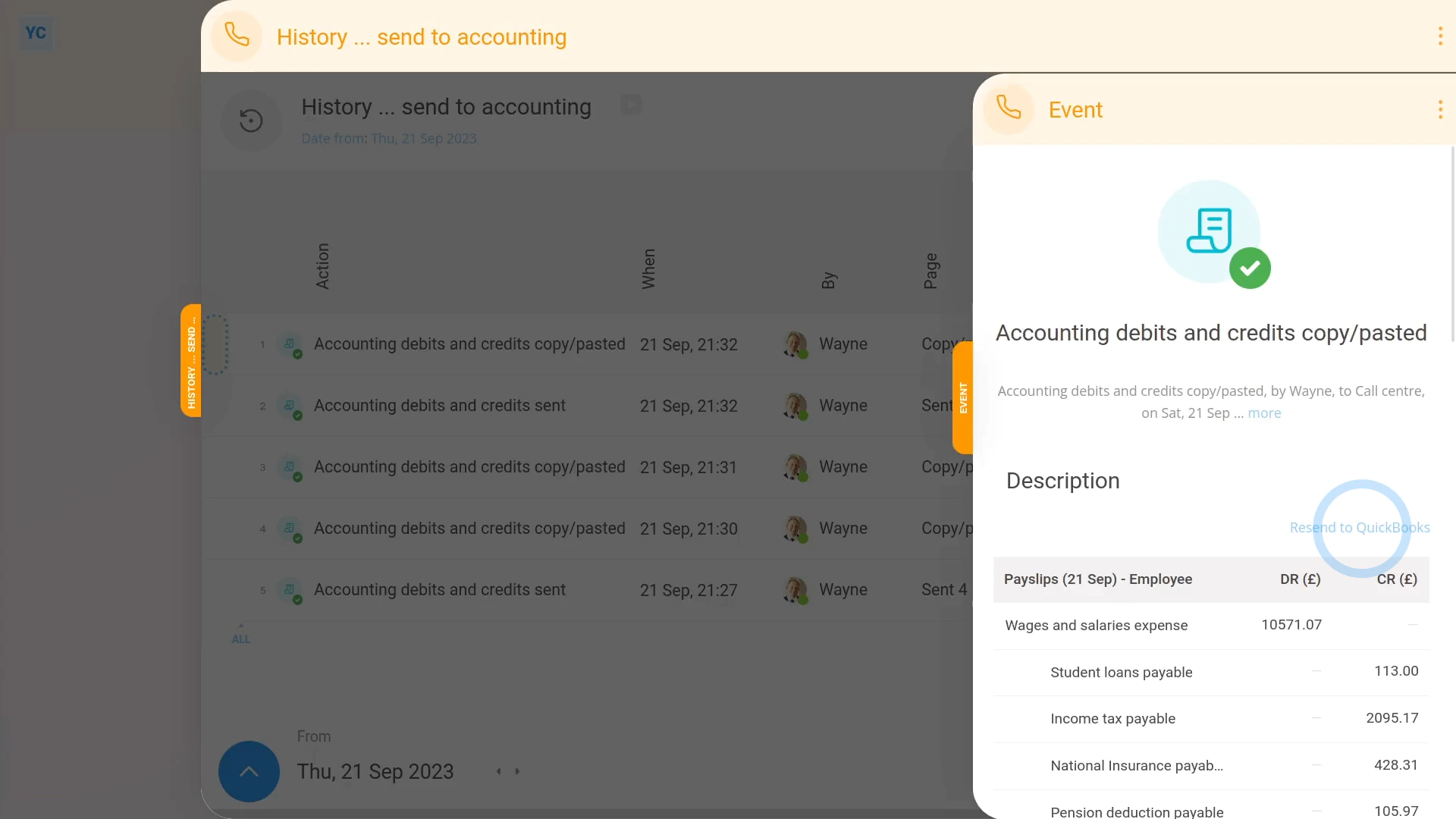
To resend a few months of payday debits and credits to a different accounting package:
- First, select the payroll group on: "Menu", then "Payroll groups"
- Then tap: "Settings", then "Payroll group settings"
- Then on the "Settings" tab, scroll down to the "Accounting" heading.
- And you'll see which "Accounting package" you've previously set, or it may still be set to: "Copy/paste debits and credits"
- Next, to see the previously sent debits and credits, tap: "Pay", then "Send to accounting"
- And you'll now see the payroll group's previously sent debits and credits slide out from the right.
- Near the beginning of each row, you'll notice that all the rows have a green status circle.
- The green status circle means that the payday debits and credits of that row have already been sent to an accounting package.
- When you tap into a row, you'll notice that there's no blue "Resend" link, for now.
- Now tap back to the "Accounting package" setting: "Settings", then "Payroll group settings"
- And connect your accounting package, to see how it changes.
- In the example, QuickBooks has been connected, but the steps work the same for any accounting package.
- Now return back to your sent debits and credits at: "Pay", then "Send to accounting"
- And when you tap into a row, you'll see that there's now a blue "Resend" link. The link allows you to resend the same debits and credits to your newly connected accounting package.
- Tap blue "Resend" link, then tap: Yes ... send now
- And finally, the debits and credits are sent to your newly connected accounting package.
Keep in mind that:
- You can change your accounting package as many times as you like.
- The blue "Resend" link still does what you'd expect.
To learn more:
- About connecting an accounting package such as QuickBooks, watch the video on: Connect to QuickBooks
- To learn about how to send a few months all at once, if the debits and credits have never been sent before, watch the video on: Sending accounting all at once, months later
And that's it! That's everything you need to know about resending debits and credits to a different accounting package!
If I'm late at connecting accounting, can I send it all at once?
 3:13
3:13
"If I'm late at connecting accounting, can I send it all at once?"
Sometimes you can be so busy starting your business, that it feels like there's not enough time to select an accounting package.
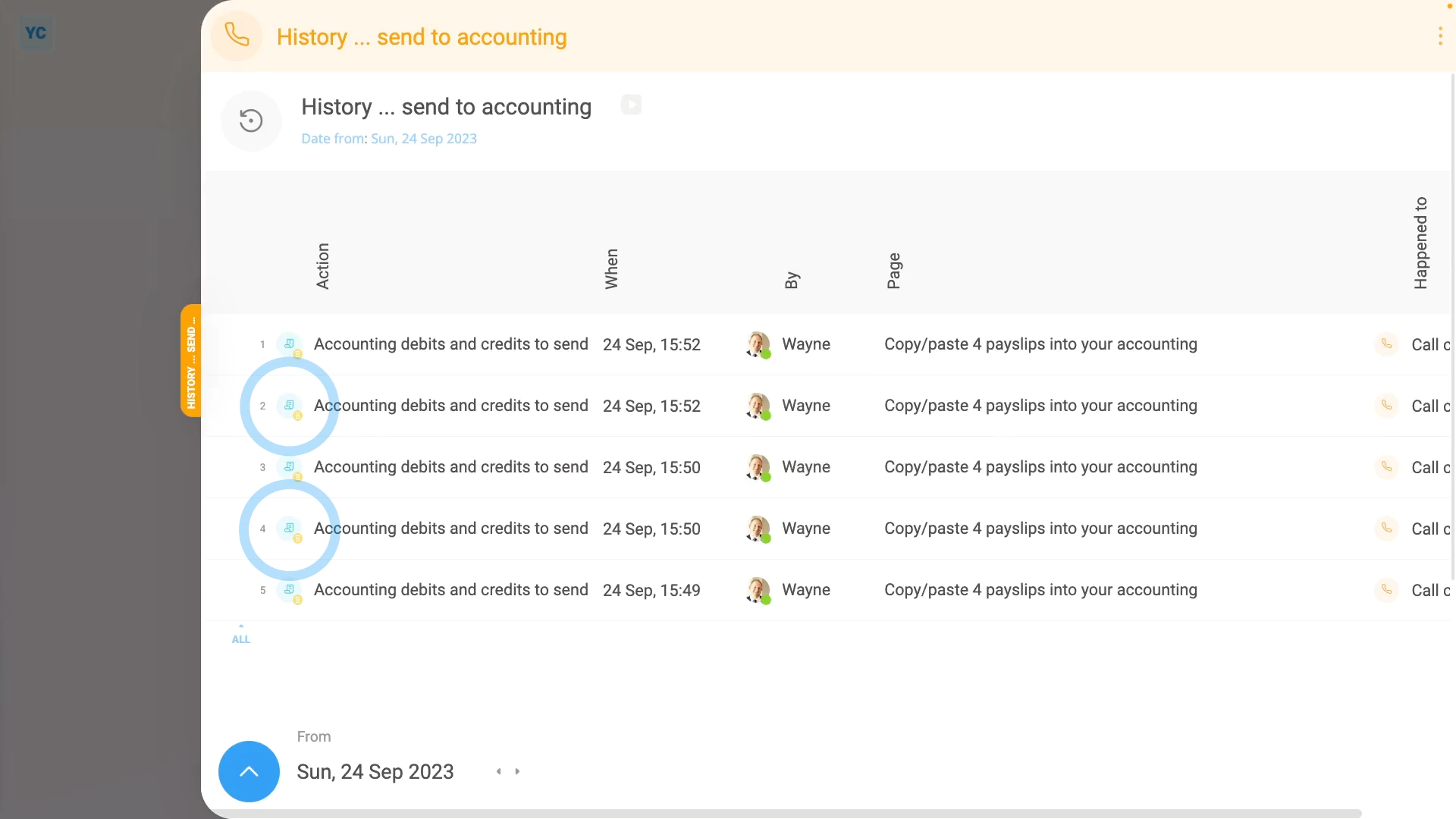
To send a few months of payday debits and credits all at once, after finally connecting your accounting package:
- First, select the payroll group on: "Menu", then "Payroll groups"
- Then tap: "Settings", then "Payroll group settings"
- Then on the "Settings" tab, scroll down to the "Accounting" heading.
- By default, if you've never had time to connect an "Accounting package", you'll find it still set to: "Copy/paste debits and credits"
- Which means that the debits and credits of all your paid paydays are still queued and waiting.
- To see the queued debits and credits, tap: "Pay", then "Send to accounting"
- And you'll now see the payroll group's queued debits and credits slide out from the right.
- Near the beginning of each row, you'll notice that all the rows have a yellow status circle.
- The yellow status circle means that the payday debits and credits of that row are still waiting to be sent to an accounting package.
- When you tap into a row, your only option is to copy/paste the debits and credits, because no accounting package is connected yet.
- Now tap back to the "Accounting package" setting on: "Settings", then "Payroll group settings"
- And connect your accounting package, to see how it changes.
- In the example, QuickBooks has been connected, but the steps work the same for any accounting package.
- Now return back to your queued debits and credits at: "Pay", then "Send to accounting"
- You'll see that all the rows still have a yellow status circle.
- Meaning the rows are still waiting to be sent to an accounting package.
- But now, when you tap into a row, you'll see that there's a note saying: "payslips queued to automatically send at midnight."
- Which means that if you come back tomorrow, all the rows would've automatically been sent.
- Alternatively, if you want to send them now, tap Send now, then: Yes ... send now
- And finally, you'll see a green status circle, showing that even though the payslips are from months ago, your new accounting package has correctly received them.
Keep in mind that:
- If it's your accountant or bookkeeper who's selected your accounting package, you may find it helpful to have them help do the connection.
- Also remember that in the UK, a company must deliver its annual accounts to Companies House within 9 months after the end of its financial year.
To learn more:
- About connecting an accounting package such as QuickBooks, watch the video on: Connect to QuickBooks
- To learn about how to resend debits and credits to a different accounting package, watch the video on: Re-sending to a different accounting
And that's it! That's everything you need to know about sending a few months of debits and credits all at once, after finally connecting your accounting package!
www.1st.money/uk/help/Accounting/