Leave

 10:16
10:16Maternity leave. How do I set it up for an expecting mother?
How to set up, manage, and document paid or unpaid maternity leave for expecting mothers.


2. Maternity leave. How do I set it up for an expecting mother?

 10:16
10:16
"Maternity leave. How do I set it up for an expecting mother?"
When an expecting mother requests maternity leave, it's up to an admin to set up the maternity leave.
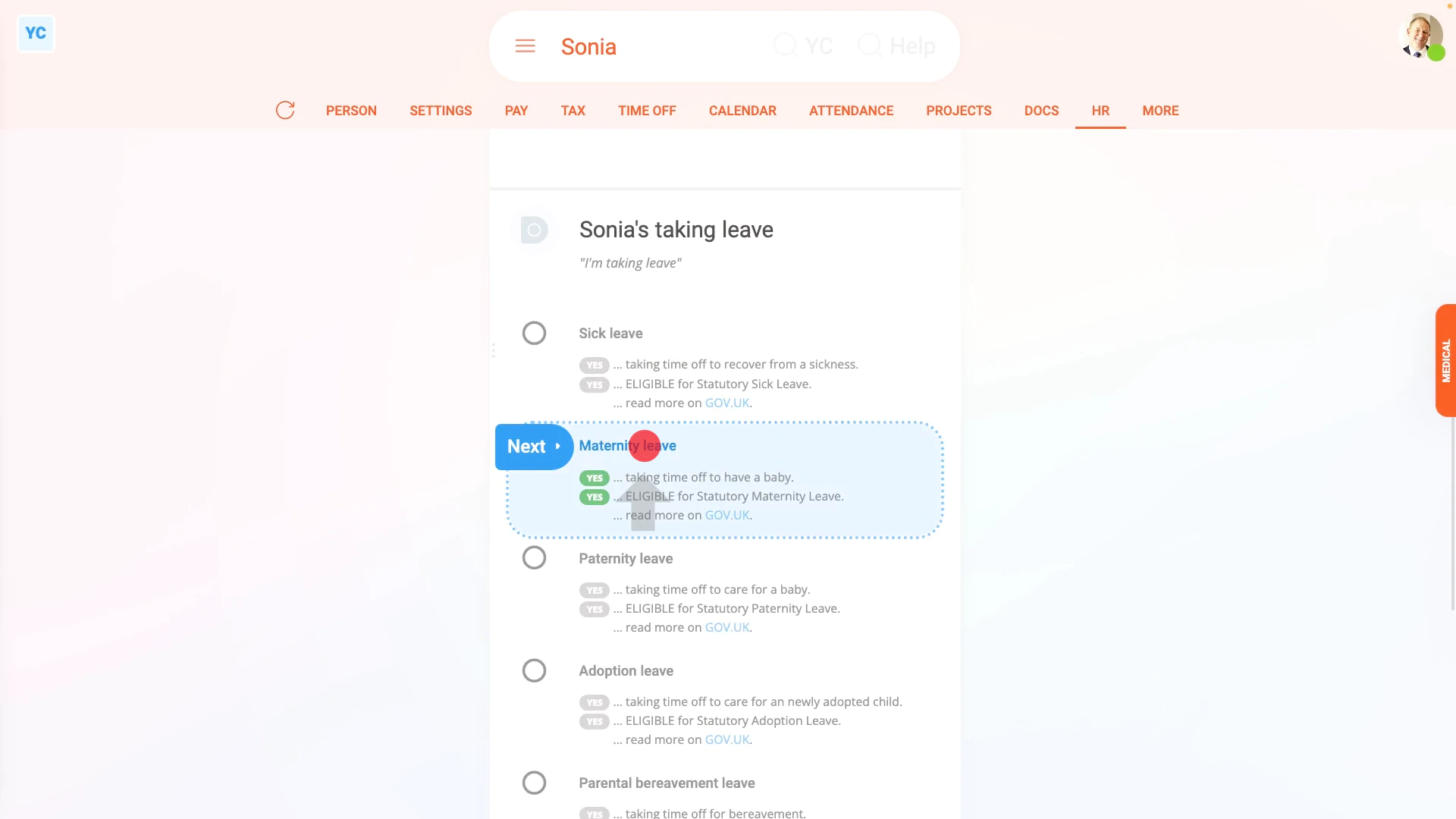
To set up an expecting mother's maternity leave:
- First, select the expecting mother on: "Menu", then "People"
- Then tap: "HR", then "Set leave"
- In most cases, the "Date expecting child" won't be set yet.
- Tap the "set it now" link and set it.
- Next, now that it's no longer disabled, tap: "Maternity leave"
- And look through all the reasons that the expecting mother may not be eligible for paid maternity leave.
- If none of them apply, then tap the first option to give the expecting mother paid maternity leave.
- Next, tap on both the "Start" and "End" dates, so the dates exactly match the dates requested by the expecting mother.
- Then once everything's set, tap: "Yes" to all the above
- Setting the maternity leave tasks:
Next, you'll see the number of tasks that 1st Money automatically does for you to help you set up the maternity leave. - To see the details of what each task does, tap expand all: (at the top)
- In particular, pay attention to the amount that'll be deducted.
- And also the amount that'll be added.
- Also, when you scroll down more, now would be a good time to upload the expecting mother's maternity certificate.
- If there's any other updates you'd like to make, do those updates now.
- Some of the tasks send an email, or doc. To see a preview of any emails or docs, tap the links.
- Once you're happy with all the tasks, tap Continue, and then: Yes ... do it
- All the tasks are now done in the background.
- Sending the maternity leave doc:
Next, the expecting mother can optionally be informed, in writing, about their maternity leave. - A maternity leave doc is prepared in the foreground, all ready for you to complete and send.
- Read through the maternity leave doc.
- If you want to change some text, or type more text in, tap Show editor, and make your changes.
- Then when you're ready to send the maternity leave doc, tap Request "Got it", then Yes ... request "Got it", and then: Close
- Receiving the maternity leave doc:
The expecting mother now gets an email, asking for confirmation that the maternity leave doc you've sent has been received. - The expecting mother can't access the rest of 1st Money until the expecting mother's tapped Got it to the maternity leave doc.
- Record of events:
Now, on the "Record of events" tab, tap the maternity leave to expand it. - You'll see that the doc's been sent.
- To see a copy of the sent doc, tap the "View" button: (at the end of the row)
- And you'll see the status change, once the expecting mother eventually marks the doc as: "Got it"
- And finally, you'll also see the "Forgone earnings" and "Gained earnings" amounts.

Keep in mind that:
- It's required that all expecting mothers take a minimum of two weeks off directly after the birth. The maximum maternity leave is 52 weeks, and it's got to be taken in one continuous block.
- Also, the amounts that'll be deducted or added are auto-calculated for all pay rate types.
- Including if the expecting mother's paid salary, or paid hourly.
- Also, org admins can also fully complete the setting up of a maternity leave. It doesn't have to be only payroll admins.
- But when an org admin completes a maternity leave, the payment amounts are all hidden from your org admin.
- However, the expecting mother, does still see all the payment amounts in the doc, as expected. Even though the payment amounts are hidden from your org admin.
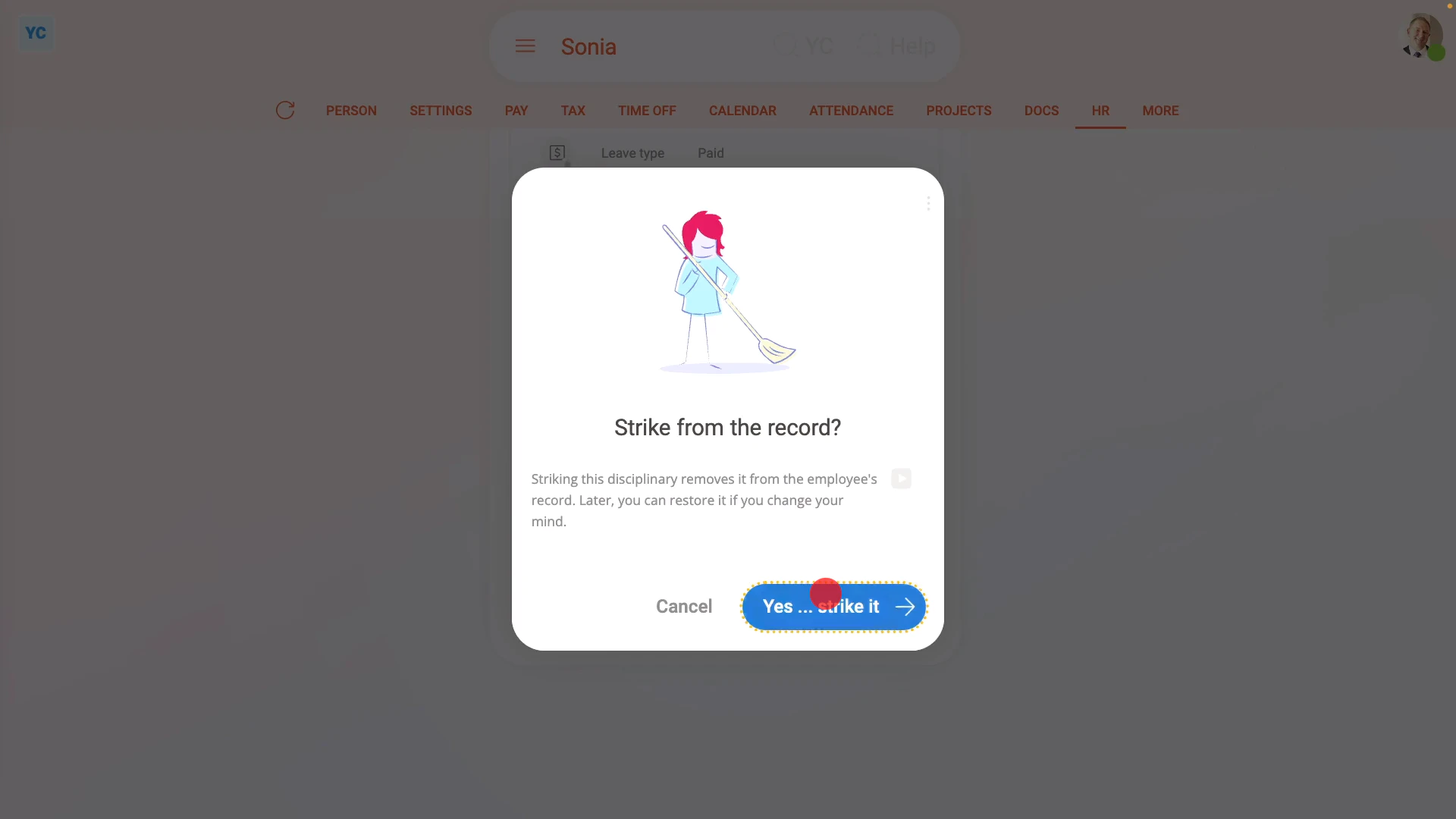
To change an expecting mother's dates on a maternity leave, or to strike a maternity leave from any records:
- First, select the expecting mother on: "Menu", then "People"
- Then tap: "HR", then "Record of events"
- And tap the previously set maternity leave to expand it.
- Then tap the three dots: (at the bottom), then tap Strike from the record, and then tap: Yes ... strike it
- You'll now see the maternity leave crossed out, and moved to the bottom of the list.
- Next, tap: "HR", then "Set leave"
- Then tap "Maternity leave", and select the paid or unpaid option from the list.
- Now you can change any of the maternity leave dates.
- And finally, once everything's set, tap "Yes" to all the above and continue until the maternity leave is fully set up, and the doc with the new dates is sent.
Also remember that:
- The only way to change the dates on a maternity leave is to strike the previous maternity leave from the record, and create a new one.
- You can strike from the record, and create a new one, repeatedly, as many times as you need to.
- Once a maternity leave is struck from the record, it's as if it never existed. All payslips from then on completely ignore it.
- However, you still have a full read-only copy of its settings in case you ever need to refer back to it.
- Any payslips that were paid while the maternity leave was still "on the record" remain unchanged.
- Striking a maternity leave from the record has no effect on previously paid payslips.
- Also, the date and name of the person who struck out the maternity leave is permanently stored inside the details of the maternity leave.
- Additionally, both org admins and payroll admins can strike or restore maternity leave from the record.
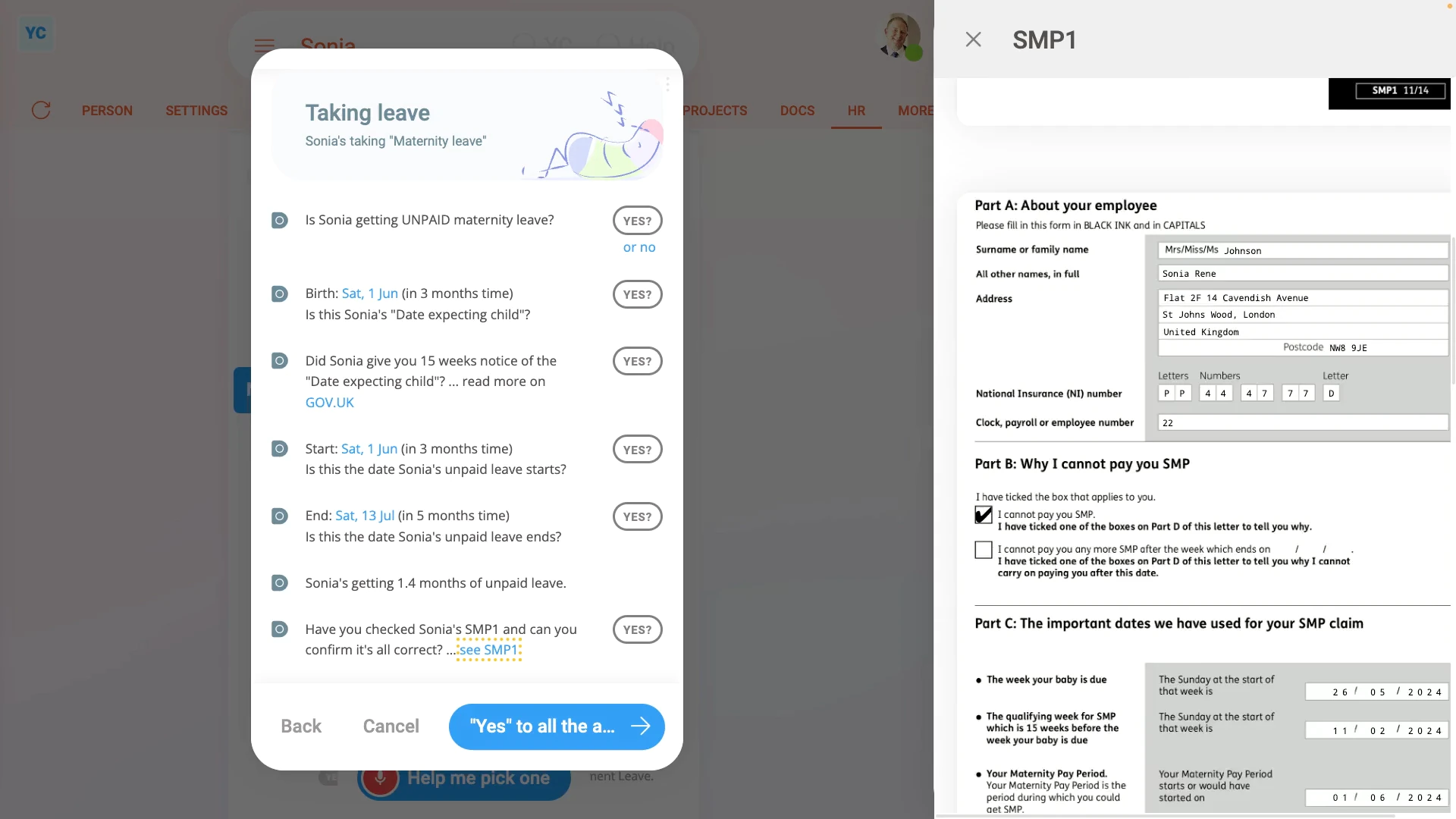
To set up unpaid maternity leave and have an SMP1 form auto-sent to an expecting mother:
- First, select the expecting mother on: "Menu", then "People"
- Then tap: "HR", then "Set leave"
- Next, tap "Maternity leave", and look through all the reasons that the expecting mother may not be eligible for paid maternity leave.
- If one applies, tap it, then tap: Yes ... continue with UNPAID
- Next, check the dates, and tap the "see SMP1" link.
- Any time you grant maternity leave on an unpaid basis, an SMP1 form must be sent to the expecting mother, as explained on the form.
- The SMP1 is automatically filled in for you, but it's important that you check through it and confirm that its contents are correct.
- Then once everything's set, tap: "Yes" to all the above
- Setting the maternity leave tasks:
Next, you'll see the number of tasks that 1st Money automatically does for you. - To see the details of what each task does, tap expand all: (at the top)
- In particular, you may want to see the email that's sent to the expecting mother.
- In the email, you'll see that the completed SMP1 is attached.
- Once you're happy with all the tasks, tap Continue, and then: Yes ... do it
- All the tasks are now done in the background, including the emailing of the SMP1.
- Sending the maternity leave doc:
Next, the expecting mother can optionally be informed, in writing, about their maternity leave. - Because it's unpaid maternity leave, the doc includes the calculations for: "Forgone earnings"
- The doc also includes notes about "Unpaid leave", the SMP1 form, and what options are available.
- Then when you're ready to send the maternity leave doc, tap Request "Got it", then Yes ... request "Got it", and then: Close
- Record of events:
Now, on the "Record of events" tab, tap the maternity leave to expand it. - You'll see that the doc's been sent.
- You'll also see that the SMP1's been sent. Additionally, a copy of the sent SMP1 is stored in the expecting mother's tax forms history.
- And finally, you'll see that the "Leave type" is set to: "Unpaid"
You may notice:
- If the expecting mother only qualifies for unpaid maternity leave, you'll only see calculations for the: "Forgone earnings"
- As there's no "Gained earnings" amount to be added when the maternity leave is unpaid.
For advanced usage:
- Your company may have its own process for sending written notice. If so, you can still have the automated execution of tasks, but may prefer to not send the supplied maternity leave doc.
- You can either skip the sending of the maternity leave doc, when it's shown, or alternatively, you can permanently turn it off.
- To learn about permanently turning off the maternity leave doc, watch the video on: Turning off leave & disciplinary action docs
 Turning off leave & disciplinary action docs
To learn more:
- About how an expecting mother can set their own "Date expecting child" and upload their own maternity certificate, watch the video on: Childbirth & maternity certificate
- To learn about what it looks like for the person to mark the doc as "Got it", watch the video on: Letters & docs confirmed with "Got it"
And that's it! That's everything you need to know about setting an expecting mother's maternity leave!
2. Sick leave. How do I set it up for an employee who's sick?
 9:32
9:32
"Sick leave. How do I set it up for an employee who's sick?"
When an employee requests sick leave, it's up to an admin to set up the sick leave.
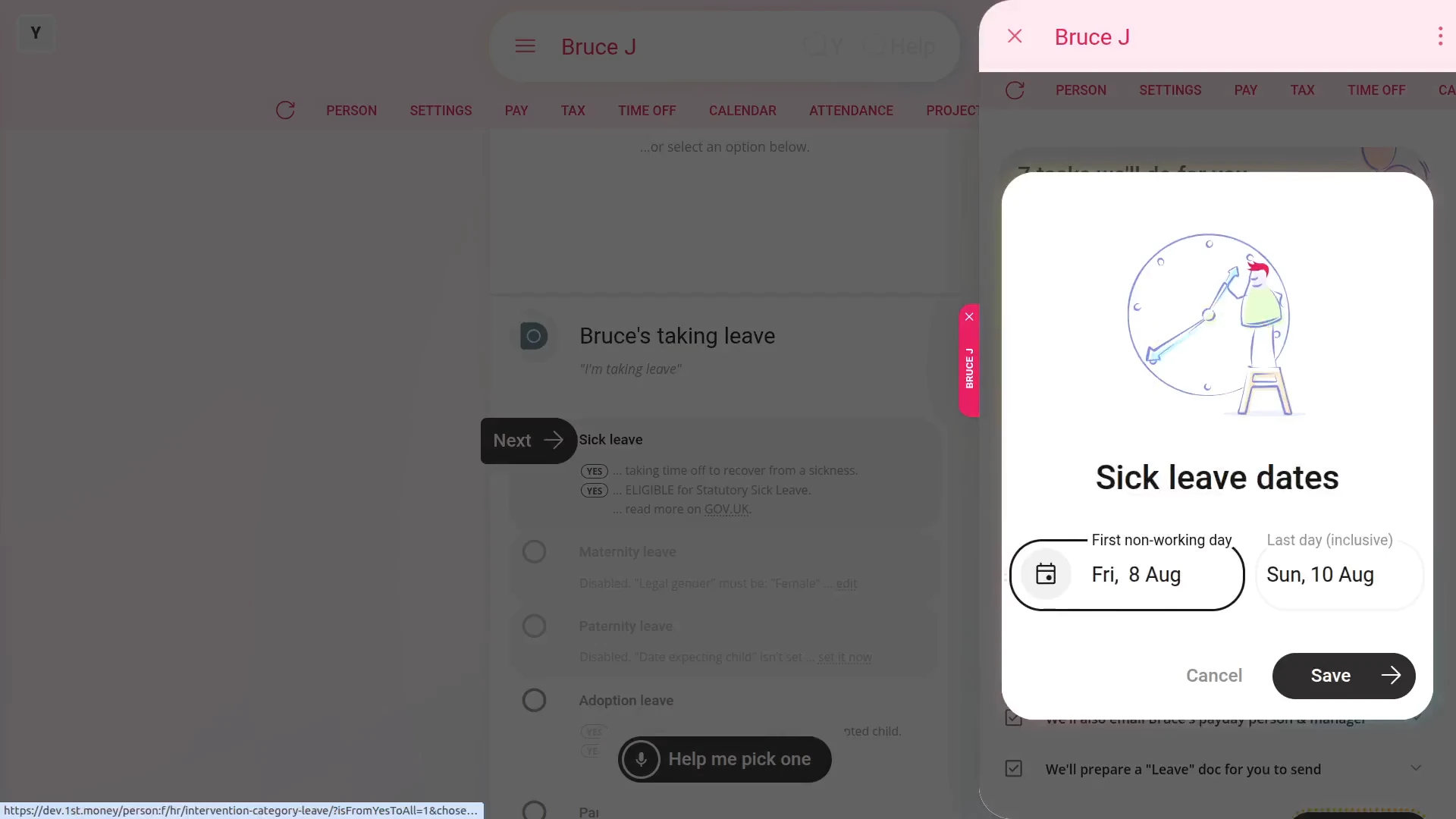
To set up an employee's sick leave:
- First, select the employee on: "Menu", then "People"
- Then tap: "HR", then "Set leave"
- Next, tap: "Sick leave"
- And look through all the reasons that the employee may not be eligible for paid sick leave.
- If none of them apply, then tap the first option to give the employee paid sick leave.
- Once it slides out on the right, tap on both the first day, and last day dates, so the dates match the dates of the sickness.
- Then once everything's set, tap: Save
- By default there'll be a 3 working day non-payable waiting period as allowed by law.
- To change the waiting period, tap the "3-day" link, and tap again to pick the number of days.
- To learn more about the waiting period, read the text in the popup.
- Next, you'll see the number of tasks that 1st Money automatically does for you to help you set up the sick leave.
- To see the details of what each task does, tap expand all: (at the top)
- In particular, pay attention to the amount that'll be deducted.
- And also the amount that'll be added.
- Some of the tasks send an email, or doc. To see a preview of any emails or docs, tap the links.
- Once you're happy with all the tasks, tap Continue, and then: Yes ... do it
- All the tasks are now done in the background.
- Sending the sick leave doc:
Next, the employee can optionally be informed, in writing, about their sick leave. - A sick leave doc is prepared in the foreground, all ready for you to complete and send.
- Read through the sick leave doc.
- If you want to change some text, or type more text in, tap Show editor, and make your changes.
- Then when you're ready to send the sick leave doc, tap Request "Got it", then Yes ... request "Got it", and then: Close
- Receiving the sick leave doc:
The employee now gets an email, asking for confirmation that the sick leave doc you've sent has been received. - The employee can't access the rest of 1st Money until the employee's tapped Got it to the sick leave doc.
- Record of events:
Now, on the "Record of events" tab, tap the sick leave to expand it. - You'll see that the doc's been sent.
- To see a copy of the sent doc, tap the "View" button: (at the end of the row)
- And you'll see the status change, once the employee eventually marks the doc as: "Got it"
- And finally, you'll also see the "Forgone earnings" and "Gained earnings" amounts.
Keep in mind that:
- Employees can self-certify for the first 7 calendar days of sickness. After that, the employee needs to provide a fit note from their doctor.
- The amounts that'll be deducted or added are auto-calculated for all pay rate types.
- Including if the employee's paid salary, or paid hourly.
- Also, org admins can also fully complete the setting up of sick leave. It doesn't have to be only payroll admins.
- But when an org admin completes a sick leave, the payment amounts are all hidden from your org admin.
- However, the employee does still see all the payment amounts in the doc, as expected. Even though the payment amounts are hidden from your org admin.
To change an employee's sick leave dates, or to strike a sick leave from any records:
- First, select the employee on: "Menu", then "People"
- Then tap: "HR", then "Record of events"
- And tap the previously set sick leave to expand it.
- Then tap the three dots: (at the bottom), then tap Strike from the record, and then tap: Yes ... strike it
- You'll now see the sick leave crossed out, and moved to the bottom of the list.
- Next, to create a replacement sick leave, tap: "HR", then "Set leave"
- Then tap "Sick leave", and select the paid or unpaid option from the list.
- Now you can change any of the sick leave dates.
- And finally, once everything's set, tap: Save and continue until the sick leave is fully set up, and the doc with the new dates is sent.
Also remember that:
- The only way to change the dates on a sick leave is to strike the previous sick leave from the record, and create a new one.
- You can strike from the record, and create a new one, repeatedly, as many times as you need to.
- Once sick leave is struck from the record, it's as if it never existed. All payslips from then on completely ignore it.
- However, you still have a full read-only copy of its settings in case you ever need to refer back to it.
- Any payslips that were paid while the sick leave was still "on the record" remain unchanged.
- In other words, striking sick leave from the record has no effect on previously paid payslips.
- Also, the date and name of the person who struck out the sick leave is permanently stored inside the details of the sick leave.
- Additionally, both org admins and payroll admins can strike or restore sick leave from the record.
To set up unpaid sick leave and have an SSP1 form auto-sent to an employee:
- First, select the employee on: "Menu", then "People"
- Then tap: "HR", then "Set leave"
- Next, tap "Sick leave", and look through all the reasons that the employee may not be eligible for paid sick leave.
- If one applies, tap it, then tap: Yes ... continue with UNPAID
- Once it slides out on the right, tap on both the first day, and last day dates, so the dates match the dates of the sickness.
- Then once everything's set, tap: Save
- Next, you'll see the number of tasks that 1st Money automatically does for you.
- To see the details of what each task does, tap expand all: (at the top)
- Next, tap the "see SSP1" link.
- Any time you grant sick leave on an unpaid basis, an SSP1 form must be sent to the employee, as explained on the form.
- The SSP1 is automatically filled in for you, but it's important that you check through it and confirm that its contents are correct.
- You may also want to see the email that's sent to the employee.
- In the email, you'll see that the completed SSP1 is attached.
- Once you're happy with all the tasks, tap Continue, and then: Yes ... do it
- All the tasks are now done in the background, including the emailing of the SSP1.
- Sending the sick leave doc:
Next, the employee can optionally be informed, in writing, about their sick leave. - Because it's unpaid sick leave, the doc includes the calculations for: "Forgone earnings"
- The doc also includes notes about "Unpaid leave", and the SSP1 form.
- Then when you're ready to send the sick leave doc, tap Request "Got it", then Yes ... request "Got it", and then: Close
- Record of events:
Now, on the "Record of events" tab, tap the sick leave to expand it. - You'll see that the doc's been sent.
- You'll also see that the SSP1's been sent.
- Additionally, a copy of the sent SSP1 is also stored in the employee's tax forms history.
- And finally, you'll see that the "Leave type" is set to: "Unpaid"
You may notice:
- If the employee only qualifies for unpaid sick leave, you'll only see calculations for the: "Forgone earnings"
- As there's no "Gained earnings" amount to be added when the sick leave is unpaid.
For advanced usage:
- Your company may have its own process for sending written notice. If so, you can still have the automated execution of tasks, but may prefer to not send the supplied sick leave doc.
- You can either skip the sending of the sick leave doc, when it's shown, or alternatively, you can permanently turn it off.
- To learn about permanently turning off the sick leave doc, watch the video on: Turning off leave & disciplinary action docs
To learn more:
- About what it looks like for the person to mark the doc as "Got it", watch the video on: Letters & docs confirmed with "Got it"
And that's it! That's everything you need to know about setting an employee's sick leave!
3. Paternity leave. How do I set it up for an expecting father?
 10:02
10:02
"Paternity leave. How do I set it up for an expecting father?"
When an expecting father requests paternity leave, it's up to an admin to set up the paternity leave.
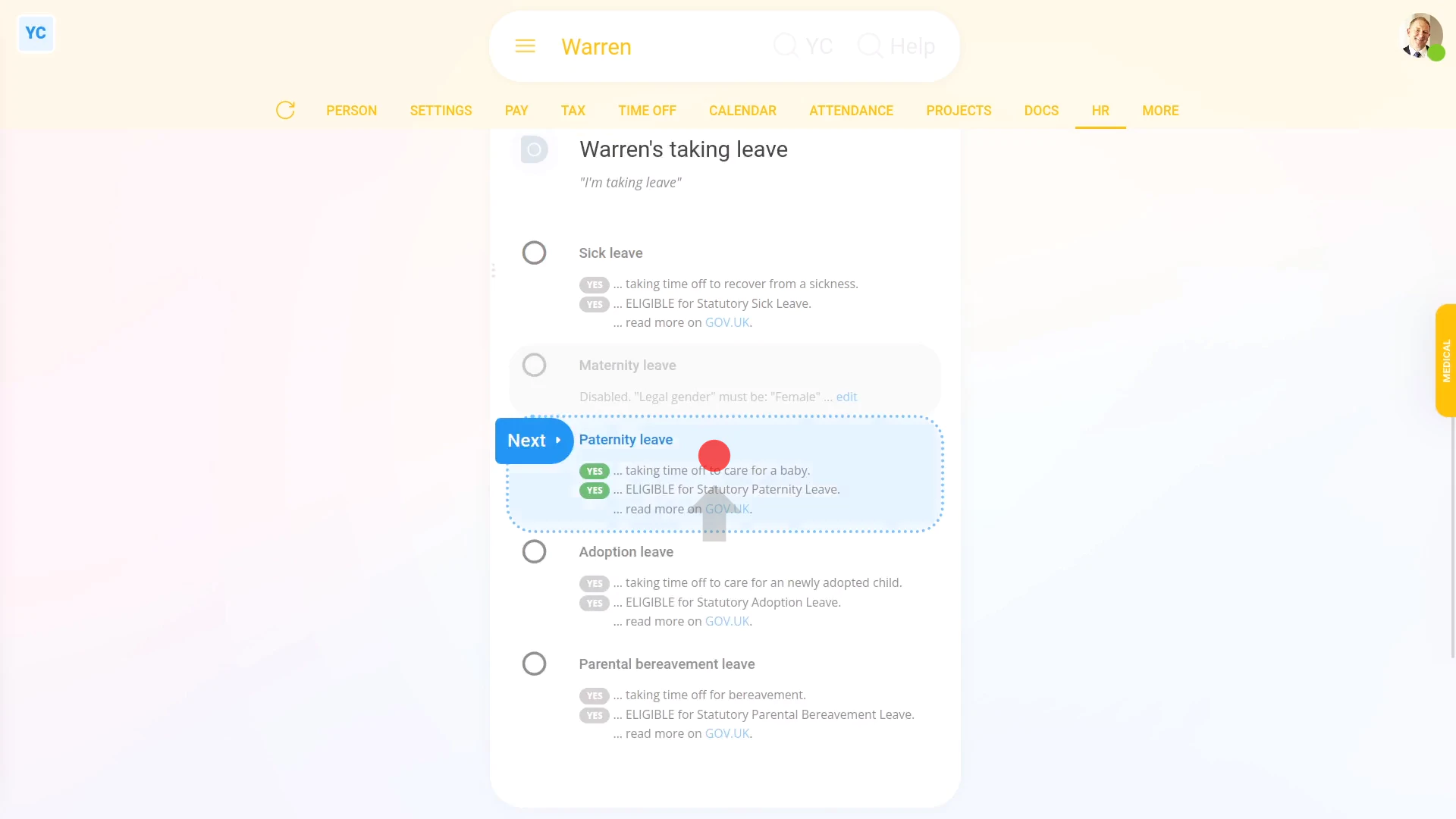
To set up an expecting father's paternity leave:
- First, select the expecting father on: "Menu", then "People"
- Then tap: "HR", then "Set leave"
- In most cases, the "Date expecting child" won't be set yet.
- Tap the "set it now" link and set it.
- Next, now that it's no longer disabled, tap: "Paternity leave"
- And look through all the reasons that the expecting father may not be eligible for paid paternity leave.
- If none of them apply, then tap the first option to give the expecting father paid paternity leave.
- Next, tap the "Start" and set it to match the date requested by the expecting father.
- For the "End" date, expecting fathers have only two options. Select either a one-week paternity leave, or a two-week leave.
- Then once everything's set, tap: "Yes" to all the above
- Setting the paternity leave tasks:
Next, you'll see the number of tasks that 1st Money automatically does for you to help you set up the paternity leave. - To see the details of what each task does, tap expand all: (at the top)
- In particular, pay attention to the amount that'll be deducted.
- And also the amount that'll be added.
- If there's any other updates you'd like to make, do those updates now.
- Some of the tasks send an email, or doc. To see a preview of any emails or docs, tap the links.
- Once you're happy with all the tasks, tap Continue, and then: Yes ... do it
- All the tasks are now done in the background.
- Sending the paternity leave doc:
Next, the expecting father can optionally be informed, in writing, about their paternity leave. - A paternity leave doc is prepared in the foreground, all ready for you to complete and send.
- Read through the paternity leave doc.
- If you want to change some text, or type more text in, tap Show editor, and make your changes.
- Then when you're ready to send the paternity leave doc, tap Request "Got it", then Yes ... request "Got it", and then: Close
- Receiving the paternity leave doc:
The expecting father now gets an email, asking for confirmation that the paternity leave doc you've sent has been received. - The expecting father can't access the rest of 1st Money until the expecting father's tapped Got it to the paternity leave doc.
- Record of events:
Now, on the "Record of events" tab, tap the paternity leave to expand it. - You'll see that the doc's been sent.
- To see a copy of the sent doc, tap the "View" button: (at the end of the row)
- And you'll see the status change, once the expecting father eventually marks the doc as: "Got it"
- And finally, you'll also see the "Forgone earnings" and "Gained earnings" amounts.
Keep in mind that:
- Paternity can only be requested in a single unbroken 7-day block, or a single 14-day block, or two lots of 7-day blocks.
- And all paternity leave must have been fully completed within 56 days after the birth.
- Also, the amounts that'll be deducted or added are auto-calculated for all pay rate types.
- Including if the expecting father's paid salary, or paid hourly.
- Also, org admins can also fully complete the setting up of a paternity leave. It doesn't have to be only payroll admins.
- But when an org admin completes a paternity leave, the payment amounts are all hidden from your org admin.
- However, the expecting father, does still see all the payment amounts in the doc, as expected. Even though the payment amounts are hidden from your org admin.
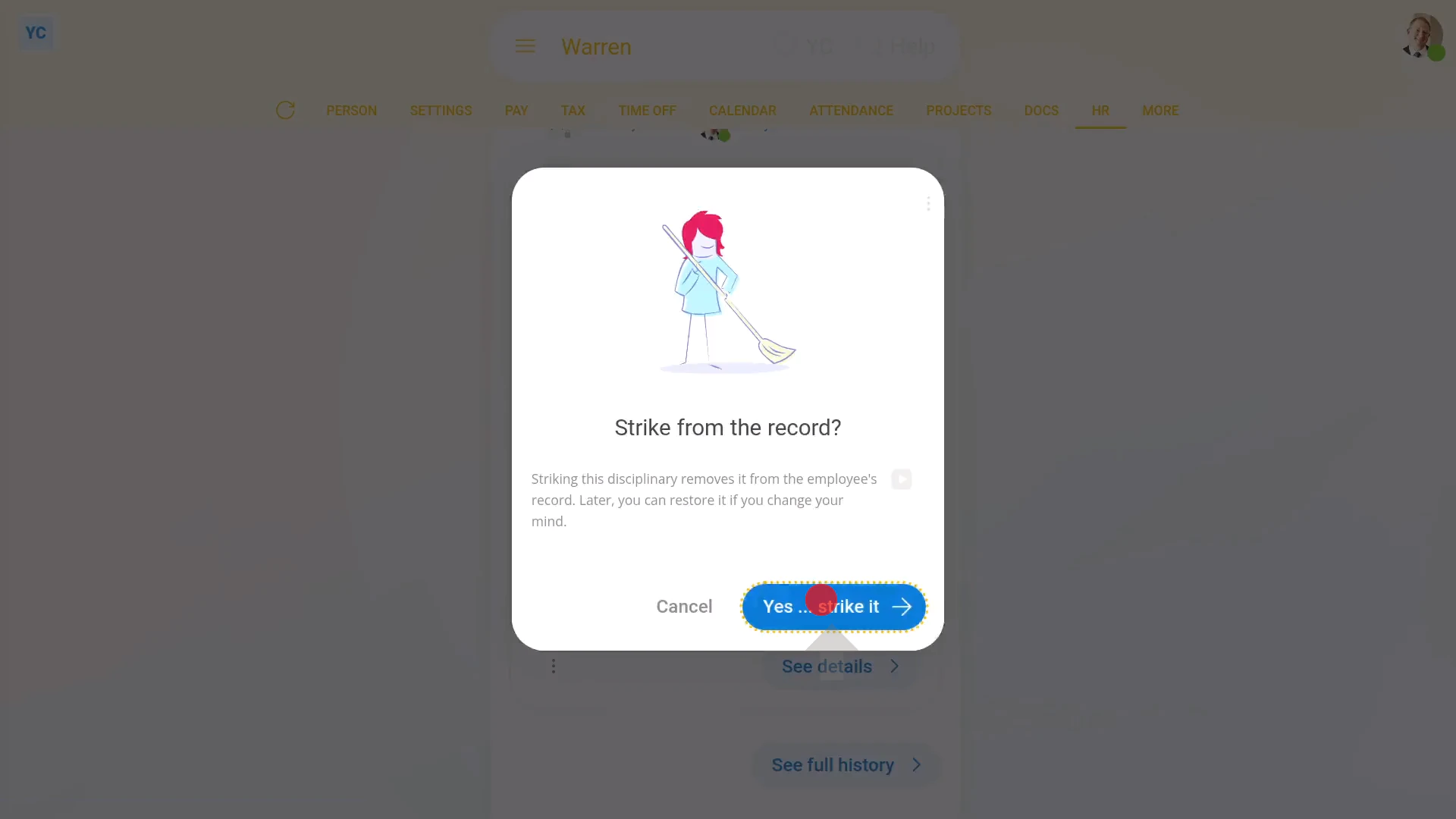
To change an expecting father's dates on a paternity leave, or to strike a paternity leave from any records:
- First, select the expecting father on: "Menu", then "People"
- Then tap: "HR", then "Record of events"
- And tap the previously set paternity leave to expand it.
- Then tap the three dots: (at the bottom), then tap Strike from the record, and then tap: Yes ... strike it
- You'll now see the paternity leave crossed out, and moved to the bottom of the list.
- Next, tap: "HR", then "Set leave"
- Then tap "Paternity leave", and select the paid or unpaid option from the list.
- Now you can change any of the paternity leave dates.
- And finally, once everything's set, tap "Yes" to all the above and continue until the paternity leave is fully set up, and the doc with the new dates is sent.
Also remember that:
- The only way to change the dates on a paternity leave is to strike the previous paternity leave from the record, and create a new one.
- You can strike from the record, and create a new one, repeatedly, as many times as you need to.
- Once a paternity leave is struck from the record, it's as if it never existed. All payslips from then on completely ignore it.
- However, you still have a full read-only copy of its settings in case you ever need to refer back to it.
- Any payslips that were paid while the paternity leave was still "on the record" remain unchanged.
- Striking a paternity leave from the record has no effect on previously paid payslips.
- Also, the date and name of the person who struck out the paternity leave is permanently stored inside the details of the paternity leave.
- Additionally, both org admins and payroll admins can strike or restore paternity leave from the record.
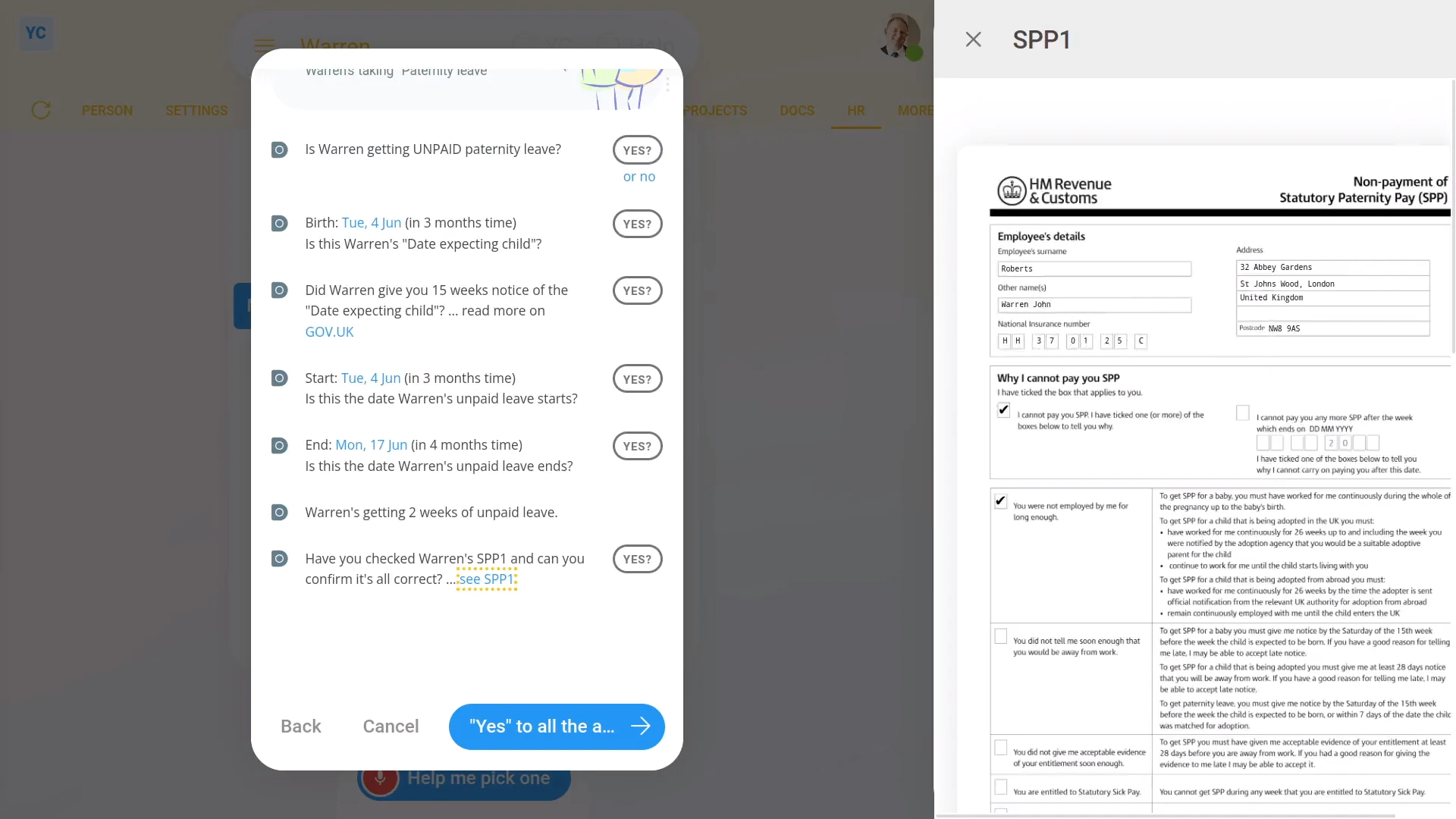
To set up unpaid paternity leave and have an SPP1 form auto-sent to an expecting father:
- First, select the expecting father on: "Menu", then "People"
- Then tap: "HR", then "Set leave"
- Next, tap "Paternity leave", and look through all the reasons that the expecting father may not be eligible for paid paternity leave.
- If one applies, tap it, then tap: Yes ... continue with UNPAID
- Next, check the dates, and tap the "see SPP1" link.
- Any time you grant paternity leave on an unpaid basis, an SPP1 form must be sent to the expecting father.
- The SPP1 is automatically filled in for you, but it's important that you check through it and confirm that its contents are correct.
- Then once everything's set, tap: "Yes" to all the above
- Setting the paternity leave tasks:
Next, you'll see the number of tasks that 1st Money automatically does for you. - To see the details of what each task does, tap expand all: (at the top)
- In particular, you may want to see the email that's sent to the expecting father.
- In the email, you'll see that the completed SPP1 is attached.
- Once you're happy with all the tasks, tap Continue, and then: Yes ... do it
- All the tasks are now done in the background, including the emailing of the SPP1.
- Sending the paternity leave doc:
Next, the expecting father can optionally be informed, in writing, about their paternity leave. - Because it's unpaid paternity leave, the doc includes the calculations for: "Forgone earnings"
- The doc also includes notes about "Unpaid leave", and the SPP1 form.
- Then when you're ready to send the paternity leave doc, tap Request "Got it", then Yes ... request "Got it", and then: Close
- Record of events:
Now, on the "Record of events" tab, tap the paternity leave to expand it. - You'll see that the doc's been sent.
- You'll also see that the SPP1's been sent. Additionally, a copy of the sent SPP1 is stored in the expecting father's tax forms history.
- And finally, you'll see that the "Leave type" is set to: "Unpaid"
You may notice:
- If the expecting father only qualifies for unpaid paternity leave, you'll only see calculations for the: "Forgone earnings"
- As there's no "Gained earnings" amount to be added when the paternity leave is unpaid.
For advanced usage:
- Your company may have its own process for sending written notice. If so, you can still have the automated execution of tasks, but may prefer to not send the supplied paternity leave doc.
- You can either skip the sending of the paternity leave doc, when it's shown, or alternatively, you can permanently turn it off.
- To learn about permanently turning off the paternity leave doc, watch the video on: Turning off leave & disciplinary action docs
To learn more:
- About what it looks like for the person to mark the doc as "Got it", watch the video on: Letters & docs confirmed with "Got it"
And that's it! That's everything you need to know about setting an expecting father's paternity leave!
www.1st.money/uk/help/Leave/