Projects
 2:50
2:50Why would I want to make use of projects?
Projects enable detailed time tracking and attendance reports by assigning and switching tasks.
 2:17
2:17How do I create a project?
Instructions on creating projects and adding notes for timesheet tracking in an organization.
 3:39
3:39How do I add workers to a project?
Add workers to projects to let them clock timesheets and view project notes and members.
 2:49
2:49How do I add owners to a project?
Instructions on adding project owners and their permissions within a project.
 2:32
2:32How do I add observers to a project?
Add observers to view project attendance reports without granting full admin access.
1. Why would I want to make use of projects?

 2:50
2:50
"Why would I want to make use of projects?"
Projects give you better tracking of people's clocked-in timesheet time, and gets you more "Attendance" reports.
To see "Attendance" reports on how people spend their clocked-in timesheet time:
- First, to create a project, tap: "Menu", "Projects", then "New project"
- Next, to add some people to the project, scroll down and tap: Add worker
- Then have the people tap: "Work-time menu", then "Start"
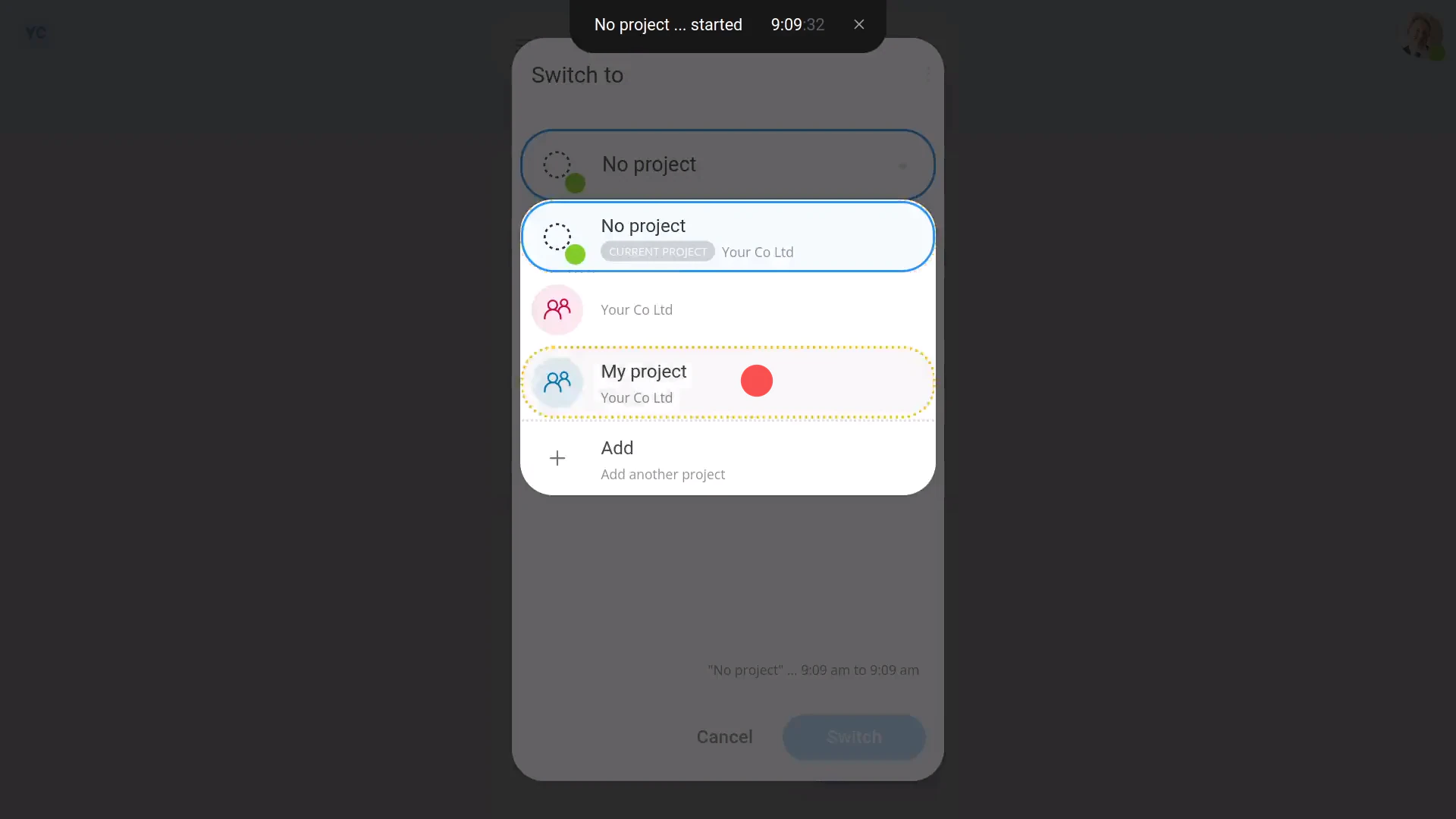
- And then have them switch to the project you created, using: "Work-time menu", then "Switch projects"
- And finally, from now on, each time the people start their clocked-in timesheet time, by default, the button remembers the person's last selected project.
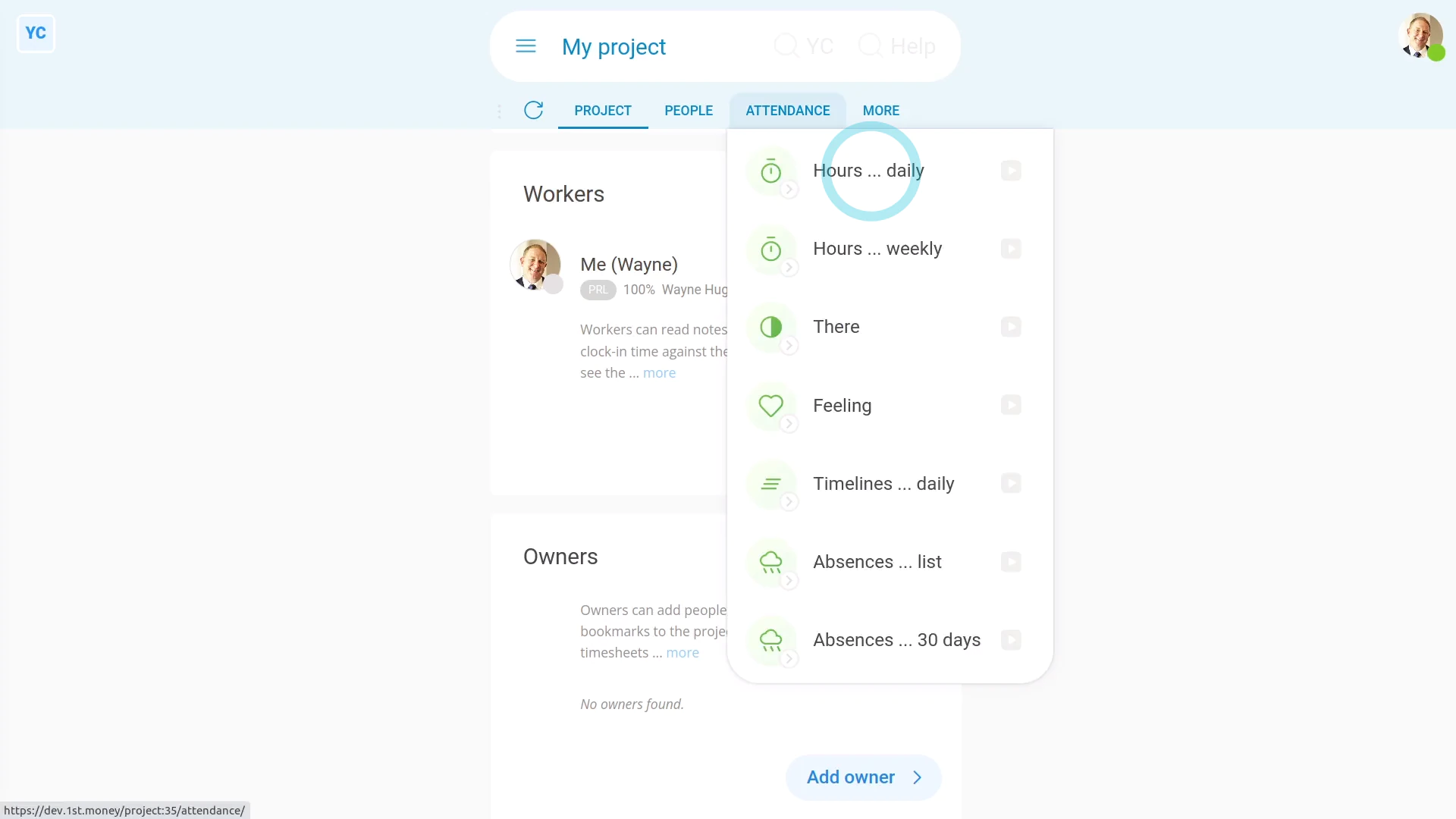
To see a project's "Attendance" reports:
- First, while you're inside the project, tap: Attendance (at the top)
- You'll see "Attendance" reports like the "Hours daily" report.
- And you'll see many others.
- And finally, The "Attendance" reports can be seen by people who've got "Full org admin" permissions, plus by project owners, and project observers.

Keep in mind that:
- You can create as many projects as you want.
- And your people can switch projects as many times as needed, throughout their working day.
- Each time your people switch projects, their clocked-in timesheet time is accurately stored in the project that's been switched to.
You may notice:
- By default, a person who's a worker can't see the project's "Attendance" reports.
- If you need them to see the project's "Attendance" reports, add them as an observer on the project. Observers can see the hours worked by everyone else on the project.
- Even without the observer setting, however, every person can still see their own "Attendance" reports.
For advanced usage:
- You could make a project for each of your clients, and then track everyone's time spent on each specific client.
- You could then use the "Hours daily" report (in grid mode), to count the billable hours for each client.
If a feature's not showing:
- If "Projects" isn't showing in the menu, it means your org hasn't turned on the timesheets feature yet.
- To turn on the timesheets feature, watch the video on: Turning on timesheets
 Turning on timesheets
And that's it! That's everything you need to know about using projects!
2. How do I create a project?
 2:17
2:17
"How do I create a project?"
Before people can clock-in timesheet time for individual projects, first the project needs to be created.
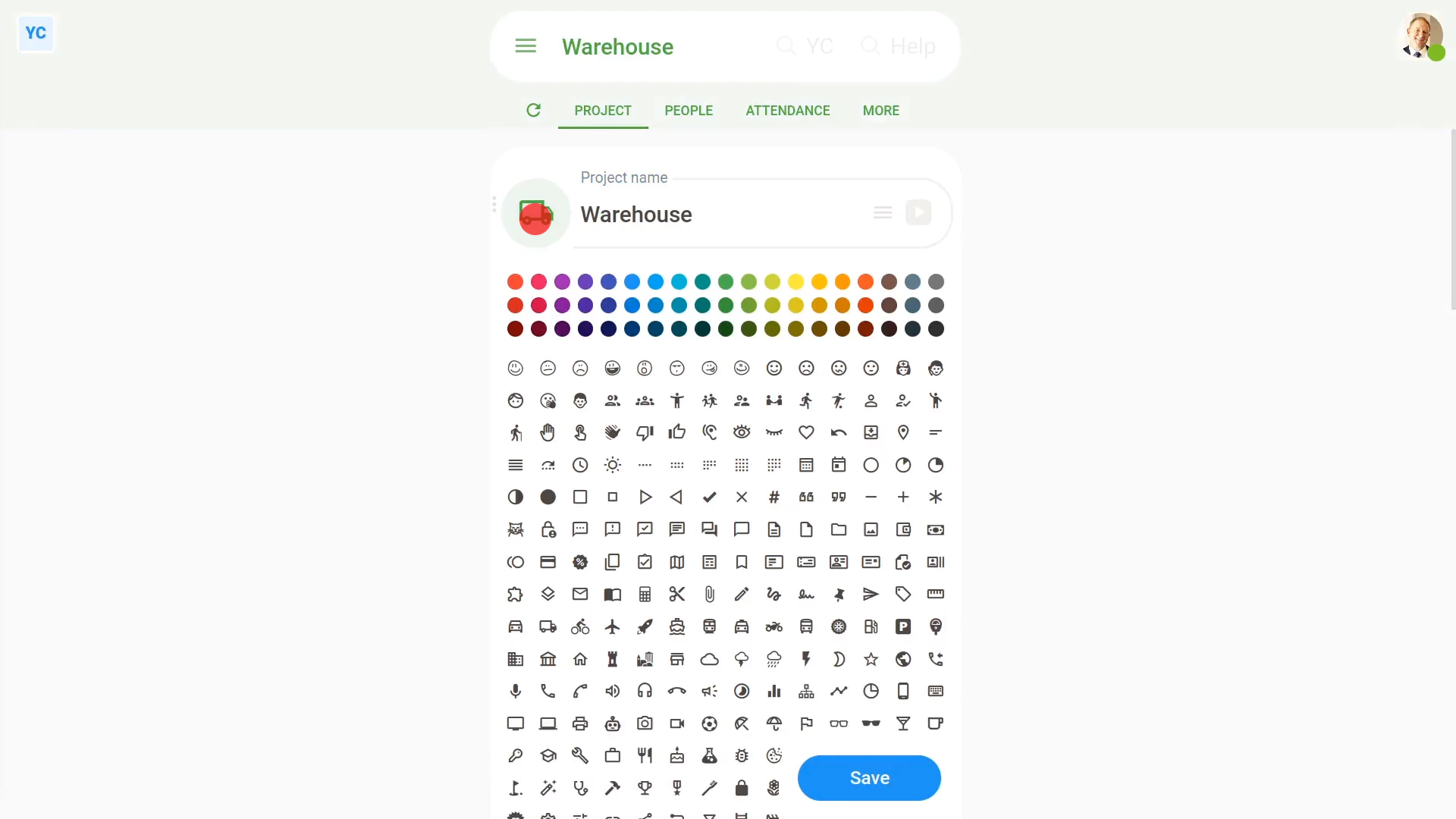
To create a new project:
- First, tap: "Menu", "Projects", then "New project"
- Once it's open, type in the name of your new project.
- Optionally, you can also tap the circle and set the list colour and image.
- And finally, tap: Save
Sometimes you may also want to add notes to your project, like instructions on how to do tasks, etc.
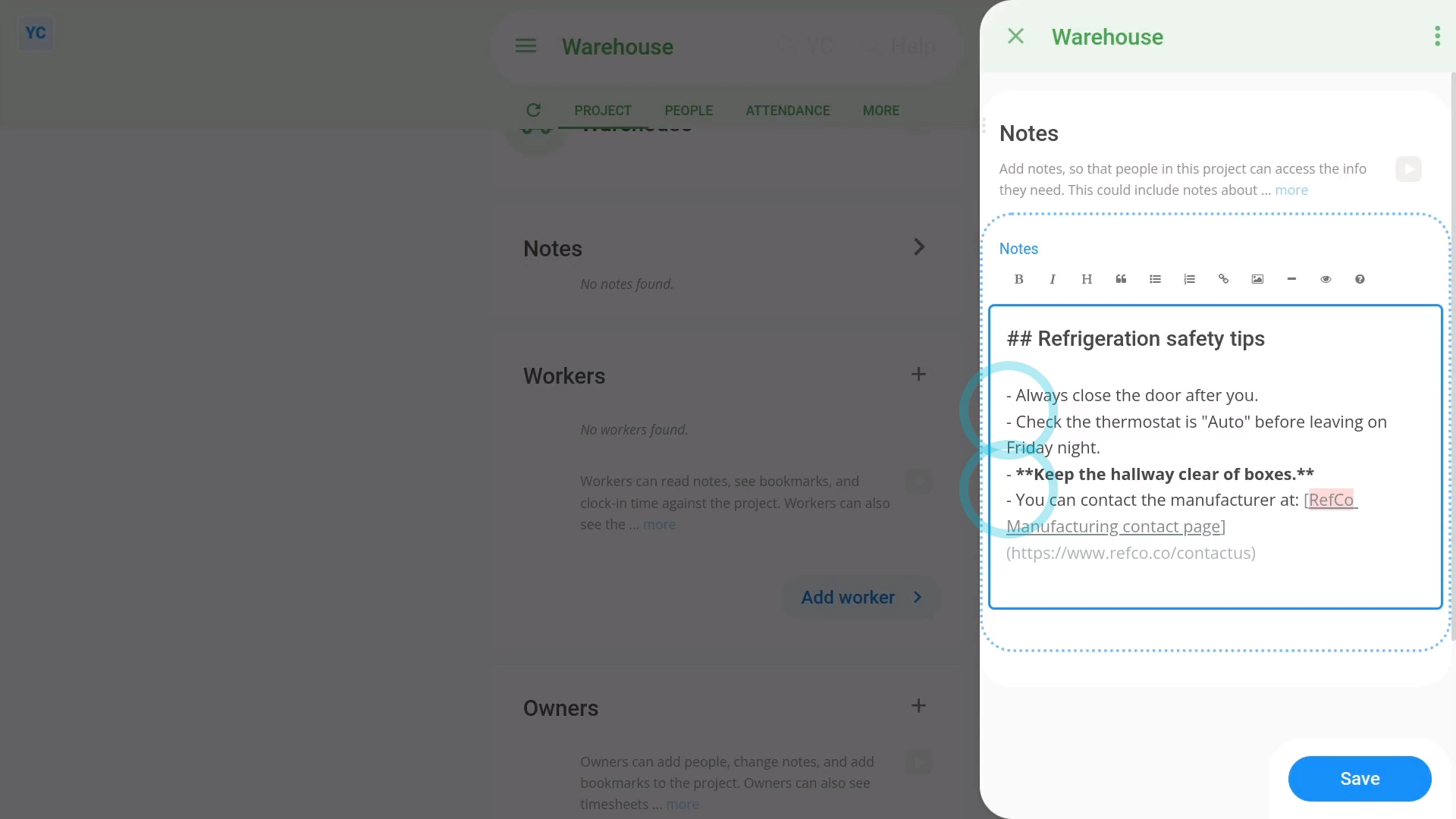
To add notes to a project:
- First, scroll down to the "Notes" heading, and tap the "Edit" button:
- Once it slides out on the right, type out the notes you'd like to share with the project's people.
- You can format your notes using Markdown, including: bold text, and bullet lists.
- To learn more about formatting with Markdown, tap the question mark button:
- Once you've finished typing your notes, tap: Save
- And finally, once it's saved, you'll now see your notes shown on the main page for your new project.
Keep in mind that:
- Anyone who's been added to a project can see all the notes of that project.
- However, only people who've got "Full org admin" permissions can create, make changes, or add people to a project.
- You can type in as many notes as you want, and you can keep coming back anytime, to add more notes.
- Even pages of notes is fine.
If a feature's not showing:
- If "Projects" isn't showing in the menu, it means your org hasn't turned on the timesheets feature yet.
- To turn on the timesheets feature, watch the video on: Turning on timesheets
To learn more:
- About how to add workers to a project, so the workers can clock-in timesheet time, watch the video on: Workers in projects
And that's it! That's everything you need to know about creating a project!
3. How do I add workers to a project?
 3:39
3:39
"How do I add workers to a project?"
Adding a person as a worker in a project allows them to clock-in timesheet time for the project.
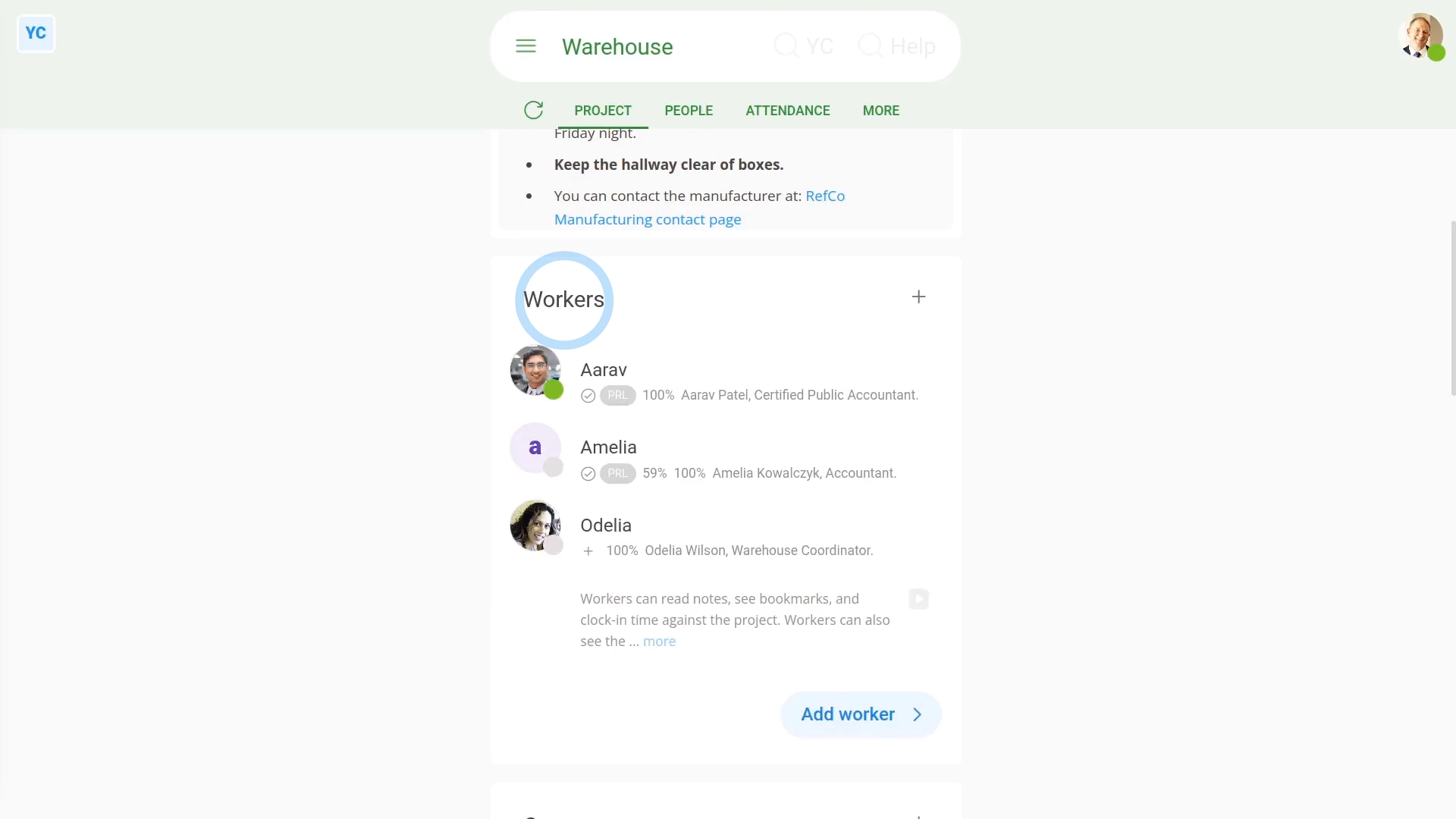
To add workers to a project:
- First, select the project on: "Menu", then "Projects"
- Once it's open, scroll down and tap: Add worker
- Once it slides out on the right, tap each person you want to add as a worker.
- You can add as many workers as you'd like.
- Then tap: Save
- And finally, you'll now see the people added to the project, in the "Workers" list.
Keep in mind that:
- Only people who've got "Full org admin" permissions and project owners can add workers to projects.
- Once you've added people as workers, you can then track their clocked-in timesheet time in the project's "Attendance" reports.
Now, switching person. You're now logged in as a worker.
To understand what a worker can see once a worker's been added to a project:
- Workers can only see, in the list, the project's the workers have been added to, and none others.
- Workers can't make any changes to projects, and can't add new projects.
- Workers can't see any of the project's "Attendance" reports. If you need workers to see the project's "Attendance" reports, add them as an "Observer" as well.
- However, workers can see the project's notes, the names of the project's other workers, owners and observers, and also the project's bookmarks.
So, in summary, a worker can only do a few things in a project:
- A worker can clock-in timesheet time for the project.
- And a worker can see the notes and other people in the project.
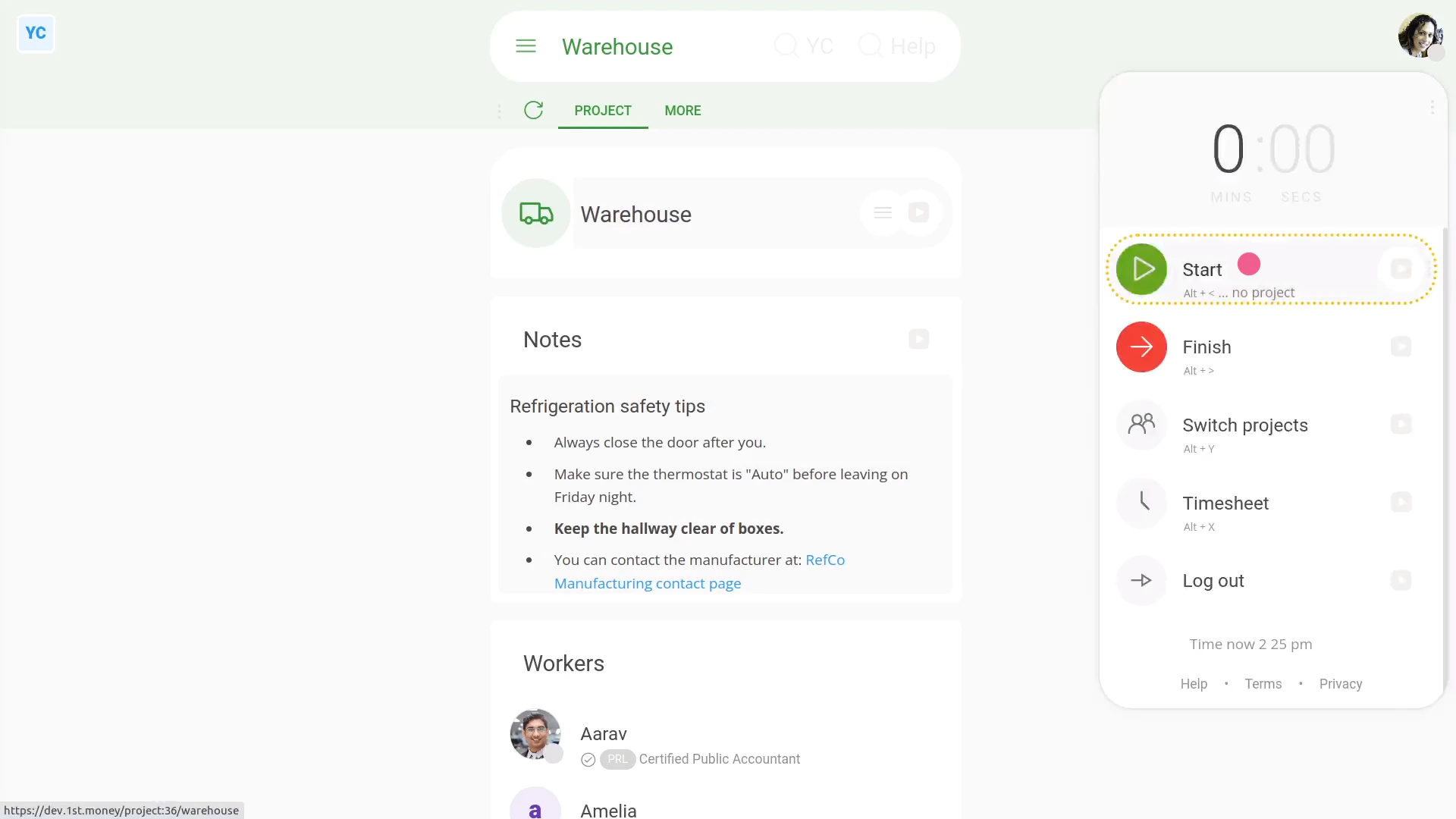
To clock-in timesheet time for a project, as a worker:
- First, tap: "Work-time menu", then "Start"
- Then tap: "Work-time menu", then "Switch projects"
- And then select the project to clock-in timesheet time for.
- Then tap: Switch
- Your clocked-in timesheet time in the project has now started.
- And finally, you'll see the confirmation (at the top) showing the name of the project you've started.
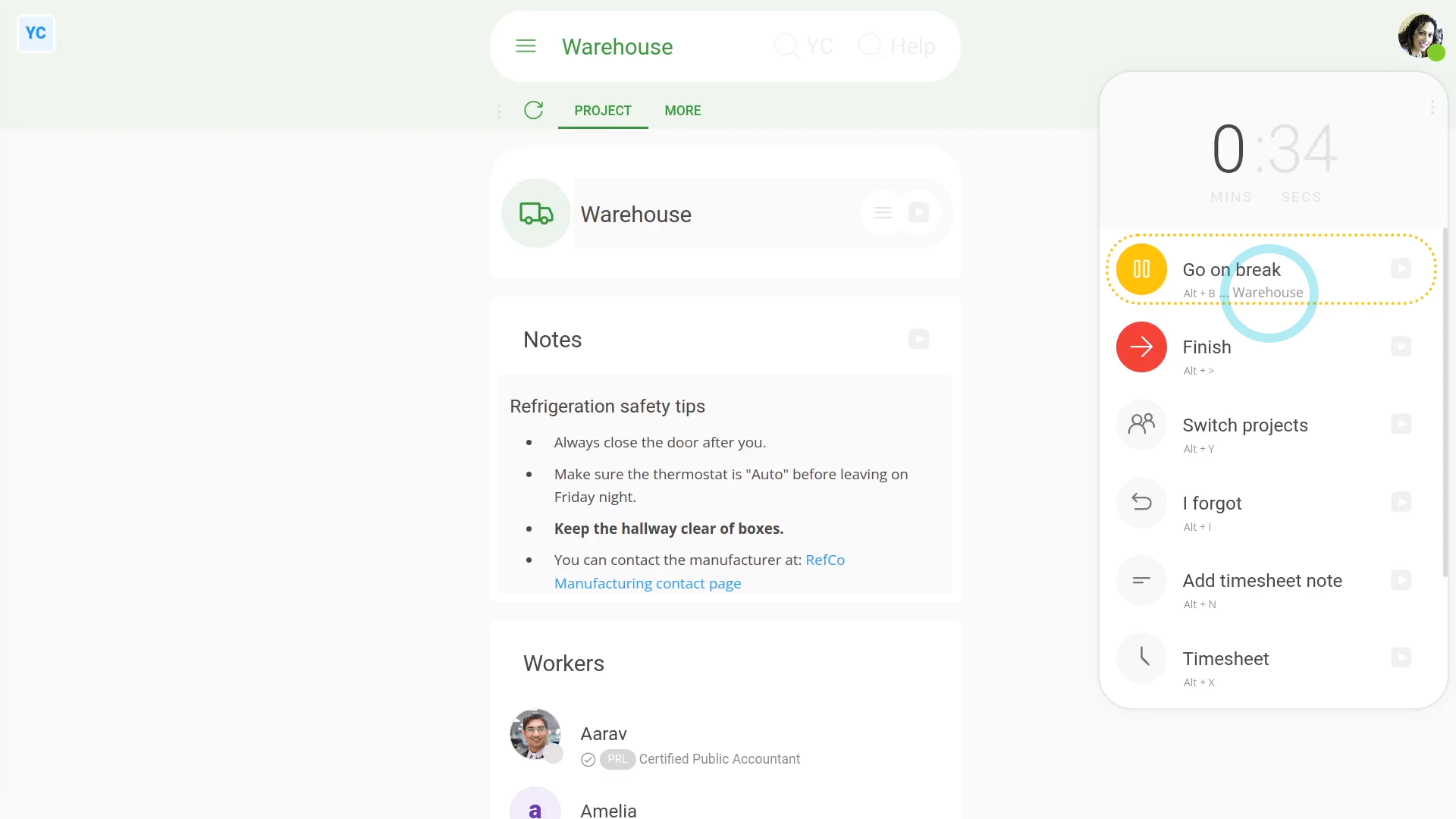
To see a reminder of which project you've started (in case you forget):
- First, tap: "Work-time menu" (top-right)
- And finally, by the yellow circle, you'll see the name of the project you've currently started.
You may notice:
- Each time you start your clocked-in timesheet time, by default, the button remembers your last selected project.
- Feel free to tap Switch projects anytime, to switch to another project.
Also remember that:
- If you don't want your time stored in any project, you can even switch to a project called: "No project"
- Choosing "No project" still equally counts as timesheet time. But the time won't show up in any of the project's "Attendance" reports.
If a feature's not showing:
- If "Projects" isn't showing in the menu, it means your org hasn't turned on the timesheets feature yet.
- To turn on the timesheets feature, watch the video on: Turning on timesheets
And that's it! That's everything you need to know about adding workers to a project!
4. How do I add owners to a project?
 2:49
2:49
"How do I add owners to a project?"
Adding a person as a project owner allows them to add notes and other people to a single project.
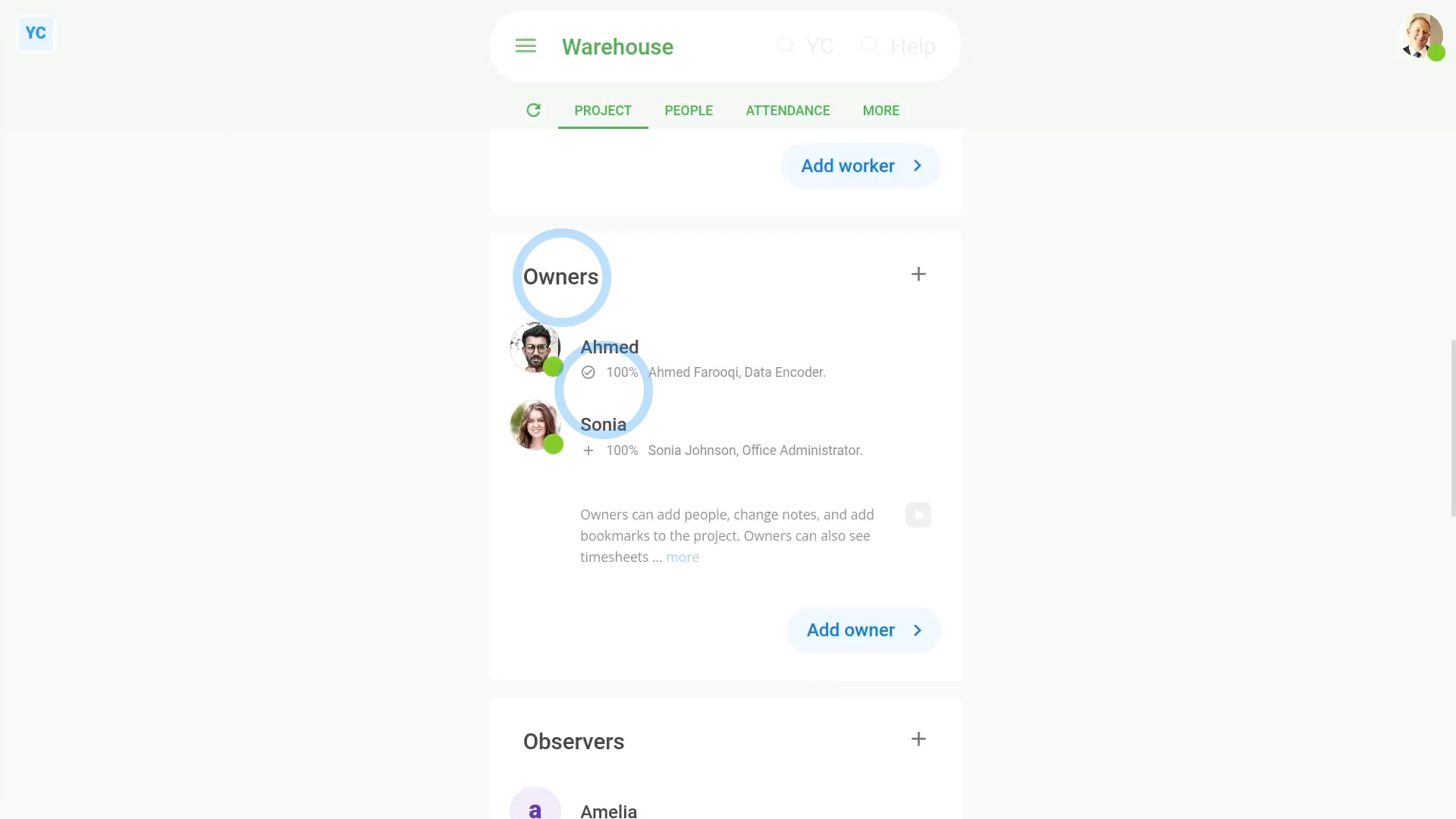
To add owners to a project:
- First, select the project on: "Menu", then "Projects"
- Once it's open, scroll down and tap: Add owner
- Once it slides out on the right, tap each person you want to add as an owner.
- You can add as many owners as you'd like to any project.
- Then tap: Save
- And finally, you'll now see them all added to the project, in the "Owners" list.
Keep in mind that:
- Only owners and people who've got "Full org admin" permissions can add more owners to projects.
- Anyone can be an owner. Owners don't have to already be an org admin.
- In fact, if a person's already an org admin, there's no advantage to adding them as an owner. People who've got "Full org admin" permissions can already do everything a project owner can do.
Now, switching person. You're now logged in as an owner.
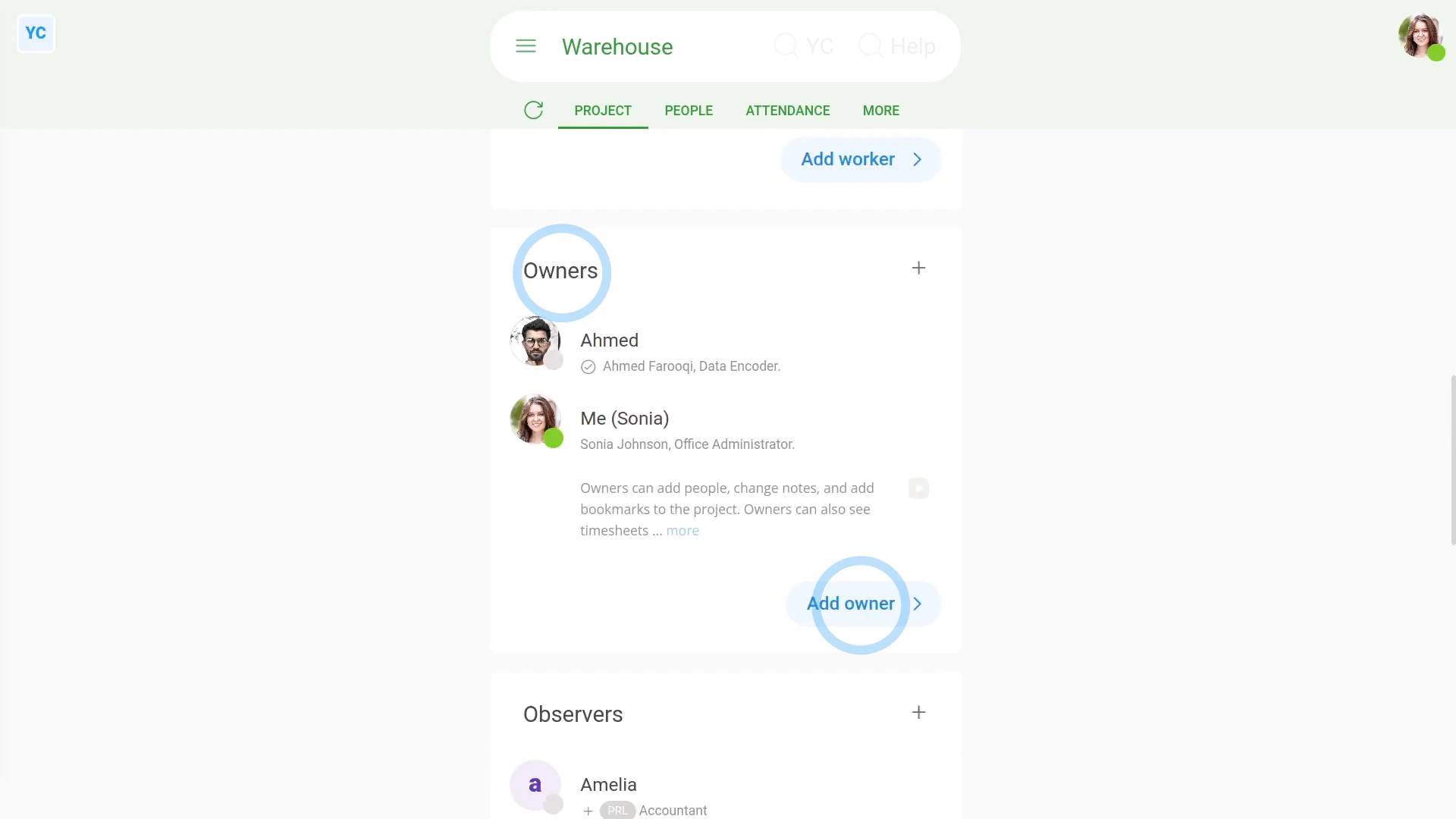
To understand what owners can see and do:
- Owners can see all of their project's "Attendance" reports.
- Owners can update the project's notes.
- Owners can add workers, observers, and even other owners to the project.
- In summary, owners can do everything an org admin can do in a project, but owners are limited to only updating their listed owner projects.
To understand what owners can't do:
- Owners still don't get access to anything else in your whole org.
- Owners can't change things like people's job titles or other employment info. Only org admins can do such changes.
- Owners can't see people's pay info. Only payroll admins can see pay info.
- Owners can't clock-in timesheet time for the project. If you need clocked-in timesheet time, add them as a worker as well.
- Owners can't add new projects, change the name of the project, or delete the project. Only org admins can do such changes.
- Owners can see everything about the project's the owner's been added to, but can't see any other projects.
If a feature's not showing:
- If "Projects" isn't showing in the menu, it means your org hasn't turned on the timesheets feature yet.
- To turn on the timesheets feature, watch the video on: Turning on timesheets
And that's it! That's everything you need to know about adding owners to a project!
5. How do I add observers to a project?
 2:32
2:32
"How do I add observers to a project?"
Adding a person as a project observer allows them to see all the "Attendance" reports on a single project.
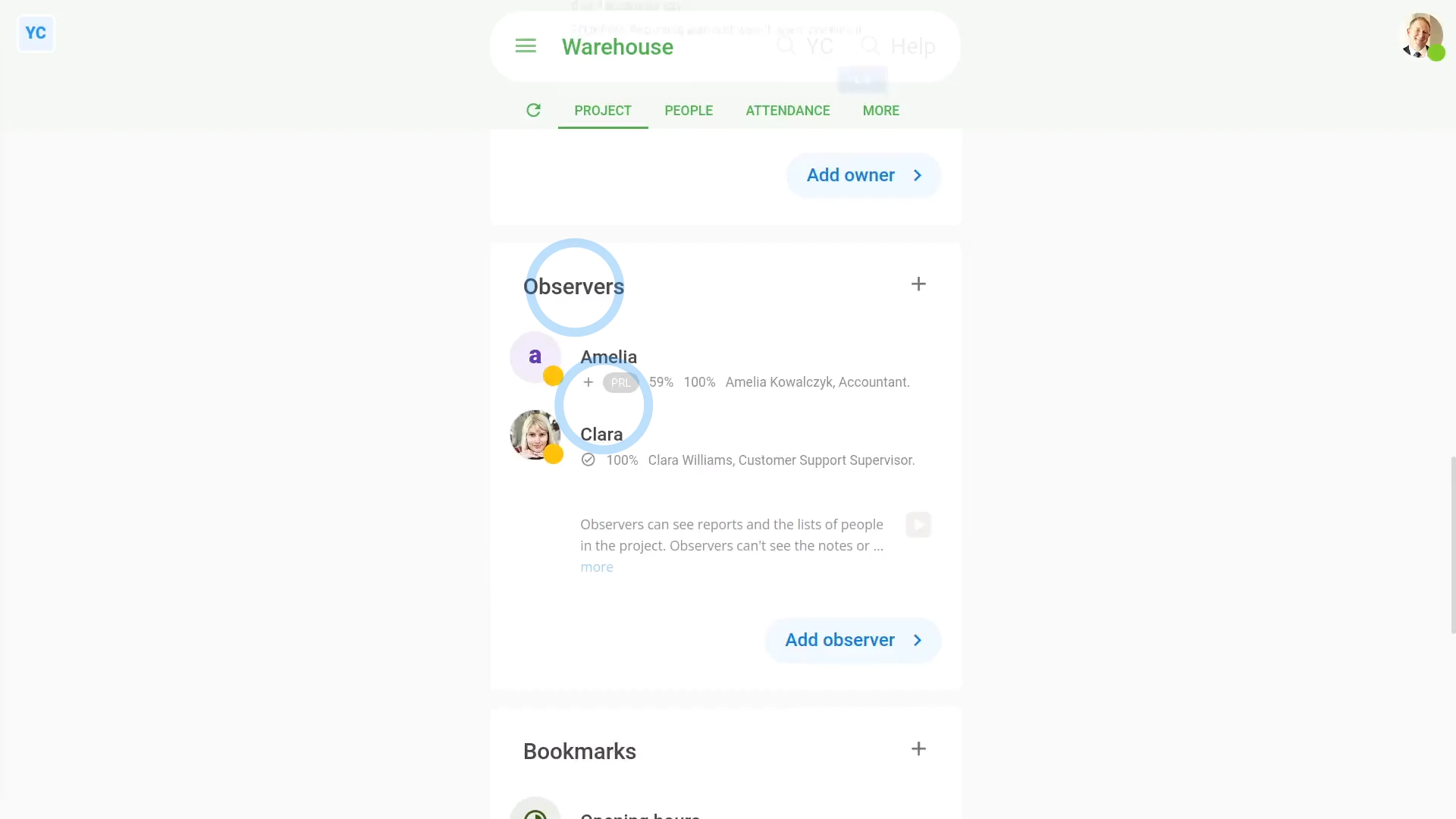
To add observers to a project:
- First, select the project on: "Menu", then "Projects"
- Once it's open, scroll down and tap: Add observer
- Once it slides out on the right, tap each person you want to add as an observer.
- You can add as many observers as you'd like to any project.
- Then tap: Save
- And finally, you'll now see them all added to the project, in the "Observers" list.
Keep in mind that:
- Only owners and people who've got "Full org admin" permissions can add observers to projects.
- Anyone can be an observer. Observers don't have to already be an org admin.
- The main reason to add a person as a project observer is to allow an outsider to see "Attendance" reports on a single project. Rest assured, observers can't see anything else in your org.
Now, switching person. You're now logged in as an observer.
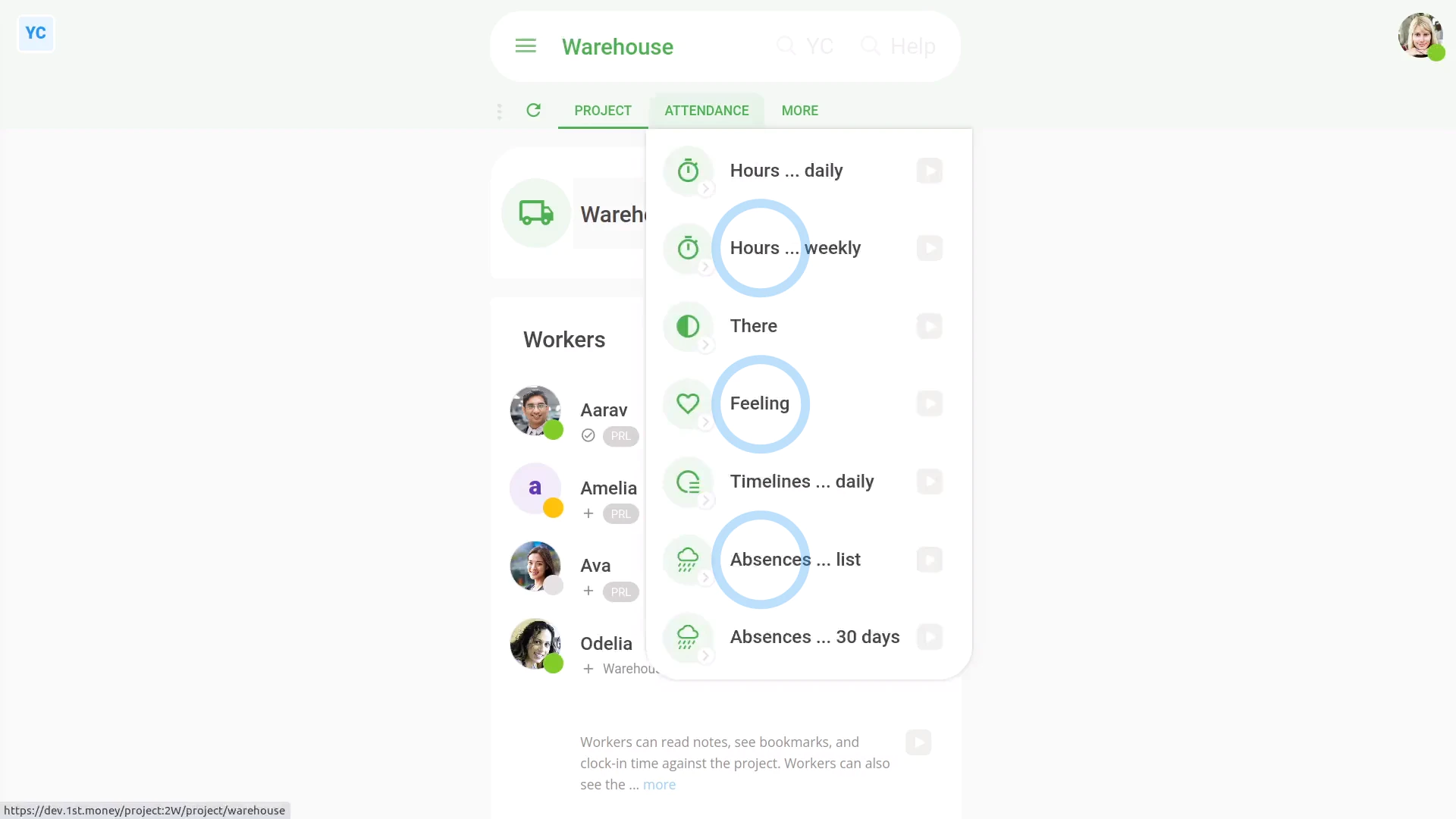
To understand what observers can see and do:
- Observers can see all of the project's "Attendance" reports.
- Observers can see the project's workers, owners, and observers.
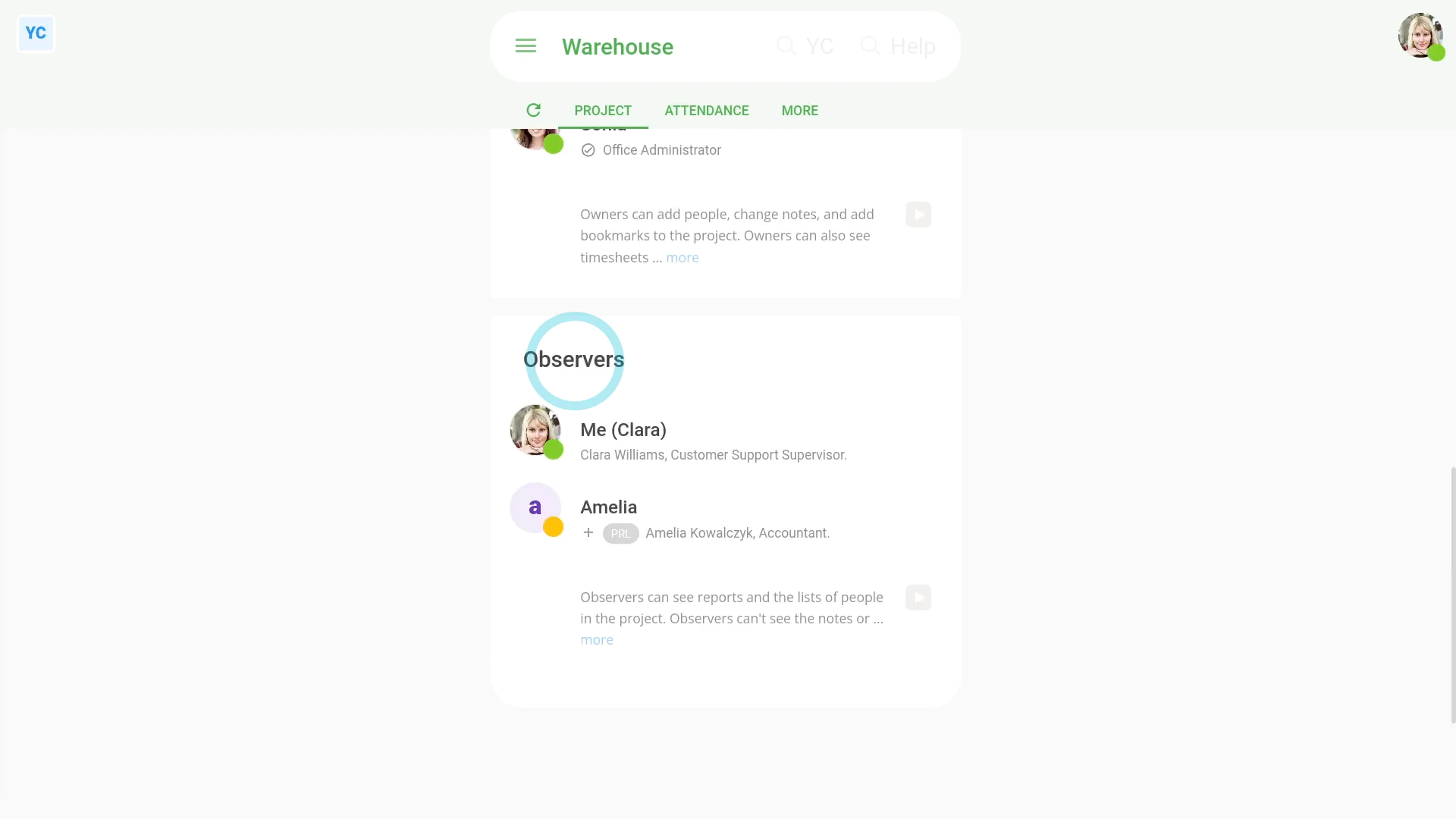
To understand what observers can't do:
- Observers still don't get access to anything else in your whole org.
- Observers can't see the project's notes.
- Observers can't change things like people's job titles or other employment info. Only org admins can do such changes.
- Observers can't see people's pay info. Only payroll admins can see pay info.
- Observers can't clock-in timesheet time for the project. If you need clocked-in timesheet time, add them as a worker as well.
- Observers can't add new projects, change the name of the project, or delete the project. Only org admins can do such changes.
If a feature's not showing:
- If "Projects" isn't showing in the menu, it means your org hasn't turned on the timesheets feature yet.
- To turn on the timesheets feature, watch the video on: Turning on timesheets
And that's it! That's everything you need to know about adding observers to a project!
How do I delete or un-delete a project?
 2:11
2:11
"How do I delete or un-delete a project?"
If you no longer need a project, you're welcome to delete it whenever you like.
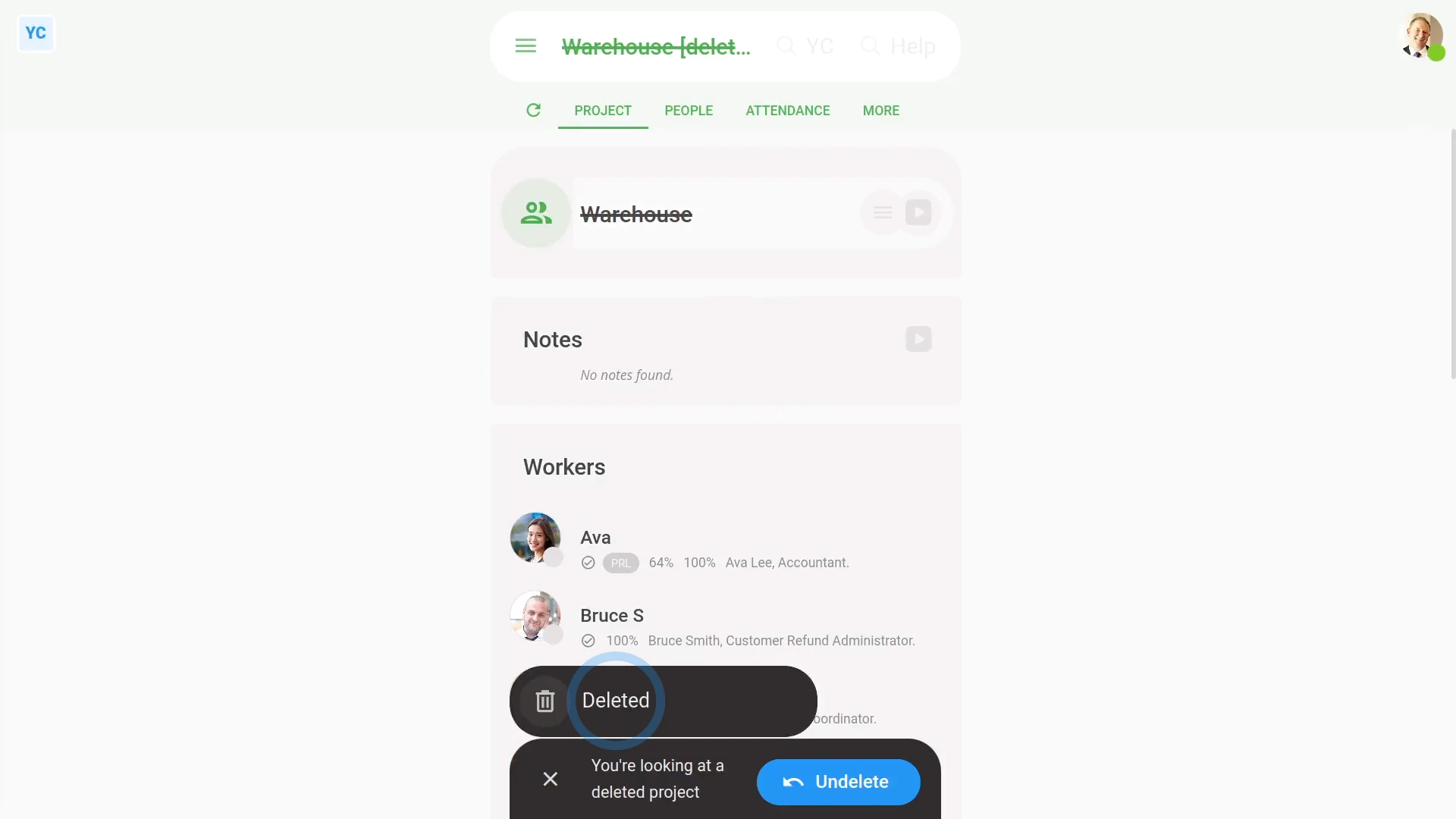
To delete a project:
- First, select the project to delete on: "Menu", then "Projects"
- Then once the projects open, tap More, then: Delete
- And then tap: Yes ... delete
- The project's now deleted and locked, so every part of it can't be changed anymore.
- And finally, if you change your mind and want the project back again, tap Un-delete, and it's immediately restored.
If it's been a while since you deleted a project, you'll first need to find it in the "deleted bin", before you can un-delete it.
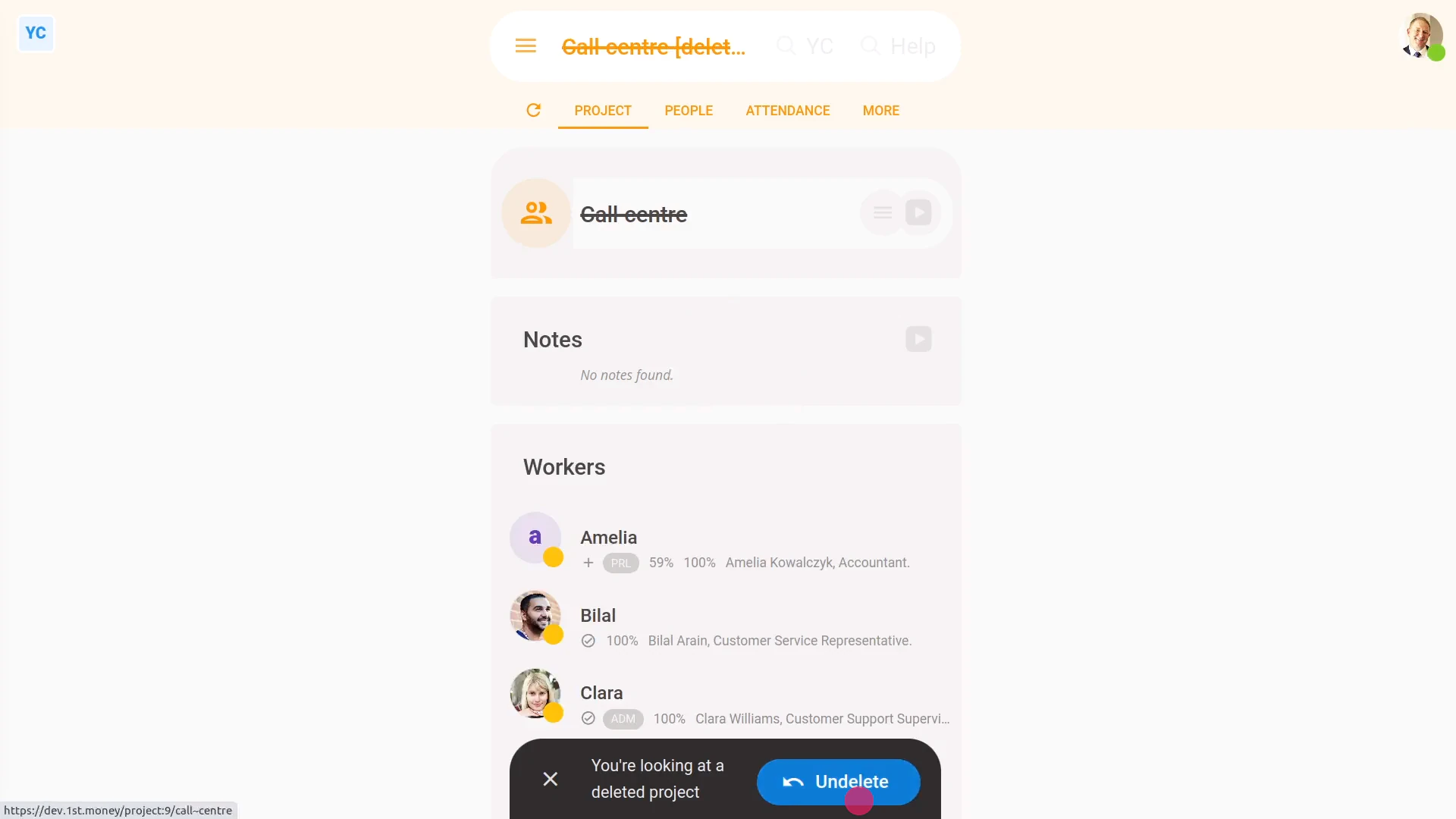
To un-delete a project from your "deleted bin":
- First, tap: "Menu", then "Deleted bin"
- You'll see a category for most of the kinds of items that can be deleted. Tap: Projects
- And then tap the project you'd like to un-delete.
- And finally, tap Un-delete, and the project is immediately restored.
Keep in mind that:
- Deleting a project immediately takes it off the list of any available projects when workers clock-in timesheet time.
- Whenever you un-delete a project, all the names of workers, owners, and observers are always perfectly restored, back to how it was before being deleted.
- Also keep in mind that only people who've got "Full org admin" permissions can delete or un-delete projects.
- And remember that all deletes and un-deletes are always permanently recorded in: "History"
- That means any admin can always look back in time and see who did any delete, and when it was done.
If a feature's not showing:
- If "Projects" isn't showing in the menu, it means your org hasn't turned on the timesheets feature yet.
- To turn on the timesheets feature, watch the video on: Turning on timesheets
And that's it! That's everything you need to know about deleting or un-deleting a project!
What's the project summary for?
 1:57
1:57
"What's the project summary for?"
A useful place to see the people on the project is on the project's summary.
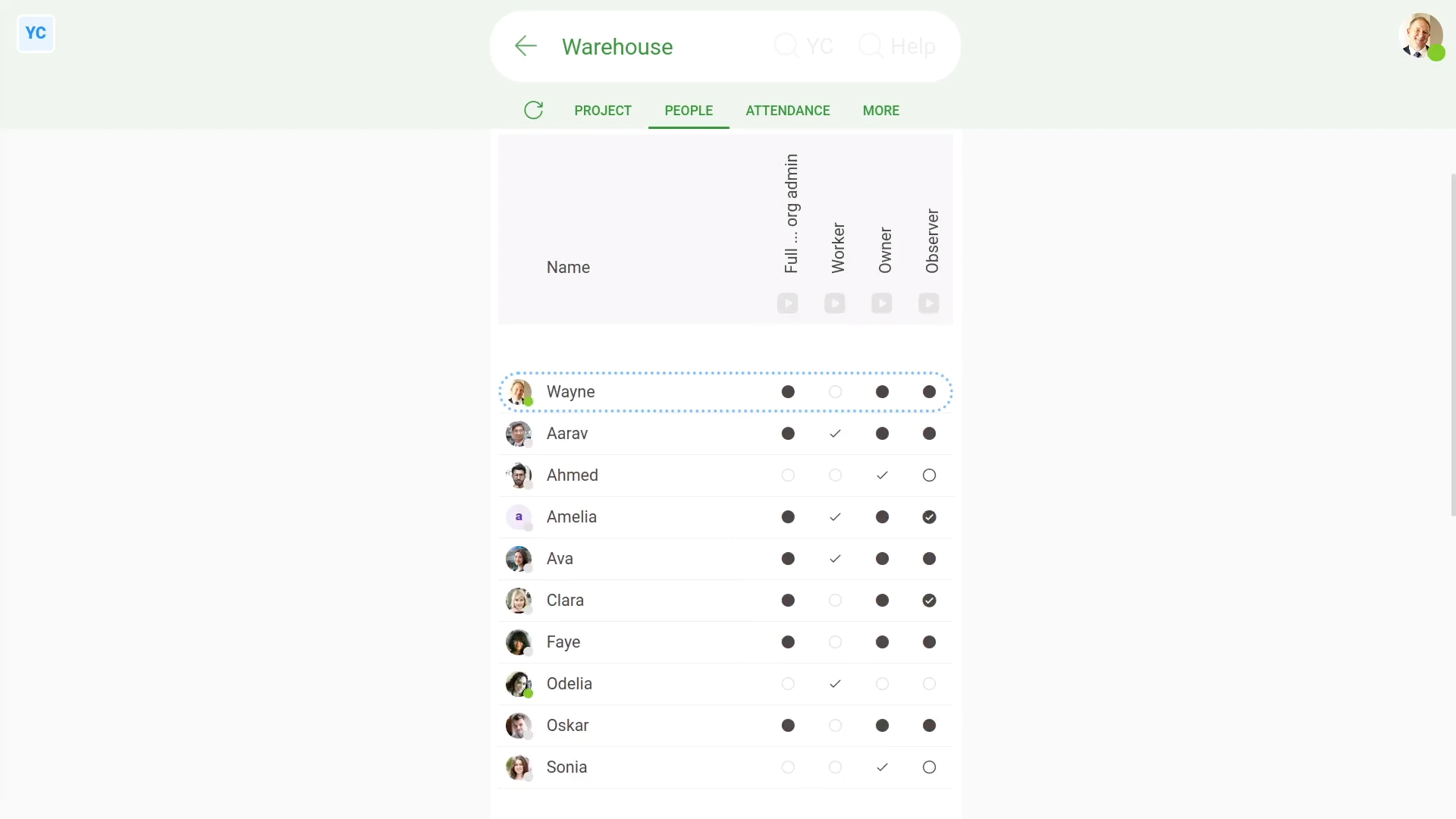
To see a project's summary:
- First, select the project on: "Menu", then "Projects"
- Then tap: "People", then "Summary"
- And finally, you'll see a full summary of everyone who's got access to the project.
A project's summary includes:
- What access each person's got in the project.
- And how each person got that access.
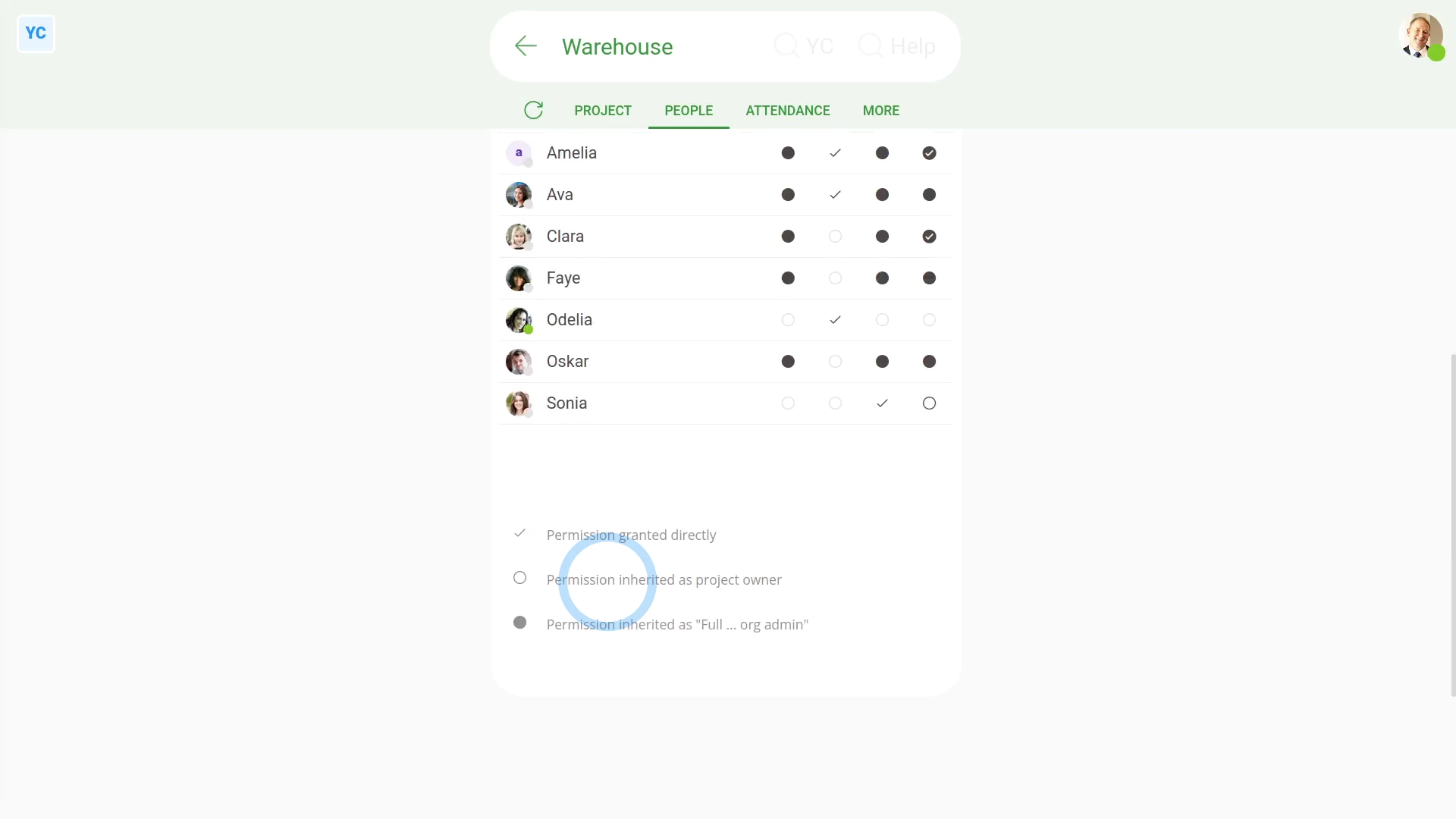
To understand what each tick and circle on a project's summary means:
- First, scroll down to see the legend (at the bottom).
- And finally, read through the legend to understand what each circle or tick means.
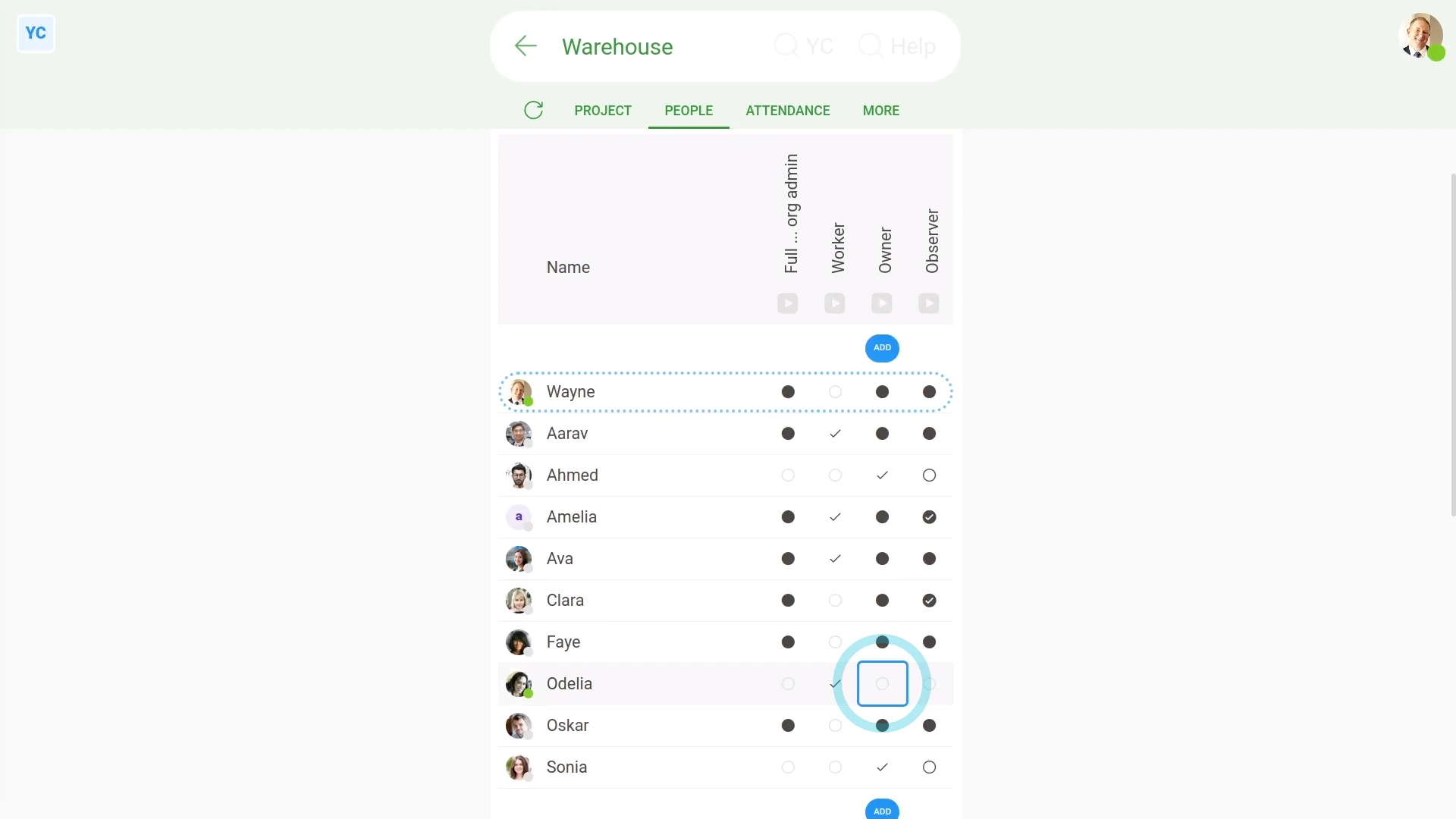
As an admin, you can use a project's summary to:
- Add more people. To do it, tap Add (at the top of each column)
- Also, when you hover your mouse over any part of the summary, you can tap that part to make a change directly.
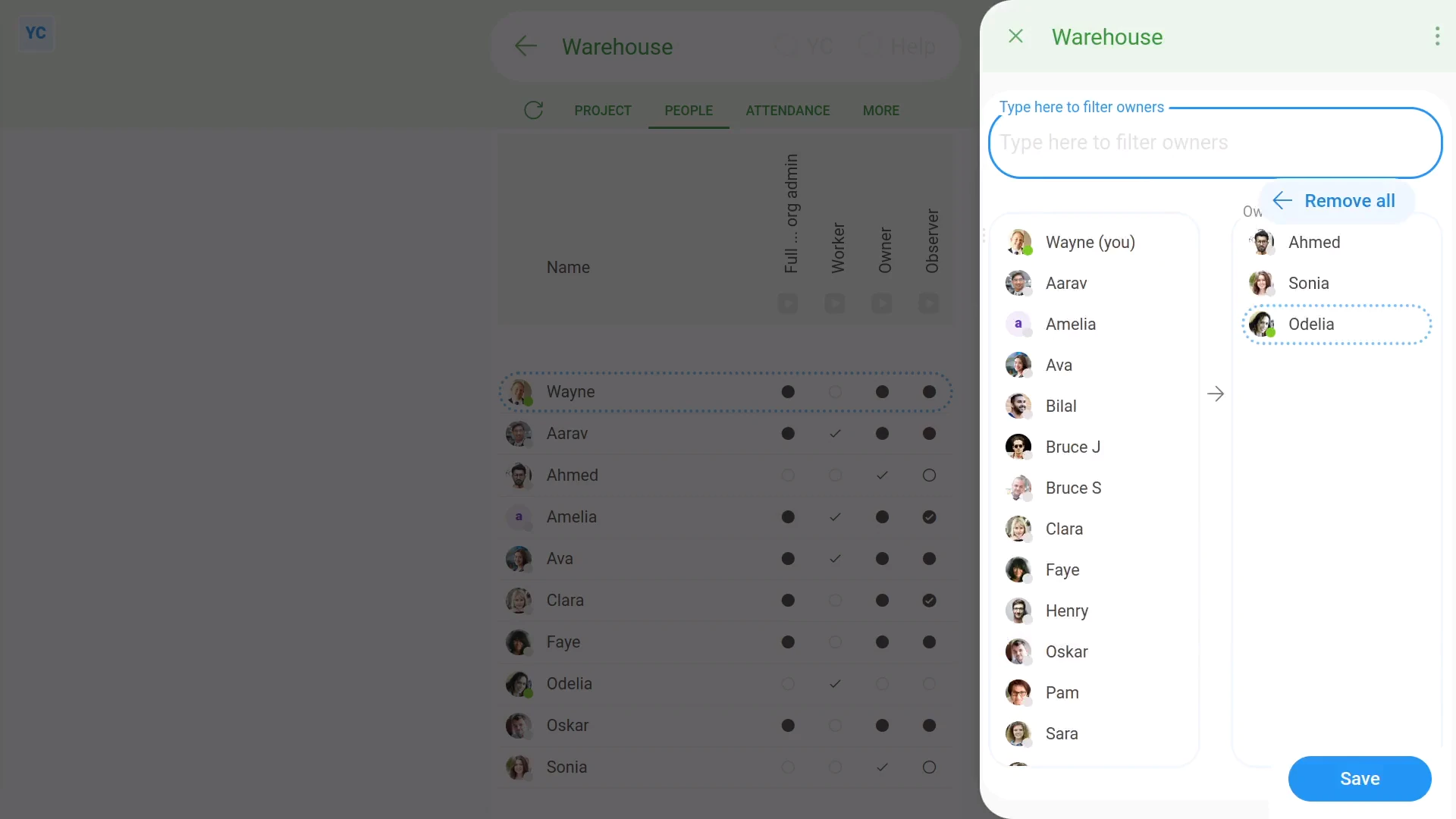
To add a person to a project, from a project's summary:
- First, tap the person in the column you want to add them.
- Once it slides out on the right, tap the person where it's highlighted, to push them over to the selected people list.
- Then tap: Save
- And finally, you'll see a tick confirming that the person's been added.
If a feature's not showing:
- If "Projects" isn't showing in the menu, it means your org hasn't turned on the timesheets feature yet.
- To turn on the timesheets feature, watch the video on: Turning on timesheets
And that's it! That's everything you need to know about a project's summary!
www.1st.money/uk/help/Projects/