3. How do I add workers to a project?

 3:39
3:39
"How do I add workers to a project?"
Adding a person as a worker in a project allows them to clock-in timesheet time for the project.
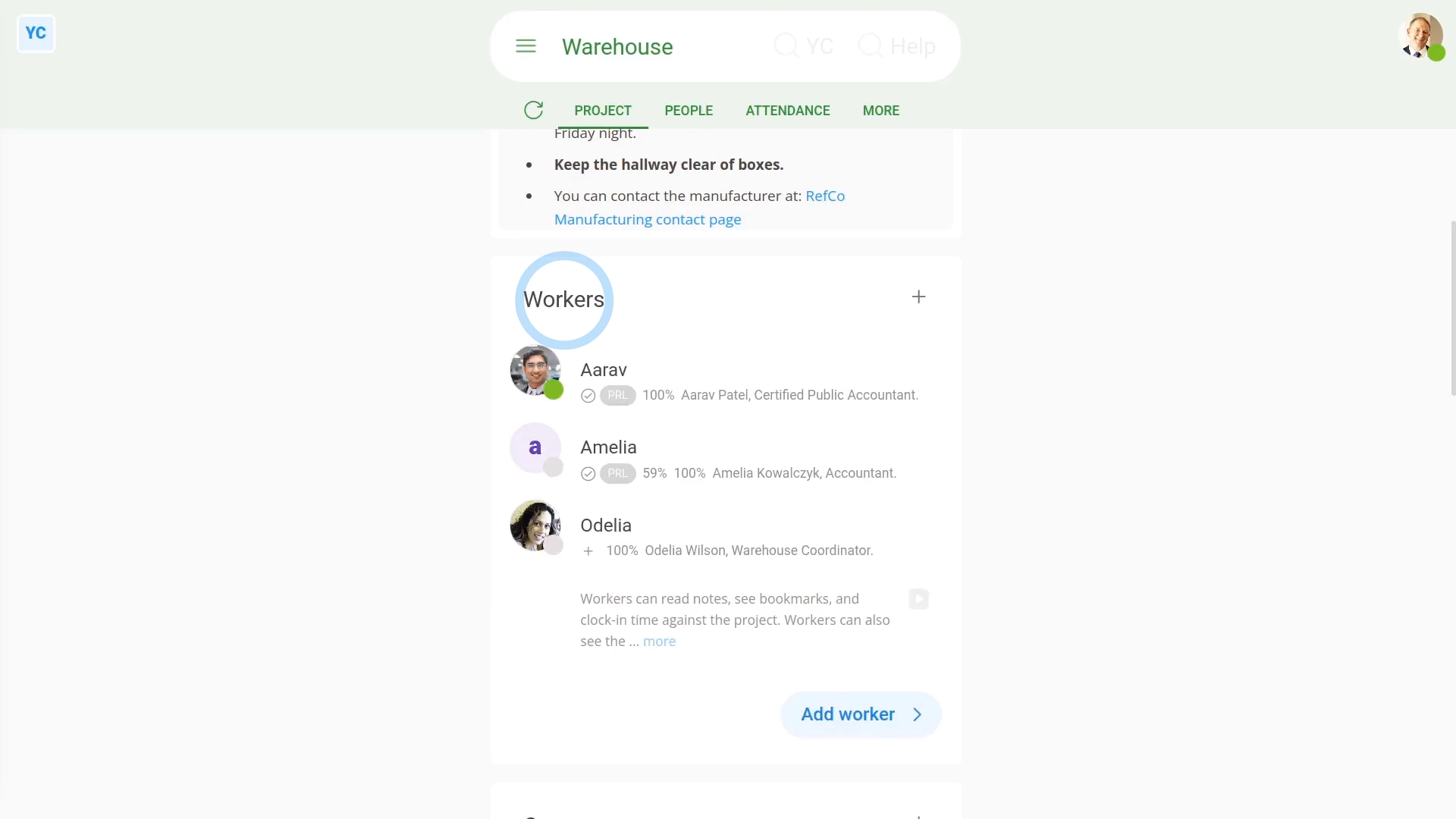
To add workers to a project:
- First, select the project on: "Menu", then "Projects"
- Once it's open, scroll down and tap: Add worker
- Once it slides out on the right, tap each person you want to add as a worker.
- You can add as many workers as you'd like.
- Then tap: Save
- And finally, you'll now see the people added to the project, in the "Workers" list.

Keep in mind that:
- Only people who've got "Full org admin" permissions and project owners can add workers to projects.
- Once you've added people as workers, you can then track their clocked-in timesheet time in the project's "Attendance" reports.
Now, switching person. You're now logged in as a worker.
To understand what a worker can see once a worker's been added to a project:
- Workers can only see, in the list, the project's the workers have been added to, and none others.
- Workers can't make any changes to projects, and can't add new projects.
- Workers can't see any of the project's "Attendance" reports. If you need workers to see the project's "Attendance" reports, add them as an "Observer" as well.
- However, workers can see the project's notes, the names of the project's other workers, owners and observers, and also the project's bookmarks.
So, in summary, a worker can only do a few things in a project:
- A worker can clock-in timesheet time for the project.
- And a worker can see the notes and other people in the project.
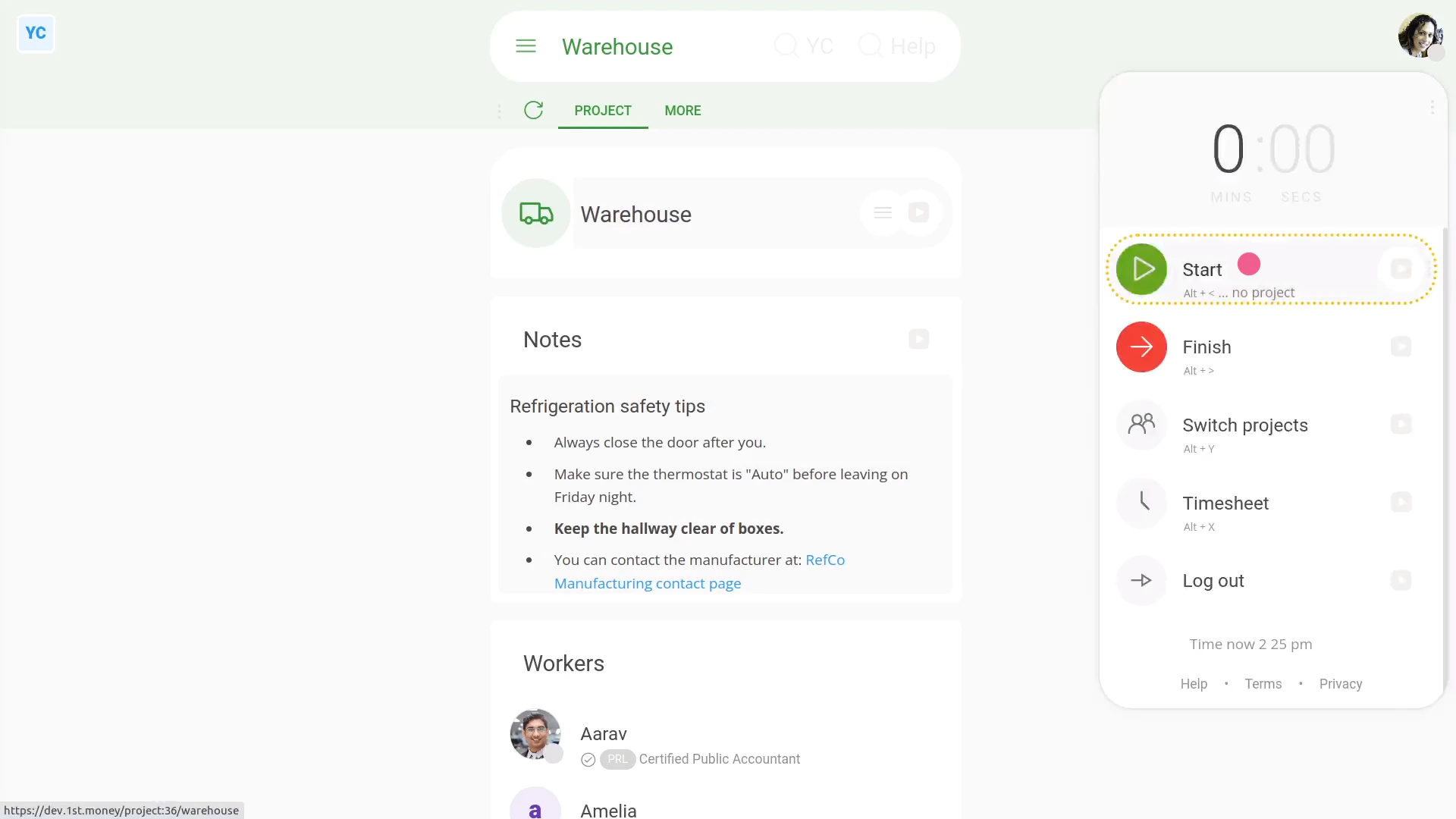
To clock-in timesheet time for a project, as a worker:
- First, tap: "Work-time menu", then "Start"
- Then tap: "Work-time menu", then "Switch projects"
- And then select the project to clock-in timesheet time for.
- Then tap: Switch
- Your clocked-in timesheet time in the project has now started.
- And finally, you'll see the confirmation (at the top) showing the name of the project you've started.
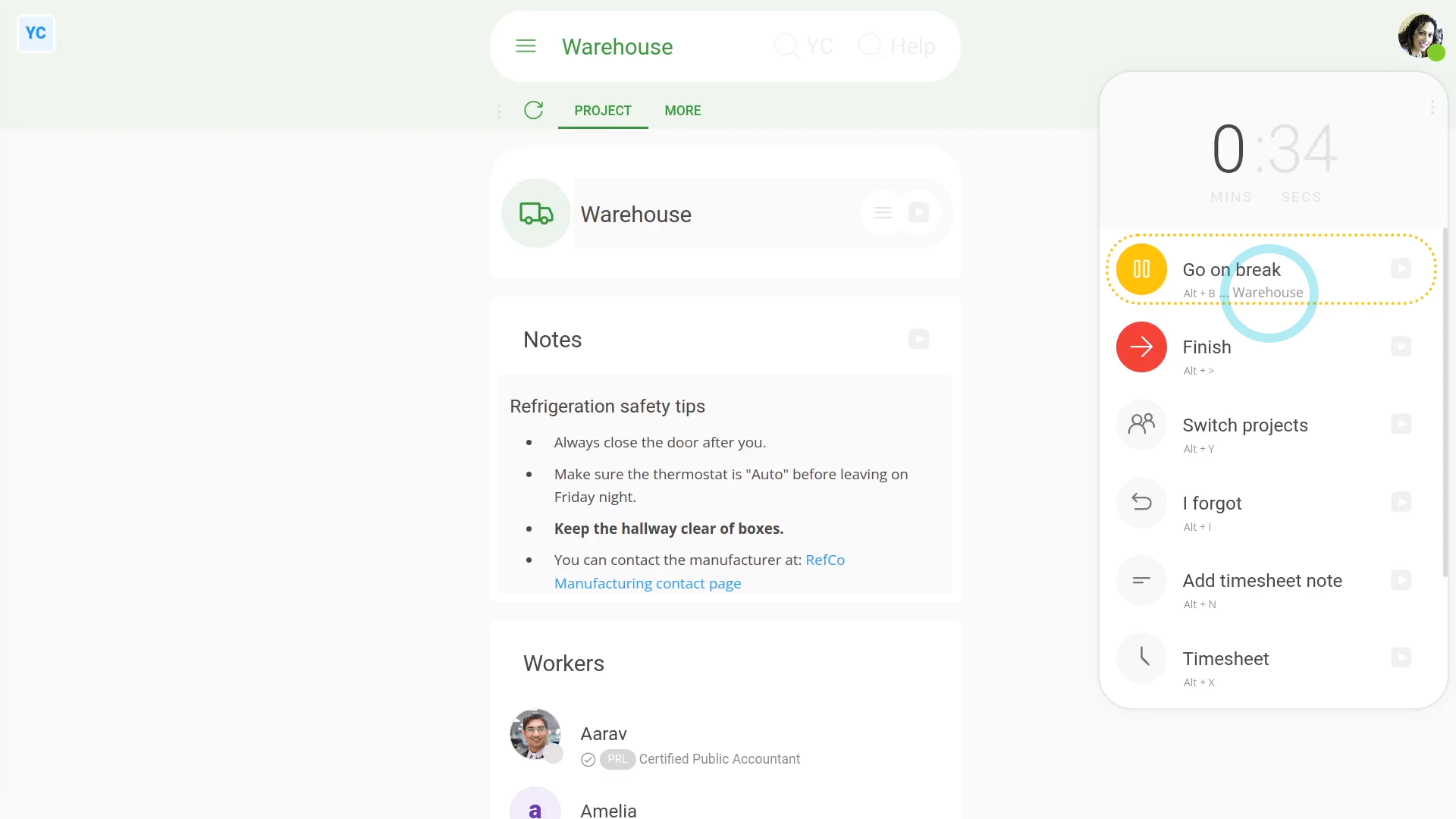
To see a reminder of which project you've started (in case you forget):
- First, tap: "Work-time menu" (top-right)
- And finally, by the yellow circle, you'll see the name of the project you've currently started.
You may notice:
- Each time you start your clocked-in timesheet time, by default, the button remembers your last selected project.
- Feel free to tap Switch projects anytime, to switch to another project.
Also remember that:
- If you don't want your time stored in any project, you can even switch to a project called: "No project"
- Choosing "No project" still equally counts as timesheet time. But the time won't show up in any of the project's "Attendance" reports.
If a feature's not showing:
- If "Projects" isn't showing in the menu, it means your org hasn't turned on the timesheets feature yet.
- To turn on the timesheets feature, watch the video on: Turning on timesheets
 Turning on timesheets
And that's it! That's everything you need to know about adding workers to a project!
www.1st.money/uk/help/Projects/3._How_do_I_add_workers_to_a_project