How do I delete or un-delete a project?
 2:11
2:11
"How do I delete or un-delete a project?"
If you no longer need a project, you're welcome to delete it whenever you like.
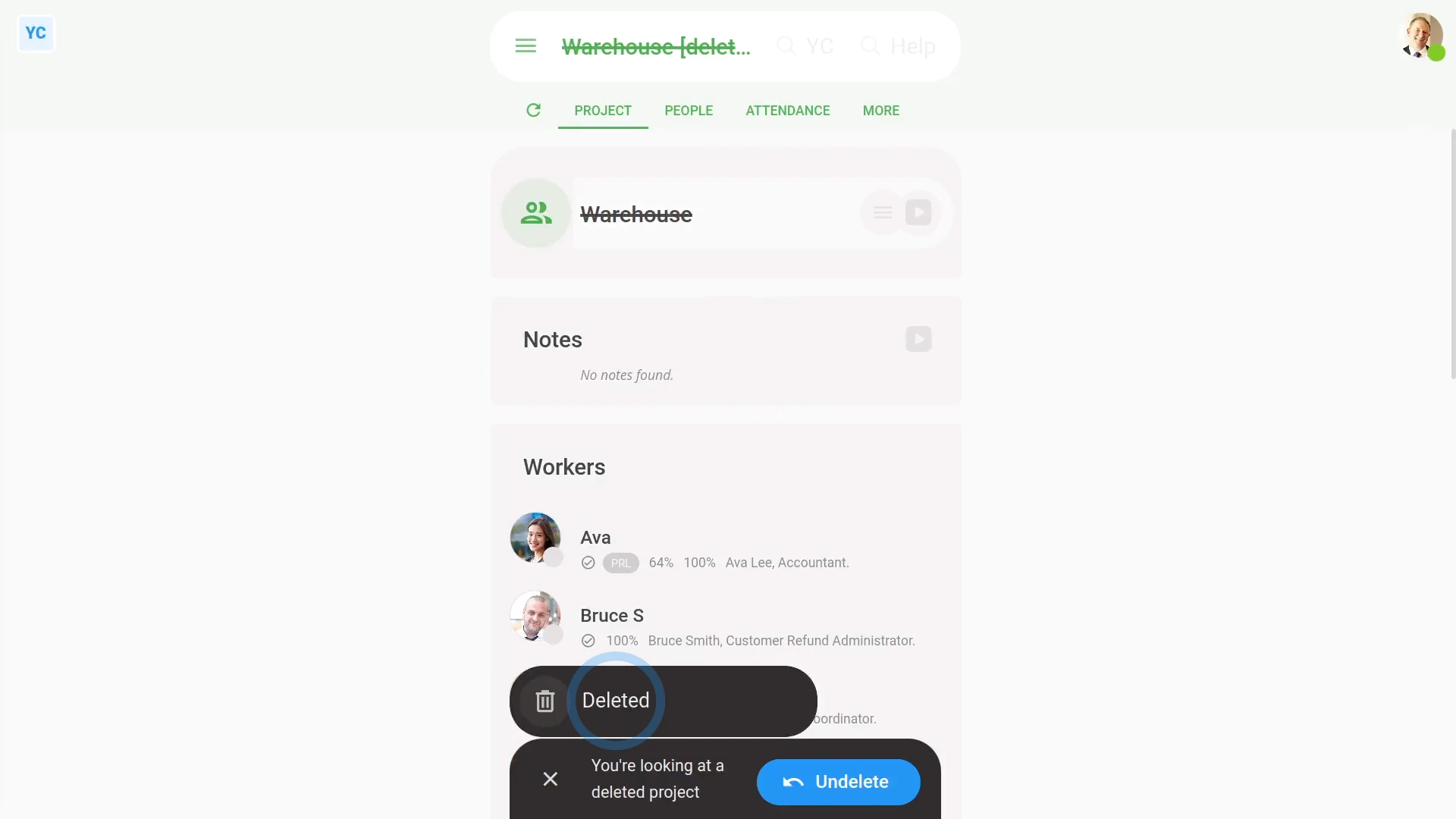
To delete a project:
- First, select the project to delete on: "Menu", then "Projects"
- Then once the projects open, tap More, then: Delete
- And then tap: Yes ... delete
- The project's now deleted and locked, so every part of it can't be changed anymore.
- And finally, if you change your mind and want the project back again, tap Un-delete, and it's immediately restored.
If it's been a while since you deleted a project, you'll first need to find it in the "deleted bin", before you can un-delete it.
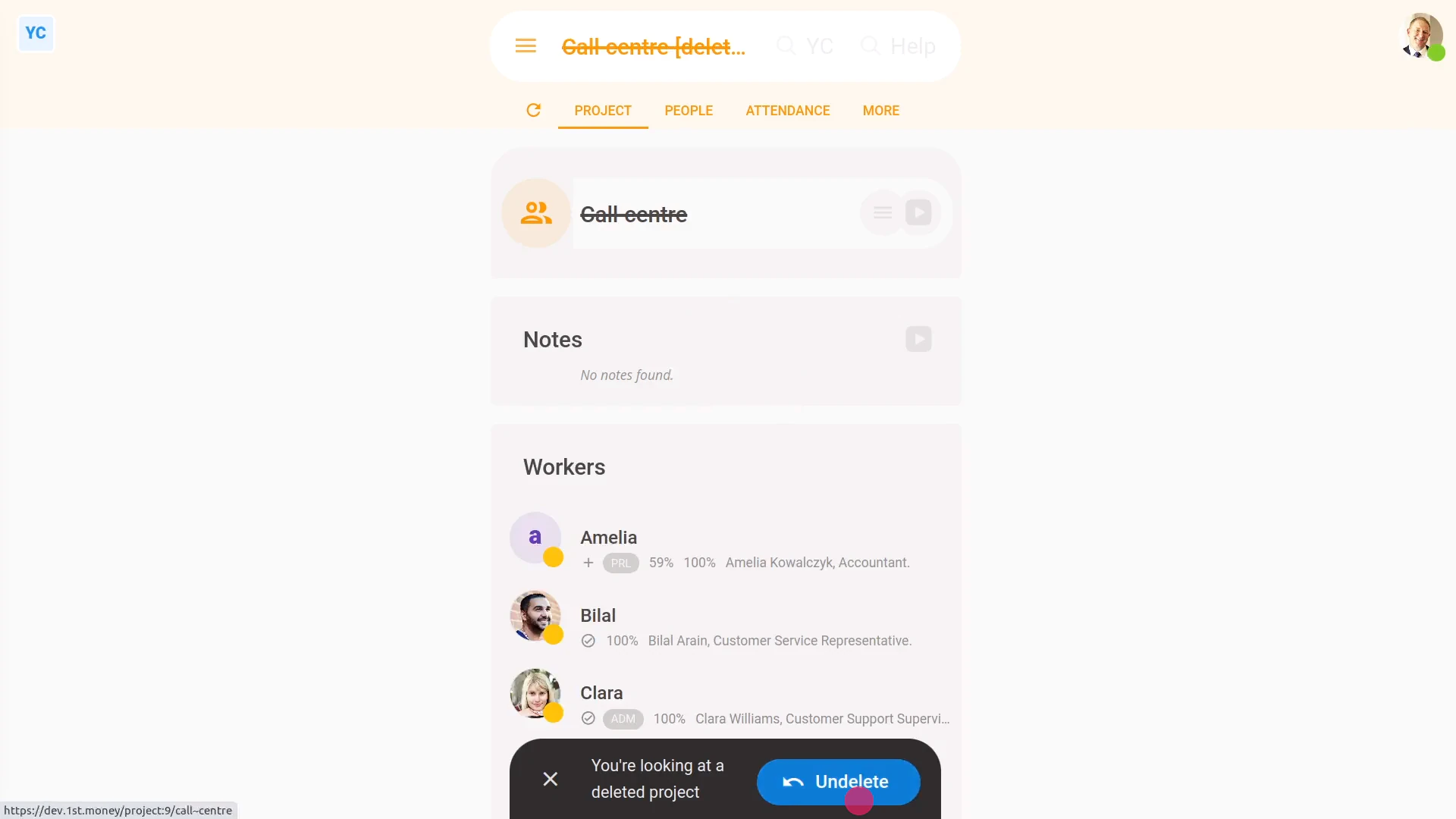
To un-delete a project from your "deleted bin":
- First, tap: "Menu", then "Deleted bin"
- You'll see a category for most of the kinds of items that can be deleted. Tap: Projects
- And then tap the project you'd like to un-delete.
- And finally, tap Un-delete, and the project is immediately restored.

Keep in mind that:
- Deleting a project immediately takes it off the list of any available projects when workers clock-in timesheet time.
- Whenever you un-delete a project, all the names of workers, owners, and observers are always perfectly restored, back to how it was before being deleted.
- Also keep in mind that only people who've got "Full org admin" permissions can delete or un-delete projects.
- And remember that all deletes and un-deletes are always permanently recorded in: "History"
- That means any admin can always look back in time and see who did any delete, and when it was done.
If a feature's not showing:
- If "Projects" isn't showing in the menu, it means your org hasn't turned on the timesheets feature yet.
- To turn on the timesheets feature, watch the video on: Turning on timesheets
 Turning on timesheets
And that's it! That's everything you need to know about deleting or un-deleting a project!
www.1st.money/uk/help/Projects/How_do_I_delete_or_un-delete_a_project