7. Other
How do I allow microphone access?
To allow us to access your microphone:
1. Chrome microphone
- First, tap the padlock.
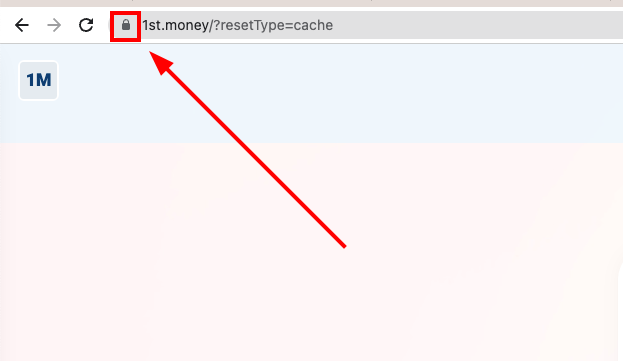
- Then turn on: "Microphone"
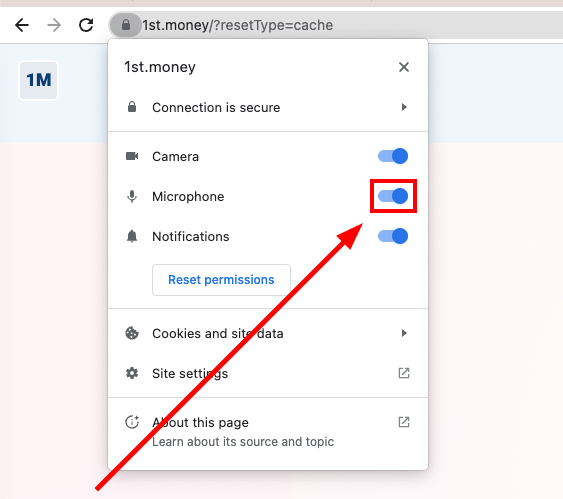
- And finally, tap: Reload
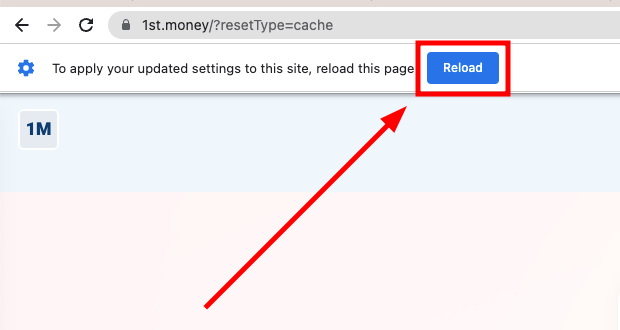
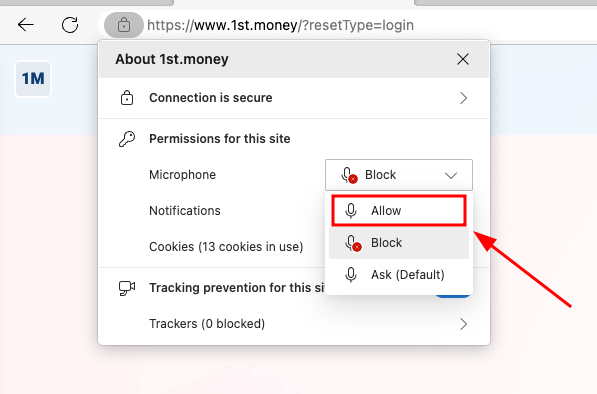
2. Microsoft Edge microphone
- First, tap the padlock.
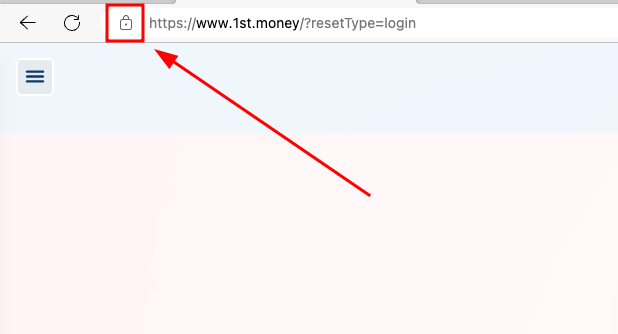
- Then for: "Microphone", tap: Block > Allow
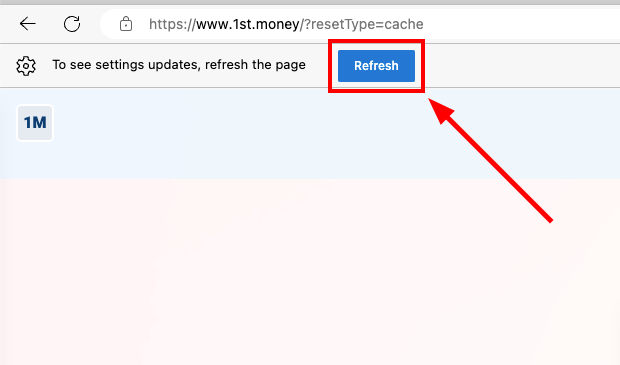
- And finally, tap: Refresh
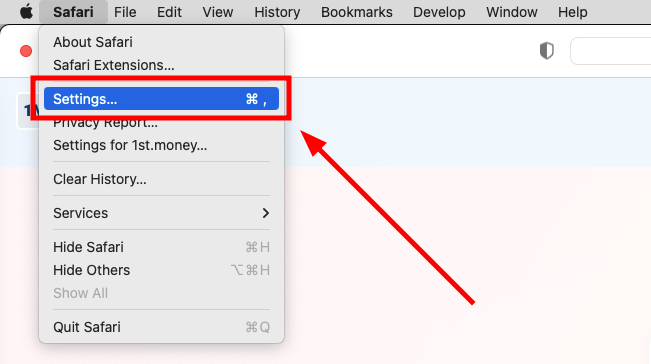
3. Safari microphone
- First, tap: Safari > Settings
- Then go to: Websites > Microphone
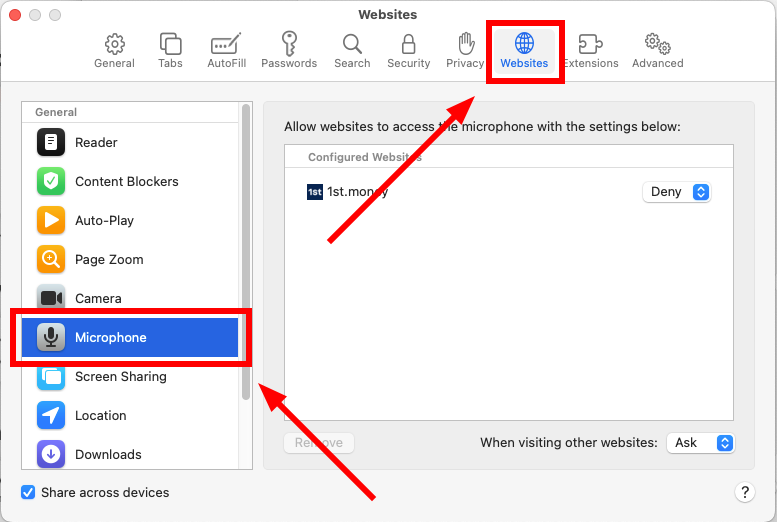
- On "1st.money", tap: Deny > Allow
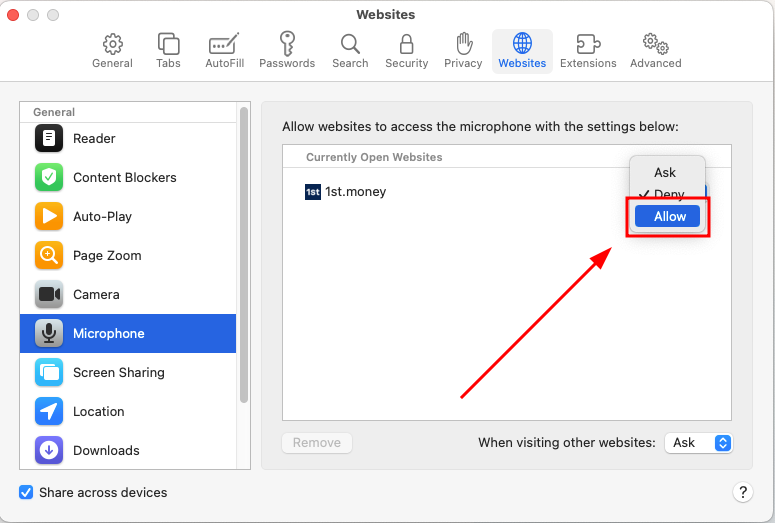
- And finally, reload: "1st.money"
4. iPhone microphone
- First, open: "Settings"
- Scroll down and tap: Privacy & Security
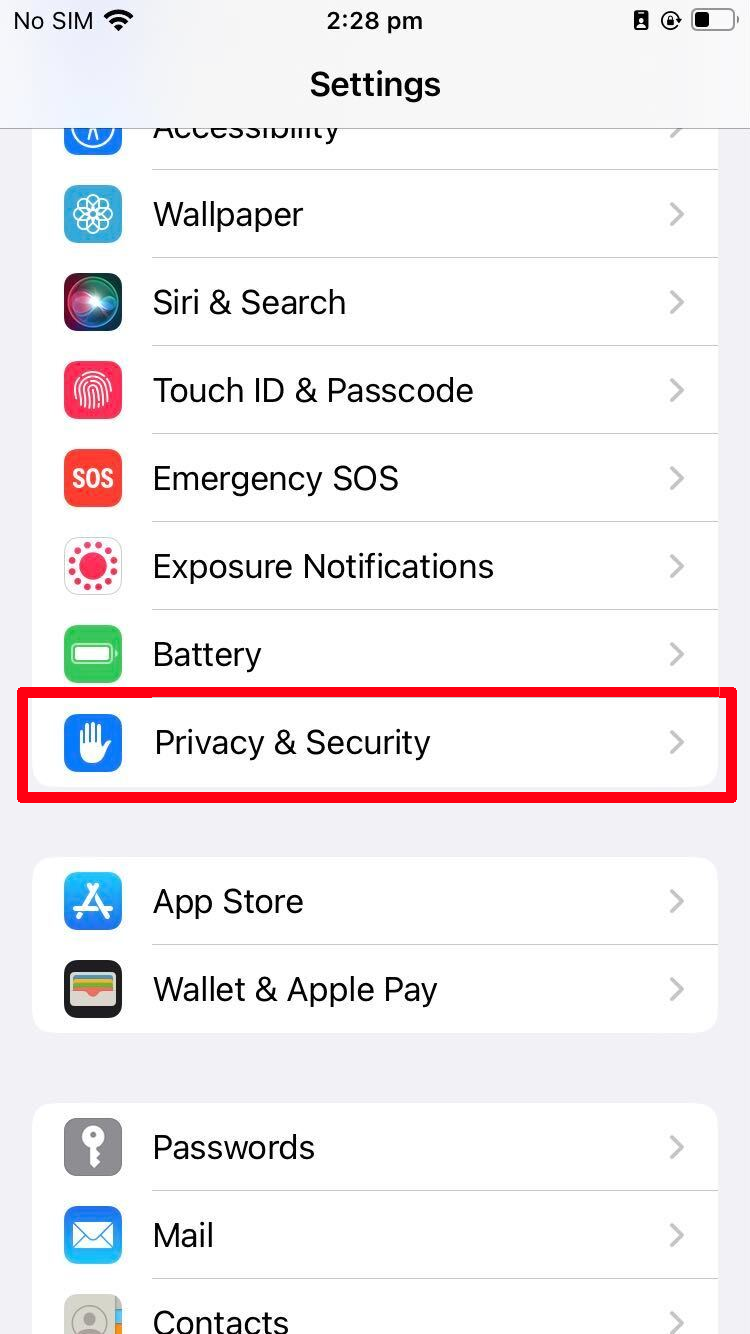
- Then go to: Speech Recognition
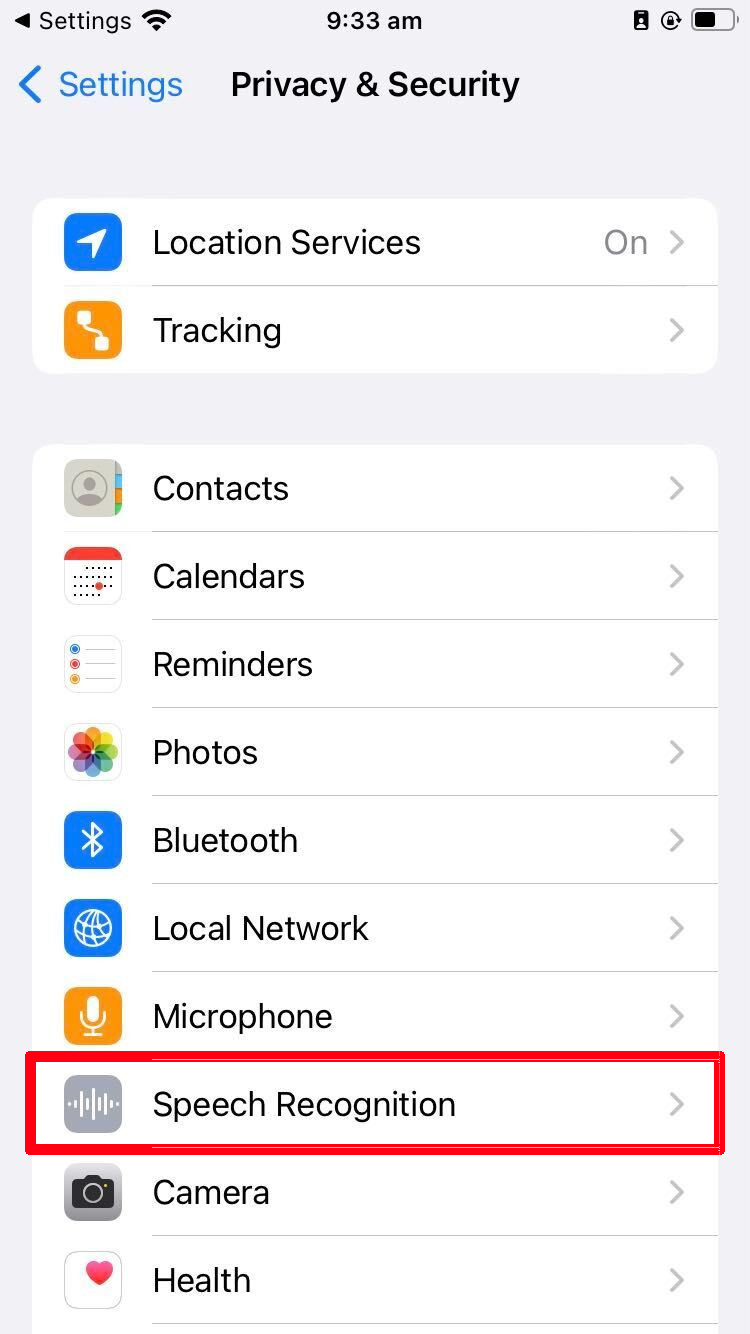
- Turn on: "1st Money"
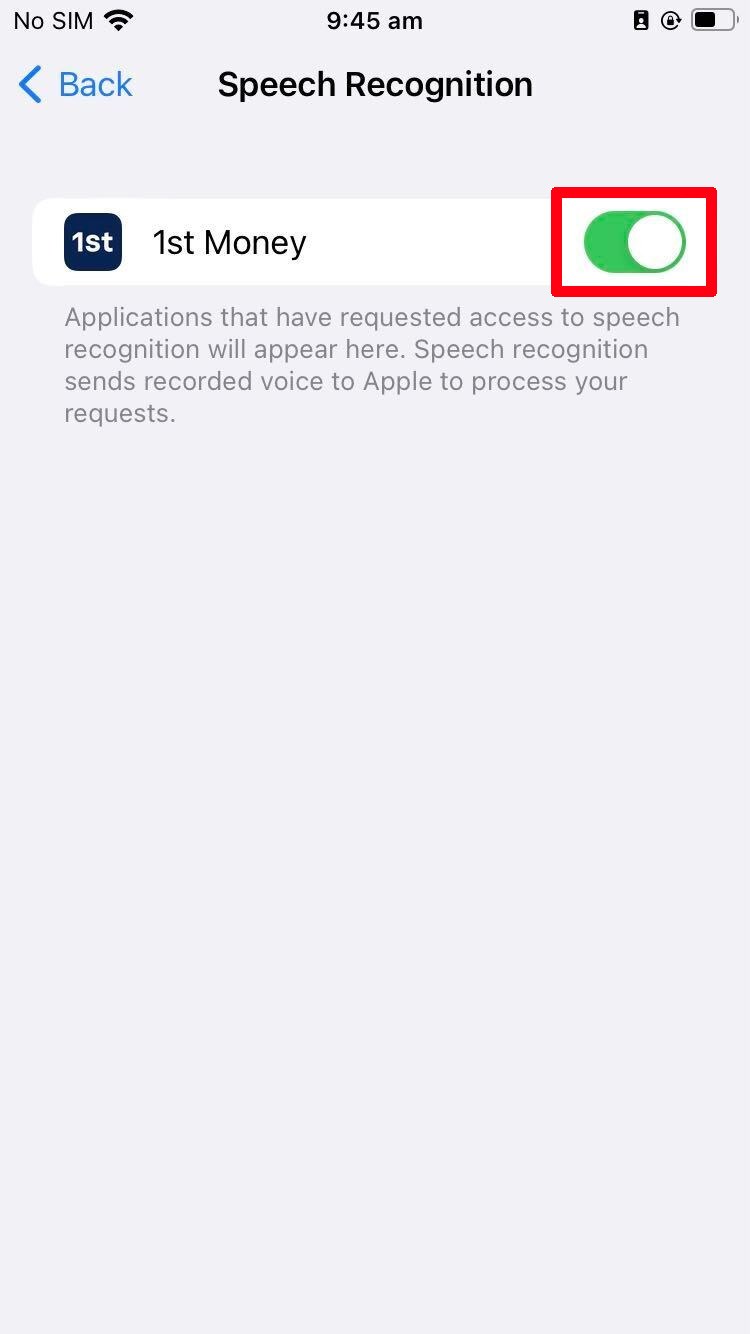
- Then go back to: Privacy & Security > Mirophone
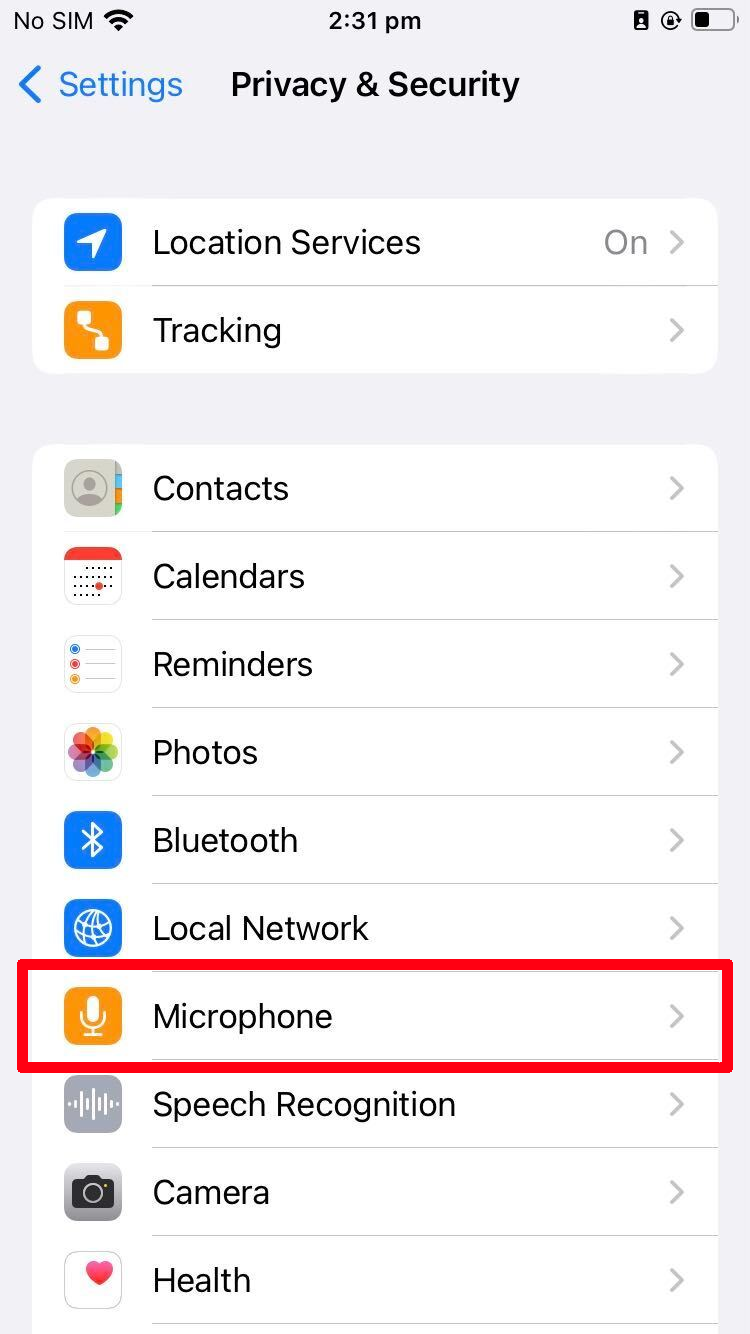
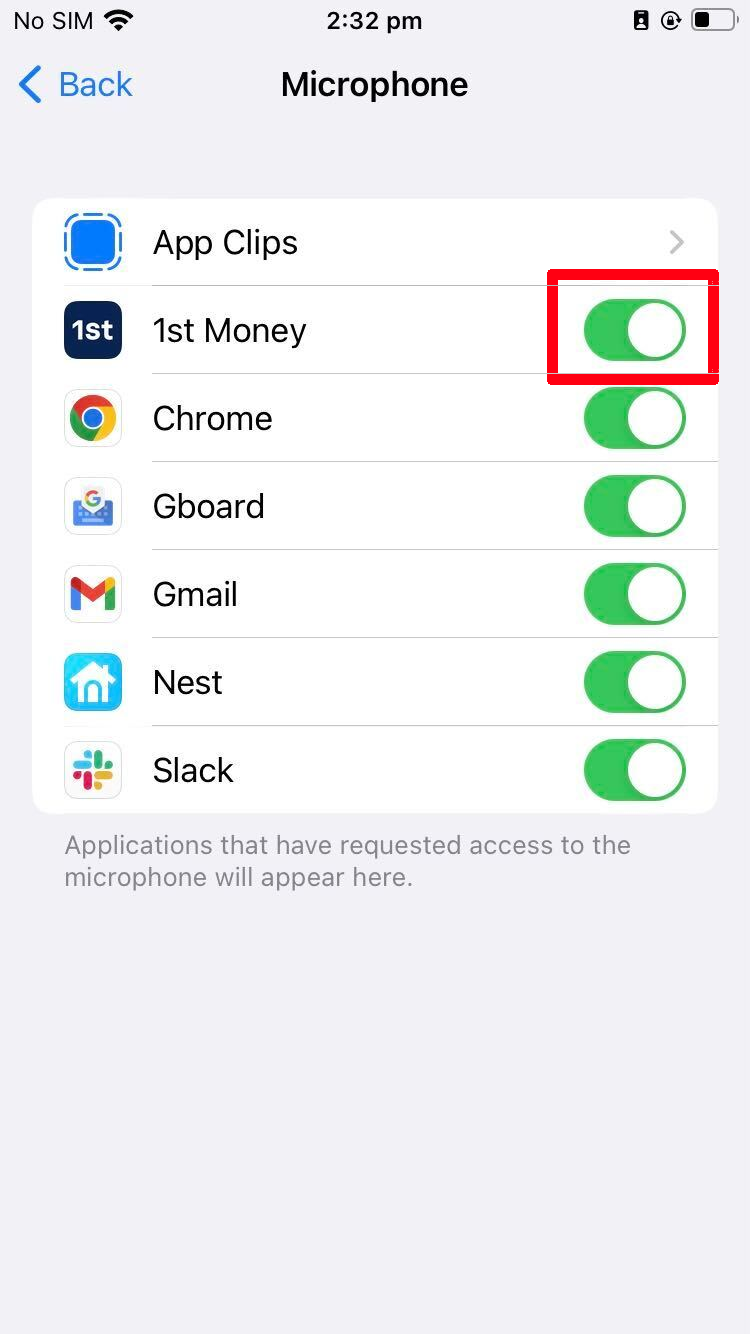
- And finally, turn on: "1st Money"
5. Android microphone
- First, open: "Settings"
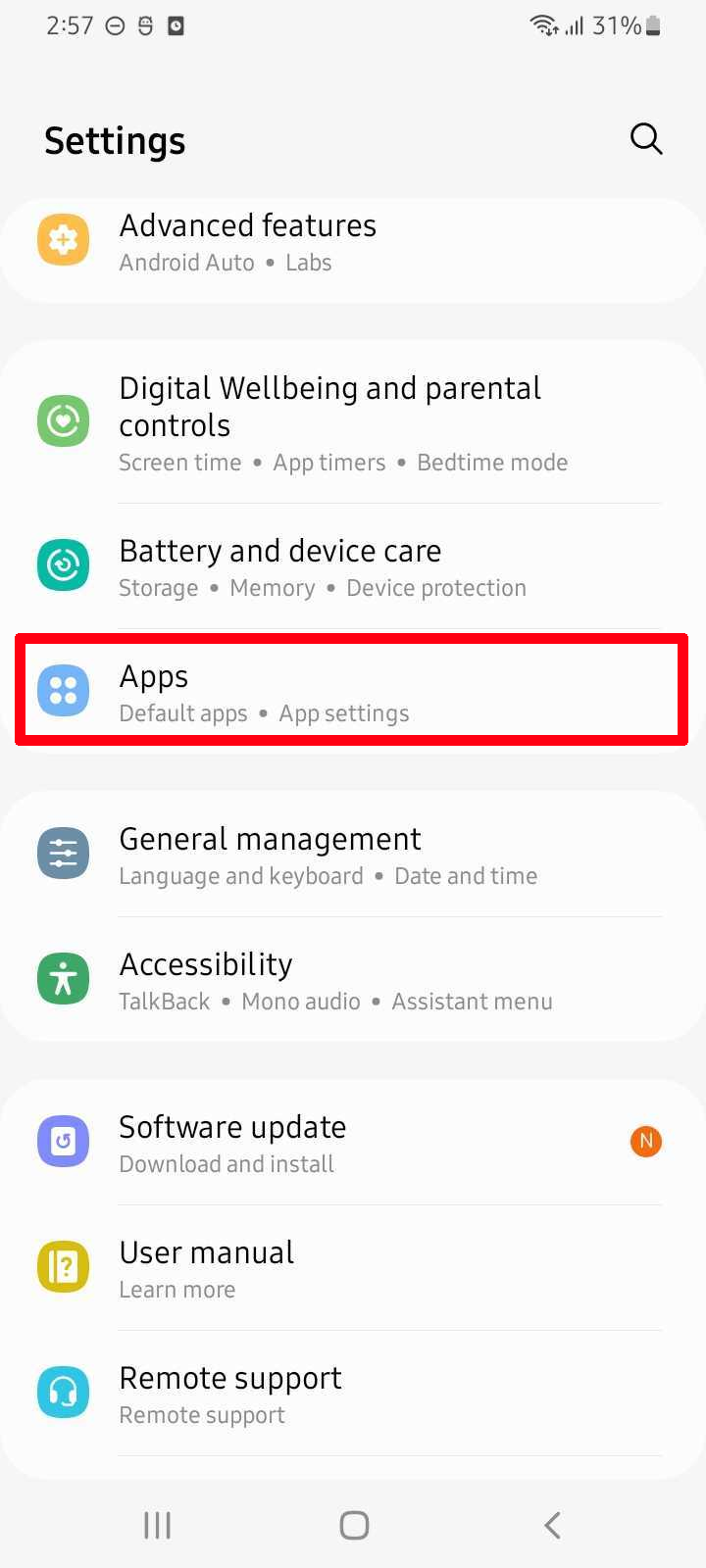
- Scroll down and tap: Apps
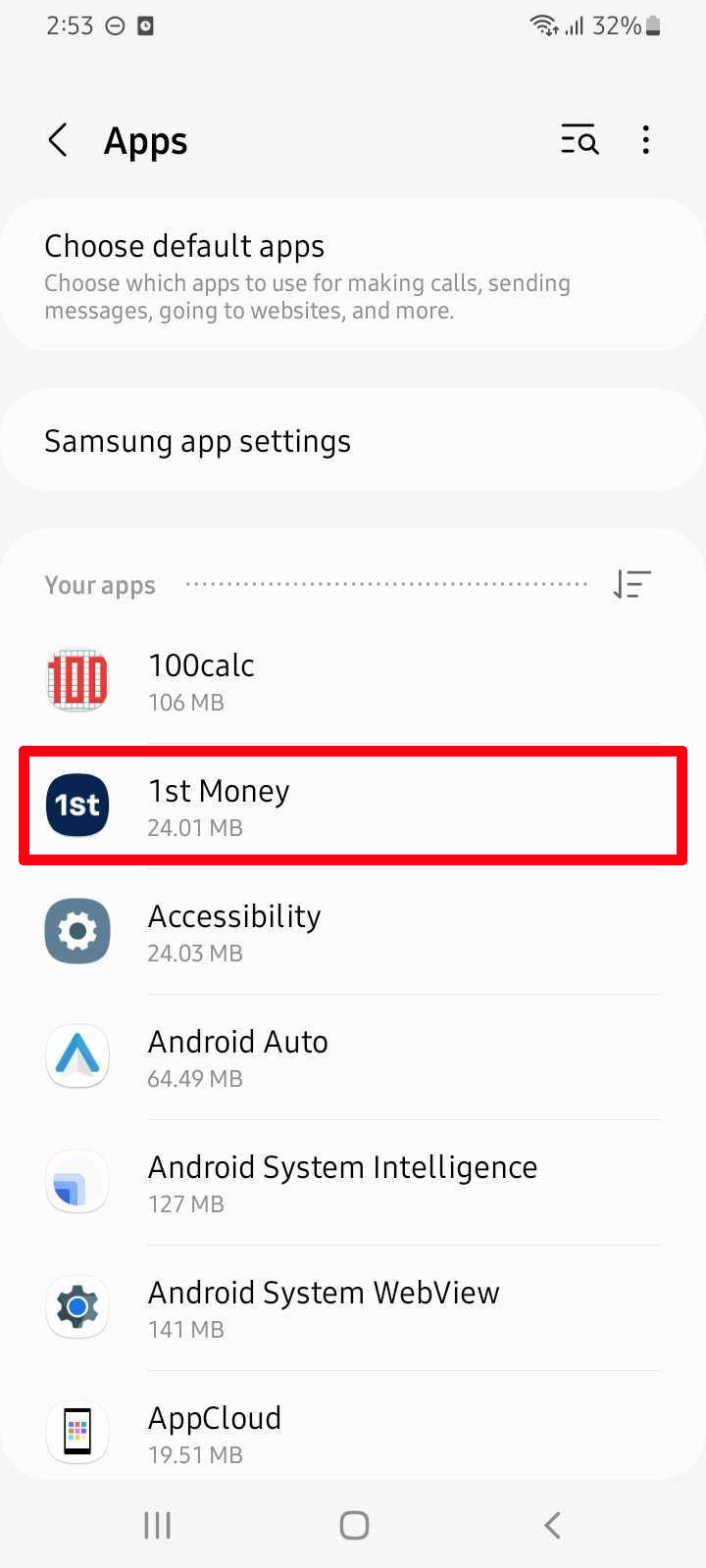
- Then tap: 1st Money
- Then tap: Permissions
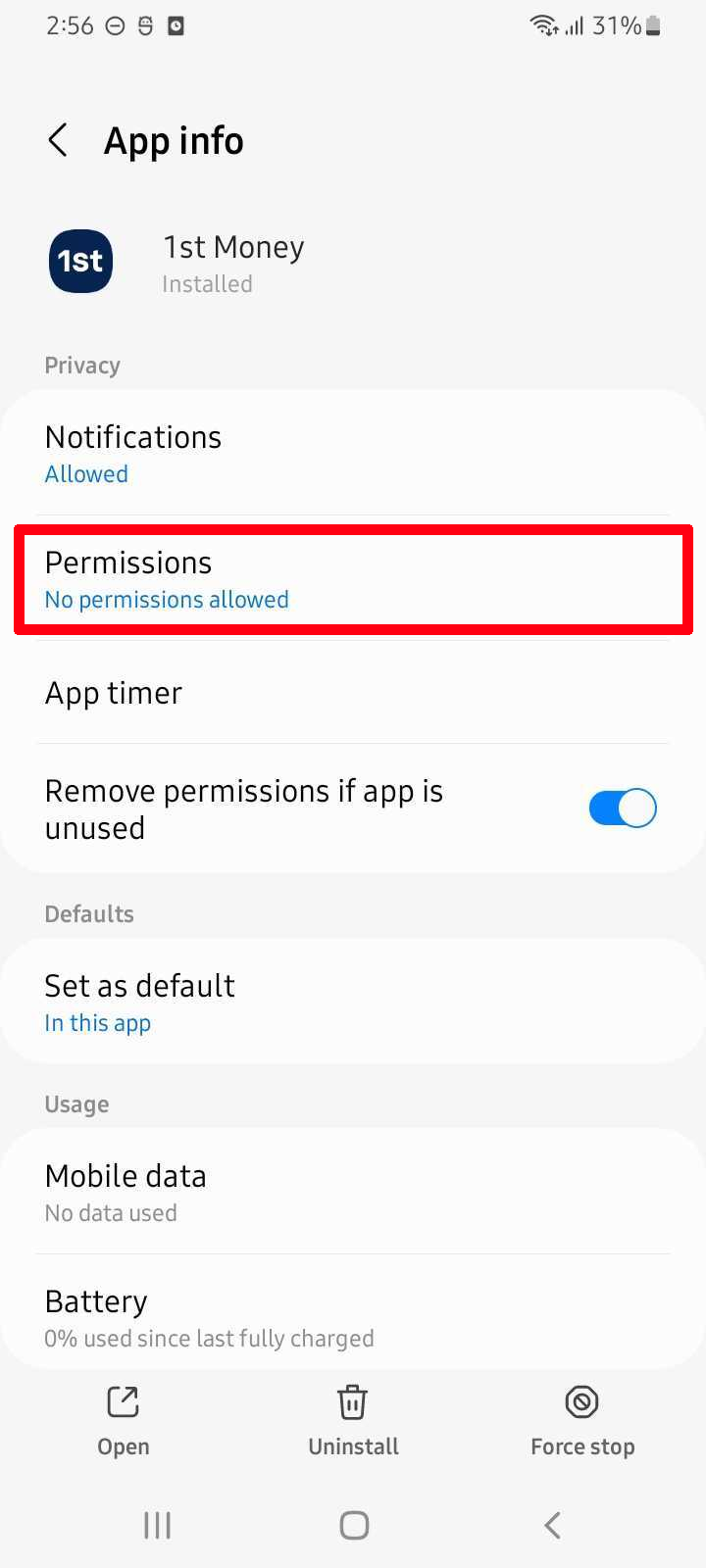
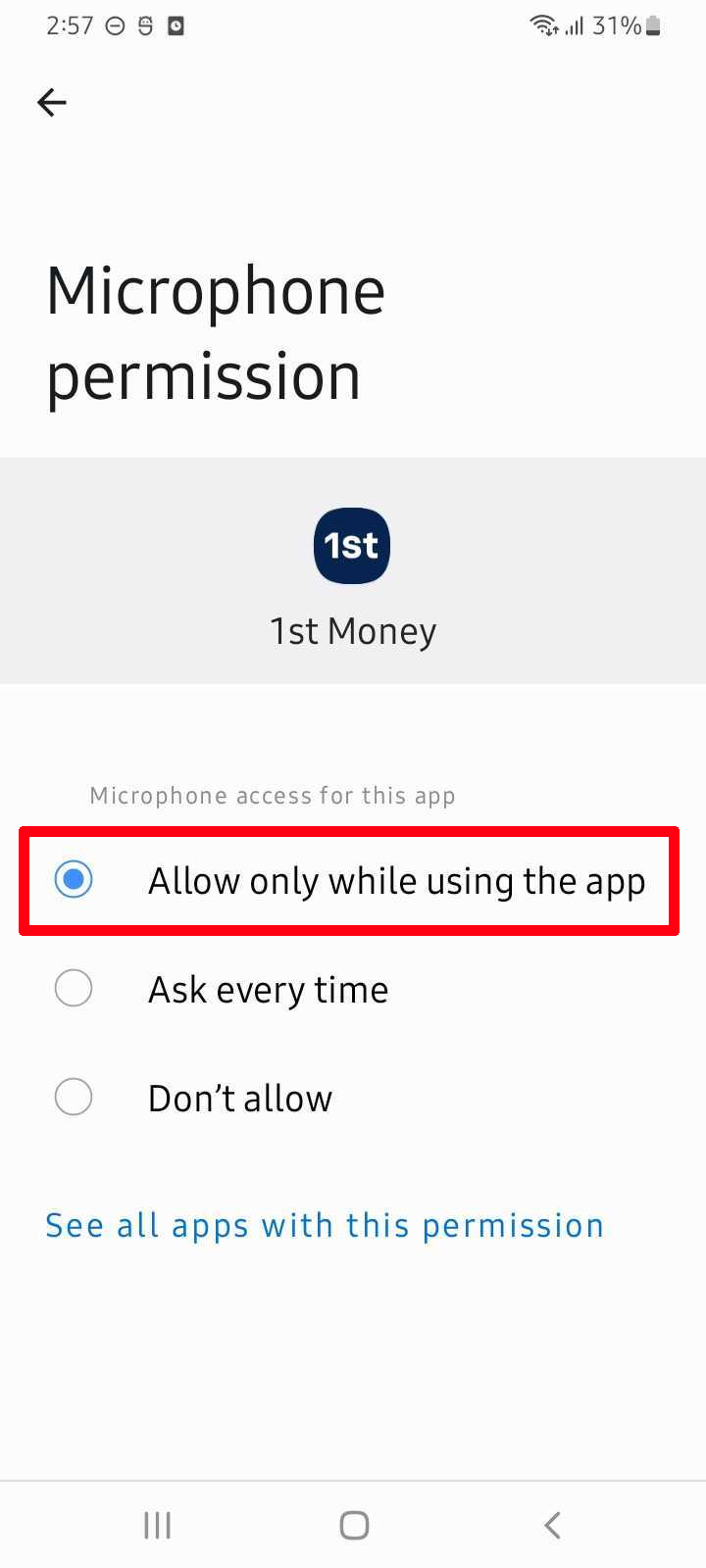
- And finally, tap: Microphone > Allow only while using the app
How do I change my cookie settings?
Learn more about cookies, including disabling, enabling, and deleting them, at: aboutcookies.org
You might decide to block most cookies with the setting in your browser that lets you to block all or some cookies. However, if you block all cookies, most of our services may not work. Unless you've already blocked browser cookies, our system sends you cookies as soon you visit our website.
To opt-out of receiving cookies from a range of ad servers (including, among others, Doubleclick, Videology, AudienceScience, Flashtalking and Microsoft), follow the instructions at: youronlinechoices.com
Additional info about the controls offered by popular browsers can be found with the following links:
Updated: Sat, 9 Nov 2024.How do I set up 1st Money from start to finish?

 4:00
4:00
Let's see just how easy "1st Money setup" really is.
- To start, upload your logo, so all your employees see your own company's logo while using 1st Money.
- And now your logo's set, and you're on your way, with your first green tick.
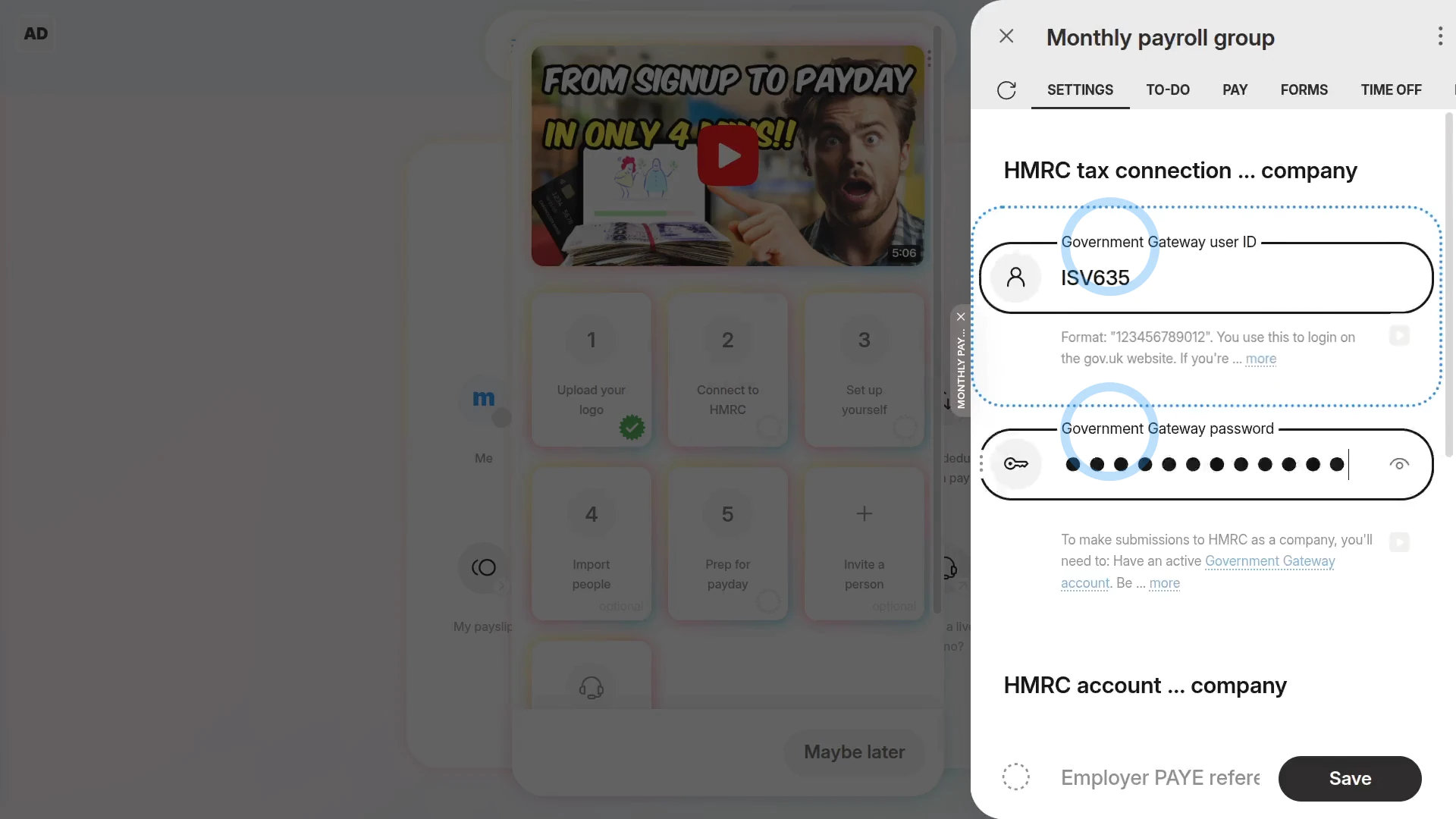
Next, to connect to HMRC:
- Type in your Government Gateway login.
- And also type in your company numbers, and you're instantly all connected up to HMRC, with your second green tick.
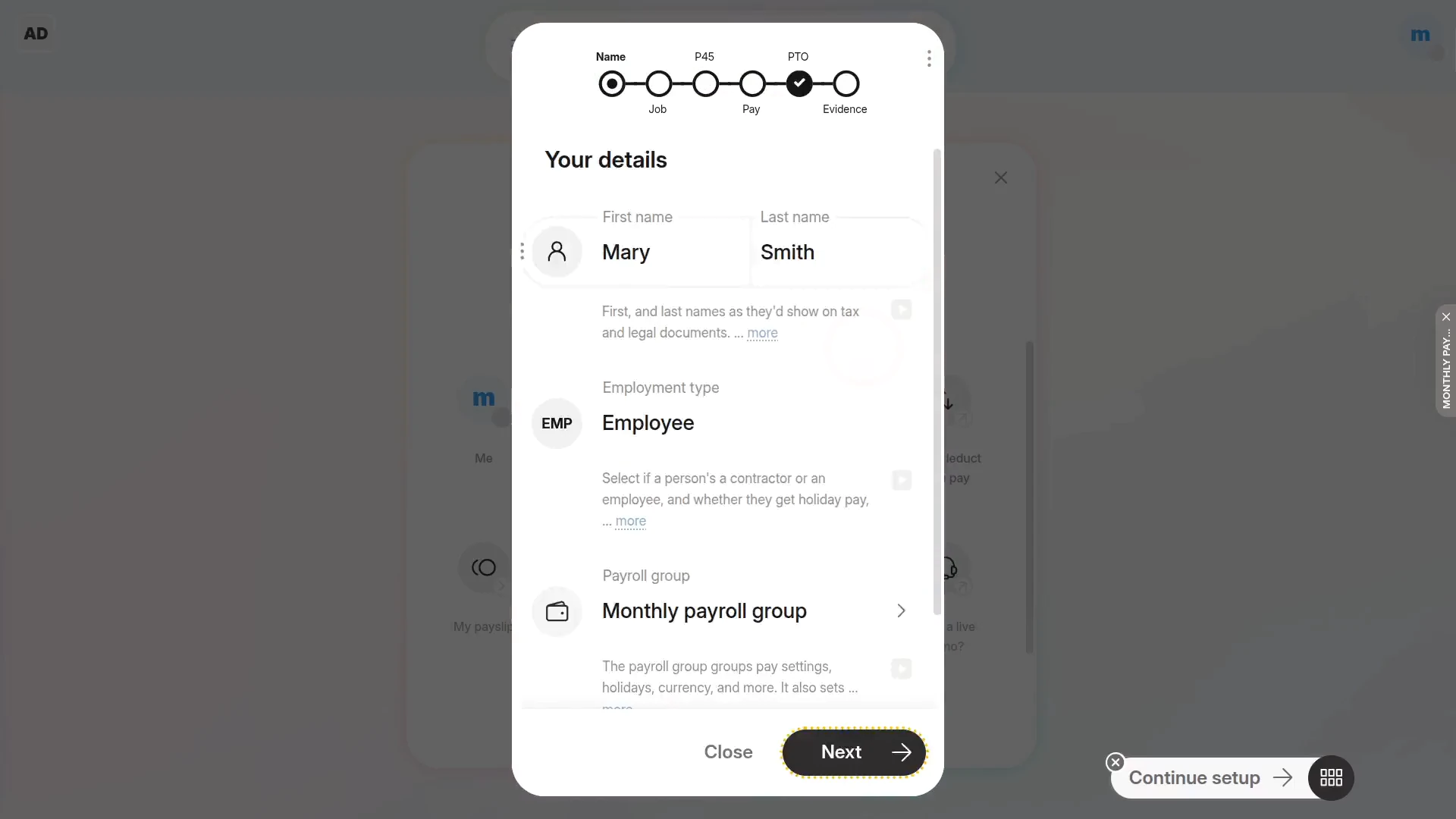
Now, to set up yourself:
- Start by setting your pay rate and job title.
- As well as your join date.
- And also your contact details, like your phone number.
- Now you're onto the tax settings.
- And then the National Insurance settings, like your gender, "Date of birth", and home address.
- And then your NI num..
- Now we'll continue your onboarding through the "Pay" steps.
- And finally, your onboarding's all 100% complete, and you've got your next green tick.
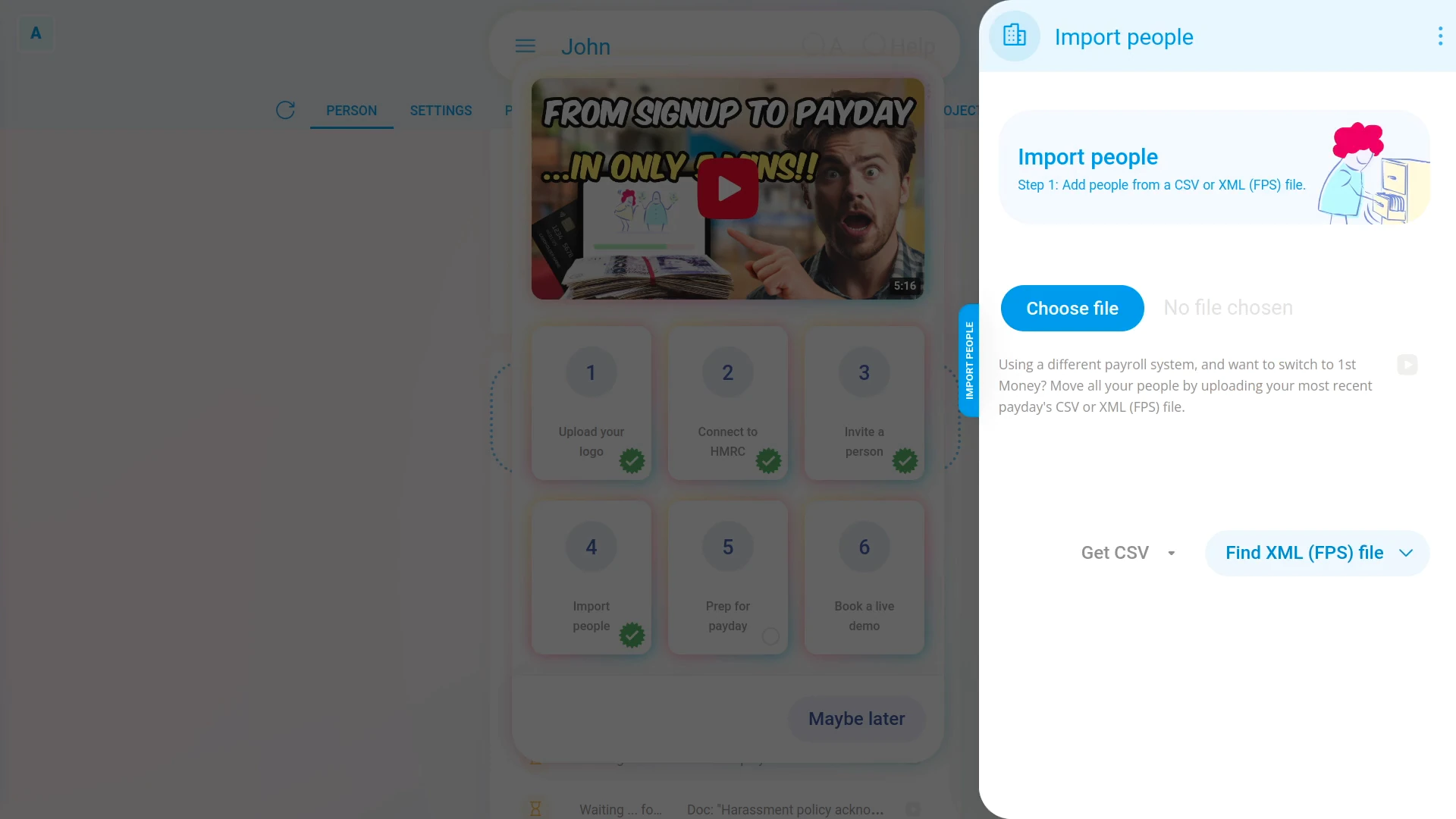
Next up is the "Import people" step.
It's completely optional, but it's useful if you're adding lots of employees.
To add lots of employees, even hundreds, or thousands:
- First, download the "CSV template" file, and enter each employee on their own row.
- Next, upload the file.
- And as quick as that, all your new employees are ready to add, all you've got to do is tap: Import ticked
- Now that your newly added employees are imported, just tap this blue button.
- And they'll each get their very own 1st Money login invite, and you're almost done now.
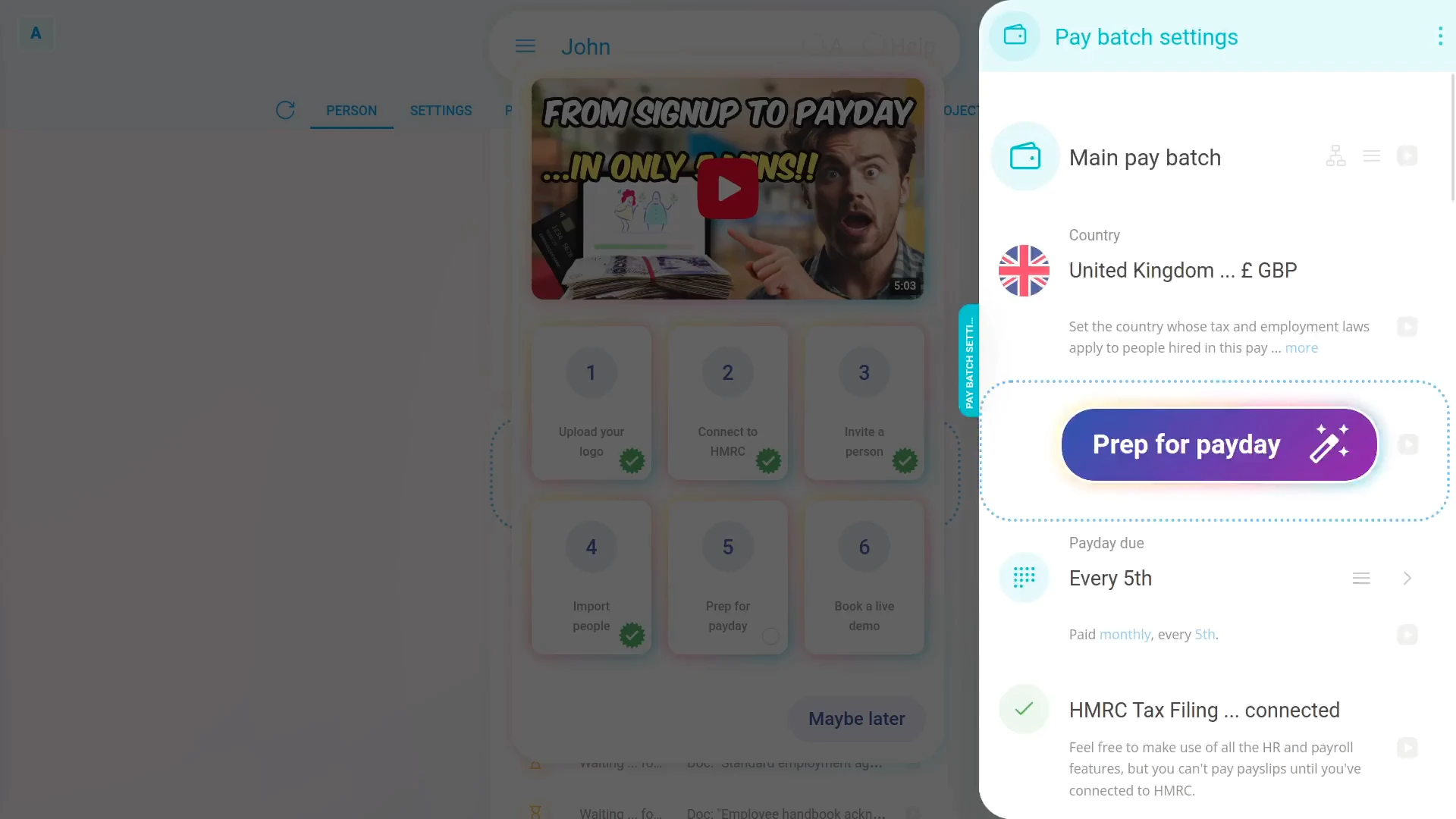
Next is payday prep.
- First, we'll choose your company's "Employment Allowance" eligibility.
- Then we'll set your company's "Pension provider" and provider details.
The payday prep scans your setup and reminds you of any remaining settings that're required.
And as easy as that, your payday prep's 100% completed, and with all four green ticks, your payday setup is now complete!
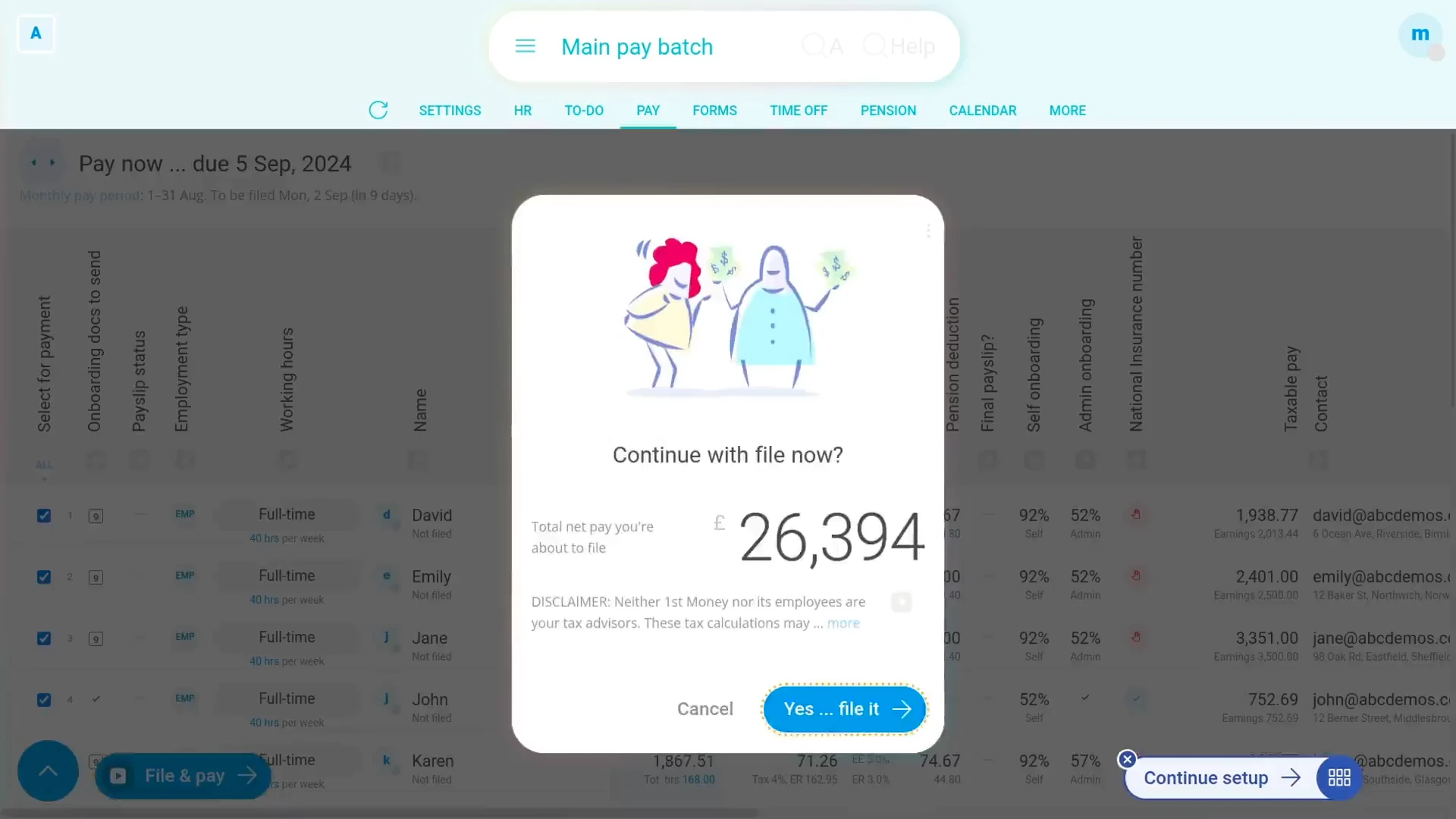
Now that you're 100% set up, let's pay a payday:
- By first going to the payroll group's: "Process payroll"
- Then tap: Process payroll
- And just for a few seconds, HMRC checks that we got all your payday calculations correct.
- Next, download the payment file for whichever bank you're using.
- And then upload the payment file, to your bank, by first choosing the file.
- And then once it's uploaded.
- You'll see a preview of all your Payroll Payments.
- Then to finish paying this payday, tap Continue, or whatever your own bank has for their final payment button.
- And now, once you tap Mark as paid, payslip emails are automatically sent out to all your employees.
- And here's how it looks when your employees get their payslip email, along with the attached PDF.
- By default, payslip emails like this are automatically sent out to every employee, every payday.
- But there's also the option to print payslips instead, if you prefer.
And that's it! We've gone from an empty org, to a fully configured setup, and payslips paid, in just 4 minutes!
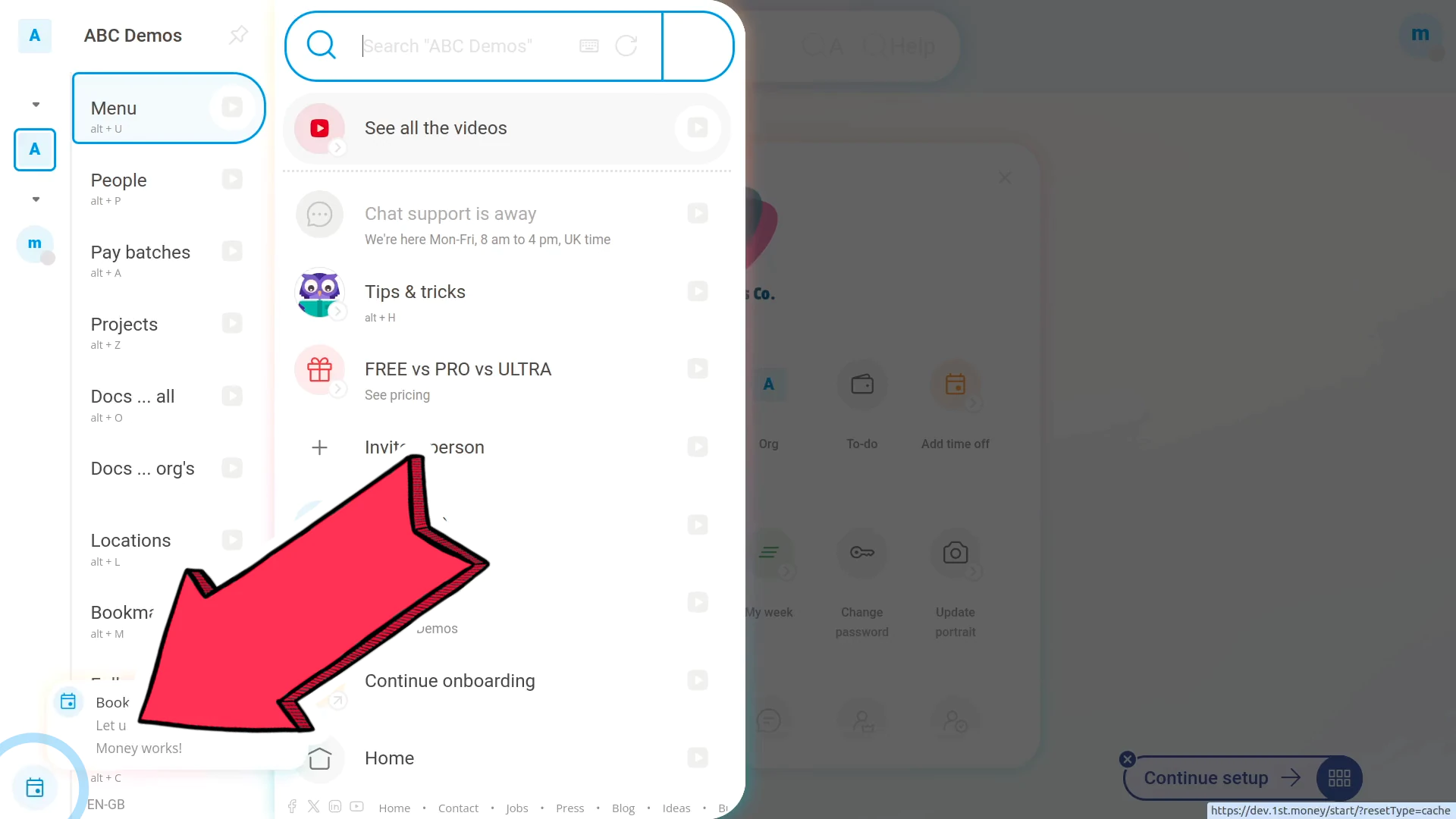
And of course, if you'd ever like help with any of this, go ahead and tap this live demo button at anytime.
Then within a couple of seconds, you'll get this calendar date chooser. And with just a few taps you can book your very own one-on-one video call with us.
And then we can, together, go through all of your questions, and show you first-hand, the true magic of 1st Money!
Import people CSV columns
| Name | Values | Notes | ||
|---|---|---|---|---|
| A | Email address | E.g.: | This is your main login email. Use it, in combination with your password, every time you log in. | |
| B | Title |
| How'd you like to be formally addressed? This setting is used in some docs and tax forms. | |
| C | First name | E.g.: | First, middle, and last names as they'd show on tax and legal documents. | |
| D | Middle name | E.g.: | ||
| E | Last name | E.g.: | ||
| F | Job title | E.g.: | ||
| G | Date joined | YYYY-MM-DD | To have payslips paid, a "Date joined" is required. The "Date joined" is usually the same as their first working day. | |
| H | Date employment ended | YYYY-MM-DD | When did this person end employment? Leave empty if employment is on-going. | |
| I | Date of birth | YYYY-MM-DD | An accurate date of birth is an essential piece of info for both payroll and government submissions. | |
| J | Legal gender |
| Setting your legal gender is sometimes required to verify your tax identity with the government. | |
| K | Mobile | E.g.: | For security reasons, this mobile phone number may require verification. | |
| L | Personal email | E.g.: | What's your personal email? This may be used after you've ended employment to send you additional tax documents and other post employment info. | |
| M | Home phone | E.g.: | What's your home phone number? This number may be used to reach you in an emergency. | |
| N | Street number | |||
| O | Street name | |||
| P | Address line 2 | E.g.: | ||
| Q | Town / city | E.g.: | ||
| R | Postcode | E.g.: | ||
| S | Payroll group | E.g.: | The payroll group groups pay settings, holidays, currency, and more. It also sets tax calculations and defaults. | |
| T | Employment type |
| Select if a person's a contractor or an employee, and whether they get holiday pay, pensions, and more. | |
| U | Pay period |
| How long each pay period lasts. Select the pay period that suits you best. | |
| V | Rate amount | E.g.: | Set how much this person's paid. Also, be sure to set the time frame. | |
| W | Rate type |
| ||
| X | Minimum wage |
| Once turned on, this person's rate amount is set to the minimum wage. It's then auto-updated when a new minimum wage is set, or the employee's age changes. | |
| Y | Target working hours ... Monday | E.g.: | Select the person's usual weekly working hours. Used by paid time off, repeat payables, and the estimation on the pay summary tab. | |
| Z | Target working hours ... Tuesday | E.g.: | Select the person's usual weekly working hours. Used by paid time off, repeat payables, and the estimation on the pay summary tab. | |
| AA | Target working hours ... Wednesday | E.g.: | Select the person's usual weekly working hours. Used by paid time off, repeat payables, and the estimation on the pay summary tab. | |
| AB | Target working hours ... Thursday | E.g.: | Select the person's usual weekly working hours. Used by paid time off, repeat payables, and the estimation on the pay summary tab. | |
| AC | Target working hours ... Friday | E.g.: | Select the person's usual weekly working hours. Used by paid time off, repeat payables, and the estimation on the pay summary tab. | |
| AD | Target working hours ... Saturday | E.g.: | Select the person's usual weekly working hours. Used by paid time off, repeat payables, and the estimation on the pay summary tab. | |
| AE | Target working hours ... Sunday | E.g.: | Select the person's usual weekly working hours. Used by paid time off, repeat payables, and the estimation on the pay summary tab. | |
| AF | PTO top up (per month) | E.g.: | How many hours is the person's "PTO balance available" to be topped up by? | |
| AG | PTO year's starting allowance hours | E.g.: | Don't set this for new employees. We'll automatically handle "Unused PTO" each year (on Jan 1st). Watch the video to learn more about negative hours. | |
| AH | Bank | E.g.: | ||
| AI | Bank account number | E.g.: | The unique 8-digit number for your bank account. | |
| AJ | Sort code | E.g.: | The sort code, or routing transit number (RTN), is a unique identifier for the bank. | |
| AK | Name on bank account | E.g.: | The bank account owner's name, spelt exactly as it's spelt on the bank's records. | |
| AL | Student loan, plan 1 repayment |
| ||
| AM | Student loan, plan 2 repayment |
| ||
| AN | Student loan, plan 4 repayment - Scottish |
| ||
| AO | Student loan, plan 5 repayment |
| ||
| AP | Postgraduate loan, repayment |
| ||
| AQ | Passport number | E.g.: | ||
| AR | Date directorship started | YYYY-MM-DD | Taxes are worked out cumulatively if this person's a director at any time in the tax year. Read more on GOV.UK | |
| AS | RTI Payroll ID | If this person's being transferred from previous payroll software, get their previous "RTI Payroll ID" from that software. Once you've got it, enter it here, otherwise leave the suggested ID as is. | ||
| AT | Leaving date ... in previous employment (P45) | YYYY-MM-DD | Find it on this person's P45. Look for: "Leaving date". An estimate is ok | |
| AU | Total pay to date ... in previous employment (P45) | E.g.: | Only include income paid since the start of the current tax year. Find it on this person's P45. Look for: "Total pay to date" | |
| AV | Total tax to date ... in previous employment (P45) | E.g.: | Only include Income Tax paid since the start of the current tax year. Find it on this person's P45. Look for: "Total tax to date" | |
| AW | Tax code | E.g.: | ||
| AX | National Insurance number | E.g.: | National Insurance numbers can be found on past payslips, tax forms, or letters from HMRC. | |
| AY | National Insurance ... category letter |
| This sets how much National Insurance is to be paid. The National Insurance category letter can be found on an employee's past payslips. Read more on GOV.UK | |
| AZ | Starting declaration |
| This is how HMRC works out a new employee's tax code. The starting declaration gets sent on the first payday FPS you send for a new employee. Read more on GOV.UK | |
| BA | Employee pension % | E.g.: | The percentage of pay that'll be deducted and put towards pensions. The combination of both "Employee %" + "Employer %" can't go below 8%. | |
| BB | Employer pension % | E.g.: | The percentage of pay that'll be additionally paid from the employer's funds and put towards employee pensions. The minimum is 3%. | |
| BC | Pension enrolment status |
| ||
| BD | Date opted out | YYYY-MM-DD | "Opting out" is leaving the pension during the first month of being auto-enrolled. If so, they ARE due a pension refund. Read more on TPR. | |
| BE | Director NICs using alternative method |
| The alternative method's common for directors who are paid regularly. Read more on GOV.UK | |
| BF | Seconded from company in another country |
| Turn on if this person is still employed by a separate overseas employer ("seconded") while they're working in the UK. Read more on GOV.UK | |
| BG | EEA citizen |
| Turn on if this person's a European Economic Area citizen. Read more on GOV.UK | |
| BH | Included in an EPM6 scheme |
| Turn on if this person's in an EPM6 (Employment Procedures Modified, Appendix 6) scheme. Read more on GOV.UK | |
| BI | Earnings are for more than one job |
| Turn on if this person has multiple jobs (each with their own payslips) with this company, or with associated businesses. Read more on GOV.UK | |
| BJ | Payments are to a non individual |
| Turn on if the bank account that Payroll Payments are made to is in the name of "a personal representative, trustee or corporate organisation". Read more on GOV.UK | |
| BK | Irregular employment payment pattern |
| Turn on if this person isn't being paid regularly, or they won't be paid for 3+ months. E.g., they're a casual employee, or they're on long-term sick leave. Read more on GOV.UK | |
| BL | Opening amounts ... Taxable pay this employment | |||
| BM | Opening amounts ... Income tax this employment | |||
| BN | Opening amounts ... NI category letter |
| ||
| BO | Opening amounts ... NI taxable | |||
| BP | Opening amounts ... Total EE NI | |||
| BQ | Opening amounts ... Total ER NI | |||
| BR | Opening amounts ... LEL earnings | |||
| BS | Opening amounts ... LEL-PT earnings | |||
| BT | Opening amounts ... PT-UEL earnings | |||
| BU | Opening amounts ... 2nd NI category letter |
| ||
| BV | Opening amounts ... 2nd NI taxable | |||
| BW | Opening amounts ... 2nd Total EE NI | |||
| BX | Opening amounts ... 2nd Total ER NI | |||
| BY | Opening amounts ... 2nd LEL earnings | |||
| BZ | Opening amounts ... 2nd LEL-PT earnings | |||
| CA | Opening amounts ... 2nd PT-UEL earnings | |||
| CB | Opening amounts ... 3rd NI category letter |
| ||
| CC | Opening amounts ... 3rd NI taxable | |||
| CD | Opening amounts ... 3rd Total EE NI | |||
| CE | Opening amounts ... 3rd Total ER NI | |||
| CF | Opening amounts ... 3rd LEL earnings | |||
| CG | Opening amounts ... 3rd LEL-PT earnings | |||
| CH | Opening amounts ... 3rd PT-UEL earnings | |||
| CI | Opening amounts ... Total student loan repayments | |||
| CJ | Opening amounts ... Total postgraduate loan repayments | |||
| CK | Opening amounts ... Statutory Maternity Pay (SMP) | |||
| CL | Opening amounts ... Statutory Adoption Pay (SAP) | |||
| CM | Opening amounts ... Statutory Paternity Pay (SPP) | |||
| CN | Opening amounts ... Statutory Shared Parental Pay (ShPP) | |||
| CO | Opening amounts ... Statutory Parental Bereavement Pay (SPBP) | |||
| CP | Opening amounts ... Statutory Neonatal Care Pay (SNCP) | |||
| CQ | Opening amounts ... Total benefits taxable by PAYE | |||
| CR | Opening amounts ... Total employee pension deductions | |||
| CS | Opening amounts ... Total employer Class 1A NI |

Keyboard shortcuts
 2:47Chrome Windows keyboard shortcuts.
General
Alt+/
or /
Alt+H
or Shift+/
Alt+R
Alt+Enter
Ctrl+S
Navigation
Alt+U
or U
Alt+P
or P
Alt+G
or G
Alt+C
or C
Ctrl+Shift+1
Ctrl+Shift+2
Ctrl+Shift+3
Ctrl+Shift+4
Ctrl+Shift+5
Ctrl+Shift+6
Ctrl+Shift+7
Ctrl+Shift+8
Videos
Esc
F
Fullscreen videoSpace
Play / PauseM
Mute / UnmuteShift+>
FasterShift+<
SlowerJump 5 seconds forwards
Jump 5 seconds backwards
Home
Jump to the beginning Updated: Thu, 15 Oct 2026.My webcam isn't taking portrait photos, how can I fix it?
When asked to turn on your webcam, tap: Allow
When you tap Take photo the photo booth opens. If it's your first time, you're asked to Allow your webcam:
See other browsers
- Chrome
- Tap: Allow
- Firefox
- Tap the drop down triangle and tap: Always Share
- Edge
- Tap: Allow
If it still doesn't work, make sure your webcam isn't in use by another piece of software.
And finally, make sure it's not blocked in the browser settings:
See other browsers
- Chrome
- - Go to: Menu > Settings > Show advanced settings > Privacy > Content settings > Media > Manage exceptions
- Make sure it's set to Allow for
https://www.1st.money.
- Firefox
- -Go to: Menu > Options > Privacy & Security
- Look for \"Camera\": Settings...
- Make sure it's set to Allow for
https://www.1st.money.
- Edge
- - Go to: Menu > Settings > Site permissions > Camera
- Make sure it's set to Allow for
https://www.1st.money.
Search shortcuts?
Search
Alt+S "Menu", then "Search"
or Move up or down search results
Enter Open the selected entry
Esc Clear the search box
Advanced search
Ctrl+Enter Open in new browser tab
Ctrl + Tap Open in new browser tab
Tab "Search inside" item
Alt + Tap "Search inside" item
Esc (second press) Hide the menu
The search box
"Menu", then "p " Search people
"Menu", then "g " Search payroll groups
"Menu", then "o " Search docs
"Menu", then "c " Search orgs
"Menu", then "ps " Search payslips
Deleted items
"Menu", then "p - " Search deleted people
Calculator ... do sums in the search box
"Menu", then "1+1"
"Menu", then "5*(9-3)="
Updated: Tue, 19 May 2026.What's the difference between each expense or benefit type?
| Arranged by? | PON or PRE? | Suggest image? | Suggest co-pay? | Suggest reimbursement? | Suggest repeating (PRE)? | See your accountant? | Video | |
|---|---|---|---|---|---|---|---|---|
| A. Assets transferred | Comp. | PON | - | - | - | - | ||
| B. Payments made on behalf of employee | Emp. | PON | - | - | ||||
| C. Vouchers and credit cards | Emp. | PON | - | - | - | |||
| D. Living accommodation | - | - | - | - | - | - | ||
| E. Mileage allowance | Emp. | PRE | - | - | - | - | - | |
| F. Cars and car fuel | Comp. | PRE | - | - | - | - | - | |
| G. Vans and van fuel | Comp. | PRE | - | - | - | - | - | |
| H. Low interest loans | - | - | - | - | - | - | ||
| I. Private medical | Comp. | PRE | - | - | - | |||
| J. Qualifying relocation | Comp. | PON | - | - | - | |||
| K. Services supplied | Comp. | PRE | - | - | - | |||
| L. Assets placed at employee's disposal | Comp. | PRE | - | - | - | - | ||
| M. Other items | Comp. | PRE | - | - | - | - | ||
| N. Expense payments on behalf of employee | Emp. | PON | - |
Notes:
- Comp. = Company: Taxed with income tax (PAYE, employee) + Class 1A NI (employer).
- Emp. = Employee: Taxed with Class 1 NI (employee).
- Both "One-off" and "Repeating" are always a benefit-in-kind.
- PON = Payable Once (once-only).
- PRE = Payable Repeating (never suggest image upload).
See HMRC's form: P11D Expenses and benefits
Updated: Thu, 7 May 2026.Why's Ask AI providing inaccurate responses?
"Ask AI" uses AI to streamline your workflow in 1st Money. However, Ask AI can occasionally produce "hallucinations" unrelated to your actual database records.
Ask AI isn't a substitute for professional counsel.
While Ask AI can summarise payroll figures, it doesn't possess the judgement of a licensed professional.
- No professional relationship: Usage of Ask AI doesn't create an attorney-client or accountant-client relationship, and doesn't serve as your legal or tax advisors.
- Compliance & risk: Relying solely on AI for sensitive HR compliance, tax calculations, or labour law interpretations poses risks. 1st Money isn't responsible for penalties or damages resulting from actions taken based on AI guidance that wasn't independently verified.
Always consult a licensed attorney or accountant in your jurisdiction for specific situational advice.
The "Human-in-the-Loop" safeguard
To reduce the risk of data errors, we've designed Ask AI with a "Human-in-the-loop" step for all database changes.
Ask AI never executes changes automatically:
- You'll always be shown a confirmation to approve the specific change.
- It's your responsibility to verify the accuracy of these changes before you tap approve.
When to switch to live support instead
If Ask AI's giving you confusing info about 1st Money, or if you suspect it's wrong:
- Verify the data: Cross-reference the answer with the actual records on the screen.
- Contact human support: Contact our business-hours live chat support.
Our human support agents are here to help. However, they're prohibited from answering compliance questions or giving legal counsel.
Updated: Thu, 21 May 2026.Why am I now on a paid plan?
To help you know why you're on PRO, you'll see tiles based on your usage. Here's the master list:
4 You've grown beyond the three-person FREE+ limit.
P You've used a paid pension feature (see below).
C You've paid a person who's a CIS subcontractor.
W You've paid people with weekly paydays.
F You've paid people with fortnightly paydays.
H You've paid people with hourly pay rates.
S You've paid people with student loans.
D You've paid directors.
R You've filed a payday.
Which pension features are free?
Some pension features are free, and some are paid:
| FREE | PAID |
|---|---|
| FREE pension auto-enrollment | PAID pension calculations |
| FREE pension preview | PAID pension filing |
| Why they're FREE? | Why they're PAID? |
| • By law, employers are required to offer pension auto-enrollment to almost every employee. | • It's only when an employee's pension calculations are done on payday, that it becomes a PAID feature. |
| • When deciding to enrol in a pension, an employee needs to see a preview of how a pension affects their pay. | • As part of completing your Tax Filing, HMRC requires us to send exact info about each employee's pension. It's a PAID feature. |
Note: HMRC's Basic PAYE tools don't include any pension auto-enrollment, pension calculation, or pension filing features.
If you're ever not sure about which pension features you'll be needing, please contact  1st Money's free support ... We're here Mon to Fri, 12 noon to 4 pm, UK time.
How do I find out if I'm on the PRO plan?
To find out if you're on the PRO plan:
- First, tap: "Menu", "Org", "Billing", then "GBP invoices"
- And you'll see a list of people you've paid during the month.
- If anybody's marked as "PRO", then you're on the PRO plan.
Can I do director reporting without 1st Money?
Director reporting and National Insurance calculations can only be filed with HMRC through HMRC recognised payroll software, including 1st Money. Read more on HMRC's website.
Do I need to report a student loan with no repayments?
Student loans need to be filed with HMRC even if the employee doesn't earn enough to make repayments (filing a £0 value student loan repayment with HMRC still counts as use of a PRO feature for that month).
Student loans can only be filed with HMRC through HMRC recognised payroll software, including 1st Money. Read more on HMRC's website.
How do I take an employee off their pension?
To opt an employee out of their pension:
- First, tap: "Person", "Pay", then "Pension"
- Then tap: Stop pension now
- The HMRC gets notified automatically, next time the person's paid.
- And that's it!
Note: Employers can't encourage or force an employee to opt out of a pension. Read more on HMRC's website.
Can I do employee pensions without 1st Money?
Employee pensions can only be filed with HMRC through HMRC recognised payroll software, including 1st Money. Read more on HMRC's website.
Updated: Sat, 24 Oct 2026.www.1st.money/uk/help/7._Other/