Pensions

 4:43
4:43How do I set pension percentages on a payroll group or person?
Guide on setting default and individual pension contribution percentages for payroll groups and employees.


How do I set pension percentages on a payroll group or person?

 4:43
4:43
"How do I set pension percentages on a payroll group or person?"
The pension percentages set how much is paid into your people's pensions each payday.
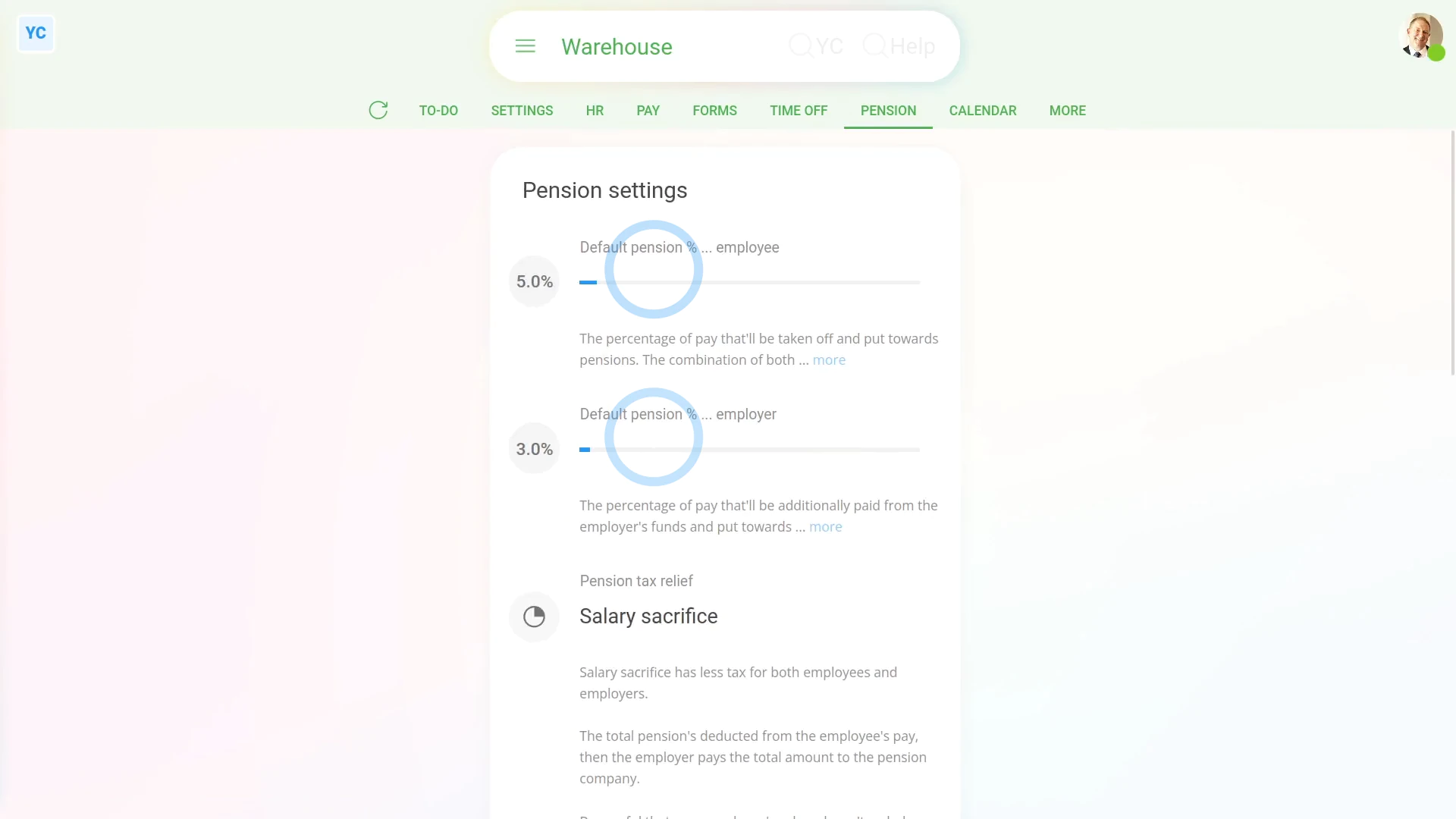
To set a payroll group's default pension contribution percentages:
- First, select the payroll group on: "Menu", then "Payroll groups"
- Then on the "Pension", then "Pension settings" tab, look for the two pension percentage sliders.
- The first pension slider, or employee percentage, sets the default percentage of the employee's pay that's paid into the employee's pension.
- The second pension slider, or employer percentage, sets the default percentage that the employer pays into the employee's pension.
- The employer percentage can't go lower than 3%, but can be set higher.
- The employee percentage can go as low as 0%, but both employer and employee percentages, when added together, must add up to at least 8%.
- When you tap Save, if the two percentages don't add up to at least 8%, you'll get a red warning.
- And you'll need to increase the percentages until the two percentages add up to at least 8%.
- And finally, tap Save, and your payroll group's new percentages are now applied from its next payday onwards.

Keep in mind that:
- The payroll group pension percentages are defaults only.
- Which means the percentages are applied to every employee in the payroll group who doesn't otherwise have their own specific percentages set.
To set a person's pension contribution percentages:
- First, select the person on: "Menu", then "People"
- Then tap: "Pay", then "Pension"
- If the person's got the "Enrolled in pension" tick, then scroll down further to the "Pension settings" heading.
- By default, each person's pension contribution percentages are set to their payroll group's default pension contribution percentages.
- But as the employer, you've got the right to increase the employer percentage of any, or all, of your people. As long as you make sure it's higher than the employer's 3% minimum.
- Or, if you want to reset it back to the payroll group's default percentage, tap the reset button:
- The person can also request for their own employee percentage to be changed.
- However, both employer and employee percentages, when added together, must add up to at least 8%.
- And finally, tap Save, and the person's new percentages are now applied from their next payday onwards.
For advanced usage:
- Each employee has the right to opt out of their pension entirely.
- To learn more about how employees can opt out of their pension, watch the video on.
- Each employee also has the right to have their pension set to the lowest possible percentage.
- However, the frequency at which an employee can increase their pension contribution percentage can vary depending on the employer and pension scheme.
- Some employers may only allow pension increases yearly, while others may allow it on request.
Also remember that:
- Only people who've got "Full payroll admin" permissions can set the pension percentages on a payroll group or person.
- And pension contributions are only available to "Employees" and: "Zero-hour workers"
- To check a person's employment type, go to: "Pay", then "Pay settings"
- Then tap: "Employment type" (at the top)
- You'll see that the employment types are all listed as "No" for "Pensions", except for "Employee" and: "Zero-hour worker"
- To learn more about employment types, watch the video on: Employment type
 Employment type
To see everyone's pension percentages in a payroll group:
- First, select the payroll group on: "Menu", then "Payroll groups"
- Then tap: "Pay", then "People"
- You may prefer to tap the tick boxes (at the start of any row).
- With the highlight turned on, it's easier to keep track of rows as you scroll across.
- Then scroll across to the employer and employee pension percent columns.
- And finally, as a payroll admin, you can tap any percentage, and instantly make changes.
And that's it! That's everything you need to know about setting how much is paid into your people's pensions each payday!
What are pension assessments?
 2:03
2:03
"What are pension assessments?"
The Pensions Regulator, in the UK, has asked that all employees and zero-hour workers be regularly assessed for their eligibility for pension contributions.
To see a person's pension assessments:
- First, select the person on: "Menu", then "People"
- Then tap: "Pay", then "Pension"
- Then below the pension status, tap the "Assessment" link.
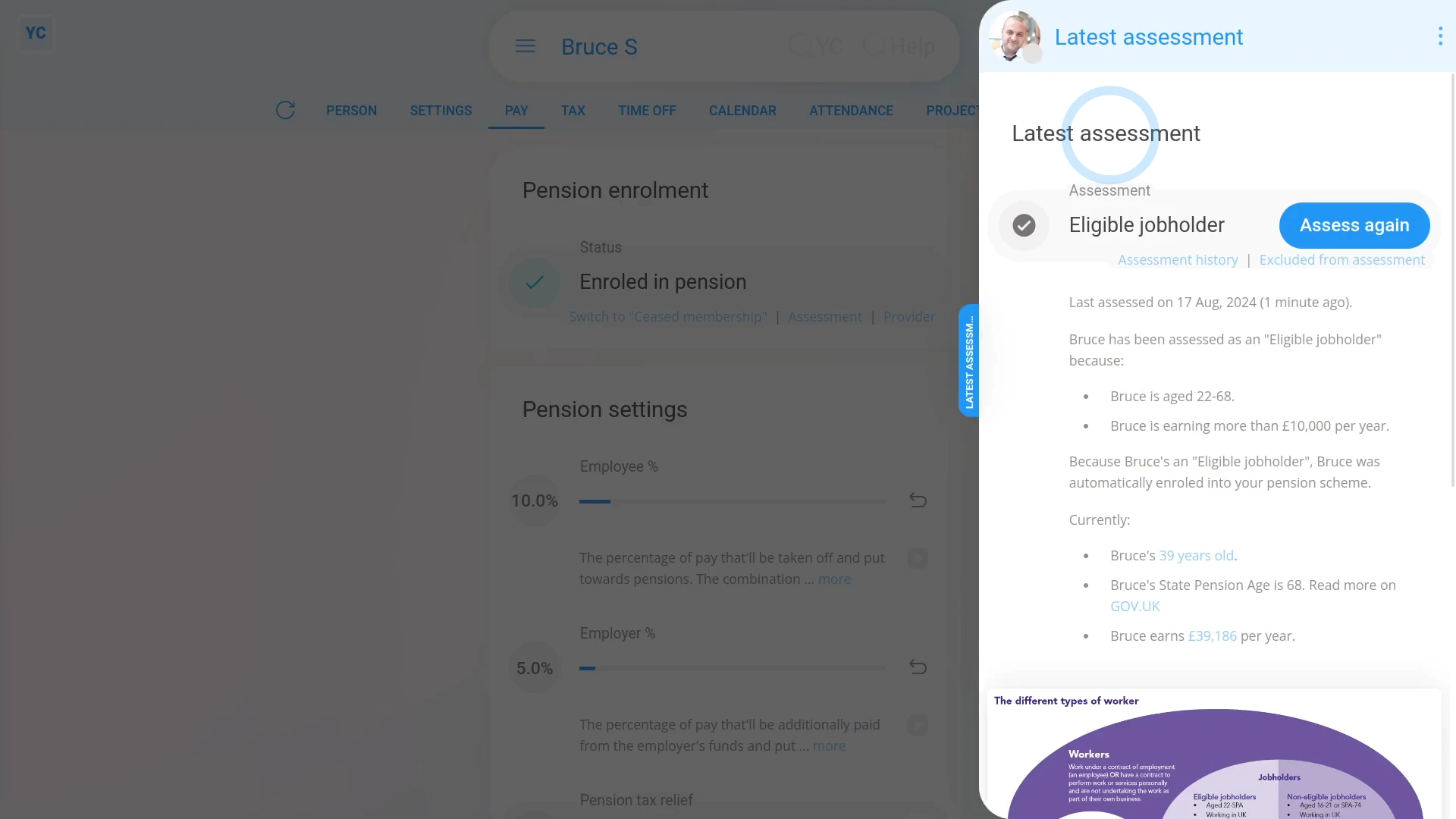
- And you'll now see the person's "Latest assessment" slide out from the right.
- Which includes the person's current pension assessment.
- And a description, below, with all the details of how the current pension assessment was reached.
- At any time, you can tap Assess again, and you'll instantly see an updated pension assessment, based on the person's current employment.
- To see a history of all pension assessments over time, tap the "Assessment history" link.
- And you'll see the person's "Assessment history" slide out from the right. Including a record of all pension assessments that were ever done for the person.
- And finally, you can tap any row in the "Assessment history" to see the details of the person's pension assessment on that date.
Keep in mind that:
- A fresh pension assessment is automatically run for each person, in the background, every time the person's paid.
- If there's ever a change of assessment detected, additional steps, like auto-enrolment, are also automatically run for the person.
- Which may result in notification emails being automatically sent to the person.
- Everything's automatic. There's nothing that you've got to do.
And that's it! That's everything you need to know about a person's pension assessments!
What are the three pension tax relief types?
 2:28
2:28
"What are the three pension tax relief types?"
The three pension tax relief types help your people pay less tax on their pensions.
To set a payroll group's pension tax relief type:
- First, select the payroll group on: "Menu", then "Payroll groups"
- Then on the "Pension", then "Pension settings" tab, look for: "Pension tax relief"
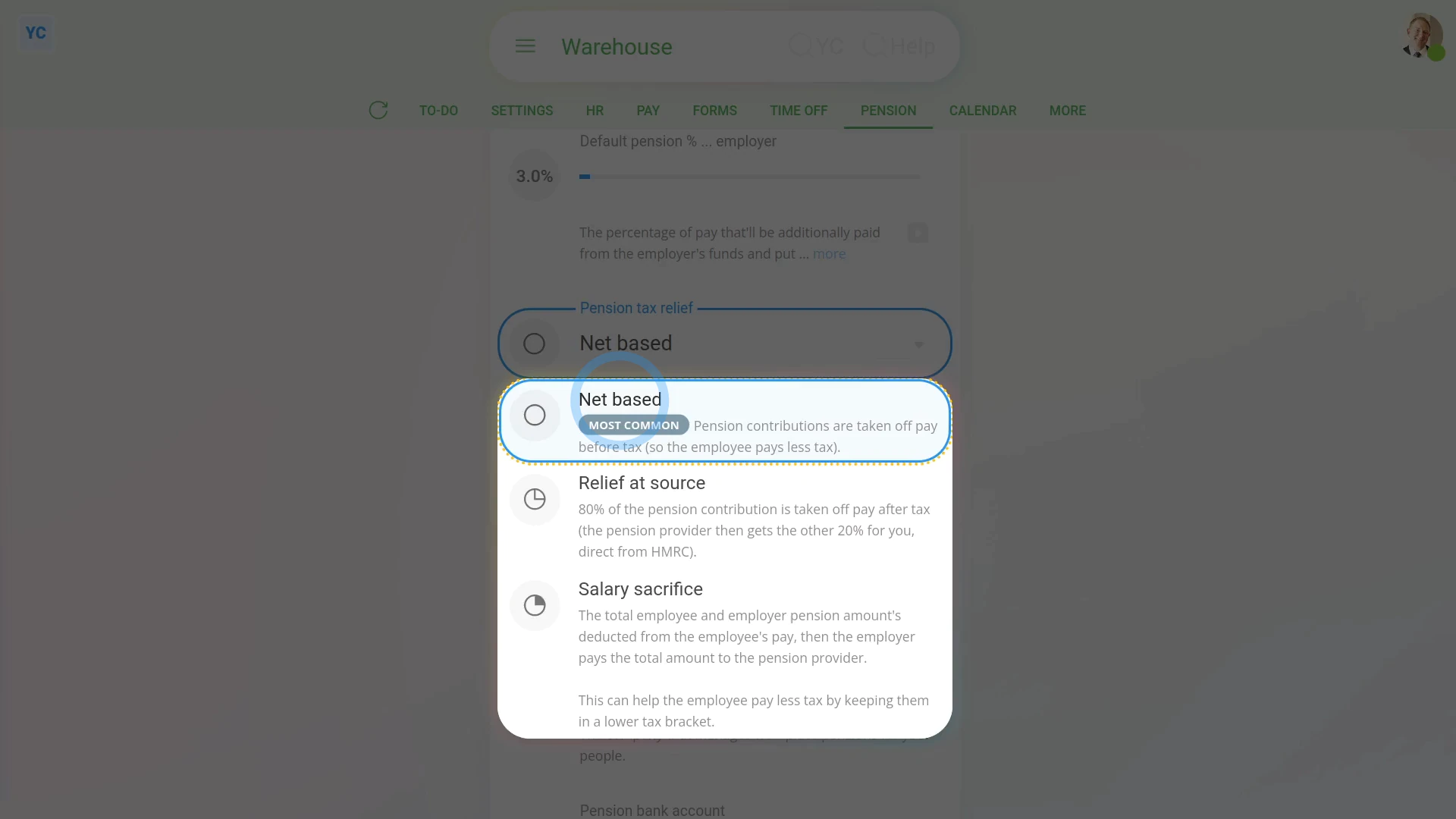
- The default pension tax relief type is: "Net based" (which is the most common)
- With "Net based" pension tax relief, pension contributions are deducted from each person's pay before tax. Which means the employee pays less tax.
- "Net based" is better for high income employees who pay more tax.
- The second pension tax relief type is: "Relief at source"
- With "Relief at source" pension tax relief, 80% of the pension contribution is deducted from each person's pay after tax.
- The pension provider then gets the other 20% for you, direct from HMRC.
- "Relief at source" is better for low income employees who don't pay any tax.
- The third pension tax relief type is: "Salary sacrifice"
- With "Salary sacrifice" pension tax relief, the total employee and employer pension amount's deducted from the employee's pay. Then the employer pays the total amount to the pension provider.
- Which can help the employee pay less tax by keeping them in a lower tax bracket.
- "Salary sacrifice" has less tax for both employees and employers.
- And finally, once you've selected your payroll group's pension tax relief type, tap Save. And it's then applied to your payroll group's next payday.
Keep in mind that:
- A payroll group's pension tax relief type applies to all people in the payroll group.
- There's no option to have some of the payroll group's people on one pension tax relief type, and other people on another.
You may notice:
- There's nothing stopping you from changing your payroll group's pension tax relief type at any time.
- However, when first selecting it, or when changing it, it's essential that you discuss your choice with your pension provider.
And that's it! That's everything you need to know about all three pension tax relief types!
www.1st.money/uk/help/Pensions/