TimeSpot

 2:50
2:50How and where do I physically position my TimeSpot devices?
Place TimeSpot devices near entrances using gooseneck clamps, ensure Wi-Fi and power.
 3:04
3:04How do I set up a new TimeSpot device?
Instructions for setting up and connecting a new TimeSpot device for timesheet tracking.
 2:33
2:33How do I add or remove the people listed on my TimeSpot devices?
Manage people on TimeSpot by updating locations in 1st Money; changes sync hourly automatically.
 3:35
3:35How do I clock-in and clock-out on TimeSpot?
Clock-in and clock-out on TimeSpot by tapping your name, verified with a photo to prevent fraud.
 3:22
3:22How do I add people from different locations to a single TimeSpot?
Connect multiple orgs or locations to one TimeSpot device using their IDs and passwords.


1. How and where do I physically position my TimeSpot devices?

 2:50
2:50
"How and where do I physically position my TimeSpot devices?"
The physical placement of your TimeSpot devices can make all the difference in getting your people to reliably clock-out and clock-in timesheet times.

When choosing the tablet or phone to install TimeSpot onto:
- Use any iOS or Android tablet or phone. All it needs is Wi-Fi, a camera, and a charging cable.
- If you're placing it in an unsupervised or public location, you might want to try an iOS or Android phone that's already a few years old.
- You'll find that TimeSpot also runs quite well, even on older iOS and Android phones, including those that are 4-5 years old.
- However, be sure to connect the device to the local Wi-Fi. Alternatively, if there's no Wi-Fi, TimeSpot also runs fine over a data connection. Its data usage is very low.
- Once it's opened to the faces screen, the TimeSpot app automatically switches the tablet or phone to "Screen always on" mode.
- All you've got to do is make sure that it's plugged in to the wall, so it never runs out of power.

Now for some suggestions on the best ideas for physical placement:
- Put a TimeSpot device in each entrance to your buildings. That way no matter how your people enter your workplace, your people can conveniently clock-in upon entering the building.
- The easiest way to mount the TimeSpot device is to buy a: "gooseneck phone holder clamp"
- You can search for the words "gooseneck phone holder clamp" on either Amazon or Temu.
- Be sure to select the one that attaches to the table with a screw clamp. That way, it won't move about when the screen's tapped during each clock-in.
- On Amazon, a phone holder costs about £8 and could arrive the next day. On Temu, it costs half that, but could take ten days to arrive.
- Once your phone holder arrives, attach it to any surface near the entrance, and then adjust its height and position.
- It's best to have it angled slightly upwards, so it's usable by people of different heights.
- And don't forget to clock-in a timesheet time for yourself, to make sure it's all working correctly.

If a feature's not showing:
- If the location or TimeSpot features aren't showing, it means your org hasn't turned on the timesheets feature yet.
- To turn on the timesheets feature, watch the video on: Turning on timesheets
 Turning on timesheets
To learn more:
- About installing and connecting the app for a TimeSpot, watch the video on: TimeSpot setup
And that's it! That's everything you need to know about physically positioning your TimeSpot devices!
2. How do I set up a new TimeSpot device?
 3:04
3:04
"How do I set up a new TimeSpot device?"
Adding a TimeSpot device to each of your workplace entrances allows your people to clock-in and clock-out timesheet time more reliably.
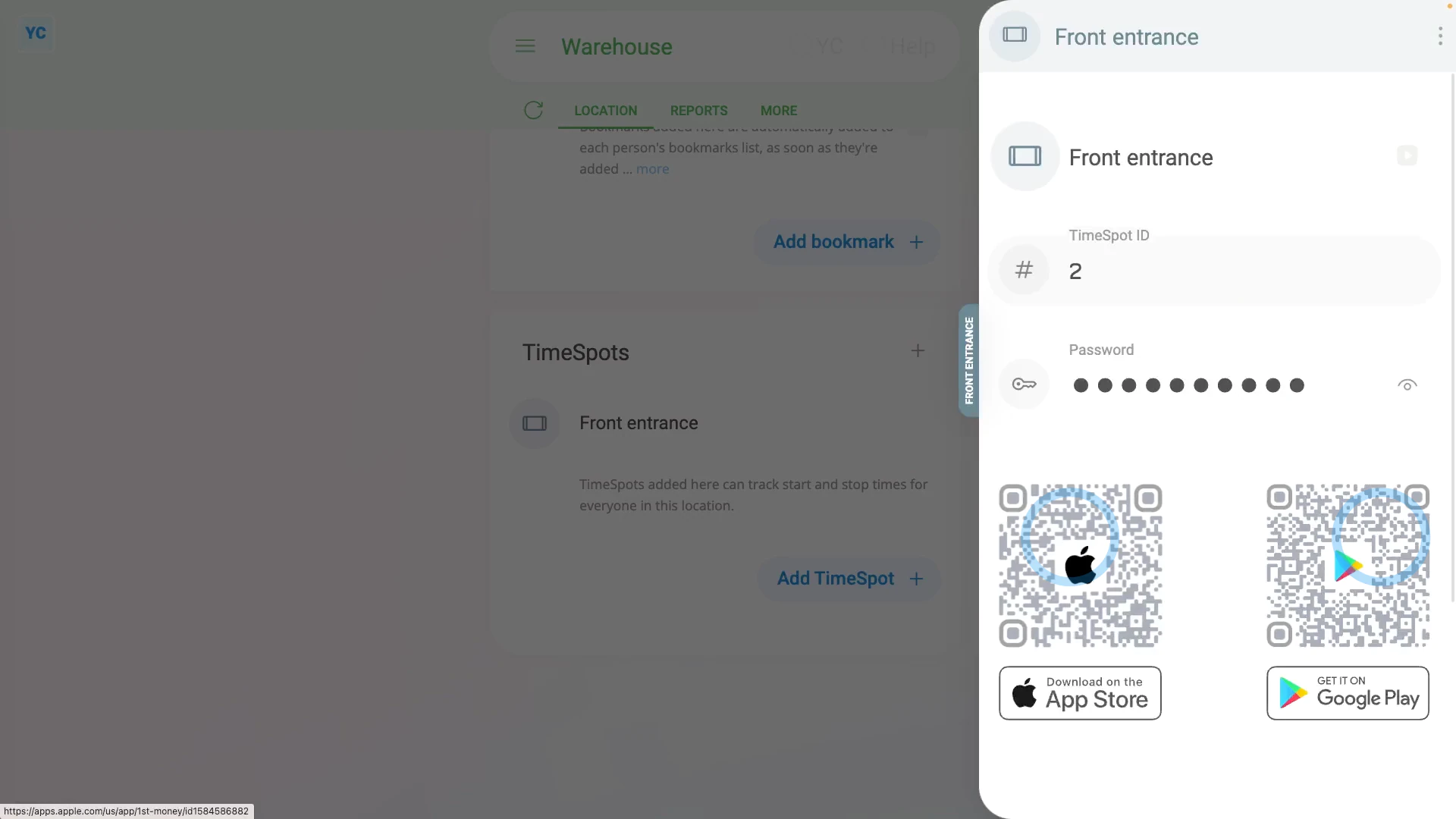
To install a new TimeSpot device:
- First, select the location on: "Menu", then "Locations"
- Then tap: "More", then "TimeSpots"
- And then tap: "New TimeSpot"
- Once it slides out on the right, you'll see a new TimeSpot ready to be set up.
- Type in the new TimeSpot's name.
- Then to see the TimeSpot's existing password, tap the "Show password" button:
- You're welcome to change the password to something easier, as long as it's at least 8 characters long.
- Then tap: Save
- Now when you scroll down the location page to the "TimeSpots" heading, you'll see your new TimeSpot listed.
- To download the TimeSpot app to your iOS or Android smartphone or tablet, open the TimeSpot, and scan one of the barcodes.
- Alternatively, tap one of the barcodes, and then send the page link to your smartphone or tablet.
- And finally, once you've got the app store page open on your smartphone or tablet, tap: Install
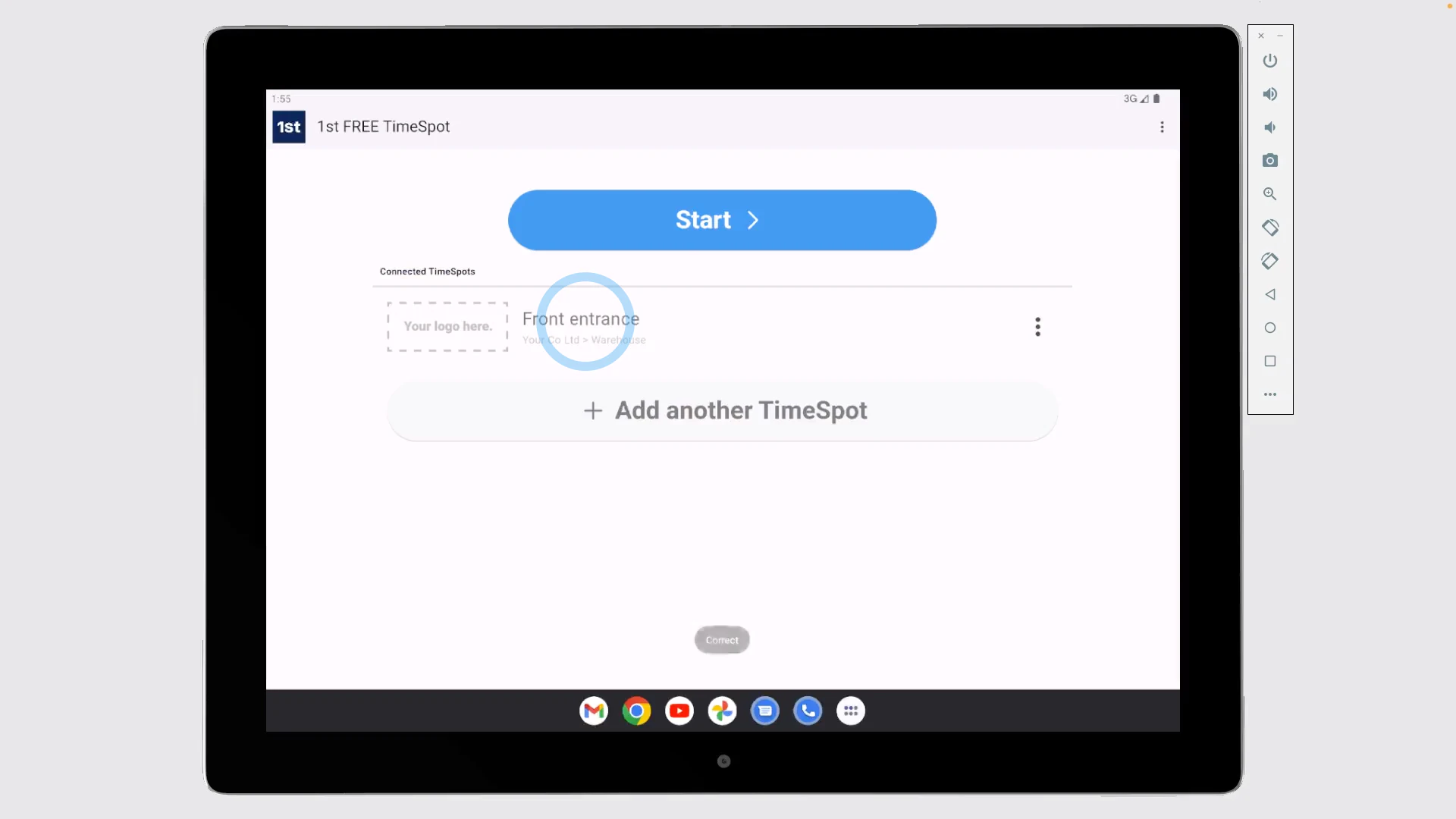
To connect a TimeSpot device with its ID and password:
- First, open the TimeSpot app on your iOS or Android smartphone or tablet.
- Then tap: Setup
- Type in the "TimeSpot ID" and "Password", and tap: Save
- You'll now see your newly connected TimeSpot included in the list.
- Next, to have it ready for your people to try, tap: Start
- And finally, you'll be ready for your people to make use of the TimeSpot to clock-in and clock-out timesheet time.
Keep in mind that:
- You can connect as many TimeSpot locations as you like to a single TimeSpot device.
- Each with their own ID and password, and each with their own associated list of people.
- You can even connect TimeSpot locations from different orgs.
If a feature's not showing:
- If the location or TimeSpot features aren't showing, it means your org hasn't turned on the timesheets feature yet.
- To turn on the timesheets feature, watch the video on: Turning on timesheets
To learn more:
- About adding or removing people to a new TimeSpot, watch the video on: Adding people to a TimeSpot
And that's it! That's everything you need to know about setting up a new TimeSpot device!
3. How do I add or remove the people listed on my TimeSpot devices?
 2:33
2:33
"How do I add or remove the people listed on my TimeSpot devices?"
The people listed on a TimeSpot device depends on which TimeSpot locations have been connected to the device.
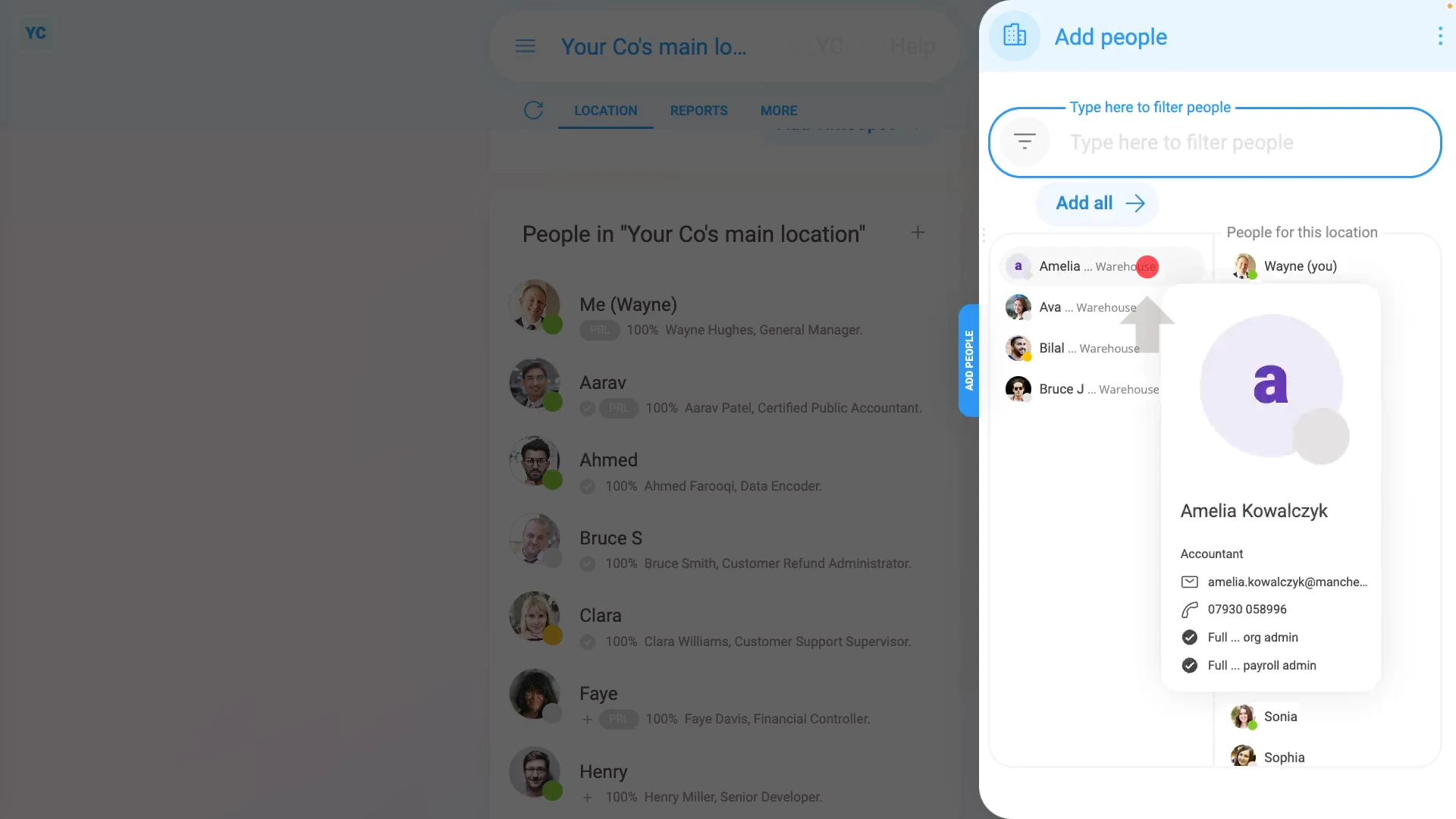
To add or remove people from a TimeSpot device:
- First, to open the connected TimeSpots page, tap the three dots: (in the top-right corner)
- Then tap: Connected TimeSpots
- You'll now see a list of which TimeSpot locations have been connected to the device.
- Then to add or remove people from the TimeSpot device, you'll need to add or remove people from the listed locations in 1st Money.
- Now in 1st Money.
- Next, open one of the locations on: "Menu", then "Locations"
- When you scroll down the location page to the "TimeSpots" heading, you'll see your TimeSpot listed.
- Below your TimeSpot, you'll see a list of the people in the current location.
- To add or remove people from your TimeSpot device tap: Add people
- Once it slides out on the right, tap each person you want to add.
- Then tap: Save
- And you'll see the people you selected are now added to the location.
- Next, back on the TimeSpot device, tap the refresh button:
- And finally, you'll see them in the listing.
Keep in mind that:
- Even if you don't tap the refresh button , any changes to your people in 1st Money are still automatically synchronised with your TimeSpot device.
- Each TimeSpot device's list of people is automatically synchronised every hour.
- Also, if you delete, block, or end employment for any person, those people are also automatically removed from TimeSpot.
- The removal is done during the next hourly synchronize.
- And even if a deleted or blocked person attempts a clock-in before the next synchronize, it still declines their clock-in.
If a feature's not showing:
- If the location or TimeSpot features aren't showing, it means your org hasn't turned on the timesheets feature yet.
- To turn on the timesheets feature, watch the video on: Turning on timesheets
And that's it! That's everything you need to know about adding or removing people listed on your TimeSpot devices!
4. How do I clock-in and clock-out on TimeSpot?
 3:35
3:35
"How do I clock-in and clock-out on TimeSpot?"
With only one tap, you can clock-in and clock-out your timesheet times on a TimeSpot device.
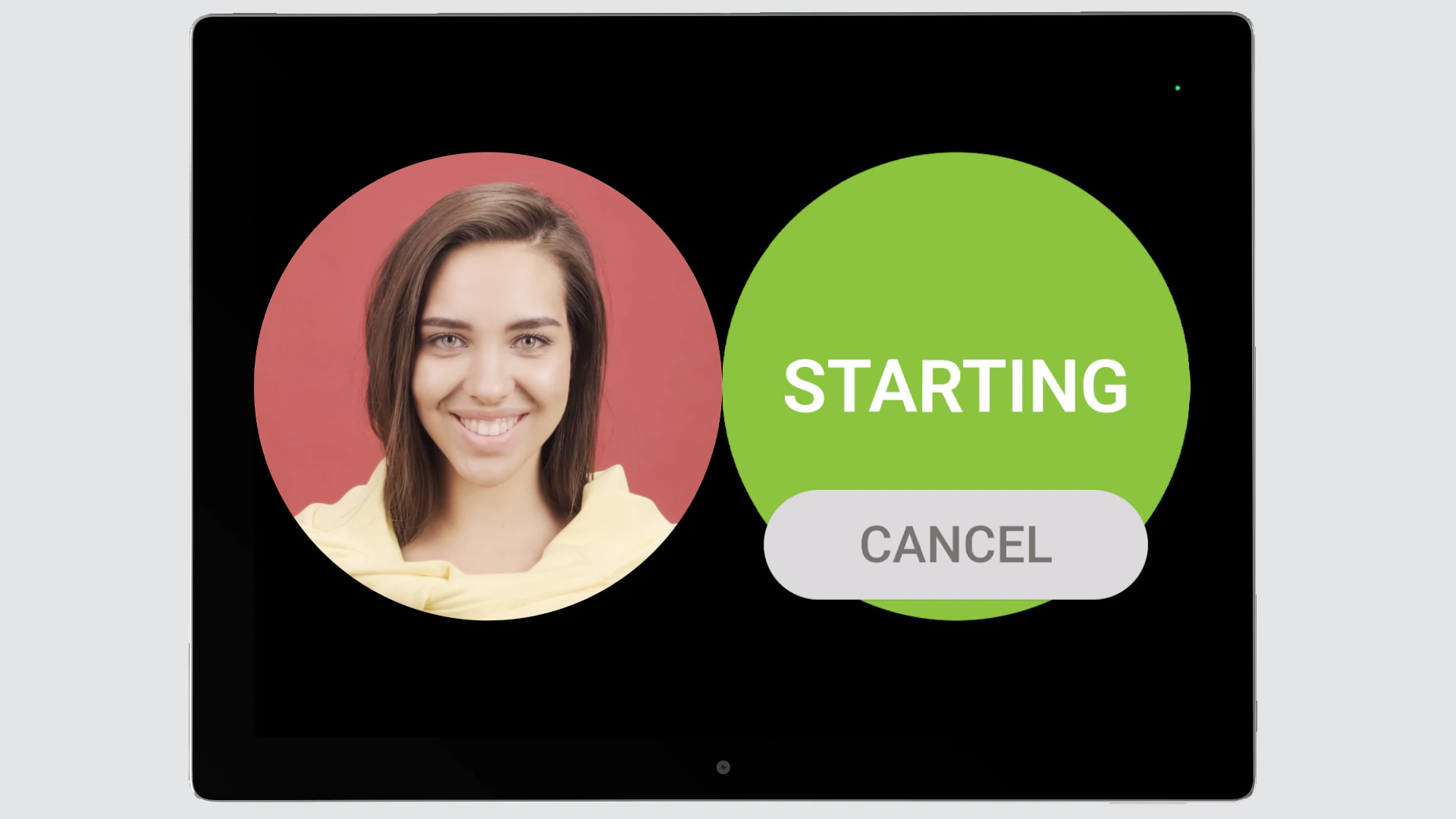
To clock-in or clock-out timesheet times on a TimeSpot device:
- First, tap the circle that matches your name.
- It then automatically counts down from 3-2-1 and takes a photo.
- You'll now be shown a confirmation that you're either starting or stopping your timesheet time, and you can tap Cancel if it's wrong.
- And finally, a few seconds later, it automatically returns to the start screen, ready for the next person.
You may notice:
- That if TimeSpot can't find a complete face in the photo it's taken, the clock-in or clock-out is automatically cancelled with a "No face found" warning.
- Clock-in or clock-out timesheet times are never sent to 1st Money if there isn't a complete face found in the photo.
- The reason for taking a photo during clock-in or clock-out is to verify each person's identity, to reduce timesheet fraud.
For advanced usage:
- There may be times you feel that TimeSpot gets it wrong.
- For example, if it thinks you're stopping, when you're expecting to be starting, or vice versa.
- If that happens, it might be that it failed to properly register a previous clock-in or clock-out.
- If that's the case, it's best to tap Cancel, and go to your org admin.
- Your org admin can then open your timesheet and manually correct any missing clock-ins or clock-outs.
Also remember that:
- All clock-in and clock-out times are always recorded with the precision of 1st Money's server time.
- Because it's always based on the server time, it still correctly records clock-ins, even if your smartphone or tablet's time is incorrect.
- It also means that, there's less chance for confusion or timesheet fraud, no matter which country or timezone you're clocking-in from.
Keep in mind that:
- The clock-in and clock-out photos are visible to people who process your payroll on the "Hours worked" report.
- Payroll admins can look through each timesheet in the pay period, to verify that the expected person's face is showing in each photo.
- The photos are also visible to your managers and supervisors, and also to yourself, when you open your timesheet for that day.
- However, the TimeSpot photos are only stored for six months. After six months, the photos are automatically deleted, but all clock-in and clock-out timesheet times remain saved.
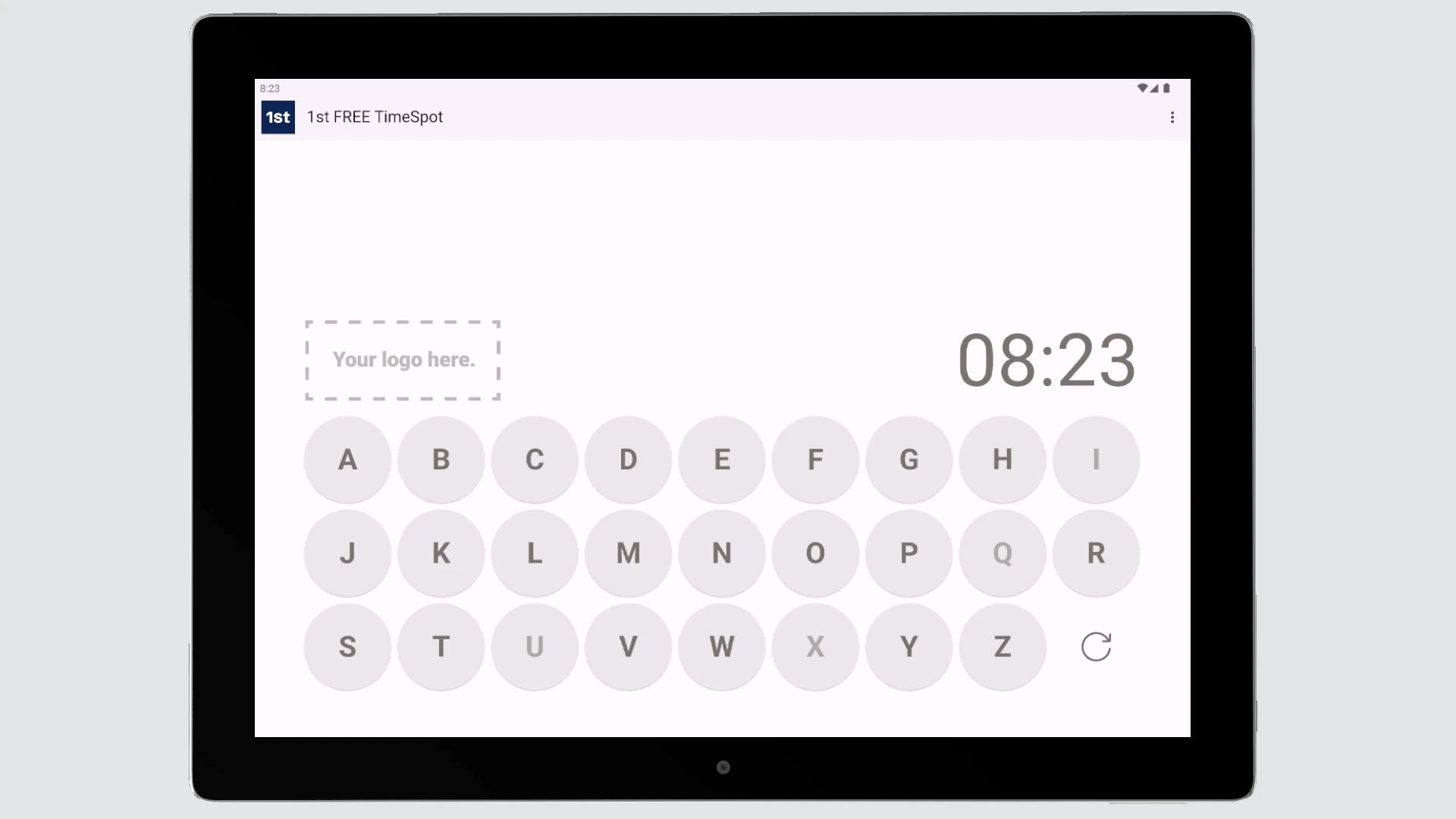
You may also notice:
- That if the number of people listed on a TimeSpot device is greater than 30, then it automatically shows a keyboard instead.
- When the keyboard shows, tap the first letter of your name.
- You'll then see a circle for all the people whose name starts with that letter, including yourself.
- In keyboard mode, TimeSpot can handle the clock-ins and clock-outs of thousands of employees.
If a feature's not showing:
- If the location or TimeSpot features aren't showing, it means your org hasn't turned on the timesheets feature yet.
- To turn on the timesheets feature, watch the video on: Turning on timesheets
And that's it! That's everything you need to know about clocking-in and clocking-out timesheet times on a TimeSpot device!
How do I add people from different locations to a single TimeSpot?
 3:22
3:22
"How do I add people from different locations to a single TimeSpot?"
Larger companies may have people who move from one location to another. To help larger companies, a single TimeSpot device can clock-in and clock-out people from many different orgs or locations.
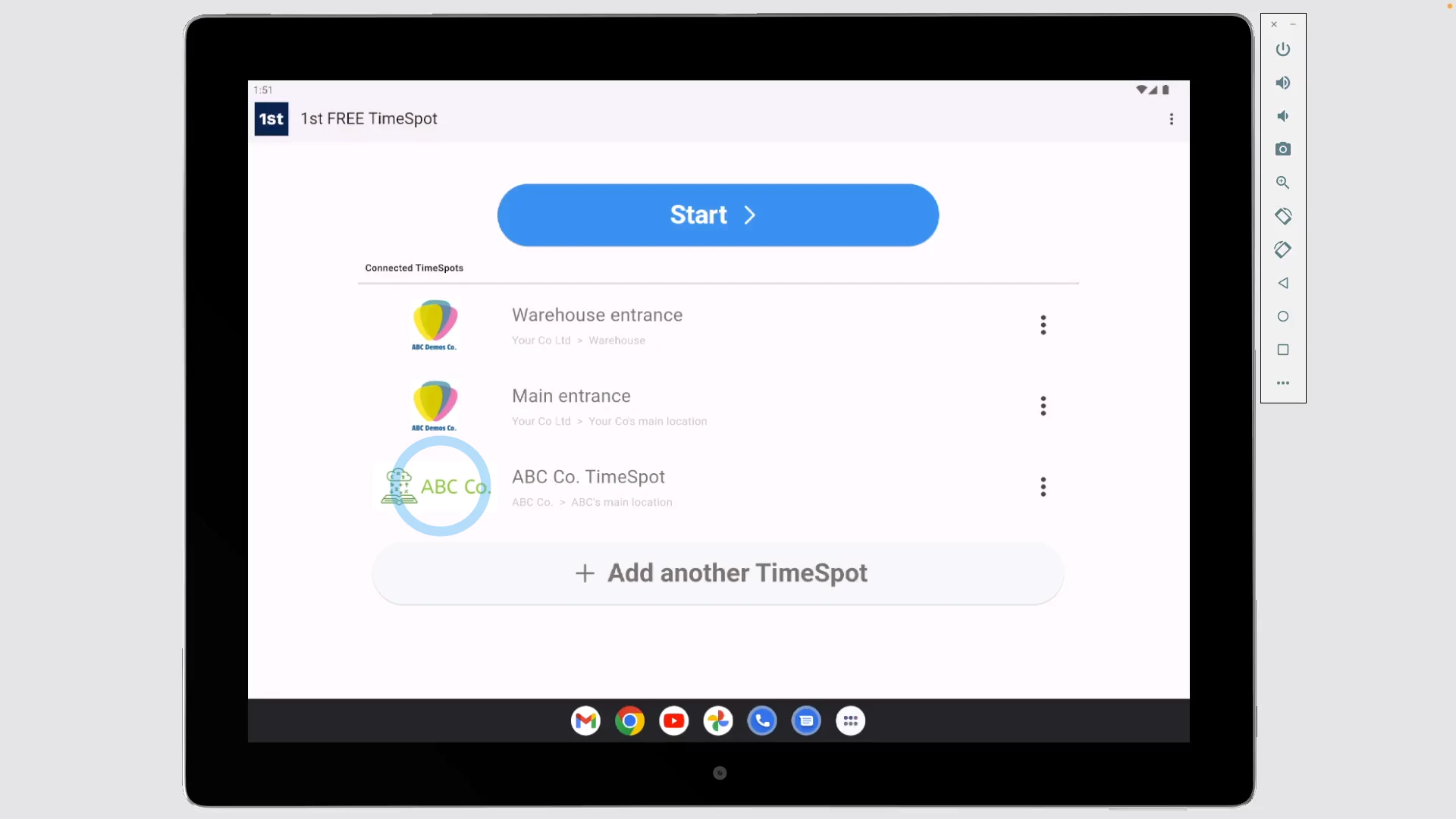
To connect multiple orgs or locations to a single TimeSpot device:
- First, open the TimeSpot app on your iOS or Android smartphone or tablet.
- Then tap: Setup
- Type in the "TimeSpot ID" and "Password" of your first location, and tap: Save
- You'll now see your newly connected TimeSpot included in the list.
- And when you tap Start, you'll see all the people from your first location that can now immediately use the TimeSpot device for clock-ins and clock-outs.
- Next, to return back to the connected TimeSpots, to add the second location, tap the three dots: (in the top-right corner)
- Then: Connected TimeSpots
- And tap: Add another TimeSpot
- Now type in the "TimeSpot ID" and "Password" of your second location, and tap: Save
- You'll now see a second TimeSpot included in the list.
- And when you tap Start, you'll now see a combined list of people from both your first location and second locations.
- Now, back on connected TimeSpots, and adding a third location's "TimeSpot ID" and "Password". However, in the example, the third location is from a different org.
- And you'll now see a third TimeSpot included in the list. You'll also notice that the third TimeSpot has a different logo and org name.
- And now when you tap Start, you'll now see a combined list of all people from all three locations.
- And finally, all the listed people can immediately use the TimeSpot device for their clock-ins and clock-outs to each of their orgs.
Keep in mind that:
- You can connect as many TimeSpot orgs or locations as you like to a single TimeSpot device.
- Each with their own ID and password, and each with their own associated list of people.
If a feature's not showing:
- If the location or TimeSpot features aren't showing, it means your org hasn't turned on the timesheets feature yet.
- To turn on the timesheets feature, watch the video on: Turning on timesheets
To learn more:
- About adding or removing people to a new TimeSpot, watch the video on: Adding people to a TimeSpot
- To learn about setting up a TimeSpot device from scratch, or finding its ID and password, watch the video on: TimeSpot setup
And that's it! That's everything you need to know about adding people from different orgs or locations to a single TimeSpot device!
How do I delete or un-delete a TimeSpot?
 2:32
2:32
"How do I delete or un-delete a TimeSpot?"
If you no longer need a TimeSpot, you're welcome to delete it whenever you like.
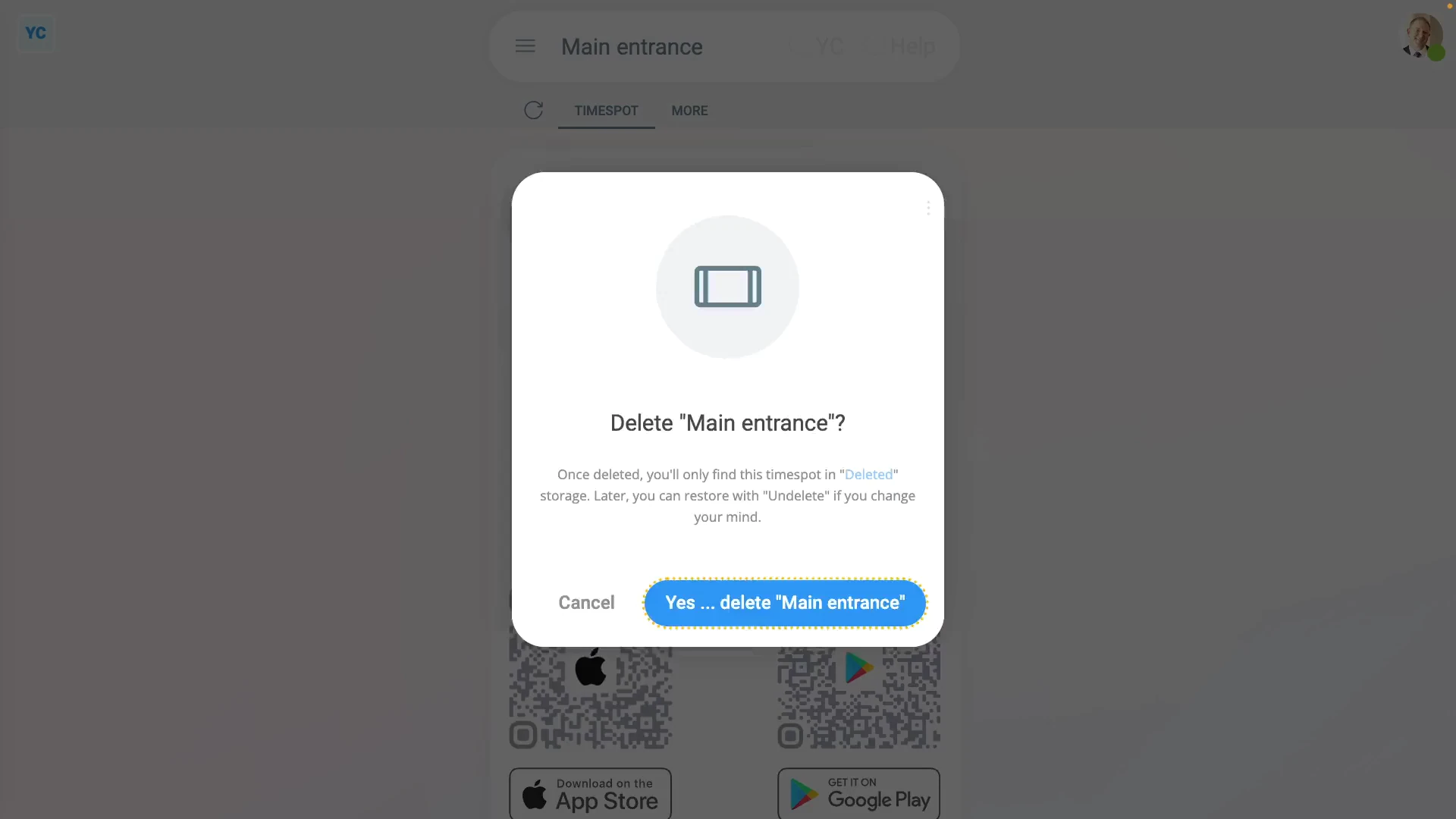
To delete a TimeSpot:
- First, go to the TimeSpot's location, and select the TimeSpot on: "More", then "TimeSpots"
- Once it slides out on the right, to open it in a new tab, tap the three dots: (in the top-right corner)
- Then tap: Open in new tab
- Next, tap: More
- Then: Delete
- Then: Yes ... delete
- Now, the TimeSpot's deleted.
- The deleted TimeSpot's also locked, so it can't be changed anymore.
- Also, next time anyone tries to clock-in a timesheet time through the deleted TimeSpot, the clock-in won't be saved.
- And finally, if you change your mind and want the TimeSpot back again, tap Un-delete, and it's immediately un-deleted.
If it's been a while since you deleted a TimeSpot, and you want to un-delete it, you'll first need to find it in the: "deleted bin"
To un-delete a TimeSpot from your "deleted bin":
- First, tap: "Menu", then "Deleted bin"
- Next, you'll see a category for most of the kinds of items that can be deleted. Tap: TimeSpots
- And then tap the TimeSpot you'd like to un-delete.
- Next, tap: Un-delete (at the bottom)
- And finally, the previously deleted TimeSpot is immediately un-deleted.
Keep in mind that:
- Only people who've got "Full org admin" permissions can delete or un-delete TimeSpots.
- And remember that all deletes and un-deletes are always permanently recorded in: "History"
- That means any admin can always look back in time, and see who did any delete, and when the delete was done.
If a feature's not showing:
- If the location or TimeSpot features aren't showing, it means your org hasn't turned on the timesheets feature yet.
- To turn on the timesheets feature, watch the video on: Turning on timesheets
And that's it! That's everything you need to know about deleting or un-deleting a TimeSpot!
How do I restrict some people to only clock-in through a TimeSpot?
 4:04
4:04
"How do I restrict some people to only clock-in through a TimeSpot?"
Once you've set up a wall-mounted TimeSpot, you may prefer that some of your people only do their clock-ins through the TimeSpot. Which means restricting them from otherwise clocking-in through 1st Money.
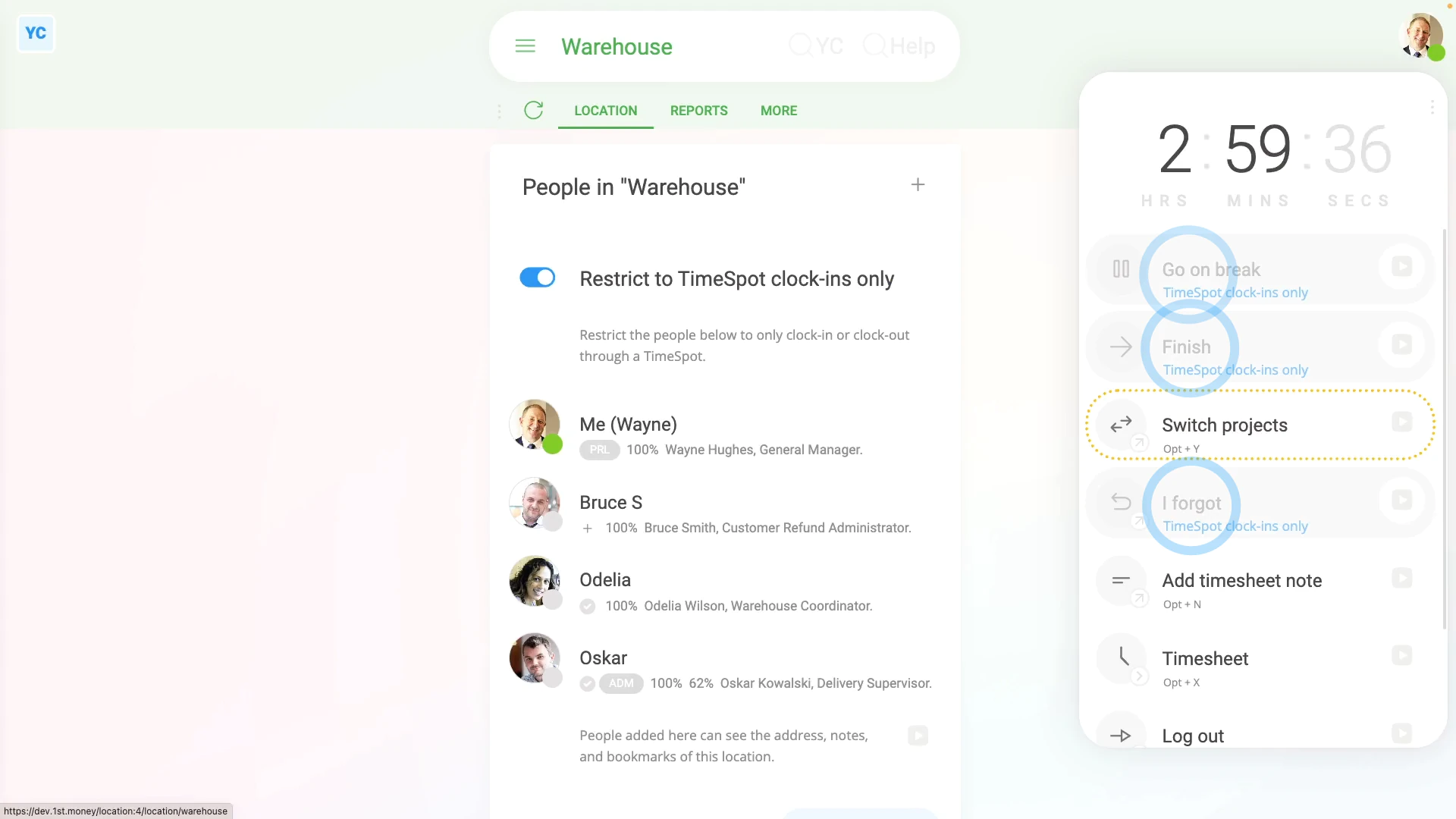
To restrict some people to only clocking-in through a TimeSpot:
- First, select the location that'll have the TimeSpot, on: "Menu", then "Locations"
- When you scroll down to the "People" heading, you'll see that "Restrict to TimeSpot clock-ins only" is currently disabled.
- That's because there's no TimeSpots currently connected.
- To learn more about adding a TimeSpot, watch the video on: TimeSpot setup
- Next, add a TimeSpot.
- Then give it a name.
- Then make a note of the: "TimeSpot ID"
- And set the password to what you prefer.
- Then tap: Save
- And open it again, and install the free iOS or Android app onto any tablet or phone by scanning one of the barcodes.
- Once you've installed and connected TimeSpot on any tablet or phone, right-click anywhere on the page then tap: Reload
- You'll now see a green dot showing that your newly created TimeSpot is connected.
- And now that it's connected, "Restrict to TimeSpot clock-ins only" is also automatically turned on.
- With "Restrict to TimeSpot clock-ins only" turned on, all the people in the location now see a change to their clock-ins.
- When the people in the location now tap their "Work-time menu" (top-right) in 1st Money, their "Start", and other similar buttons are now all disabled.
- And finally, from now on, the people in the location can only clock-in and clock-out through a TimeSpot.
Keep in mind that:
- At any time, you can always turn off: "Restrict to TimeSpot clock-ins only"
- As soon as you turn it off, all the people in the location can instantly clock-in again through their "Work-time menu" (top-right) in 1st Money.
- Alternatively, you may want to allow selected people to still clock-in through 1st Money, and not be restricted to only clocking-in through a TimeSpot.
- If that's what you want, move only those selected people out to another location.
You may notice:
- That the advantage of restricting your people to only clocking-in through a TimeSpot, is that it proves their physical presence, during the time of their clock-in.
- For some companies, it's important to both accurately record clock-ins, and also prove physical presence in the workplace.
- If both advantages are important to your company, it's recommended to turn on: "Restrict to TimeSpot clock-ins only"
For advanced usage:
- Because multiple locations can be connected to a single TimeSpot device, you can group some people in one location, with the restriction turned on. And you can group others in a second location with the restriction turned off.
If a feature's not showing:
- If the location or TimeSpot features aren't showing, it means your org hasn't turned on the timesheets feature yet.
- To turn on the timesheets feature, watch the video on: Turning on timesheets
To learn more:
- About setting which people can clock-in through a TimeSpot, watch the video on: Adding people to a TimeSpot
- To learn about connecting multiple locations to a single TimeSpot device, watch the video on: Multiple TimeSpots
And that's it! That's everything you need to know about restricting some people to only clock-in through a TimeSpot!
www.1st.money/uk/help/TimeSpot/