Offboarding

 2:43
2:43How do I use the record of events page?
Shows a 12-month rolling record of a person's leave and disciplinary actions with detailed event info.
 2:22
2:22What's the difference between verbal and written warnings?
Verbal warnings address minor issues; written warnings are formal and include extra options for serious misconduct.
 4:41
4:41How do I issue a disciplinary action as verbal or written warning?
How to issue and track verbal or written disciplinary warnings using 1st Money software.
 4:04
4:04How do I change the default docs for leave and disciplinary actions?
How to clone, edit, and set default docs for leave and disciplinary actions in payroll groups.
 6:23
6:23How do I give a person notice of their upcoming termination?
Steps to give notice of termination with a paid working notice period and confirmation process.
 5:01
5:01How do I instantly terminate employment during their probation?
How to instantly terminate an employee during probation using 1st Money system.
 6:13
6:13How do I instantly terminate employment for cause?
Steps and considerations for instantly terminating employment for cause using 1st Money.
 6:20
6:20How do I instantly terminate employment with pay in lieu?
How to instantly terminate employment with pay in lieu using 1st Money software steps.
 5:52
5:52How do I issue a suspension?
Guide on setting default suspension days and issuing suspensions in payroll and HR systems.
 4:42
4:42How do I record a person's resignation, if it's NOT agreed?
Steps to record and refuse a resignation if notice period and end date aren't agreed.
 6:40
6:40How do I record a resignation, once their ending date is agreed?
How to record and process an employee's resignation and notice period in 1st Money system.
 4:03
4:03How do I send a written warning that includes a hearing request?
Steps to send a written warning with a hearing request using 1st Money software.
 2:04
2:04How do I strike a disciplinary action from the record?
Steps to strike or restore a disciplinary action from an employee's record.

1. How do I use the record of events page?

 2:42
2:42
"How do I use the record of events page?"
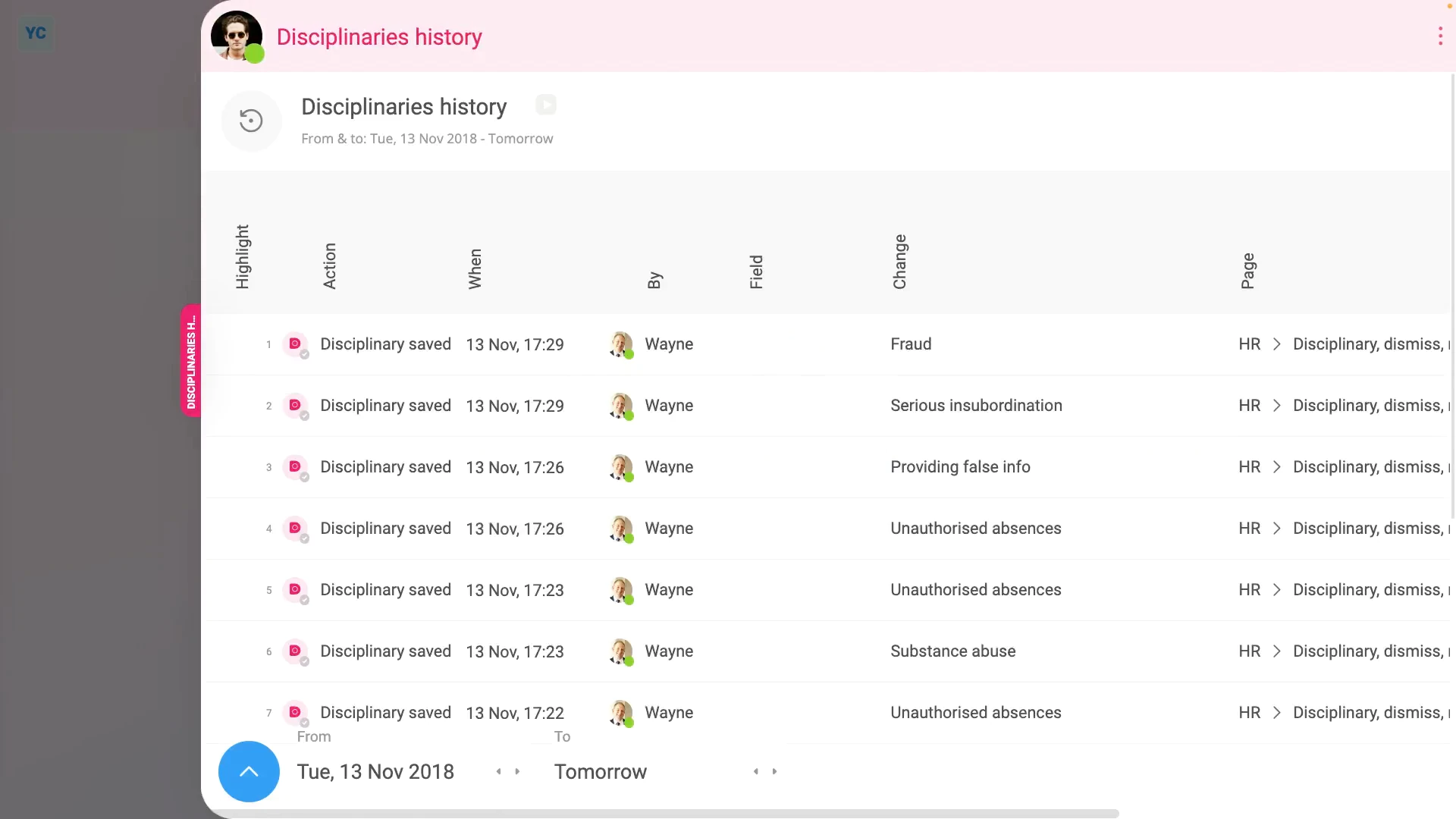
The record of events page stores a rolling 12-month record of all leave, disciplinary action, termination, and resignation events for a person.
To see a person's record of events:
- First, select the person on: "Menu", then "People"
- Then tap: "HR", then "Record of events"
- Near the top of the page, you'll see a 12-month record of "Verbal warnings" in pink, and below that, "Written warnings" in navy.
- With a count of how many disciplinary actions happened in each category, for each of the last 12 months.
- When you scroll down the page, you'll see a list of each of their disciplinary actions, with the most recent near the top.
- When you tap any of the monthly numbers, the page scrolls you down and highlights the disciplinary actions, even if there's more than one.
- To see more about a single disciplinary action, tap it, and you'll see more details.
- Including if a doc was sent, who did the disciplinary action, and when.
- To see a copy of the sent doc, tap the "View" button: (at the end of the row)
- And to download a copy of the sent doc, tap the "Download" button: (on the right)
- If a doc was never sent for a disciplinary action, and can no longer be sent, you'll see the words: "doc not sent"
- However, if a doc wasn't sent, but can still be sent, you'll see a blue "review & send doc" link in the heading which takes you to the doc.
- When you expand the details, you'll see a yellow waiting circle on the first row showing that the doc is still waiting to be sent.
- And if the disciplinary action involved a hearing or suspension, you'll see additional details about those as well.
- And finally, if you need to see disciplinary actions that are older than 12 months shown on the page, scroll to the bottom and tap: See full history

Keep in mind that:
- A prepared disciplinary action doc is stored, ready to be sent, only for the most recent disciplinary action.
- Or, in other words, if you haven't sent a disciplinary action doc yet, the doc can still be sent until a new disciplinary action is added.
To learn more:
- About the differences between verbal warnings and written warnings, watch the video on: Verbal warnings vs written warnings
 Verbal warnings vs written warnings
And that's it! That's everything you need to know about a person's record of events!
2. What's the difference between verbal and written warnings?
 2:22
2:22
"What's the difference between verbal and written warnings?"
When creating a disciplinary action, it's important to select the right type. Verbal warnings are for minor disciplinary actions or first time offences. While written warnings are a more formal record of misconduct.
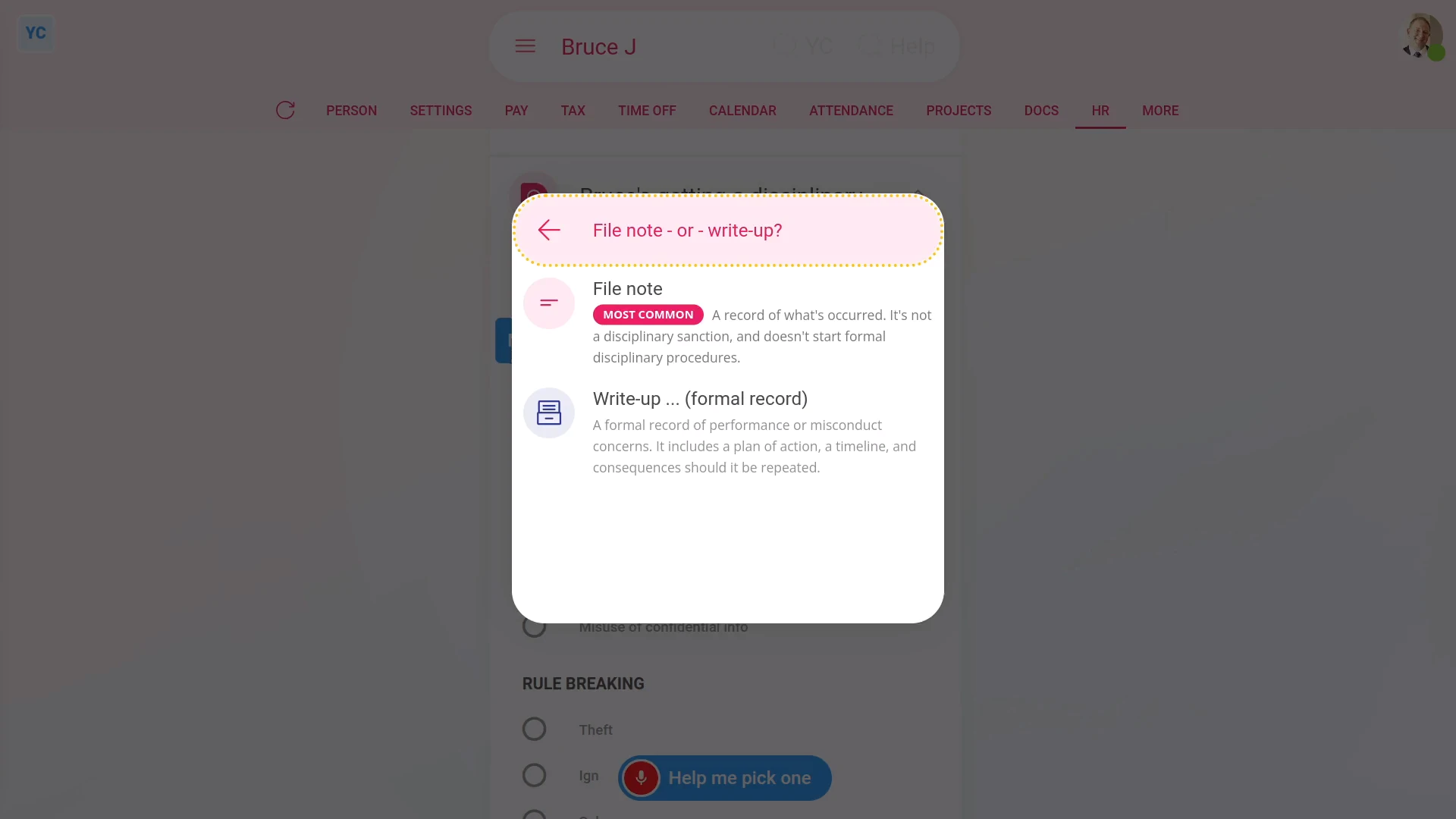
To set a disciplinary action as a verbal warning or written warning:
- First, select the person on: "Menu", then "People"
- Then tap: "HR", then "Disciplinary action"
- To select the subcategory of disciplinary action, either tap Help me pick one, or select a subcategory from the list.
- Once you've selected the subcategory, tap: Next
- Now you'll need to select between a "Verbal warning" or a: "Written warning"
- Because verbal warnings are for minor disciplinary actions, verbal warnings don't have any extra options.
- However, because written warnings are a more serious and formal record of misconduct, you'll be offered extra options. You can add a hearing, a suspension, or both.
- The other place you'll see the difference between verbal warnings and written warnings is when you go to: "HR", then "Record of events"
- Near the top of the page, you'll see a 12 month record of "Verbal warnings" in pink. Below that, you'll also see a 12 month record of "Written warnings" in navy.
- And finally, you'll see a count of how many disciplinary actions happened in each category, for each of the last 12 months.
Keep in mind that:
- Most of the disciplinary actions you do are usually for minor disciplinary actions or first time offences.
- So in most cases, you'll be setting your disciplinary actions as a verbal warning.
You may notice:
- If a subcategory has a "Willful misconduct" label on it, you won't be offered the option of making it a verbal warning.
- Any disciplinary action that's "Willful misconduct" is always set to being a written warning.
And that's it! That's everything you need to know about any differences between verbal warnings and written warnings!
3. How do I issue a disciplinary action as verbal or written warning?
 4:41
4:41
"How do I issue a disciplinary action as verbal or written warning?"
There's two kinds of disciplinary action. A verbal warning, or a written warning. Each kind has 18 subcategories. The process of selecting, preparing, issuing, and tracking receipt of disciplinary actions is all automated by 1st Money.
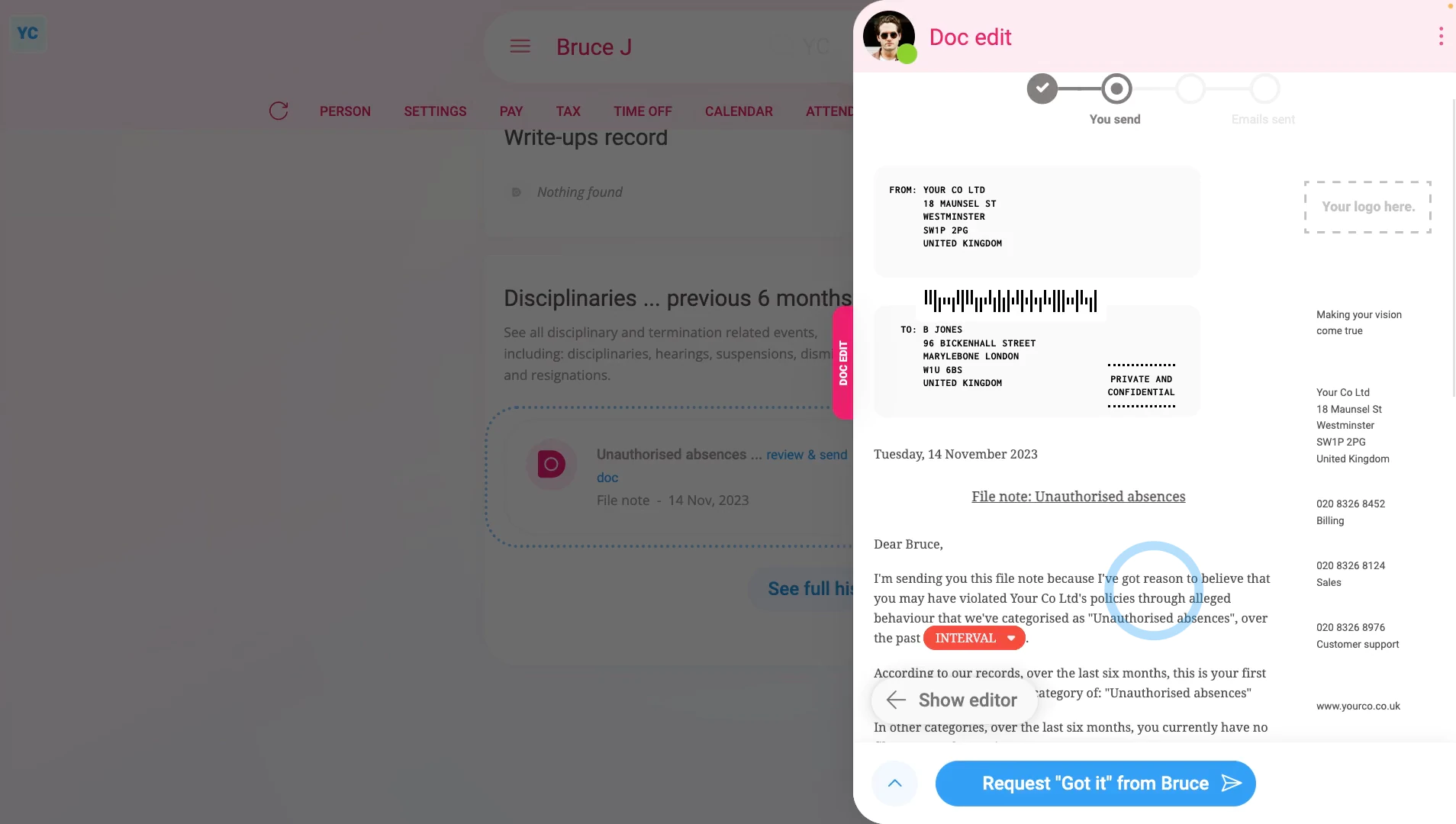
To issue a disciplinary action to a person, as a verbal warning or written warning:
- First, select the person on: "Menu", then "People"
- Then tap: "HR", then "Disciplinary action"
- There's two ways to select the subcategory of disciplinary action.
- The first way to select the subcategory:
Is to select from the list of subcategories.
- The second way to select the subcategory:
Which is recommended, and much easier, is to tap: Help me pick one (at the top) - You'll now see the microphone popup open. Start talking into your device's microphone.
- Explain, in your own words, what's happened that's causing you to issue a disciplinary action to the person.
- Sometimes it may take a few sentences to explain what's happened.
- 1st Money then takes what you've said, and automatically recommends the subcategory of disciplinary action that best matches.
- And finally, once you've found the subcategory of disciplinary action that you're looking for, tap: Next
- Preparing the disciplinary action:
Now you'll need to select between "Verbal warning" or: "Written warning" - Verbal warnings are for minor disciplinary actions. Written warnings are a more formal record of misconduct.
- Once it slides out on the right, you'll see the number of tasks that 1st Money automatically does for you.
- To see the details of what each task does, tap expand all: (at the top)
- Some of the tasks send an email, or doc. To see a preview of any emails or docs, tap the links.
- Once you're happy with all the tasks, tap Continue, and then: Yes ... do it
- All the tasks are now done in the background.
- And finally, you'll see the disciplinary action added to the 12-month record of events.
- Issuing the disciplinary action doc:
Next, the person can optionally be informed, in writing, about the disciplinary action. - A disciplinary action doc is prepared in the foreground, all ready for you to complete and send.
- Read through the disciplinary action doc, and tap the pick lists, one-by-one, until you're finished.
- If you want to change some text, or type more text in, tap Show editor, and make your changes.
- Then when you're ready to send the disciplinary action doc, tap Request "Got it", then Yes ... request "Got it", and then: Close
- Receiving the disciplinary action doc:
The person now gets an email, asking them to confirm that the disciplinary action doc you've sent has been received. - The person can't access the rest of 1st Money until the person's tapped Got it to the disciplinary action doc.
- Record of events:
Now, on the "Record of events" tab, tap the disciplinary action to expand it. - You'll see that the doc's been sent.
- To see a copy of the sent doc, tap the "View" button: (at the end of the row)
- And finally, you'll see the status change, once the person eventually marks the doc as: "Got it"
To learn more:
- About how to see the 12-month history of disciplinary action docs, watch the video on: Record of events
- To see what it looks like for the person to mark the doc as "Got it", watch the video on: Letters & docs confirmed with "Got it"
- And to see understand the differences between verbal warnings and written warnings, watch the video on: Verbal warnings vs written warnings
And that's it! That's everything you need to know about issuing a disciplinary action as a verbal warning or written warning!
How do I change the default docs for leave and disciplinary actions?
 4:04
4:04
"How do I change the default docs for leave and disciplinary actions?"
When you finish processing a person's leave, disciplinary action, termination, or resignation, the last step is to send the person a doc. By default, the suggested doc is a template prepared by 1st Money. If the default doc isn't perfect for your needs, you can clone it, add your changes. Then set your newly cloned doc as the new default doc.
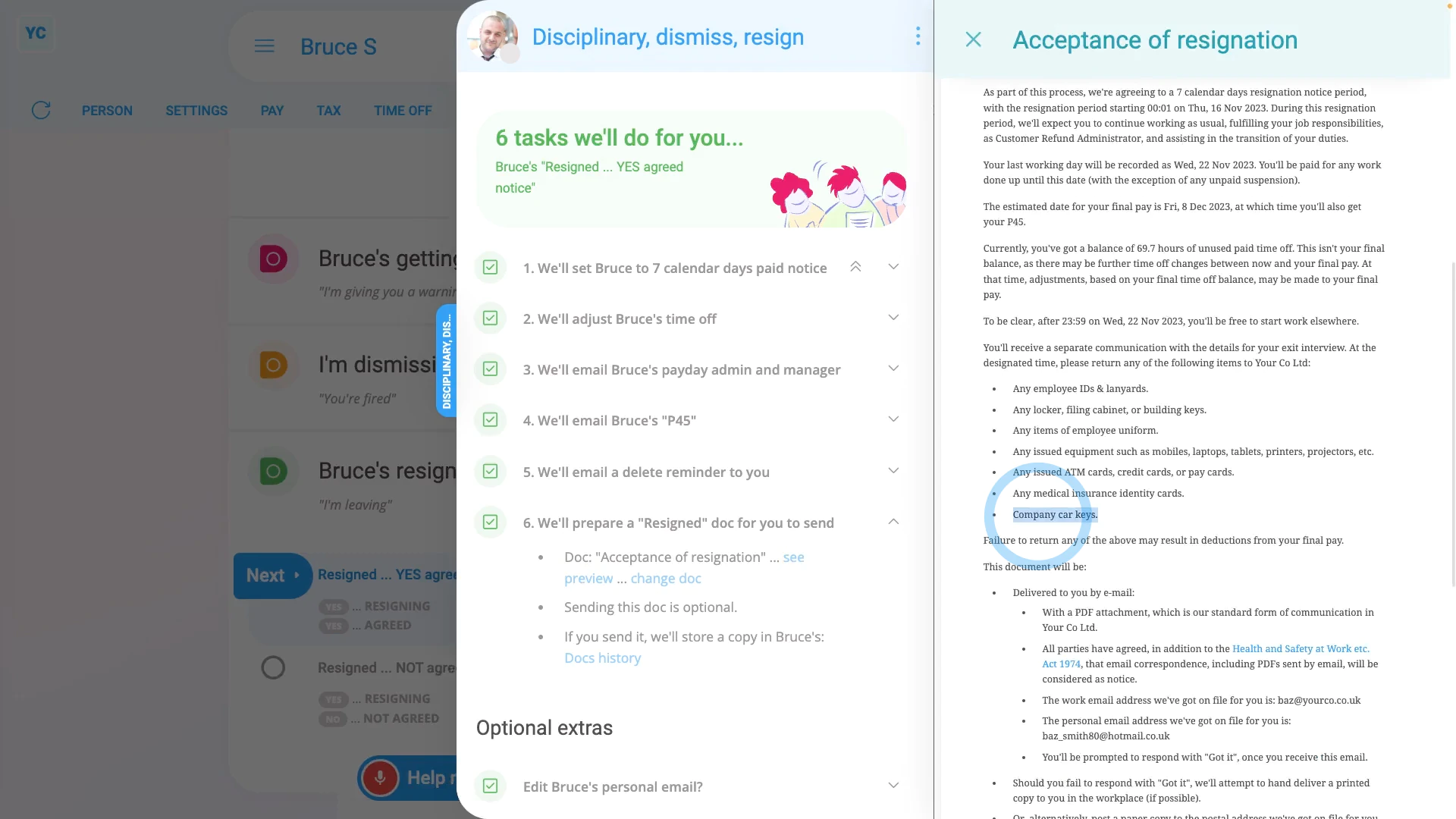
To clone a leave or disciplinary action doc, add your changes, and then set your newly cloned doc as a new default for a payroll group:
- First, to clone a leave or disciplinary action doc:
Select the payroll group on: "Menu", then "Payroll groups" - Then tap: "HR", then "Docs ... disciplinary action, terminate, resign"
- Scroll down and select the disciplinary action type from all those listed on the page.
- Then tap the "View" button:
- Once it slides out from the right, check it's the doc you want to clone, then tap: Clone (at the top)
- You've now got an exact duplicate of the original doc. The only difference is that the colour and image have been reset to the default.
- To add your changes to your cloned doc:
Start by setting the colour and image to what you want. - Then type in your other changes in the editor.
- You can add as many changes as you'd like.
- And when you're done adding your changes, tap Save, and then: Close
- To set your newly cloned doc as the leave or disciplinary action default:
Tap your selected disciplinary action type, and you'll see your newly cloned doc in the list. - You'll know which is your clone because it's got the colour and image you set.
- Tap it, to select it, and then tap: Save
- To send your newly cloned doc in a person's leave or disciplinary action:
Select the person who's getting the leave or disciplinary action on: "Menu", then "People" - Then tap: "HR", then "Resign"
- And select the disciplinary action type.
- Then tap: "Yes" to all the above
- Next, expand the task that talks about: "doc for you to send"
- And when you tap the "see doc" link, you'll see your newly cloned doc with the changes you typed in.
- And finally, you can tap Continue to finish the disciplinary action, and send your cloned doc.
Keep in mind that:
- Changes to default docs work equally well for termination, resignation, and leave docs as well.
You may notice:
- If you've got more than one payroll group, you'll need to set the default doc on each payroll group.
- If your newly set default doc isn't showing up when you're doing a person's leave or disciplinary action, check which payroll group the person's in.
- Then check that you've set the default doc for that payroll group.
For advanced usage:
- Your company may have its own process for sending written notice. If so, you may prefer to not send any doc at all.
To learn more:
- About permanently turning off leave or disciplinary action docs, watch the video on: Turning off leave & disciplinary action docs
If a feature's not showing:
- If the "HR" menu isn't showing, it means your org hasn't turned on the docs feature yet.
- To turn on the docs feature, watch the video on: Turning on HR Docs
And that's it! That's everything you need to know about changing default docs for leave or disciplinary actions!
How do I give a person notice of their upcoming termination?
 6:23
6:23
"How do I give a person notice of their upcoming termination?"
Terminating, or in other words, firing a person with a notice period usually means the person's expected to work until their last day.
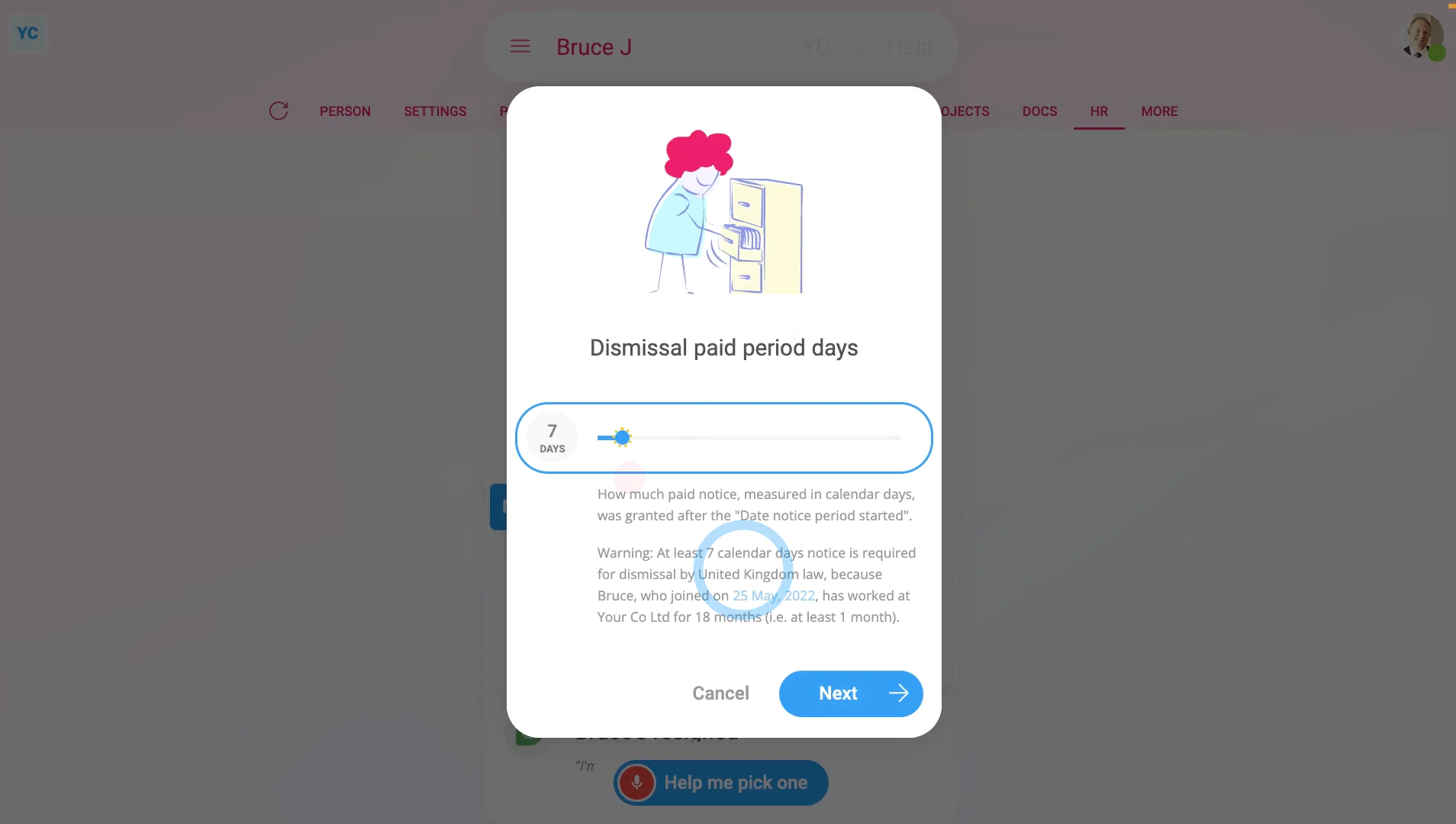
To terminate employment with a notice period, and have them work until their last day:
- First, select the person you're terminating on: "Menu", then "People"
- Then tap: "HR", then "Terminate"
- And tap the Next button on: "Termination with working paid notice"
- You'll now see a list of questions that you'll need to confirm "Yes" to.
- In particular, you'll see the person's default minimum notice period, based on how long the person's worked for you.
- You can tap it to change it to a longer notice period, but you can't make it shorter than the minimum.
- To understand the calculation of the minimum notice period, read the notes below the slider.
- Once you've read the questions, tap: "Yes" to all the above
- Setting the termination tasks:
Next, you'll see the number of tasks that 1st Money automatically does for you. - To see the details of what each task does, tap expand all: (at the top)
- In particular, pay attention to the "starts on" date of the person's "paid notice" period.
- By default, it's set to tomorrow's date. Tap it, if you want to change it to a different date.
- If there's any other updates you'd like to make, do those updates now.
- For example, you could update their paid time off hours, or update their personal email.
- Some of the tasks send an email, or doc. To see a preview of any emails or docs, tap the links.
- Once you're happy with all the tasks, tap Continue, and then: Yes ... do it
- All the tasks are now done in the background.
- Sending the termination doc:
Next, the person can optionally be informed, in writing, about their upcoming termination. - A termination doc is prepared in the foreground, all ready for you to complete and send.
- Read through the termination doc, and tap the pick list for the best matching reason for the termination.
- If you want to change some text, or type more text in, tap Show editor, and make your changes.
- Then when you're ready to send the termination doc, tap Request "Got it", then Yes ... request "Got it", and then: Close
- Receiving the termination doc:
The person now gets an email, asking them to confirm that the termination doc you've sent has been received. - The person can't access the rest of 1st Money until the person's tapped Got it to the termination doc.
- Record of events:
Now, on the "Record of events" tab, tap the termination to expand it. - You'll see that the doc's been sent.
- To see a copy of the sent doc, tap the "View" button: (at the end of the row)
- And you'll see the status change, once the person eventually marks the doc as: "Got it"
- And finally, to see their final payslip, tap the "See final payslip" button: (at the end of the row)
Keep in mind that:
- If there's any doubt about whether the person's going to look at their email, it's recommended that you also call the person by phone.
- And personally tell them that a termination doc's been sent to their email.
- Also, it's important to check that it's going to send the docs to the person's personal email before you tap: Yes ... do it
- Especially if it currently only lists their work email, and if you suspect the person may lose access to their work email once the person's terminated.
- Depending on your situation, in some cases, you may even want to print the doc. And then hand-deliver it to the person, so you can be sure.
Also remember that:
- During the notice period, the person's expected to work as usual, and is also paid as usual, with no changes to their payroll.
- In some cases, a person with a termination notice period may stop coming in, or abandon their job. In other cases the person may find another job and ask to end their notice period early.
- For a suggestion on what to do if the person stops coming in, or has other "Unexcused absences", watch the video on: Issuing a disciplinary action
- For a suggestion on what to do if the person abandons their job, watch the video on: Termination for cause (willful misconduct)
- And for a suggestion on what to do if the person finds another job and asks to end their notice period early, watch the video on: Resignation, and you've agreed
For advanced usage:
- Your company may have its own process for sending written notice. If so, you can still have the automated execution of tasks, but may prefer to not send the supplied termination doc.
- You can either skip the sending of the termination doc, when it's shown, or alternatively, you can permanently turn it off.
- To learn about permanently turning off termination docs, watch the video on: Turning off leave & disciplinary action docs
To learn more:
- About what it looks like for the person to mark the doc as "Got it", watch the video on: Letters & docs confirmed with "Got it"
- And to learn about the alternative of having a person work right up until their last working day, but not come into the office, watch the video on: Termination with non-working paid notice (garden leave)
And that's it! That's everything you need to know about terminating a person with a notice period, and have them work until their last day!
How do I instantly terminate employment during their probation?
 5:01
5:01
"How do I instantly terminate employment during their probation?"
Terminating, or in other words, firing a person during their probation usually means instant termination of their employment.
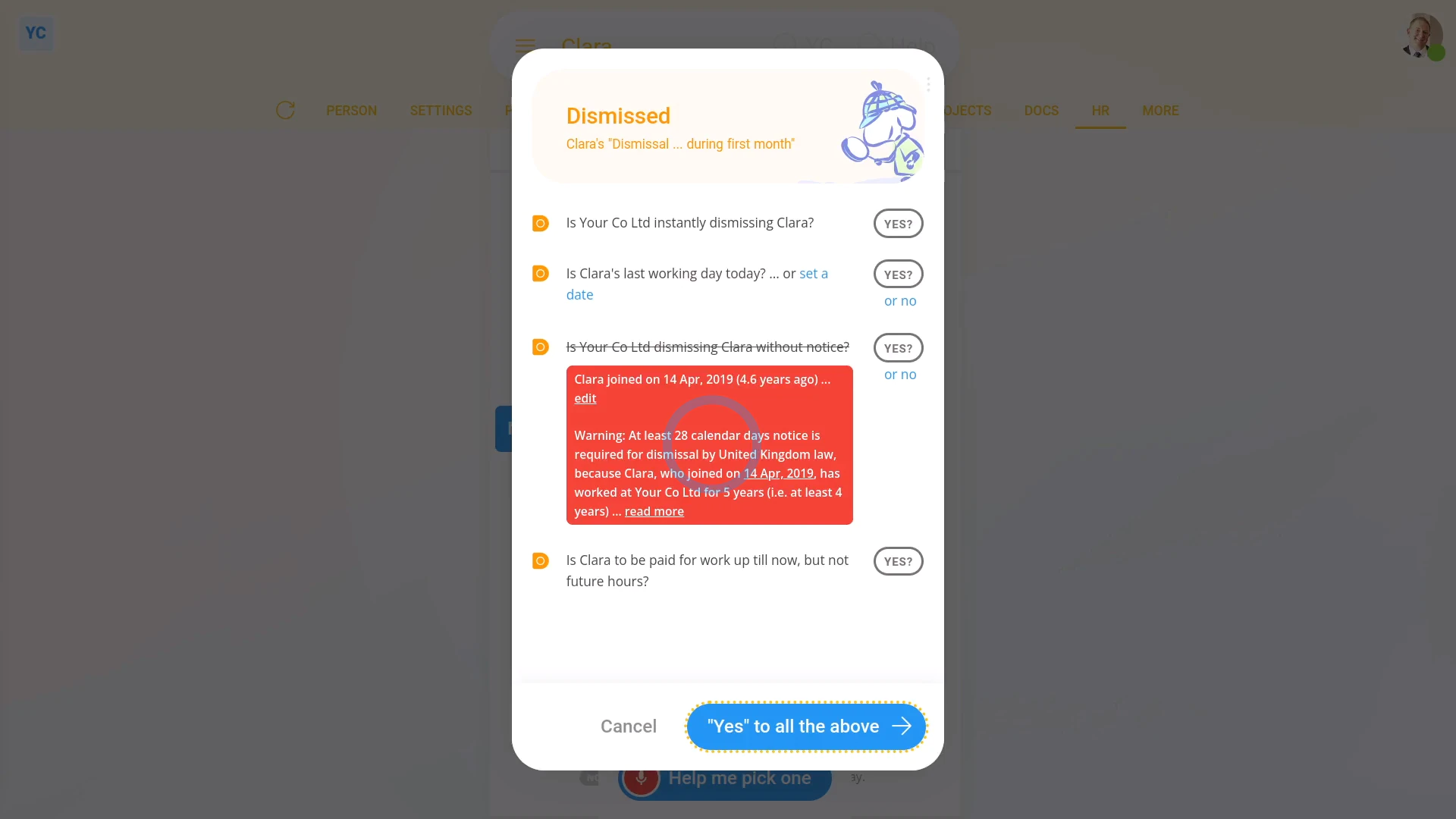
To terminate employment during their probation:
- First, select the person you're terminating on: "Menu", then "People"
- Then tap: "HR", then "Terminate"
- And tap the Next button on: "Termination during probation"
- You'll now see a list of questions that you'll need to confirm "Yes" to.
- If your selected person's worked for you for more than one month, you'll get a red warning message.
- When you switch to a person who's worked for you for less than one month, there's no red warning message.
- Once you've read the questions, tap: "Yes" to all the above
- Setting the termination tasks:
Next, you'll see the number of tasks that 1st Money automatically does for you. - To see the details of what each task does, tap expand all: (at the top)
- In particular, pay attention to the person's: "Date employment ended"
- By default, it's set to today's date. Tap it, if you want to change it to a different date.
- If there's any other updates you'd like to make, do those updates now.
- For example, you could update their paid time off hours, or update their personal email.
- Some of the tasks send an email, or doc. To see a preview of any emails or docs, tap the links.
- Once you're happy with all the tasks, tap Continue, and then: Yes ... do it
- All the tasks are now done in the background.
- Sending the termination doc:
Next, the person can optionally be informed, in writing, about their termination. - A termination doc is prepared in the foreground, all ready for you to complete and send.
- Read through the termination doc.
- If you want to change some text, or type more text in, tap Show editor, and make your changes.
- Then when you're ready to send the termination doc, tap Request "Got it", then Yes ... request "Got it", and then: Close
- Receiving the termination doc:
The person now gets an email, asking them to confirm that the termination doc you've sent has been received. - The person can't access the rest of 1st Money until the person's tapped Got it to the termination doc.
- Record of events:
Now, on the "Record of events" tab, tap the termination to expand it. - You'll see that the doc's been sent.
- To see a copy of the sent doc, tap the "View" button: (at the end of the row)
- And you'll see the status change, once the person eventually marks the doc as: "Got it"
- And finally, to see their final payslip, tap the "See final payslip" button: (at the end of the row)
Keep in mind that:
- If there's any doubt about whether the person's going to look at their email, it's recommended that you also call the person by phone.
- And personally tell them that a termination doc's been sent to their email.
- Also, it's important to check that it's going to send the docs to the person's personal email before you tap: Yes ... do it
- Especially if it currently only lists their work email, and if you suspect the person may lose access to their work email once the person's terminated.
- Depending on your situation, in some cases, you may even want to print the doc. And then hand-deliver it to the person, so you can be sure.
For advanced usage:
- Your company may have its own process for sending written notice. If so, you can still have the automated execution of tasks, but may prefer to not send the supplied termination doc.
- You can either skip the sending of the termination doc, when it's shown, or alternatively, you can permanently turn it off.
- To learn about permanently turning off termination docs, watch the video on: Turning off leave & disciplinary action docs
To learn more:
- About what it looks like for the person to mark the doc as "Got it", watch the video on: Letters & docs confirmed with "Got it"
And that's it! That's everything you need to know about terminating a person during their probation!
How do I instantly terminate employment for cause?
 6:13
6:13
"How do I instantly terminate employment for cause?"
Terminating, or in other words, firing a person for cause, or willful misconduct, usually means instant termination of their employment.
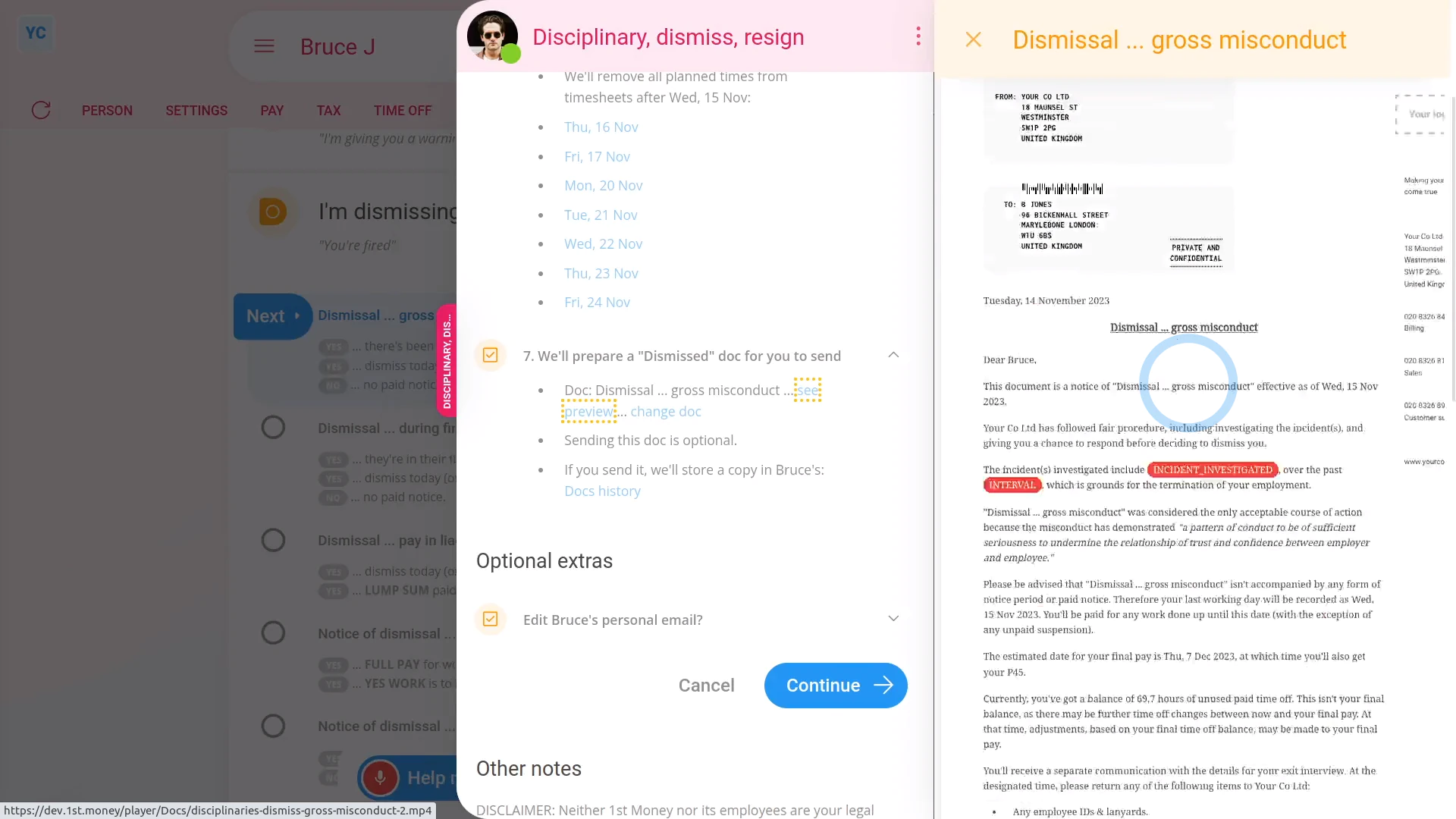
To terminate employment for cause:
- First, select the person you're terminating on: "Menu", then "People"
- Then tap: "HR", then "Terminate"
- And tap the Next button on: "Termination for cause"
- You'll now see a list of questions that you'll need to confirm "Yes" to.
- Once you've read the questions, tap: "Yes" to all the above
- Setting the termination tasks:
Next, you'll see the number of tasks that 1st Money automatically does for you. - To see the details of what each task does, tap expand all: (at the top)
- In particular, pay attention to the date of the person's: "Date employment ended"
- By default, it's set to today's date. Tap it, if you want to change it to a different date.
- If there's any other updates you'd like to make, do those updates now.
- For example, you could update their paid time off hours, or update their personal email.
- Some of the tasks send an email, or doc. To see a preview of any emails or docs, tap the links.
- Once you're happy with all the tasks, tap Continue, and then: Yes ... do it
- All the tasks are now done in the background.
- Sending the termination doc:
Next, the person can optionally be informed, in writing, about their termination. - A termination doc is prepared in the foreground, all ready for you to complete and send.
- Read through the termination doc, and tap the pick lists, one-by-one, until you're finished.
- If you want to change some text, or type more text in, tap Show editor, and make your changes.
- Then when you're ready to send the termination doc, tap Request "Got it", then Yes ... request "Got it", and then: Close
- Receiving the termination doc:
The person now gets an email, asking them to confirm that the termination doc you've sent has been received. - The person can't access the rest of 1st Money until the person's tapped Got it to the termination doc.
- Record of events:
Now, on the "Record of events" tab, tap the termination to expand it. - You'll see that the doc's been sent.
- To see a copy of the sent doc, tap the "View" button: (at the end of the row)
- And you'll see the status change, once the person eventually marks the doc as: "Got it"
- And finally, to see a preview of their final payslip, tap the "Final payslip" row.
Keep in mind that:
- If there's any doubt about whether the person's going to look at their email, it's recommended that you also call the person by phone.
- And personally tell them that a termination doc's been sent to their email.
- Also, it's important to check that it's going to send the docs to the person's personal email before you tap: Yes ... do it
- Especially if it currently only lists their work email, and if you suspect the person may lose access to their work email once the person's terminated.
- Depending on your situation, in some cases, you may even want to print the doc. And then hand-deliver it to the person, so you can be sure.
Also remember that:
- Instant termination can be for even a single instance of willful misconduct, like: theft, serious insubordination, physical violence, or fraud.
- It can also be for repeated instances of lesser misconduct, such as unauthorised absences.
- Always get proper advice when deciding if the person's misconduct counts as: "willful misconduct"
Bear in mind that:
- If the willful misconduct has recently happened, such as physical violence, you may want to take some time to investigate.
- In some cases, issuing a disciplinary action as a written warning, with a hearing, and with suspension, gives you time to properly investigate what's happened.
- The hearing gives the person a chance to give their side of the story.
- And the suspension removes the chance of any further physical violence while it's being properly investigated.
- Then once you've reached an informed decision, only then would you issue the: "Termination for cause"
- As always, be sure to seek proper advice when deciding on the best path to take.
For advanced usage:
- Your company may have its own process for sending written notice. If so, you can still have the automated execution of tasks, but may prefer to not send the supplied termination doc.
- You can either skip the sending of the termination doc, when it's shown, or alternatively, you can permanently turn it off.
- To learn about permanently turning off termination docs, watch the video on: Turning off leave & disciplinary action docs
To learn more:
- About issuing a hearing, watch the video on: Issuing a hearing
- To learn about issuing a suspension, watch the video on: Suspension period
- To learn about what it looks like for the person to mark the doc as "Got it", watch the video on: Letters & docs confirmed with "Got it"
- And to learn about the alternative of having a person work right up until their last working day of a future termination date, watch the video on: Termination with working paid notice
And that's it! That's everything you need to know about terminating a person for cause!
How do I instantly terminate employment with pay in lieu?
 6:20
6:20
"How do I instantly terminate employment with pay in lieu?"
Terminating, or in other words, firing a person with pay in lieu usually means instant termination of their employment. However, instead of having to work their normal notice period, the person gets "free" money added to their final pay. The money added is to cover what their pay would've been for a normal notice period.
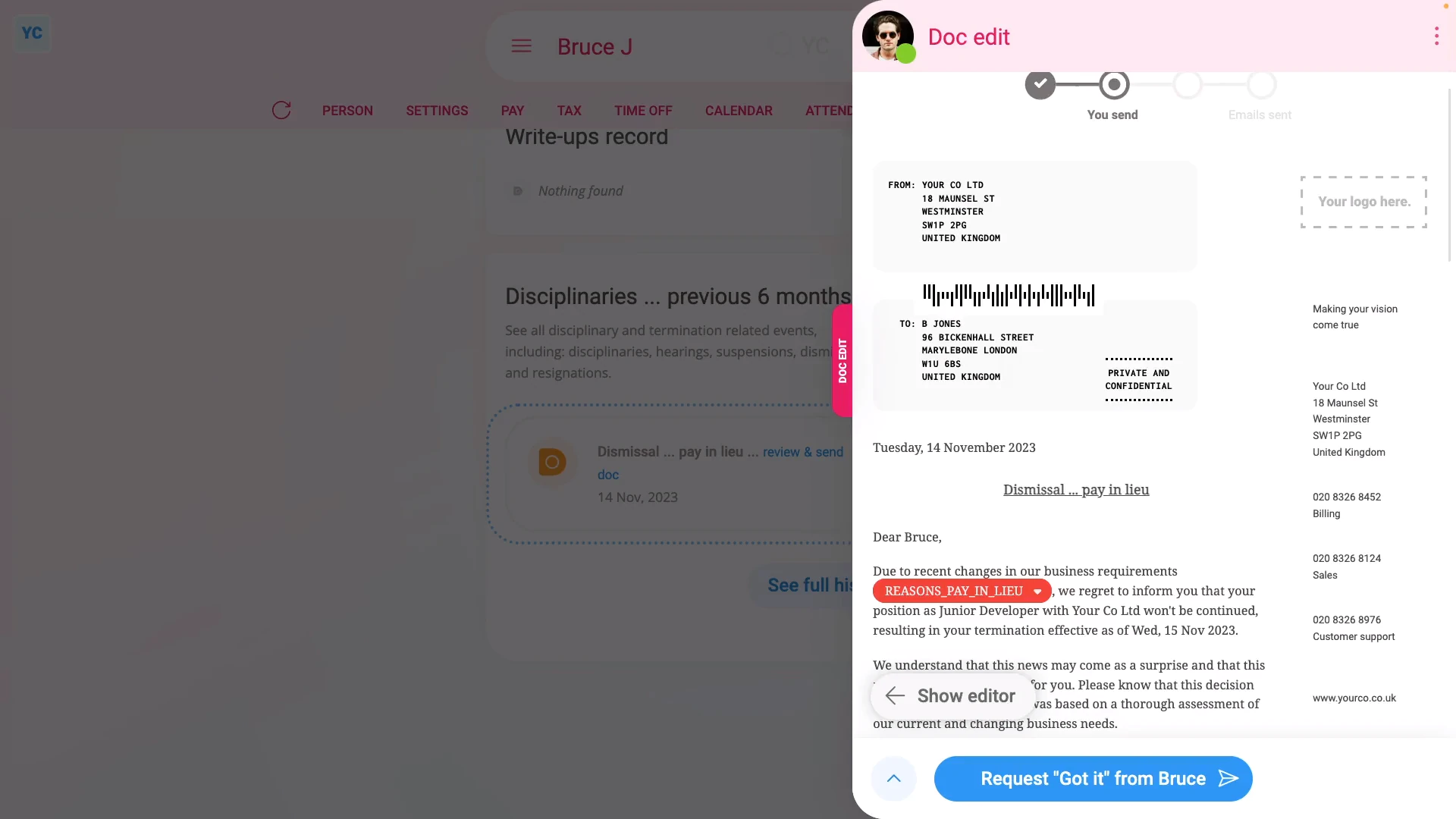
To terminate employment with pay in lieu:
- First, select the person you're terminating on: "Menu", then "People"
- Then tap: "HR", then "Terminate"
- And tap the Next button on: "Termination with severance"
- You'll now see a list of questions that you'll need to confirm "Yes" to.
- In particular, you'll see the person's default minimum notice period, based on how long the person's worked for you.
- You can tap it to change it to a longer notice period, but you can't make it shorter than the minimum.
- To understand the calculation of the minimum notice period, read the notes below the slider.
- Once you've read the questions, tap: "Yes" to all the above
- Setting the termination tasks:
Next, you'll see the number of tasks that 1st Money automatically does for you. - To see the details of what each task does, tap expand all: (at the top)
- In particular, pay attention to the date of the person's: "Date employment ended"
- By default, it's set to today's date. Tap it, if you want to change it to a different date.
- If the person's paid hourly, by timesheets or by targets, pay attention to the target hours. The target hours are used to calculate the "Pay in lieu" amount added to the person's final payslip.
- If any of the target hours aren't up to date, change them now.
- If the person's paid a salary, you won't see anything about target hours. Instead, you'll see a calculation of the person's "Pay in lieu" based on their salary.
- If there's any other updates you'd like to make, do those updates now.
- For example, you could update their paid time off hours, or update their personal email.
- Some of the tasks send an email, or doc. To see a preview of any emails or docs, tap the links.
- Once you're happy with all the tasks, tap Continue, and then: Yes ... do it
- All the tasks are now done in the background.
- Sending the termination doc:
Next, the person can optionally be informed, in writing, about their termination. - A termination doc is prepared in the foreground, all ready for you to complete and send.
- Read through the termination doc, and tap the pick list for the best matching reason for the termination.
- If you want to change some text, or type more text in, tap Show editor, and make your changes.
- Then when you're ready to send the termination doc, tap Request "Got it", then Yes ... request "Got it", and then: Close
- Receiving the termination doc:
The person now gets an email, asking them to confirm that the termination doc you've sent has been received. - The person can't access the rest of 1st Money until the person's tapped Got it to the termination doc.
- Record of events:
Now, on the "Record of events" tab, tap the termination to expand it. - You'll see that the doc's been sent.
- To see a copy of the sent doc, tap the "View" button: (at the end of the row)
- And you'll see the status change, once the person eventually marks the doc as: "Got it"
- You'll also see their "Pay in lieu" amount.
- And finally, to see their final payslip with the "Pay in lieu" amount included, tap the "View" button: (at the end of the row)
Keep in mind that:
- If there's any doubt about whether the person's going to look at their email, it's recommended that you also call the person by phone.
- And personally tell them that a termination doc's been sent to their email.
- Also, it's important to check that it's going to send the docs to the person's personal email before you tap: Yes ... do it
- Especially if it currently only lists their work email, and if you suspect the person may lose access to their work email once the person's terminated.
- Depending on your situation, in some cases, you may even want to print the doc. And then hand-deliver it to the person, so you can be sure.
For advanced usage:
- Your company may have its own process for sending written notice. If so, you can still have the automated execution of tasks, but may prefer to not send the supplied termination doc.
- You can either skip the sending of the termination doc, when it's shown, or alternatively, you can permanently turn it off.
- To learn about permanently turning off termination docs, watch the video on: Turning off leave & disciplinary action docs
To learn more:
- About what it looks like for the person to mark the doc as "Got it", watch the video on: Letters & docs confirmed with "Got it"
- And to learn about the alternative of having a person work right up until their last working day of a future termination date, watch the video on: Termination with working paid notice
And that's it! That's everything you need to know about terminating a person with pay in lieu!
How do I issue a suspension?
 5:52
5:52
"How do I issue a suspension?"
The default suspension period days sets the initial number of calendar days that any person's suspension period is automatically set to. The number of days can be changed later, when you actually issue the suspension.
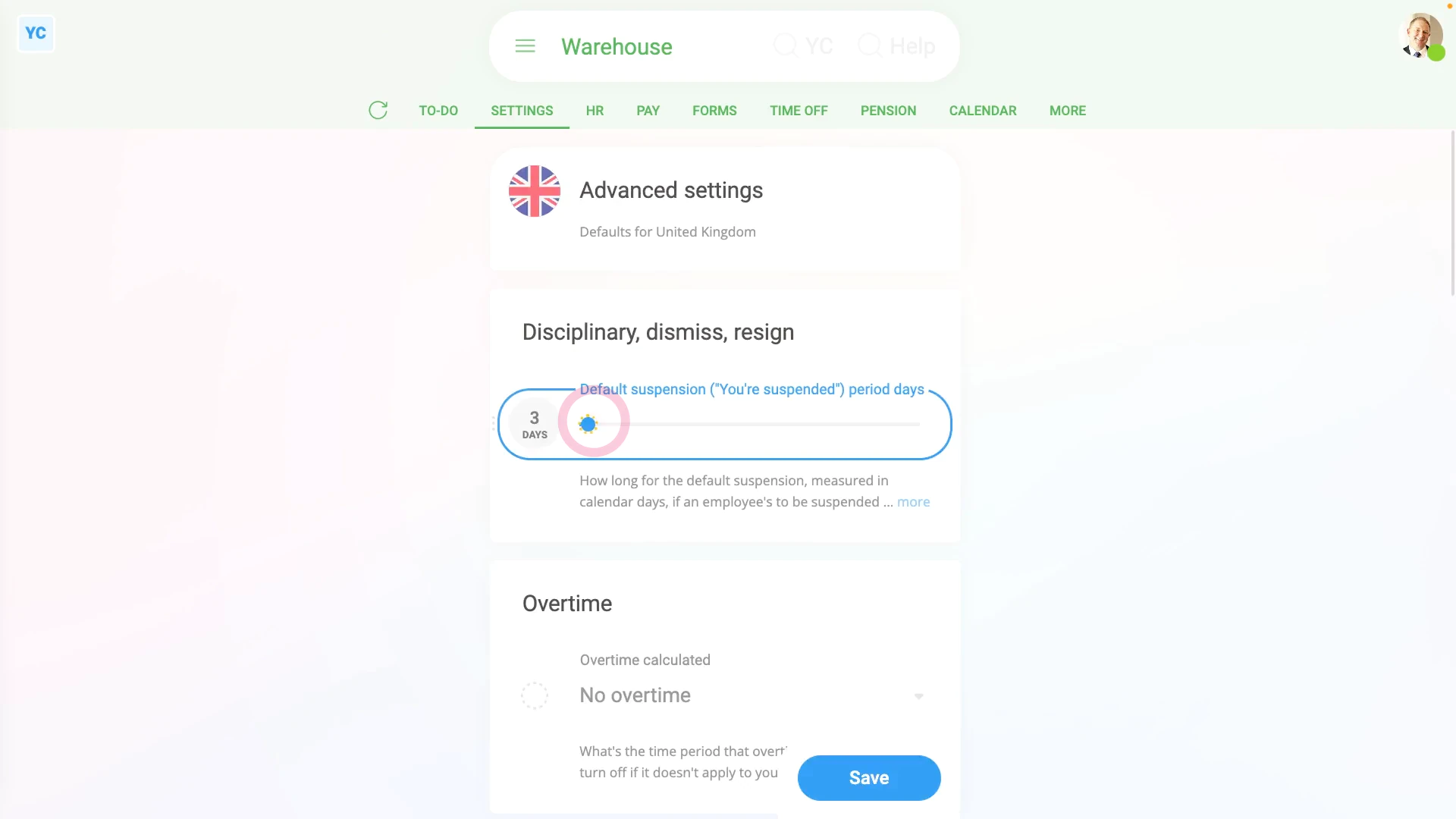
To set a default suspension period days, and see it used when issuing a suspension:
- First, to set the default suspension period days:
Select the payroll group on: "Menu", then "Payroll groups" - Then tap: "Settings", then "Advanced"
- Select your preferred default suspension period days by changing: "Default suspension ("You're suspended") period days"
- Then tap: Save
- To check the person you're suspending is in the right payroll group:
Select the person you're suspending on: "Menu", then "People" - Then tap: "Pay", then "Pay settings"
- And then check which payroll group the person belongs to.
- To do the suspension for the person:
Tap: "HR", then "Disciplinary action" - Then select the category that best fits the reason the person's being suspended.
- In many cases, disciplinary actions that are marked as "Willful misconduct" could be accompanied with a suspension.
- And select a "Written warning level" that includes: "suspension"
- Then decide if the person's suspension period is to be paid or un-paid.
- Next, you'll see the default suspension period days that you set for the person's payroll group.
- To change it to the actual number of calendar days you'd like to apply, tap it, and change it.
- Then tap Next, and you'll see the number of calendar days has changed.
- Then when you're ready, tap: "Yes" to all the above
- To see the details of the suspension, expand the first section.
- And finally, you'll see the suspension's number of calendar days, the start date, and the end date.
- In some cases, you may want to adjust the start date, or number of days. Especially if the suspension's going over a weekend, when the person normally doesn't work.
- And you'll see both start and end dates automatically update.
- It may also be helpful to read the notes about suspension.
- Then when you're ready, tap Continue, and then: Yes ... do it
- To send the doc:
Fill in the pick lists. - Then scroll down to the "Suspension" section and check you're happy with everything.
- Then when you're ready, tap Request "Got it", and then: Yes ... request "Got it"
- The person's now been emailed a link to their doc, and you can tap: Close
- Once closed, you'll now be taken to the "Record of events" page.
- And you'll see the "Written warning" you've issued.
- Tap it, to expand it, and see the details.
- And finally, you'll see details about the suspension, including if it was paid, when it starts, how many calendar days, and when it's set to end.
- To see a copy of the doc you've issued:
Tap the "View" button: (at the end of the first row) - Once the person's tapped Got it on their doc, the person gets a PDF copy emailed to them, and you'll see the yellow hourglass change to a green tick.
- To see any pay adjustment on their payslip:
If the person's paid "hourly by timesheets", and it's a paid suspension, the person's got those days' target hours added to their pay. - To see the hours added to their pay, tap: "Pay", then "Payslip"
- Check that the suspension starts before the end of the payslip's pay period.
- If the suspension starts after the end of the payslip's pay period, tap the "Next payslip" circle to go forward a payslip.
- Then tap: "Hours worked"
- And finally, for the paid "hourly by timesheets" suspended person. You'll see that because it's a paid suspension, the correct hours have been added to their pay.
For advanced usage:
- If the person's paid "hourly by timesheets", and it's an UNPAID suspension, then no hours are added.
- If the person's paid by salary, or "hourly by targets", and it's an UNPAID suspension, then a proportionate amount of pay, or hours, is deducted from their pay.
- And if the person's paid by salary, or "hourly by targets", and it's a PAID suspension, then nothing's added or deducted from their pay, or hours.
Keep in mind that:
- The suspension period days is always set as calendar days, not working days.
- For example, setting the suspension period days to 7 calendar days, for most people would mean suspension for 5 working days. Because most people don't work for the 2 weekend days.
- However, it could vary depending on their target working hours.
You may notice:
- That suspensions can only be attached to a disciplinary action that's a: "Written warning"
- If the disciplinary action is only a "Verbal warning", it's not considered severe enough. So the hearing and suspension options won't show up.
And that's it! That's everything you need to know about setting default suspension period days, and seeing how it's used when issuing a suspension!
How do I record a person's resignation, if it's NOT agreed?
 4:42
4:42
"How do I record a person's resignation, if it's NOT agreed?"
When a person resigns, there's usually a discussion about the notice period and ending date. In some cases, you may refuse to agree to the date the person's offered as their last working day.
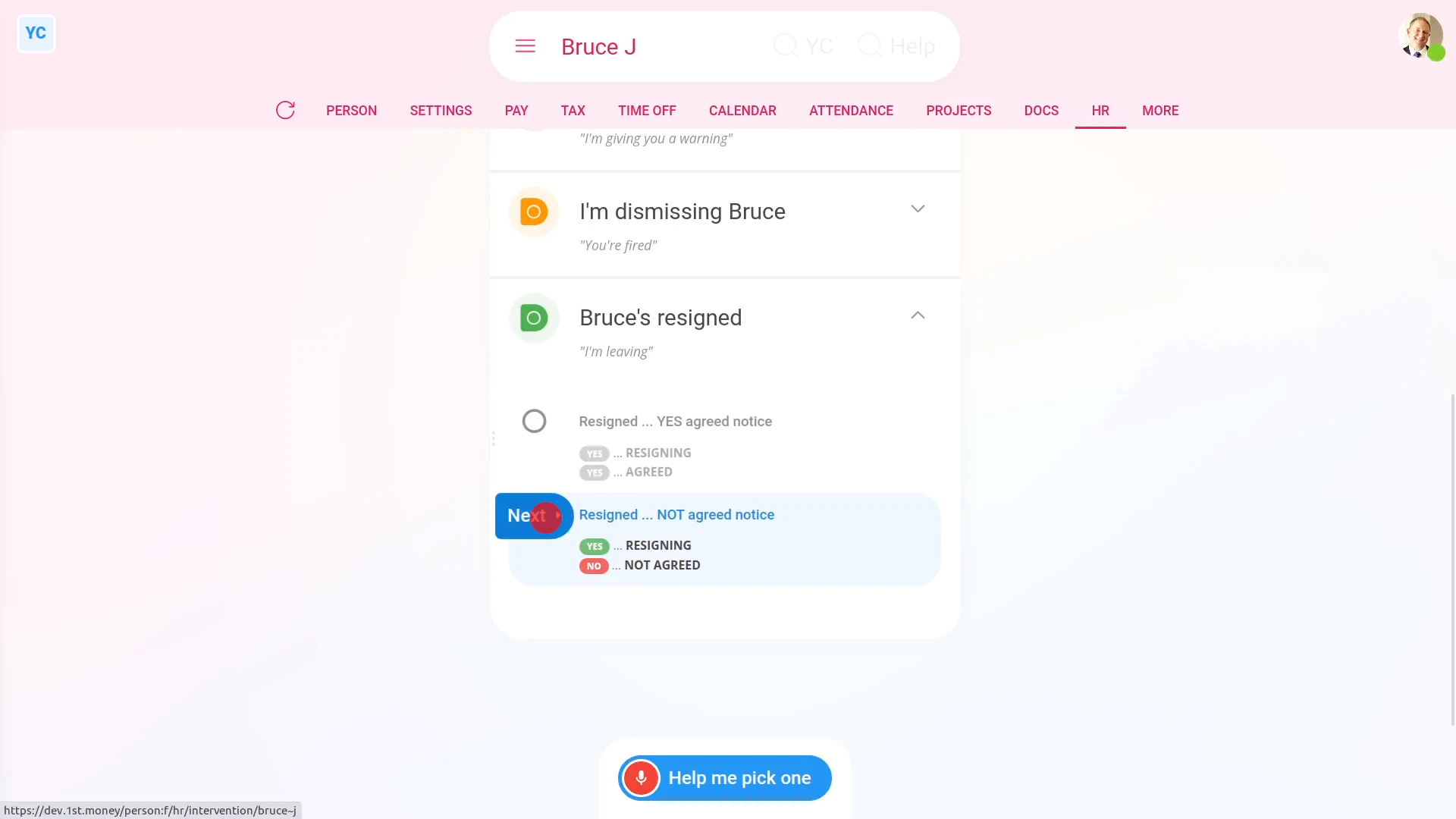
To record a person's resignation, if you've NOT agreed on their notice period and ending date:
- First, select the person who's resigning on: "Menu", then "People"
- Then tap: "HR", then "Resign"
- And tap the Next button on: "Resigned ... NOT accepted"
- A popup opens showing you a list of questions that you'll need to confirm "Yes" to.
- In particular, you'll see the person's default minimum resignation notice period, based on how long the person's worked for you.
- Also, by default, it records the date you received the resignation as today.
- In many cases, you may have gotten the resignation a few days ago, and then spent a few days trying to agree on their ending date.
- Be sure to change the resignation received date back to the date you actually received it.
- Next, you'll need to consider if the person's offering you at least the minimum resignation notice period days.
- If the person's offering you the minimum days, you probably can't refuse their right to resign.
- If the person's offering less than the minimum days, you've got the right to refuse their resignation because of: "breach of contract"
- But remember, you can also decide to accept their resignation, regardless.
- However, if you decide to refuse their resignation, tap: "Yes" to all the above
- Setting the resignation tasks:
Next, you'll see the number of tasks that 1st Money automatically does for you. - To see the details of what each task does, tap expand all: (at the top)
- Some of the tasks send an email, or doc. To see a preview of any emails or docs, tap the links.
- Also, now would be a good time to upload their resignation letter, so you'll always have a copy.
- Once you're happy with all the tasks, tap Continue, and then: Yes ... do it
- All the tasks are now done in the background.
- Sending the "Unable to accept resignation" doc:
Next, the person can optionally be informed, in writing, that their resignation's NOT been accepted. - An "Unable to accept resignation" doc is prepared in the foreground, all ready for you to complete and send.
- Read through the "Unable to accept resignation" doc.
- If you want to change some text, or type more text in, tap Show editor, and make your changes.
- Then when you're ready to send the "Unable to accept resignation" doc, tap Request "Got it", then Yes ... request "Got it", and then: Close
- Receiving the "Unable to accept resignation" doc:
The person now gets an email, asking them to confirm that the "Unable to accept resignation" doc you've sent has been received. - The person can't access the rest of 1st Money until the person's tapped Got it to the "Unable to accept resignation" doc.
- Record of events:
Now, on the "Record of events" tab, tap the resignation record to expand it. - You'll see that the doc's been sent.
- To see a copy of the sent doc, tap the "View" button: (at the end of the row)
- And you'll see the status change, once the person eventually marks the doc as: "Got it"
- To see their uploaded resignation letter, you can either tap the resignation "View" button:
- And finally, if instead, you're deciding to upload their resignation letter at some future time, you can also find it at: "HR", then "End settings"
To learn more:
- About what it looks like for the person to mark the doc as "Got it", watch the video on: Letters & docs confirmed with "Got it"
- And to learn about the alternative of agreeing to the person's resignation, watch the video on: Resignation, and you've agreed
And that's it! That's everything you need to know about recording a person's resignation, if you've NOT agreed on their notice period and ending date!
How do I record a resignation, once their ending date is agreed?
 6:40
6:40
"How do I record a resignation, once their ending date is agreed?"
When a person resigns, there's usually a discussion about the notice period and ending date. In some cases, you may both agree that the person can resign immediately. In other cases, you may both agree that the person is to stay on for a number of weeks, maybe to train their replacement.
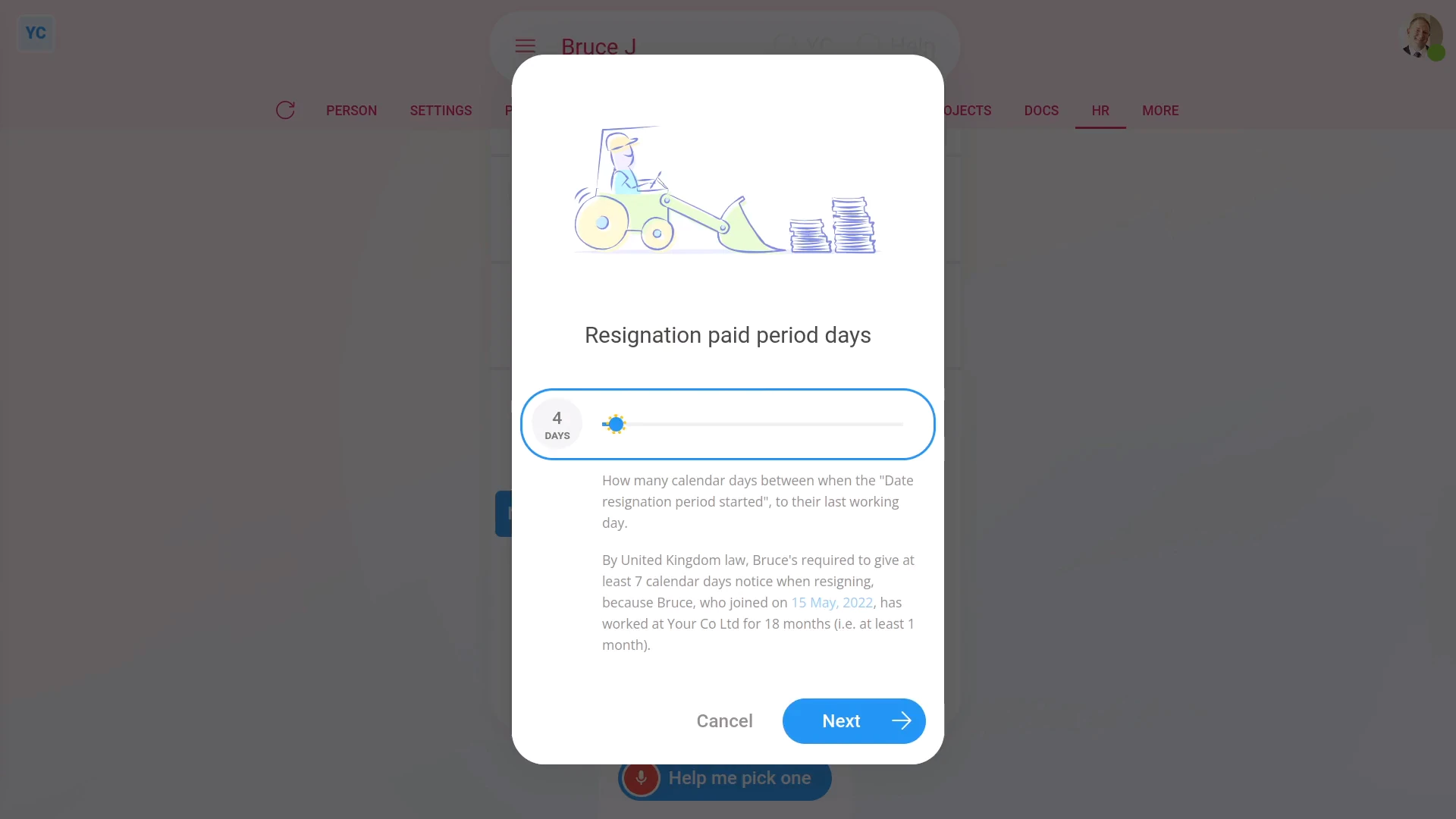
To record a person's resignation, once you've agreed on their notice period and ending date:
- First, select the person who's resigning on: "Menu", then "People"
- Then tap: "HR", then "Resign"
- And tap the Next button on: "Resigned ... YES accepted"
- A popup opens showing you a list of questions that you'll need to confirm "Yes" to.
- In particular, you'll see the person's default minimum resignation notice period, based on how long the person's worked for you.
- Also, by default, it records the date you received the resignation as today.
- In many cases, you may have gotten the resignation a few days ago, and then spent a few days agreeing on their ending date.
- Be sure to change the resignation received date back to the date you actually received it.
- Next, you'll need to set the resignation notice period days to whatever you've agreed on.
- You can make it longer, and you can make it shorter. You can even set it to zero days, if you're agreeing to an instant resignation.
- To understand the calculation of the minimum notice period, read the notes below the slider.
- Once you've read the questions, tap: "Yes" to all the above
- Setting the resignation tasks:
Next, you'll see the number of tasks that 1st Money automatically does for you. - To see the details of what each task does, tap expand all: (at the top)
- In particular, pay attention to the "starts on" and "ends on" dates of the person's "paid notice" period.
- If there's any other updates you'd like to make, do those updates now.
- For example, you could update their paid time off hours, or update their personal email.
- Some of the tasks send an email, or doc. To see a preview of any emails or docs, tap the links.
- Also, now would be a good time to upload their resignation letter, so you'll always have a copy.
- Once you're happy with all the tasks, tap Continue, and then: Yes ... do it
- All the tasks are now done in the background.
- Sending the "Acceptance of resignation" doc:
Next, the person can optionally be informed, in writing, that their resignation's been accepted. - An "Acceptance of resignation" doc is prepared in the foreground, all ready for you to complete and send.
- Read through the "Acceptance of resignation" doc.
- If you want to change some text, or type more text in, tap Show editor, and make your changes.
- Then when you're ready to send the "Acceptance of resignation" doc, tap Request "Got it", then Yes ... request "Got it", and then: Close
- Receiving the "Acceptance of resignation" doc:
The person now gets an email, asking them to confirm that the "Acceptance of resignation" doc you've sent has been received. - The person can't access the rest of 1st Money until the person's tapped Got it to the "Acceptance of resignation" doc.
- Record of events:
Now, on the "Record of events" tab, tap the resignation record to expand it. - You'll see that the doc's been sent.
- To see a copy of the sent doc, tap the "View" button: (at the end of the row)
- And you'll see the status change, once the person eventually marks the doc as: "Got it"
- To see their final payslip, tap the "View" button: (at the end of the row)
- To see their uploaded resignation letter, you can either tap the resignation "View" button:
- And finally, if instead, you're deciding to upload their resignation letter at some future time, you can also find it at: "HR", then "End settings"
Keep in mind that:
- If there's any doubt about whether the person's going to look at their email, it's recommended that you also call the person by phone.
- And personally tell them that an "Acceptance of resignation" doc's been sent to their email.
- Also, it's important to check that it's going to send the docs to the person's personal email before you tap: Yes ... do it
- Especially if it currently only lists their work email, and if you suspect the person may lose access to their work email once the person's resigned.
- Depending on your situation, in some cases, you may even want to print the doc. And then hand-deliver it to the person, so you can be sure.
Also remember that:
- It's recommended to receive a proper resignation letter from the person. Preferably from their personal email account, or handwritten, dated, and signed.
- If possible, the resignation letter could also include the reason the person's resigning, and the date the person's asking to be their last working day.
For advanced usage:
- Your company may have its own process for sending written notice. If so, you can still have the automated execution of tasks, but may prefer to not send the supplied termination doc.
- You can either skip the sending of the "Acceptance of resignation" doc, when it's shown, or alternatively, you can permanently turn it off.
- To learn about permanently turning off "Acceptance of resignation" docs, watch the video on: Turning off leave & disciplinary action docs
To learn more:
- About what it looks like for the person to mark the doc as "Got it", watch the video on: Letters & docs confirmed with "Got it"
- And to learn about the alternative of not agreeing to the person's resignation, watch the video on: Resignation, and you've NOT agreed
And that's it! That's everything you need to know about recording a person's resignation, once you've agreed on their notice period and ending date!
How do I send a written warning that includes a hearing request?
 4:03
4:03
"How do I send a written warning that includes a hearing request?"
A hearing is a formal meeting where the person can defend their side of the story of a more serious disciplinary action. After the hearing the company can then decide the outcome. The process of selecting, preparing, issuing, and tracking receipt of a hearing request is all automated by 1st Money.
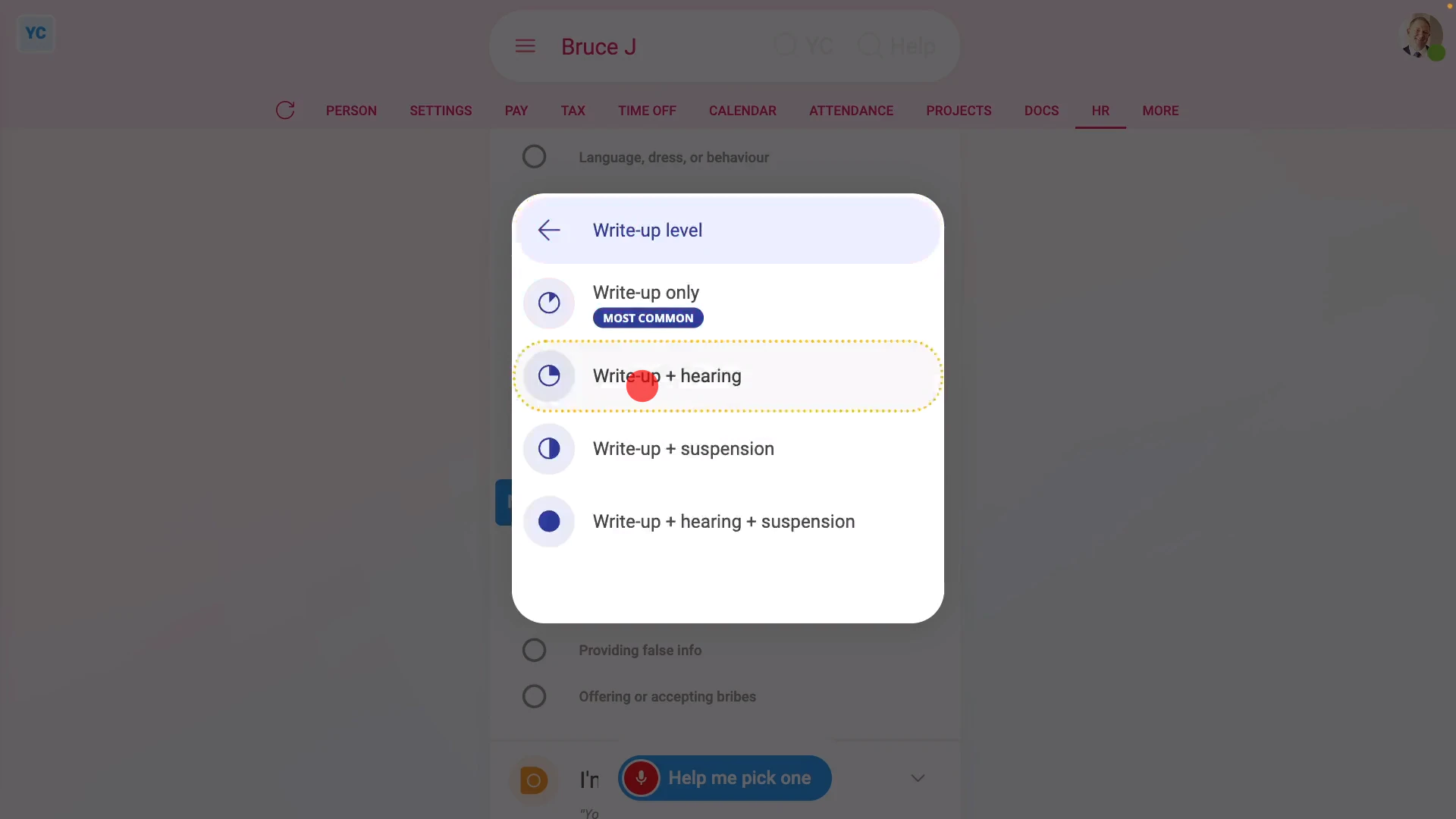
To send a written warning that includes a hearing request:
- First, select the person on: "Menu", then "People"
- Then tap: "HR", then "Disciplinary action"
- To select the subcategory of disciplinary action that the hearing's about, either tap Help me pick one, or select from the list of subcategories.
- In many cases, a hearing involves a subcategory marked with "Willful misconduct", but any subcategory can be selected.
- Once you've selected the subcategory, tap: Next
- Preparing the disciplinary action:
Next, in order to include a hearing request, select "Written warning", and then: "Written warning + hearing" - Once it slides out on the right, you'll see a list of questions that you'll need to confirm "Yes" to.
- Once you've read the questions, tap: "Yes" to all the above
- Next, you'll see the number of tasks that 1st Money automatically does for you.
- To see the details of what each task does, tap expand all: (at the top)
- Once you're happy with all the tasks, tap Continue, and then: Yes ... do it
- All the tasks are now done in the background.
- And finally, you'll see the disciplinary action added to the 12-month record of events.
- Issuing the disciplinary action doc:
Next, the person needs to be invited to the hearing. - A disciplinary action doc is prepared in the foreground, all ready for you to complete and send.
- Read through the disciplinary action doc, and tap the pick lists, one-by-one, including for the date and time of the hearing.
- Generally, it's recommended that you set the hearing date at least five working days from today.
- If you want to change some text, or type more text in, tap Show editor, and make your changes.
- Then when you're ready to send the disciplinary action doc, tap Request "Got it", then Yes ... request "Got it", and then: Close
- Receiving the disciplinary action doc:
The person now gets an email, asking them to confirm that the disciplinary action doc you've sent has been received. - The person can't access the rest of 1st Money until the person's tapped Got it to the disciplinary action doc.
- Record of events:
Now, on the "Record of events" tab, tap the disciplinary action to expand it. - You'll see that the doc's been sent.
- To see a copy of the sent doc, tap the "View" button: (at the end of the row)
- And finally, you'll see the status change, once the person eventually marks the doc as: "Got it"
Keep in mind that:
- If there's any doubt about whether the person's going to look at their email, it's recommended that you also call the person by phone.
- And tell them that a hearing request's been sent to their email.
To learn more:
- About what it looks like for the person to mark the doc as "Got it", watch the video on: Letters & docs confirmed with "Got it"
And that's it! That's everything you need to know about how to send a written warning that includes a hearing request!
How do I strike a disciplinary action from the record?
 2:04
2:04
"How do I strike a disciplinary action from the record?"
Sometimes a disciplinary action may have been issued in error. If an error is made, you can strike the disciplinary action from the person's record so it no longer counts against them.
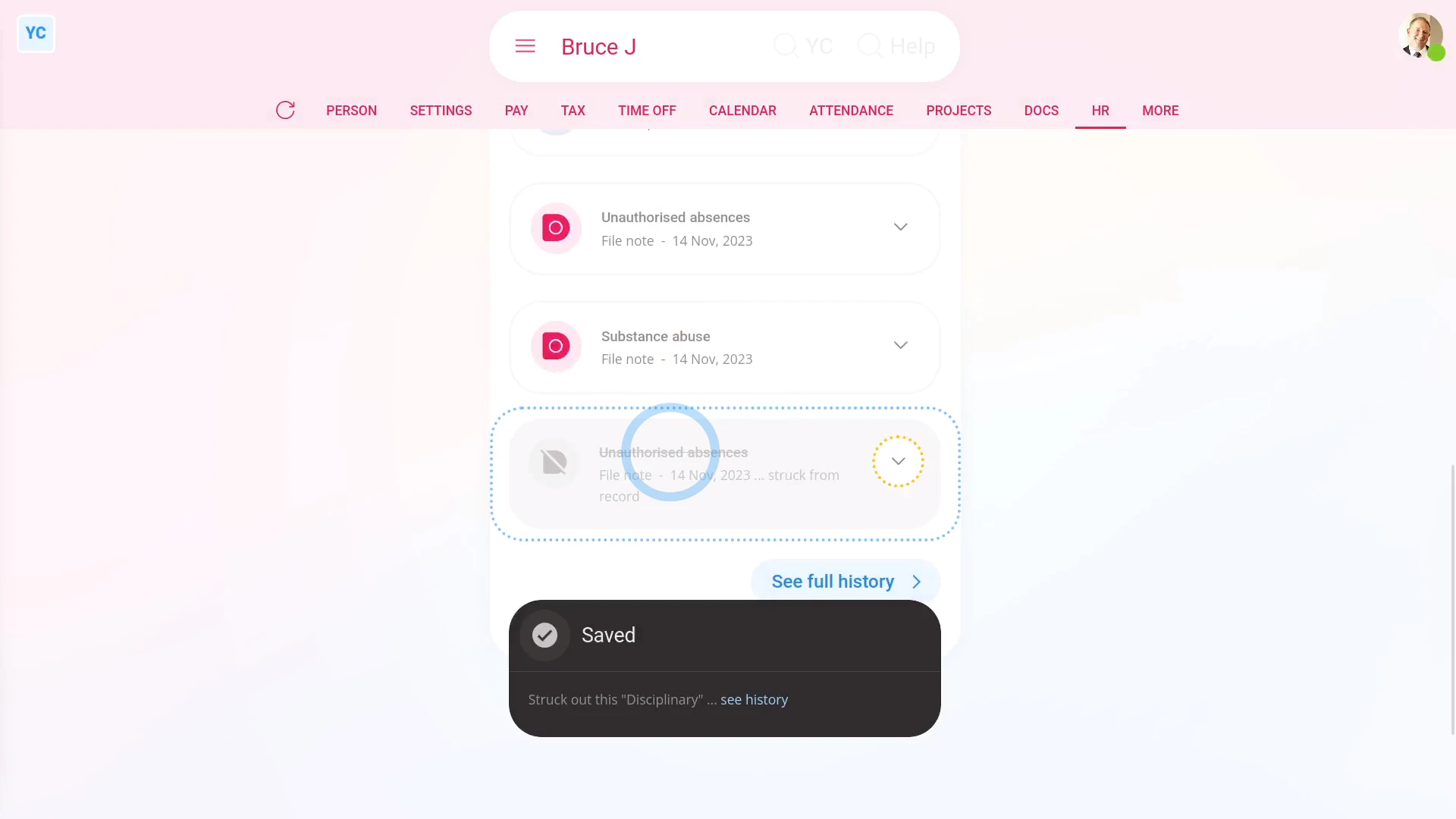
To strike a disciplinary action from a person's record, or to restore it:
- First, select the person on: "Menu", then "People"
- Then tap: "HR", then "Record of events"
- When you scroll down the page, you'll see a list of each of the person's disciplinary actions, with the most recent near the top.
- Find the disciplinary action that you'd like to strike from the record, then tap it to expand it.
- Then tap the three dots: (at the bottom), then tap Strike from the record, and then tap: Yes ... strike it
- You'll now see the disciplinary action crossed out, and moved to the bottom of the list.
- Also, when you scroll to the top of the page, you'll see that the struck out disciplinary action is no longer in the person's monthly count.
- Which means it no longer counts against them, in their record.
- If you again change your mind, and want to restore the disciplinary action back to the record, follow the same steps.
- Find and expand the struck out disciplinary action.
- Tap the three dots: (at the bottom), and then tap: Restore back to the record
- And finally, the disciplinary action is moved back into the list, and now appears again in the person's monthly count.
Keep in mind that:
- The date and name of the person who struck out the disciplinary action is permanently stored inside the details of the disciplinary action.
- Also, both org admins and payroll admins can strike or restore disciplinary actions from the record.
And that's it! That's everything you need to know about striking a disciplinary action from a person's record!
How do I terminate employment, with non-working paid notice?
 6:37
6:37
"How do I terminate employment, with non-working paid notice?"
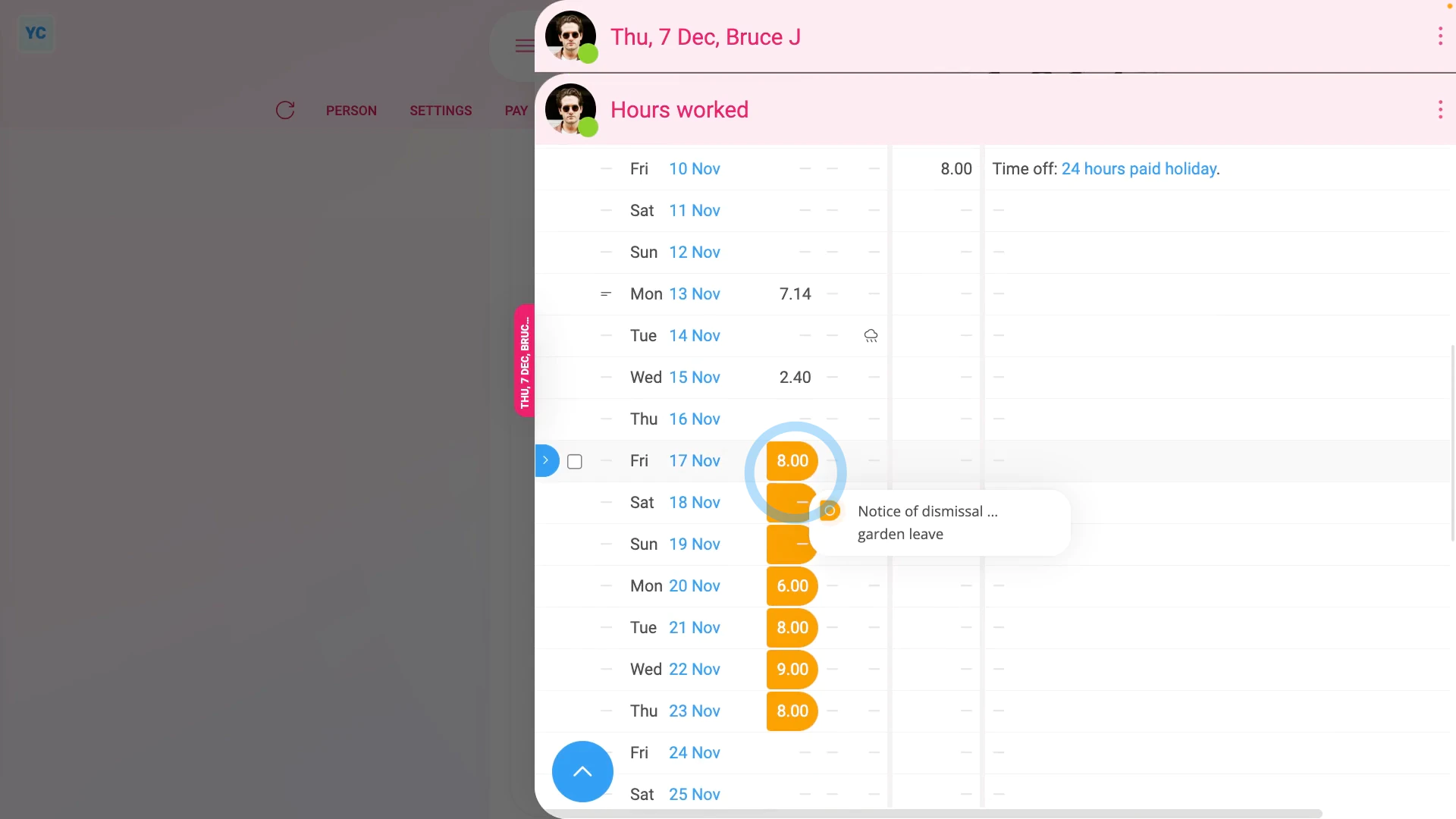
Terminating, or in other words, firing a person with non-working paid notice means the person remains fully employed and paid for the full notice period. However, despite being on full pay, the person's asked to not do any work for the company, and not come in to the office. Sometimes it's also called garden leave.
To terminate employment, and put them on non-working paid notice until their last day:
- First, select the person you're terminating on: "Menu", then "People"
- Then tap: "HR", then "Terminate"
- And tap the Next button on: "Termination with non-working paid notice"
- You'll now see a list of questions that you'll need to confirm "Yes" to.
- In particular, you'll see the person's default minimum notice period, based on how long the person's worked for you.
- You can tap it to change it to a longer notice period, but you can't make it shorter than the minimum.
- To understand the calculation of the minimum notice period, read the notes below the slider.
- Once you've read the questions, tap: "Yes" to all the above
- Setting the termination tasks:
Next, you'll see the number of tasks that 1st Money automatically does for you. - To see the details of what each task does, tap expand all: (at the top)
- In particular, pay attention to the "starts on" date of the person's "paid notice" period.
- By default, it's set to tomorrow's date. Tap it, if you want to change it to a different date.
- If the person's paid hourly, by timesheets, pay attention to the target hours used to add "non-working paid notice" hours to the person's final payslip.
- If any of the target hours aren't up to date, change them now.
- If the person's paid a salary, or hourly by targets, you won't see anything about target hours as it's got no effect on: "non-working paid notice"
- If there's any other updates you'd like to make, do those updates now.
- For example, you could update their paid time off hours, or update their personal email.
- Some of the tasks send an email, or doc. To see a preview of any emails or docs, tap the links.
- Once you're happy with all the tasks, tap Continue, and then: Yes ... do it
- All the tasks are now done in the background.
- Sending the termination doc:
Next, the person can optionally be informed, in writing, about their upcoming termination. - A termination doc is prepared in the foreground, all ready for you to complete and send.
- Read through the termination doc, and tap the pick list for the best matching reason for the termination.
- If you want to change some text, or type more text in, tap Show editor, and make your changes.
- Then when you're ready to send the termination doc, tap Request "Got it", then Yes ... request "Got it", and then: Close
- Receiving the termination doc:
The person now gets an email, asking them to confirm that the termination doc you've sent has been received. - The person can't access the rest of 1st Money until the person's tapped Got it to the termination doc.
- Record of events:
Now, on the "Record of events" tab, tap the termination to expand it. - You'll see that the doc's been sent.
- To see a copy of the sent doc, tap the "View" button: (at the end of the row)
- And you'll see the status change, once the person eventually marks the doc as: "Got it"
- Then to see their final payslip, tap the "See final payslip" button: (at the end of the row)
- And if the person's paid hourly, by timesheets, when you tap the "hours" link, under "Earnings", you'll see the added "non-working paid notice" hours in orange.
- And finally, even if the person adds clocked-in timesheet time during their non-working paid notice, it ignores the timesheet "done time". Instead, it only pays them for the hours in orange, so you can be confident that the person won't be double paid.
Keep in mind that:
- If there's any doubt about whether the person's going to look at their email, it's recommended that you also call the person by phone.
- And personally tell them that a termination doc's been sent to their email.
- Also, it's important to check that it's going to send the docs to the person's personal email before you tap: Yes ... do it
- Especially if it currently only lists their work email, and if you suspect the person may lose access to their work email once the person's terminated.
- Depending on your situation, in some cases, you may even want to print the doc. And then hand-deliver it to the person, so you can be sure.
Also remember that:
- During the "non-working paid notice" period, the person's not expected to do any work, but still gets paid as usual.
For advanced usage:
- Your company may have its own process for sending written notice. If so, you can still have the automated execution of tasks, but may prefer to not send the supplied termination doc.
- You can either skip the sending of the termination doc, when it's shown, or alternatively, you can permanently turn it off.
- To learn about permanently turning off termination docs, watch the video on: Turning off leave & disciplinary action docs
To learn more:
- About what it looks like for the person to mark the doc as "Got it", watch the video on: Letters & docs confirmed with "Got it"
- And to learn about the alternative of having a person work normally right up until their last working day, watch the video on: Termination with working paid notice
And that's it! That's everything you need to know about terminating a person, and putting them on non-working paid notice until their last day!
How do I turn off default docs for leave and disciplinary actions?
 2:47
2:47
"How do I turn off default docs for leave and disciplinary actions?"
When you finish processing a person's leave, disciplinary action, termination, or resignation, the last step is to send the person a doc. By default, the suggested doc is a template prepared by 1st Money. If you don't want to ever send the default doc, you can instead turn it off.
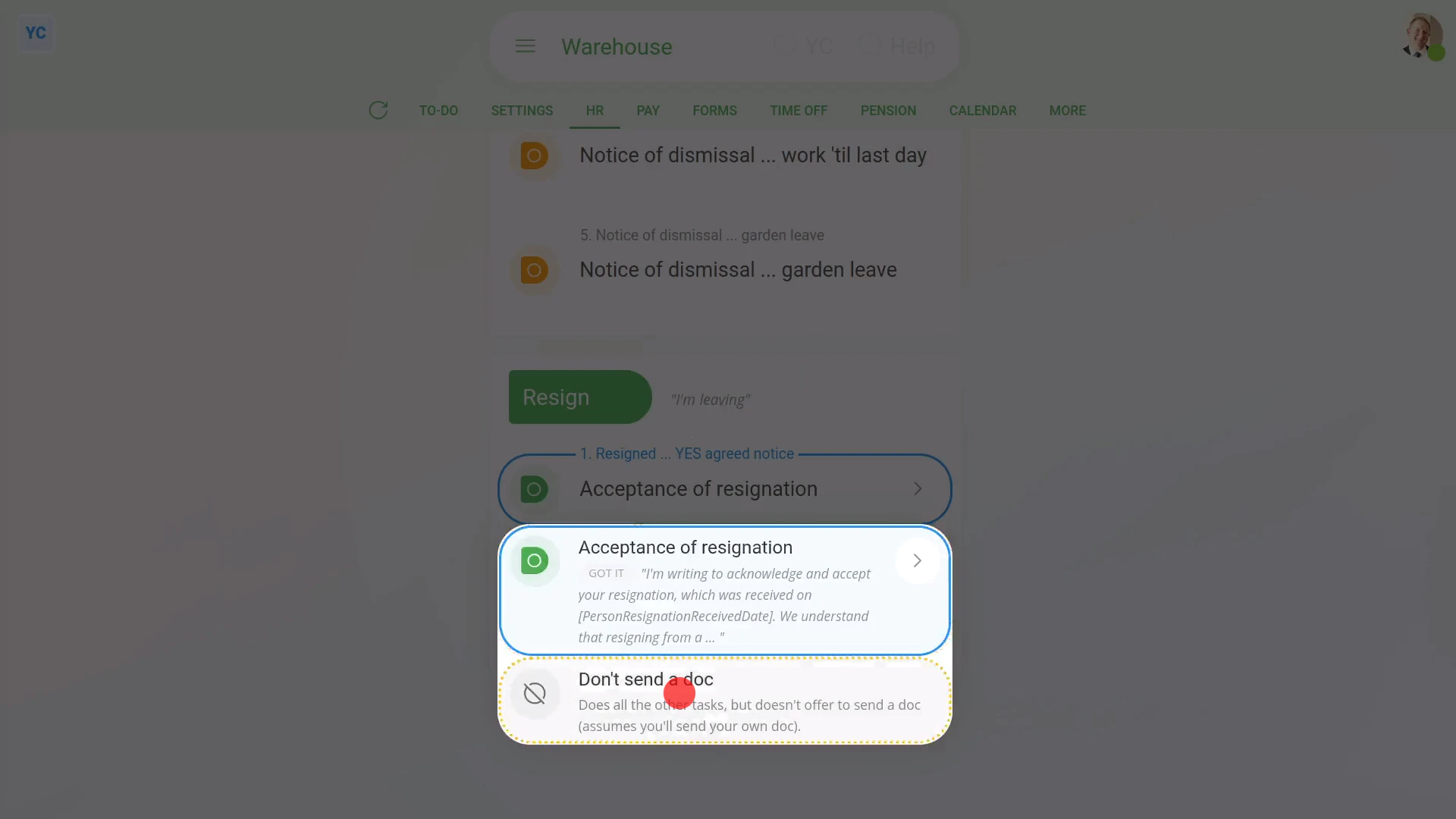
To turn off a default doc for a leave or disciplinary action in a payroll group:
- First, to turn off the default doc setting:
Select the payroll group on: "Menu", then "Payroll groups" - Then tap: "HR", then "Docs ... disciplinary action, terminate, resign"
- Scroll down and tap the disciplinary action type that you want to turn off the default doc for.
- To turn it off, select "Don't send a doc", and then tap: Save
- To see that the default doc is turned off for a person's disciplinary action:
Select the person who's getting the disciplinary action on: "Menu", then "People" - Then tap: "HR", then "Disciplinary action"
- And select the disciplinary action type.
- Then tap: "Yes" to all the above
- You'll now see that there's no mention of any: "doc for you to send"
- And finally, you can tap Continue, and then Yes ... do it, and you'll see that there also aren't any default docs opened for you to send.
Keep in mind that:
- Turning off the default doc works equally well for termination, resignation, and leave docs as well.
- And if you change your mind, you can always turn it back on.
You may notice:
- If you've got more than one payroll group, you'll need to turn off the default doc on each payroll group.
- If your newly turned off default doc still shows up when you're doing a person's leave or disciplinary action, check which payroll group the person's in.
- Then check that you've turned off the default doc for that payroll group.
To learn more:
- About cloning a doc, adding changes, and then setting a newly cloned doc as the new default doc, watch the video on: Changing a leave or disciplinary action doc
If a feature's not showing:
- If the "HR" menu isn't showing, it means your org hasn't turned on the docs feature yet.
- To turn on the docs feature, watch the video on: Turning on HR Docs
And that's it! That's everything you need to know about turning off default docs for leave and disciplinary actions!
www.1st.money/uk/help/Offboarding/