How do I give a person notice of their upcoming termination?

 6:23
6:23
"How do I give a person notice of their upcoming termination?"
Terminating, or in other words, firing a person with a notice period usually means the person's expected to work until their last day.
To terminate employment with a notice period, and have them work until their last day:
- First, select the person you're terminating on: "Menu", then "People"
- Then tap: "HR", then "Terminate"
- And tap the Next button on: "Termination with working paid notice"
- You'll now see a list of questions that you'll need to confirm "Yes" to.
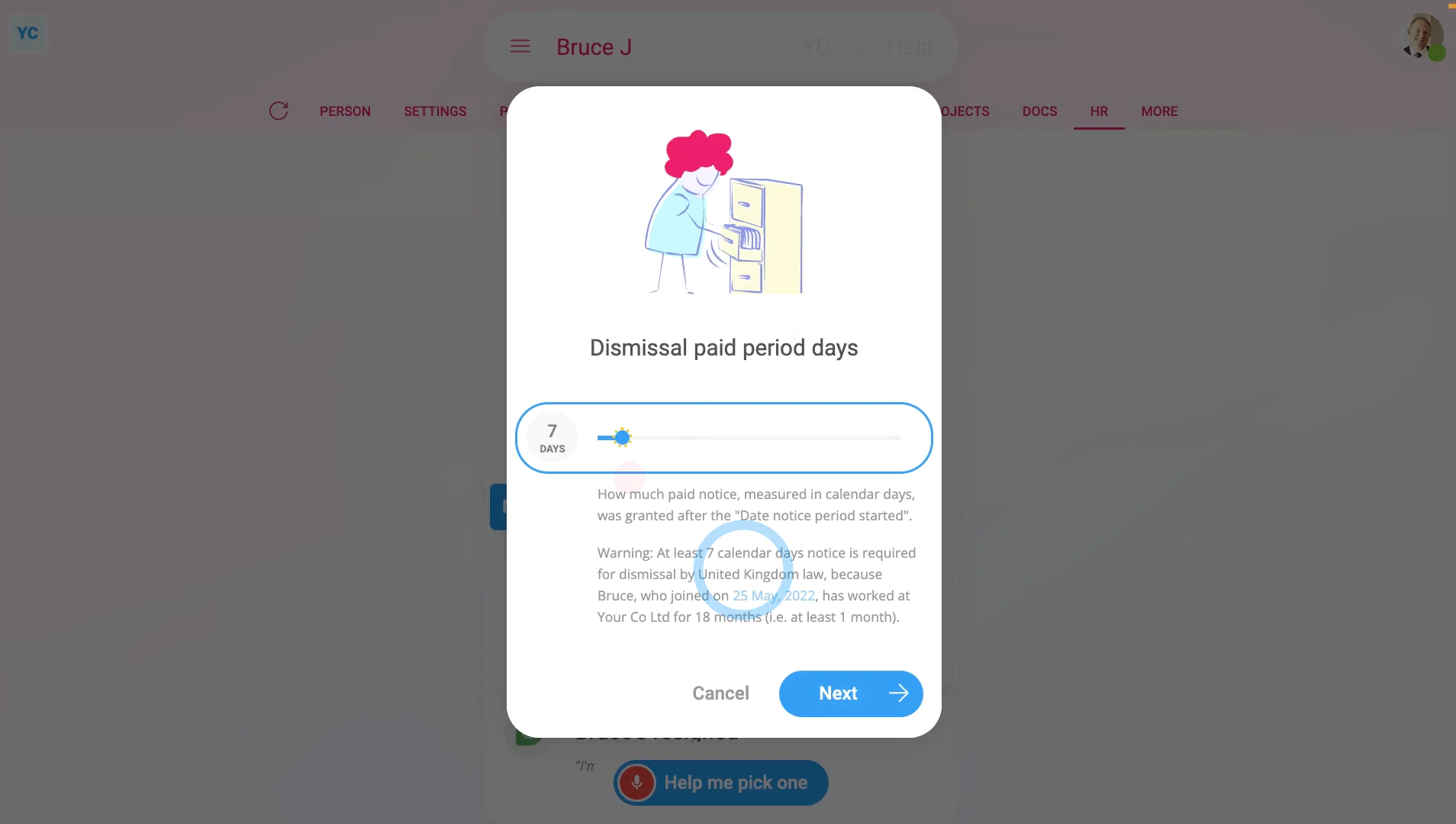
- In particular, you'll see the person's default minimum notice period, based on how long the person's worked for you.
- You can tap it to change it to a longer notice period, but you can't make it shorter than the minimum.
- To understand the calculation of the minimum notice period, read the notes below the slider.
- Once you've read the questions, tap: "Yes" to all the above
- Setting the termination tasks:
Next, you'll see the number of tasks that 1st Money automatically does for you. - To see the details of what each task does, tap expand all: (at the top)
- In particular, pay attention to the "starts on" date of the person's "paid notice" period.
- By default, it's set to tomorrow's date. Tap it, if you want to change it to a different date.
- If there's any other updates you'd like to make, do those updates now.
- For example, you could update their paid time off hours, or update their personal email.
- Some of the tasks send an email, or doc. To see a preview of any emails or docs, tap the links.
- Once you're happy with all the tasks, tap Continue, and then: Yes ... do it
- All the tasks are now done in the background.
- Sending the termination doc:
Next, the person can optionally be informed, in writing, about their upcoming termination. - A termination doc is prepared in the foreground, all ready for you to complete and send.
- Read through the termination doc, and tap the pick list for the best matching reason for the termination.
- If you want to change some text, or type more text in, tap Show editor, and make your changes.
- Then when you're ready to send the termination doc, tap Request "Got it", then Yes ... request "Got it", and then: Close
- Receiving the termination doc:
The person now gets an email, asking them to confirm that the termination doc you've sent has been received. - The person can't access the rest of 1st Money until the person's tapped Got it to the termination doc.
- Record of events:
Now, on the "Record of events" tab, tap the termination to expand it. - You'll see that the doc's been sent.
- To see a copy of the sent doc, tap the "View" button: (at the end of the row)
- And you'll see the status change, once the person eventually marks the doc as: "Got it"
- And finally, to see their final payslip, tap the "See final payslip" button: (at the end of the row)

Keep in mind that:
- If there's any doubt about whether the person's going to look at their email, it's recommended that you also call the person by phone.
- And personally tell them that a termination doc's been sent to their email.
- Also, it's important to check that it's going to send the docs to the person's personal email before you tap: Yes ... do it
- Especially if it currently only lists their work email, and if you suspect the person may lose access to their work email once the person's terminated.
- Depending on your situation, in some cases, you may even want to print the doc. And then hand-deliver it to the person, so you can be sure.
Also remember that:
- During the notice period, the person's expected to work as usual, and is also paid as usual, with no changes to their payroll.
- In some cases, a person with a termination notice period may stop coming in, or abandon their job. In other cases the person may find another job and ask to end their notice period early.
- For a suggestion on what to do if the person stops coming in, or has other "Unexcused absences", watch the video on: Issuing a disciplinary action
- For a suggestion on what to do if the person abandons their job, watch the video on: Termination for cause (willful misconduct)
- And for a suggestion on what to do if the person finds another job and asks to end their notice period early, watch the video on: Resignation, and you've agreed
 Issuing a disciplinary action
For advanced usage:
- Your company may have its own process for sending written notice. If so, you can still have the automated execution of tasks, but may prefer to not send the supplied termination doc.
- You can either skip the sending of the termination doc, when it's shown, or alternatively, you can permanently turn it off.
- To learn about permanently turning off termination docs, watch the video on: Turning off leave & disciplinary action docs
To learn more:
- About what it looks like for the person to mark the doc as "Got it", watch the video on: Letters & docs confirmed with "Got it"
- And to learn about the alternative of having a person work right up until their last working day, but not come into the office, watch the video on: Termination with non-working paid notice (garden leave)
And that's it! That's everything you need to know about terminating a person with a notice period, and have them work until their last day!
How do I change the default docs for leave and disciplinary actionsHow do I instantly terminate employment during their probation
www.1st.money/uk/help/Offboarding/How_do_I_give_a_person_notice_of_their_upcoming_termination